Configure Amazon Web Services
Arista supports Amazon Web Services (AWS) configuration in Non SD-WAN Destination.
- Obtain Public IP, Inside IP, and PSK details from the Amazon Web Services website.
- Enter the details you obtained from the AWS website into the Non-Arista Network Service in the Orchestrator.
Configure Edge for Amazon Web Services (AWS) Transit Gateway (TGW) Connect Service
VeloCloud Edges typically get deployed in a Transit VPC on Amazon Web Services (AWS). AWS introduced the support for AWS TGW (Transit Gateway) Connect Service for SD-WAN appliances to connect to the Transit Gateway. VeloCloud Edge now has a feature (BGP over GRE support on LAN), which enables support on the VeloCloud Edge to use the AWS TGW Connect Service for connectivity to the AWS Transit Gateway.
For the AWS TGW Connect Service, the Edge provisioned in the Transit VPC needs to use the LAN (routed, non-WAN) interface to set up the GRE tunnel. This effectively uses the Private IP configured on the Edge Intelligence (EI) to set up the GRE tunnel to the Transit Gateway.
Amazon Web Services (AWS) Configuration Procedure
- In the AWS portal, provision an AWS Transit Gateway in a particular region. This same region must have the Transit VPC, where the VeloCloud Edge is provisioned.
Figure 1. AWS Transit Gateway 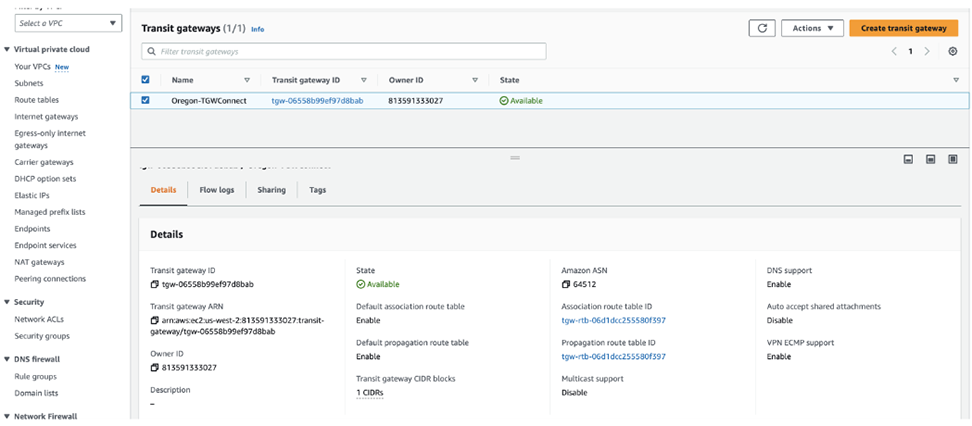
Check for the Transit Gateway CIDR block to be configured, as shown in the image below.
Note: An IP from this block is used for the GRE endpoint on the AWS TGW. The Amazon ASN is used later in the BGP configuration on the VeloCloud Edge.Figure 2. Transit Gateway CIDR block 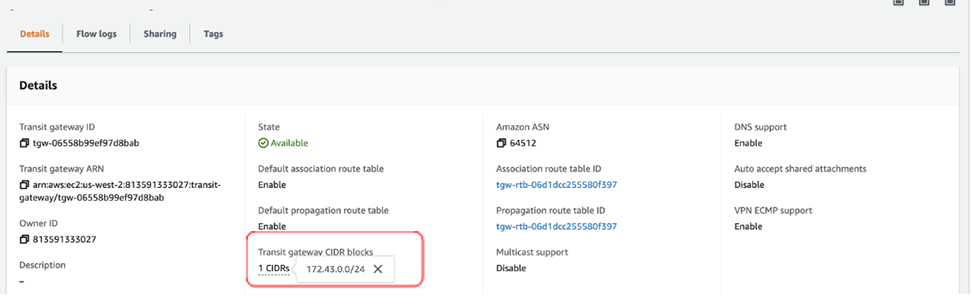
- Create a VPC Attachment for the Transit VPC specifying the Subnets where the LAN interface of the Edge or EI resides.
Figure 3. VPC Attachment for the Transit VPC 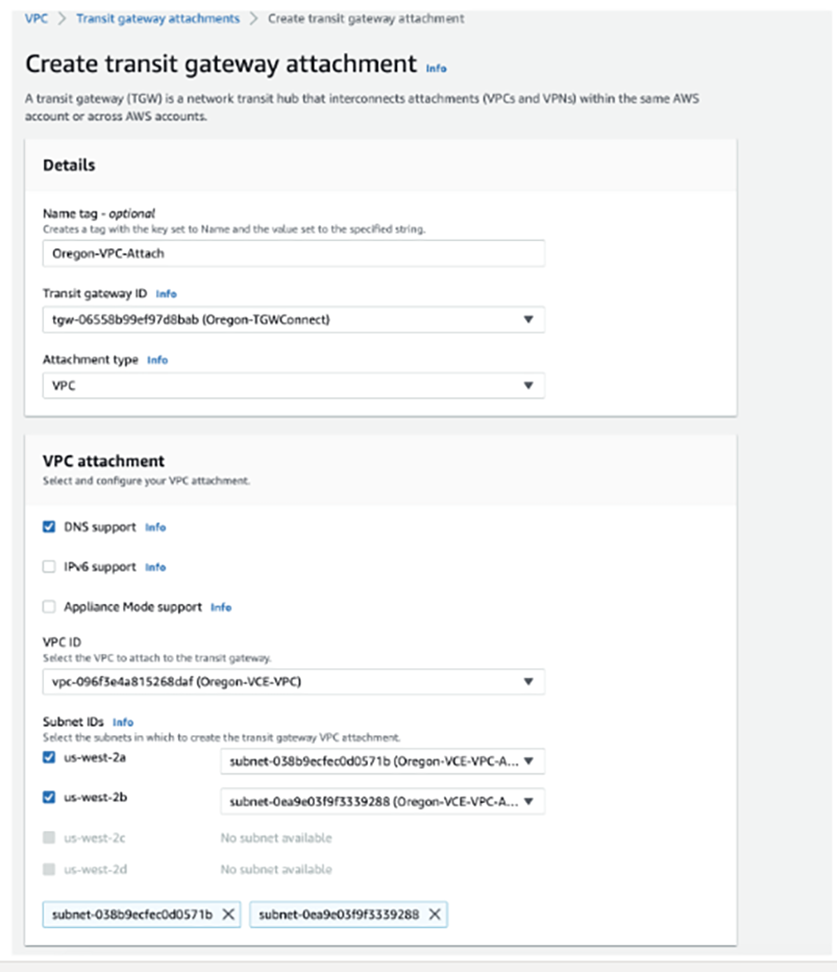
After the VPC Attachment is created, Available will display in the State column.
Figure 4. Available Status 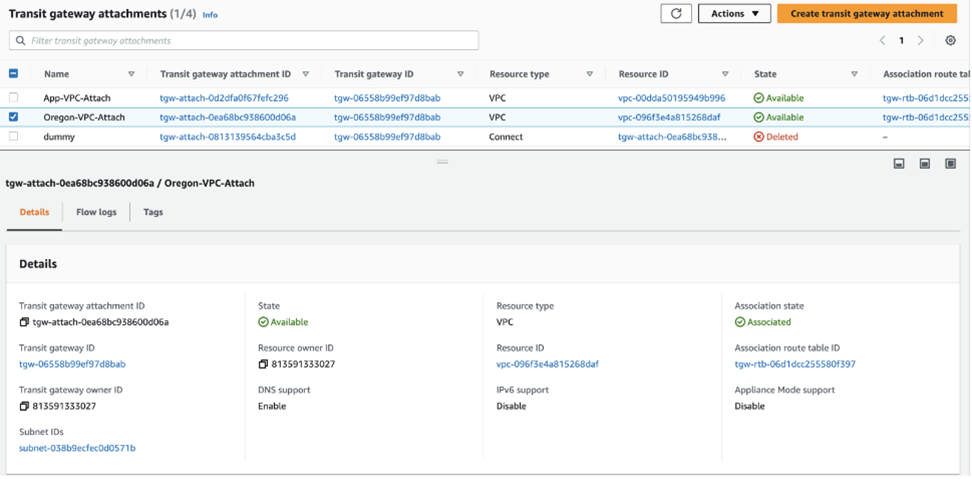
- Create a Connect Attachment using the VPC Attachment.
Figure 5. Creating Transit Gateway Attachment 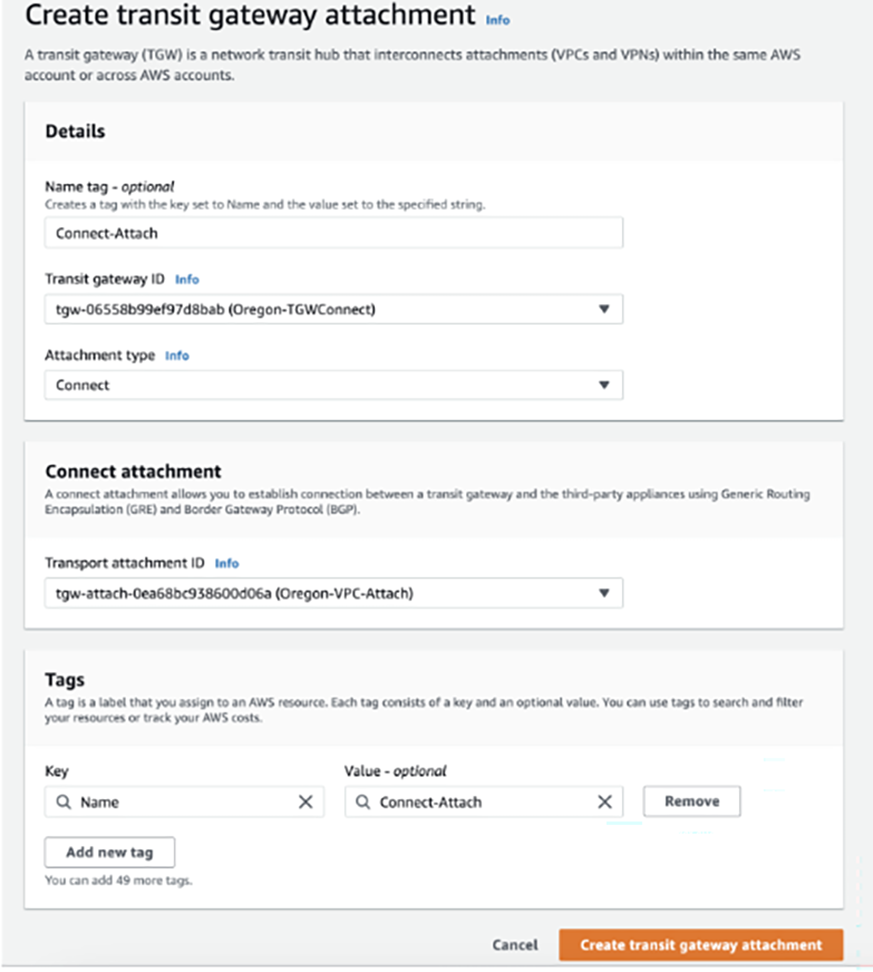
After the Connect Attachment is created, Available will display in the State column.
- Create a Connect peer, which will translate to a GRE Tunnel. Specify the following parameters: the Transit Gateway GRE Address, the Peer GRE Address, the BGP Inside CIDR block, and the Peer ASN.
Note: The BGP Inside CIDR block and the Peer ASN must match what is configured on the VeloCloud Edge.
Figure 6. Connecting Peer 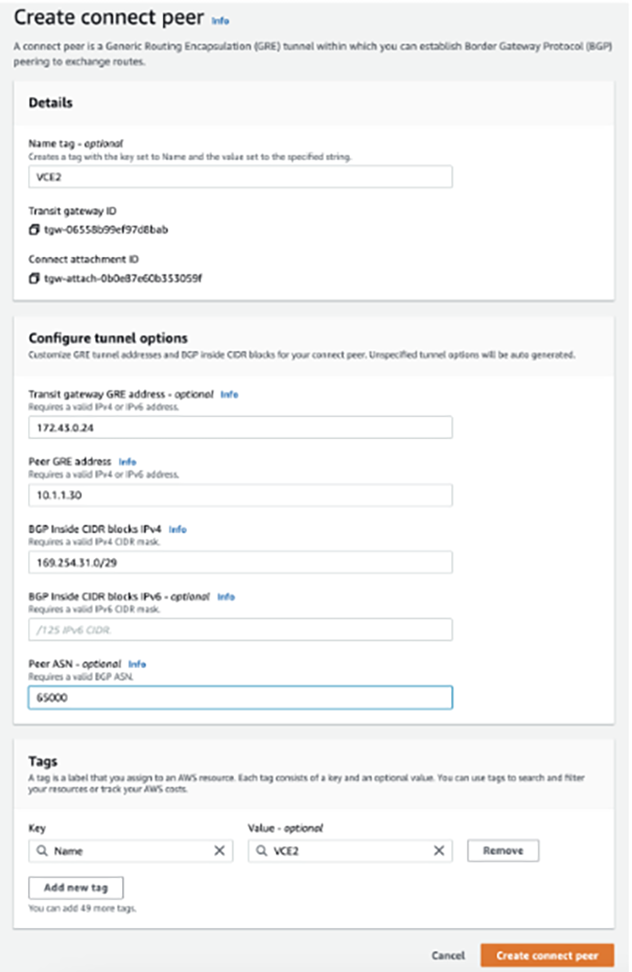 In the above example:
- 172.43.0.24 is the GRE Outside IP address on the AWS TGW, this IP is allocated from the Transit Gateway CIDR block.
- 10.1.1.30 is the GRE Outside IP address on the VeloCloud Edge.
- 169.254.31.0/29 is the Inside CIDR Block. The addresses from this block are used for the BGP neighbor.
- 169.254.31.1 is the IP address on the VeloCloud Edge.
- 169.254.31.2 and 169.254.31.3 are addresses used for the BGP on the AWS TGW.
- 64512 is the BGP ASN configured on the AWS TGW.
- 65000 is the BGP ASN configured on the VeloCloud Edge.
Figure 7. Peer Details 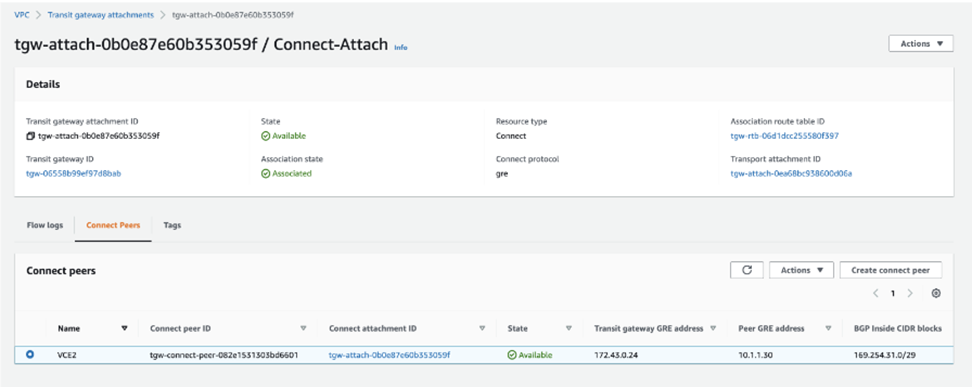 The VPC Resource Map for the Transit VPC lists the LAN side subnet with the Route table, as shown in the image below.
Figure 8. VPC Resource Map for the Transit VPC lists 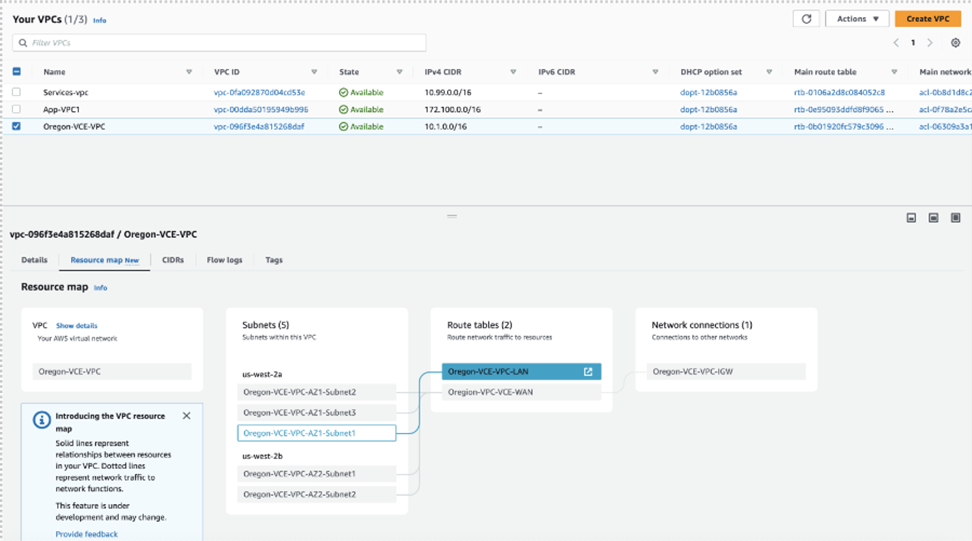
- In the Transit VPC route table, add a route for the TGW CIDR block with Target or Next Hop as the VPC Attachment.
Note: For example, 172.43.0.0/24 is the AWS TGW CIDR block.
Figure 9. Adding a Route 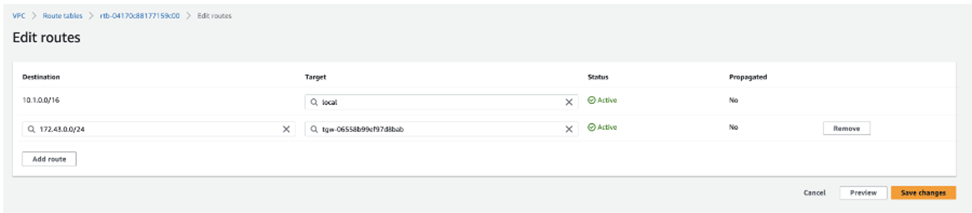
- In the same route table, verify that the LAN EI subnet has an explicit Subnet association.
Figure 10. LAN EI Subnet 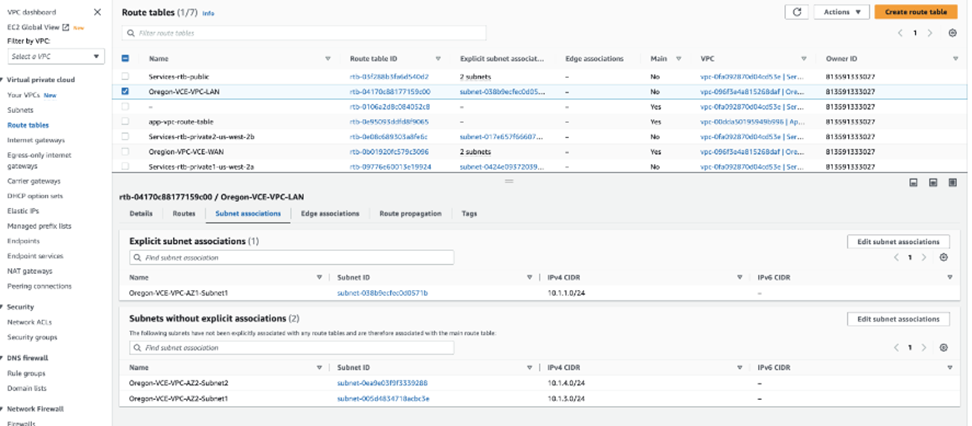
Edge Cloud Orchestrator Configuration Procedure
- On the Edge Cloud Orchestrator, go to and configure the GRE Tunnel with the AWS Transit Gateway Connect.
Figure 11. Edge Cloud Orchestrator Configuration 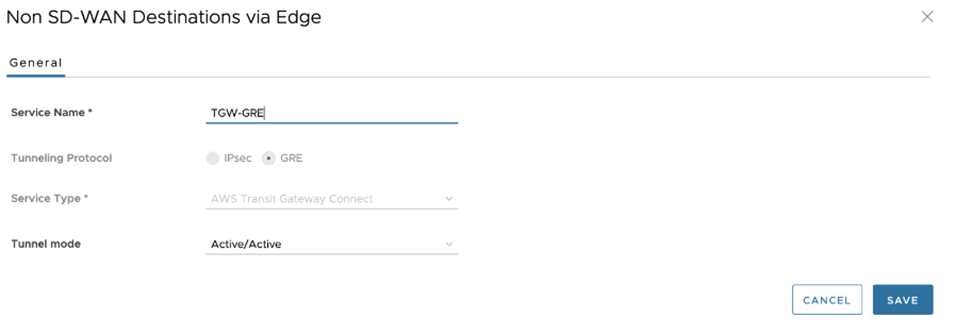 Note: When configuring the GRE Tunnel with the AWS Transit Gateway Connect service, see the following important notes:
- The only Tunnel Mode parameter that can be configured is Active/Active.
- There are no Keepalive mechanisms for the GRE tunnel with the AWS Transit Gateway Service.
- BGP will be configured by default for the GRE tunnels. BGP Keepalive(s) are used for the BGP neighbor status.
- The Edge does not support ECMP across multiple tunnels. Therefore, only one GRE Tunnel will be used for egress Traffic.
- The Tunnel Source interface must have a default gateway configured for the feature to work.
- Under Profile, enable Cloud VPN, enable Non SD-WAN Destination via Edge, and choose NSD.
Figure 12. Non SD-WAN Destination via Edge 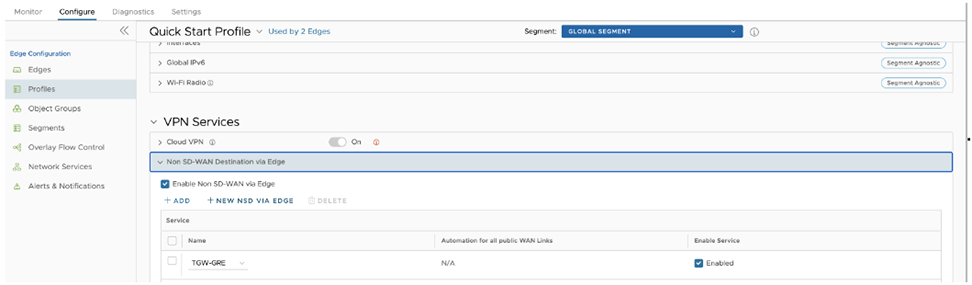
- Under the Edge configuration in the Non SD-WAN Destinations via Edge, select the configured NSD.
Figure 13. Configured NSD 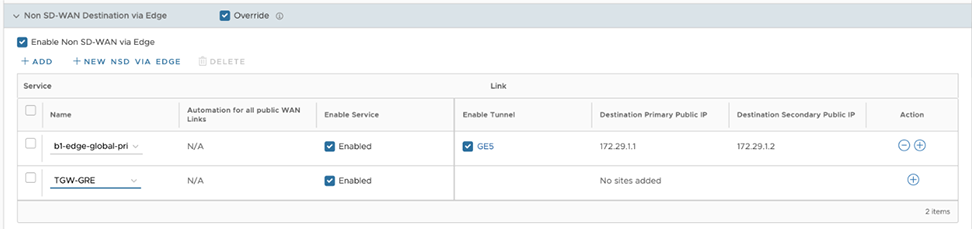
- For the specific NSD, configure the GRE tunnel parameters by selecting the + sign. Configure the following below:
- Tunnel Source as the LAN interface
- Tunnel Source IP as the IP address configured on the LAN interface, if specified dynamically use Remote Diagnostics > Interface Stats to obtain the IP address
- TGW ASN
- The Primary Tunnel parameters can be configured by providing, Destination IP, the IP address provided on the TGW Connect Peer
- The Internal Network/Mask must be the same as specified in the TGW Connect Peer Inside configuration.
- The Secondary Tunnel parameters can be configured for the Destination IP and Internal Network/Mask.
Figure 14. Add TGW Connect Peer 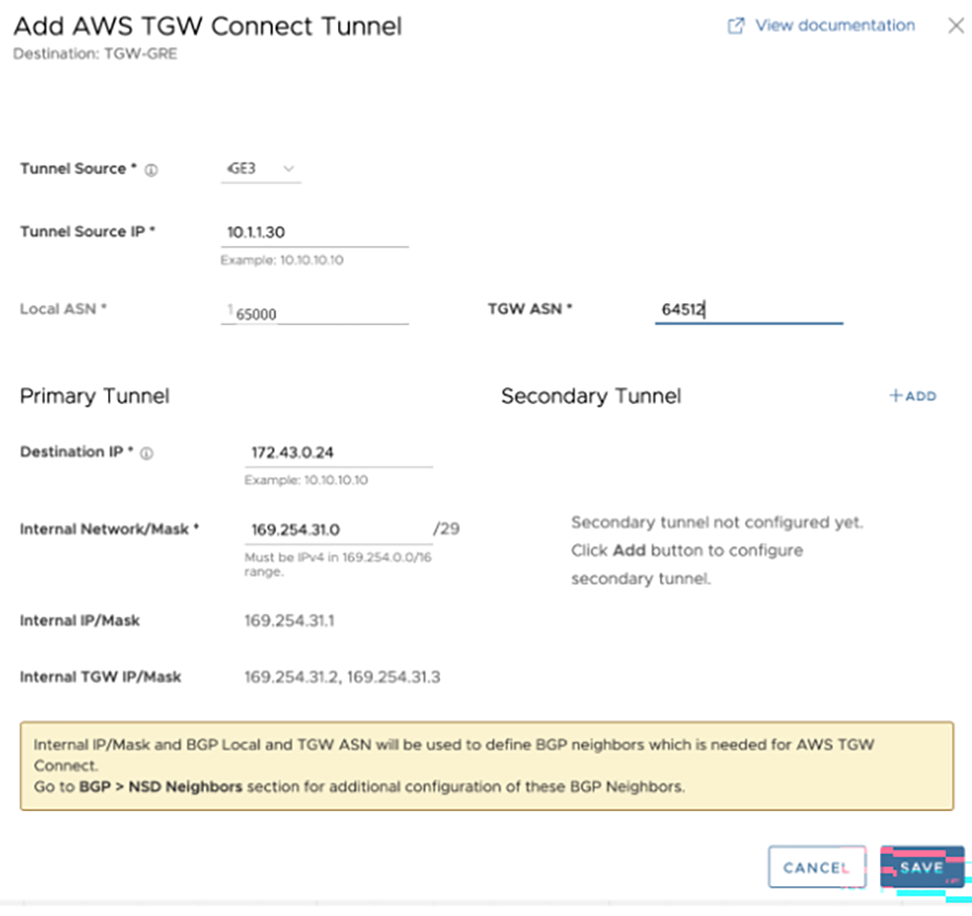 Note: BGP will be enabled by default for this feature. Local ASN field will be pre-populated.
The Non SD-WAN via Edge configuration displays, as shown in the image.
Figure 15. SD-WAN via Edge Configuration Display 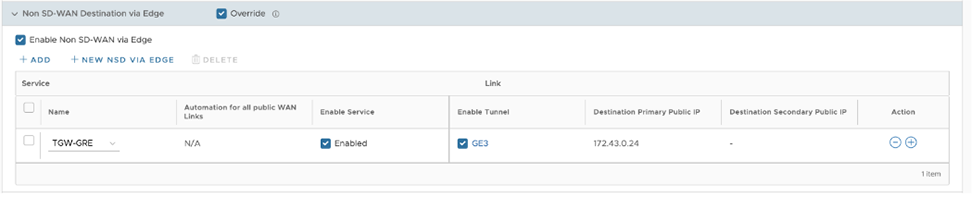
- The above configuration will automatically create the BGP configuration for the Neighbors. Each GRE Tunnel configuration towards the AWS Transit Gateway will automatically be created for two BGP Neighbors with information regarding the Link Name, Neighbor IP, Tunnel Type, and ASN.
Figure 16. BGP Neighbors with Information  In Additional Options, the eBGP Max Hop is configured as 2, as this is a requirement for the TGW Connect Service. The additional parameters that are populated are Keepalive and Hold Timer based off the recommendation provided by AWS. The BGP Local IP is also pre-populated. These parameters cannot be modified.
Figure 17. Additional Options 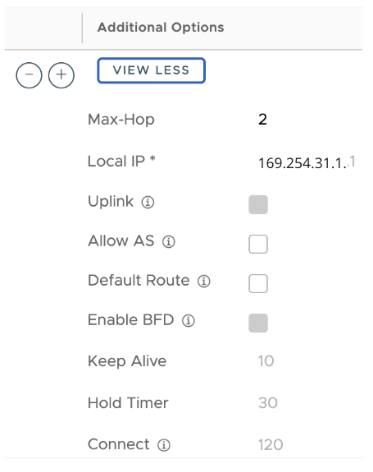 Note:
Note:- Two NSD BGP Neighbors will be automatically added.
- The Additional Options field will be modified for Max-Hop, Local IP, Keep Alive, and Hold Timer values.
- For the GRE tunnel endpoint, configure a static route on the VeloCloud Edge which specifies the Next-Hop to specify the Subnet Default Gateway and Interface as the LAN interface.
Figure 18. Static Route 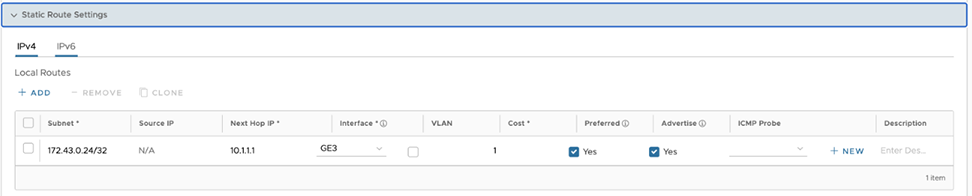
Obtain Amazon Web Services Configuration Details
Discusses how to obtain Amazon Web Services configuration details.
- From Amazon's Web Services, create VPC and VPN Connections. Refer to the instructions in Amazon's documentation: http://awsdocs.s3.amazonaws.com/VPC/latest/vpc-nag.pdf.
- Make note of the Gateways associated with the enterprise account in the Orchestrator that might be needed to create a virtual private gateway in the Amazon Web Services.
- Make a note of the Public IP, Inside IP and PSK details associated with the Virtual Private Gateway. You need to enter this information in the Orchestrator when you create a Non SD-WAN Destination.
Configure a Non SD-WAN Destination
After you obtain Public IP, Inside IP, and PSK information from the Amazon Web Services (AWS) website, you can configure a Non SD-WAN Destination.
AWS Cloud WAN CNE Connect using Tunnel-less BGP
AWS has announced Tunnel-less Connect on Cloud WAN. This document describes AWS components and how to configure for AWS and VeloCloud SD-WAN.
The new AWS Cloud WAN CNE Connect using Tunnel-less BGP capability provides a simpler way to build a global SD-WAN network using AWS backbone as a middle-mile transport network. With this capability, VeloCloud SD-WAN appliances can natively peer with AWS Cloud WAN using BGP (Border Gateway Protocol) without requiring tunneling protocols like IPSec or GRE. This simplifies the integration of customer’s SD-WAN into AWS cloud and allows them to leverage the high bandwidth AWS backbone for branch-to-branch connectivity across different geographic regions. This feature also supports in-built network segmentation, enabling customers to build a secure SD-WAN at a global scale.
VeloCloud SD-WAN Virtual Edges (vEdges) are typically deployed in what AWS calls a “Transport” VPC. This Transport VPC may then peered with other VPCs, TGWs, or in this case, a CNE (Cloud Network Edge) in the Cloud WAN backbone to achieve connectivity with resources the customer has homed into AWS.
For Cloud WAN CNE Connect, the vEdges provisioned in the Transport VPC will use the LAN-facing (routed, non-WAN) interface to establish a native L3 (i.e. unencapsulated) BGP peering with the CNE.
AWS Components
- Cloud WAN Core Network
- Policy definition
- Core Network Edge (CNE)
- Transport VPC
- VPC Attachment
- Connect Attachment
This assumes that the customer already has other resources in other AWS VPCs that use VPC peering to CNEs in Core Network. If not, the Core Network and CNEs must be defined, and attachments must be created to the customer’s existing workload VPCs.
AWS Configuration
- Using the following documentation to create vEdges in an AWS VPC:
- Virtual Edge Deployment Guide
- VeloCloud SD-WAN AWS CloudFormation Template- Green Field
- VeloCloud SD-WAN AWS CloudFormation Template- Brown Field
- On the AWS console, AWS Network Manager must be used to create a Global Network, if one does not already exist in the customer’s AWS deployment.
Figure 19. Create Global Network 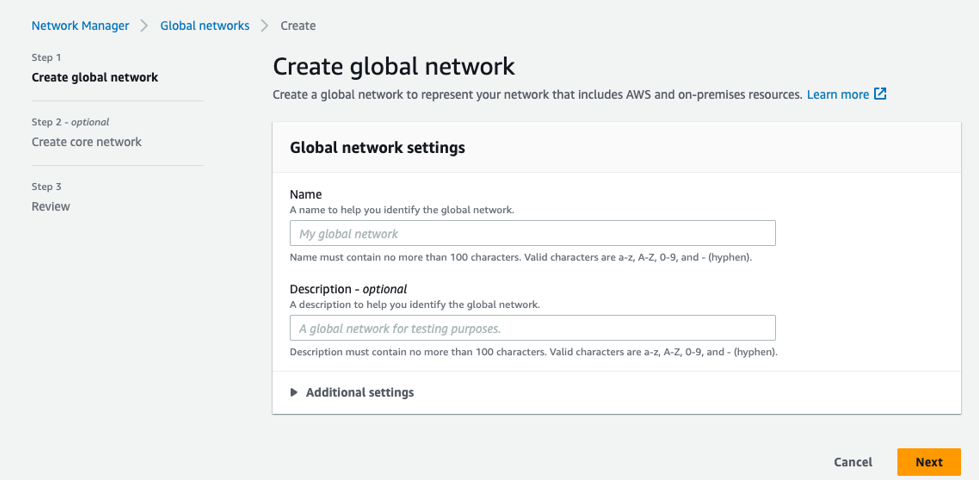
- Create a Policy version.
- A Policy version is where key details of the solution are defined and configured, as shown in the image below.
Figure 20. Key Details 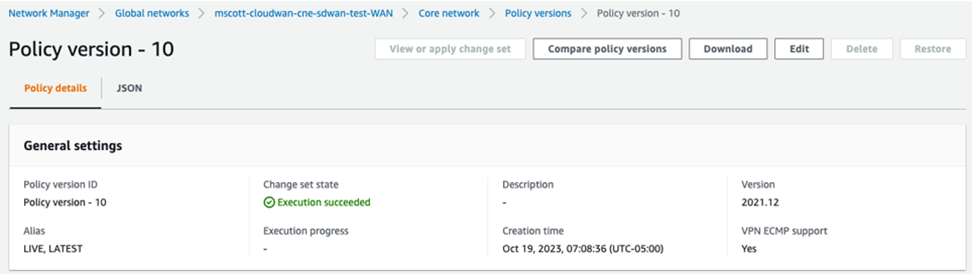
- Enter the BGP ASN ranges used by the CNEs.
Figure 21. ASN Ranges 
- In the global "Inside CIDR blocks," the CNEs will get their respective Inside CIDR blocks defined. Enter the CIDR in the appropriate text box, as shown in the image below.
Figure 22. Inside CIDR Blocks 
- Search for Edge locations in the appropriate text box, as shown in the image below. The CNE locations define the specific AWS AZ where a CNE will be instantiated.
Figure 23. Edge Locations  Note: The ASN and Inside CIDR Blocks for each Edge location are defined within the range defined above for the Global Network.
 - Search for Segments in the appropriate text box, as shown in the image below. Logical segments are defined using Tags. VPCs and Subnets may be tagged to define which segments they are a member of. In this example, the format is Key = “Segment”, Value = “SDWAN”, although the value is arbitrary.
Figure 24. Searching Segments  Note: Whatever value is used must match the value defined in the policy.
 - Attachment policies specify which Segments the VCP and Connect Attachments are a part of and what criteria are used. Search for the Attachment Policies in the appropriate text box, as shown in the image below. In the example below, a “tag-value” condition defines membership in the “SDWAN” segment defined above. The “Condition Values” are the key-value pair also defined above. This key-value pair must be present in VPCs and/or subnets for them to become Segment members.
Figure 25. Attachment Policies  Note: This is arguably the least intuitive and most error-prone part of the entire configuration. If you aren’t seeing routes from your remote workload VPCs, check this. Other configurations and conditions are possible, but this is what worked in lab testing.
- A Policy version is where key details of the solution are defined and configured, as shown in the image below.
- CNE Attachments: There are two types of attachments used, VPC Attachment and Connect Attachment.
- VPC Attachments: Each SD-WAN Transport VPC will have a VPC attachment to its respective CNE. At least one subnet within the VPC must be specified when the VPC Attachment is created. In this example, The CNE in the us-west-1 AZ peers with the SD-WAN Transport VPC’s private LAN subnet. A key-value pair defining Segment membership is also necessary.
Figure 26. VPC Attachments 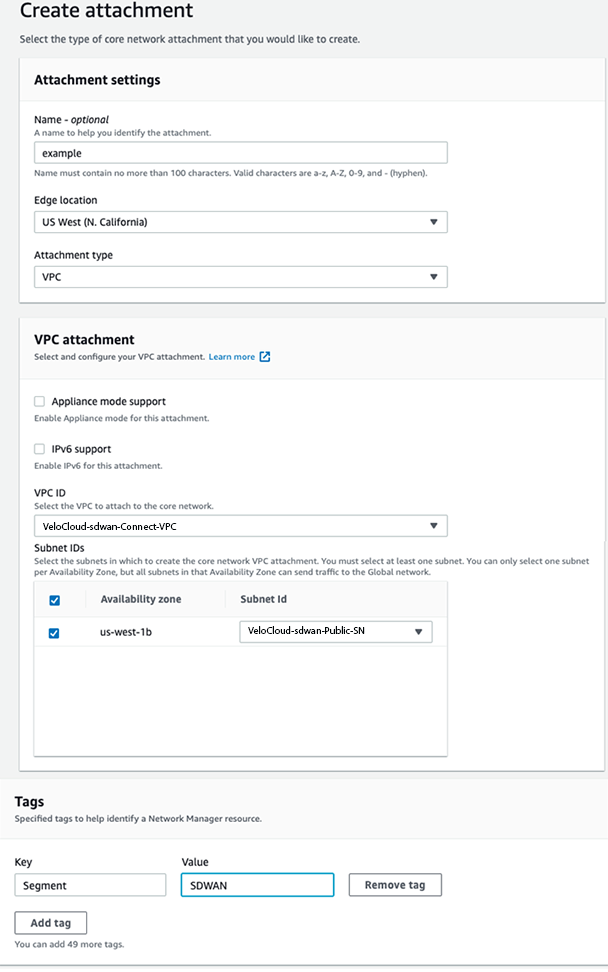 If the Policy has been configured correctly, the Attachment should show that it has been made part of the “SDWAN” Segment. The Attachment policy rule number being used will display, as shown in the image below.
Figure 27. Attachment Policy Rule Number 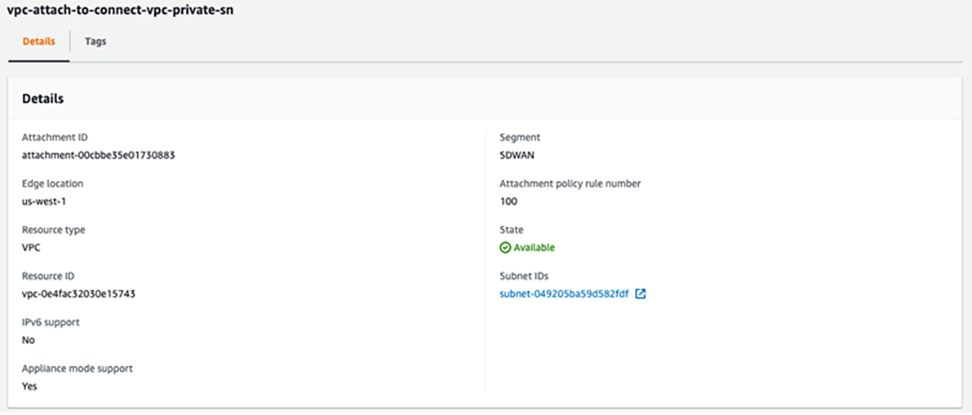
- Connect Attachments are where “Tunnel-less (No Encapsulation)” is configured. The Connect Attachment configuration must specify an existing VPC Attachment as the Transport Attachment ID, so the VPC Attachment must be configured first. As with the VPC Attachment, tags for Segment membership must be configured.
Figure 28. Connect Attachment configuration 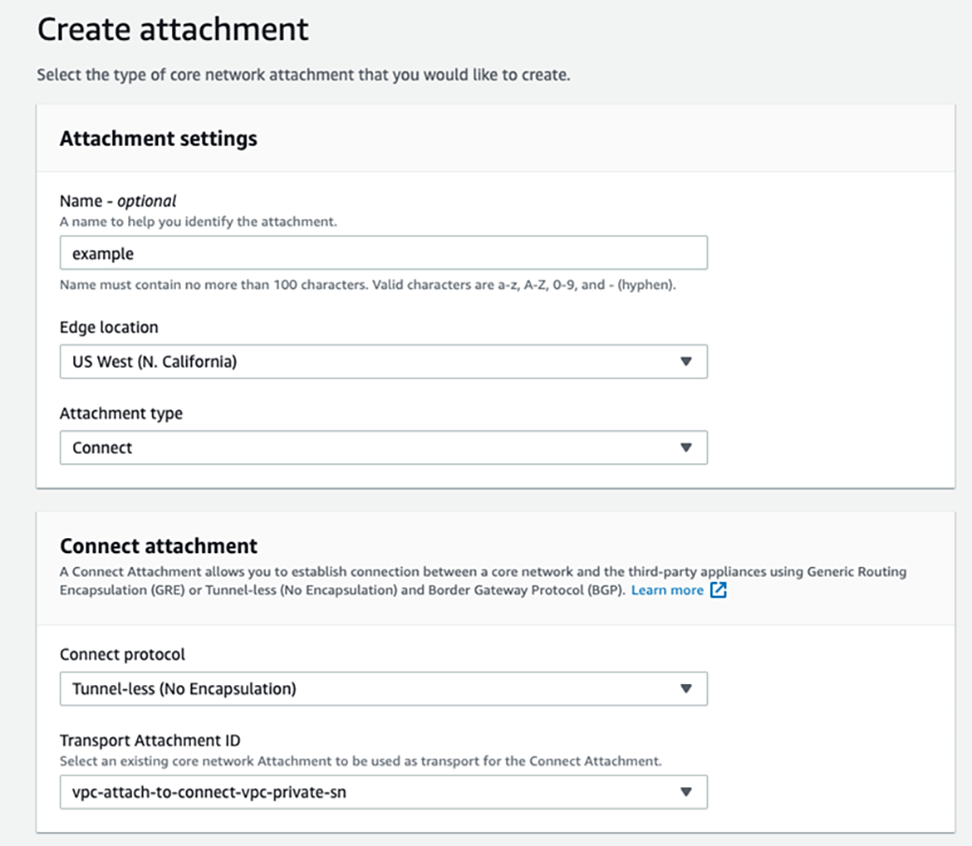
Figure 29. Adding Tags  If the Policy has been configured correctly, the Attachment should show that it has been made part of the “SDWAN” Segment. Note that the Attachment policy rule number being used is shown, as is “NO_ENCAP” for the Connect protocol. See image below.
Figure 30. General Details 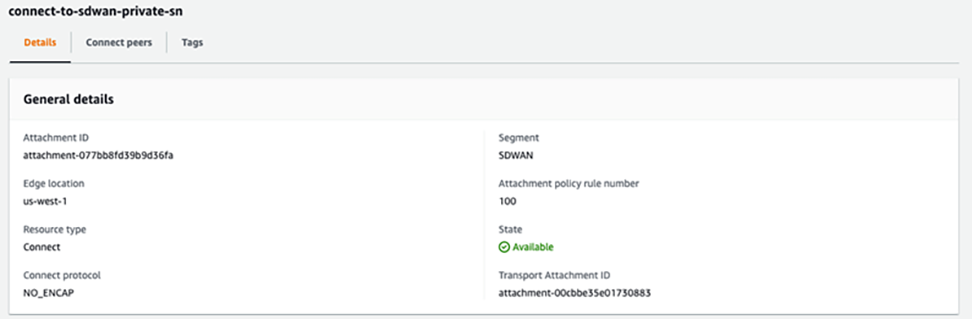
- VPC Attachments: Each SD-WAN Transport VPC will have a VPC attachment to its respective CNE. At least one subnet within the VPC must be specified when the VPC Attachment is created. In this example, The CNE in the us-west-1 AZ peers with the SD-WAN Transport VPC’s private LAN subnet. A key-value pair defining Segment membership is also necessary.
- Connect peers: Connect peers are created under the Connect Attachment. This is where the SD-WAN vEdge BGP peerings are defined in terms of the ASN and peer IP address. See image below.
Figure 31. Creating Connect Peers 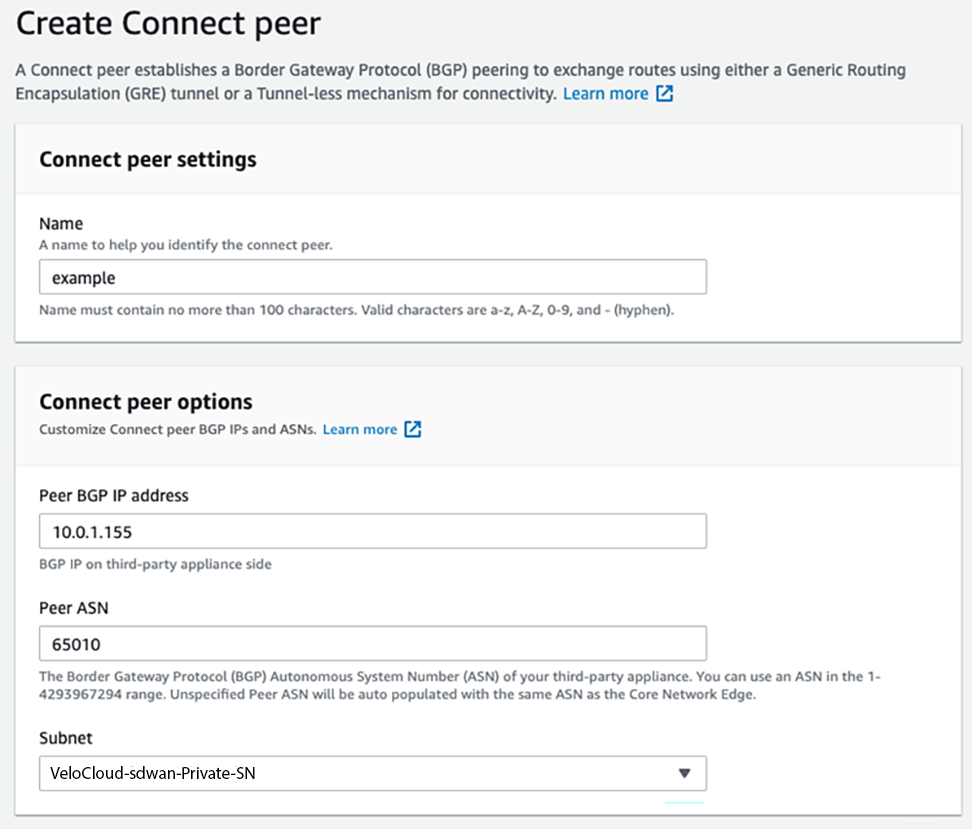
VeloCloud SD-WAN Configuration
- Configure Static Route Settings, as shown in the image below.
Figure 33. Configuring Static Route Settings 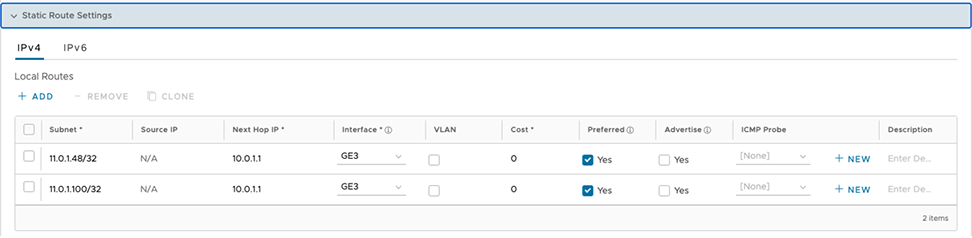
- When creating the BGP neighbors, set “Max-Hop” to 2 or more under Additional Options. See image below.
Figure 34. Additional Options for BGP Neighbors 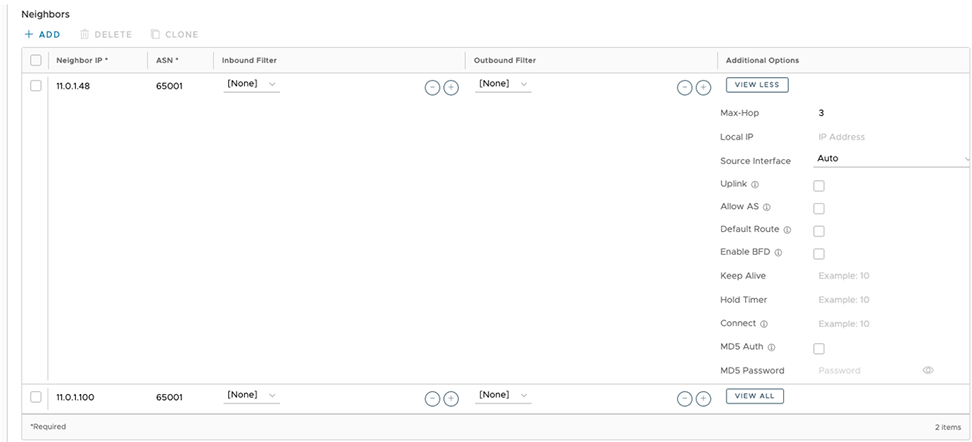
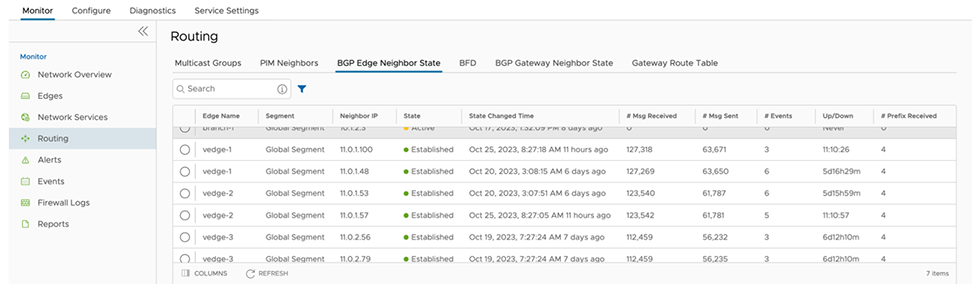
- Use Neighbor State to verify that the BGP peer relationship has been Established with the Neighbor IPs configured. See image below for a visual of the Routing screen.
Figure 35. Routing Screen