Using SSO Login for Enterprise User
This section describes how to log in to Arista VeloCloud Orchestrator using Single Sign On (SSO) as an Enterprise user.
- You must configure the SSO authentication in Orchestrator.
- You must set up users, roles and OIDC application for the SSO in your preferred IDPs. For more information, see the topic Authentication in the Arista SASE Global Settings Guide.
- In a web browser, launch the Orchestrator application as an Enterprise user. The VeloCloud Orchestrator Operations Console screen appears.
Figure 1. VeloCloud Orchestrator Operations Console 
- Click Sign In With Your Identity Provider.
Figure 2. Sign In 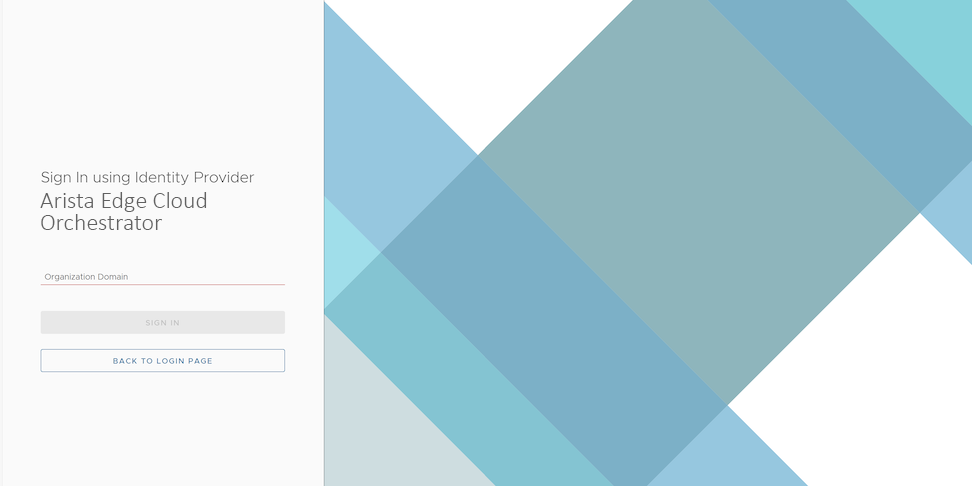
Next Steps:
- Monitor Customers
- Configure Customers
- Configure Service Settings
- Test and Troubleshoot Edges
- The user can click the User icon located at the top right of the screen to access the My Account page. The My Account page allows users to configure basic user information, SSH keys, and API tokens. Users can also view the current user's role, associated privileges, and additional information such as version number, build number, legal and terms information, cookie usage, and trademarks. For more information, refer to the Arista VeloCloud SD-WAN Operator Guide - Configure User Account Details.
Figure 3. User Information 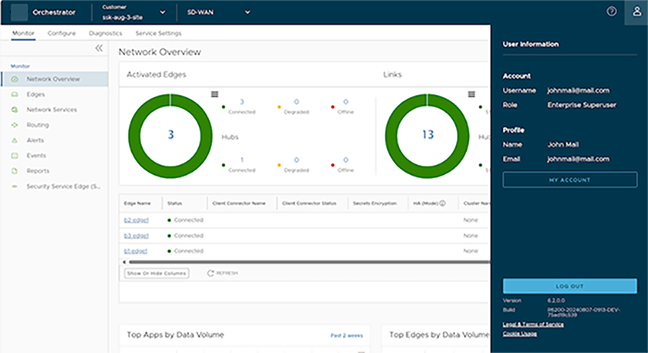
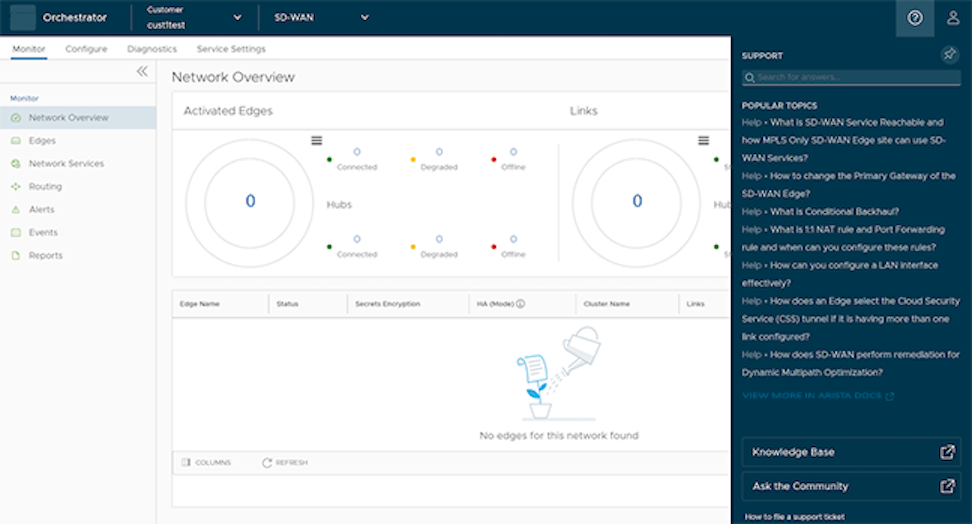
- Starting with the 5.4.0 release, the In-product Contextual Help Panel with context-sensitive user assistance is supported in the SD-WAN service of the Enterprise Orchestrator UI and as well as for the Operator and Partner levels. In the Global Navigation bar, click the Question Mark icon located at the top right of the screen to access the Support panel.
The Support panel allows users across all levels to access helpful and important information such as Question-Based Lists (QBLs), Knowledge base links, Ask the Community link, how to file a support ticket, and other related documentation from within the Orchestrator UI page itself. This makes it easier for the user to learn our product without having to navigate to another site for guidance or contact the Support Team.Note: By default, the Support Panel is not available to all Enterprise users. Contact your Operator or Partner Admins if you want to activate the In-product Contextual Help Panel feature.Figure 4. Help Panel