Edge Software Image Management
This topic contains the following sections:
Edge Software Image Management Overview
The Edge Software Image Management feature enables Enterprise Superusers to upgrade Edge firmware without relying on Support or the Partner.
Traditionally, whenever VeloCloud SD-WAN publishes a new Edge image, Enterprise Administrators must request the Support or a Partner to upgrade the software on their enterprise Edges. The Support will then engage with the customer and upgrade all or a subset of the Edges in the customer’s network. With the Edge Software Image Management feature activated, the Enterprise customers can manage the Edge software version that runs in their environment. The Edge Software Image Management feature enables Enterprise Superusers to upgrade Edge firmware without relying on Support or the Partner.
Additionally, this feature allows users to tag a specific Edge software image as deprecated if it is defective or not intended for customers to use it after release. The system notifies Enterprises using these deprecated images so they can migrate to a more stable Edge image release.
Activate Edge Image Management
The Orchestrator deactivates the Edge Software Image Management feature by default for customers. Only an Operator (or Support) can activate this feature for a Direct Enterprise and the Partner. In turn, the Partners can activate this feature for their Partner Enterprise customers. Partner users can activate the feature during or after creating a customer. The Enterprises with Edge software image management deactivated must engage with Support or Partner for Edge software upgrades.
For SD-WAN Services
Activate Edge Image Management for New Enterprise Customer
As an Operator User, users can manage the software images assigned to an Enterprise directly by assigning an Operator Profile to an Enterprise or allowing an Enterprise Superuser to manage the available list of software images assigned for an Enterprise by selecting the Allow Customer to Manage Software checkbox in the navigation path: . For additional information, refer to the Create New Customer section in the Arista VeloCloud SD-WAN Operator Guide.
Activate Edge Image Management for New Partner Customer
As a Partner Administrator, in addition to managing the software images assigned to the Partner customers, users can allow a Partner Customer's Superuser to manage the available list of software images for the customer by selecting the Allow Customer to Manage Software checkbox in the navigation path: . The Orchestrator Operator assigns a list of available software images to the Partner. The Orchestrator then uses this list to determine which images users can assign to the new customer. For additional information, refer to the Create New Customer section in the Arista VeloCloud SD-WAN Partner Guide.
Activate Edge Image Management for Existing Customer
As an Operator User or a Partner Administrator, users can delegate Edge image management to Enterprise or Partner Superusers. To delegate Edge image management to Enterprise Superusers, select the Allow Customer to Manage Software checkbox in the navigation path: . For additional information, refer to the Manage Customers section in the Arista VeloCloud SD-WAN Operator Guide.
To update the Edge image management settings for an existing customer, turn on the Edge Image Management toggle button in the navigation path: . When the feature is activated, the default software image is the only assigned software image for the customer. After the feature is activated, users can assign additional software images.
For additional information, refer to the Manage Customers section in the Arista VeloCloud SD-WAN Operator Guide.
Edge Image Assignment and Access
Operator and Partner Super users can assign all or a subset of Edge images to their customers from the available list of images assigned to them. Whenever users upgrade a hosted Orchestrator to a newer version of VeloCloud SD-WAN, the respective Edge images are uploaded to the Orchestrator. On a hosted Orchestrator, by default, newly uploaded Edge images are automatically assigned to Partners after the successful completion of the hosted Orchestrator upgrade. However, the Orchestrator does not automatically provide Edge images to direct Enterprise customers. To access new Edge images that the Operator uploaded to the hosted Orchestrator, the Enterprise customer must contact Support.
On an on-prem or Partner-managed Orchestrator, the Partner or service provider who manages and maintains the Orchestrator controls image uploads and Edge image assignments to Enterprise customers.
For detailed VeloCloud Edge software versions and recommended releases, refer to the KB article VeloCloud SD-WAN Software Versions: Recommended Releases.
Manage Edge Software Image
- A subsequent version fixes the major bug or security issue found in the Edge image.
- The Edge image is no longer supported, or it is reaching End Of Life (EOL).
After being deprecated, the image no longer appears in the list of software images or versions users can assign to Operator Profiles, or Customers, or Edges. Additionally, any Enterprise that has one or more of its Edges running this deprecated image will be notified about the deprecated image when they log in to the Orchestrator.
For additional information, see Software Images and Manage Operator Profiles sections in the Arista VeloCloud SD-WAN Operator Guide.
Edge Management
The Edge Management feature allows configuration of general settings, authentication, and encryption for an Edge. It allows activation or deactivation of configuration updates for an Edge. Users can also select a default software and firmware image.
- In the SD-WAN service of the Enterprise portal, select .
- Configure the following options and select Save Changes.
Figure 1. Edge Management 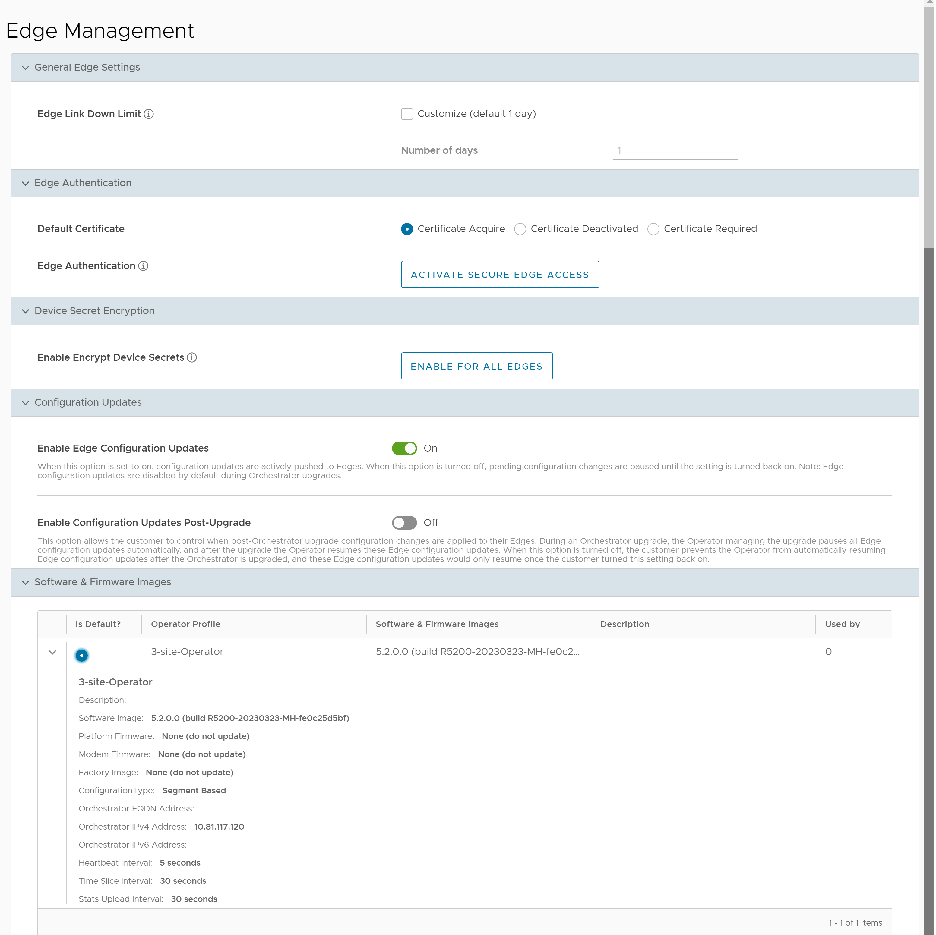
| Option | Description |
|---|---|
| General Edge Settings | |
| Edge Link Down Limit | Set this value for each Edge by selecting the Customize checkbox. This value overrides the value set through the system property edge.link.show.limit.sec. |
| Number of days | Enter a value in the range 1 to 365. The default value is 1. |
| Edge Authentication | |
| Default Certificate | Choose the default option to authenticate the Edges associated with the Customer.
|
| Edge Authentication | Select the Activate Secure Edge Access button to enable users to access Edges using Password-based or Key-based authentication. Users can activate this option only once. However, users can switch between password-based and key-based authentication at any time. |
| Device Secret Encryption | |
| Enable Encrypt Device Secrets | Select the Enable For All Edges button to activate device secret encryption for all the Edges in the current Enterprise. This action causes restart of all the Edges. However, it does not affect Edges with this feature already activated.
Note: Activate this option for individual Edges at the time of creating a new Edge. For additional information, refer to Provision a New Edge.
|
| Configuration Updates | |
| Disable Edge Configuration Updates | The system activates this option by default. This option enables pushing the configuration updates to Edges actively. Select the toggle button to turn it off. |
| Enable Configuration Updates Post-Upgrade | The system deactivates this option by default. This option controls when the system applies configuration changes to Edges after an Orchestrator upgrade. Select the toggle button to enable it. |
Software & Firmware Images
Users can see this section only after activating the Edge Image Management feature. To activate this feature, an Enterprise user must navigate to Manage Customers, select a customer, and then select . Select the toggle button to enable it, and then select Save.
The Enterprise user can now view the details of the images and select the default image on the Edge Management screen.
Upgrade SD-WAN Edges
Enterprise users can upgrade a specific Edge or a set of Edges, or all Edges, using the Edge Management feature.
Upgrade All Edges
In the SD-WAN service of the Enterprise portal, select . Navigate to the Software and Firmware Images area and select a default image.
Upgrade Specific Edge(s)
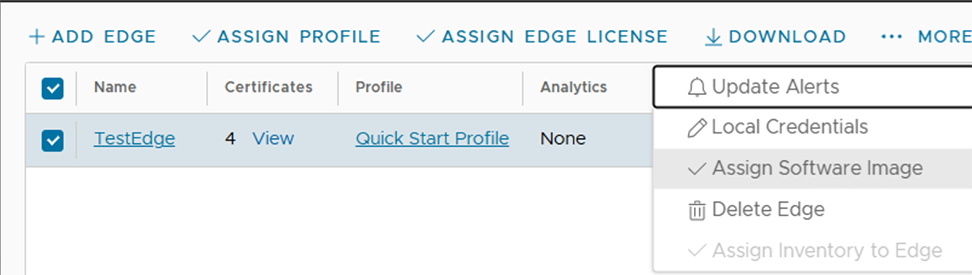
After users log in to the Orchestrator as an Enterprise user, users can override the default software image of an Enterprise for a selected Edge or set of Edges and assign a different software image to upgrade to those Edges by selecting .