Print

Configure SSE for Netskope

Generate an API Host and an API token through the Netskope portal.
SSE support for Netskope enables a VeloCloud Enterprise customer to automate IPSec tunnel creation from the VeloCloud Edge to the Netskope VPN Gateway.

Follow the below procedure to configure SSE Subscription and SSE Integration for Netskope:

  1. In the SD-WAN service of the Enterprise portal, navigate to Configure > Security Service Edge (SSE) .
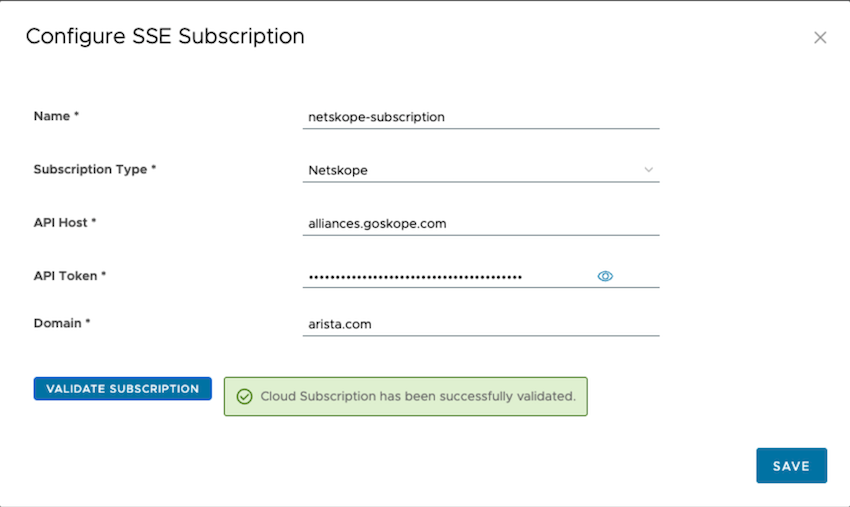
  2. To create a new subscription, click + New SSE Subscription. The following Configure SSE Subscription window appears when selecting the Subscription Type as Netskope:
    Figure 1. Configure a new SSE Subscription for Netskope
    Note: The fields displayed on the screen vary depending on the selected Subscription Type.
  3. Configure the following options:
    Table 1. Configure a new SSE Subscription for Netskope - Options and Descriptions
    Option Description
    Name Enter the name of the SSE Subscription.
    Subscription Type Choose Netskope from the drop-down menu.
    API Host Enter the API Host details. Each Enterprise customer has a unique API Host that can be generated from the Netskope portal. Example: alliances.goskope.com
    API Token Enter the API token obtained from the Netskope portal.
    Domain Enter the company domain name.
  4. Click Validate Subscription to make sure that the entered credentials are correct.
  5. Click Save to save the configured subscription.
    The newly created SSE Netskope Subscription appears.
    Figure 2. SSE Subscriptions for Netskope
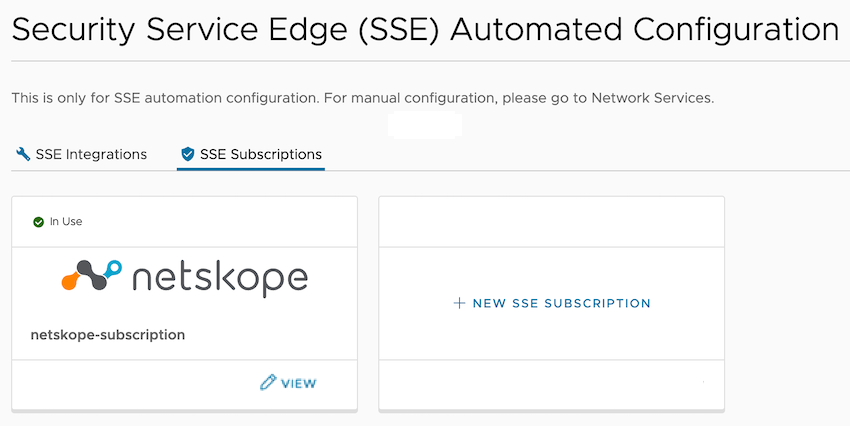
  6. On the tile, click View to view the existing subscription details.
  7. After creating an SSE Subscription, proceed to create an SSE Integration.
  8. Click the SSE Integrations tab.
    Figure 3. SSE Integration for Netskope
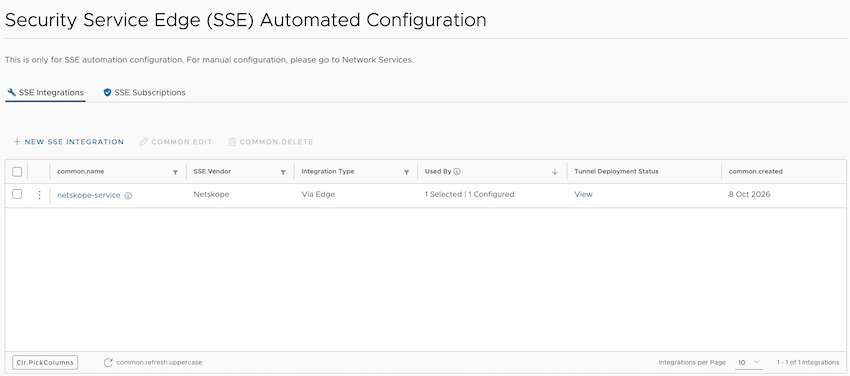
  9. To create a new SSE integration, click + New SSE Integration.
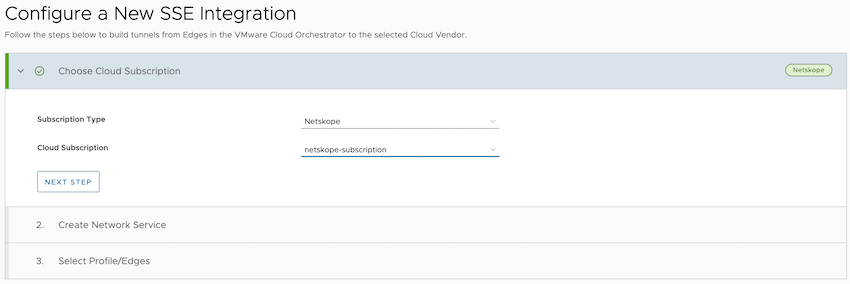
    Figure 4. Configure a new SSE Integration for Netskope
    Note: The fields displayed on the screen vary depending on the selected Subscription Type.
  10. Under Choose Cloud Subscription section, configure the following options:
    Table 2. Configure a new SSE Integration for Netskope - Options and Descriptions
    Option Description
    Subscription Type Choose Netskope from the drop-down menu.
    Cloud Subscription Choose the configured subscription from the drop-down menu.
  11. Click Next Step to activate the Create Network Service section.
    Figure 5. Create Network Service
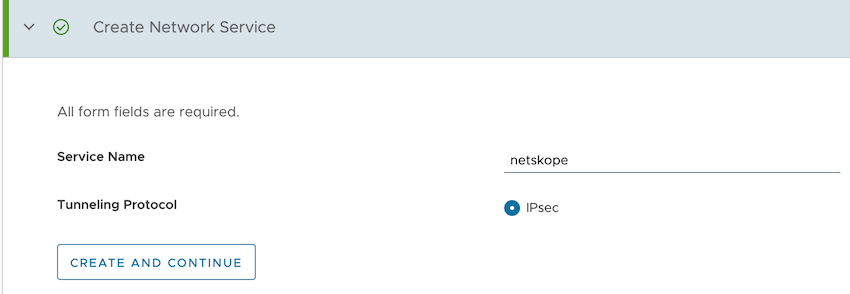
  12. Configure the following options:
    Table 3. Create Network Service - Options and Descriptions
    Option Description
    Service Name Enter an appropriate service name.
    Tunneling Protocol This field is set to IPsec, which is the only supported protocol.
  13. Click Create and Continue. The Select Profile/Edges section appears.
    Figure 6. Select Profile/Edges
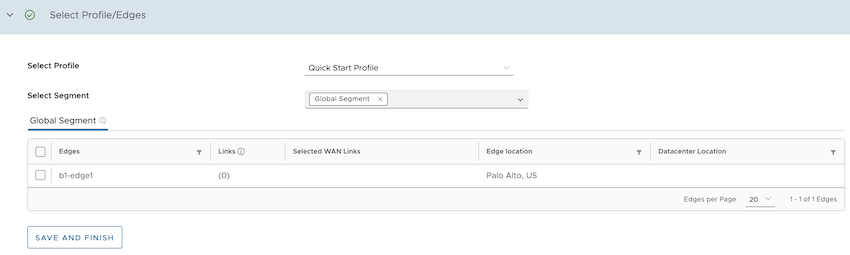
  14. Configure the following options:
    Table 4. Select Profile/Edges - Options and Descriptions
    Option Description
    Select Profile Select an SD-WAN Edge Profile from the drop-down menu.
    Select Segment Select a Segment from the drop-down menu. By default, Global Segment is selected.
    Note: Users can select multiple Segments for Netskope subscription.
    Edges Selecting a Profile and Segment populates its related Edges. Choose one or more Edges to apply SSE integration to.
    Links Displays the Edge links.
    Selected WAN Links If an Edge has more than two WAN links, the table auto-populates the first two. Select the preferred WAN links for the automation.
    Edge Location Displays the location of the Edge.
    Datacenter Location Displays the location of the Datacenter.
  15. Click Save and Finish.
    The newly created SSE integration appears on the list on the Security Service Edge (SSE) screen.
    Note: If the screen doesn't display the new SSE integration details, click Refresh.
Monitor Tunnel Deployment Status

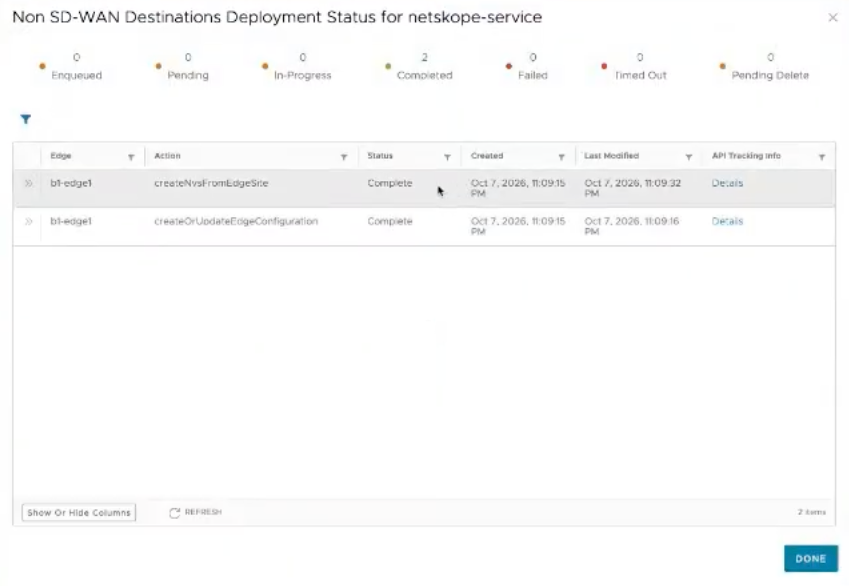
To monitor the automation status, click the View link in the Tunnel Deployment Status column of the Configure > Security Service Edge (SSE) screen. The following screen appears:

Figure 7. Tunnel Deployment Status

Click the Details link to view detailed API tracking information.

Note: Users can also monitor the SSE deployment status on Monitor > Events and Monitor > Network Services > Non SD-WAN Destinations via Edge screens. For more information, see the VeloCloud SD-WAN Administration Guide - Monitor Events and Monitor Network Services.
..