Deploy a VeloCloud Edge on Azure Private MEC
The following are the prerequisites to deploy a Virtual Edge on Azure Private MEC:
- An Azure account and login information to the Azure portal.
- Familiarity with Azure Virtual Network concepts. (For more information, go to: https://docs.microsoft.com/en-us/azure/virtual-network/virtual-networks-overview)
- Orchestrator host name and admin account to login.
- To deploy a Virtual Edge on Azure Private MEC, perform the following steps:
Provision a VeloCloud Edge on the Orchestrator as follows:
- Log in to the Orchestrator application as an Admin user, with your login credentials.
- In the SD-WAN service of the Enterprise portal, .
- In the Edges screen, Add Edge. The Provision an Edge screen appears.
Figure 1. Provision an Edge Screen 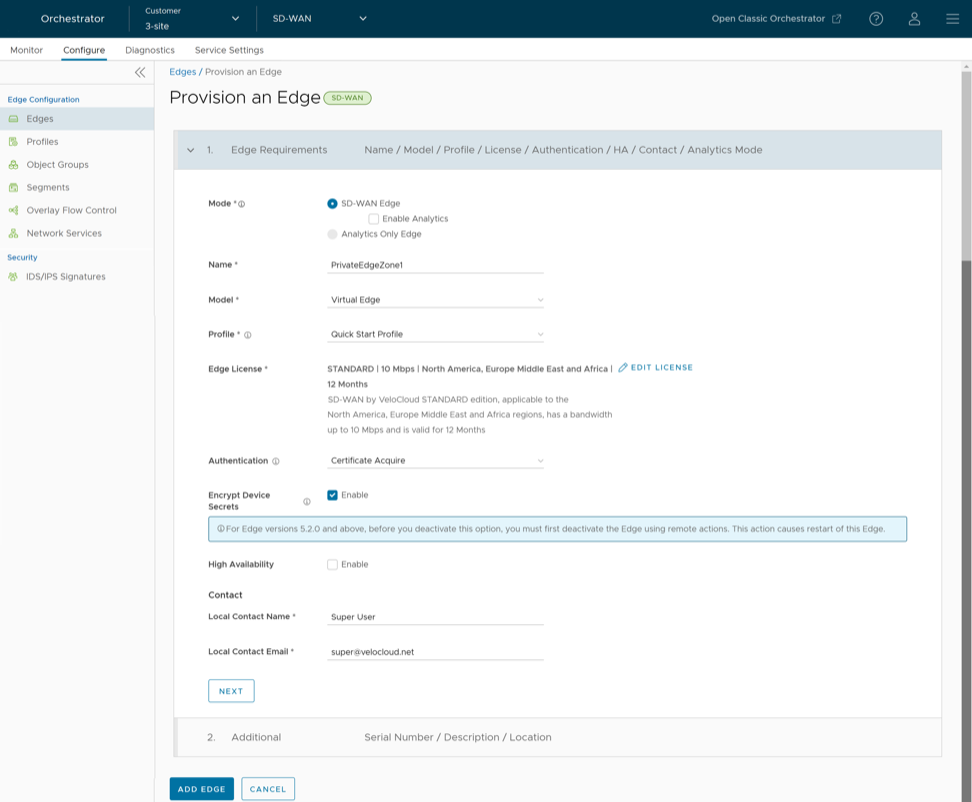
- By default, SD-WAN Edge mode is selected. For Enterprise Customers with Analytics enabled, you can provision an Analytics Edge by selecting the Analytics Only Edge option.
- In the Name textbox, enter a unique name for the Edge.
- From the Model drop-down menu, select Virtual Edge.
- From the Profile drop-down menu, select a profile. By default, Quick Start Profile is selected.
- Select Select License and from the list of available licenses, select a license assigned to your Enterprise account by the Operator, and Save Changes.
- Configure optional additional details as required and thenAdd Edge.
The Edge is provisioned, and you can find the activation key in the Edge Overview.page. Make a note of the activation key and Orchestrator URL (for example, vcoxxx.xxxx.velocloud.net ) to use it for deploying the Edge on Azure Private MEC.
Navigate to the Virtual Edge’s Device page and configure the interface settings as follows:- Change the interface capability of GE1,GE2, and GE3 interfaces from Switched to Routed.
- Ensure that the Address Type settings (DHCP or Static) configured for the Edge Interfaces in the Orchestrator matches the Interfaces configuration at the Azure side.
- Select Save Changes.
Figure 2. Changing Interfaces Capability 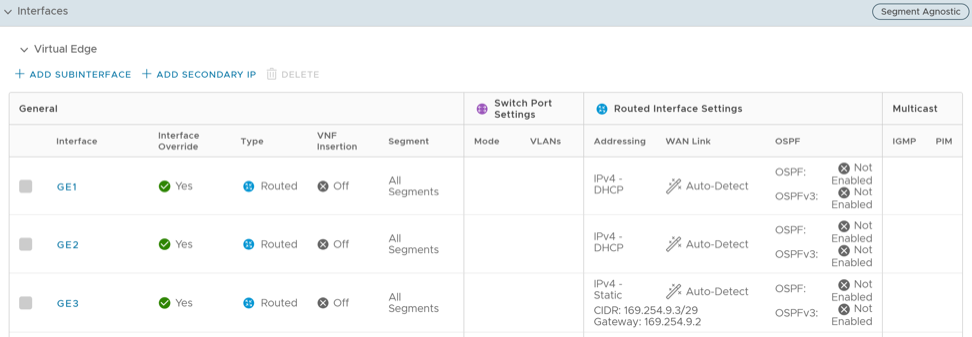 Note: You must configure the Edge interfaces before Edge activation. If this step is missed, the Virtual Edge activates, but then goes offline a few minutes later.
- Log in to the Azure portal and create an application instance of type “SD-WAN on Azure private MEC” as follows:
- Search for SD-WAN on Azure private MEC application and then Create. The Create SD-WAN on Azure private MEC page appears.
Figure 3. Create SD-WAN on Azure Private MEC 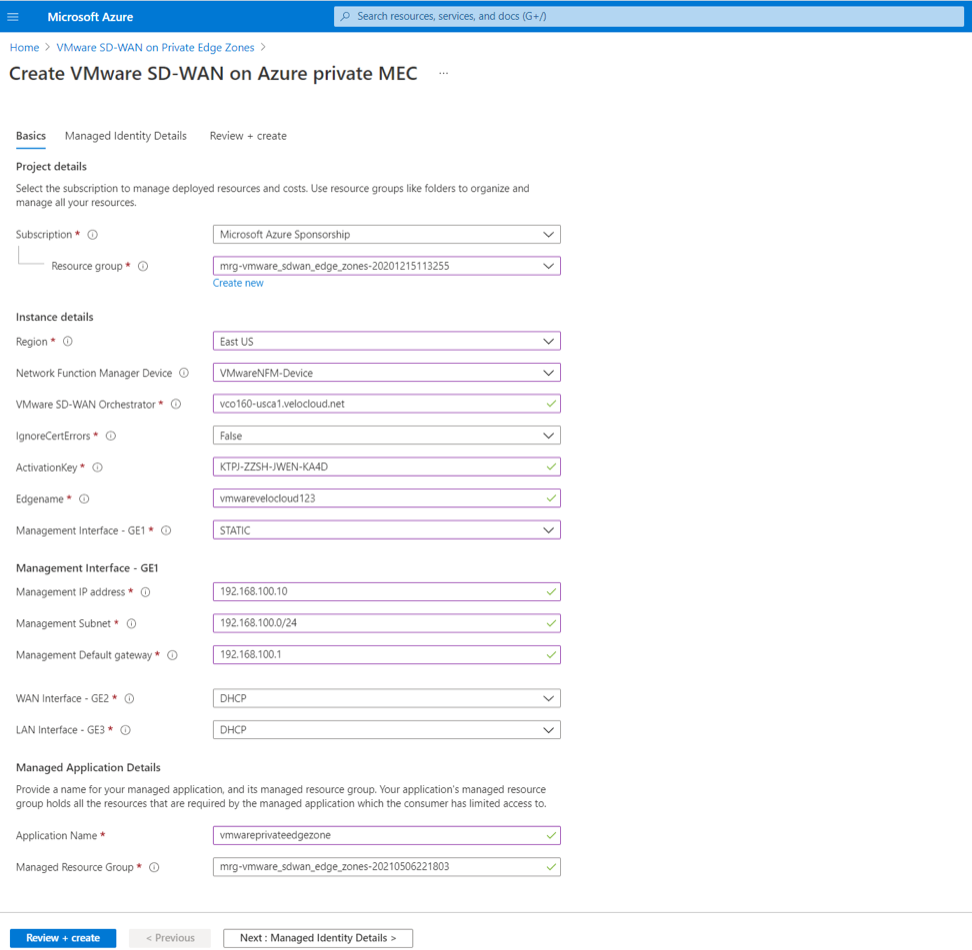
- In the Basics tab, configure Project details, Instance details, and Managed Application details as follows:
- From the Subscription drop-down menu, select your Microsoft Azure subscription.
- From the Resource group drop-down menu, select a resource group to organize and manage all your resources. You can also create a new resource group by selecting Create new. For more information, see Create a Resource Group topic in the SD-WAN Administration guide. Configure the following Instance details:
Table 1. Instance Details Field Description Region Select a location for your resource group. Currently, location is restricted to East US and West Europe. Network Function Manager Device Select the Azure Stack Edge (ASE) that you have registered to the Azure portal. All the registered ASEs under your subscription will be listed. Arista SD-WAN Orchestrator The Orchestrator URL. For example, vcoxxx.xxxx.velocloud.net. You can get the Orchestrator URL from the Address bar of Orchestrator portal. IgnoreCertErrors Set the value to False as you will be using the IP address of the Orchestrator. ActivationKey The activation key to activate the provisioned Edge. You can get the activation key from the Edge Overview page in the Orchestrator portal. Edgename Enter a valid name for the Edge. Management Interface – GE1 The Management interface of the Edge. You can configure DHCP or Static as the Address type for the interface. Note: Ensure that the Address Type settings (DHCP or Static) configured for the Edge Interfaces in the Orchestrator matches the Interfaces configuration at the Azure side.WAN Interface – GE2 The WAN interface of the Edge. You can configure DHCP or Static as the Address type for the interface. LAN Interface – GE3 The LAN interface of the Edge. You can configure DHCP or Static as the Address type for the interface. - Under Managed Application Details, enter a name for your managed application and its managed resource group.
- Search for SD-WAN on Azure private MEC application and then Create. The Create SD-WAN on Azure private MEC page appears.
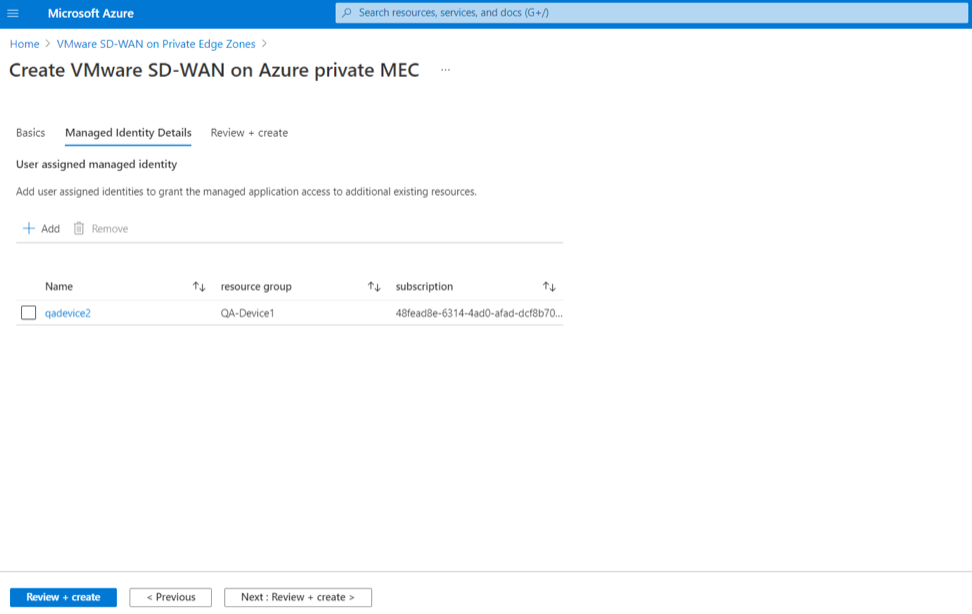
- In the Managed Identity Details tab, add user-assigned identities that has access to Azure Stack Edge used to deploy Edges by selecting the Add button.
Figure 4. Create DS-WAN on Azure Private MEC