How to Integrate VeloCloud Edge with QRadar SIEM
This section explains how to integrate VeloCloud Edges with QRadar SIEM. It includes instructions on how to configure QRadar Event Collectors as IPFIX and Syslog service endpoints. This section also covers how to set up QRadar Flow Collectors as IPFIX Collectors in the VeloCloud Orchestrator, set up NetFlow in Edge Profiles, add the QRadar Event Collectors as Syslog Servers, turn on Syslog Forwarding for Edge Firewall and Enhanced Firewall Services, and create a Firewall Rule.
- How to Integrate VeloCloud Edges with QRadar: You have prepared QRadar to receive data from the VeloCloud Edge appliances. Now, you need to configure the QRadar Event Collectors as IPFIX and Syslog service endpoints. QRadar uses "Regular" network interfaces to collect log and flow data. If you are not sure what the interface IP address is, please follow these steps:
- Select the Network Interfaces tab in the new window.
You may see a similar output for your node: Event Console node with two Network Interface Controllers (NICs), one used for OOB management, the regular NIC used for event and flow collection.
Figure 1. Network Interfaces 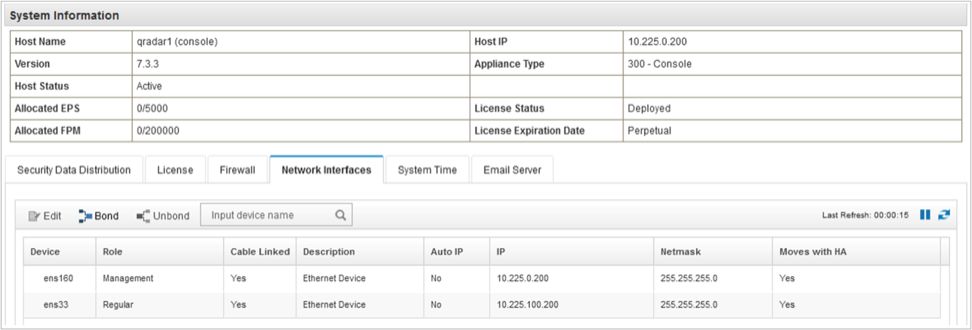
- Select the Network Interfaces tab in the new window.
- How to Set Up QRadar Flow Collectors as IPFIX Collectors in the VeloCloud Orchestrator: The QRadar system can receive IPFIX updates by default on UDP port 2055. You need to define the system as a Flow Collector. You can do this at the enterprise (customer) level first. Follow these steps:
- Configure the settings as shown below:
Figure 2. New Flow Collector Configuration in the VeloCloud Orchestrator 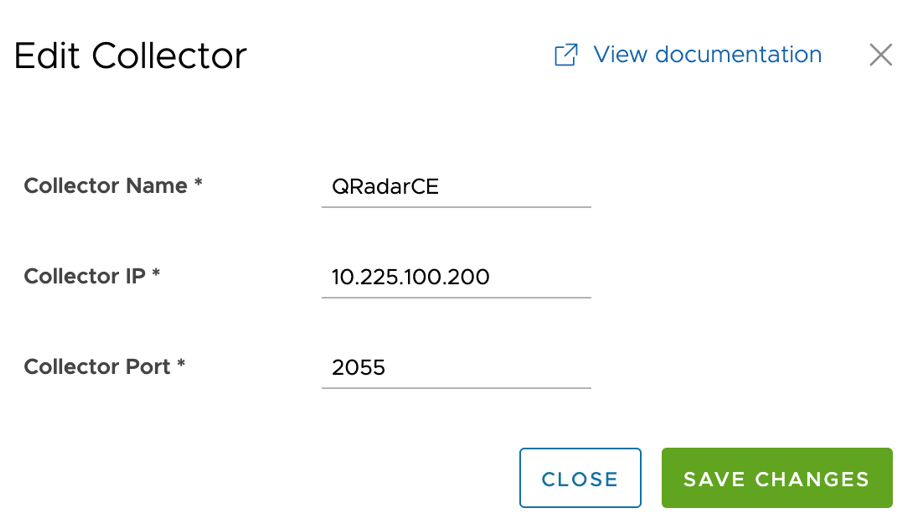
Table 1. Flow Collector Settings Flow Collector Settings Collector Name An administrative name of the collector that provides identification. Collector IP The destination IPv4 address that flow data will be sent. In case of QRadar, this will be the Regular NIC of the Flow Collector system. Collector Port The UDP port on which the Collector is listening for inbound flow data from network devices. In case of QRadar, this is UDP port 2055. Note: If you use multiple QRadar Event Collectors for your VeloCloud SD-WAN fabric, ensure they are all added. - Once all the collectors are defined, you can create filters to reduce the number of flows sent by defining filters. To do this, select +New under Filters in the main Orchestrator screen:
Figure 3. Add Filter 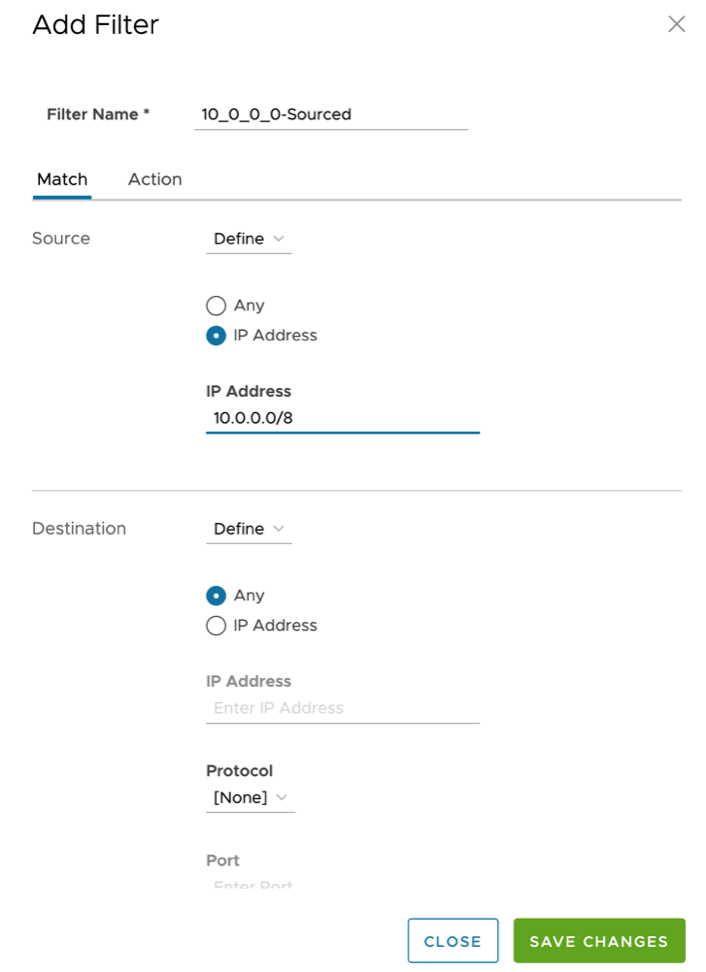
Filters work as match/set statements, you can select traffic sources in the Match tab, Destinations and even Applications (data derived from Deep Application Recognition or DAR), and based on the defined criteria, flow records can get exported to flow collectors or filtered. This is a helpful mechanism to save Flows per Minute (FPM), which helps you to spend your QRadar Flow licenses in the most optimal way.
When everything is set, please ensure that all settings are correct in the Network Services configuration screen:
Figure 4. NetFlow Settings Summary 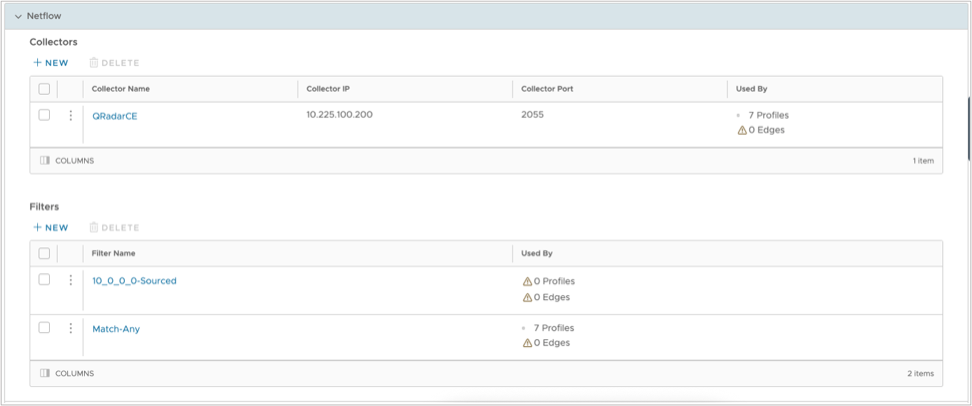
While the IPFIX settings must be pre-defined on an enterprise level, Syslog settings can be applied without any previous definition (as of Release 5.2.0.x). In the next step, we will define the QRadar event collectors as Syslog targets and apply the IPFIX settings we created.
- Configure the settings as shown below:
- Set up NetFlow in Edge Profiles: You need to use one or more profiles to build your VeloCloud SD-WAN fabric. Profiles are like templates that help you apply common settings to many devices in your network. First, you need to find the profiles that you want to use for your deployment. You also need to set QRadar as a Flow Collector for each profile.
- Go to the Device tab and select Telemetry. Then check the box for Activate NetFlow:
Figure 5. Activate NetFlow 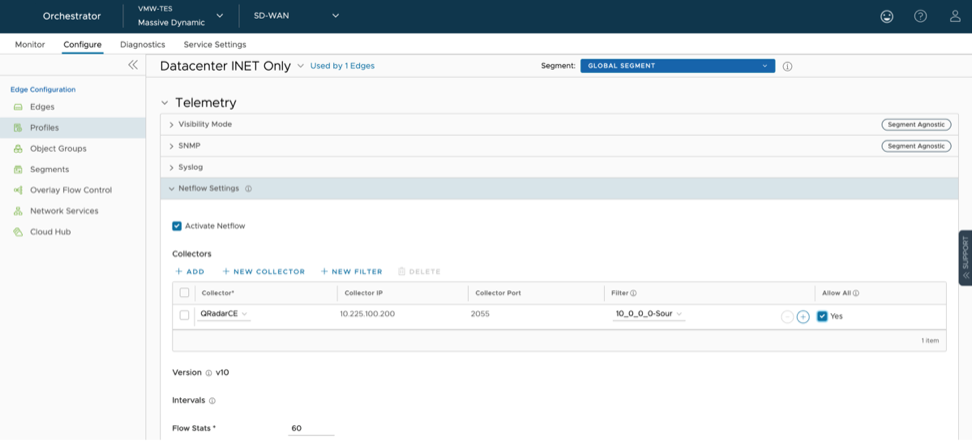
Table 2. Flow Collector Settings – Edge Profile View Flow Collector Settings – Edge Profile View Collector Select the collector that is the designated event collector for Edges using this profile. Collector IP Address (Read-Only) The destination IPv4 address that flow data will be sent. In the case of QRadar, this will be the Regular NIC of the Flow Collector system. Collector Port (Read-Only) The UDP port on which the Collector is listening for inbound flow data from network devices. In case of QRadar, this is UDP port 2055. Filter Select a pre-configured filter to ensure that only relevant flows will be exported to the Flow collector. Allow All If you are using a multi-segment (Multi-user) SD-WAN deployment, and you need to collect flows from traffic in other segments, check this option. Version VeloCloud SD-WAN only supports IPFIX (NetFlow Version 10) data export. Intervals (Multi-line) If you need to fine-tune the flow export operations, you can change the flow timers here. This configuration is only available if the Global Segment is selected in the segment selection drop-down box at the top.
- Go to the Device tab and select Telemetry. Then check the box for Activate NetFlow:
- Add the QRadar Event Collectors as Syslog Servers: QRadar Event Collectors can receive Syslog data from Log Sources on UDP and TCP ports 514. To make sure that the Edges send log events to QRadar, not just Flow data, you should make most changes at the profile level. This will make sure that all Edges in your VeloCloud SD-WAN fabric have the same security configuration and can scale out easily. You need to find all the Edge Profiles that you want to use for your deployment first.
- Under the Syslog section, check the box for Enable Syslog.
Figure 6. Enable Syslog 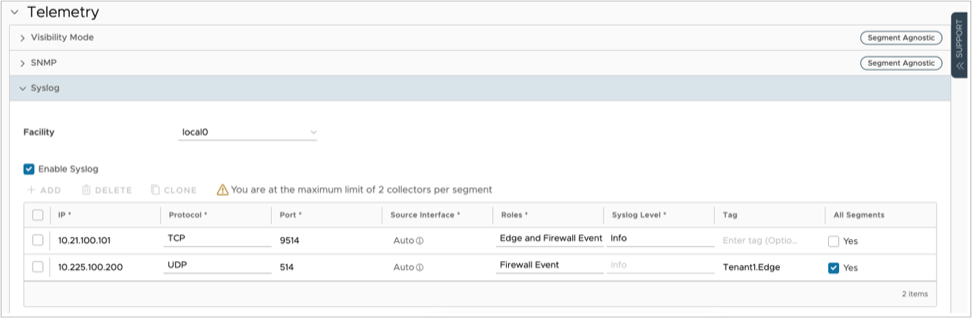
Table 3. Syslog Settings – Edge Profile View Syslog Settings – Edge Profile View IP Type in the IP address of the QRadar Event collector managing the edges associated with this profile. This is typically the same Event collector node that the Edge is using as a Flow Collector. Protocol The VeloCloud Edge supports both UDP and TCP protocols. Based on your QRadar deployment and network connectivity, you might prefer one or the other. Port By default, the QRadar Event Collectors listen to Syslog under port 514 (both TCP and UDP). Roles This setting supports Edge Events, Firewall Events and Edge and Firewall Events. In case of QRadar, both is supported in the DSM. In case you want to retrieve Edge Events (Interface status changes, Management and Control Plane updates, and so forth) using the Orchestrator API, you can select Firewall Events only. Syslog Level Based on the Level selected here, events classified on this level (or higher) will be sent to the Syslog server. If Firewall Events is set under Roles, this field will default to Info, as Firewall events are set as Informational messages. Tag Each Syslog message can be appended with a custom tag in the header. Some systems can identify tenants and other service details from this tag. In QRadar, this tag has no relevance. All Segments If you have a multi-segment (Multi-user) SD-WAN fabric, and need to export firewall events from all segments, you should select this box.
- Under the Syslog section, check the box for Enable Syslog.
- Turn on Syslog Forwarding for Edge Firewall and Enhanced Firewall Services: Now you can send Edge events (like configuration changes, interface changes, and so on) to QRadar, but you also need to send firewall events. You can do this on the Profile or Edge level. Usually, it is better to do this on the profile level to make sure it works for all devices in your network. But sometimes, you may have different firewall rules for each Edge, so in this guide, we will show you how to do it on the Edge level.
- Select on the Firewall tab.
Figure 7. Edge Firewall Settings 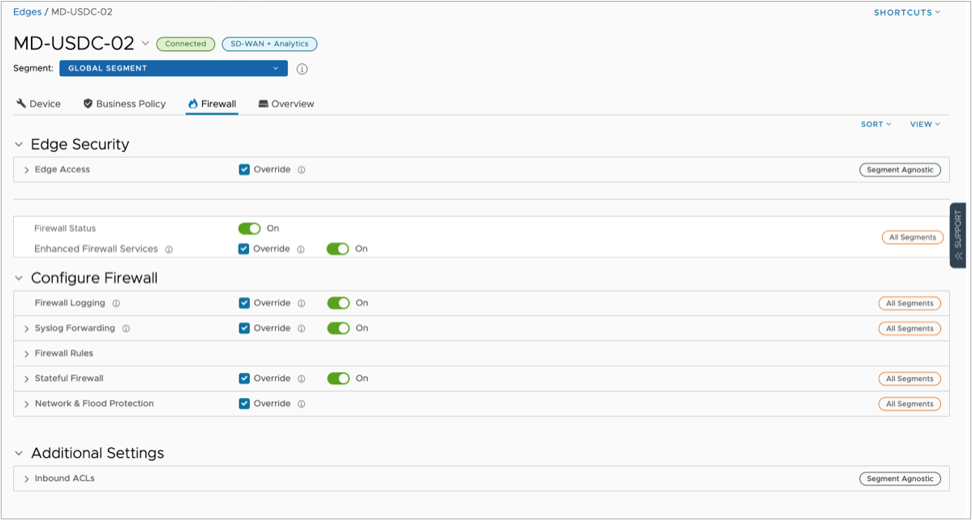
- Select on the Firewall tab.
- Make a Firewall Rule with Logging Turned On: The last step is to make a Firewall Rule with Logging turned on for the Edge. This will make sure that events are sent to QRadar. You can add or change rules under the Firewall Rules section.
Figure 8. Firewall Rule with IDPS and Logging Enabled 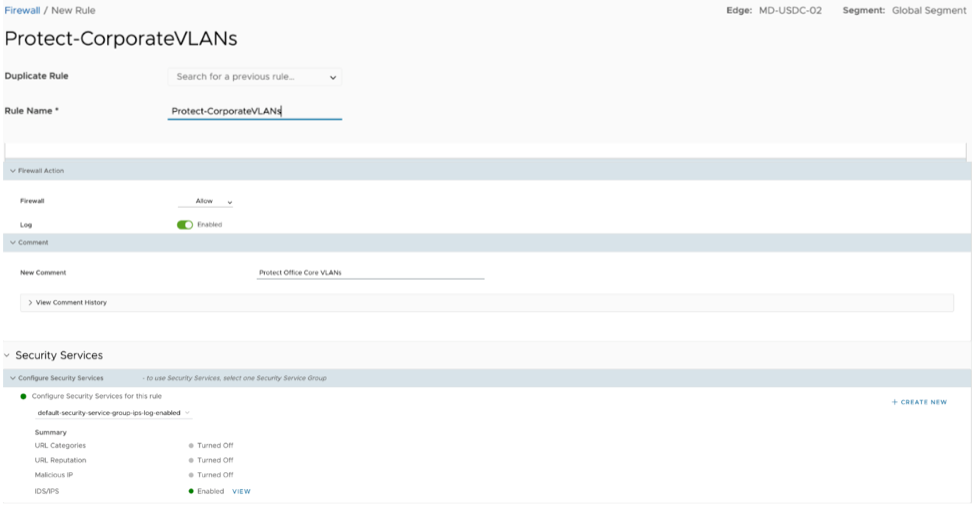
Make sure the following fields are enabled for Firewall events to be sent to the QRadar system:
Table 4. Firewall Rule – Logging Settings per Rule Firewall Rule – Logging Settings per Rule If this field is enabled, the Edge will generate a log event (locally and to the Syslog server) whenever a flow matches the firewall rule. This is useful for troubleshooting and monitoring purposes. Security Services > Select a Security Services group that has IDS/IPS engine enabled along with its logging. (6.x version and higher) If further inspection is necessary to determine whether a flow is malicious, the IDS/IPS system must be enabled. In this case, the Intrusion Detection System must be in the Enabled state for an IDS event to be generated.
When this field is enabled, the Edge will generate an event. Both a local message and a Syslog message, enriched with the IDS/IPS event, will be recorded. This field is only required if the IDS/IPS service is enabled for the rule.