QRadar SIEM Integration Workflow
This section discusses how to integrate QRadar SIEM with VeloCloud and includes instruction on creating a Log Source group, importing the VeloCloud Edge DSM module, and setting up VeloCloud Edges as Log Source records.
- Create a Log Source Group for your Edge appliances.
- Import the VeloCloud Edge DSM module.
- Set up VeloCloud Edges as Log Source records.
Once these steps are ready, you can configure the VeloCloud Edges in the VeloCloud Orchestrator to send log messages and flow telemetry data to their designated event collectors.
- Create a Log Source Group for your VeloCloud Edge Appliances:
- To view or create a Log Source Group, go to . Depending on your system, you might see something similar:
Figure 1. QRadar - Data Sources 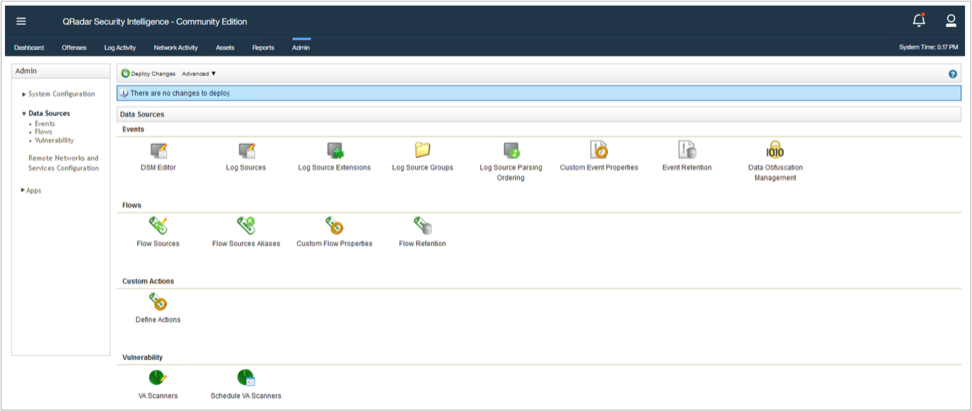
- In the main window, select Log Source Groups, then select New Group in the new window:
Figure 2. Log Source Group Management 
- A new window, titled Group Properties opens:
Figure 3. Log Source Group Properties 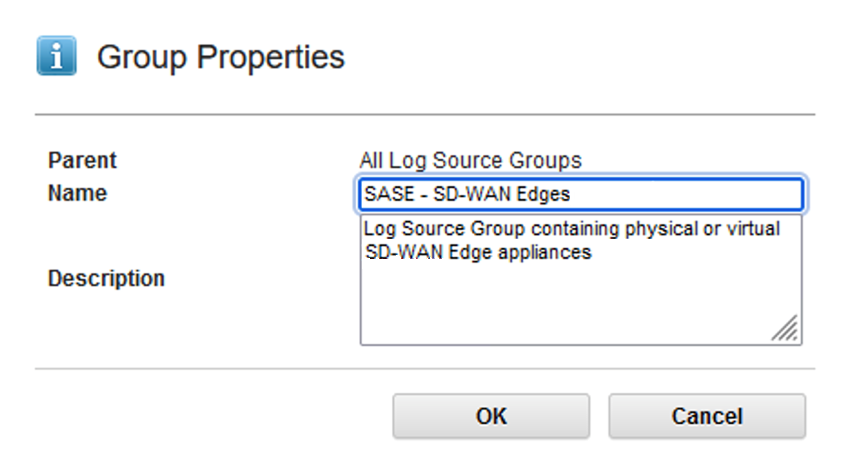
Table 1. Log Source Group Properties QRadar – Log Source Group Properties Parent The parent container for the newly created child object. Before you save your changes, make sure that the new Log Source Group is created under the correct container. QRadar supports nested Log Source Groups. Name Administrative name for the Log Source Group Description Summary of the log source group’s function or its contents.
- To view or create a Log Source Group, go to . Depending on your system, you might see something similar:
- Import the VeloCloud Edge DSM module into your QRadar Deployment: Now that the Log Source Group is ready, we will import the custom DSM for VeloCloud Edge appliances. The DSM is delivered as a ZIP archive.
- To start with the import process, navigate to , then select Extensions Management:
Figure 4. Extensions Management 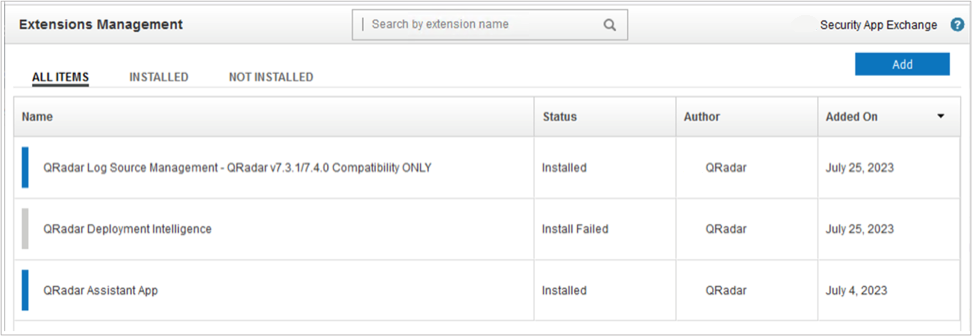
- In this window, you will see a list of extension modules that enhance QRadar functionality and their installation statuses. The list of available modules depends on your deployment. To upload the ZIP archive, select the Add button in the top-right corner. If you want to install it right away, select Install Immediately:
Figure 5. Add New Extension 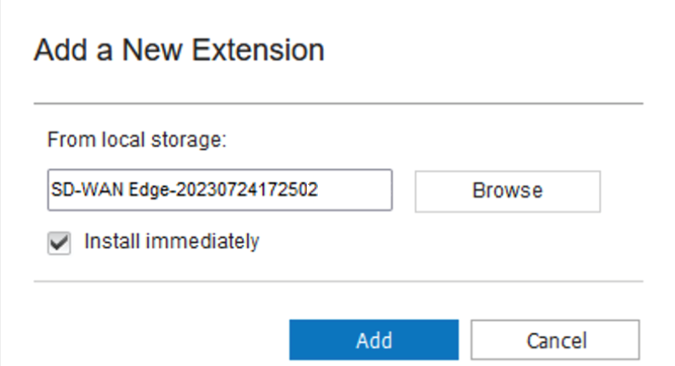
- After the upload, a new line item will appear in the Extensions Management window. From here you can install the DSM (if you have not done it already), remove the module or look at its contents (the output might vary based on the DSM contents):
Figure 6. VeloCloud Edge DSM Contents 
- To start with the import process, navigate to , then select Extensions Management:
- Create a Log Source Record for Each VeloCloud Edge:
- To launch the application, go to .
Figure 7. Log Source Management 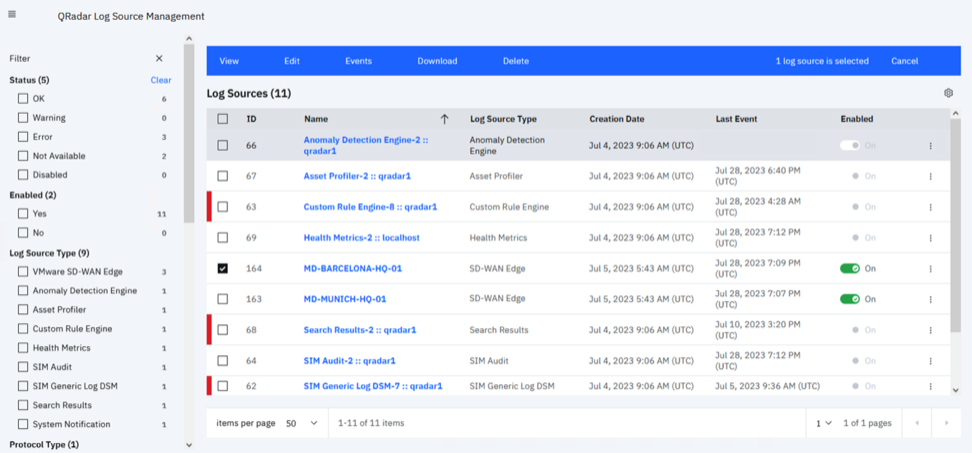
- Under Select Log Source Type, search for SD-WAN Edge:
Figure 8. Select a Log Source Type 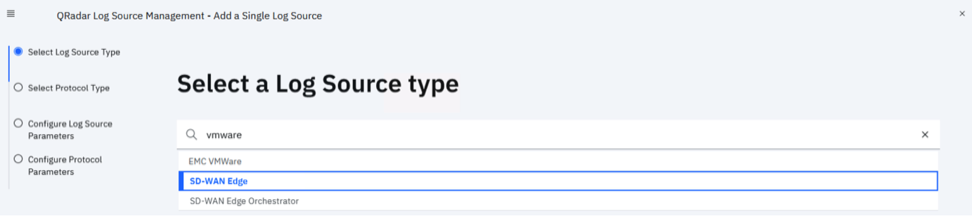 Note: If you cannot find the SD-WAN Edge option, check the Admin tab to see if changes are to be deployed, or you can do a Deploy Full Configuration from Advanced. After a few minutes, the log source type should show up.
 - Under Select a Protocol Type, it should default to Syslog, this is what we need:
Figure 9. Select a Protocol Type 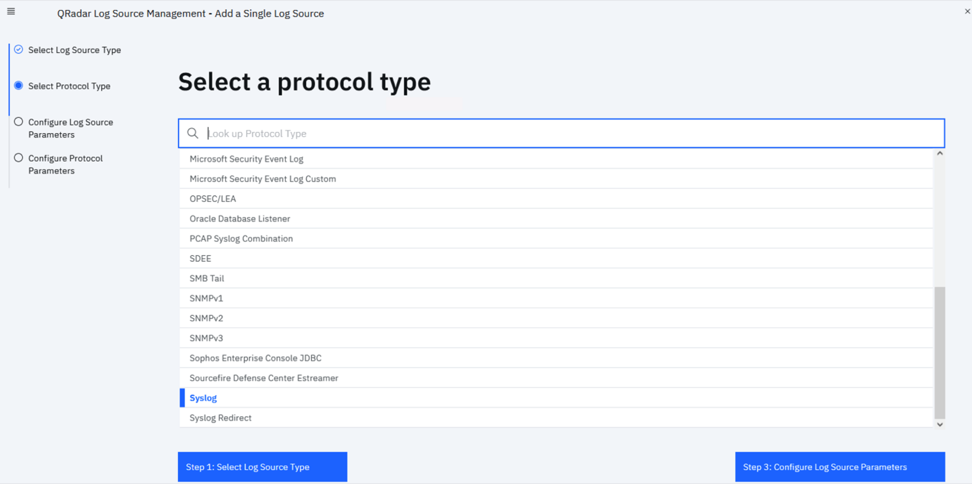
- On the Log Source parameters screen, you must complete all the device-specific details:
Figure 10. Log Source Parameters 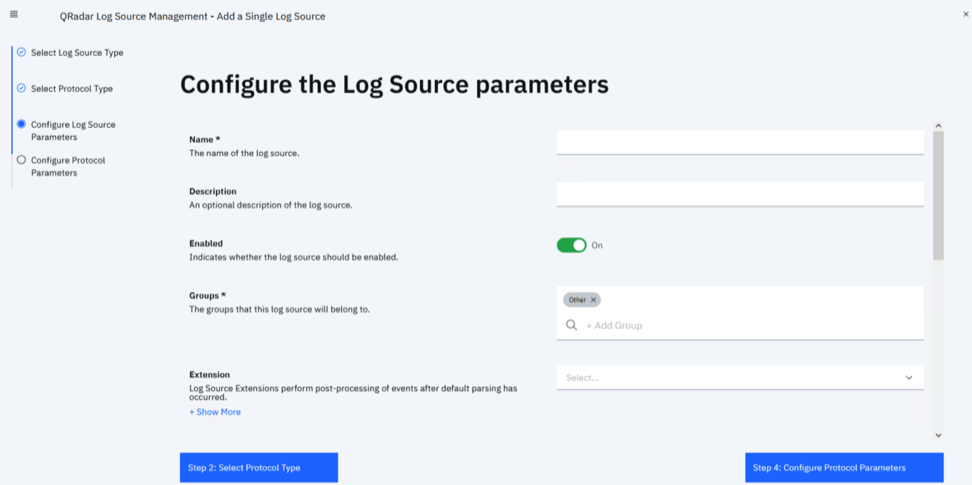
Table 2. Log Source Parameter Descriptions Parameter Name Description Mandatory? Name The device name of the Edge (as appears in the Orchestrator). Yes Description A brief description that helps identify the appliance sending events. No Enabled This switch instructs QRadar to use this record to identify the log source, or not. Yes Groups Assigns the device to a log source group. A device can be part of multiple groups if required. Grouping can help parse events faster or manage group members in a uniform fashion.
Yes Extension The associated DSM that helps to correctly format messages from the device and perform event mapping against logs. This should point to the SD-WAN Edge Extension. No Language The language of the logs. Defaults to English. Yes Target Event Collector Most of the QRadar deployments are distributed in nature. You can select the correct event collector that should accept Syslog messages from the Edges and parse them. Yes Credibility An administrative measure on a scale of from 0 to 10, It is a measure of the log source’s reliability. Yes Coalescing Events If this feature is enabled, the SIEM will aggregate similar activities into a single entry. No Store Event Payload If enabled, QRadar will record the payload of the Syslog messages. Typically enabled in production environments. No Once every parameter is set, you can progress to the next screen, selecting the Protocol Parameters. Encoding should be UTF-8, and the Log Source Identifier must be configured as the device name from the Orchestrator.
Figure 11. Protocol Parameters 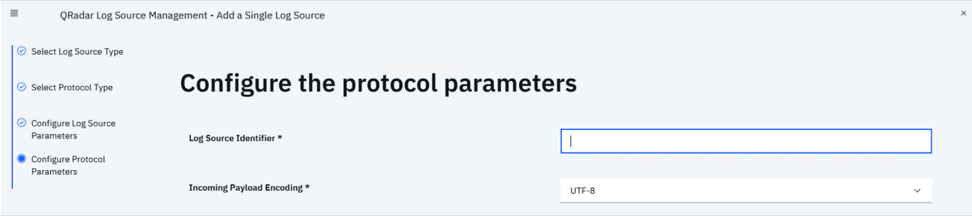
Once all settings are set, select Finish. By selecting on the log source in the main screen, the Log Source Summary screen will open, and you can double-check the settings:
Figure 12. Log Source Summary of an Edge 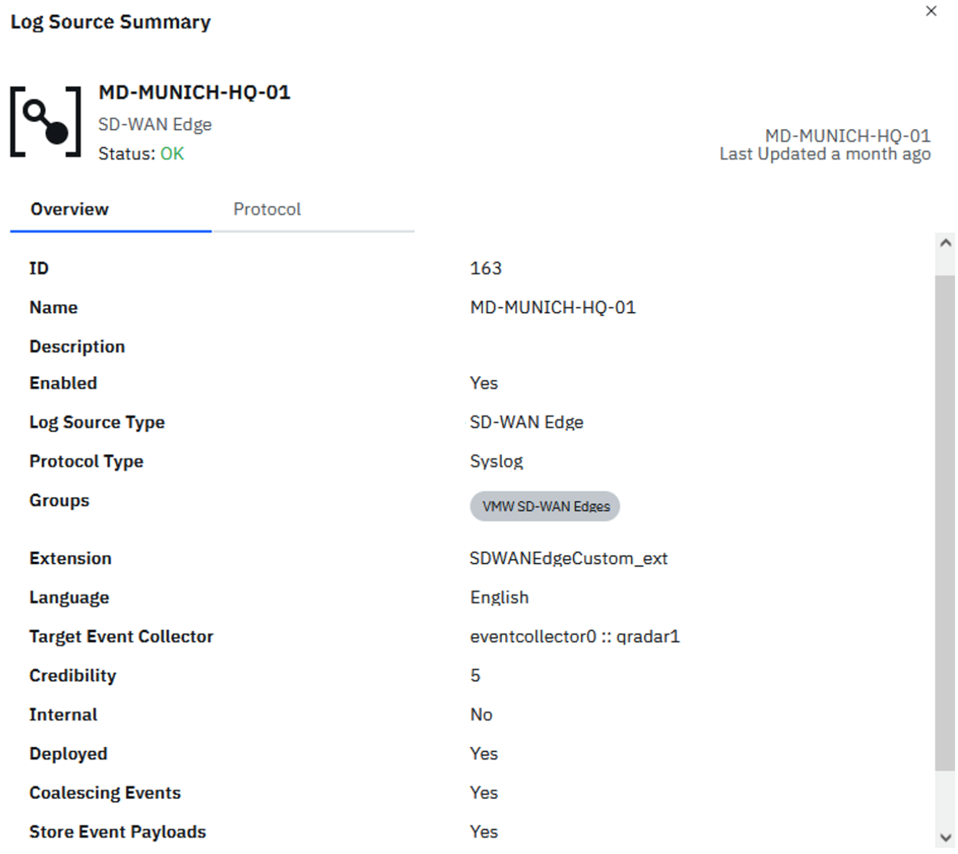 Note: If you are using a distributed QRadar deployment (common in production environments), take note of the Target Event Collector setting, as you will set this up as a IPFIX and Syslog Target.
Event collectors might have multiple network interfaces that might have various assigned roles. See this KB article if you need assistance understanding how your QRadar deployment is connected to your enterprise network fabric.
- To launch the application, go to .
- How to Integrate VeloCloud Edge with QRadar: You have prepared QRadar to receive data from the VeloCloud Edge appliances. Now, you need to configure the QRadar Event Collectors as IPFIX and Syslog service endpoints. QRadar uses "Regular" network interfaces to collect log and flow data. If you are not sure what the interface IP address is, follow these steps:
- Select the Network Interfaces tab in the new window.
You will see a similar output for your node: Event Console node with two NICs, one used for OOB management, the regular NIC used for event and flow collection.
Figure 13. Network Interfaces 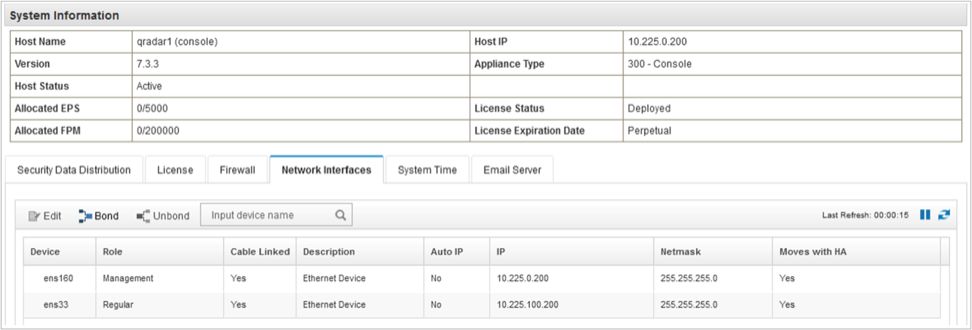
- Select the Network Interfaces tab in the new window.
- Now, you can switch from QRadar to the VeloCloud Orchestrator. Perform the following steps in the Orchestrator:
- On the Enterprise level, define the QRadar Flow Collectors as NetFlow/IPFIX Collectors.
- On the Edge or Profile level, enable the Edges to start the flow export process and send telemetry to the Flow Collectors defined in the previous step.
- While on the Edge or Edge Profile level, configure Event Collectors as Syslog servers.
- Enable the Edge Firewall or Enhanced Firewall Services logging.
- Define a Firewall Rule with logging enabled.