Manage User Agreements
Create a User Agreement
Only Operator Super Users and Operator Standard Administrators can create a new user agreement. You can create multiple active user agreements and set the default one from the list. You can also choose and configure the active user agreement you want to display for a particular customer.
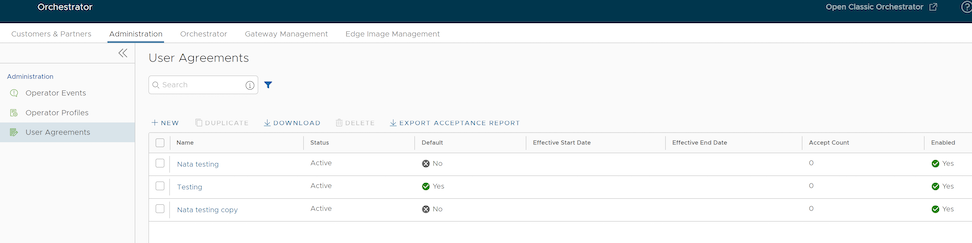
- On the Administration tab, choose User Agreements and select .
The User Agreement dialog box appears.
- Enter the following information in the User Agreement dialog box:
-
Figure 2. Create User Agreement - Agree 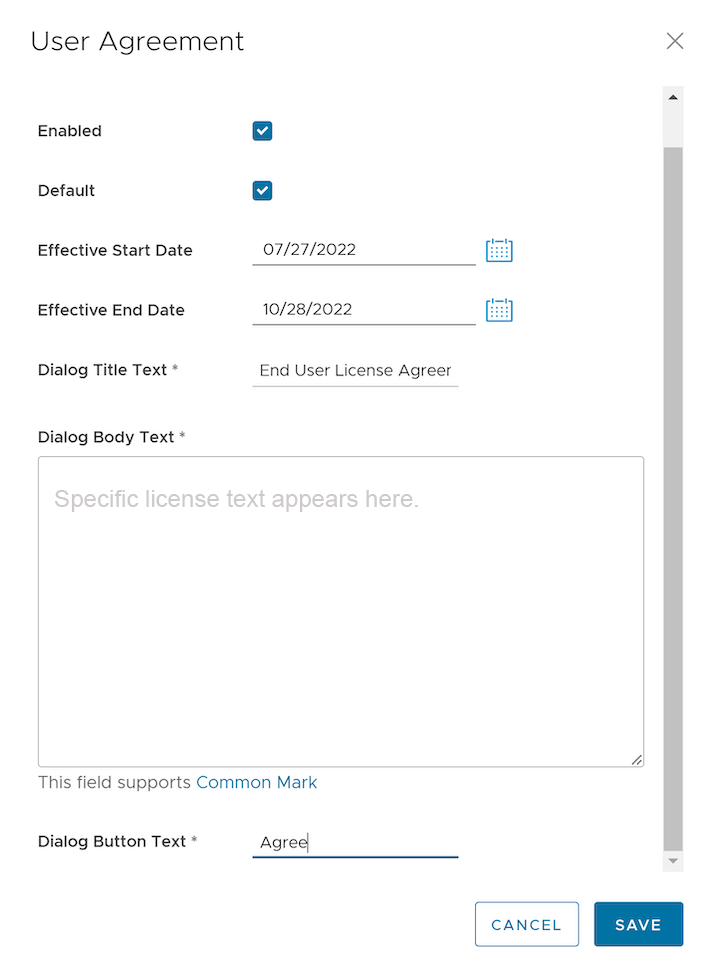
-
Table 2. User Agreement Option Descriptions Option Description Name Enter the name for the user agreement. Enabled By default, this check box is selected. If unselected, the user agreement is Inactive. Effective Start Date Enter the date from which the user agreement is effective. Effective End Date Enter the date until which the user agreement is effective. Dialog Title Text Enter a title for the user agreement. Dialog Body Text Enter the descriptive user agreement text that would be visible to the Customer. Dialog Button Text Enter the text to be displayed on the button that the customer would select to accept the agreement. - Select Create.
The agreements display on the User Agreements page.
Figure 3. Create User Agreement - Accept 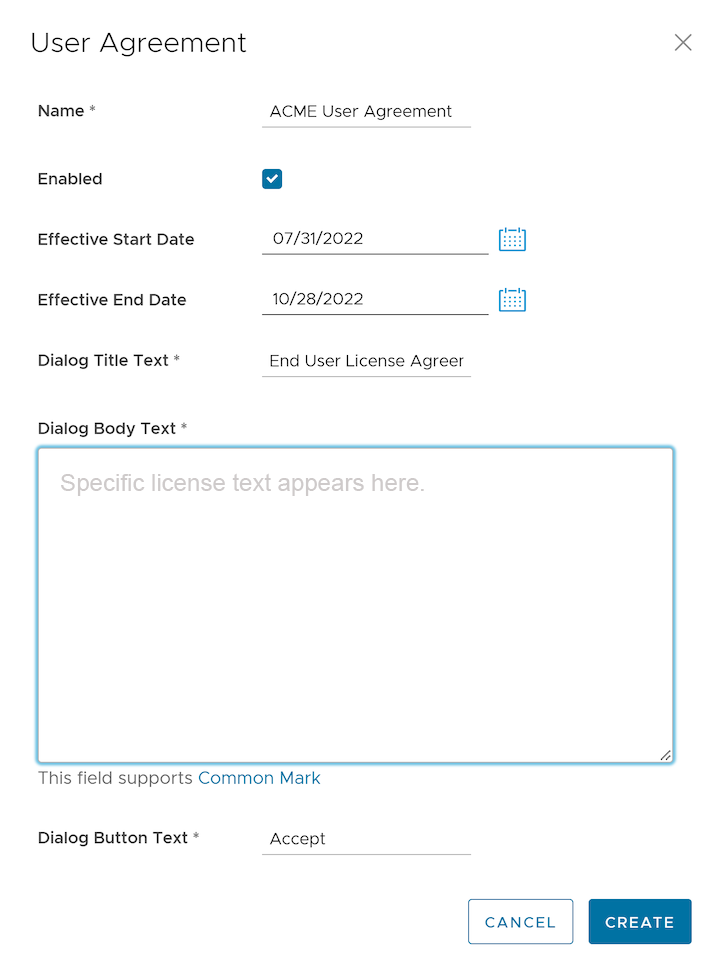
- Select an inactive agreement, then select Delete, to delete it.
Note: Active agreements cannot be deleted.
When an Enterprise Super User or Partner Super User logs into the Orchestrator for the first time, a User Agreement message pops up prompting the user to accept the agreement. The user must accept the agreement to get access to the Orchestrator. If the user does not accept the agreement, they get automatically logged out.