The Orchestrator Diagnostics bundle provides a collection of diagnostic information to troubleshoot the Orchestrator. For Orchestrator on premises installation, Operators can collect the Orchestrator Diagnostic bundle from the Orchestrator UI and provide it to the Arista Support team for offline analysis and troubleshooting.
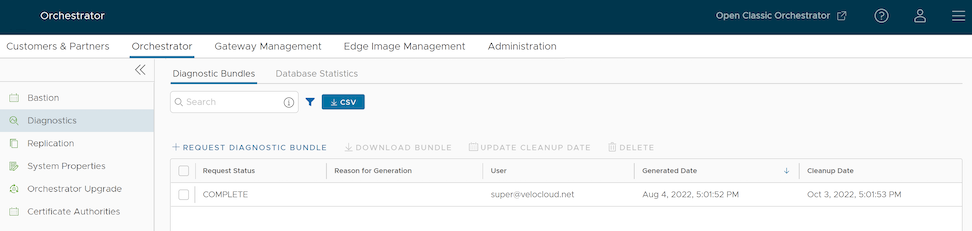
In the Operator portal, navigate to Orchestrator > System Properties, and then set the System property session.options.enableBastionOrchestrator to True to view the Diagnostics tab.
Figure 1. Orchestrator Diagnostics
Use the following options to troubleshoot Orchestrator Diagnostics:
Diagnostic Bundles: Request and download a diagnostic bundle.
Database Statistics: Provides read-only access view for some of the information from a diagnostic bundle.
Diagnostic Bundles
To access the diagnostic bundles, perform the following steps:
In Operator portal, select Orchestrator.
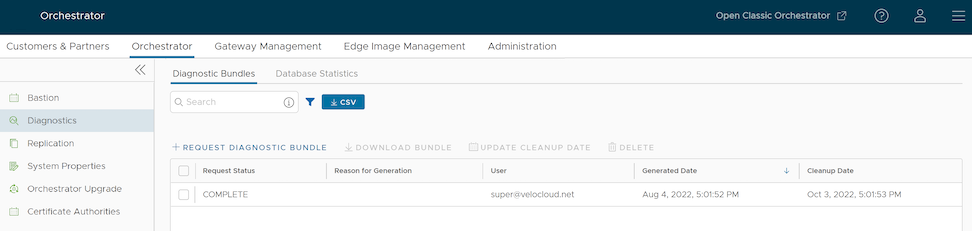
Select Diagnostics. The Diagnostic Bundles page appears with the existing diagnostic bundles.
Figure 2. Manage Diagnostic Bundles
The Orchestrator Diagnostics table includes the following information:
Table 1. Orchestrator Diagnostics Field Descriptions
Field
Description
Request Status
The Request Status displays one of the following:
Complete
In Progress
If a bundle has not completed the download, the In Progress status appears.
Reason for Generation
The specific reason for generating a diagnostic bundle. Select Request Diagnostic Bundle to include a description of the bundle.
User
The individual logged into the SD-WAN Orchestrator.
Generated
The date and time when the diagnostic bundle request sent.
Update Cleanup Date
The default Cleanup Date is three months after the generated date, and the bundle automatically deletes. If you wish to extend the cleanup date, select the bundle, then select this option to make the required changes. For additional information, see the Update Cleanup Date section below.
Requesting Diagnostic Bundle
To generate a new Diagnostic bundle perform the following steps:
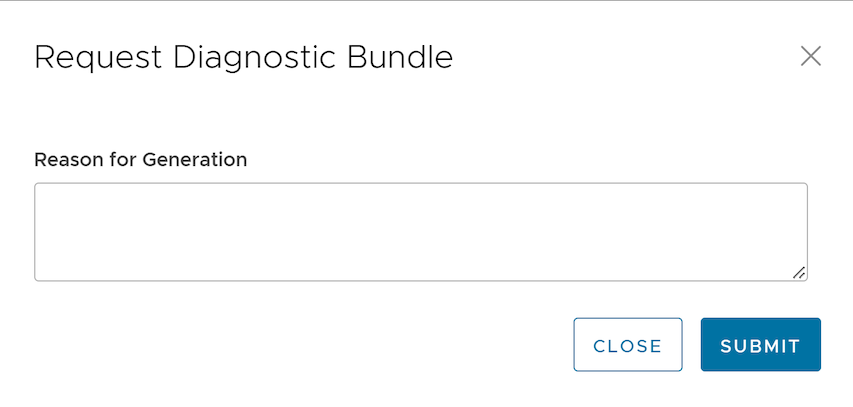
In the Request Diagnostic Bundle dialog, enter the reason for generation.
Figure 3. Request Diagnostic Bundle
Table 2. Request Diagnostic Bundle Field Descriptions
Field
Description
Reason for Generation
Optionally, you can enter your reason for generating the bundle.
Select Submit.
The Diagnostic Bundles page displays the details of the generated bundleated, along with the status.
To search a specific diagnostic bundle, enter a relevant search text in the Search box. For advanced search, select the Filter icon next to the Search box to filter the results by specific criteria.
Downloade a Diagnostic Bundle
You can download the generated Diagnostic bundles to troubleshoot an Orchestrator.
To download a generated bundle, select the check box in the Request Status column and select Download Bundle. The bundle downloads as a ZIP file.
You can send the downloaded bundle to the Arista Support representative for debugging the data.
Update Cleanup Date
The completed bundles automatically delete on the date displayed in the Cleanup Date column.
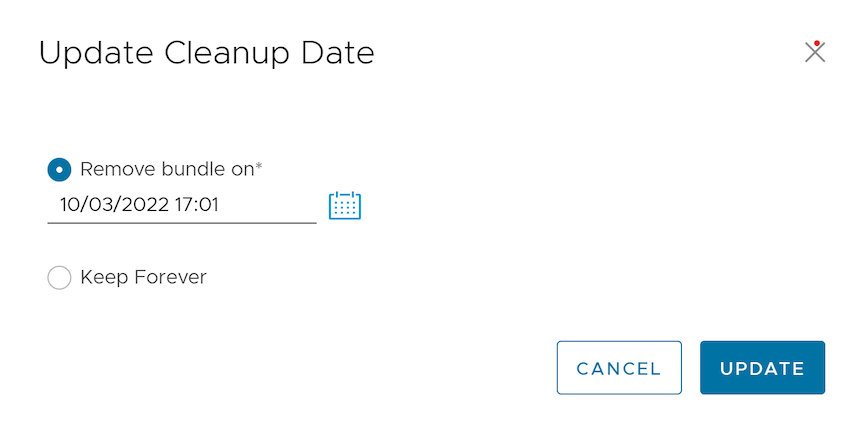
To update the cleanup date of a generated bundle, select the check box in the Request Status column and select Update Cleanup Date.
InUpdate Cleanup Date , choose the date for the selected bundles to delete and select Update.
Figure 4. Update Cleanup Date
Select Keep Forever to retain the bundle, so that the bundle does not delete automatically.
The Orchestrator Diagnostics table updates to reflect the changes to the Cleanup Date.
Deleting a Diagnostic Bundle
To delete a bundle manually, select the check box in the Request Status column and select Delete.
Database Statistics
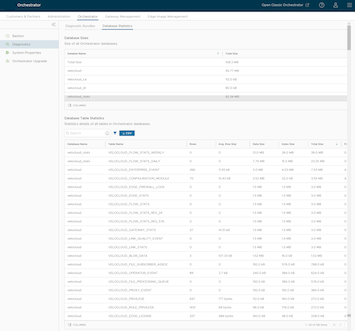
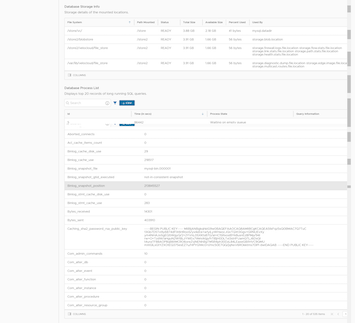
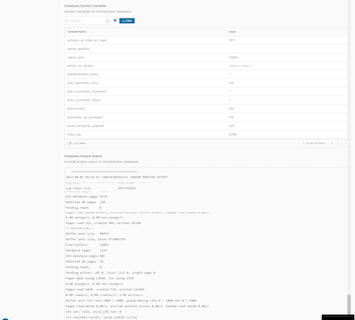
The Database Statistics tab provides read-only access view of the information from a diagnostic bundle. To view it, select Database Statistics.
If you require additional information, go to Diagnostic Bundles, to request a diagnostic bundle and download it locally.
The Database Statistics tab displays the following information:
Figure 5. View Database Statistics - Example 1
Figure 6. View Database Statistics - Example 2
Figure 7. View Database Statistics - Example 3
Table 3. Database Statistics
Field
Description
Database Sizes
Sizes of the Orchestrator databases.
Database Table Statistics
Statistical details of all tables in the Orchestrator database.