General Features
This topic describes the general features available on the VeloBrain chat interface.
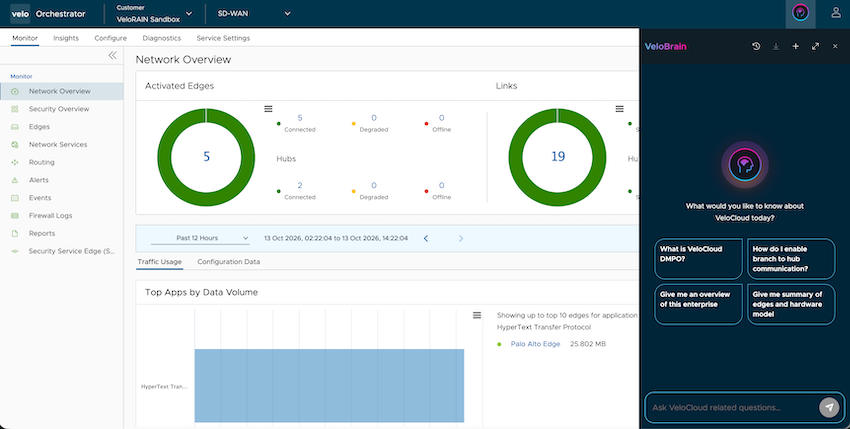
| Option | Description |
|---|---|
| Conversation History |
The Conversation History feature allows users to view and manage past chat sessions.
|
| Filter Conversations |
Users can filter the Conversation History by Scope and Name. To filter conversations:
Note: The filter option is available only to Operator and Partner users.
|
| New Conversation | To start a new chat session, select the New Conversation icon (plus icon) from the chat interface toolbar. A new conversation starts, and the chat interface displays the landing screen with pre-populated prompt suggestions. |
| Toggle Fullscreen View |
|
| Hide |
To hide the chat interface, select the close icon (X) from the chat interface toolbar.
Note: Hiding the chat interface does not terminate the existing chat session. To resume the session, select the VeloBrain icon from the Orchestrator screen.
|
| Copy Response |
To copy a VeloBrain response, select the copy icon that appears below the response. The response text is copied to the clipboard, and the icon briefly changes to a check mark to confirm the action. |
| Download Transcript |
To download the full conversation transcript, select the download icon from the chat interface toolbar. VeloBrain downloads the transcript in two formats:
Both these files include a metadata header with the session ID, VCO host, scope, and export timestamp, followed by the complete conversation including user prompts, VeloBrain responses, and activity steps. Note: The download icon is disabled when no active session is available.
|
| Provide Feedback | Users can provide feedback on individual VeloBrain responses to help improve the quality of future responses.
To provide feedback:
Note: Submitting feedback shares the contents of the conversation with Arista.
|
| Stop Response |
While VeloBrain is generating a response, the Send button changes to a Stop button. Select the Stop button to cancel the in-progress response. The partial response generated up to that point is preserved in the chat. |
| View Activity Steps |
When VeloBrain performs background operations to formulate a response, an activity summary appears above the response, indicating the number of steps being executed (for example, "Running 3 steps..." or "Completed 3 steps"). Select the activity summary to expand it and view the individual steps. Each step can be further expanded to view additional details. This feature provides transparency into the operations VeloBrain performs to generate a response. |