Configure Dynamic Routing with OSPF or BGP
This section discusses how to configure dynamic routing with OSPF or BGP.
Edge learns routes from adjacent routers through OSPF and BGP. It sends the learned routes to the Gateway/Controller. The Gateway/Controller acts like a route reflector and sends the learned routes to other Edge. The Overlay Flow Control (OFC) enables enterprise-wide route visibility and control for ease of programming and for full and partial overlay.
Arista supports Inbound/Outbound filters to OSPF neighbors, OE1/OE2 route types, MD5 authentication. Routes learned through OSPF will be automatically redistributed to the controller hosted in the cloud or on-premise. Support for BGP Inbound/Outbound filters and the filter can be set to Deny, or optionally you can Add/Change the BGP attribute to influence the path selection, i.e. RFC 1998 community, MED, and local preference.
Activate OSPF for Profiles
Open Shortest Path First (OSPF) can be enabled only on a LAN interface as an active or passive interface. The Edge only advertises the prefix associated with that LAN switch port. To get full OSPF functionality, you must use it in routed interfaces.
Open Shortest Path First (OSPF) is an interior gateway protocol (IGP) that operates within a single autonomous system (AS). OSPF is configurable only on the Global Segment.
- Support for OSPFv3 is introduced in the SD-WAN Edge for IPv6 underlay routing in addition to existing BGPv6 support. The following is supported:
- Underlay IPv6 route learning.
- Redistribution of OSPFv3 routes into overlay/BGP and vice-versa.
- Support for Overlay Flow Control (OFC).
- OSPFv3 is implemented with feature parity to OSPFv2 with the following unsupported exceptions:
- Point to Point (P2P)
- BFDv6 with OSPFv3
- md5 authentication
To activate OSPF, perform the steps in the procedure below:
- In the OSPF Areas section, configure the Redistribution Settings for OSPFv2/v3, BGP Settings, and if applicable, Route Summarization.
Note: OSPFv2 supports only IPv4. OSPFv3 supports only IPv6 and only available in the 5.2 release.
Figure 1. Configuring OSPF Areas 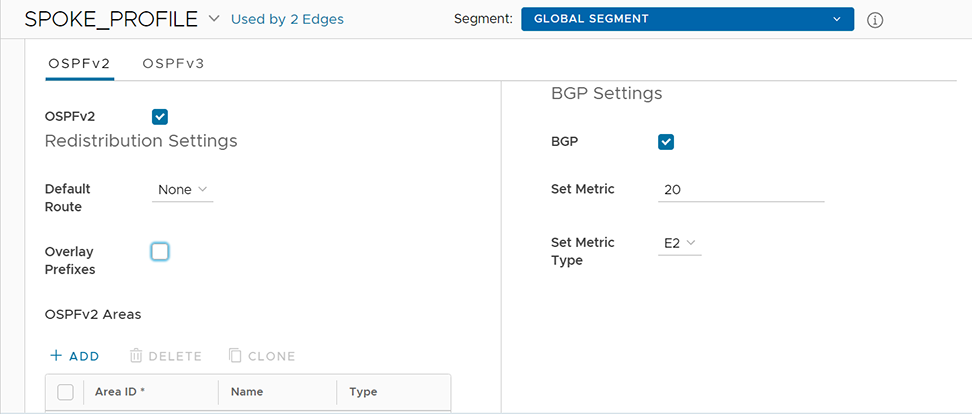
Table 1. OSPF Area Option Descriptions Option Description Redistribution Settings Default Route Select an OSPF route type (O1 or O2) to be used for default route. Default selection for this configuration is None. Advertise Select either Always or Conditional. Selecting Always indicates advertising the default route always. Selecting Conditional means to redistribute default route only when Edge learns via overlay or underlay). The Overlay Prefixes option must be checked to use the Conditional default route. Overlay Prefixes If applicable, select Overlay Prefixes. BGP Settings BGP To enable injection of BGP routes into OSPF, select BGP. BGP routes can be redistributed into OSPF, so if this is applicable, enter or select the configuration options as follows: Set Metric In Set Metric, enter the metric. This is the metric that OSPF adds to its external LSAs that it generates from the redistributed routes. The default metric is 20. Set Metric Type From the Set Metric Type menu, choose a metric type. This is either type E1 or E2 (OSPF External-LSA type with the default type of E2. - Select +Add in the Route Summarization area. A new row is added to the Route Summarization area. Configure Route Summarization, as described in the table.
Figure 2. Configuring Route Summarization 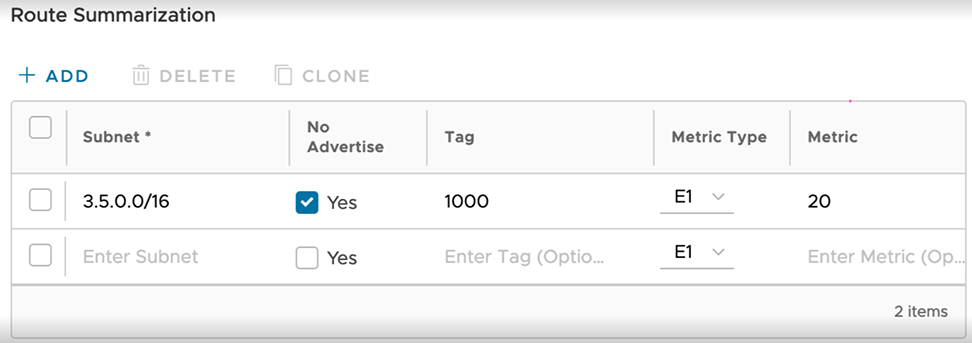
Table 3. Route Summarization Option Descriptions Option Description Subnet Enter the IP subnet. No Advertise When No Advertise is set, all the external routes (Type-5) under this supernet are summarized and have chosen not to advertise it. This means it effectively blocks the whole supernet from advertising to its peer. Tag Enter the router Tag value (1-4294967295). Metric Type Enter the Metric Type (E1 or E2). Metric Enter the advertised metric for this route ((0-16777215).
Route Filters
- Inbound routing includes preferences that can be learned or ignored from OSPF and installed into the Overlay Flow Control.
- Outbound Routing indicates what prefixes can be redistributed into the OSPF.
Activate OSPF for Edges
Open Shortest Path First (OSPF) can be enabled on a LAN (routed and switched) or a WAN interface. But only a LAN interface can be activated as an active or passive interface. The Edge will only advertise the prefix associated with that LAN switch port. To get full OSPF functionality, you must use it in routed interfaces. After you configure the OSPF settings at the Profile level, all the Edges associated with the Profile will inherit the OSPF configuration from the Profile. However, you cannot override the OSPF configuration settings at the Edge level.
The OSPF settings are applied to all the Edges associated with the Profile. You can choose to override the OSPF settings for an Edge as follows:
- In the OSPF section, you can view all the inherited OSPF configuration such as OSPF areas, Redistribution settings for OSPFv2/v3, BGP settings, and Route Summarization. If required, you can select the Override check box and modify the OSPF settings.
Figure 3. Activate OSPF for Edges 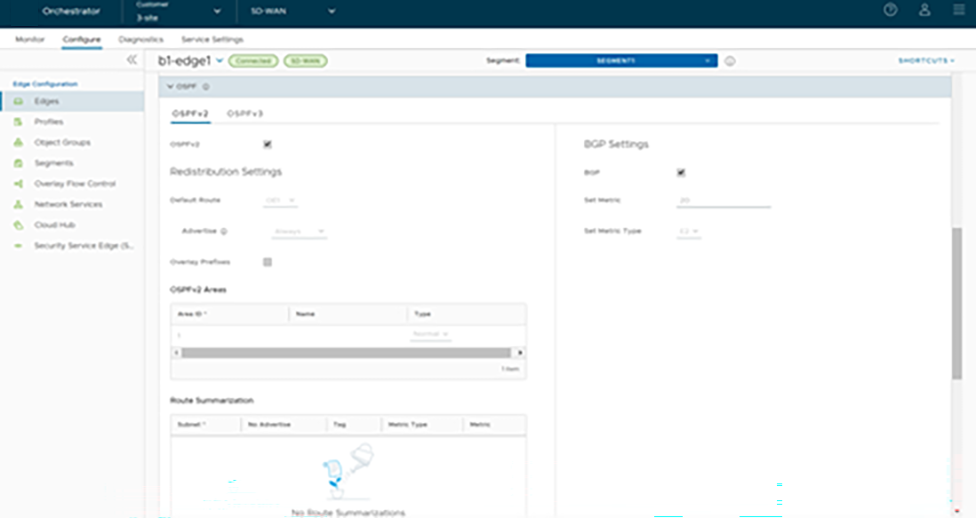
Configure BGP
You can configure the BGP per segment for a Profile or an Edge. Configuring BGP is available for Underlay Neighbors and Non SD-WAN Neighbors.
- As the ASN of Edges.
- Peer to a neighbor with 4-Byte ASN.
- Accept 4-Byte ASNs in route advertisements.
Configure BGP from Edge to Underlay Neighbors for Profiles
You can configure the BGP per segment at the Profile level as well as at the Edge level. This section provides steps on how to configure BGP with Underlay Neighbors.
Arista VeloCloud SD-WAN supports 4-Byte ASN BGP. For more information, see Configure BGP.
Route Summarization is new for the 5.2 release. For an overview, use case, and black hole routing details for Route Summarization, see Route Summarization.
To configure BGP:
- In the BGP area, toggle the radio button from Off to On.
Figure 4. Configuring BGP settings for a Profile 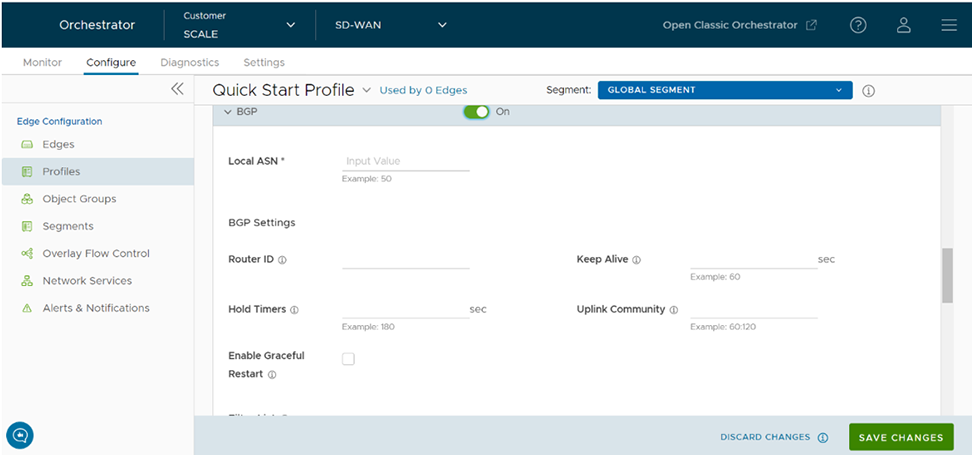
- Select +Add in the Filter List area to create one or more filters. These filters are applied to the neighbor to deny or change the attributes of the route. The same filter can be used for multiple neighbors.
Figure 5. Adding a Filter 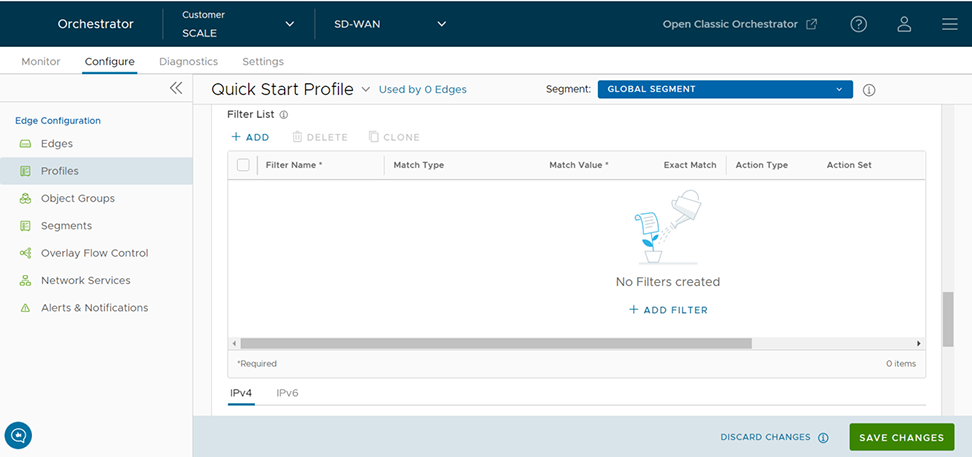
- Scroll down to the Neighbors area and select +Add.
Figure 6. Adding Neighbors 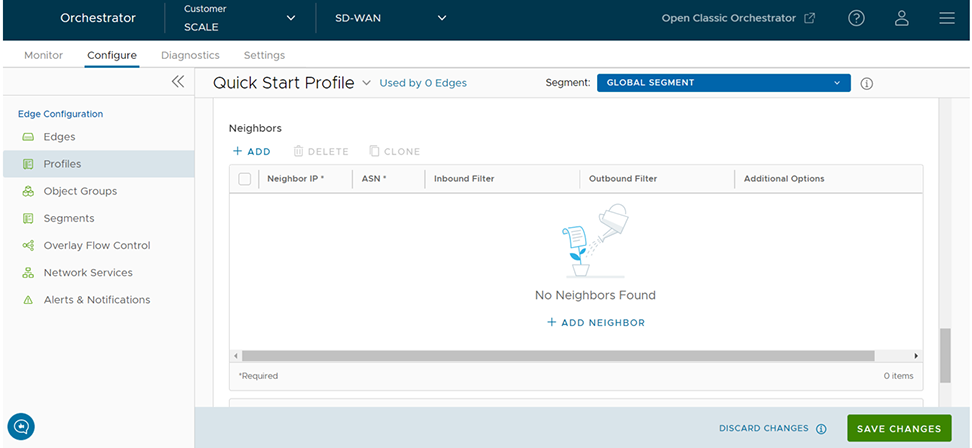
- Configure the following settings for the IPv4 addressing type:
Table 6. Neighbours Option Descriptions Option Description Neighbor IP Enter the IPv4 address of the BGP neighbor ASN Enter the ASN of the neighbor Inbound Filter Select an Inbound filer from the drop-down list Outbound Filter Select an Outbound filer from the drop-down list Note: When overriding and configuring BGP neighbors at the Edge level, any Profile-level filters associated with the neighbors will be removed when you switch the Edge from one profile to another. So at the Edge level, you must make sure to reassociate the filters with the BGP neighbors after switching the Edge profile.Additional Options – Select the view all button to configure the following additional settings:Figure 7. Additional Options 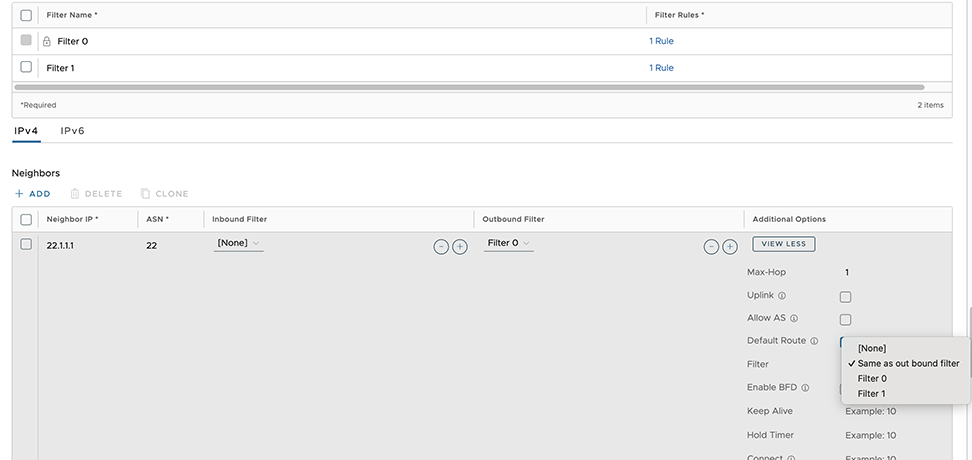
Table 7. Additional Option Descriptions Option Description Max-hop Enter the number of maximum hops to enable multi-hop for the BGP peers. The range is from 1 to 255 and the default value is 1. Note: This field is available only for eBGP neighbors, when the local ASN and the neighboring ASN are different. With iBGP, when both ASNs are the same, multi-hop is inherent by default and this field is not configurable.Local IP Local IP address is the equivalent of a loopback IP address. Enter an IP address that the BGP neighborships can use as the source IP address forth outgoing packets. If you do not enter any value, the IP address of the physical Interface is used as the source IP address. Note: For eBGP, this field is available only when Max- hop count is more than 1. For iBGP, it is always available as iBGP is inherently multi-hop.Uplink Used to flag the neighbor type to Uplink. Select this flag option if it is used as the WAN overlay towards MPLS. It will be used as the flag to determine whether the site will become a transit site (e.g. SD-WAN Hub), by propagating routes leant over a SD-WAN overlay to a WAN link toward MPLS. If you need to make it a transit site, also check "Overlay Prefix Over Uplink" in the Advanced Settings area. Allow AS Select the check box to allow the BGP routes to be received and processed even if the Edge detects its own ASN in the AS-Path. Default Route The Default Route adds a network statement in the BGP configuration to advertise the default route to the neighbor. The Default Originate Filter option allows you to control how the default route is advertised. You can choose None to advertise the default route without any modification, Same as Outbound to use the same filter as the outbound filter or select a specific filter from the list. The chosen filter is then applied to the default route, modifying its parameters accordingly.
Enable BFD Enables subscription to existing BFD session for the BGP neighbor. Keep Alive Enter the keep alive timer in seconds, which is the duration between the keep alive messages that are sent to the peer. The range is from 0 to 65535 seconds. The default value is 60 seconds. Hold Timer Enter the hold timer in seconds. When the keep alive message is not received for the specified time, the peer is considered as down. The range is from 0 to 65535 seconds. The default value is 180 seconds. Connect Enter the time interval to try a new TCP connection with the peer if it detects the TCP session is not passive. The default value is 120 seconds. MD5 Auth Select the check box to enable BGP MD5 authentication. This option is used in a legacy network or federal network, and it is common that BGP MD5 is used as a security guard for BGP peering. MD5 Password Enter a password for MD5 authentication. Note: Starting from the 4.5 release, the use of the special character "<" in the password is no longer supported. In cases where users have already used "<" in their passwords in previous releases, they must remove it to save any changes on the page. - Scroll down to Advanced Settings and select the down arrow to open the Advanced Settings section.
Figure 8. Configuring Advanced Settings 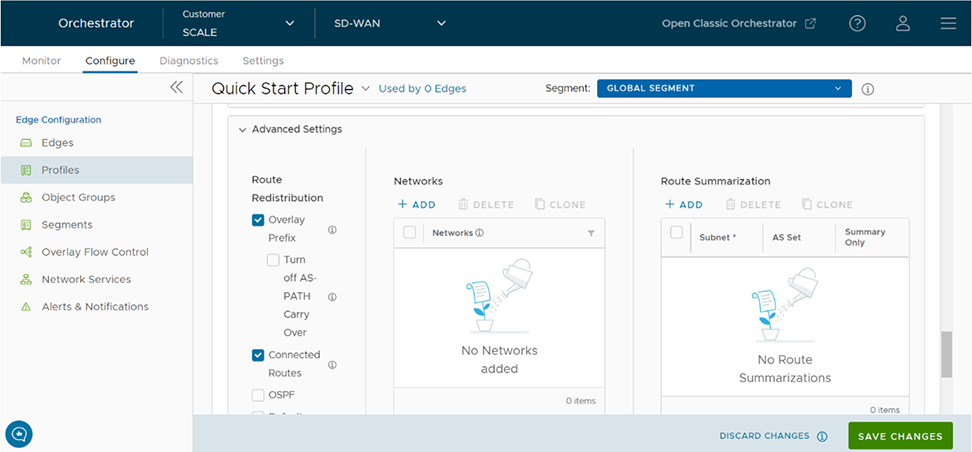
- Configure the following advanced settings, as indicated in the following table, which are globally applied to all the BGP neighbors with IPv4 addresses.
Figure 9. Advanced Settings Options Table 8. Advanced Settings Option Descriptions Option Description Overlay Prefix Select the check box to redistribute the prefixes learned from the overlay. For example, when a Spoke is connected to primary and secondary Hub or Hub Cluster, the Spoke's subnets are redistributed by primary and secondary Hub or Hub Cluster to their neighbor with metric (MED) 33 and 34 respectively. You must configure "bgp always-compare-med" in the neighbor router for symmetric routing.Note: Prior to 5.1, the advertised MED values were starting from eight. From release 5.1 and later, the MED values advertised by HUB starts from 33.Turn off AS-Path carry over By default, this should be left unchecked. Select the check box to deactivate AS-PATH Carry Over. In certain topologies, deactivating AS-PATH Carry Over will influence the outbound AS-PATH to make the L3 routers prefer a path towards an Edge or a Hub. Warning: When the AS-PATH Carry Over is deactivated, tune your network to avoid routing loops.Connected Routes Select the check box to redistribute all the connected Interface subnets. OSPF Select the check box to enable OSPF redistribute into BGP. Set Metric When you enable OSPF, enter the BGP metric for the redistributed OSPF routes. The default value is 20. Default Route Select the check box to redistribute the default route only when Edge learns the BGP routes through overlay or underlay. The Default Originate Filter option allows you to control how the default route is advertised. You can choose None to advertise the default route without any modification, Same as Outbound to use the same filter as the outbound filter or select a specific filter from the list. The chosen filter is then applied to the default route, modifying its parameters accordingly.
Overlay Prefixes over Uplink Select the check box to propagate routes learned from overlay to the neighbor with uplink flag. Networks Enter the network address in IPv4 format that BGP will be advertising to the peers. Select the plus + icon to add more network addresses. When you enable the Default Route option, the BGP routes are advertised based on the Default Route selection globally and per BGP neighbor, as shown in the following table:
Table 9. Default Route Advertising Options Default Route Selection Advertising Options Global Per BGP Neighbor Yes Yes The per BGP neighbor configuration overrides the global configuration and hence default route is always advertised to the BGP peer. Yes No BGP redistributes the default route to its neighbor only when the Edge learns an explicit default route through the overlay or underlay network. No Yes Default route is always advertised to the BGP peer. No No The default route is not advertised to the BGP peer. - Select +Add in the Route Summarization area. A new row is added to the Route Summarization area.
Figure 10. Adding Route Summarization 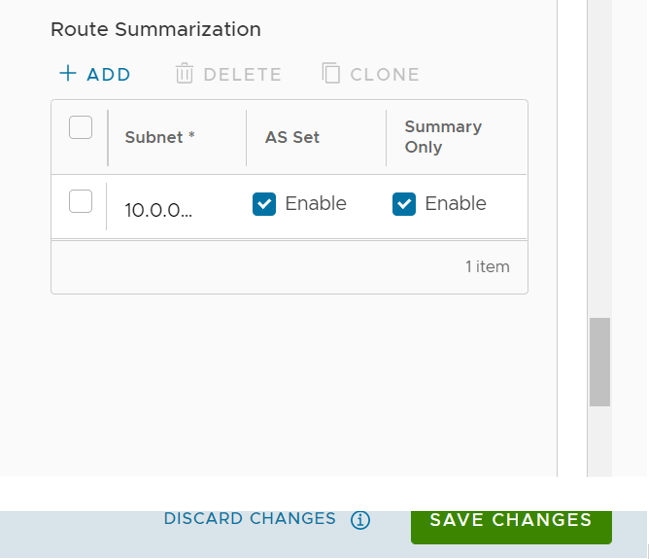
- You can also configure BGP for Non SD-WAN Destination Neighbors in an Edge. For more information, see Configure BGP Over IPsec from Edge to Non SD-WAN Neighbors.
- Configure BGP
Configure BGP from Edge to Underlay Neighbors for Edges
You can override the inherited Profile settings at the Edge level when configuring BGP from the Edge to Underlay Neighbors.
If required, you can override the configuration for a specific Edge as follows:
Configure BGP Over IPsec from Edge to Non SD-WAN Neighbors
The Non SD-WAN BGP Neighbors configuration is not applicable at Profile level. You can configure the NSD Neighbors only at the Edge level.
About this task:
BGP is used to establish the BGP neighborship over the IPsec tunnels to the Non SD-WAN Sites. Direct IPSec tunnels are used for establishing a secure communication between the SD-WAN Edge and the Non SD-WAN Destination (NSD). In previous releases, NSD tunnels from the SD-WAN Edge with the ability to add NVS static routes. In the 4.3 release, this functionality is extended to support BGP over IPSec to the NSD endpoint for a route-based VPN.
Use Cases
Use Case 1: BGP Over IPSec from an Edge to an Azure VPN
Each Azure VPN gateway allocates one set of public Virtual Public IPs (VIP) for a branch Edge to form IPSec tunnels. Similarly, Azure also allocates one internal private subnet and assigns one internal IP per VIP. This internal tunnel-ip (peer tunnel-ip) will be used for creating BGP peering with the Azure Gateway.
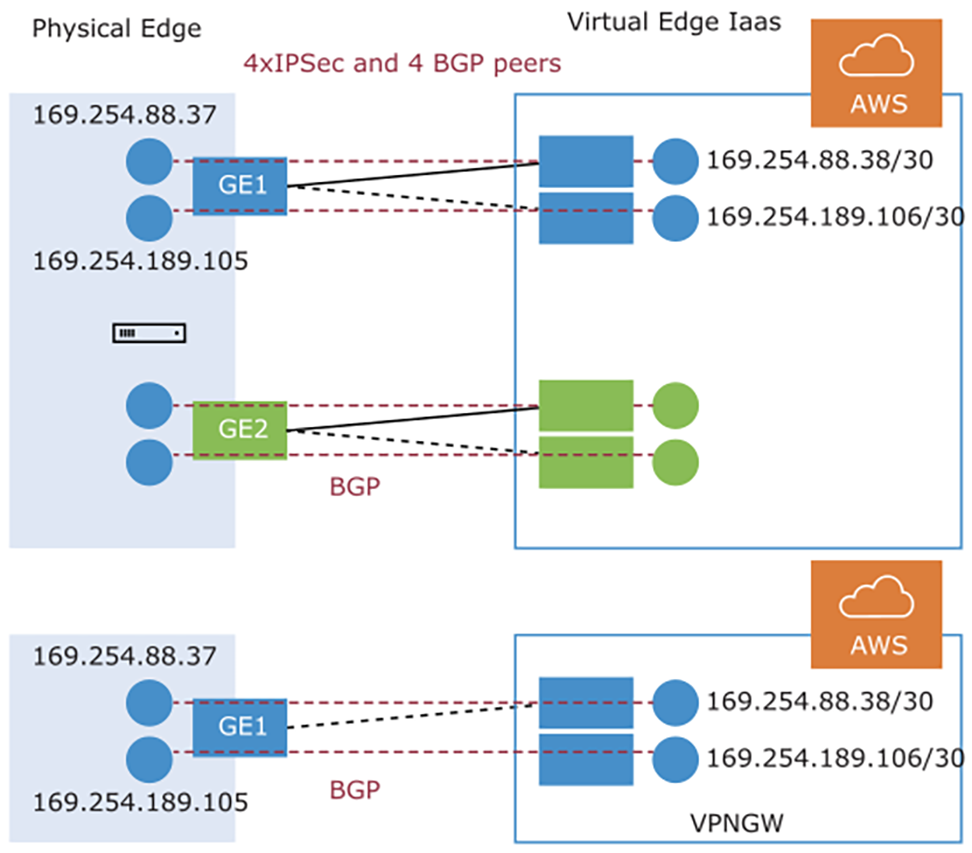
Azure has a restriction that the BGP peer IP (Edge's local tunnel-ip) shouldn't be in the same connected subnet or 169.x.x.x subnet, and therefore we need to support multi-hop BGP on the Edge. In BGP terminology, the local tunnel-ip maps to BGP source address and peer tunnel-ip maps to neighbor/peer address. We need to form a mesh of BGP connections- one per NSD tunnel so that the return traffic from the NVS could be load-balanced (flow-based)- design on the Azure Gateway side. In the below diagram for the physical Edge, we have two public WAN links and so four tunnels to an Azure Gateway. Each tunnel is associated with one BGP connection uniquely identified by the local tunnel_ip and remote peer tunnel_ip. On the Virtual Edge, the only difference is that we have one public WAN link and a maximum of two tunnels and two BGP sessions to the Azure Gateway.

Use Case 2: BGP Over IPSec from Edge to AWS VPN/Transit Gateway
Unlike Azure, AWS VPN Gateway allocates one set of public VIPs per link to a branch Edge. The total sets of public IPs allocated to a branch Edge from an AWS Gateway will be equal to the number of Edge public WAN links that will connect to the AWS VPN Gateway. Similarly, a /30 internal/private subnet would be allocated per tunnel, which are used for BGP peering on that tunnel. These IPs could be manually overridden in AWS Gateway configuration to ensure they are unique across different availability zones.
Similar to the Azure use-case, the Edge will form a mesh of BGP connections- one per tunnel to the AWS gateway. This will allow load-balancing of the return traffic from the AWS VPN Gateway- design on the AWS side. In the diagram below, for the physical Edge, the AWS Gateway allocates one set of public IPs and one set of tunnel-ips (/30) for each Edge WAN link. There are a total of four tunnels, but terminate in different public IPs on the AWS Gateway and four BGP connections.
Use Case 3: Edge Connecting to Both AWS and Azure VPN Gateways (Hybrid Cloud)
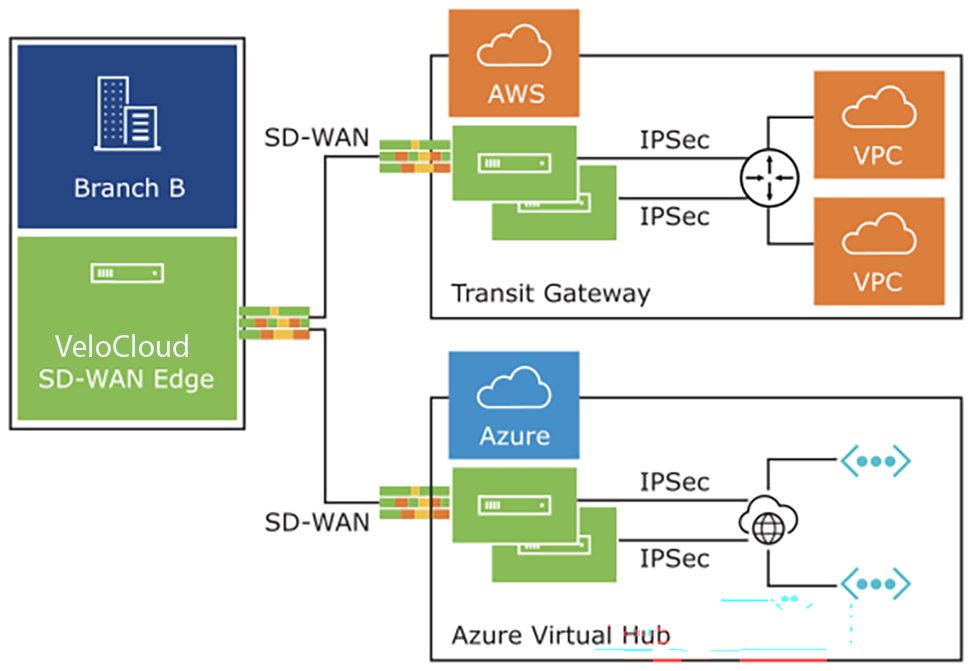
One branch Edge could be connected to both Azure Gateway and AWS Gateway for redundancy purposes or some workloads/apps hosted in one cloud provider while other workloads/apps hosted in a different cloud provider. Regardless of the use-case, the Edge always establishes one BGP session per tunnel and propagates the routes between SD-WAN and IaaS. The diagram below is an example of one branch Edge connected to both Azure and AWS clouds.
Use Case 4: Hub Cluster Connecting to Azure/AWS Transit Gateways
The Hub cluster members can form IPSec tunnels to the Azure/AWS transit Gateways and leverage the transit Gateways as Layer 3 for routing traffic between different VPCs. Without the native BGP over IPSec functionality on Hub, the Hub needs to connect to an L3 router (Cisco CSR widely used here) using native BGP and the L3 router forming a mesh of BGP over IPSec tunnels with different VPCs. L3 router serves as a transit end-point between different VPCs. Usecase-1 (left diagram below): Use Hub as a transit node between different VPCs in different Availability Zones (AZ) so that one VPC can talk to another VPC. Usecase-2 (right diagram below): Connect all Hubs in the cluster directly to a cloud transit gateway and can use the cloud gateway as a PE(L3) router for routes distribution between cluster members. In both use-cases, without the support for BGP over IPSec on Hub, hub connects to an L3 router like CSR using native BGP and CSR peers with transit/VPC gateway using BGP over IPSec.

Use Case 5: Support Transit Functionality in Cloud Providers without Native Support
Some cloud providers like Google Cloud and AliCloud do not have native support for transit functionality (no transit Gateways), and with the support for BGP over IPSec, can rely on SD-WAN Edge/Hub deployed in the cloud to achieve the transit functionality between different VPCs/VNETs. Without the BGP over IPSec support, you must use an L3 router like CSR (solution (2)) to achieve the transit functionality.
Prerequisites:
- Ensure that you have configured Branch to Non SD-WAN Destination via Edge to configure BGP with NSD Neighbors.
- The Local IP address from the Edge is required to configure BGP with NSD Neighbors.
Procedure
To enable BGP with Non SD-WAN neighbors:
- In the SD-WAN service of the Enterprise Portal, select Configure.
- From the left menu, select Edges. The Edges page displays.
- Select an Edge from the list of available Edges.
- Go to the Routing & NAT section in the UI and select the arrow next to BGP.
- In the BGP area, check the Override check box and toggle the radio button from Off to On.
Figure 15. BGP Overrides 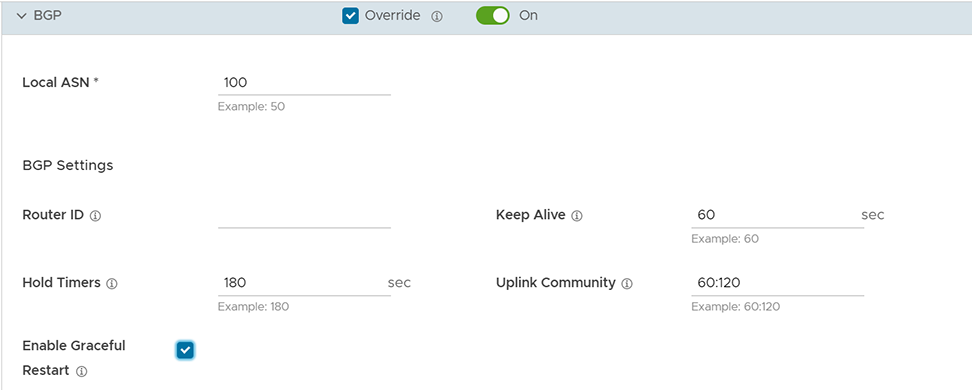
In the BGP Editor window, configure the following settings:
- Enter the local Autonomous System Number (ASN) and then configure the following in the BGP Settings section.
- Configure the BGP Settings, as described in the table below.
Table 11. BGP Configuration Option Description Option Description Router ID Enter the global BGP router ID. If you do not specify any value, the ID is automatically assigned. If you have configured a loopback Interface for the Edge, the IP address of the loopback Interface will be assigned as the router ID. Keep Alive Enter the keep alive timer in seconds, which is the duration between the keep alive messages that are sent to the peer. The range is from 0 to 65535 seconds. The default value is 60 seconds. Hold Timer Enter the hold timer in seconds. When the keep alive message is not received for the specified time, the peer is considered as down. The range is from 0 to 65535 seconds. The default value is 180 seconds. Uplink Community Enter the community string to be treated as uplink routes. Uplink refers to link connected to the Provider Edge(PE). Inbound routes towards the Edge matching the specified community value will be treated as Uplink routes. The Hub/Edge is not considered as the owner for these routes.
Enter the value in number format ranging from 1 to 4294967295 or in AA:NN format.
Enable Graceful Restart check box Please note when selecting this check box: The local router does not support forwarding during the routing plane restart. This feature supports preserving forwarding and routing in case of peer restart.
- Select +Add in the Filter Listarea to create one or more filters. These filters are applied to the neighbor to deny or change the attributes of the route. The same filter can be used for multiple neighbors.
Figure 16. Filter List 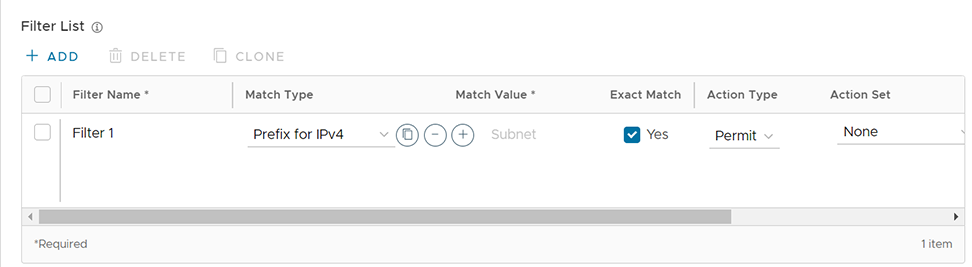
- In the appropriate text fields, set the rules for the filter, as described in the table below.
Option Description Filter Name Enter a descriptive name for the BGP filter. Match Type and Value Choose the type of the routes to be matched with the filter: - Prefix for IPv4 or IPv6: Choose to match with a prefix for IPv4 or IPv6 address and enter the corresponding prefix IP address in the Value field.
- Community: Choose to match with a community and enter the community string in the Value field.
Exact Match The filter action is performed only when the BGP routes match exactly with the specified prefix or community string. By default, this option is enabled. Action Type Choose the action to be performed when the BGP routes match with the specified prefix or the community string. You can either permit or deny the traffic. Action Set When the BGP routes match the specified criteria, you can set to route the traffic to a network based on the attributes of the path. Select one of the following options from the drop-down list: - None: The attributes of the matching routes remain the same.
- Local Preference: The matching traffic is routed to the path with the specified local preference.
- Community: The matching routes are filtered by the specified community string. You can also select the Community Additive check box to enable the additive option, which appends the community value to existing communities.
- Metric: The matching traffic is routed to the path with the specified metric value.
- AS-Path-Prepend: Allows pre-pending multiple entries of Autonomous System (AS) to a BGP route.
- To add more matching rules to the filter, select the Plus ( +) icon.
- Select OK to create the filter.
The configured filters are displayed in the BGP Editor window.
- Configure Underlay Neighbors for IPv4 and IPv6 addresses, as required. For additional information, see Configure BGP from Edge to Underlay Neighbors for Edges.
Note: The maximum number of supported BGPv4 Match/Set rules is 512 (256 inbound, 256 outbound). Exceeding 512 total Match/Set rules is not supported and may cause performance issues, resulting in disruptions to the enterprise network.
- In the NSD Neighbors section, configure the following settings, as described in the table below.
Table 12. NSD Neighbors Option Descriptions Option Description NSD Name Select the NSD Name from the drop-down list. The NSDs already configured in the Branch to Non SD-WAN Destination via Edge area of the Orchestrator are displayed in the drop-down list. Link Name Choose the name of the WAN link associated with the NSD neighbor. Tunnel Type Choose the tunnel type of the Peer as Primary or Secondary. Neighbor IP Enter the IP address of the NSD neighbor. ASN Enter the ASN for the NSD neighbor. Inbound Filter Select an Inbound filer from the drop-down list. Outbound Filter Select an Outbound filer from the drop-down list. Additional Options – Select the view all link to configure the following additional settings: Uplink Used to flag the neighbor type to Uplink. Select this flag option if it is used as the WAN overlay towards MPLS. It will be used as the flag to determine whether the site will become a transit site (e.g. SD-WAN Hub), by propagating routes leant over a SD-WAN overlay to a WAN link toward MPLS. If you need to make it a transit site, select the Overlay Prefix Over Uplink check box in the Advanced Settings. Local IP Local IP is mandatory for configuring Non SD-WAN Neighbors. Local IP address is the equivalent of a loopback IP address. Enter an IP address that the BGP neighborships can use as the source IP address for the outgoing packets. Max-hop Enter the number of maximum hops to enable multi-hop for the BGP peers. For the 5.1 release and later, the range is from 2 to 255 and the default value is 2. Note: When upgrading to the 5.1 release, any max-hop value of 1 will automatically be updated to a max-hop value of 2.Note: This field is available only for eBGP neighbors, when the local ASN and the neighboring ASN are different. With iBGP, when both ASNs are the same, multi-hop is deactivated by default and this field is not configurable.Allow AS Select the check box to allow the BGP routes to be received and processed even if the Edge detects its own ASN in the AS-Path. Default Route The Default Route adds a network statement in the BGP configuration to advertise the default route to the neighbor. Enable BFD Enables subscription to existing BFD session for the BGP neighbor. Note: Single-hop BFD session is not supported for BGP over IPSec with NSD Neighbors. However, multi-hop BFD is supported. Local IP is mandatory for NSD-BGP sessions on the SD-WAN Edge. The SD-WAN Edge handles only the connected Interface IPs as a single-hop BFD.Keep Alive Enter the keep alive timer in seconds, which is the duration between the keep alive messages that are sent to the peer. The range is from 0 to 65535 seconds. The default value is 60 seconds. Hold Timer Enter the hold timer in seconds. When the keep alive message is not received for the specified time, the peer is considered as down. The range is from 0 to 65535 seconds. The default value is 180 seconds. Connect Enter the time interval to try a new TCP connection with the peer if it detects the TCP session is not passive. The default value is 120 seconds. MD5 Auth Select the check box to enable BGP MD5 authentication. This option is used in a legacy network or federal network, and it is common that BGP MD5 is used as a security guard for BGP peering. MD5 Password Enter a password for MD5 authentication. Note: Starting from the 4.5 release, the use of the special character "<" in the password is no longer supported. In cases where users have already used "<" in their passwords in previous releases, they must remove it to save any changes on the page.Note: Over Multi-hop BGP, the system might learn routes that require recursive lookup. These routes have a next-hop IP which is not in a connected subnet, and do not have a valid exit interface. In this case, the routes must have the next-hop IP resolved using another route in the routing table that has an exit interface. When there is traffic for a destination that needs these routes to be looked up, routes requiring recursive lookup will get resolved to a connected Next Hop IP address and interface. Until the recursive resolution happens, the recursive routes point to an intermediate interface. For additional information about Multi-hop BGP Routes, see the "Remote Diagnostic Tests on Edges" section in the VeloCloud SD-WAN Troubleshooting Guide. - Select Advanced to configure the following settings, as described in the table below.
Note: Advanced Settings are shared across both the underlay BGP neighbors and NSD BGP neighbors.
Table 13. Advanced Settings Option Descriptions Option Description Overlay Prefix Select the check box to redistribute the prefixes learned from the overlay. Turn off AS-Path carry over By default, this should be left unchecked. Select the check box to turn off AS-PATH Carry Over. In certain topologies, turning off AS-PATH Carry Over will influence the outbound AS-PATH to make the L3 routers prefer a path towards an Edge or a Hub. Warning: When the AS-PATH Carry Over is turned off, tune your network to avoid routing loops.Connected Routes Select the check box to redistribute all the connected Interface subnets. OSPF Select the check box to enable OSPF redistribute into BGP. Set Metric When you enable OSPF, enter the BGP metric for the redistributed OSPF routes. The default value is 20. Default Route Select the check box to redistribute the default route only when Edge learns the BGP routes through overlay or underlay. When you select the Default Route option, the Advertise option is available as Conditional.
Overlay Prefixes over Uplink Select the check box to propagate routes learned from overlay to the neighbor with uplink flag. Networks Enter the network address that BGP will be advertising to the peers. Select the Plus ( +) Icon to add more network addresses When you enable the Default Route option, the BGP routes are advertised based on the Default Route selection globally and per BGP neighbor, as shown in the following table.
Table 14. Default Route Selection Default Route Selection Advertising Options Global Per BGP Neighbor Yes Yes The per BGP neighbor configuration overrides the global configuration and hence default route is always advertised to the BGP peer. Yes No BGP redistributes the default route to its neighbor only when the Edge learns an explicit default route through the overlay or underlay network. No Yes Default route is always advertised to the BGP peer. No No The default route is not advertised to the BGP peer. - Select OK to save the configured filters and NSD Neighbors.
The BGP Settings section displays the configured settings.
Route Summarization
The Route Summarization feature is available in the 5.2 release, for an overview and use case of this functionality, see Route Summarization. For configuration details, follow the steps below.
- Select +Add in the Route Summarization area. A new row is added to the Route Summarization area. See image below.
Figure 17. Route Summarization 
- Under the Subnet column, enter the network range that you want to summarize in the A.B.C.D/M format and the IP subnet.
- Under the AS Set column, select the Yes check box if applicable.
- Under the Summary Only column, select the Yes check box to allow only the summarized route to be sent.
- Add additional routes, if necessary, by selecting +Add. To Clone or Delete a route summarization, use the appropriate buttons, located next to +Add.
The BGP Settings section displays the BGP configuration settings.
- Select Save Changes when complete to save the configuration.
You can also configure BGP from Edge to underlay neighbors.
Configure BGP Over IPsec from Gateways
You can configure BGP settings for Gateways over IPsec tunnels.
About this task:
Arista allows Enterprise users to define and configure a Non SD-WAN Destination instance in order to establish a secure IPsec tunnel to a Non SD-WAN Destination through an SD-WAN Gateway.
Before you begin:
- Create a Non SD-WAN Destination via Gateway for one of the following sites:
- Configure a Non SD-WAN Destination of Type AWS VPN Gateway
- Configure a Non SD-WAN Destination of Type Check Point
- Configure a Non SD-WAN Destination of Type Cisco ASA
- Configure a Non SD-WAN Destination of Type Cisco ISR
- Configure a Non SD-WAN Destination of Type Generic IKEv2 Router (Route Based VPN)
- Configure a Non SD-WAN Destination of Type Microsoft Azure Virtual Hub
- Configure a Non SD-WAN Destination of Type Palo Alto
- Configure a Non SD-WAN Destination of Type SonicWALL
- Configure a Non SD-WAN Destination of Type Zscaler
- Configure a Non SD-WAN Destination of Type Generic IKEv1 Router (Route Based VPN)
- Configure a Non SD-WAN Destination of Type Generic Firewall (Policy Based VPN)
- Associate the Non SD-WAN Destination to a Profile See Configure a Tunnel Between a Branch and a Non SD-WAN Destinations via Gateway.
For additional information on Distributed Cost Calculation, refer to the Configure Distributed Cost Calculation section in the VeloCloud SD-WAN Operator Guide.
- Go to , and then under Non SD-WAN Destinations, expand Non SD-WAN Destinations via Gateway.
Note: If there are no new The New NSD via Gateway option appears only when there are no items in the table. Follow Steps 2 and 3 to create a new Non SD-WAN Destination.
Figure 18. Non SD-WAN Destination 
- Select +New to create a new Non SD-WAN Destination.
The Non SD-WAN Destinations via Gateway dialog displays, as show in the image below.
Figure 19. Non SD-WAN Destinations via Gateway 
- In the Non SD-WAN Destinations via Gateway area (see image above), configure the following fields as described in the table below.
Table 15. Non SD-WAN Destinations via Gateway Option Descriptions Option Description Name Enter a name for the Non SD-WAN Destination in the text box. Type Select an IPsec tunnel type from the drop-down menu. Tunnel Mode Active/ Hot-Standby mode supports to set up a maximum of 2 tunnel endpoints or Gateways. Active/Active mode supports to set up a maximum of fourtunnel endpoints or Gateways. All Active tunnels can send and receive traffic through ECMP. VPN Gateway 1 Enter a valid IP address VPN Gateway 2 Enter a valid IP address. This field is optional The Non SD-WAN Destinations via Gateway is created, as shown in the image below.
Figure 20. Non SD-WAN Destinations 
- In the Non SD-WAN Destination via Gateway area, slide the grey bar to the far right to the BGP column.
Select the Edit link under the BGP column.
If the Edit link does not display under the BGP column, see the section titled, "Configure a Tunnel Between a Branch and a Non SD-WAN Destinations via Edge" to enable an Edge to Non SD-WAN via Gateway.
After selecting the Edit link under the BGP column, the Edit BGP dialog displays.
- Toggle the BGP Activated radio button to the right to turn it green.
- Select +Add to create one or more filters. These filters are applied to the neighbor to deny or change the attributes of the route. The same filter can be used for multiple neighbors.
- Configure the options In the Filter List area, as described in the table below.
Table 16. Filter List Option Descriptions Option Description Filter Name Enter a descriptive name for the BGP filter. Match Type and Value Choose the type of the routes to be matched with the filter: - Prefix for IPv4 or IPv6: Choose to match with a prefix for IPv4 or IPv6 address and enter the corresponding prefix IP address in the Value field.
- Community: Choose to match with a community and enter the community string in the Value field.
Exact Match The filter action is performed only when the BGP routes match exactly with the specified prefix or community string. By default, this option is enabled. Action Type Choose the action to be performed when the BGP routes match with the specified prefix or the community string. You can either permit or deny the traffic. Action Set When the BGP routes match the specified criteria, you can set to route the traffic to a network based on the attributes of the path. Select one of the following options from the drop-down list: - None: The attributes of the matching routes remain the same.
- Local Preference: The matching traffic is routed to the path with the specified local preference.
- Community: The matching routes are filtered by the specified community string. You can also select the Community Additive check box to enable the additive option, which appends the community value to existing communities.
- Metric: The matching traffic is routed to the path with the specified metric value.
- AS-Path-Prepend: Allows pre-pending multiple entries of Autonomous System (AS) to a BGP route.
- Select the plus (+) icon to add additional matching rules for the filter. Repeat the procedure to create additional filters.
The configured filters are displayed in the Filter List area.
Figure 21. Configured Filter List  Note: These BGP neighbors are assigned to their respective tunnels exclusively for neighborship establishment and subsequent control exchanges, ensuring these communication occurs solely over the designated tunnels.
 - In the Edit BGP window, configure the BGP settings for the Primary and Secondary Gateways.
Figure 22. Edit BGP Neighbors Gateway Settings  Note: The Secondary Gateway option is available only if you have configured a secondary Gateway for the corresponding Non SD-WAN Destination.Note: For a customer deployment where a Non SD-WAN Destination (NSD) via Gateway is configured to use redundant tunnels, if the Primary and Secondary Gateways advertise a prefix with an equal AS path to the Primary and Secondary NSD tunnels, the Primary NSD tunnel will prefer a redundant Gateway path over the Primary Gateway. The impact of the Primary NSD over Gateway tunnel preferring the redundant Gateway path over the Primary Gateway is experienced only for return traffic to the Gateway from the NSD.
If you do not want your BGP router to prefer the redundant Gateway, the workaround is to configure AS-PATH prepend and set the metric filter to a higher (3 or more) metric for the advertised prefix in the redundant Gateway. Doing this ensures the NSD's primary tunnel chooses the Primary Gateway for return traffic.
- In the Primary Cloud Gateway section, enter the local ASN and the Router ID.
- Scroll down to the Neighbors area and select +Add.
- Configure the following settings in the Neighbors area, as described in the table below.
Table 17. Neighbors Option Descriptions Option Description Local ASN Enter the local Autonomous System Number (ASN) Router ID Enter the BGP Router ID Neighbor IP Enter the IP address of the BGP neighbor ASN Enter the ASN of the neighbor Inbound Filter Select an Inbound filer from the drop-down list Outbound Filter Select an Outbound filer from the drop-down list Additional Options – Select the view all link to configure the following additional settings: Local IP Local IP address is the equivalent of a loopback IP address. Enter an IP address that the BGP neighborships can use as the source IP address for the outgoing packets. Max-hop Enter the number of maximum hops to enable multi-hop for the BGP peers. For the 5.1 release and later, the range is from 2 to 255 and the default value is 2. Note: When upgrading to the 5.1 release, any max-hop value of 1 will automatically be updated to a max-hop value of 2.Note: This field is available only for eBGP neighbors, when the local ASN and the neighboring ASN are different.Allow AS Select the check box to allow the BGP routes to be received and processed even if the Gateway detects its own ASN in the AS-Path. Default Route The Default Route adds a network statement in the BGP configuration to advertise the default route to the neighbor. Enable BFD Enables subscription to the existing BFD session for the BGP neighbor. Keep Alive Enter the keep alive timer in seconds, which is the duration between the keep alive messages that are sent to the peer. The range is from 1 to 65535 seconds. The default value is 60 seconds. Hold Timer Enter the hold timer in seconds. When the keep alive message is not received for the specified time, the peer is considered as down. The range is from 1 to 65535 seconds. The default value is 180 seconds. Connect Enter the time interval to try a new TCP connection with the peer if it detects that the TCP session is not passive. The default value is 120 seconds. MD5 Auth Select the check box to enable BGP MD5 authentication. This option is used in a legacy network or federal network, and is used as a security guard for BGP peering. MD5 Password Enter a password for MD5 authentication. Note: Starting from the 4.5 release, the use of the special character "<" in the password is no longer supported. In cases where users have already used "<" in their passwords in previous releases, they must remove it to save any changes on the page.The configured neighbors are displayed in the Neighbors area.
Select the Save Changes button to save all changes.
Figure 23. Configured BGP Neighbors List  Note: Over Multi-hop BGP, the system might learn routes that require recursive lookup. These routes have a next-hop IP which is not in a connected subnet, and do not have a valid exit Interface. In this case, the routes must have the next-hop IP resolved using another route in the routing table that has an exit Interface. When there is traffic for a destination that needs these routes to be looked up, routes requiring recursive lookup will get resolved to a connected Next Hop IP address and Interface. Until the recursive resolution happens, the recursive routes point to an intermediate Interface. For additional information about Multi-hop BGP Routes, see the "Remote Diagnostic Tests on Edges" section in the VeloCloud SD-WAN Troubleshooting Guide.
Route Summarization
The Route Summarization feature is available in the 5.2 release, for an overview and use case of this functionality, see Route Summarization. For configuration details, follow the steps below.
- Scroll down to the Route Summarization area.
- Select +Add in the Route Summarization area. A new row is added to the Route Summarization area.
Configure route summarization, as described in the table below.
Table 18. Route Summarization Option Descriptions Option Description Filter Name Enter a descriptive name for the BGP filter. Subnet Enter the IP subnet. AS Set Generate AS set path information from the summarized routes (while advertising the summary route to the peer). Under the AS Set column, select the Yes check box if applicable. Summary Only Select the Yes check box to allow only the summarized route to be sent. - Add additional routes, if necessary, by selecting +Add. To Clone or Delete a route summarization, use the appropriate buttons, located next to +Add.
The BGP Settings section displays the BGP configuration settings.
Figure 24. BGP Settings: Route Summary - Select Save Changes when complete to save the configuration.
- Only for Gateways running version 6.0 or later have an option to configure up to 4 tunnels based on VPN type. In addition, those tunnels destined to be a non-SD-WAN gateways can operate in either AA or A-HS mode to achieve load sharing/bearing preferences of the user.
- For gateways running version less than 6.0, all active-active configurations are interpreted as active-hotstandby with tunnel 1 being active and tunnel 2 being hot-standby.
Monitor BGP Sessions
You can monitor the BGP sessions on Edges and Gateways.
Refer to the following sections to monitor the BGP sessions:
Monitor BGP Events
You can view the events related to the BGP sessions.
In the SD-WAN service of the Enterprise Portal, click .
To view the events related to BGP, you can use the filter option. Click the Filter Icon next to the Search option and choose to filter the details by different categories.
The following image shows some of the BGP events.

- BGP session established to Gateway neighbor
- BGP session established to Edge neighbor
- BGPv6 session established to Edge neighbor
- Edge BGP neighbor unavailable
- Edge BGPv6 neighbor unavailable
- Gateway BGP neighbor unavailable
Troubleshooting BGP Settings
To run the tests for BGP:
OSPF/BGP Redistribution
Each of routing protocols OSPF and BGP may be enabled independently and the prior model of allowing only one routing protocol to be enabled on the system has been removed with this release. This release also allows the possibility of redistributing OSPF into BGP or BGP into OSPF (or both simultaneously), along with other possible route sources like prefixes learnt over the overlay, connected routes, static routes, etc.
In addition, with release 3.2, we are standardizing the redistribution behavior along more traditional lines (similar to that in other routing vendors). For example, if there is more than one route available for the same prefix, then only the best route for that prefix in the system RIB will be redistributed to the destination protocol if the configuration in the destination protocol allows redistribution for that route type.
Consider, as an example, redistribution of the prefix 192.168.1.0/24 into BGP. Let's say routes to the prefix 192.168.1.0/24 are locally available, learned from OSPF and separately learned as an Overlay prefix. Let's further assume that between the OFC flow ordering for the prefix, and route metrics, and route preference the OSPF route ranks above (is better than) the learned overlay route for that same prefix. Then, the OSPF route will be redistributed into BGP if OSPF redistribution has been turned on in BGP. Note that since the overlay learned prefix is not the best route for that prefix in the system RIB, it will not be redistributed into BGP even if the redistribution of overlay prefixes has been turned on in BGP.
In cases like the above, in order to facilitate the redistribution of the best route for a prefix into a given destination protocol, the user can enable redistribution for the specific route type that is the best route in the system.
Alternately, if the user prefers a different route source for that prefix to be redistributed into the destination protocol, the user can control the relative precedence of the route in the system RIB using the Overlay Flow Control facility provided by the management interface, or by varying the route metric.
OSPF/BGP Redistribution Metric Calculation
- The transit metric is (0) if the route is learned from a directly connected Edge.
- The transit metric is (90) if the route is learned via a Gateway.
- The transit metric is (32 + hub's order value) if the route is learned via a Hub Edge.
For OSPF External Type-1 (OE1) routes, this is the final metric. For OSPF External Type-2 (OE2) routes, it will add up the non-preferred metric constant (8388607). This is why there is a very high metric value for an OE2 route type on Edge peers.
For BGP, this implies that the BGP MED value advertised by Hub Edges, which previously started from 9, 10, 11, and so forth, now starts from 33, 34, 35, and so forth.
BFD Settings
Bidirectional Forwarding Detection (BFD) provides a simple Hello protocol similar to detection components of well-known routing protocols. A pair of systems transmit BFD packets periodically over each path between the two systems, and if a system stops receiving BFD packets for long enough, the neighboring system is assumed to have failed.
A BFD session is established based on the needs of the application that would use BFD. The user has to explicitly configure the address and parameters for the BFD session and the subscribers/applications (BGP/OSPF) of the session, as there is no discovery mechanism in BFD.
Routing protocols like BGP or OSPF exchange the learned routes between Edges and Routers. These protocols exchange routes and detect route failures using their own mechanism. Generally, route failures are detected based on the keepalive mechanism where one entity echoes other entity on a frequent configured interval, that is the keepalive time. These routing protocols have higher keepalive timers which results in longer duration to detect the route failures. BFD detects route failures between two connected entities faster with low overhead on detection of failures.
- Fast route failure detection with low re-convergence time.
- Less overhead in route failure detection.
- Uniform rate of route failure detection across routing protocols.
BFD can be defined as a simple service. The service primitives provided by BFD are to create, destroy, and modify a session, given the destination address and other parameters. BFD in return provides a signal to the clients indicating when the BFD session goes up or down.
- BGP on Edges and Partner Gateways
- OSPF on Edges
Configure BFD for Profiles
VeloCloud SD-WAN allows to configure BFD sessions to detect route failures between two connected entities.
To configure a BFD session for Profiles, use the following steps:
- Select Save Changes.
Figure 26. Configuring BFD for Profiles 
When you configure BFD rules for a profile, the rules are automatically applied to the Edges that are associated with the profile. If required, you can override the configuration for a specific Edge. See Configure BFD for Edges for additional information.
VeloCloud SD-WAN supports configuring BFD for BGP and OSPF.- To enable BFD for BGP, see Configure BFD with BGP for Profiles.
- To enable BFD for OSPF, see Configure BFD with OSPF for Profiles.
- To view the BFD sessions, see Monitor BFD Sessions.
- To view the BFD events, see Monitor BFD Events.
- For troubleshooting and debugging BFD, see Troubleshooting BFD.
Configure BFD for Edges
VeloCloud SD-WAN allows to configure BFD sessions to detect route failures between two connected entities. Once you have configured BFD rules for a Profile, the rules are automatically applied to the Edges that are associated with the profile. Optionally, you can override the inherited settings at the Edge level.
Use the following steps to override the configuration for a specific Edge:
- Select Override to modify the BFD configuration settings for the selected Edge.
Figure 27. Configuring BFD for Edges 
Configure BFD with BGP for Profiles
Configure BFD for BGP on SD-WAN Profiles.
By default, BFD is deactivated in BGP neighbor. You can enable BFD for a BGP session to subscribe to BFD session updates.
Enabling BFD for a BGP neighbor does not create a BFD session. You must explicitly configure a BFD session. See Configure BFD for Profiles.
The following procedure describes how to enable BFD for an already configured BGP session on an Edge. To configure BGP settings, see Configure BGP from Edge to Underlay Neighbors for Profiles.
To enable BFD for BGP on partner Gateways, you must be an Operator super user. For more information, see the Configure Partner Handoff section in the VeloCloud SD-WAN Operator Guide.
- In the BGP Editor window, select view all in the Additional Options column for a BGP neighbor and select Enable BFD. You can enable a BFD subscription for multiple BGP neighbors, including NSD Neighbors in the 4.3 release.
Note:Multihop must be configured as Multihop BFD for NSD BGP Neighbors in the 4.3 release. For more information about NSD Neighbors, see Configure BGP Over IPsec from Edge to Non SD-WAN Neighbors.
Figure 28. Configuring BFD for BGP on a Profile  Note: BGP over IPsec from the SD-WAN Edge does not support a single-hop BFD session.
Configure BFD with BGP for Edges
You can override the inherited settings at the Edge level for BFD for BGP.
Use the following steps to override the BFD configuration for an Edge:
- Select Override and move the slider to the ON position to modify the BGP settings for the selected Edge.
Figure 29. Configuring BFD with BGP for Edges 
Configure BFD with OSPF for Profiles
You can configure BFD for OSPF for Profiles.
By default, BFD is deactivated in OSPF. You can enable BFD for OSPF to subscribe to BFD session updates.
Enabling BFD for an OSPF neighbor does not create a BFD session. You must explicitly configure a BFD session. See Configure BFD for Profiles.
The following procedure describes how to enable BFD for an already configured OSPF session on an Edge Interface. To configure OSPF settings, see Activate OSPF for Profiles.
To configure the Interface settings, see Configure Interface Settings for Profile.
- On the Interface edit window, you can configure OSPF settings under IPv4/IPv6 Settings. Select OSPF and then select the OSPF Area from the list.
Figure 30. Configuring BFD with OSPF for a Profile 
Configure BFD with OSPF for Edges
You can modify the inherited Profile settings at the Edge level for BFD for OSPF.
If required, you can override the configuration for a specific Edge as follows:
- On the Interface edit window, you can configure OSPF settings under IPv4/IPv6 Settings. Select OSPF and then select the OSPF Area from the list.
Figure 31. Configuring BFD with OSPF on an Edge 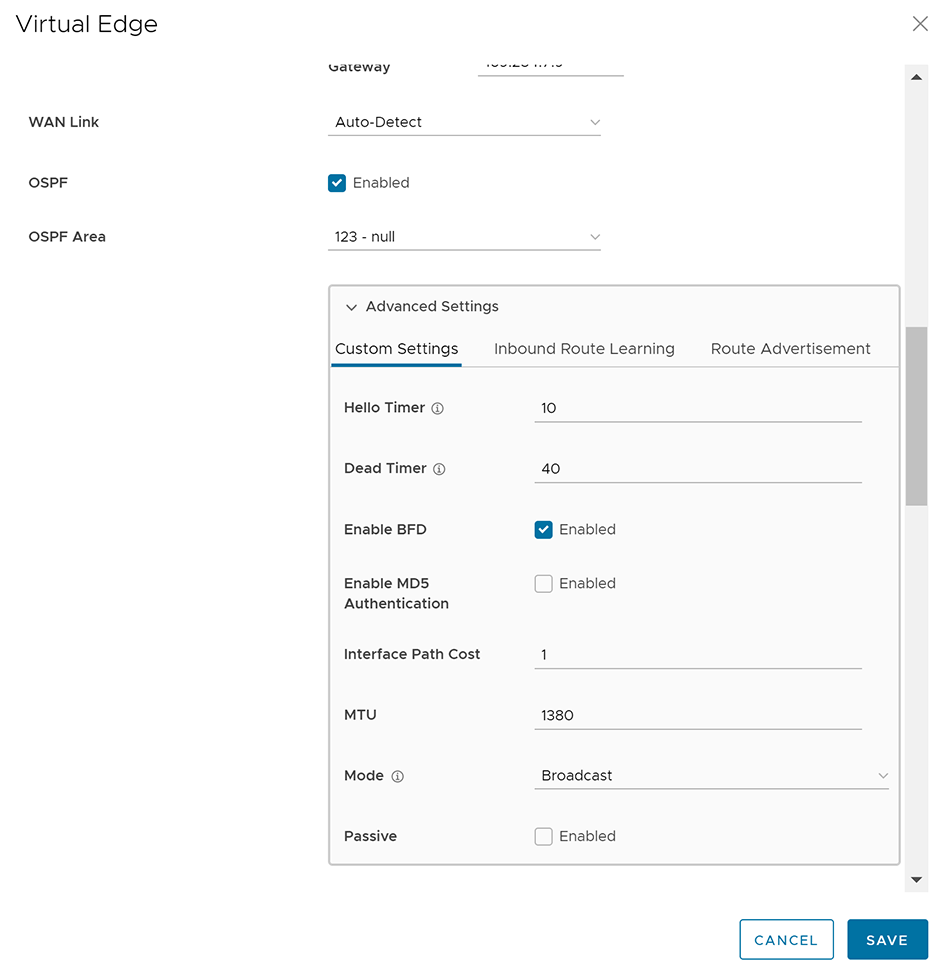
Configure BFD for Gateways
You can configure BFD Settings for Gateways over IPsec tunnels.
- Create a Non SD-WAN Destination via Gateway for one of the following sites:
- Configure a Non SD-WAN Destination of Type AWS VPN Gateway
- Configure a Non SD-WAN Destination of Type Cisco ISR
- Configure a Non SD-WAN Destination of Type Generic IKEv2 Router (Route Based VPN)
- Configure a Non SD-WAN Destination of Type Generic IKEv1 Router (Route Based VPN)
- Configure a Non SD-WAN Destination of Type Microsoft Azure Virtual Hub
- Associate the Non SD-WAN Destination to a Profile. See Configure a Tunnel Between a Branch and a Non SD-WAN Destinations via Gateway.
Use the following steps to configure BFD for a Gateway:
- In the Non SD-WAN Destinations via Gateway area, select Edit in the BFD column that corresponds to the Non SD-WAN Destination.
Figure 32. Configuring BFD for Gateways 
- Configure the BFD settings:
Note: The Secondary Gateway option is available only if you have configured a secondary Gateway for the corresponding Non SD-WAN Destination.
Figure 33. Editing BFD Settings 
Table 20. BFD Settings Option Descriptions Field Description Peer Address Enter the IP address of the remote peer to initiate a BFD session. Local Address Enter a locally configured IP address for the peer listener. This address is used to send the packets. Multihop This option is not supported for the Gateways. Detect Multiplier Enter the detection time multiplier. The remote transmission interval is multiplied by this value to determine the detection timer for connection loss. The range is from 3 to 50 and the default value is 3. Receive Interval Enter the minimum time interval, in milliseconds, at which the system can receive the control packets from the BFD peer. The range is from 300 to 60000 milliseconds and the default value is 300 milliseconds. Transmit Interval Enter the minimum time interval, in milliseconds, at which the local system can send the BFD control packets. The range is from 300 to 60000 milliseconds and the default value is 300 milliseconds. Note: BFD is supported only on VTP Tunnels.
Monitor BFD Sessions
Monitor the BFD Sessions on Edges and Gateways. To view the BFD Sessions, use the following steps:
- Select Filter next to Search and opt to filter the details by different categories.
The Edge BFD Sessions table displays the BFD Sessions of the Edge and the Gateway.
Figure 34. Edge BFD Sessions  The BFD Sessions table include the following details for Edges and Gateways:
- Name of the Edge or Gateway
- Segment name
- Peer IPv4 or IPv6 address
- Local IPv4 or IPv6 address
- State of the BFD session
- Remote and Local timers
- Number of Events
- Duration of the BFD session
Select an Event number to view the details of the events.
Monitor BFD Events
You can view the events related to the BFD sessions.
In the SD-WAN service of the Enterprise portal, click .
To view the events related to BFD, you can use the filter option. Select the Filter icon next to the Search option and choose to filter the details by different categories.

- BFD session established to Gateway neighbor
- BFD session established to edge neighbor
- BFDv6 session established to edge neighbor
- Edge BFD Configuration
- Edge BFD IPv6 Configuration
- Edge BFD neighbor unavailable
- Edge BFDv6 neighbor unavailable
- Gateway BFD neighbor unavailable
Troubleshooting BFD
Run Remote Diagnostics tests to view the logs of the BFD sessions and use the log information for troubleshooting purposes.
Use the following steps to run tests for troubleshooting BFD:
Overlay Flow Control
The Overlay Flow Control page displays a summarized view of all the routes in your network.
For the 4.3 release, a new NSD bucket has been introduced for the classification of NSD Routes. The new NSD bucket preference logic applies only when the Use NSD policy is enabled along with the Distributed Cost Calculation. The Use NSD policy can only be enabled after you enable the Distributed Cost Calculation.
You can view and edit the global routing preferences and the advertise actions for the Edges, Hubs, Partner Gateways, and Non SD-WAN Destinations via Edge and Gateway.
To configure the Overlay Flow Control settings, perform the following steps:- In the SD-WAN Service of the Enterprise portal, select .
Figure 36. Configuring Overlay Flow Control 
The Overlay Flow Control page displays the following details:
Table 21. Overlay Flow Control Option Descriptions Option Description Preferred VPN Exits Displays the priority of the destinations to where the traffic should be routed. Global Advertise Flags Displays the advertise actions of static, connected, internal, external, and uplink routes. Routes List Displays all routes. You can change the Preferred VPN Exits order for a particular subnet by selecting Edge Subnet in the Overlay Flow Control page. - In the Overlay Flow Control page, you can configure the following settings:
- Edit – Select to update the priorities and the advertise actions. See Configure Global Routing Preferences.
- Refresh Routes – This option is available only when the Distributed Cost Calculation feature is enabled by the Operator. By default, the Orchestrator is actively involved in learning the dynamic routes. Edges and Gateways rely on the Orchestrator to calculate initial route preferences and return them to the Edge and Gateway. The Distributed Cost Calculation feature enables to distribute the route cost calculation to the Edges and Gateways. For IPv4, this option is available only when the Distributed Cost Calculation feature is enabled by Operator. For IPv6, Distributed Cost Calculation is enabled by default. The Operator cannot turn off this feature for IPv6.
For additional information on Distributed Cost Calculation, refer to the Configure Distributed Cost Calculation section in the VeloCloud SD-WAN Operator Guide.
Note: To enable the Distributed Cost Calculation feature, check with your supporting partner. If you are directly supported by Arista Networks, contact the support team. - Type YES and then select Refresh Routes to make the Edges and Gateways recalculate learned route costs and send them to the Orchestrator. In addition, the changes in the Overlay Flow Control are applied immediately on the new and existing learned routes.
When you refresh the routes, the Customer Enterprise has the following impact on the network:
- All the local dynamic routes are refreshed, and the preference and advertise action of these routes are updated. This updated information is advertised to the Gateway, Orchestrator, and eventually across the Enterprise. As this leads to an update in the routing table, there is a brief impact on the traffic for all the sites.
- Any existing flow using these routes can potentially be affected due to the change in the routing entries.
Note: It is recommended to use Refresh Routes in a maintenance window to minimize the impact on the Customer Enterprise. - VRF Global Routing Preferences – This option enables you to edit the global routing preferences, advertise actions, and modify the priorities of the destinations to where the traffic should be routed.
Figure 37. Configuring VRF Global Routing Preferences 
- Select Preferred VPN Exits to prioritize the VPN Exits, and then select Edit to use the UP and DOWN arrows to modify the priorities.
Figure 38. Editing the Preferred VPN 
- In the Global Advertise Flags section, select the relevant check boxes to modify the advertise actions for the routes.
- Routes List – This section displays the learned routes in the subnets. Select the IPv4 or IPv6 tab to view the corresponding subnets. The following image shows IPv6 subnets. For additional information, see Configure Subnets.
Figure 39. Configuring Route Lists 
The bottom panel of the Overlay Flow Control window displays the subnets. You can prioritize the preferred destinations for the subnets and pin or unpin learned route preferences. For additional information, see Configure Subnets.
Configure Global Routing Preferences
In the Overlay Flow Control window, you can edit the global routing preferences, advertise actions, and modify the priorities of the destinations to where the traffic should be routed.
The VRF Global Routing Preferences section displays the Preferred VPN Exits and the Global Advertise Flags areas.
- In the Overlay Flow Control page, select Preferred VPN Exits and then select the Edit link to open the Edit Preferred VPN screen.
Figure 40. Editing the Preferred VPN 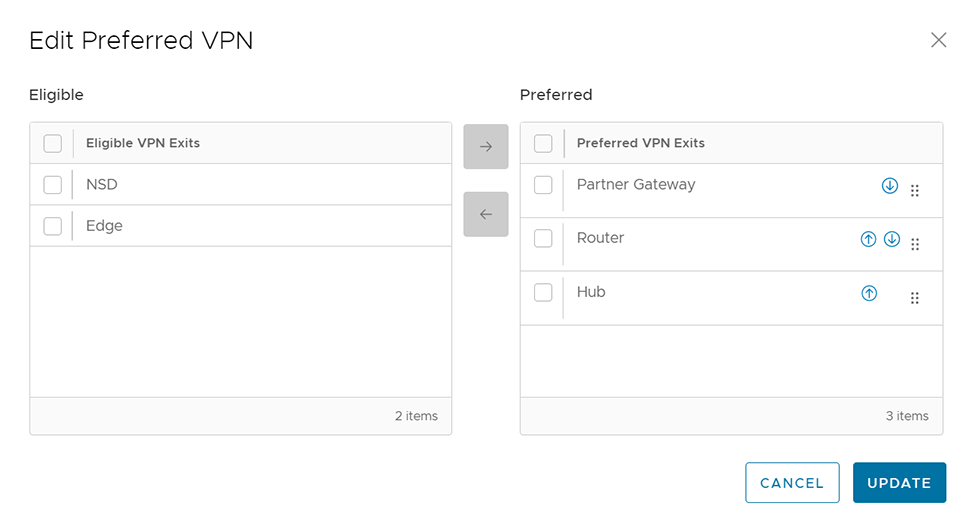
- On the Overlay Flow Control page, select Global Advertise Flags to open the Edit Preferred VPN screen.
Figure 41. Configuring Global Advertise Flags 
- In the Global Advertise Flags area, select the relevant check boxes to modify the advertise actions for the routes.
- Select Update to save the changes.
The updated settings are displayed in the Overlay Flow Control page.
Configure Subnets
In the Overlay Flow Control window, you can update the priorities of the destinations for the learned routes in the subnets.
- The Routes List section of the Overlay Flow Control window displays the subnets with the following details, as show in the image and table below.
Figure 42. Displaying the Route List 
Table 22. Router List Option Descriptions Option Description Segment Segment name. Subnet The network that the route corresponds to along with a list of Edges that learned the route. Preferred VPN Exits The route through which another branch can access the subnet. Route Type Displays the type of the route, which can be one of the following: Static, Connected, or Learned. Last Update The last updated date and time of the preferred VPN exit. Created On Date and time when the route was created. IPv4 Subnet Eligible VPN Exits Note: You can configure the subnets for both IPv4 and IPv6 addresses.Currently, you can view up to 256 subnet prefixes in the API call request. You can use the Filter option to search for the specific subnet prefix. The following information message appears if the results are more than the server could return. "There are more results that the server could return. Please narrow your search criteria."
Select one or more subnets and select MORE to perform the following activities:
- Pin Learned Route Preference – Pins the preferences of the selected learned route.
- Unpin Learned Route Preference – Unpins the preference of the selected learned route to default settings.
- Delete Learned Routes – Deletes the learned routes. This option does not delete the connected routes, static routes, routes from Overlay Flow Control, and routes from Edge Route table. The option is available only when Configure Distributed Cost Calculation is turned off.
- Select the Edit Subnet option for a subnet to modify the priorities of the preferred destination.
- In the Subnet window, you can move the destinations from the Eligible VPN Exits to Preferred VPN Exits and vice versa.
Figure 43. Configuring Preferred VPN Exits 
- In the Subnet window, you can move the destinations from the Eligible VPN Exits to Preferred VPN Exits and vice versa.