Orchestrator Branding-Enterprise
This section provides guidelines to customize the Orchestrator user interface (UI) to your company’s brand. As an Enterprise user, you can brand the Orchestrator UI by applying your company’s name, logo, and colors at a customer level.
To enable Enterprise users to customize the orchestrator UI branding, the Operator only Branding feature must be deactivated. If this feature is turned on in your orchestrator, contact your Operator to deactivate theOperator only Branding feature.
Note: Deactivating the Operator only Branding feature overrides any existing Operator branding settings.
As an Enterprise user, to customize the branding at a customer level, perform the following steps:
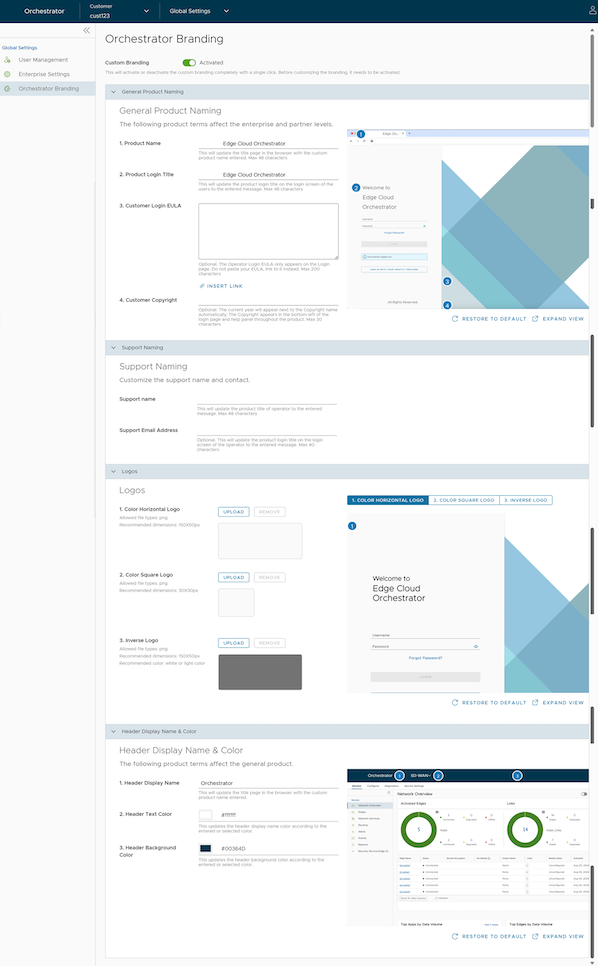
- Select Orchestrator Branding to display the Orchestrator Branding page.
Figure 1. Configuring Orchestrator Branding