Configure Tunnels on VeloCloud Gateway
Configure the SD-WAN layer of Orchestrator using a Gateway as the endpoint for the tunnels between VeloCloud SD-WAN and Forcepoint Cloud Security Gateway. Ensure that you have configured the customer.
Configure Non SD-WAN Destination via Gateway
You can define and configure a Non SD-WAN Destination instance as Forcepoint Cloud Security Gateway and establish a secure IPsec tunnel to the Forcepoint Cloud Security Gateway through a VeloCloud Gateway.
Ensure that you have Administrator privileges to login to VeloCloud Edge Cloud Orchestrator.
To configure a Non SD-WAN Destination via Gateway:
- Login to Orchestrator and navigate to Manage Customers.
Figure 1. Managing Customers 
- In the Non SD-WAN Destinations via Gateway pane, select New to create a new Non SD-WAN Destination.
Figure 2. Creating a New Non SD-WAN Destination 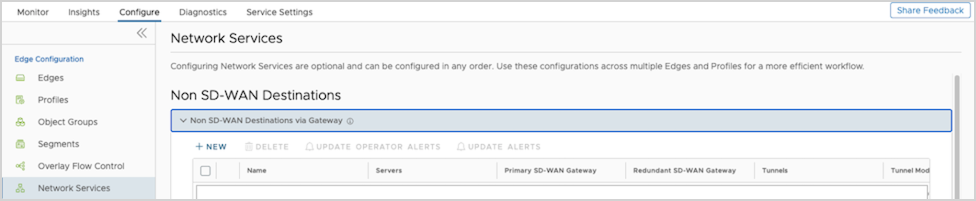
- In the New Non SD-WAN Destination via Gateway window, configure the following:
Figure 3. Adding New Non SD-WAN Destination Parameters 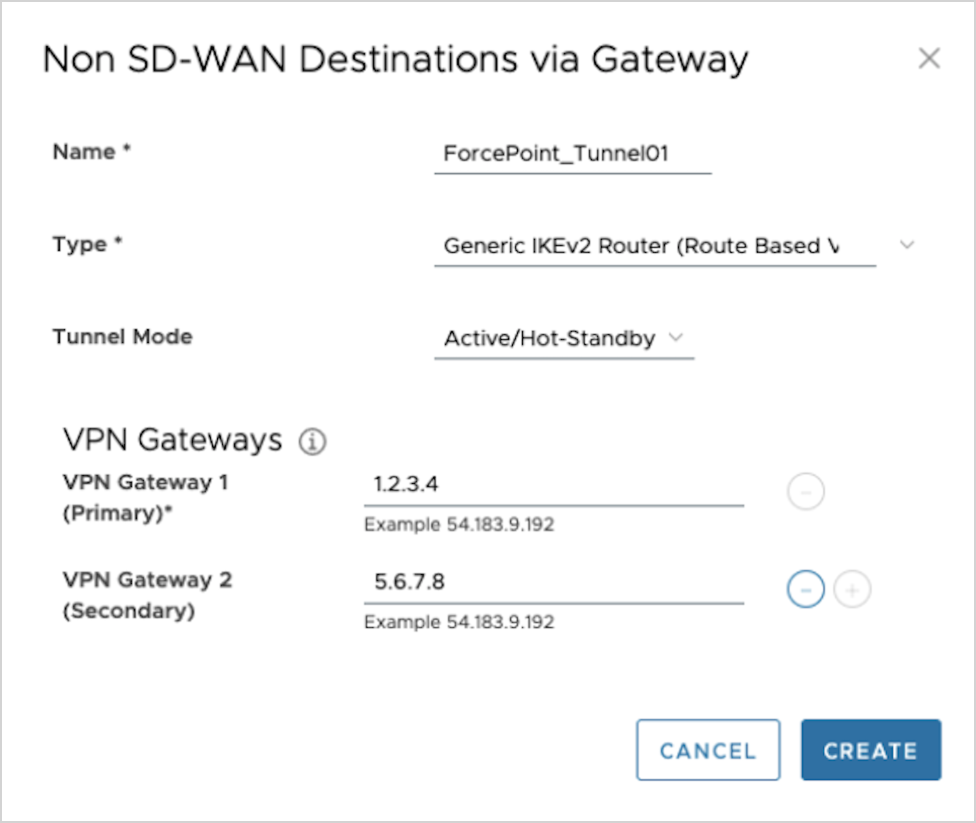
Table 1. New Non SD-WAN Destination Parameters Option Descriptions Option Description Name Enter a descriptive name for the Non SD-WAN Destination. Type Select the type as Generic IKEv2 Router (Route Based VPN). Primary VPN Gateway Enter the IP address of the first data center from the Forcepoint Cloud Security Gateway Edge Device configuration. Secondary VPN Gateway Enter the IP address of the second data center from the Forcepoint Cloud Security Gateway Edge Device configuration. - In the next window, configure the following settings:
Figure 4. Configuring ForcePoint Tunnels - Example 1 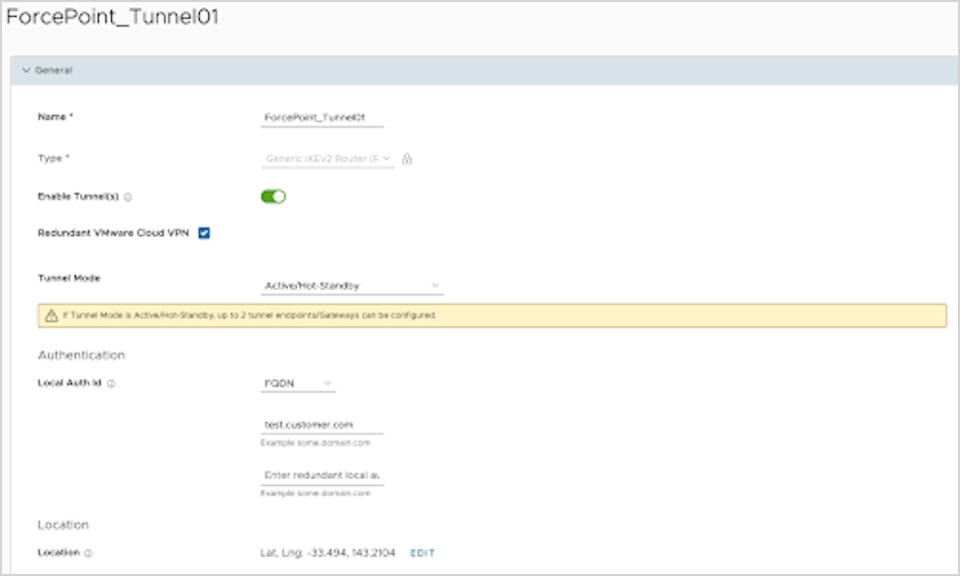
Figure 5. Configuring ForcePoint Tunnels - Example 2 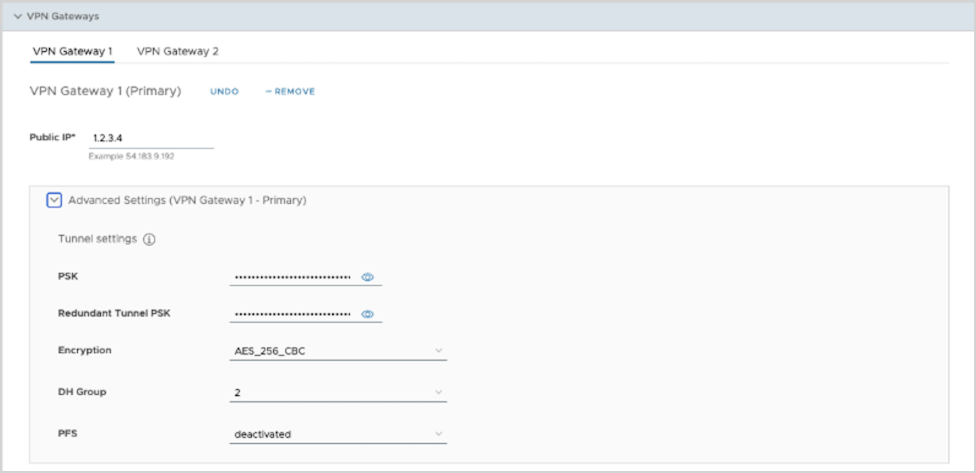
Figure 6. Configuring ForcePoint Tunnels - Example 3 
The Name and Type of the Non SD-WAN Destination are displayed. Select the Enable Tunnel(s) checkbox to enable the tunnel.
Select Advanced to configure the other IPsec tunnel parameters for the Primary and Secondary VPN Gateways as follows:Table 2. Additional IPsec Tunnel Option Descriptions Option Description PSK Enter the pre-shared key used in configuring the Edge Device in the Forcepoint Cloud Security Gateway. Redundant Tunnel PSK Repeat entering the pre-shared key. Encryption Select AES-256 as the AES algorithms key from the drop-down list, to encrypt data. DH Group Select the Diffie-Hellman (DH) Group algorithm to be used when exchanging the pre-shared key. The DH Group sets the strength of the algorithm in bits. PFS Select the Perfect Forward Secrecy (PFS) level as deactivated. Hash Select the authentication algorithm for the VPN header as SHA 256 from the drop-down list. IKE SA Lifetime(min) Enter the IKE SA lifetime in minutes. The rekeying should be initiated for Edges before the time expires. The range is from 10 to 1440 minutes. The default value is 1440 minutes. IPsec SA Lifetime(min) Enter the IPsec SA lifetime in minutes. The rekeying should be initiated for Edges before the time expires. The range is from 3 to 480 minutes. The default value is 480 minutes. DPD Timeout Timer(sec) Enter the DPD timeout value. The DPD timeout value to add to the internal DPD timer, as described below. Wait for a response from the DPD message before considering the peer to be dead (Dead Peer Detection). Prior to the 5.1.0 release, the default value is 20 seconds. For the 5.1.0 release and later, see the list below for the default value.
- Library Name: Quicksec
- Probe Interval: Exponential (0.5 sec, 1 sec, 2 sec, 4 sec, 8 sec, 16 sec)
- Default Minimum DPD Interval: 47.5sec (Quicksec waits for 16 seconds after the last retry. Therefore, 0.5+1+2+4+8+16+16 = 47.5).
- Default Minimum DPD interval + DPD Timeout(sec): 67.5 sec
Note: Prior to the 5.1.0 release, you can deactivate DPD by configuring the DPD timeout timer to 0 seconds. However, for the 5.1.0 release and later, you cannot deactivate DPD by configuring the DPD timeout timer to 0 seconds. The DPD timeout value in seconds will get added onto the default minimum value of 47.5 seconds). - Select Save Changes and close the window.
The new Non SD-WAN Destination via Gateway displays in the Network Services window:
Figure 7. Displaying the New Non SD-WAN Destination via Gateway 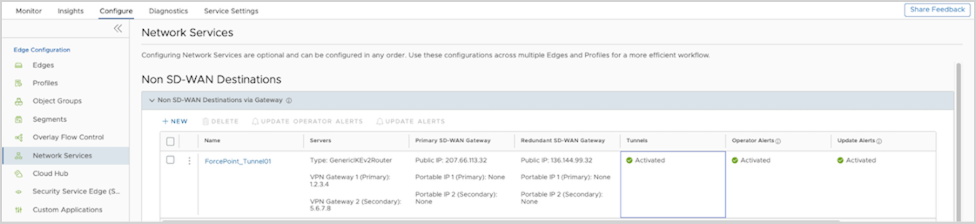
Configure Profile to use the new Non SD-WAN Destination via Gateway. See Configure Profile with Non SD-WAN Destination via Gateway.
Configure Profile with Non SD-WAN Destination via Gateway
You can configure a profile to establish a VPN connection between a branch and a Non SD-WAN Destination via Gateway.
Ensure that you have created a Non SD-WAN Destination via Gateway with the required IPsec tunnel parameters relevant to Forcepoint Cloud Security Gateway. To create a Non SD-WAN Destination via Gateway, see Configure Non SD-WAN Destination via Gateway.
- To establish a VPN connection between a Branch and Non SD-WAN Destination via Gateway, select the Enable checkbox under Branch to Non SD-WAN Destinations via Gateway.
Figure 8. Configuring a VPN Connection 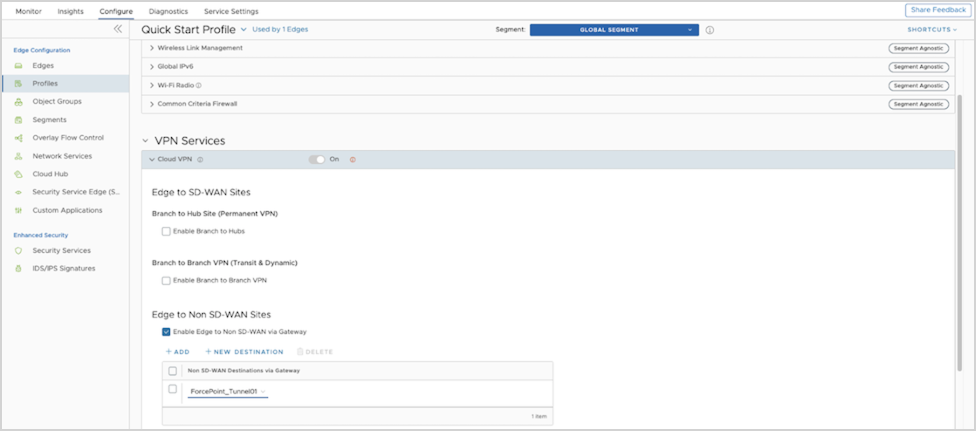
Create a Business Policy to route the traffic from the Non SD-WAN Destination tunnel to the Forcepoint Cloud Security Gateway. See Create Business Policy for Non SD-WAN Destination via Gateway.
Create Business Policy for Non SD-WAN Destination via Gateway
After you establish a VPN connection between a branch and a Non SD-WAN Destination via Gateway, create a Business Policy to route the traffic from the Non SD-WAN Destination tunnel.
Ensure that you have established the VPN connection between branch and Non SD-WAN Destination via Gateway. See Configure Profile with Non SD-WAN Destination via Gateway.
- Choose Non SD-WAN Destination via Gateway and select the Non SD-WAN Destination service created with the Forcepoint tunnel parameters.
Figure 9. Configuring a Rule - Example 1 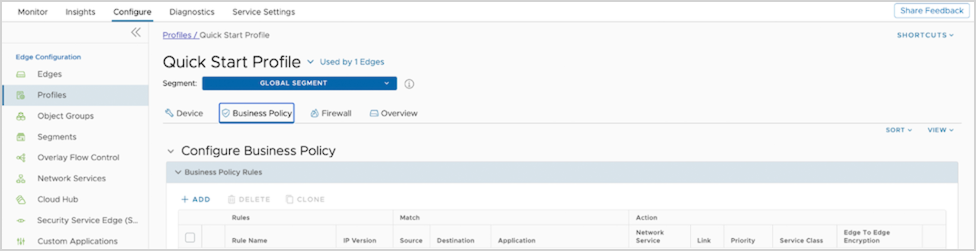
Figure 10. Configuring a Rule - Example 2 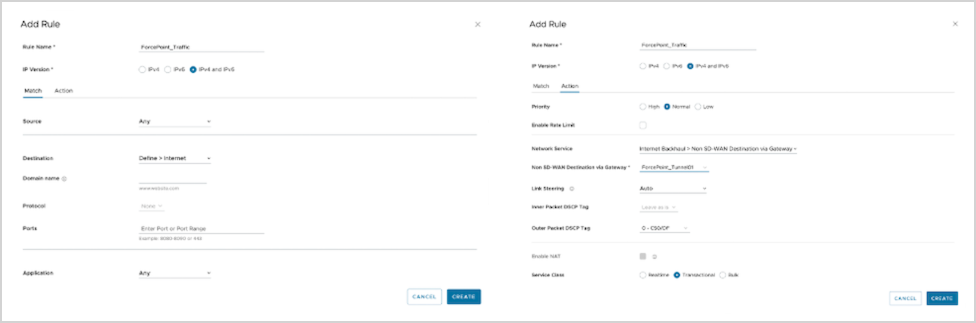
Figure 11. Configuring a Rule - Example 3 
You can verify that the tunnel is online by monitoring the Network Services. See Monitor Non SD-WAN Destination via Gateway.
Monitor Non SD-WAN Destination via Gateway
You can monitor and verify the Non SD-WAN Destination Tunnel configuration using the Monitoring tab.
To monitor the Non SD-WAN Destination Tunnel configuration:
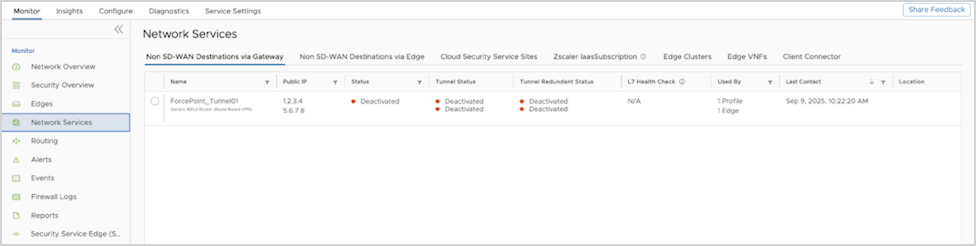
- The Non SD-WAN Destination via Gateway section displays the configured Non SD-WAN Destination along with the status. The Forcepoint data center acts as the endpoint of redundant IPsec tunnels.
Figure 12. Monitoring the Non SD-WAN Destination via Gateway