印刷

Orchestrator Upgrade with New Orchestrator UI

This section discusses the prerequisites and steps required to upgrade a Orchestrator. Orchestrator allows you to configure and send a banner message about an upcoming Orchestrator upgrade. The banner is displayed to users the next time they login to the Orchestrator. You can customize the banner message and visibility for the users.

To upgrade a Orchestrator, perform the following steps:

  1. Configure Orchestrator Upgrade Announcement>
  2. Prepare Orchestrator Upgrade
  3. Complete Orchestrator Upgrade

Configure Orchestrator Upgrade Announcement

The Upgrade Announcement area enables you to configure and send a message about an upcoming upgrade. To send an Orchestrator Upgrade announcement, perform the following steps:

  1. In the Operator portal, select the Orchestrator tab, and go to Orchestrator Upgrade in the left navigation pane. The Orchestrator Upgrade screen appears.
    Figure 1. Orchestrator Upgrade Screen
  2. Under Upgrade Announcement, set the banner message and visibility for the users.
    Table 1. Upgrade Announcement Option Descriptions
    Option Description
    Banner Message Enter the required Banner Message in the textbox to announce the status of an upcoming upgrade.

    A pop-up message appears indicating that you have successfully created your announcement, and your banner message displays at the top of the Orchestrator.

    Visibility You can choose the banner Visibility for the users. By default, Operator only is selected.
  3. Select the Announce Orchestrator Upgrade button to display the banner message. A pop-up message appears indicating that you have successfully created your announcement, and that your banner message displays at the top of the Orchestrator.
  4. If you want to remove the announcement from the Orchestrator, select the Unannounced Orchestrator Upgrade button. A pop-up message appears indicating that you have successfully unannounced the Orchestrator upgrade.

Prepare Orchestrator Upgrade

After you have configured the Orchestrator upgrade banner message and visibility for the users, select the Prepare Orchestrator Upgrade button. This pauses the application of the configuration updates of Edges during the upgrade, at the global level and by default at the enterprise level. It displays the system configured message as the banner message while the upgrade is in progress.
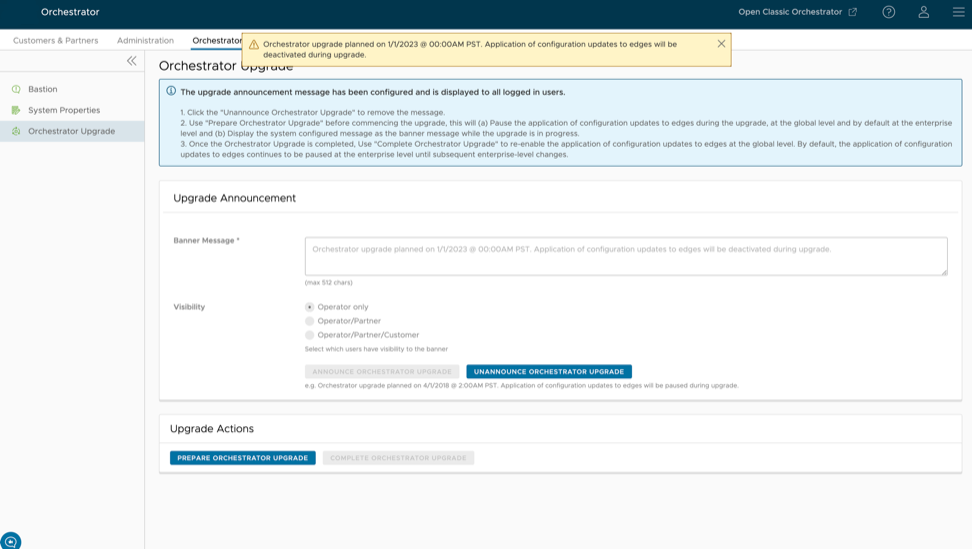
Figure 2. Orchestrator Upgrade Message

Contact the Arista Support team to prepare for the Orchestrator upgrade.

  1. Collect the following information prior to contacting Support:
    • Provide the current and target Orchestrator versions, for example: current version (i.e. 2.5.2 GA-20180430), target version (3.3.2 p2).
      Note: For the current version, this information can be found on the top, right corner of the Orchestrator by selecting the Help icon.
    • Provide a screenshot of the replication dashboard of the Orchestrator as shown below.
    • Hypervisor Type and version (i.e. vSphere 6.7)
    • Commands from the Orchestrator:
      Note: Commands must be run as root (e.g. ‘sudo <command>’ or ‘sudo -i’).
      • Run the script /opt/vc/scripts/vco_upgrade_check.sh to check:
        • LVM layout
        • Memory Information
        • CPU Information
        • Kernel Parameters
        • Some system properties
        • ssh configurations
        • MySQL schema and database sizes
        • File_store locations and sizes
      • Copy of /var/log
        tar -czf /store/log-`date +%Y%M%S`.tar.gz --newer-mtime="36 hours ago" /var/log
      • From the Standby Orchestrator:
        sudo mysql --defaults-extra-file=/etc/mysql/velocloud.cnf velocloud -e 'SHOW SLAVE STATUS \G'
      • From the Active Orchestrator:
        sudo mysql --defaults-extra-file=/etc/mysql/velocloud.cnf velocloud -e 'SHOW MASTER STATUS \G'
  2. Contact Arista Support at with the above-mentioned information for assistance with the Orchestrator upgrade.

Complete Orchestrator Upgrade

After you have complete the Orchestrator upgrade, select Complete Orchestrator Upgrade under Upgrade Actions. This re-enables the application of the configuration updates of Edges at the global level.
Figure 3. Orchestrator Upgrade Actions
To verify that the status of the upgrade is complete, run the following command to display the correct version number for all the packages:
dpkg -l|grep vco

When you are logged in as an Operator, you can confirm if the same version displays by selecting the Help icon at the top right corner of the page.

..