印刷

Activate SD-WAN Edges using Edge Auto-activation

Edge Auto-activation allows you to activate Edges by powering on the Edges and connecting them to the Internet.

Note: Starting from the 5.1.0 release, Zero Touch Provisioning is renamed as Edge Auto-activation.

This method eliminates the need of an activation link. Using this feature, the Service Provider can preconfigure the Edges and have them shipped to the Customers. The Customers just need to power-on the Edges and connect the cables to the internet to activate the Edges.

This method of Edge activation is also useful when the person at the remote site is unable to connect a laptop/tablet/phone to the Edge, and therefore cannot use an email or cannot click an activation code/URL.

Note:
  • Edge Auto-activation supports Edge models: 510, 510 LTE, 6x0, 7x0 and 3xx0.
  • For Edge Auto-activation to work, use the Orchestrator software version 4.3.0 or later.
As a Partner user, complete the following tasks to activate Edges using Edge Auto-activation:

Sign-Up for Edge Auto-activation

  • As a Partner user, ensure that you have a valid Partner Relationship Management Identifier (PRM ID), received at the time of registering with Arista. If you do not have a valid PRM ID, contact Arista Partner Connect.
  • Outbound internet connectivity via DHCP is required to complete the push activation successfully.
To sign-up for Edge Auto-activation:
  1. Log in to Orchestrator, and then go to Edge Management > Edge Auto-activation .
  2. On the Edge Auto-activation page, enter the PRM ID.
  3. Select Submit.
    Note: You are required to enter the PRM ID only when you login for the first time. You can view the Edge inventory in the Available Inventory tab only after the successful validation of PRM ID. The validation process may take up to 3 to 5 days. If you enter an incorrect PRM ID, you must contact the Customer Support team to get it changed.

Only the Edges that were shipped to you after the successful completion of the sign-up process appear in the Available Inventory tab. Ensure that the PRM ID assigned to you is used in all your future orders so that the inventory is reflected correctly. You must assign the Edges to Customers, and then assign profile and license to Edges. For instructions, see Assign Edges to Customers.

Assign Edges to Customers

Ensure that you have signed-up for Edge Auto-activation so that you can view the list of Edges in the Available Inventory page. For instructions, refer to Sign-Up for Edge Auto-activation.

To assign Edges to Customers:

  1. Log in to Orchestrator, and then go to Edge Management > Edge Auto-activation .
    A list of Edge inventory with Serial number and Model appears.
  2. Select all the Edges that you want to assign to Customers, and then select Assign To Customer. The Edge Assignment window appears.
    Figure 1. Edge Assignment
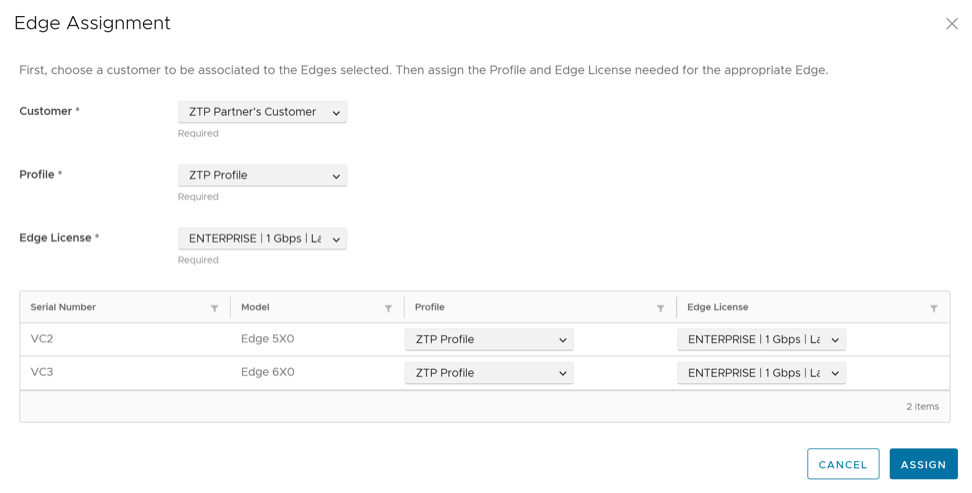
  3. From the Customer drop-down list, select the Customer to whom you want to assign the Edges.
  4. From the Profile and Edge License drop-down lists, select the required profile and license that you want to assign to all Edges in the inventory.
    Note: You can choose to override these settings for a specific Edge by selecting the appropriate profile and license in the table.
  5. Select Assign. The Edges for which you have assigned a Customer, a profile and a license, appear in the Assigned Inventory tab. The Inventory State for the assigned Edges is displayed as Assigned to Customer and the Edge State is displayed as Pending.
  6. Following are the additional options available on the Edge Auto-activation page:
    Table 1. Edge Auto-activation- Additional Settings
    Option Description
    Search Enter a search term to be searched across the items in the table. Use the advanced search option for more filters.
    Download CSV Select to download the list of Edges in an excel format.
    Columns Select the checkboxes to view the required columns.
    Refresh Select this option to refresh the table properties.

    When your Customer powers-on the assigned physical Edges and connects them to the internet, the Edges are redirected to the Orchestrator, where they are automatically activated. After an Edge is activated, the Edge State in the Assigned Inventory tab changes from Pending to Activated.

Reassign an Edge to Another Customer

You can reassign an Edge to another Customer before the Edge is activated.

If you choose to reassign an Edge that is already activated, you must deactivate the Edge, and then reassign the Edge to another Customer. For instructions about how to deactivate an Edge, refer to the topic Remote Actions in the Arista SD-WAN Troubleshooting Guide. Once you deactivate the Edge, the Edge state changes to Offline. You can now reassign the Edge to another Customer.

To reassign an Edge to another Customer:

  1. Log in to Orchestrator, and then go to Edge Management > Edge Auto-activation . Select Assigned Inventory tab.
  2. Select the Edge that you want to reassign, and then select Reassign. The Edge Reassignment window appears.
  3. From the Customer drop-down list, select the Customer to whom you want to reassign the Edge.
  4. From the Profile and Edge License drop-down lists, select the required profile and license that you want to assign to the Edge.
  5. Select Reassign.

Though the Edge is reassigned to the new Customer, a corresponding entry would still be available in the Configure > Edges page of the Customer to whom the Edge was originally assigned. Select the logical Edge entry, and then select Delete to manually delete the entry.

Activate Edges Using Email

In this method, the Edge is shipped to the Customer site with a factory-default configuration. Prior to activation, the Edge contains no configuration or credentials to connect to the Enterprise network.

Complete the following steps to activate Edges using the Email method:
  1. Send an Activation Email. The administrator initiates the activation process by sending an activation procedure email to the person that will install the Edge, typically a Site Contact. For additional information, see Send Edge Activation Email.
  2. Activate the Edge Device. The instructions in the activation procedure email activates the Edge device. For additional information, see Activate an Edge Device.

Send Edge Activation Email

The administrator initiates the activation process of an Edge by sending an activation procedure Email to the person installing the Edge, typically a Site Contact.

To send the Edge Activation Email:

  1. In the SD-WAN service of the Enterprise portal, go to Configure > Edges .
  2. The Edges page displays the existing Profiles.
  3. Select the link to the Edge to be activated or select the View link in the Device column of the Edge.
  4. Select the Overview tab. For an Edge that is not activated, the Edge Status section displays the option to send an activation Email:
    Figure 2. Edge Status
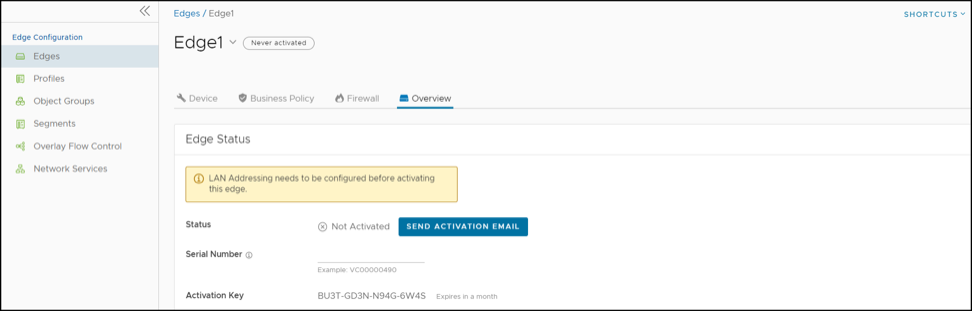
  5. Select Send Activation Email.
    Figure 3. Send Activation Email
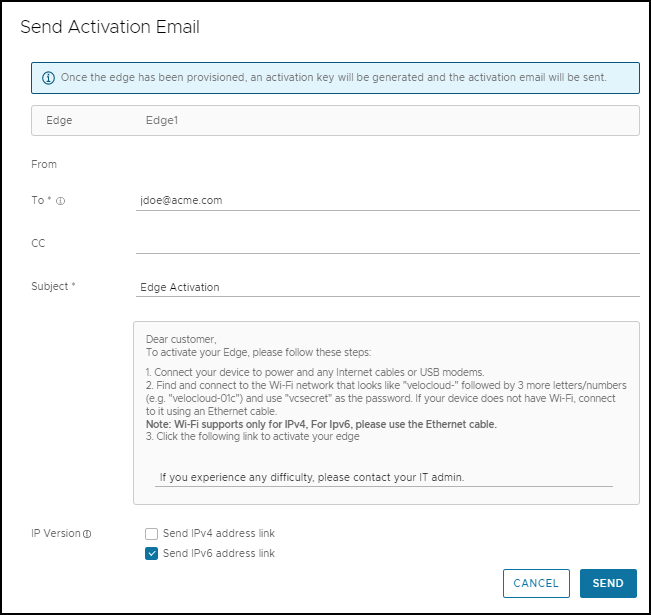
  6. Enter the details like Email address of the recipient, the Site contact, and Subject line. A default Email message is available. If required, you can add the contact details of IT admin in the message. Select the IP version of the activation link to be sent. You can select the link to contain either IPv4 address or IPv6 address, or both.
  7. Select Send and the activation Email is sent to the Site contact.
    Once the Site contact receives the activation Email, you can activate the Edge. For additional information, see Activate an Edge Device.
    Note:
    • For the Edge 510 LTE device, the Activation Email consists of Cellular Settings like SIM PIN, Network, APN, and Username. A supported factory default image is required.
    • For the 610, 620, 640, 680, and 610 LTE devices with SFP that are configured with ADSL2/VDSL2, the activation email consists of configuration settings like Profile, PVC, VPC, and so on. A supported factory default image is required.
Remote Diagnostics for 510 LTE and 6X0 Devices:
  • If you configure the SD-WAN Edge 510 LTE device, you can run the “LTE Modem Information” diagnostic test for troubleshooting purposes. The LTE Modem Information diagnostic test will retrieve diagnostic information, such as signal strength, connection information, etc.
  • The DSL Status diagnostic test is available only for the 610, 620, 640, and 680 devices. Running this test will show the DSL status, which includes information such as Mode (Standard or DSL), Profile, xDSL Mode, and so on.
For information on how to run a diagnostic test, see the Arista SD-WAN Troubleshooting Guide.

Activate an Edge Device

The Site Contact performs the steps outlined in the Edge activation procedure email.

In general, the Site Contact completes the following steps:

  1. Connect the Edge to a power source and insert any WAN link cables or USB modems for Internet connectivity.
  2. Connect a personal computer or mobile device (with access to the activation email) to your Edge by one of two methods:
    Note: The connected personal computer or mobile device cannot directly access the public internet through the Edge device until it is activated.
    1. Find and connect to the Wi-Fi network that looks like velocloud- followed by three more letters/numbers (for example, velocloud-01c) with the password vcsecret.
      Note: Refer to the Wi-Fi SSID from the Edge device. The default Wi-Fi is vc-wifi. The Edge activation email provides instructions for using one or more Wi-Fi connections.
    2. If the Edge is not Wi-Fi capable (for example, a 6x0N model or a 3x00 model), use an Ethernet cable to connect to either an Ethernet-equipped computer or a mobile device with an Ethernet adapter to one of the Edge’s LAN ports.
      Note: For additional information about using either an iOS or Android mobile device with an Ethernet adapter to activate an Edge, refer to the below sections:
  3. Select the hyperlink in the email to activate the Edge.
    During the Edge activation, the activation status screen appears on your connected device.

    The Edge downloads the configuration and software from the Orchestrator and reboots multiple times to apply the software update (If the Edge has a front LED status light, that light would blink and change colors multiple times during the activation process).

    Once the Edge activation process successfully completes, the Edge is ready for service (if the Edge has a front LED status light, the light would show as solid green). Once an Edge is activated, it is “useable” for routing network traffic. In addition, more advanced functions such as monitoring, testing, and troubleshooting are also available.

Edge Activation using an iOS Device and an Ethernet Cable

There are multiple ways to activate a VeloCloud SD-WAN Edge. It is recommended to use the Edge Auto-activation push activation whenever possible. Alternatively, you can use the email activation (pull activation) method using an iOS device and an Ethernet cable.

The components required for this procedure are:
  • iPhone/iPad with email access
  • Ethernet adapter suitable for phone or tablet
Note: The example used here is an Edge 540 and an iPhone 12 Pro Max. You can use other Edge and iPhone/iPad models too.
  1. Complete the Edge configuration on the Orchestrator software. For details, refer to the Configure Edge Device section in the Arista VeloCloud SD-WAN Administration Guide.
  2. Navigate to Configure > Edges > Edge Overview tab , and then select the Send Activation Email button.
  3. Enter the email address of the person activating the Edge, and then select Send.
  4. Power up the Edge, and then connect it to an available internet connection using an Ethernet cable.
    Note: Refer to Edge Activation Guides to check details of the model you are installing to determine the correct port.
  5. Connect an Ethernet adapter to your phone, and then connect the Edge’s LAN port to the Ethernet adapter.
    Note: The Edge is configured by default to acquire a DHCP IP address from the ISP on the WAN (uplink). The Edge also assigns a DHCP address to the phone connected to the LAN port. When the WAN connection is fully operational, the cloud LED on the front of the Edge turns green.
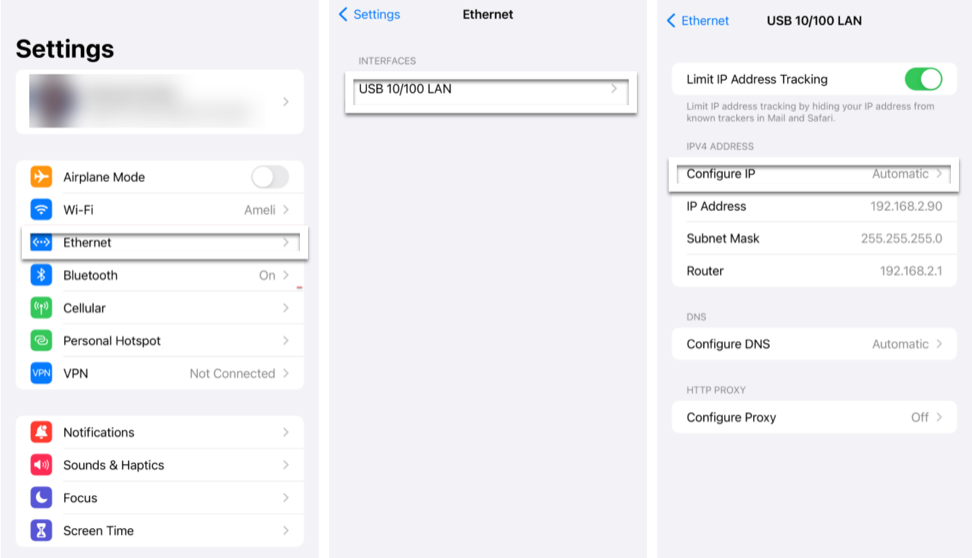
  6. In your iOS device, go to Settings > Ethernet . Select the appropriate interface. Under the IPv4 Address, select Configure IP as Automatic.
    Figure 4. Settings
  7. Open the activation email from your phone, and then select the activation link displayed at the bottom of the screen to activate your Edge. The following screenshot is an example.
    Figure 5. Sample Email
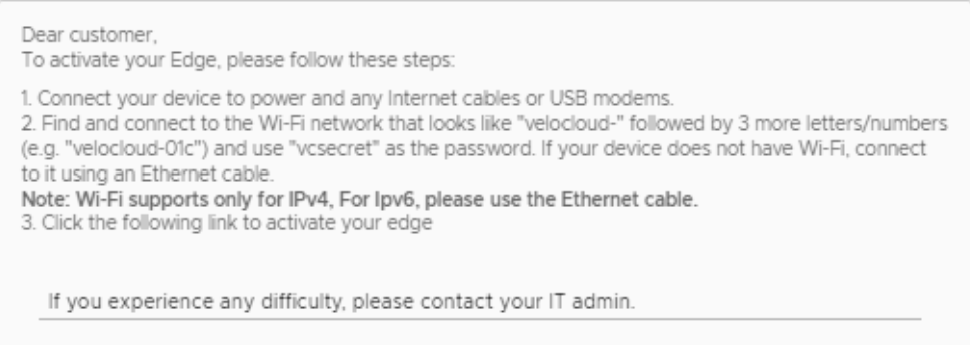
    You can see the activation progress on your phone screen. Once complete, Activation successful message is displayed. Your Edge device is now activated.

Edge Activation using an Android Device and an Ethernet Cable

The procedure below discusses the Edge email activation (pull activation) using an Android device and an Ethernet cable.

The components required for this procedure are:
  • Android phone with email access
  • Ethernet adapter suitable for the phone
Note: The example used here is an Edge 610 and a Samsung Galaxy S10+ Smartphone. You can use other Edge and Android phone models too.
  1. Complete the Edge configuration on the Orchestrator software. For details, refer to the Configure Edge Device section in the Arista VeloCloud SD-WAN Administration Guide.
  2. Navigate to Configure > Edges > Edge Overview tab , and then select the Send Activation Email button.
  3. Enter the email address of the person activating the Edge, and then select Send.
  4. Power up the Edge, and then connect it to an available internet connection using an Ethernet cable.
    Note: Refer to Edge Activation Guides to check details of the model you are installing to determine the correct port.
  5. Connect an Ethernet adapter to your phone, and then connect the Edge’s LAN port to the Ethernet adapter.
    Note: The Edge is configured by default to acquire a DHCP IP address from the ISP on the WAN (uplink). The Edge also assigns a DHCP address to the phone connected to the LAN port. When the WAN connection is fully operational, the cloud LED on the front of the Edge turns green.
  6. Open the activation email from your phone, and then select the activation link displayed at the bottom of the screen to activate your Edge. The following screenshot is an example.
    Figure 6. Sample Email
    You can see the activation progress on your phone screen. Once complete, Activation successful message is displayed. Your Edge device is now activated.

Request RMA Reactivation

Initiate a Return Merchandise Authorization (RMA) request either to return the existing Edge or to replace an Edge.

There are several scenarios that require an Edge RMA reactivation. Following are the two most common scenarios:
  • Replace an Edge due to a malfunction—A typical scenario that requires an Edge RMA reactivation occurs when a malfunctioned Edge of the same model needs replacement. For example, a customer needs to replace a 520 Edge model with another 520 Edge model.
  • Upgrade an Edge hardware model—Another common scenario that requires an Edge RMA reactivation is when you want to replace an Edge with a different model. Usually this is due to a scaling issue in which you have outgrown the capacity of the current Edge.
Note: RMA reactivation request is allowed only for activated Edges.
You can initiate the RMA reactivation request using one of the following methods:

Request RMA Reactivation Using Edge Auto-activation

To request RMA reactivation using Zero Touch Provisioning:

  1. Log in to Orchestrator, and in the SD-WAN service of the Enterprise portal go to Configure > Edges .
  2. Select the Edge that you want to replace.
    The Edge Overview page appears.
  3. Scroll down to the RMA Reactivation area, and then select Request Reactivation to generate a new activation key. The status of the Edge changes to Reactivation Pending mode.
    Note: The reactivation key is valid for one month only. When the key expires, a warning message is displayed. To generate a new key, select Generate New Activation Key. For details, refer to RMA Reactivation section in the View Edge Information topic in the Arista VeloCloud SD-WAN Administration Guide.
  4. In the RMA Serial Number field, enter the serial number of the new Edge that is to be activated.
  5. From the RMA Model drop-down list, select the hardware model of the new Edge that is to be activated.
    Note: If the Serial Number and the hardware model do not match the new Edge that is to be activated, the activation fails.
  6. Select Update. The status of the new Edge changes to Reactivation Pending and the status of the old Edge changes to RMA Requested. To view the Edge State, go to Service Settings > Edge Auto-activation .
  7. Complete the following tasks to activate the new Edge:
    1. Disconnect the old Edge from the power and network.
    2. Connect the new Edge to the power and network. Ensure that the Edge is connected to the Internet.

The new Edge is redirected to the Orchestrator where it is automatically activated. The status of the new Edge changes to Activated.

Return the old Edge to Arista so that the logical entry for the old Edge with the state RMA Requested gets removed from the Service Settings > Edge Auto-activation page.

Request RMA Reactivation Using Email

To request RMA reactivation using email:

  1. Log in to Orchestrator, and then go to Configure > Edges .
  2. Select the Edge that you want to replace.
    The Edge Overview page appears.
  3. Scroll down to the RMA Reactivation area, and then select Request Reactivation to generate a new activation key. The status of the Edge changes to Reactivation Pending mode.
    Note: The reactivation key is valid for one month only. When the key expires, a warning message is displayed. To generate a new key, select Generate New Activation Key. For details, refer to RMA Reactivation section in the View Edge Information topic in the Arista VeloCloud SD-WAN Administration Guide.
  4. Select Send Activation Email to initiate the Edge activation Email with instructions. The Email consists of the instructions along with the activation URL. The URL displays the Activation key and the IP address of the Orchestrator.
  5. Complete the following tasks to activate the new Edge:
    1. Disconnect the old Edge from the power and network.
    2. Connect the new Edge to the power and network. Ensure that the Edge is connected to the Internet.
    3. Follow the activation instructions in the email. Select the activation link in the email to activate the Edge.
    The Edge downloads the configuration and software from the Orchestrator and gets activated.
..