Orchestrator Branding for Partner
To enable Partner users to customize the orchestrator UI branding, the Operator only Branding feature must be deactivated. If you have this feature turned on in your Orchestrator, contact your Operator to deactivate the Operator only Branding feature.
Note: Deactivating the Operator only Branding feature overrides any existing Operator branding settings.
To customize the branding at Partner level, perform the following steps:
- Select Orchestrator Branding to display the Orchestrator Branding page.
Figure 1. Orchestrator Branding 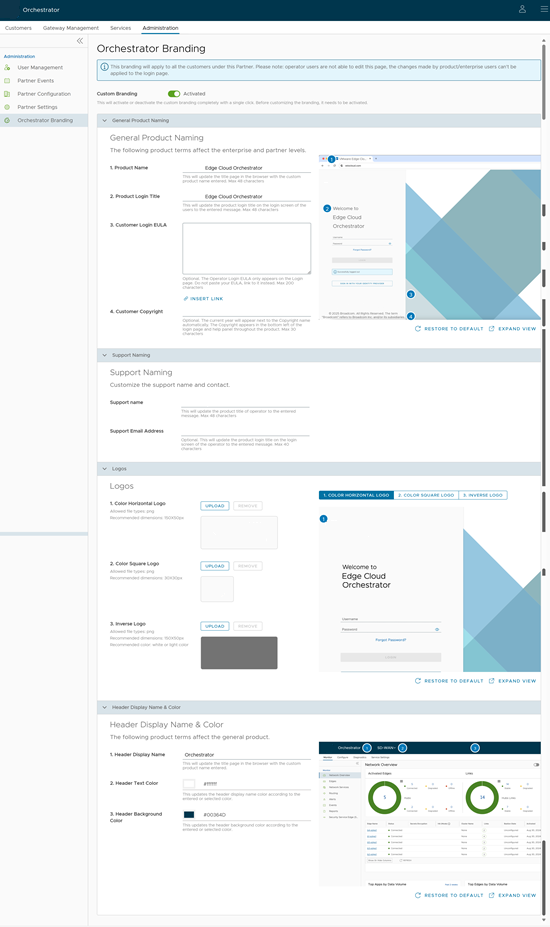
- To deactivate Custom Branding, disable Custom Branding. All of the branding settings return to default.
Users can customize the following textual elements located on the Partner Login screen.
Figure 2. General Product Naming 
Table 1. General Product Naming - Options and Descriptions Option Description Product Name Enter your product name. This updates the title page in the browser with the custom product name entered. The product name can be a maximum of 48 characters. Product Login Title Enter your product login title. This updates the product login title on the login screen of the users to the entered text. The product login title can be a maximum of 48 characters. Customer Login EULA (Optional) Add your Customer login EULA with a maximum of 200 characters. The Customer login EULA only appears on the login screen. You can either enter your EULA in the box and then add link by selecting the EULA, or directly add link to EULA login by selecting Insert Link.
Customer Copyright (Optional) Enter your Customer copyright name and text. The current year appears next to the copyright name automatically. The copyright appears at the bottom of the Customer login page and help panel throughout the product. The Customer copyright text can be a maximum of 30 characters. If you do not enter any customized copyright text, the default copyright displays.
Users can customize the Support name and contact details.Figure 3. Support Naming 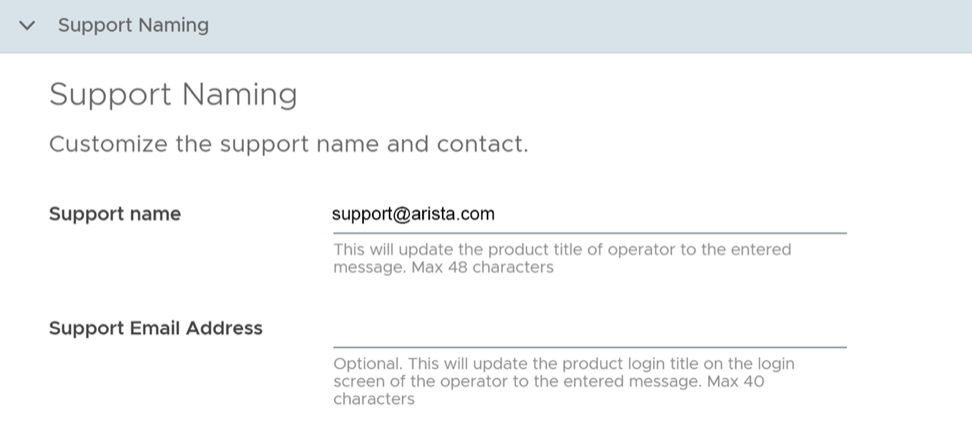
Table 2. Support Naming - Options and Descriptions Option Description Support Name Enter your custom support name. This updates the product title of Operator to the entered text. The support name can be a maximum of 48 characters. Support Email Address (Optional) Enter your custom support email address. This updates the product login title on the login screen of the Operator to the entered text. The support email address can be a maximum of 40 characters. User's logo displays on the Login page of the Orchestrator UI. User can customize the following logo elements.
Figure 4. Logos 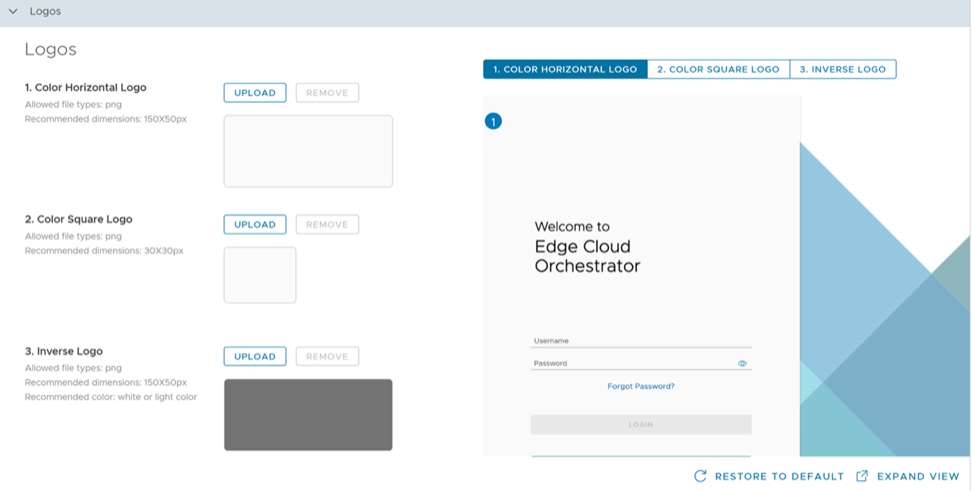
Table 3. Logos - Options and Descriptions Option Description Color Horizontal Logo Select and upload your custom horizontal logo by selecting Upload. Adhere to the following Logo requirements:- Allowed file types: png
- Recommended dimensions: 150X50px
Color Square Logo Select and upload your custom square logo by selecting Upload. Adhere to the following Logo requirements:- Allowed file types: png
- Recommended dimensions: 30X30px
Inverse Logo Select and upload your custom inverse logo by selecting Upload. Adhere to the following Logo requirements:- Allowed file types: png
- Recommended dimensions: 150X50px
- Recommended color: white or light color
Users can customize the following textual and visual elements located on the Orchestrator UI header.
Figure 5. Header Display Name and Color 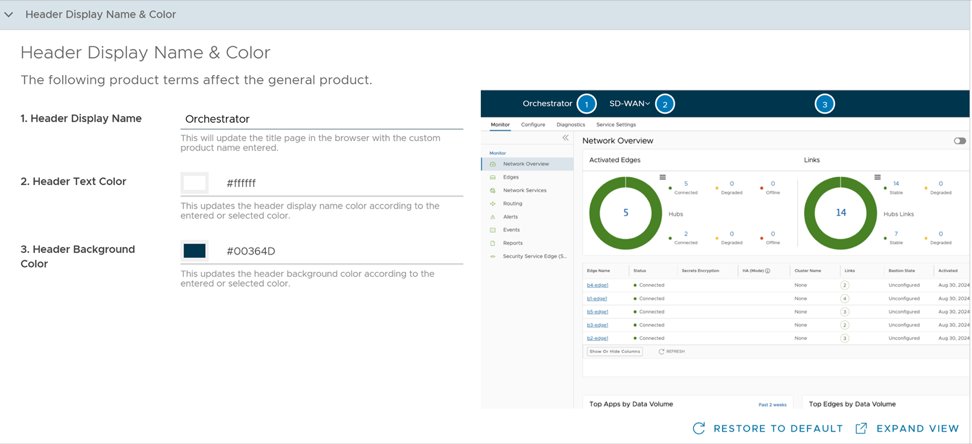
Table 4. Header Display Name and Color - Options and Descriptions Option Description Header Display Name Enter your header display name. This updates the title page in the browser with the custom product name entered. Header Text Color Enter or select the header text color. This updates the header display name color according to the entered or selected color. Header Background Color Enter or select the header background color. This updates the header background color according to the entered or selected color.