Arista VeloCloud SD-WAN License Management Guide
The license service shows SASE customer and partner information from their orders.
The focus is on software subscription licenses purchased and the start and end dates. It also displays the SD-WAN branches activated by the customer and partner. The service provides alerts and reports before subscriptions expire so that the customer or partner can renew on time. The service also alerts and reports the customer or partner when the number of branches deployed exceeds the available subscription. Both Arista and partners have access to the same information to drive renewal and expansion conversations using this service as the basis for those conversations.
Partners can view their Orchestrator, manage license users, monitor alerts, and generate different license reports.
Manage Licenses with License Service Portal
You can view and manage licenses using the VeloCloud SASE Licensing portal.
Licensing Portal Roles
| Role | Privilege |
|---|---|
| Licensing admin |
|
| Licensing read-only |
|
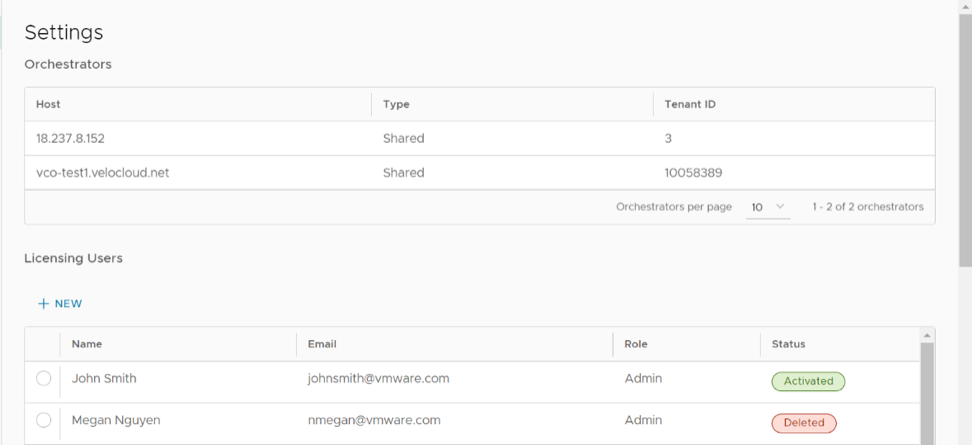
Orchestrators
| Item | Description |
|---|---|
| Host | Displays the name of the Orchestrator. |
| Type | Displays either Shared (among many partners) or Dedicated (to a single partner). |
| Tenant ID | The tenant ID of the partner or customer on the Orchestrator. |
| Orchestrators per page | From the Orchestrators per page menu, choose the number of records to display (10-5000). |
Assigning Orchestrators
Only Licensing Admins can assign Orchestrators. Follow the steps to assign Orchestrators.
- Select Assign.
Figure 2. Assigning an Orchestrator 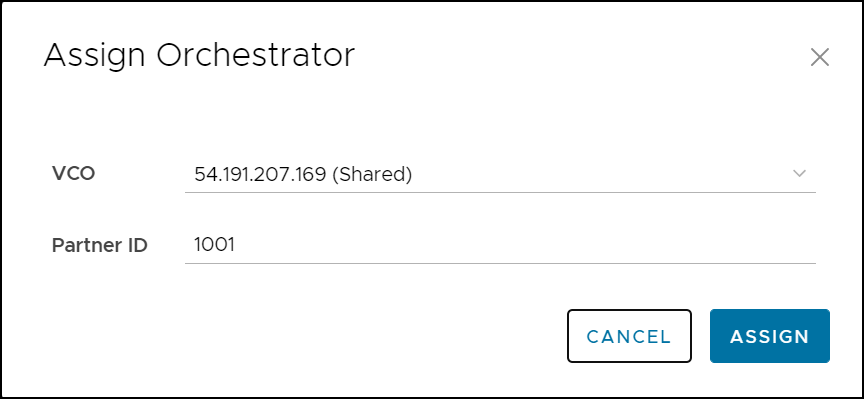
The assigned Orchestrator displays in the Settings screen.
Licensing Users
| Item | Description |
|---|---|
| Name | Displays the name of the licensing user. |
| Displays the email address of the licensing user. | |
| Role |
|
| Status |
|
Only Licensing Admins can create new licensing users. Follow the steps below to assign a new licensing user.
- Enter the details for the New Licensing User dialog. See the table below for more information.
Figure 3. Adding a New Licensing User 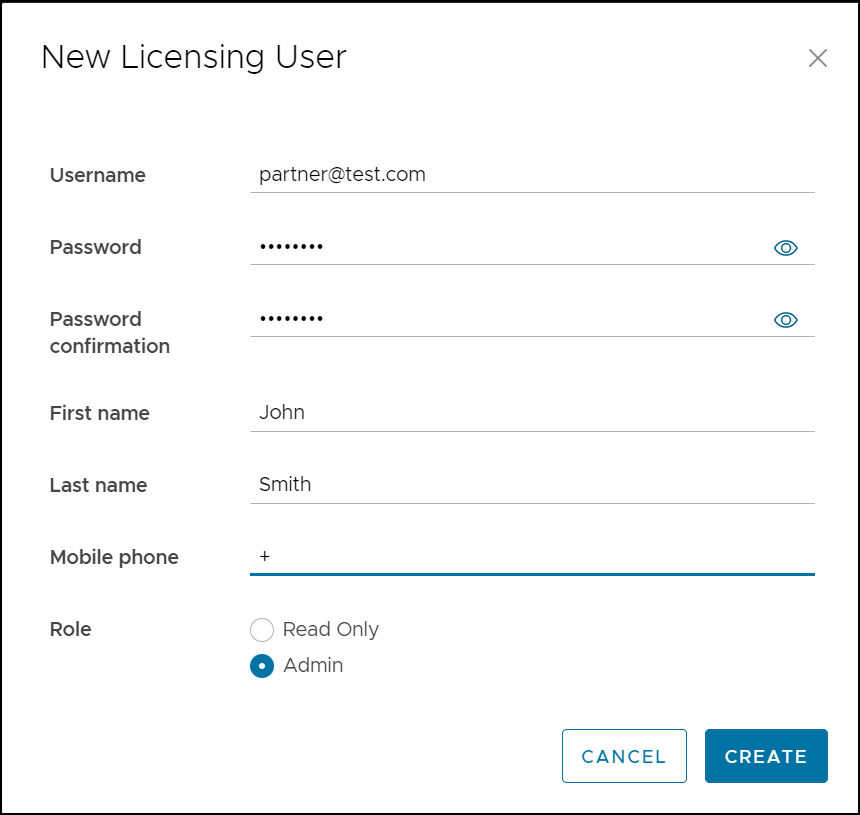
Table 4. New Licensing User Field Descriptions Field Description Username The username is the email address for the licensing user. Password Text field for the chosen password for the licensing user. Note: The Orchestrator does not support the special character "<" in the Password field.Password Confirmation Text field for confirming the chosen password for the licensing user. First Name Text field for the name for the licensing user. Last Name Text field to enter the last name for the licensing user. Mobile Phone Text field to enter the mobile phone for the licensing user. Role Choose a role for the user as follows: - Read Only- The user can only view the licensing details.
- Admin- The user gets administrative rights to add or modify the licensing details.
Edit Licensing User
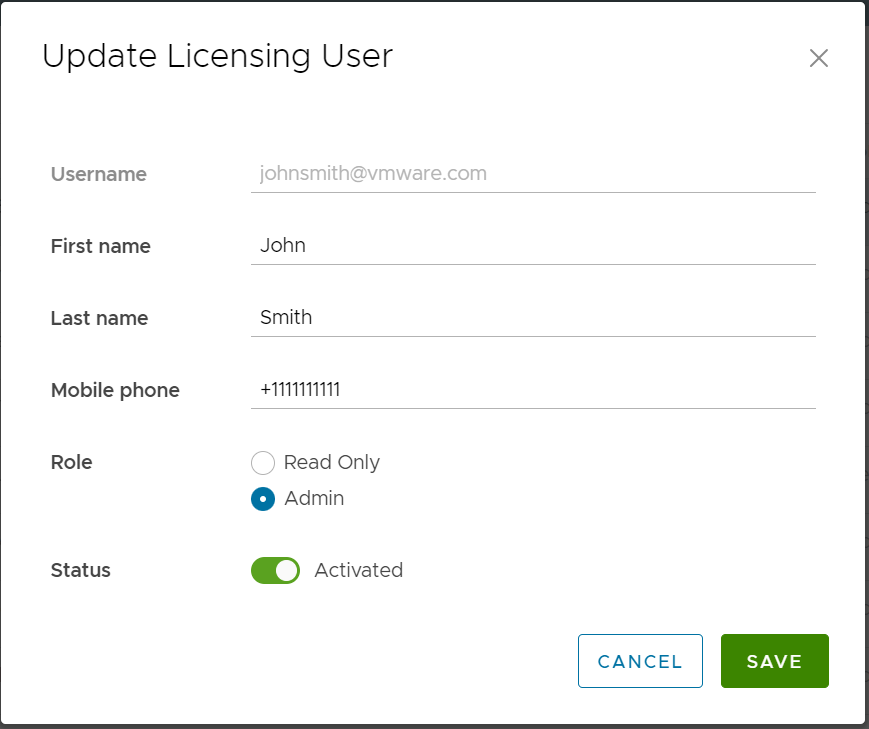
Licensing
From the Licensing screen, Partners and Enterprise customers can view and manage licenses and utilization information.
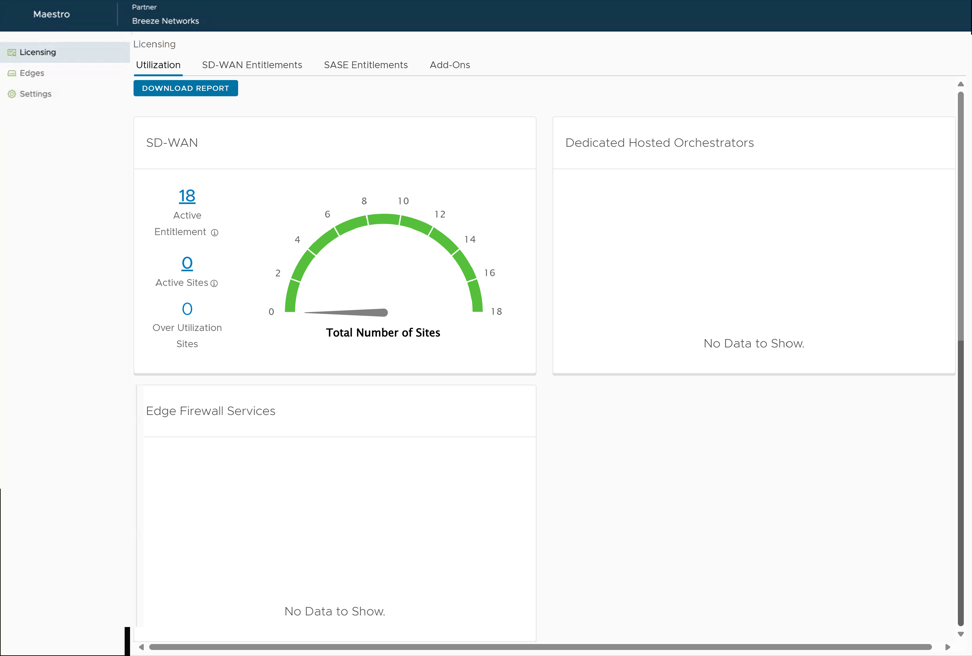
The Licensing screen displays four tabs: Utilization, SD-WAN Entitlements, SASE Entitlements, and Add-Ons.
Utilization
- Active Entitlements - Displays the amount of licenses that account have purchased through orders.
- Active Sites - Displays the number of active Edges that are under the account.
- Over Utilization Sites - Displays the number of over utilized sites. If an account has more Edges than licenses, that means it is over using.
Select Download Report to download an Excel file with the License utilization information.
SD-WAN Entitlements
- Expired Entitlements - Displays the count of all your SD-WAN subscriptions that are currently expired and assigned to an Edge. Ensure to resolve the compliance issue by renewing the expired subscription or assigning an available subscription to replace the expired subscription. Selecting View will display the detailed information about the entitlements in the Subscriptions table below.
- Entitlements Due For Renewal - Displays the count of all your SD-WAN subscriptions that are due expiring within the next 90 days. You must take action on these within the next 90 days. Renew the subscriptions or assign an available subscription to the expiring subscription’s Edge.
- Active Entitlements - Displays the count of all your SD-WAN subscriptions that are currently unexpired. These subscriptions also include subscriptions that are due for a renewal within the next 90 days.
- Total Entitlements - Displays the total count of all your purchased subscriptions. This includes all of the active subscriptions, expired subscriptions, and subscriptions that are due for renewals.
You can use the Search field to find the entitlements by SKU, Serial number, Customer name, and Contract number.
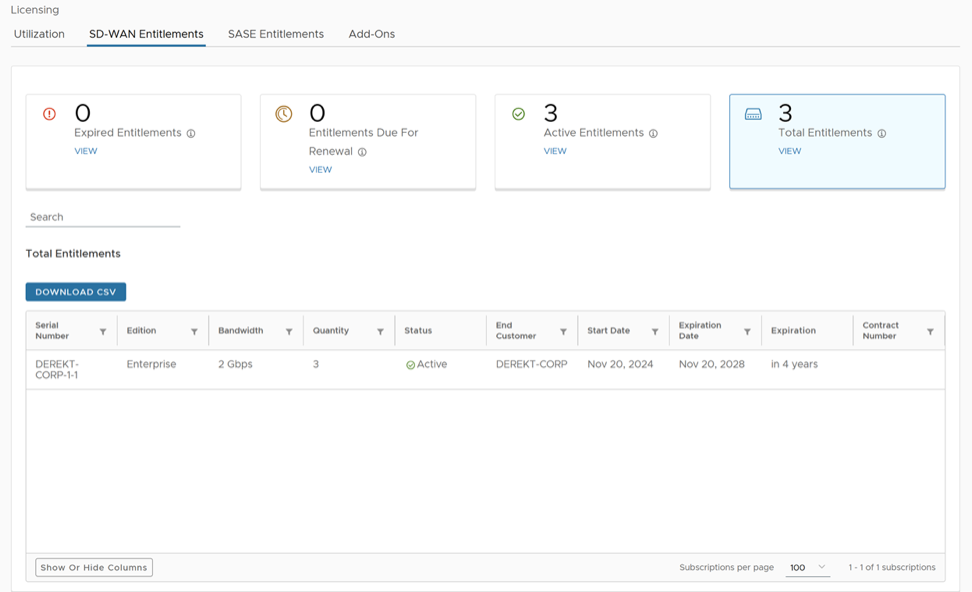
In the Entitlements table, you can find the following details:
| Column Names and Fields | Descriptions |
|---|---|
| Product | Displays the name of the product. Default is SD-WAN. |
| Serial Number | Displays the software subscription unique identifier. |
| Edition | Displays either Enterprise, Premium, or Standard |
| Bandwidth | Displays the license throughput or bandwidth. |
| Quantity | Displays the count of SD-WAN subscriptions. |
| Status | Displays the license status |
| End Customer | Displays the name of the End Customer who will utilize the license. |
| End Customer ERP Name | Displays the ERP name of the End Customer who will utilize the license. |
| End Customer ERP Number | Displays the ERP number of the End Customer who will utilize the license. |
| Partner | Displays the name of the Partner associated with the license. |
| Partner ERP Name | Displays the ERP name of the Partner associated with the license. |
| Partner ERP Number | Displays the ERP number of the Partner associated with the license. |
| Start Date | Displays the date the license begins. |
| Expiration Date | Displays the date the license expires. |
| Expiration | Displays the length of time remaining on the license. |
| SKU | Displays the SKU that is assigned to the license. |
| Contract Number | Displays the contract number, which is linked to the license. |
| Contract Line Number | Displays the contract line number, which is linked to the license. |
| Description | Displays a description of the SD-WAN subscription. |
| Download CSV button | Select to download an Excel file of details from the Subscriptions table. |
| Show or Hide Columns | Select and select the column fields to be displayed in the Subscriptions table. |
| Subscriptions per page | From the Subscriptions per page drop-down menu, choose the number of records to display (10-5000). |
- Download CSV - Select to download an Excel file of details from the Subscriptions table.
- Show or Hide Columns - Select and select the column fields to display in the Entitlements table.
- Subscriptions per page - Choose the number of records to display (10-5000) in the Entitlements table.
SASE Entitlements
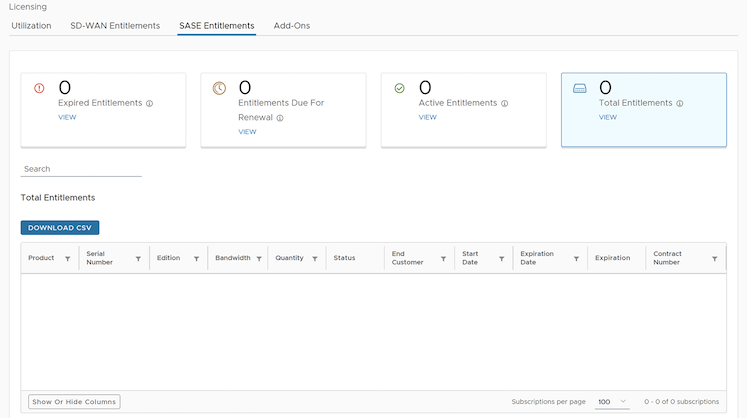
For descriptions of entitlement parameters, refer to the Entitlements Information table.
Add-Ons
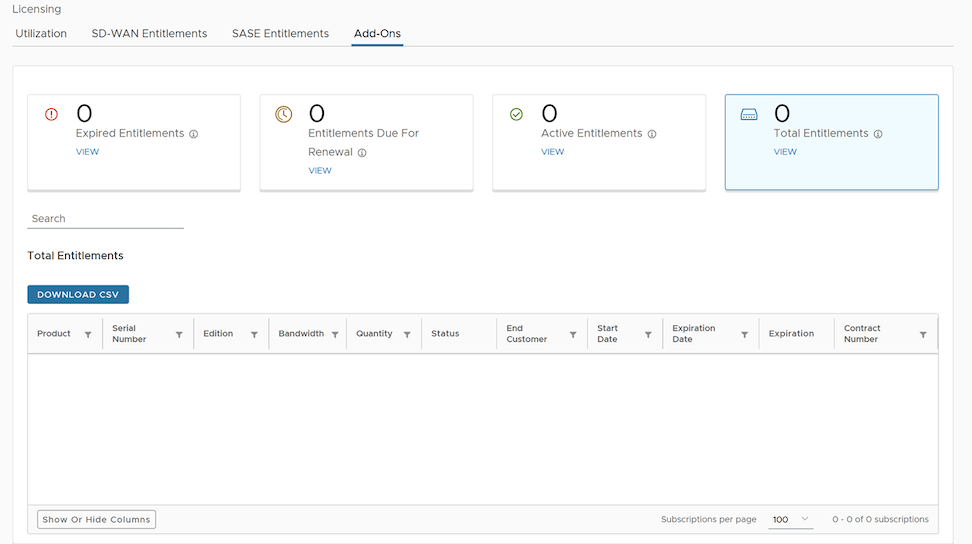
For descriptions of entitlement parameters, refer to the Entitlements Information table.
Manage Edges
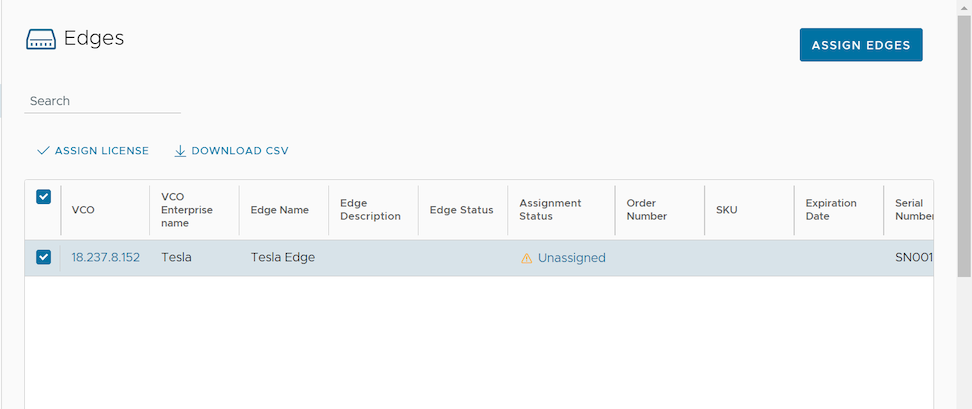
From the Edges screen, users can assign Edges and view detailed Edge information.
Edge Information
| Column Name | Description |
|---|---|
| Type | Displays the type of Edge. (Production in most cases). |
| Name | Displays the name of the activated Edge. Select the link to |
| Description | Displays a description of the Edge. |
| Country | Displays the country where the Edge deployed. |
| State | Displays the state where the Edge deployed. |
| City | Displays the city where the Edge deployed. |
| Serial Number | Displays the serial number of the Edge. |
| HA Serial Number | Displays the HA serial number of the Edge. |
| Model Number | Displays the model number of the Edge. |
| License | Displays the type of license assigned to the Edge. |
| VCO | Displays the Orchestrator connected to the Edge. |
| Activation Date | Displays the date of activation for the Edge. |
| VCO Enterprise Name | Displays the Enterprise name of the Orchestrator. |
| Customer UUID | Internal ID of the customer/partner. |
| License Assignment Status | Displays if the subscription links to an Edge. |
| License ID | Displays the license ID from the SD-WAN subscription. |
| License Assignment Date | Displays the date the license assigned. |
| SKU | Displays the SKU of Edge. |
| License Expiration Date | Displays the subscription expiration date. |
| Order Number | Displays the VeloCloud order number of the Edge. |
| Last Sync | Displays the last date the licensing server synced information about the Edge from the orchestrator. |
| Logical ID | The internal ID of the Edge. |
| Ship Date | Displays the date the Edge was shipped. |
| RMA Date | Displays the date VeloCloud received the Edge. |
| Columns Icon | Select to display available columns in the Activated Edges table. |
| Edges Per Page | From the Edges per page drop-down menu, choose the number of records to display (10-5000). |
| Download CSV | Select to download an Excel file of details from the Subscriptions table. |
Assign Edges
In the Edges screen, users can assign a subscription to an Unassigned Edge.
In the Assign Edges section, users can assign subscriptions to Edges by selecting Assign Edges on the Edges screen.
To Assign a Subscription to an Edge:
- Select Assign Edges.
- In the Subscription Assignment screen, select an Unassigned Edge, and then select the corresponding Subscription to assign or establish a pair with the selected Edge to the Subscription.
- Select Create Edge + Subscription.
- Select Save All Pairs to save the Edge + Subscription pair. The Edge & Subscription Pairs section of the Edges screen displays the newly created Edge + Subscription pair.
- Select Save All Pairs to save changes, and select Save & Exit to save and exit the screen.