Configure Profiles
Profiles define a template configuration that can be applied to multiple Edges. A default profile, named as Quick Start Profile is available when you install Orchestrator.
You can configure the Profiles by performing the following steps:
- From the left menu, select Profiles. The Profiles page appears.
Figure 1. Configure Profiles 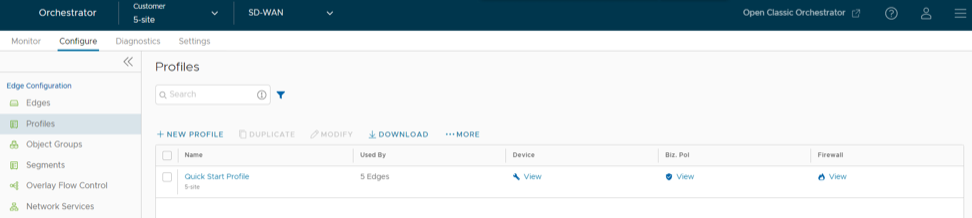
Table 1. Configure Profiles Field Descriptions Option Description Name Displays the name of the Profile. Select the link to modify the configurations. See Configure Profile Settings. Used By Displays the number of Edges associated with the Profile. Device Select the View link to modify the configurations. See Configure Profile Settings. Biz. Pol Select the View link to modify the configurations. See Configure Business Policy. Firewall Select the View link to modify the configurations. See Configure Profile Firewall. You can perform the following actions:
- New Profile – Select this option to create a new Profile. See Create Profile.
- Duplicate – Select a profile and select this option to create a duplicate of the selected Profile.
- Modify – Select a profile and select this option to edit the selected Profile. See Configure Profile Settings.
- Download – Select this option to download the details of all the Profiles into an MS Excel file.
Select More to perform the following:
- Delete – Select a profile and select this option to delete the selected Profile. You cannot delete the Profiles that are associated with Edges.
Create Profile
After installing Orchestrator, a default profile is available. If required, you can create additional Profiles.
To create a Profile, perform the following steps:
- In the Profiles page, select New Profile.
Figure 2. Create New Profile 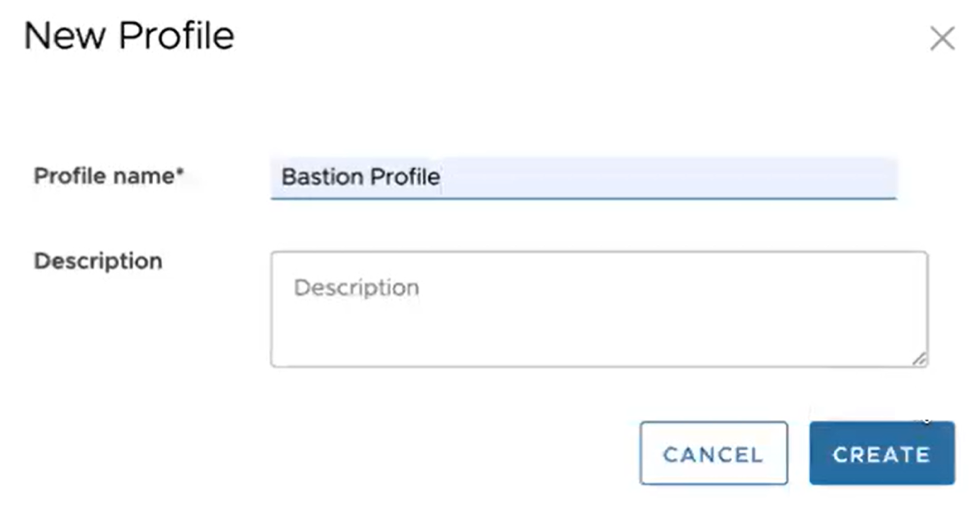
Configure Profile Settings
Profiles provide a composite of the configurations created in Segments and Network Services.
To configure a specific Profile, perform the following steps:
- Select the link to a Profile or select the View link in the Device column of the Profile. The configuration options are displayed in the Device tab.
Figure 3. Configure Profile settings 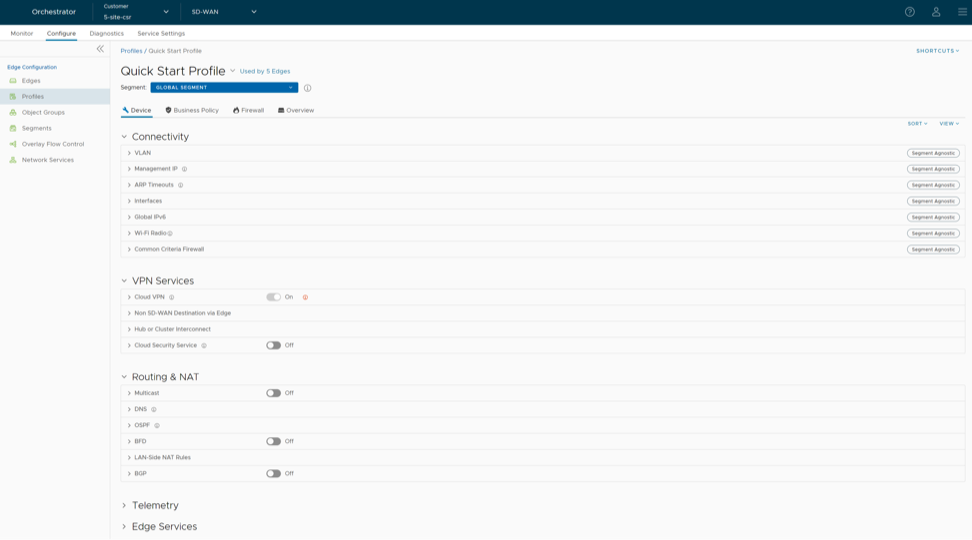
View Profile Information
The Profile Overview page provides complete view of all the configurations of a specific profile. You can also modify the name, description, and the local credentials of the selected profile.
To access the Profile Overview page in the Orchestrator UI:
- Select the link to a Profile and then select the Overview tab. You can edit the Profile Name, Description, and Local Credentials.
Figure 4. View Profile Information 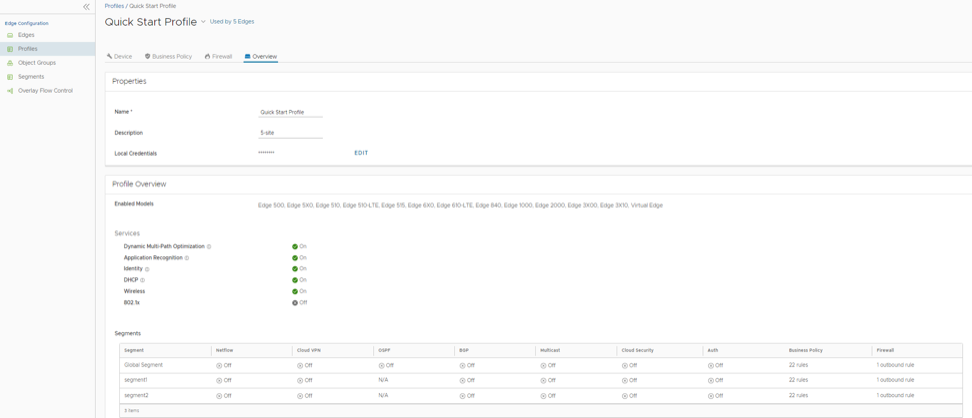
- Default Local Credentials are set to a random password by the Orchestrator. You can change the random password by selecting the EDIT button and then selecting the Change Password check box. Enter the new password and select SUBMIT.
Figure 5. Modify Local Credentials 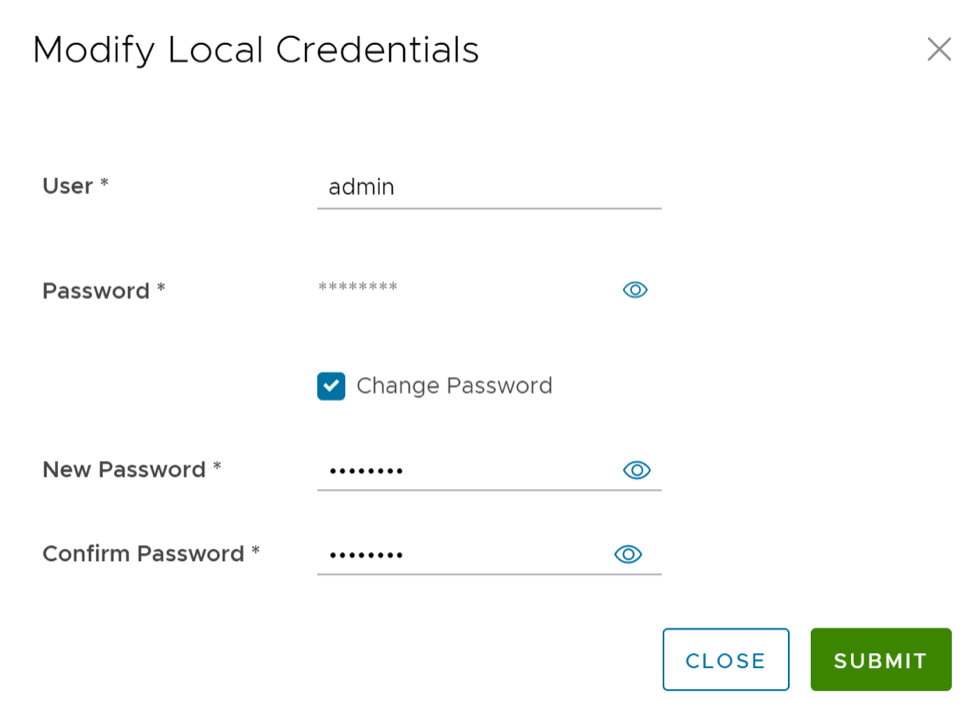 Note:
Note:- Ensure the new password meets the following password policy criteria:
- Should be at least 8 characters
- Should be less than 32 characters
- Should have at least one number
- Should have at least one lower case character
- Starting from the 4.5 release, the use of the special character "<" in the password is no longer supported. In cases where users have already used "<" in their passwords in previous releases, they must remove it to save any changes on the page.
Note: The updated credentials are applied to the Profile and all associated Edges. If you add a new Edge to a Profile without changing the default local credentials for the Profile, the local credentials for the Edge will be different from that of the Profile. You must change the local credentials at the Edge level. For details, refer to View Edge Information.The Profile Overview section displays Edge models that are activated for the profile, network services configured for the profile, and the segments configuration details assigned to the profile. For additional information, see Configure Profiles. - Ensure the new password meets the following password policy criteria: