Print

Add Security Group Rules

You can use security group rules to control the access to public or internal networks of the ECS instances in a security group. To add security group rules, perform the steps on this procedure.
  • Ensure that you have created a security group. For more information, see Create a Security Group.
  • Ensure that you know which internal or public network requests need to be allowed or denied for your instance.
  1. Select Create Rules Now. The Security Group page appears.
  2. Select Add Security Group Rule. Add Security Group Rule appears.
    Figure 1. Adding a Security Group
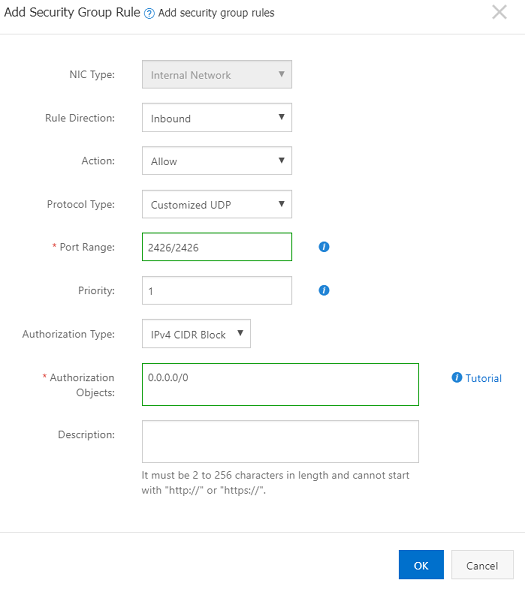
  3. From the Rule Direction menu, select Inbound. By default, all Outbound traffic is allowed.
  4. From the Action menu, select Allow.
  5. To allow inbound connectivity to your Edge, select Protocol Type and Port Range.
    The port range is based on the protocol type. The following are some of the examples:
    • VCMP: UDP port 2426
    • SSH: TCP port 22
    • SNMP: UDP port 161
    • ICMP Request/Reply
  6. Select Authorization Type and Authorization Objects.

    The authorized IP address is based on the authorization type. For example, for IPv4 CIDR block, specifying 0.0.0.0/0 allows or denies all IP addresses, based on the authorization policy.

  7. Select OK.

    Select the refresh icon to confirm that the addition of the security group rule. Changes to security group rules automatically apply to Elastic Compute Service (ECS) instances in the security group.

..