Configure Tunnels on VeloCloud Edge
Configure the SD-WAN layer of Orchestrator using an Edge as the endpoint for the tunnels between VeloCloud SD-WAN and Forcepoint Cloud Security Gateway. Ensure that you have configured the customer.
Configure Non SD-WAN Destination via Edge
You can define and configure a Non SD-WAN Destination instance as Forcepoint Cloud Security Gateway and establish a secure IPsec tunnel to the Forcepoint Cloud Security Gateway through a VeloCloud Edge.
Ensure that you have Administrator privileges to login to VeloCloud Edge Cloud Orchestrator.
To configure a Non SD-WAN Destination via Edge:
- In the New Non SD-WAN Destination via Edge window, configure the following:
Figure 1. Configuring Non SD-WAN Destinations via Edge 
Table 1. Non SD-WAN Destinations via Edge Option Descriptions Option Description Service Name Enter a descriptive name for the Non SD-WAN Destination. Service Type Select the type as Generic IKEv2 Router (Route Based VPN). - In the next window, configure the following settings:
Figure 2. Configuring Parameters 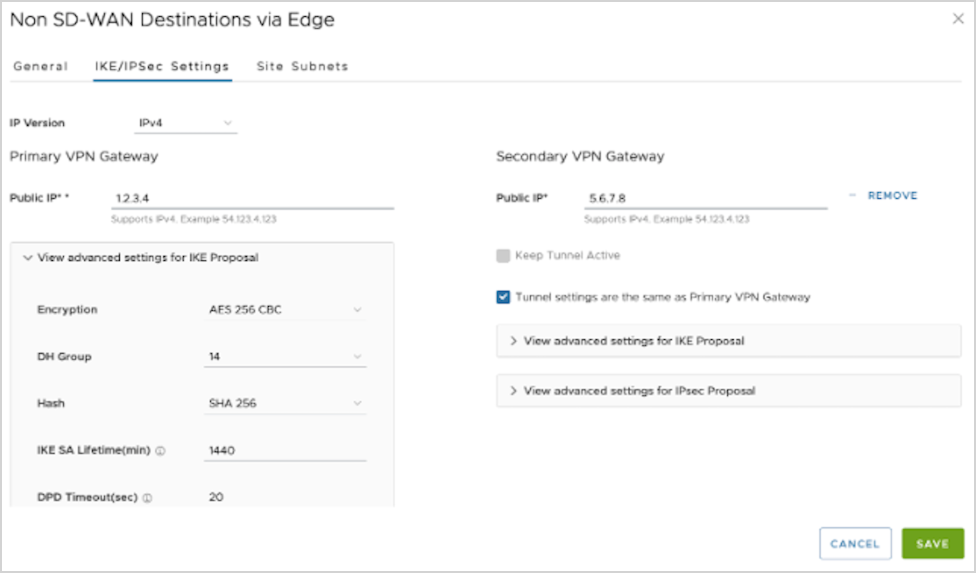
Figure 3. Configuring Parameters 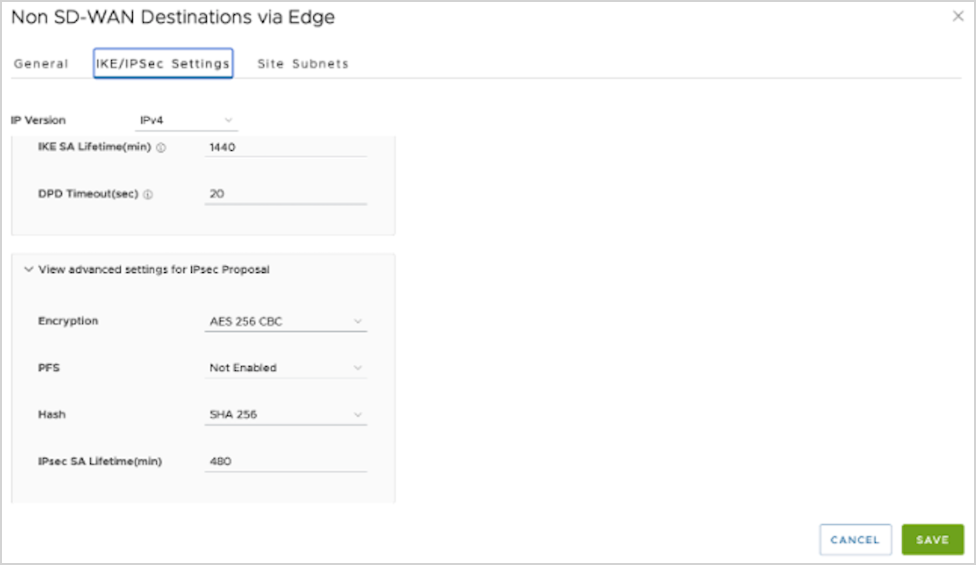
- Select Save Changes and close the window.
The new Non SD-WAN Destination via Edge is displayed in the Network Services window:
Figure 4. Network Services 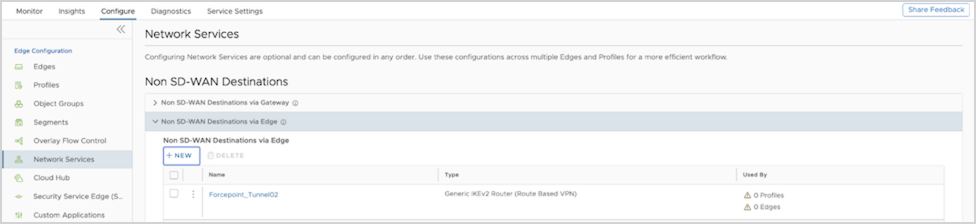
Configure a profile to use the new Non SD-WAN Destination via Edge. See Configure Profile with Non SD-WAN Destination via Edge.
Configure Profile with Non SD-WAN Destination via Edge
You can configure a profile to establish a VPN connection between a branch and a Non SD-WAN Destination via Edge.
Ensure that you have created a Non SD-WAN Destination via Edge with the required IPsec tunnel parameters relevant to Forcepoint Cloud Security Gateway. To create a Non SD-WAN Destination via Edge, see Configure Non SD-WAN Destination via Edge.
- To establish a VPN connection between a Branch and Non SD-WAN Destination via Edge, select Enable under Branch to Non SD-WAN Destinations via Edge.
Figure 5. Enabling the VPN Connection 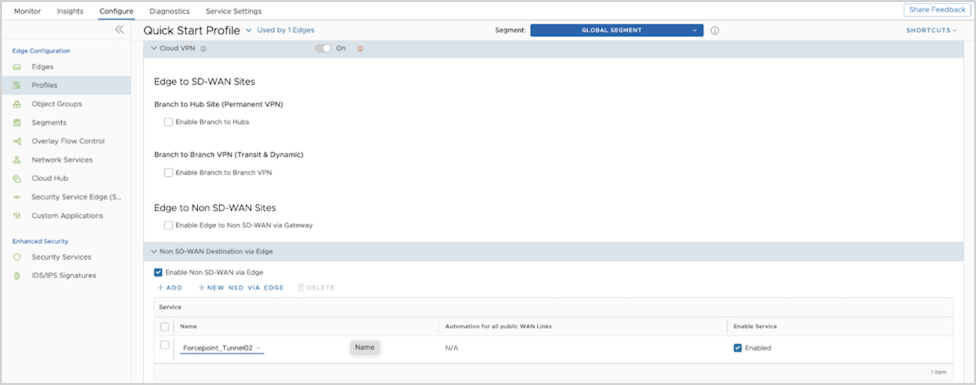
Create a Business Policy to route the traffic from the Non SD-WAN Destination tunnel to the Forcepoint Cloud Security Gateway. See Create Business Policy for Non SD-WAN Destination via Edge.
Create Business Policy for Non SD-WAN Destination via Edge
After you establish a VPN connection between a branch and a Non SD-WAN Destination via Edge, create a Business Policy to route the traffic from the Non SD-WAN Destination tunnel.
Ensure that you have established the VPN connection between branch and Non SD-WAN Destination via Edge. See Configure Profile with Non SD-WAN Destination via Edge.
- Choose Non SD-WAN Destination via Edge and select the Non SD-WAN Destination service created with the Forcepoint tunnel parameters.
Figure 6. Configuring a Rule - Example 1 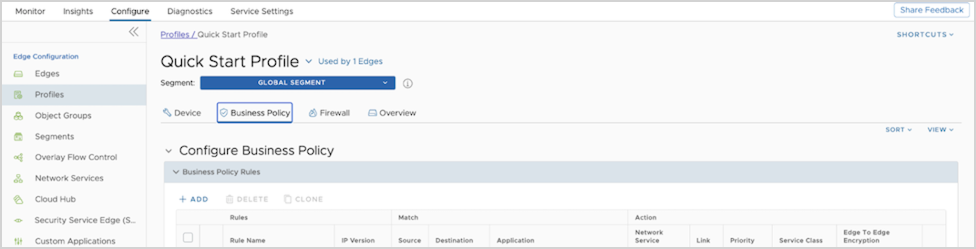
Figure 7. Configuring a Rule - Example 2 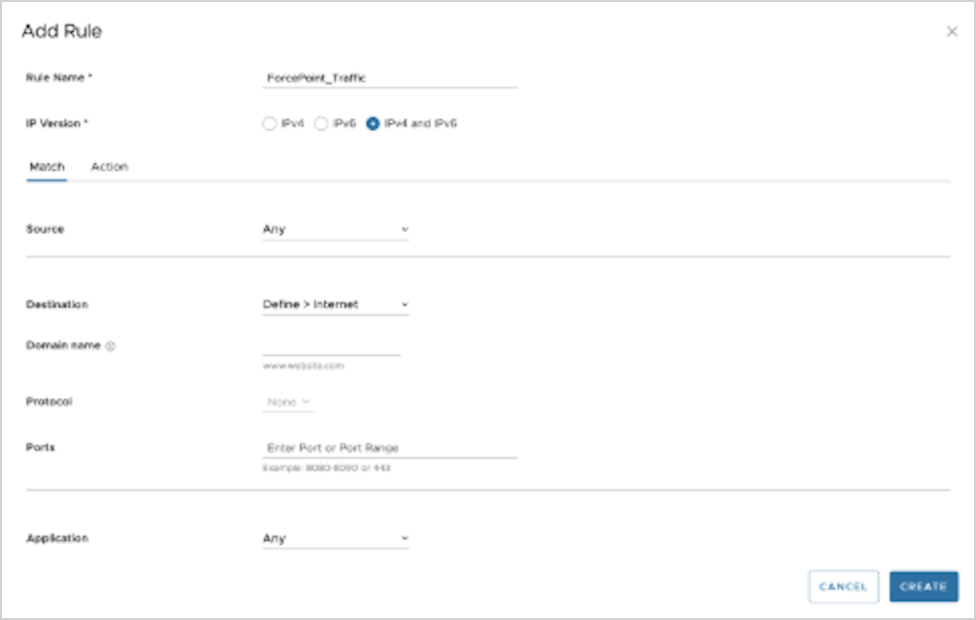
Figure 8. Configuring a Rule - Example 3 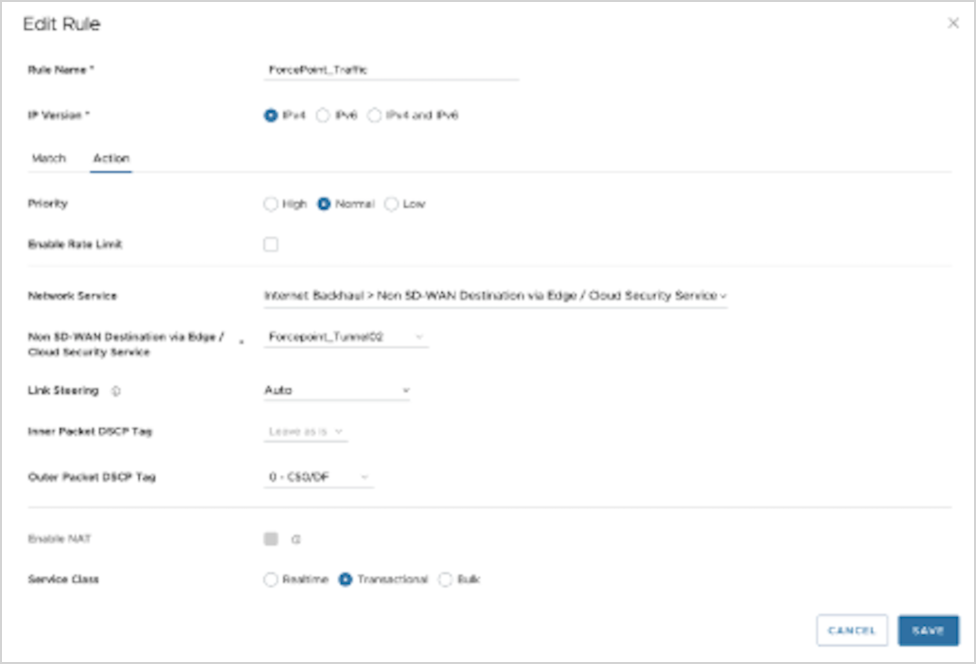
Figure 9. Configuring a Rule - Example 4 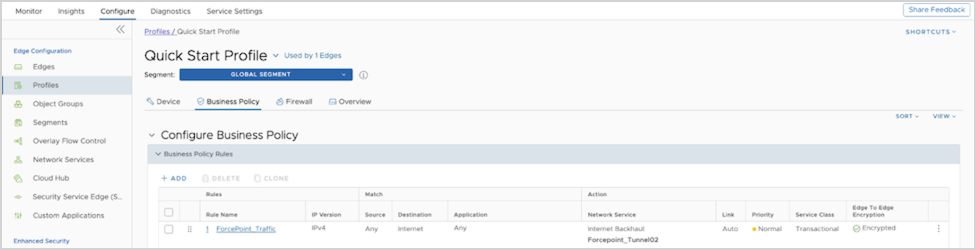
Configure the Tunnel parameters for a selected Edge. See Configure Edge with Tunnel Parameters.
Configure Edge with Tunnel Parameters
When you configure a profile to establish a VPN connection between a branch and a Non SD-WAN Destination via Edge, the settings are automatically applied to all the Edges that are associated with the profile. You can configure the Tunnel parameters for an individual Edge and choose the source of the Tunnel as the WAN IP address.
Ensure that you have established the VPN connection between branch and Non SD-WAN Destination via Edge. See Configure Profile with Non SD-WAN Destination via Edge.
To configure the tunnel parameters for an Edge:
- Select Enable Edge Override and select Add in the Action column.
Figure 10. Displaying Cloud VPN 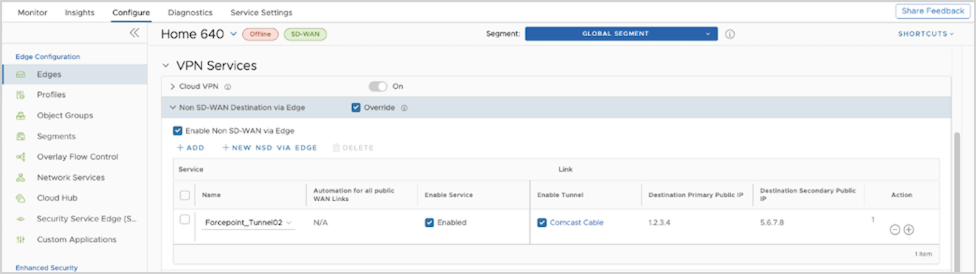
- In the Add Tunnel window, configure the following parameters:
Figure 11. Adding a Tunnel 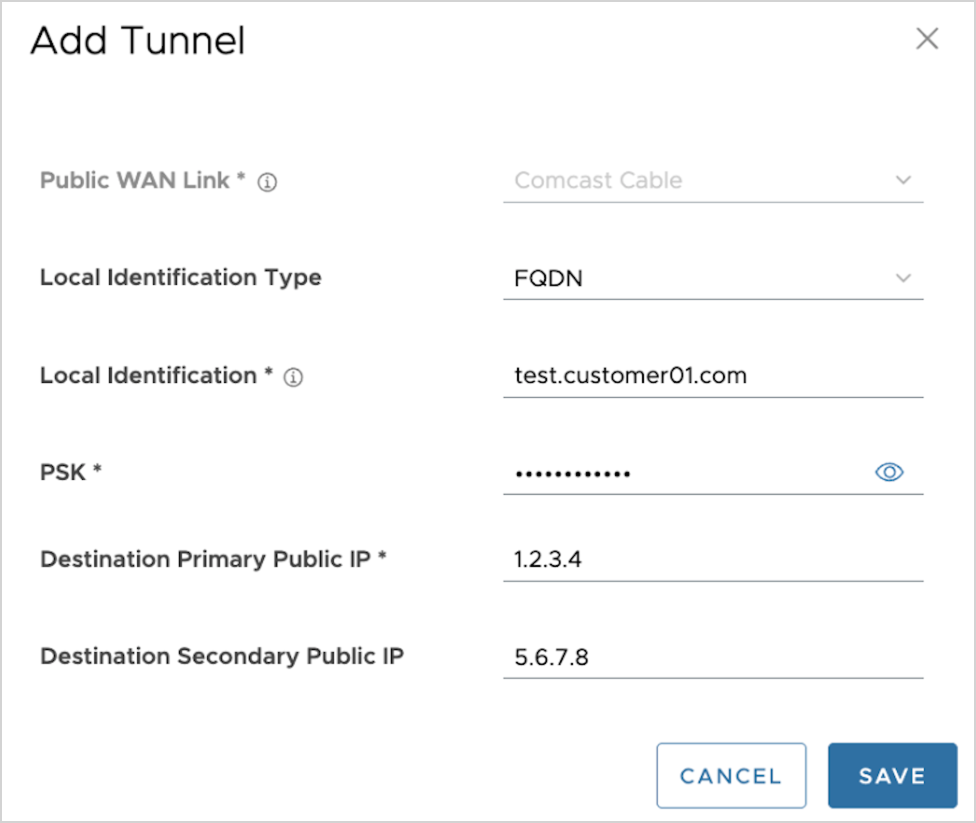
Table 3. Add tunnel Option Descriptions Option Description Public WAN Link Select the IP address of the Edge hosting the Tunnel endpoint connecting to Forcepoint Cloud Security Gateway. Local Identification Type Select the type as FQDN/Hostname from the list. PSK Enter the same Pre-Shared Key configured in the Forcepoint Cloud Security Gateway. Destination Primary Public IP Enter the Service IP address of the primary data center obtained from the Forcepoint Cloud Security Gateway configuration. Destination Secondary Public IP Enter the Service IP address of the secondary data center obtained from the Forcepoint Cloud Security Gateway configuration.
Verify that the tunnel is online by monitoring the Edges. See Monitor Non SD-WAN Destination via Edge.
Monitor Non SD-WAN Destination via Edge
You can monitor and verify the Non SD-WAN Destination Tunnel configuration using the Monitoring tab.
To monitor the Non SD-WAN Destination Tunnel configuration:
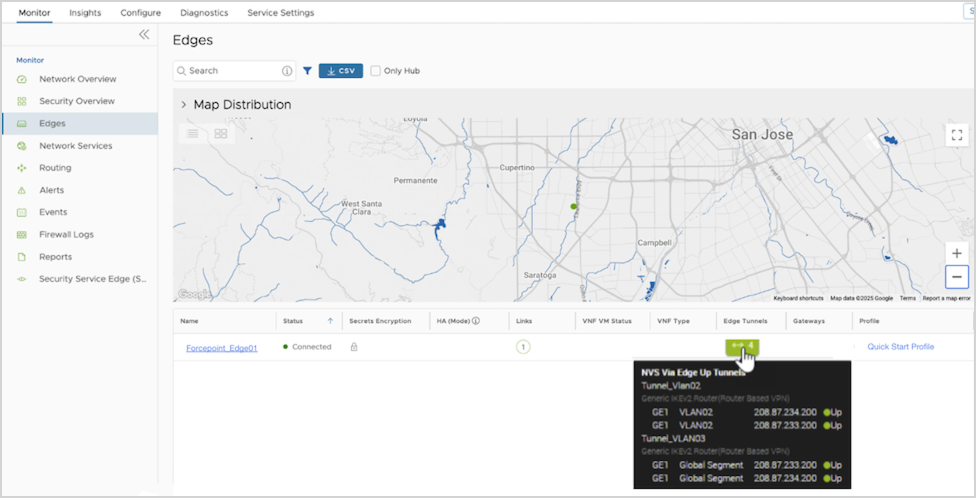
- The Edges page displays the configured Non SD-WAN Destination along with the status. The Forcepoint data center becomes the endpoint of redundant IPsec tunnels.
Figure 12. Monitoring the Non SD-WAN Destination via Edge