Orchestrator Diagnostics
The Orchestrator Diagnostics bundle is a collection of diagnostic information to troubleshoot the Orchestrator. For Orchestrator on-prem installation, Operators can collect the Orchestrator Diagnostic bundle from the Orchestrator user interface and provide it to the Arista Support team for offline analysis and troubleshooting.
session.options.enableBastionOrchestrator to True to view the Diagnostics tab.
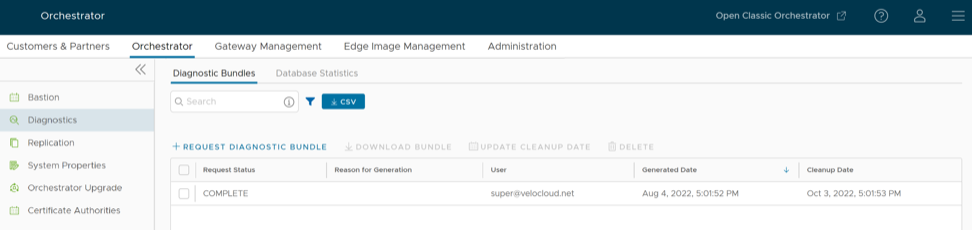
- Diagnostic Bundles: Request and download a diagnostic bundle.
- Database Statistics: Provides read-only access view of some of the information from a diagnostic bundle.
Diagnostic Bundles
To access the diagnostic bundles perform the following steps:
- In the left navigation pane, select Diagnostics.
The Diagnostic Bundles page appears with the existing diagnostic bundles.
Figure 2. Diagnostic Bundles The Orchestrator Diagnostics table grid includes the following information:
Table 1. Orchestrator Diagnostics Field Descriptions Field Description Request Status The following are the request status: - Complete
- In Progress
If a bundle has not completed the download, the In Progress status appears.
Reason for Generation The specific reason given for generating a diagnostic bundle. Select the Request Diagnostic Bundle button to include a description of the bundle. User The individual logged into the VeloCloud Orchestrator. Generated The date and time when the diagnostic bundle request was sent. Update Cleanup Date The default Cleanup Date is three months after the generated date, when the bundle will be automatically deleted. If you wish to extend the cleanup date, then select the bundle and then select this option to make the required changes. For additional information, see the Update Cleanup Date section below. - To generate a new Diagnostic bundle perform the following steps:
- In the Request Diagnostic Bundle dialog, enter the reason for generation.
Figure 3. Request Diagnostic Bundle 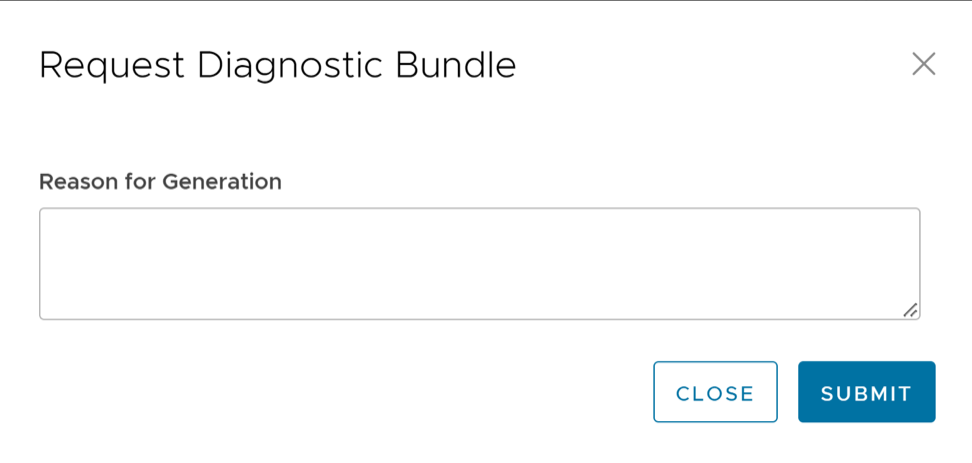
- In the Request Diagnostic Bundle dialog, enter the reason for generation.
- The completed bundles get deleted automatically on the date displayed in the column called Cleanup Date. To update the cleanup date of a generated bundle, select the required check box in the Request Status column and select Update Cleanup Date.
In the Update Cleanup Date pop-up window, choose the date on which the selected bundles should be deleted and select Update.
Figure 4. Update Cleanup Date 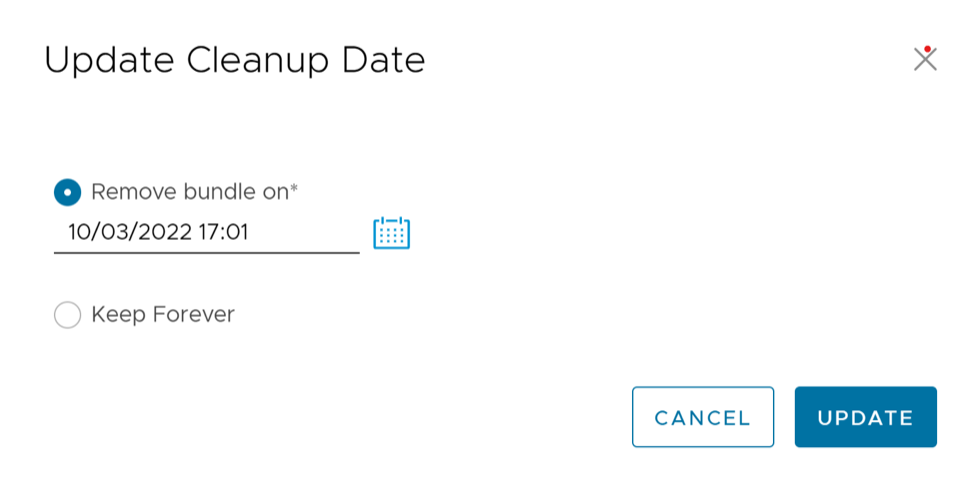
Select the Keep Forever check box to retain the bundle, so that the bundle does not get deleted automatically.
The Orchestrator Diagnostics table grid updates to reflect the changes to the Cleanup Date.
Database Statistics
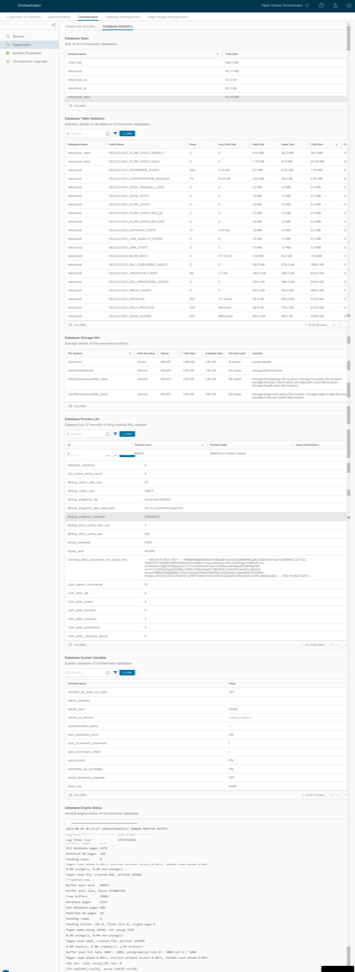
The Database Statistics tab provides read-only access view of the information from a diagnostic bundle. To view it, select Database Statistics option available at the top of the window.
If you require additional information, go to the Diagnostic Bundles tab, request a diagnostic bundle, and download it locally.
The Database Statistics tab displays the following information:
| Field | Description |
|---|---|
| Database Sizes | Sizes of the Orchestrator databases. |
| Database Table Statistics | Statistical details of all tables in the Orchestrator database. |
| Database Storage Info | Storage details of the mounted locations. |
| Database Process List | The top 20 records of long-running SQL queries. |
| Database Status Variable | The status variables of the MySQL server |
| Database System Variable | System variables of the MySQL server. |
| Database Engine Status | The InnoDB engine status of the MySQL server. |