Print

Launch VeloBrain Knowledge Assistant

VeloBrain Knowledge Assistant is a chat interface that curates VeloCloud documents and Knowledge Base articles, and uses them as references when providing answers. It only answers VeloCloud-related questions.

To launch the VeloBrain Knowledge Assistant, perform the below steps:

  1. Log in to the VeloCloud Orchestrator.
  2. Select the VeloBrain icon from the top right of the Orchestrator screen.
    The VeloBrain Knowledge Assistant appears.
    Figure 1. VeloBrain Knowledge Assistant
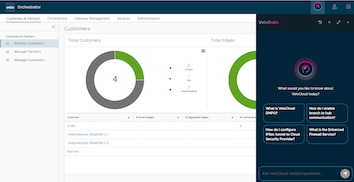
  3. To get started, the chat interface displays a few pre-populated questions. Select either one of these or type a question in the textbox.
    • Users can request the response in a particular format. Example: Paragraph, Number of lines, Bullet list, Numbered list, etc.
    • A legal disclaimer appears before the VeloBrain Knowledge Assistant displays a response.
    • The Assistant may take up to 30 seconds to display certain responses.
    • The responses are detailed and include references to the source documents.
    • The Assistant understands the context of the conversation. So, users can have follow-up conversations with it.
      Below is an example displaying a question and a follow-up question:
      • What is VeloCloud EFS?
      • How do I configure it?
  4. After typing the question, select the Send button next to the textbox, or select Enter on the keyboard.
  5. The following additional options are available on the chat interface:
    Table 1. Additional Options
    Option Description
    Conversation History Displays the chat history. Users can also filter the messages based on scope and name.

    Release 7.0.0 introduces a tagging feature that helps users understand the context of the conversation. VeloBrain assigns a tag to each conversation so users can easily find the one they need.

    New Conversation Initiates a new chat session.
    Toggle Fullscreen view Displays the chat interface in full screen.
    Hide Hides the chat interface. This action does not terminate the existing chat. To resume the chat session, select the VeloBrain icon.
..