Configure Alerts and Notifications
Orchestrator allows you to configure alerts that notify the Operators, Enterprise Administrators or other support users, whenever an event occurs.
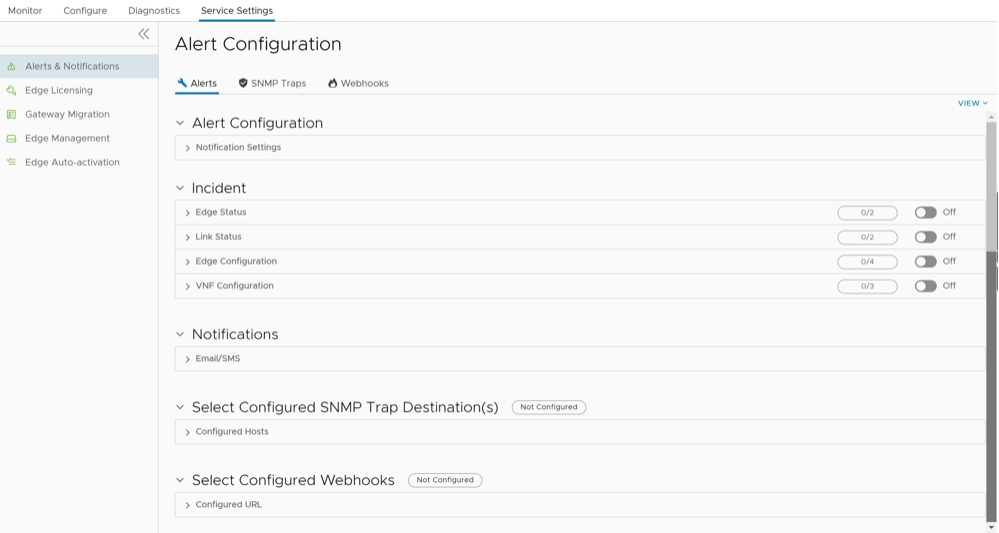
For information on how to configure Alerts, see Configure Alerts.
For information on how to configure SNMP Traps, see Configure SNMP Traps.
For information on how to configure Webhooks, see Configure Webhooks.
Configure Alerts
The alerts can be sent to both, the Operators managing the Orchestrator and the Customers. Alerts sent to the Operators are called Operator Alerts (formerly known as Pre-Notifications), and are sent as soon as the event occurs. Alerts sent to the Customers are called Enterprise Alerts and are activated only when a Customer turns on the Enable Enterprise Alerts option under Alert Configuration. Enterprise Alerts can be subject to delays as configured by the Enterprise Admin(s).
For example, consider that a Customer has configured the Link Down alert delay for 2 minutes. If a WAN link loses communication with the Edge, Operator Alerts are sent immediately. Enterprise Alerts are sent after a delay of 2 minutes.
- In the Alert Configuration window, the Alerts tab is displayed by default.
Figure 2. Alerts tab 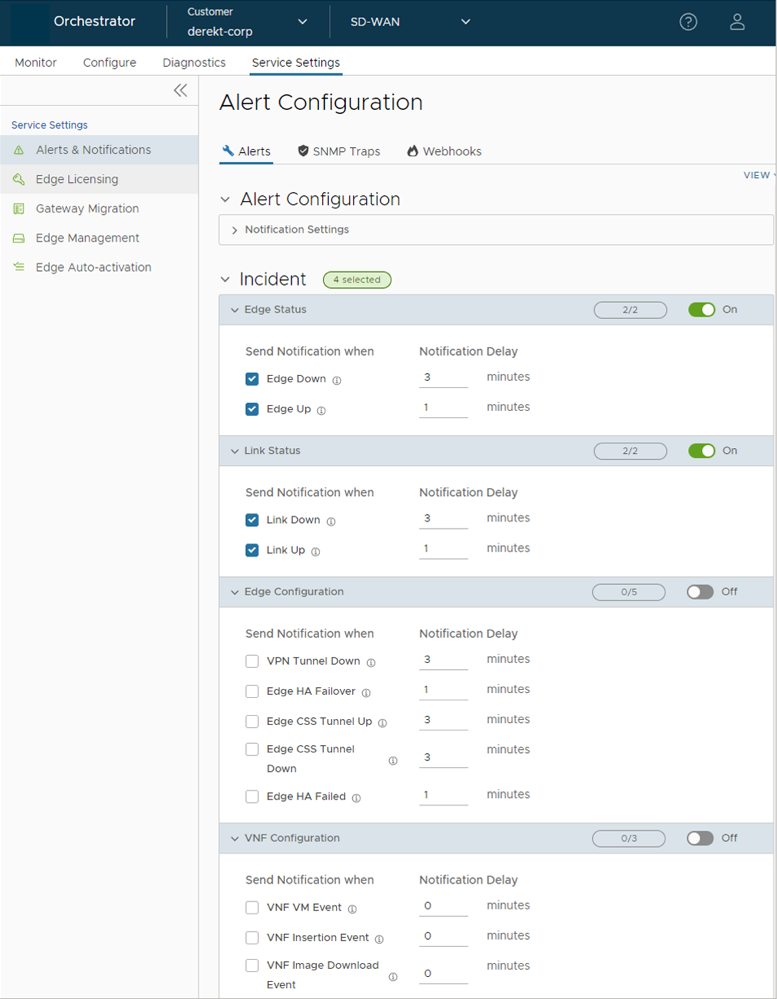
- Expand Email/SMS in the Notifications section to display the contact details of existing admin users.
Figure 3. Notifications 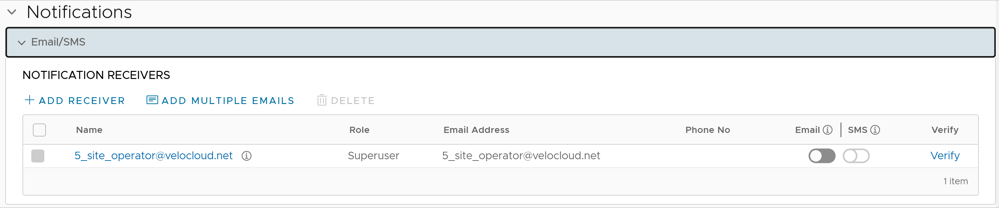
- Expand Configured Hosts under Select Configured SNMP Trap Destination(s) to display the configured SNMP Traps. You can select one or multiple traps using the drop-down menu.
Figure 4. Select Configured SNMP Trap Destination(s) 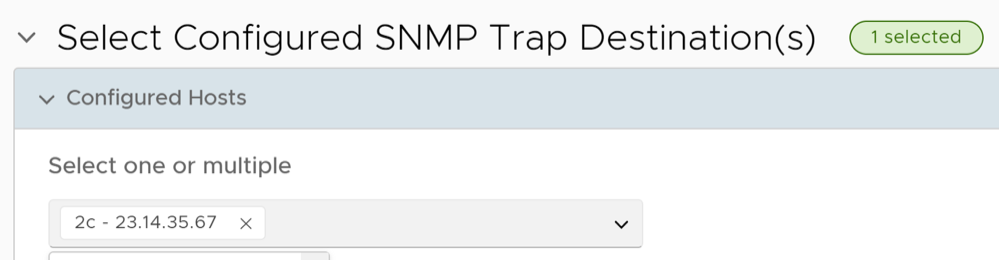 Note: If no SNMP Trap is configured, this section displays a link to the SNMP Traps page.
 - Expand Configured URL under Select Configured Webhooks to display the configured webhooks. You can select one or multiple webhooks using the drop-down menu.
Figure 5. Select Configured Webhooks 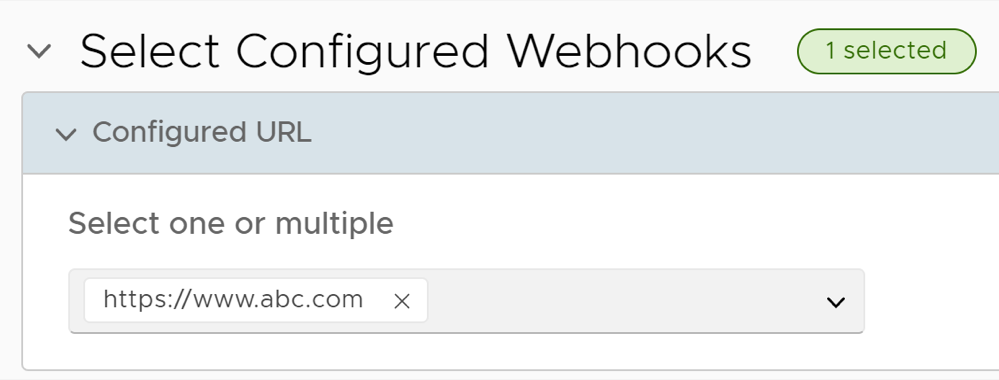 Note: If no webhook is configured, this section displays a link to the Webhooks page.
Configure SNMP Traps
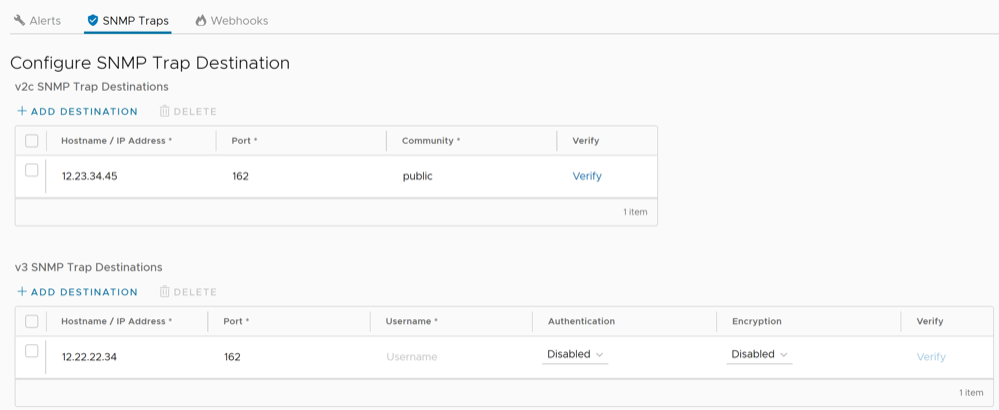
The SNMP Traps page in the Alert Configuration window, allows you to configure v2c and v3 SNMP Trap Destinations.
Configure Webhooks
Webhooks deliver data to other applications, triggered by certain alerts using HTTP POST. Whenever an alert occurs, the source sends an HTTP request to the target application configured for the webhook. Orchestrator supports Webhooks that automatically send messages through HTTP POST to target apps when an event occurs. You can set the target URL in the Enterprise portal and automate actions in response to the alerts triggered by Orchestrator. The webhook recipients must support HTTPS and must have valid certificates, to ensure the privacy of potentially sensitive alert payloads. This also prevents the tampering of payloads. Any application that supports incoming webhooks with HTTPS can integrate with VeloCloud SD-WAN.

| Option | Description |
|---|---|
| URL | Enter a valid HTTPS URL. This serves as the target application for the webhooks. |
| Code | Enter an expected HTTP response status code for each webhook recipient. By default, the Orchestrator expects webhook recipients to respond to HTTP POST requests with a status code as HTTP 200.
When Orchestrator receives an unexpected status code from a recipient server or a proxy server, it considers that the alert delivery has failed, and generates an ALERT_DELIVERY_FAILED customer event. This event helps to identify when a webhook recipient server may fail to function as expected. |
| Secret | This field is optional. Specify a secret token for each configured webhook recipient, which is used to compute an HMAC for each webhook request sent to the corresponding recipient. The HMAC is embedded in a X-Webhook-Signature HTTP header, along with a version parameter, which identifies the signature algorithm and a time stamp.
The recipient interprets the components as follows:
The message used to compute the HMAC is formed by concatenating the request body, a single period, and the value of the time stamp parameter that appears in the signature header. The specific HMAC algorithm used to produce the code is HMAC-SHA256. After receiving a Webhook request, the listening server can verify the authenticity of the request by computing its own HMAC-SHA256 signature according to the same algorithm and compare the newly-computed signature with the one generated by the Orchestrator. |
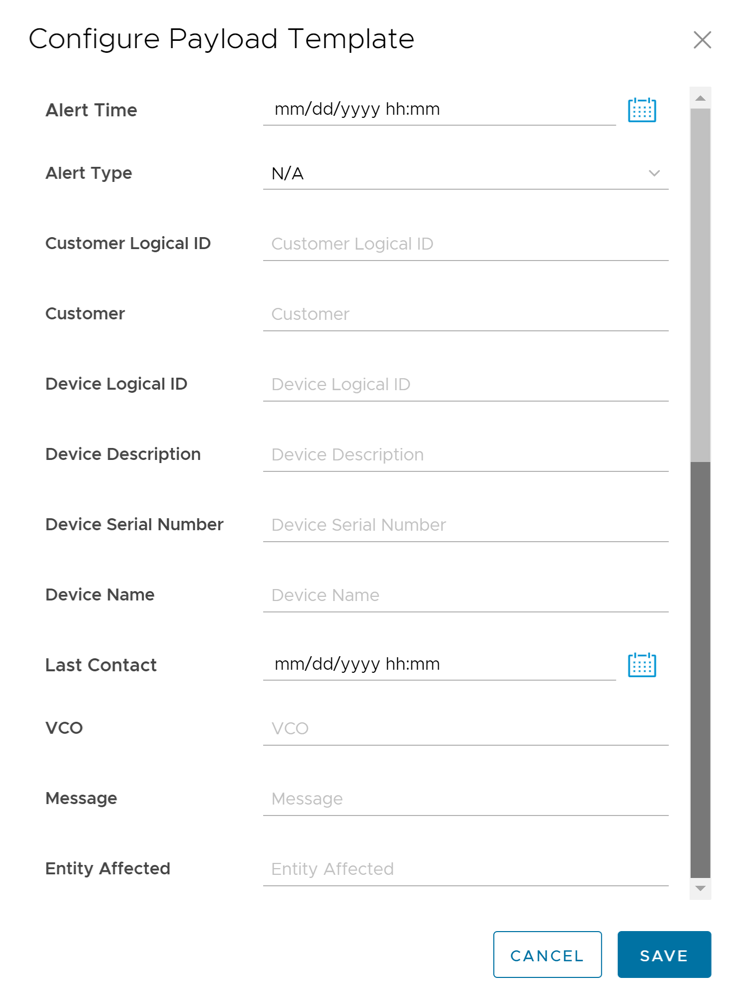
| JSON Payload Template | This is a required field. Orchestrator delivers alert notifications to each webhook recipient, through a JSON payload contained within the body of an outgoing HTTP POST request. Orchestrator generates payload content dynamically, as notifications are sent by performing variable interpolation. The supported placeholder variables in the user-configured payload template are replaced with alert-specific values. |
| Verify | Select this option to validate the entered details. |
| Option | Description |
|---|---|
| Alert Time | Enter the date and time at which the alert must be triggered. |
| Alert Type | Select the type of alert from the drop-down menu. By default, it is displayed as N/A. |
| Customer Logical ID | Enter the logical ID of the customer to whom the notification must be sent. |
| Customer | Enter the name of the customer to whom the notification must be sent. |
| Device Logical ID | Enter the logical ID of the Edge to which the alert must be applied. |
| Device Description | Enter a brief message describing the Edge to which the alert must be applied. |
| Device Serial Number | Enter the serial number of the Edge to which the alert must be applied. |
| Device Name | Enter the name of the Edge to which the alert must be applied. |
| Last Contact | Enter the date and time at which the affected Edge most recently communicated with the Orchestrator. This is applicable only for the Edge alerts. |
| VCO | Enter the Hostname or public IP of the Orchestrator from which the notification must be sent. |
| Message | Enter a brief message describing the event that must trigger the alert. |
| Entity Affected | Enter the name of the entity: Edge or link or VNF, to which the alert must be applied. |
The following example shows a sample JSON payload template:
{ "alertTime": "alertTime", "alertType": "alertType", "customer": "customer", "customerLogicalId": "customerLogicalId", "entityAffected": "entityAffected", "deviceLogicalId": "deviceLogicalId", "lastContact": "lastContact", "message": "message", "vco": "vco", "deviceName": "deviceName", "deviceDescription": "deviceDescription", "deviceSerialNumber": "deviceSerialNumber" }Select Save, and then select Save Changes on the Webhooks page to save the webhook configurations.
When an alert is triggered, an alert message along with relevant information is sent to the target URL.