CloudHub Automated Deployment of NVA in Azure vWAN Hub
Overview
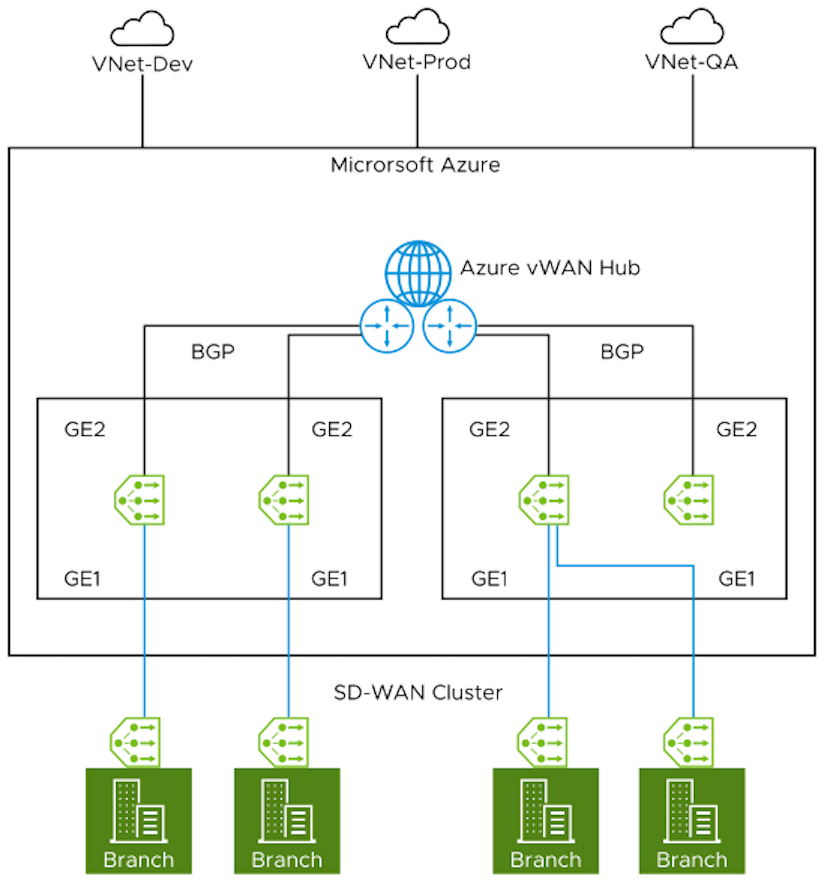
Cloud migration poses many challenges in connecting remote locations to Azure vNets in a simple, optimized, and secure way across myriad connectivity options. VeloCloud SD-WAN addresses these problems by leveraging Dynamic Multipath Optimization™ (DMPO) technologies and distributed cloud gateway coverage worldwide. VeloCloud SD-WAN transforms unpredictable broadband transport into Enterprise-class quality connections, ensuring application performance from remote locations to the Azure Cloud.To address different deployment scenarios for customers deploying Azure vWAN, VeloCloud SD-WAN progressively added capabilities to the solution through automation. With this new integration, customers can now deploy VeloCloud Edges directly inside Azure vWAN hubs automatically, and natively integrate Azure vWAN customizable routing intelligence with VeloCloud SD-WAN optimized last-mile connectivity.
The example topology illustrates the VeloCloud SD-WAN and Azure vWAN NVA Automated Deployment scenario.
CloudHub Deployment Prerequisites
- Obtain Enterprise account access to Arista Edge Cloud Orchestrator.
- Obtain access to the Microsoft Azure portal with the appropriate IAM roles.
- Ensure that users already created a Resource Group, a vWAN and a vHUB in Azure. For steps, see Virtual WAN Documentation.
- Software image requirements for this deployment are as follows:
- VeloCloud Edge Cloud Orchestrator: 5.1.0.
- VeloCloud Gateway: 4.2.1 and above.
- VeloCloud Edges: 4.2.1 and above.
CloudHub Automated Deployment of Azure vWAN NVA Using Arista Edge Cloud Orchestrator
- In the Orchestrator, ensure that users activate the Multi-Cloud Service (MCS) account. Verify by checking the following system properties:
session.options.enableMcsServiceAccountvco.system.configuration.data.mcsNginxRedirection
Note: Contact the Edge Ops team to activate the MCS account for the Orchestrator.Figure 2. Displaying System Properties 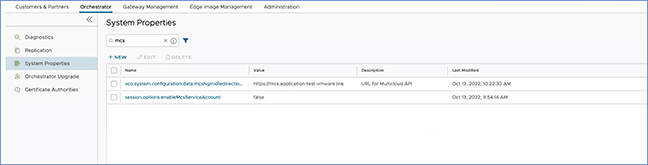
- For an Enterprise user, once the MCS account activates, users can access the MCS service by selecting to display the Cloud Hub page.
Figure 3. Displaying Cloud Hub 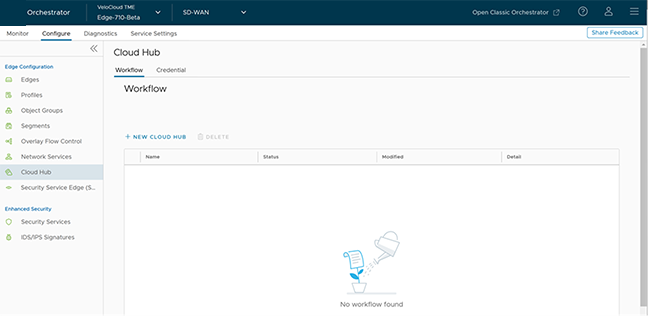
- To create new credential, select . Provide all the required details and select Create.
Figure 4. Adding New Credentials 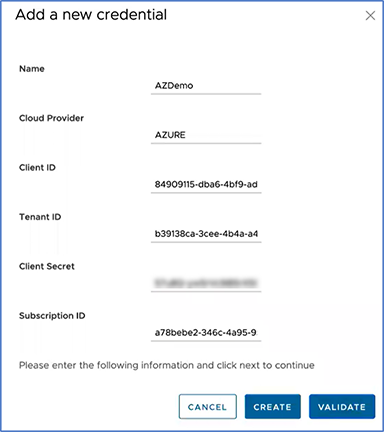
Table 1. Credential Fields Field Description Name Enter a unique name for the Azure subscription. Cloud Provider Select Azure as the Cloud Provider. Client ID Enter the Client ID. Tenant ID Enter the tenant ID. Client Secret Enter the Client Secret. Subscription ID Enter the Azure Subscription ID that created the Virtual WAN Hub to deploy Virtual Edges. For additional information on how to retrieve IDs for a subscription in Azure portal, see How to create a new Azure Active Directory (Azure AD) application and service principal.
Arista Networks recommends that customers create a custom role with the following permissions (JSON) and provide access to only the necessary resources for the Cloud Hub function.
"permissions": [ { "actions": [ "Microsoft.Resources/subscriptions/resourceGroups/read", "Microsoft.Resources/subscriptions/resourcegroups/deployments/read", "Microsoft.Resources/subscriptions/resourcegroups/resources/read", "Microsoft.Resources/subscriptions/resourcegroups/deployments/operationstatuses/read", "Microsoft.Resources/subscriptions/resourcegroups/deployments/operations/read", "Microsoft.Network/virtualWans/read", "Microsoft.Network/virtualWans/join/action", "Microsoft.Network/virtualWans/virtualHubs/read", "Microsoft.Network/virtualHubs/read", "Microsoft.AzureStack/linkedSubscriptions/linkedResourceGroups/linkedProviders/virtualNetworks/read", "Microsoft.Network/networkVirtualAppliances/delete", "Microsoft.Network/networkVirtualAppliances/read", "Microsoft.Network/networkVirtualAppliances/write", "Microsoft.Network/networkVirtualAppliances/getDelegatedSubnets/action", "Microsoft.Network/virtualNetworks/read", "Microsoft.Network/virtualNetworks/join/action", "Microsoft.Network/virtualNetworks/peer/action", "Microsoft.Network/virtualNetworks/write", "Microsoft.Network/virtualNetworks/subnets/join/action", "Microsoft.Network/virtualNetworks/subnets/joinViaServiceEndpoint/action", "Microsoft.Network/virtualNetworks/subnets/read", "Microsoft.Network/virtualNetworks/subnets/prepareNetworkPolicies/action", "Microsoft.Network/virtualNetworks/subnets/unprepareNetworkPolicies/action" ], "notActions": [], "dataActions": [], "notDataActions": [] } ] - To create a New Cloud Hub, perform the following steps:
The Cloud Hub Workflow works only for a new Profile. Create a new Profile before proceeding with the deployment of NVA Edge in vWAN HUB network.
- Navigate to and select New Cloud Hub to display the Cloud Credentials page.
Figure 5. Configuring a New Cloud Hub Credentials 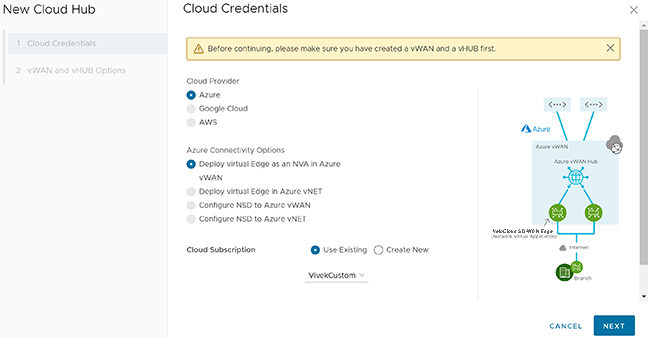
- Provide all the required Cloud Credentials details and select Next.
The vWAN and vHUB Options page appears.Table 2. Cloud Credential Details Field Description Cloud Provider Select Azure as the Cloud Provider. Azure Connectivity Options Select Deploy Virtual Edge as an NVA in Azure vWAN as the connectivity option between user's Hub and vNET. Cloud Subscription Users can use the existing cloud subscription or create a new subscription by selecting the Create New option. Figure 6. Displaying vWAN and vHub Options 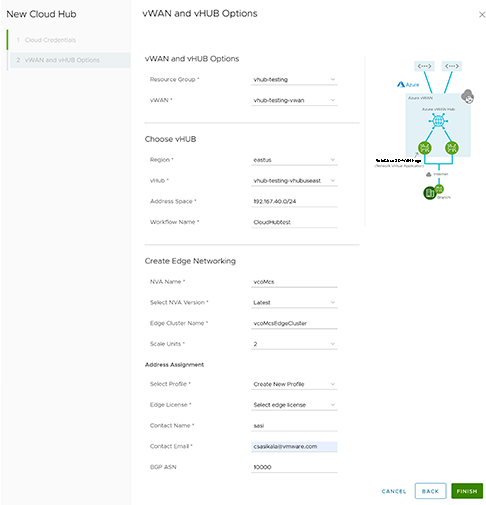
- Navigate to and select New Cloud Hub to display the Cloud Credentials page.
- In the SD-WAN service portal, select to verify the Virtual Azure NVA Edge that users provisioned or deployed with the Cloud Hub automation service.
Figure 7. Displaying the Virtual Azure NVA Edge 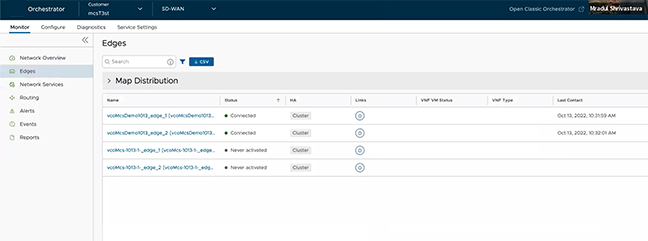
- To verify if the BGP sessions established for the deployed Virtual Azure NVA Edge, select .
Figure 8. Display BGP Sessions 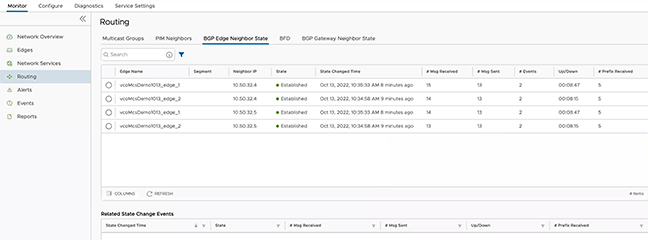
Once the Virtual Edges become active, configure IP address for each of the Virtual Edges by navigating to , and adding the IP address 168.63.129.16 under the Allow the following IPs field.
Figure 9. Configuring Edge Security 
Create the configuration on a Profile used by any or all of the Virtual Edges then users do not configure one for individual Virtual Edge. For additional details regarding this IP configuration, see Microsoft IP Reference.