打印

Manage Edges

Edges inherit the configurations from the associated profile. The Enterprise users can override the settings for a specified Edge. The user can provision a new Edge or manage the existing Edges using the Orchestrator UI. To provision a new Edge, see Provision a New Edge.

To manage the existing Edges:

  1. In the SD-WAN service of the Enterprise portal, select the Configure tab.
  2. From the left menu, select Edges.
  3. Edges displays the existing Edges with their details.
    Figure 1. Edges
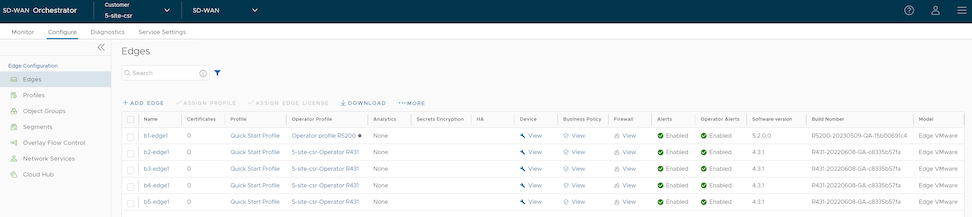
     

    Table 1. Edges - Options and Descriptions
    Option Description
    Name Displays the name of the Edge. Click the Edge link to modify Edge configurations. See Configure Edge Overrides.
    Certificates Displays the current and expired certificates of the Edge. Click View to display Certificate details of the corresponding Edge. The pop-up window allows the user to download, revoke, or renew a certificate.
    Profile Displays the Profile assigned to the Edge. Click the Profile link to modify the Profile configurations. See Configure Profile Settings.
    Operator Profile Displays the name of the Operator profile associated with the Edge. This column is available only to Operator users. The Operator Profile is the template assigned to the customer, which includes the software image, application maps, Gateway selection, and Edge management settings.
    Secrets Encryption Displays secret key encryption details for the Edge.
    HA Displays whether the user has activated High Availability (HA) for the Edge.
    Device Click View to modify the Edge's configurations. See Configure Edge Overrides.
    Business Policy Click View to configure the Business Policy Rules of an Edge.
    Firewall Click View to configure the Firewall Rules of an Edge.
    Alerts Displays whether Customer alerts are activated or deactivated for the Edge.
    Operator Alerts Displays whether Operator alerts are activated or deactivated for the Edge.
    Software Version Displays the software version of the Edge.
    Build Number Displays the Edge's build number when the Edge is activated.
    Model Displays the model type of the Edge.


  4. Select one or more Edges to perform the following activities:
    Table 2. Additional Options and Descriptions
    Option Description
    Assign Profile Allows changing the profile for the selected Edges. This operation affects the existing Edge configurations.
    Assign Edge License Allows modifying the Edge license for the selected licenses.
    Download Downloads the details of Edges into an MS Excel file.

    Select More to configure the following:

    Table 3. More - Options and Descriptions
    Option Description
    Update Alerts Allows turning alerts sent to the Customer on or off. To configure the alerts, see Configure Alerts. The user can view the alerts in the Monitor > Alerts tab.
    Update Operator Alerts Allows turning alerts sent to the Customer on or off. To configure the alerts, see Configure Alerts. The user can view the alerts in the Monitor > Alerts tab.
    Note: This option is available only to Operator users.
    Local Credentials Allows modifying the local credentials. By default, the local credentials include a default username of admin and a randomly generated password.
    Assign Operator Profile This option is available only to Operator users. By default, all the Edges inherit the Operator profile assigned to the Enterprise customer. If required, an Operator can assign another Operator profile for specific Edges.
    Rebalance Gateways A Gateway rebalance can be triggered to move SD-WAN Edges to a different Gateway. When triggering a Gateway rebalance, the Orchestrator will attempt to distribute the load equally within Gateways in a pool. Though rebalancing is not impactful, these rebalancing events typically take place during regularly scheduled maintenance windows out of an abundance of caution. Though rebalancing is not impactful, these events typically occur during regularly scheduled maintenance windows out of an abundance of caution.
    Note: Refer to the SD-WAN Gateway Migration FAQs, Important Caveats, and Allow List Limitation sections in the KB article for complete details.
    Note: The Rebalance Gateways option is available only for Operator users.
    Delete Edge Deletes the selected Edges. The user cannot delete Edges connected to the Enterprise. The user need to shut down Edge before deleting it.

Configure Edge Settings

Enterprise users can override specific Edge settings inherited from the Profile. In most cases, the user must first enable the override before making changes to the individual settings. Edge overrides enable Edge-specific edits to the displayed settings, and discontinue further automatic updates from the configuration Profile.

To override configuration settings for a specific Edge, perform the following steps:

  1. In the SD-WAN service of the Enterprise portal, go to Configure > Edges . The Edges page displays the existing Edges.
  2. Select the link to an Edge or click the View link in the Device column of the Edge. The configuration options for the selected Edge appears on the Device tab.
    Figure 2. Configure Edges
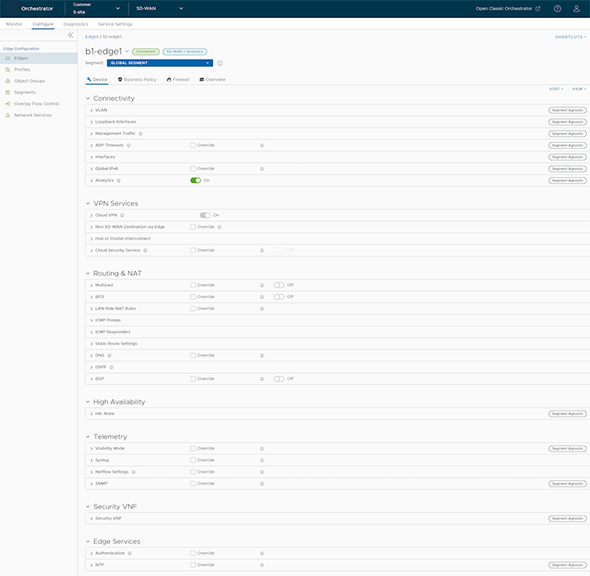
  3. The View menu on the left side of the page lets the user to select view options. The available options are Expand All and Collapse All.
  4. The Sort menu on the left side of the page lets the user to select the sort options: Sort by category and Sort by segment-aware. The user can view the configuration settings sorted by category or segment-aware. By default, the settings sort by category. If the user chooses to sort by segmentation, the system groups the settings into segment-aware and segment-agnostic categories. This allows the user to distinguish between configurations that apply to specific network segments and those that apply globally to the entire Edge.
  5. For some configuration settings inherited from the associated Profile, select the Override checkbox to override the inherited configuration for the Edge.
  6. After modifying the required settings, click Save Changes.
    Note: On the Device page, whenever the user makes configuration changes to the selected Edge, a footer notification appears in the bottom-left corner of the screen. The user can click the notification to view the recent configuration changes.
  7. Select the Shortcuts option to perform the following activities:
    • Monitor - Navigates to the Monitoring tab of the selected Edge. See Monitor Edges.
    • View Events - Displays the Events related to the selected Edge.
    • Remote Diagnostics - Enables running the Remote Diagnostics tests for the selected Edge. See Run Remote Diagnostics.
    • Generate Diagnostic Bundle - Generates a Diagnostic Bundle for the selected Edge. See Diagnostic Bundles for Edges with New Orchestrator UI.
    • Remote Actions - Allows the user to perform the Remote Actions for the selected Edge. See Perform Remote Actions with the new Orchestrator UI.
    • View Profile - Navigates to the Profile page associated with the selected Edge.
    • View Gateways - Displays the Gateways connected to the selected Edge.

    For additional details on various Edge configuration settings, see Configure Edge LAN Overrides.

Reset Edges to Factory Settings

Edges may require a reset to factory settings for several reasons:
  • When a user repurposes an Edge for a different site, the user must remove the existing configuration to activate the Edge at the new site.
  • User's site is experiencing an issue, and VeloCloud SD-WAN Support recommends performing a hard reset to revert the Edge to factory settings and reactivate it at the site to see if that resolves the issue.
  • The Edge is inaccessible or unresponsive, and multiple power cycles have not resolved the issue. The VeloCloud SD-WAN Support recommends performing a hard reset to restore the Edge to its factory settings and see if that resolves the issue.
Reset an Edge to factory settings using one of the following methods:
  • Soft Reset or Deactivation - When the user performs this action, the system deactivates the Edge and removes all existing configurations. The Edge now uses the original factory configuration. However, the Edge software is not affected and retains the version it had before the soft reset. A soft reset Edge can be reactivated at another site or at the same site.
  • Hard Reset - When the user performs this action, the Edge fully resets to its factory settings. This action not only deactivates the device and restores its factory configuration, but it also reverts the Edge software to its original factory version. After this process, the Edge is in the same state as when it was shipped from the factory.

If a user resets an active Edge at a site, the user completely loses client device connectivity at that site until the user either reactivates the same Edge or activates another Edge.

For instructions on how to reset an Edge to factory settings, see How to Factory Reset a VeloCloud SD-WAN Edge.

..