Testing and Troubleshooting
The Orchestrator Test and Troubleshoot functionality provides tools to test the status of the Arista services, perform remote Edge actions, and gather debugging information for an Edge.
In the SD-WAN service of the Enterprise portal, select the Diagnostics tab to access and perform the testing and troubleshooting options.
Starting with the 5.1.0 release, all troubleshooting and diagnostics-related information for Edges and Gateways is documented and published as a standalone guide titled Arista SD-WAN Troubleshooting Guide.
This topic contains the following sections:
Run Remote Diagnostics
- A WebSocket connection between a Web browser (Orchestrator UI portal) and an Orchestrator. This connection is responsible for all communications with the Web browser and for setting up the system properties needed for establishing a WebSocket connection.
- Another WebSocket connection between an Orchestrator and an Edge. This connection is persistent and set up upon Edge activation for processing heartbeats from the Edge and sending responses back to the Orchestrator.
When establishing WebSocket connections between a Web browser and an Edge, to ensure Web security against Distributed Denial-of-Service (DDoS) and Cross-Site Request Forgery (CSRF) attacks, the browser origin address used to access the Orchestrator UI is validated for incoming requests.
In most Orchestrators, the browser origin address/DNS hostname is the same as the value of the network.public.address system property. To support scenarios where the address used to access the Orchestrator UI from the browser is different from the value of the network.public.address system property, the following system properties are added for WebSocket connections:
network.portal.websocket.address- Allows setting an alternate address/DNS hostname to access the UI from a browser if the browser address is not the same as the value ofnetwork.public.addresssystem property. By default, thenetwork.portal.websocket.addresssystem property is not set.session.options.websocket.portal.idle.timeout- Allows setting the total amount of time (in seconds) the browser WebSocket connection is active in an idle state. By default, the browser WebSocket connection is active for 300 seconds in an idle state.
Arista VeloCloud Orchestrator enables users to run various Remote Diagnostic tests on a selected Edge. To run Remote Diagnostics on an Edge, perform the following steps:
- The Remote Diagnostics page displays the existing Edges.
Figure 1. Remote Diagnostics 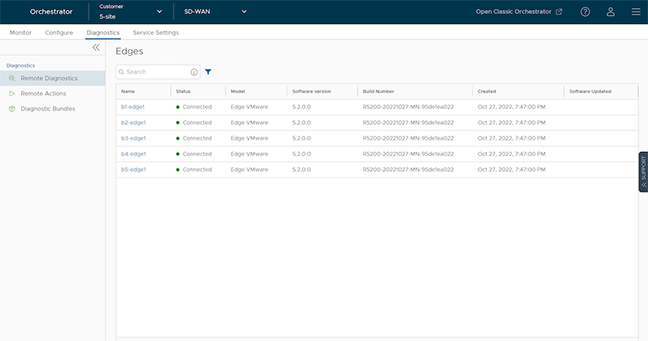
Perform Remote Actions
Users can perform the remote actions only on the Edge that is in the Connected state.
To perform the remote actions:
- Select the to open the Remote Actions dialog.
Figure 2. Remote Actions 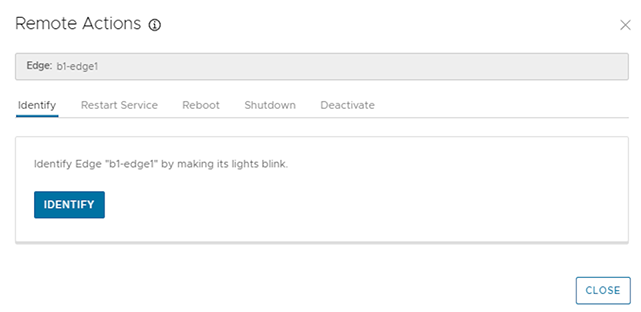
Diagnostic Bundles for Edges
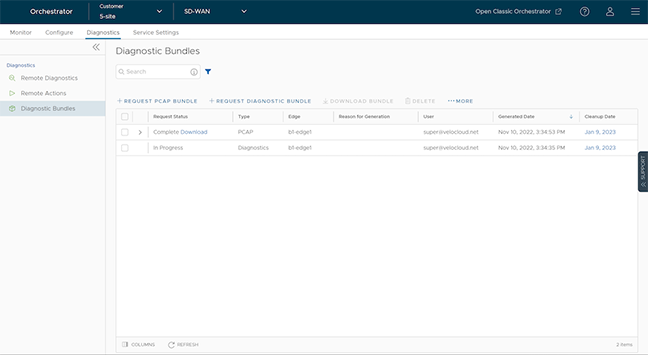
To generate and download Diagnostic Bundles using the new Orchestrator UI:
Requesting a Packet Capture Bundle
To generate a PCAP bundle, perform the following steps:
- In the Request PCAP Bundle window, configure the following:
Figure 4. Requesting a PCAP Bundle 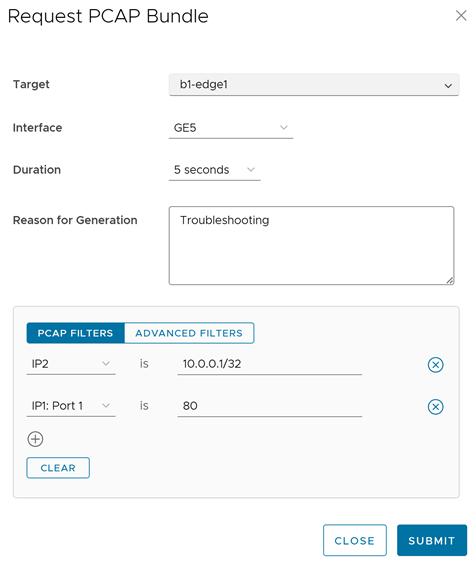
Table 2. PCAP Bundle Option Descriptions Option Description Target Select the target Edge from the list. The system collects packets from the selected Edge. Interface Select an Interface or a VLAN from the list. The system collects packets from the selected Interface. Duration Select the time in seconds. The system collects packets for the selected duration. Reason for Generation Optionally, users can enter the reason for generating the bundle. PCAP Filters Optionally, for an Edge, users can define PCAP filters for the generated PCAP data by selecting the following options: - IP1- Type an IPv4 address, or an IPv6 address, or a Subnet mask.
- IP2- Type an IPv4 address, or an IPv6 address, or a Subnet mask.
- IP1:Port1- Type a Port ID associated with IP1.
- IP2:Port2- Type a Port ID associated with IP2.
- Protocol- Select a protocol from the list.
Advanced Filters Optionally, the administrator defines free-form filters to control the generated PCAP data for an Edge. The window displays the details of the generated bundle along with the status.
Packet Capture for Edges Configured for High Availability
In Release 5.2.0 and later, a user can request a packet capture for the Standby Edge HA interface, which connects the Standby Edge to the Active Edge.Figure 5. Configuring a Request for a Standby Edge HA Interface 
Request Diagnostic Bundle
To generate a Diagnostic bundle:
- In the Request Diagnostic Bundle window, configure the following:
Figure 6. Request Diagnostic Bundle 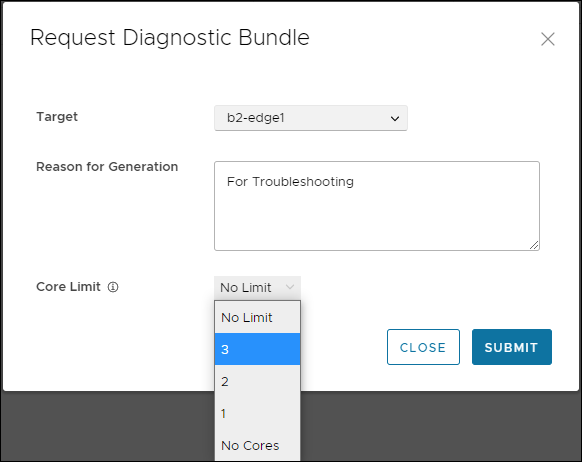
Table 3. Request Diagnostic Bundle - Options and Descriptions Option Description Target Select the target Edge from the drop-down list. The data is collected from the selected Edge. Reason for Generation Optionally, users can enter the reason for generating the bundle. Core Limit Select a Core Limit value from the drop-down menu to reduce the size of the uploaded bundle when the Internet connectivity is experiencing issues. The Diagnostic Bundles window displays the details of the bundle being generated, along with the status.
- In the Diagnostic Bundles window, select the Complete link or select the bundle then select Download Bundle. The system downloads the bundle as a ZIP file.
- For troubleshooting purposes, users can send the downloaded bundle to a support representative for debugging the data.
- To change the cleanup date, select the link to the cleanup date or select the bundle then select .
- In the Update Cleanup Date window, select the date by which the system will delete the selected bundle.
- If users want to retain the bundle, select the Keep Forever option, so that the bundle does not delete automatically.
- To delete a bundle manually, select the bundle then select Delete.