View Edge Information
The Edge Overview tab displays Edge-specific information. Users can update the name, description, contact information, associated Profile, and other details. This tab also facilitates activities such as sending Edge activation emails or requesting RMA reactivation.
- In the SD-WAN service of the Enterprise portal, go to .
- The Edge page displays the existing Edges.
- Select the link to an Edge or select the View link in the Device column of the Edge.
- Select the Overview tab to view and modify properties of the selected Edge. It displays the existing details of the selected Edge. If required, modify the information.
Figure 1. Overview Tab 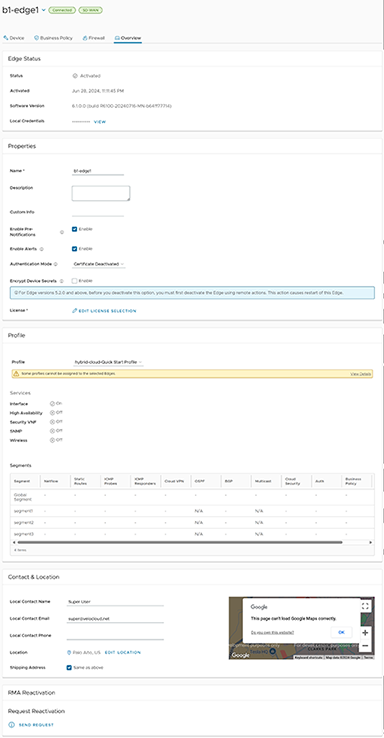
The tab displays the following details for an activated Edge. If the Edge remains unactivated, the Properties section provides an option to send an Edge Activation Email. For additional information, the topic Send Edge Activation Email. The Edge Overview tab allows to view and modify the following fields:
Table 1. Overview Tab - Options and Descriptions Option Description Edge Status Status Displays the status of the Edge: - Pending: The Edge has not been activated.
- Activated: The Edge has been activated.
- Reactivation Pending: A new or replaced Edge can be activated with the existing configuration. This status does not affect the functionality of the Edge.
Activated Displays the date and time of Edge activation. Software Version Displays the software version and build number of the Edge. Local Credentials Displays the credentials for the local UI. It uses these credentials to browse the Edge locally in a web-based session to access one of its active LAN interfaces. The local credentials include a default username, 'admin', and a randomly generated password. Select Modify to update the credentials at the Edge level. The local credential is the username/randomly generated password required to browse the Edge locally in a web-based session to one of its active LAN interfaces.
Properties Name Displays the name of the Edge. Description Displays the description of the Edge. Custom Info Displays the custom information associated with the Edge. Enable Pre-Notifications By default, this option is enabled. It allows the sending of alert notifications for the Edge to the Operators. Operators can receive the alerts through Email, SMS, or SNMP traps. To configure the alerts, see the topic Configure Alerts. Users can also view the alerts by selecting . Enable Alerts By default, this option is enabled. It allows the sending of alert notifications for the Edge to the Customers. Customers can receive the alerts through Email, SMS, or SNMP traps. To configure the alerts, see Configure Alerts. User can view the alerts by selecting . Authentication Mode Choose the mode of authentication from the drop-down menu: - Certificate Deactivated: In this mode, the Edge uses Pre-Shared Key (PSK) authentication to establish secure communication to the Hub/Gateways/Orchestrator.
Warning: VeloCloud SD-WAN does not recommend this mode for any customer deployments.If users change the mode from Certificate Deactivated to:
- Certificate Acquire: All tunnels are disconnected and reconnected based on the RSA mode.
- Certificate Required: The Orchestrator does not directly allow this change. Users must first change the mode to Certificate Acquire and then to Certificate Required. This helps avoid heartbeat loss to the Orchestrator when Edge is assigned a certificate.
- Certificate Acquire: In this mode, certificates are issued at Edge activation and automatically renewed. The Orchestrator instructs the Edge to acquire a certificate from the Orchestrator's certificate authority by generating a key pair and sending a certificate signing request to the Orchestrator. After acquisition, the Edge uses the certificate for authentication with the Orchestrator and for establishing VCMP tunnels.
If users change the mode from Certificate Acquire to:
- Certificate Deactivated All tunnels are disconnected and reconnected based on PSK mode.
- Certificate Required For Edges/Gateways running versions older than 6.1.x, switching from Certificate Acquire to Certificate Required causes a tunnel flap. Edges/Gateways running version 6.1.x or newer will not experience a tunnel flap.
When a Hub enters Certificate Acquire mode, it reestablishes certificate-based tunnels using a new certificate while leaving PSK-based tunnels unaffected.
Note: After acquiring the certificate, VeloCloud SD-WAN recommends updating this option to Certificate Required. This is to prevent Hubs/Gateways from accepting tunnel requests using PSK. - Certificate Required: This is the recommended mode. This mode does not allow peers with a PSK to connect. This mode does not accept Edge heartbeats without a valid certificate.
If users change the mode from Certificate Required to:
- Certificate Deactivated: VeloCloud SD-WAN does not recommend transitioning the Edge’s authentication mode to Certificate Deactivated.
- Certificate Acquire: An Edge that has been offline for an extended period after activation may be unable to connect to the Orchestrator when it tries to bring itself online if its certificate has expired or it never acquired one. In Certificate Required mode, the Orchestrator rejects connections from Edges without a valid certificate. Reactivation is not required for such cases. The Edge can be brought back online by temporarily switching it to Certificate Acquire mode to obtain a new certificate.
Recovery Procedure:
- Verify with the Enterprise administrator that they expect the Edge to come back online.
- Move the Edge to Certificate Acquire mode in the Orchestrator.
- Turn on or reconnect the Edge. This will connect to the Orchestrator and acquire a new certificate.
- Confirm in the Orchestrator that the Edge has a valid certificate and is establishing tunnels.
- Switch the Edge back to Certificate Required mode.
Encrypt Device Secrets Select the Enable tab to allow the Edge to encrypt the sensitive data across all platforms. Note: For Edge versions 5.2.0 and later, Users must first deactivate Edge using remote actions. It restarts the Edge.License Select an Edge License from the available list. The list displays the licenses assigned to the Enterprise, by the Operator. Certificates Select View to display the certificate details. A pop-up window appears. Users can also access this window from the screen. For additional information, see the section Certificates. Profile Profile Displays the Profile assigned to the Edge, along with the Services and Segments configuration details. Users can modify the assigned profile by selecting a profile from the drop-down menu. Note:- When switching to a different Profile, the Edge override configurations are not modified.
- Due to push activation, it displays an Edge staging Profile. It is a new Edge that is not configured by a production Profile. In such cases, the Enterprise Admin must manually assign a profile from the drop-down menu.
While switching the Profiles, check the compatibility between a Customer-assigned Operator Profile and an Edge-assigned Enterprise Profile. For additional details, see the section Compatibility Matrix in the same topic.
Contact & Location Local Contact Name Displays the local contact's name associated with the Edge. Local Contact Email Displays the local contact's email address associated with the Edge. Local Contact Phone Displays the local contact's phone number associated with the Edge. Location Displays the existing location of the Edge. To update the location details, select Edit Location. A pop-up window appears. Enter the new location details and select Update. Shipping Address Select the checkbox Same as above if the shipping address is the same as Edge location. Otherwise, type the shipping contact name and set a location. RMA Reactivation Initiate an RMA reactivation request to: - Replace an Edge due to a malfunction.
- Upgrade an Edge hardware model.
Note: This option is only for activated Edges.Request Reactivation Select Send Request to generate a new activation key. The status of the Edge changes to Reactivation Pending mode. Note: The reactivation key is valid for one month only.Cancel Request Select to cancel the RMA reactivation request. Cancel the request, changes the status to Activated mode. Send Activation Email Select to send an email with activation instructions to the Site Contact. This option does not activate the Edge, but initiates the activation process. A pop-up window will appear with the email details. Users can modify the instructions and send the Email. RMA Serial Number Displays the serial number of the Edge to be activated. Optionally, users can enter the serial number of the Edge to activate it. This Edge replaces the current Edge pending RMA reactivation. Note: The activation fails if the Serial Number and the Edge model do not match the Edge to be activated.RMA Model Displays the model number of the Edge to be activated. This Edge replaces the current Edge for which users have requested the RMA reactivation. Note:- When the RMA reactivation request contains the serial number of the replacement device (optional), then this serial number must match the current Edge; otherwise, the activation fails.
- The activation fails if the Serial Number and the Edge model do not match the Edge to be activated.
- It displays a warning message if the selected RMA model differs from the current Edge model. The Edge-specific configuration settings and Profile overrides are removed on reactivation, but the statistics are still retained. Note the Edge specific configuration settings, then re-add those to the newly replaced Edge, after it is re-activated.
Update Select to update the RMA Edge Attributes details. Note: For detailed instructions on initiating an RMA Reactivation request for the Site Contact, see Send Edge Activation Email.Certificates
Selecting View displays a pop-up window as follows:Figure 2. Certificate Detail 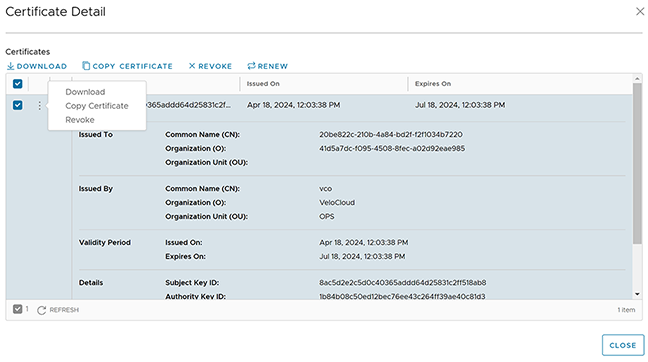 Users can expand the certificate to view additional details. The following options are available on the screen:Users can also access the Download, Copy Certificate, and Revoke options by selecting the vertical ellipsis next to the Certificate tab.
Table 2. Certificate Detail - Options and Descriptions Option Description Download Select to download the certificate in a CSV format. Copy Certificate Select and select this option to copy the certificate details on a clipboard for later use. Revoke Select to revoke the selected certificate. The Edge is deactivated when its certificate is revoked. Renew Select to renew the expired certificate. The Edge may experience some disruption during certificate renewal. Note: This action renews an HA pair's active and standby Edge certificates.Refresh Select to reload the screen. Close Select to close the pop-up window. - After modifying the required settings, select Save Changes.
- Select the Shortcuts option, available at the top right corner, to perform the following activities:
Table 3. Shortcuts - Options and Descriptions Option Description Monitor Navigates to the Monitoring tab of the selected Edge. For additional information, see the topic Monitor Edges. View Events Displays the Events related to the selected Edge. Remote Diagnostics Enables running the Remote Diagnostics tests for the selected Edge. For additional information, see the topic Run Remote Diagnostics. Generate Diagnostic Bundle Allows the generation of a Diagnostic Bundle for the selected Edge. For additional information, see the topic Diagnostic Bundles for Edges. Remote Actions Allows Users to perform remote actions for the selected Edge. For additional information, see the topic Perform Remote Actions. View Profile Navigates to the Profile page associated with the selected Edge. View Gateways Displays the Gateways connected to the selected Edge. Note: Only Operator users can view the Gateways. Enterprise Admin users cannot view the Gateways when they select this option.
Identifying a Device Model
Select the down arrow next to the device name to identify a model. A pop-up window will appear, which will show Edge and device model
- Firmware Platform images for 6X0 Edge device models and 3X00 Edge device models (3400/3800/3810)
- Firmware Modem images for 510-LTE (Edge 510LTE-AE, Edge 510LTE-AP) and 610-LTE (Edge 610LTE-AM, Edge 61LTE-RW)
- Factory images for all physical VeloCloud SD-WAN Edge devices
- When users update Platform and/or Modem Firmware, it will show in the Edge Info details screen as follows. To access the Edge Info details screen, select an Edge. It will display the selected Edge. Then select the down arrow icon next to Edge's name.
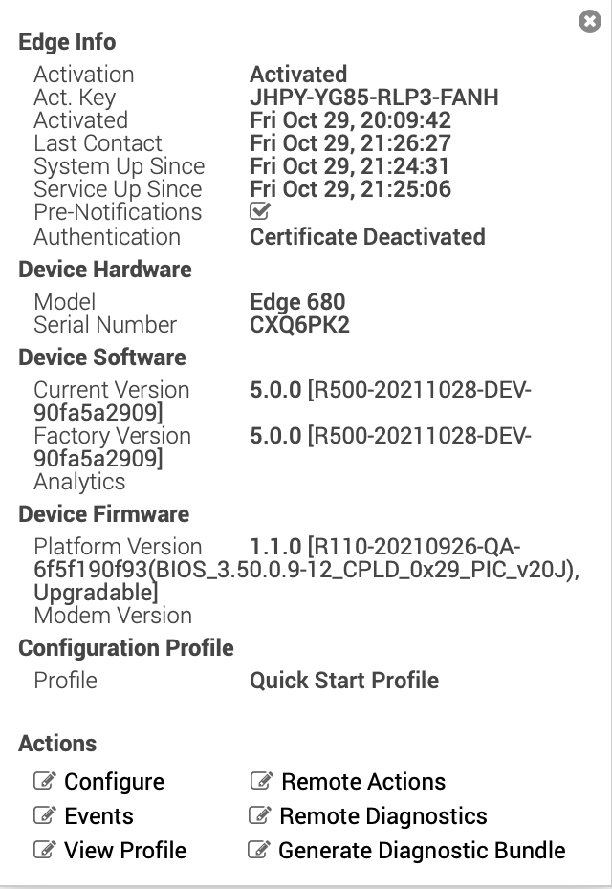
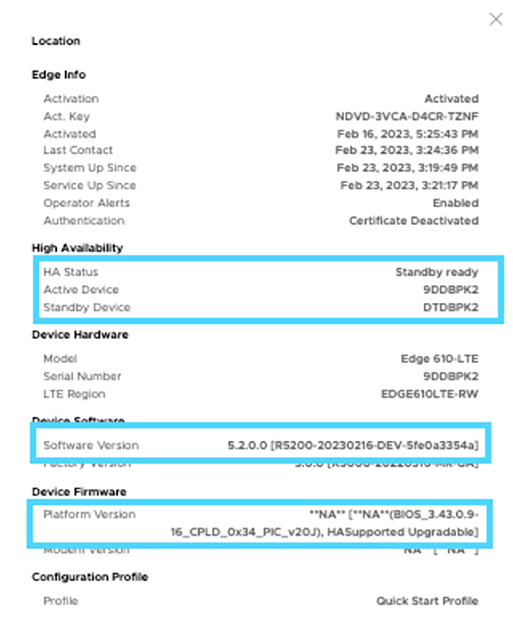
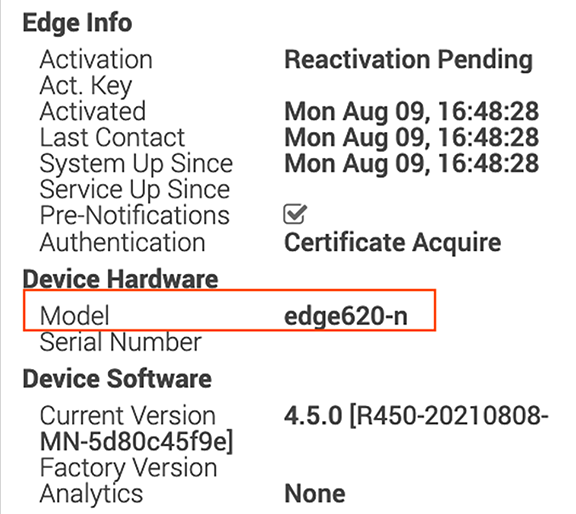
Users can modify the assigned profile by selecting a profile from the drop-down menu. See the following note for additional information.
- Edge overrides are the changes to the inherited profile configurations at the Edge level. Edge additions are configurations not included in the profile but added to the selected Edge.
- The Edge override configurations are not modified when switching to a different profile.
- An Edge staging profile may display due to push activation. A production profile may not configure this new Edge. In such cases, the Enterprise admin must manually assign a profile from the drop-down menu.
- For additional information, see Configure a Profile Device.
While switching the profiles, check the compatibility between a customer-assigned Operator Profile and an Edge-assigned Enterprise Profile. The following table shows the compatibility matrix.
| Customer Operator Profile Type | Current Edge Enterprise Profile | Selected Edge Enterprise Profile | Result |
|---|---|---|---|
| Segment-based | Segment-based | Segment-based | No Change |
| Network-based | Network-based | Network-based | No Change |
| Segment-based | Network-based | Segment-based | It converts the Edge configuration to a Segment-based configuration. However, it is not delivered to the Edge until the Edge software image is updated to version 3.0 or later. |
| Network-based | Network-based | Segment-based | It converts the Edge configuration to a Segment-based configuration. However, it is not delivered to the Edge until the Edge software image is updated to version 3.0 or later. |
| Segment-based | Network-based | Network-based | The Edge does not receive the image update. |
| Network-based | Segment-based | Segment-based | The Edge does not receive the image update. |