Watcher Alerts
Watcher Alert
- Create a Watcher manually using the provided template.
- Configure the Watcher to select the job ID for the ML job that needs to send alerts.
- Select ‘webhook’ as the alerting mechanism within the Watcher to send alerts to 3rd party tools like ‘Slack.’
- If the data feed column shows as stopped, skip to Step 3. If it says started, click the 3 dots for a particular ML job and Stop the data feed for the current ML job.
Figure 1. Stop Data Feed 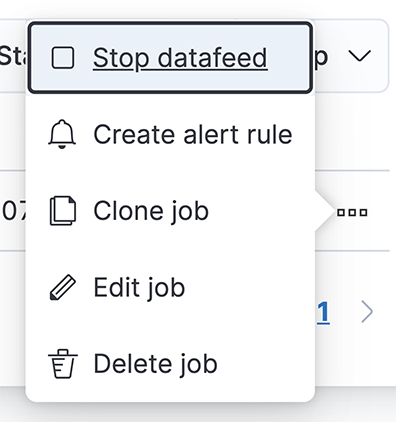
- After the data feed has stopped, click the 3 dots and start the data feed.
Figure 2. Start Data Feed 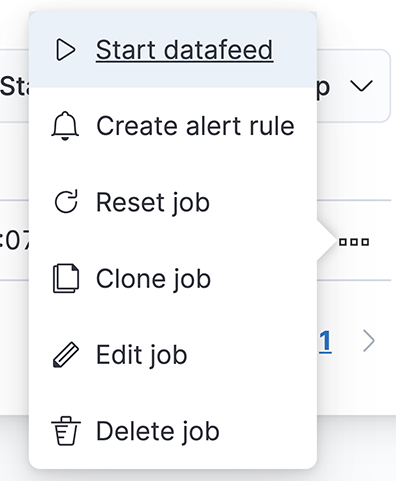
- Select the options as shown in the following diagram.
Figure 3. Job Time Options 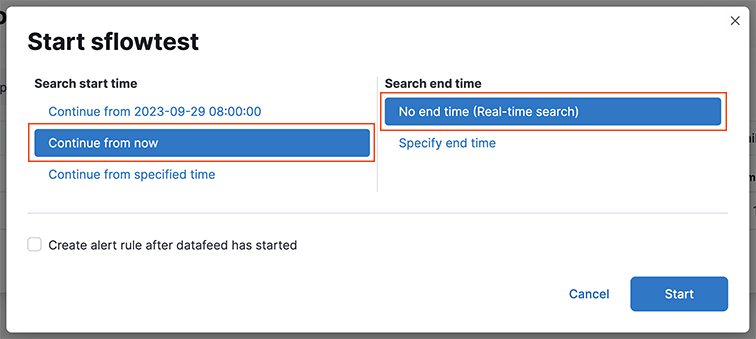
- Confirm that the data feed has started. Note down the job ID of this ML job.
Figure 4. ML Job Characteristics 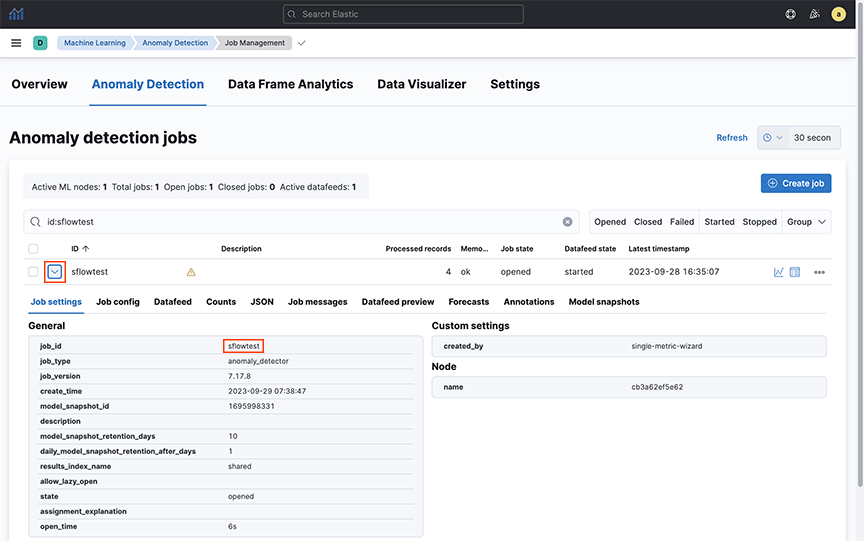
- Access the Watchers page.
Figure 5. Access Watchers 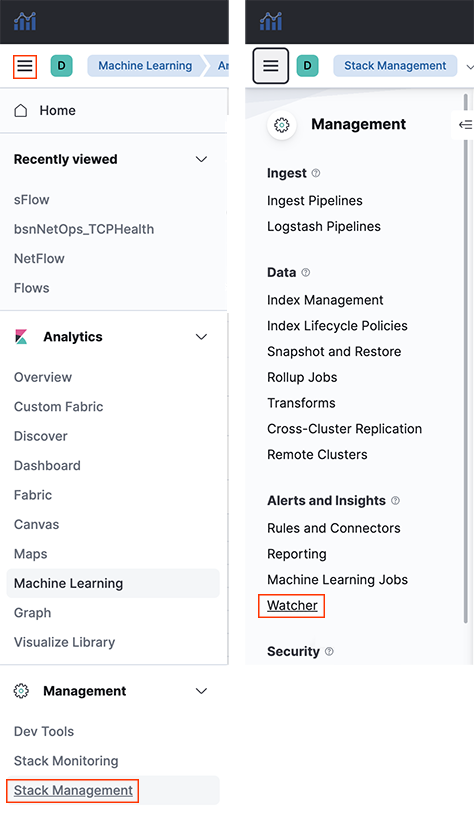
- Create an advanced Watcher.
Figure 6. Create Advanced Watcher 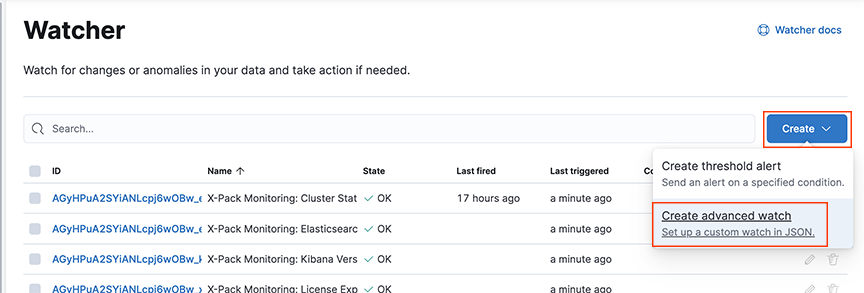
Kibana Watcher for Webhook Connector
This document specifically describes how to configure Watcher for Webhook-type connectors.
Kibana connectors in the provide seamless integration between the Elasticsearch alerting engine and external systems.
They enable automated notifications and actions to be triggered based on defined conditions, enhancing monitoring and incident response capabilities. Webhook connectors allow alerts to be forwarded to platforms like Slack and Google Chat, delivering customizable payloads to notify relevant teams when critical events occur.
Configuring a Kibana Email Connector
- Gmail via the Email Connector
- Google Chat and Slack via the Webhook Connector.
Select an existing Kibana email connector to send email alerts or create a connector by navigating to . Complete the following steps:
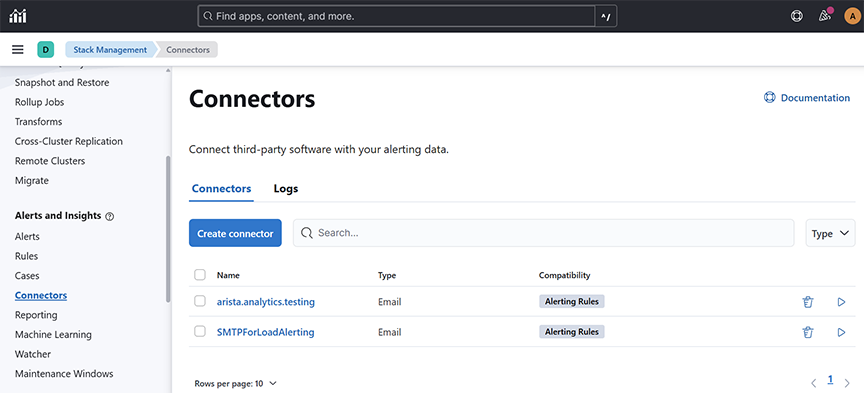
Google Chat Webhook Connector
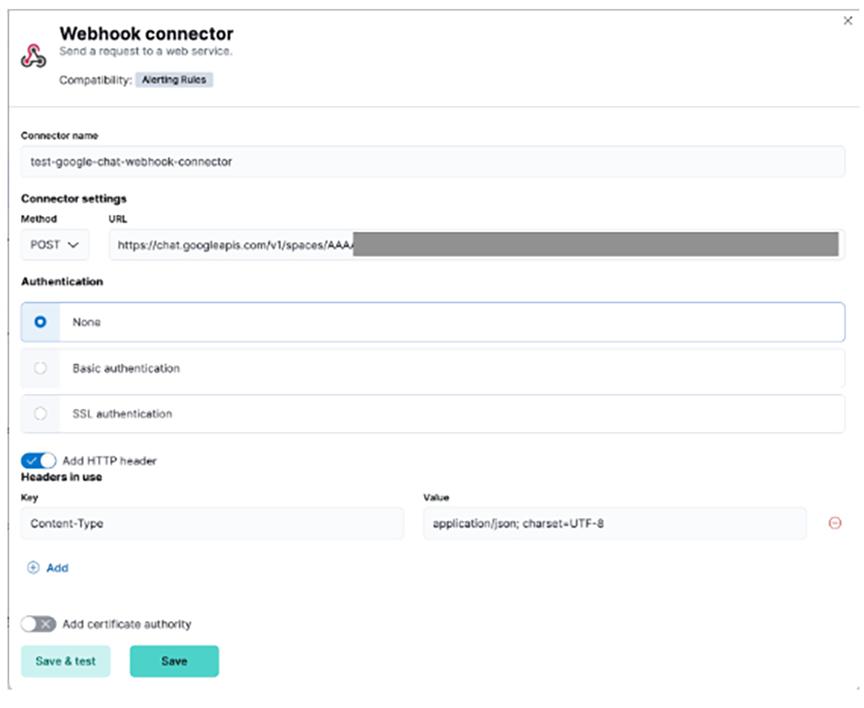
{"text": "Message from Kibana Connector"}
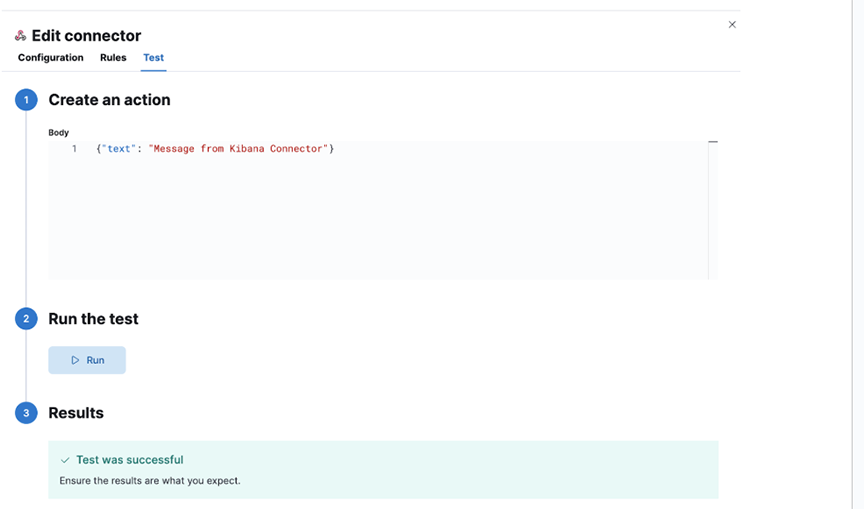
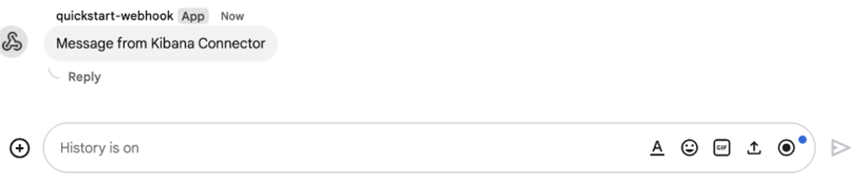
For any additional details, refer to https://developers.google.com/workspace/chat/quickstart/webhooks#create-webhook.
Slack Webhook Connector
{"text": "Message from Kibana Connector"}
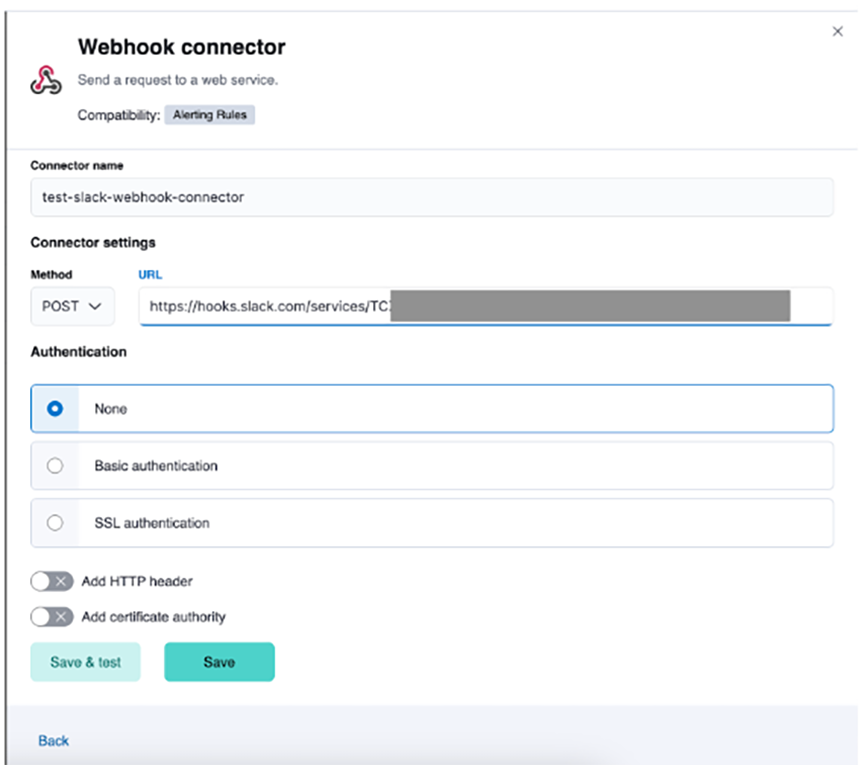

For any additional details, refer to https://api.slack.com/messaging/webhooks#getting_started.
Configuring a Watch
Configure a Watch using the Watcher or option.
"webhook_googlechat": {
     "webhook": {
       "scheme": "http",
       "host": "169.254.16.1",
       "port": 8000,
       "method": "post",
       "params": {},
       "headers": {},
       "body": """{"request_body": "{\"text\": \"The Elasticsearch cluster status is {{ctx.payload.status}}.\"}","kibana_webhook_connector": "<google-chat-webhook-connector-name>"}"""
     }
- Add a webhook action with the following fields to select Google Chat and Slack Webhook Connectors.
- Method: POST
- Scheme: HTTP
- Host: 169.254.16.1
- Port: 8000
- Specify the Body field as follows:
- kibana_webhook_connector: The name of the Kibana connector (of type webhook) in string format. It is case-sensitive.
- request_body: Enter the required fields: The connector gets the HTTP request body (in string format as text).
Note: request_body value is specific to the connector’s specification.
Click the Save button.
Google Chat Watcher configuration
"{\"text\": \"The Elasticsearch cluster status is {{ctx.payload.status}}.\"}"
{
 "trigger": {
   "schedule": {
     "interval": "1h"
   }
 },
 "input": {
   "http": {
     "request": {
       "scheme": "https",
       "host": "10.10.10.10",
       "port": 443,
       "method": "get",
       "path": "/es/api/_cluster/health",
       "params": {},
       "headers": {
         "Content-Type": "application/json"
       },
       "auth": {
         "basic": {
           "username": "admin",
           "password": "::es_redacted::"
         }
       }
     }
   }
 },
 "condition": {
   "script": {
     "source": "ctx.payload.status != 'green'",
     "lang": "painless"
   }
 },
 "actions": {
   "webhook_googlechat": {
     "webhook": {
       "scheme": "http",
       "host": "169.254.16.1",
       "port": 8000,
       "method": "post",
       "params": {},
       "headers": {},
       "body": """{"request_body": "{\"text\": \"The Elasticsearch cluster status is {{ctx.payload.status}}.\"}",  "kibana_webhook_connector": "BSN-Analytics-AppTest-GH-connector"}"""
     }
   }
 }
}
Slack Watcher configuration
- text: (mandatory)
- channel : (optional) The channel name must match the same Slack channel for which the webhook is enabled.
- username: (optional) You can select any username.
"{\"channel\": \"test-channel\", \"username\": \"webhookbot\", \"text\": \"The Elasticsearch cluster status is {{ctx.payload.status}}.\"}"
{
 "trigger": {
   "schedule": {
     "interval": "1m"
   }
 },
 "input": {
   "http": {
     "request": {
       "scheme": "https",
       "host": "10.10.10.1",
       "port": 443,
       "method": "get",
       "path": "/es/api/_cluster/health",
       "params": {},
       "headers": {
         "Content-Type": "application/json"
       },
       "auth": {
         "basic": {
           "username": "admin",
           "password": "::es_redacted::"
         }
       }
     }
   }
 },
 "condition": {
   "script": {
     "source": "ctx.payload.status != 'green'",
     "lang": "painless"
   }
 },
 "actions": {
   "webhook_slack": {
     "webhook": {
       "scheme": "http",
       "host": "169.254.16.1",
       "port": 8000,
       "method": "post",
       "params": {},
       "headers": {},
       "body": """{"request_body": "{\"channel\": \"test-webhook\", \"username\": \"webhookbot\", \"text\": \"The Elasticsearch cluster status is {{ctx.payload.status}}.\"}",  "kibana_webhook_connector": "test-slack-webhook-connector"}"""
     }
   }
 }
}
Troubleshooting
- Check Kibana Connector, which is a type of Webhook.
- Check that the Kibana Connector is properly configured by running tests from UI. Check connector-specific configurations.
- Check for properly configured Watcher’s trigger conditions.
- Make sure all required parameters are present in the connector's watcher configuration.
- To debug execution in CLI:
- SSH to AN node
- Log in to CLI mode command: debug bash
- Review logs in /var/log/analytics/webhook_listener.log for any clues. Command: tail -f /var/log/analytics/webhook_listener.log
- To execute service in debug mode:
- Login as root command: sudo su
- Stop service command: service webhook-listener stop.
- Edit web-service in your preferred editor and set the logger to debug mode command: vi /usr/lib/python3.9/site-packages/webhook_listener/run_webhook_listener.py Change Line: LOGGER.setLevel(logging.INFO) to LOGGER.setLevel(logging.DEBUG).
- Start service command: service webhook-listener start.
You will see debug messages in the log file.
Limitations
None.
Enabling Secure Email Alerts through SMTP Setting
Refresh the page to view the updated SMTP Settings fields.
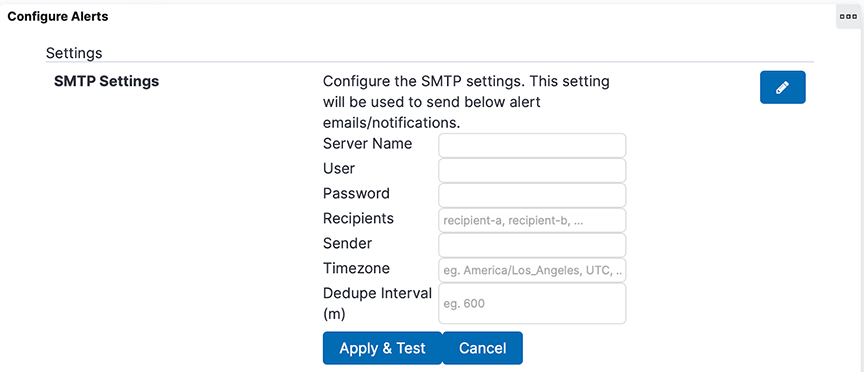
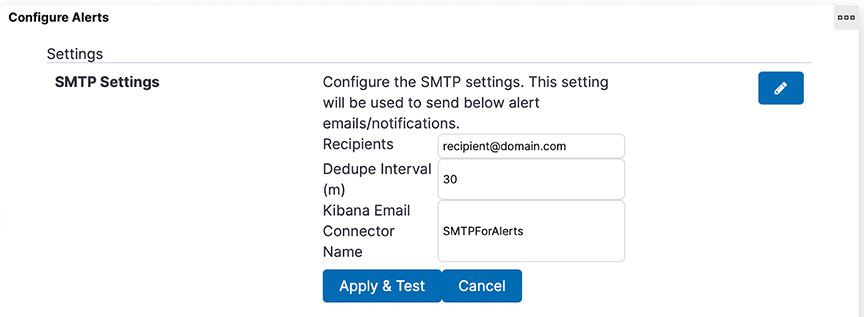
- Server Name, User, Password, Sender, and Timezone no longer appear in the SMTP Settings.
- A new field, Kibana Email Connector Name, has been added to SMTP Settings.
- The system retains Recipients and Dedupe Interval and their respective values in SMTP Settings.
- If previously configured SMTP settings exist:
- The system automatically creates a Kibana email connector named SMTPForAlerts using the values previously specified in the fields Server Name, User (optional), Password (optional), and Sender.
- The Kibana Email Connector Name field automatically becomes SMTPForAlerts.
Troubleshooting
When Apply & Test, do not send an email to the designated recipients; verify the recipient email addresses are comma-separated and spelled correctly. If it still doesn’t work, verify the designated Kibana email connector matches the name of an existing Kibana email connector. Test that connector by navigating to , selecting the connector's name, and sending a test email in the Test tab.