打印

Configure SSE for Symantec

The VeloCloud SD-WAN offers an automated workflow to integrate SD-WAN enabled branch locations to Symantec SSE.

Prerequisites

Follow the below procedure to configure SSE Subscription and SSE Integration for Symantec:

  1. In the SD-WAN service of the Enterprise portal, navigate to Configure > Security Service Edge (SSE) .
  2. Click the SSE Subscriptions tab on the Security Service Edge (SSE) screen.
    Figure 1. SSE Subscriptions for Symantec
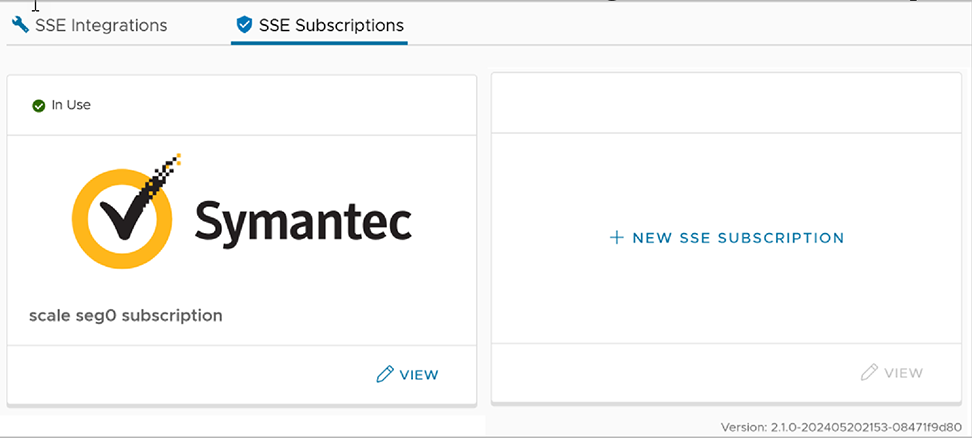
  3. On each tile, click View to view the existing subscription details.
  4. Click the vertical ellipsis, and then click Delete to delete a subscription.
  5. To create a new subscription, click + New SSE Subscription. The following Configure SSE Subscription window appears on selecting the Subscription Type as Symantec:
    Figure 2. Configure a new SSE Subscription for Symantec
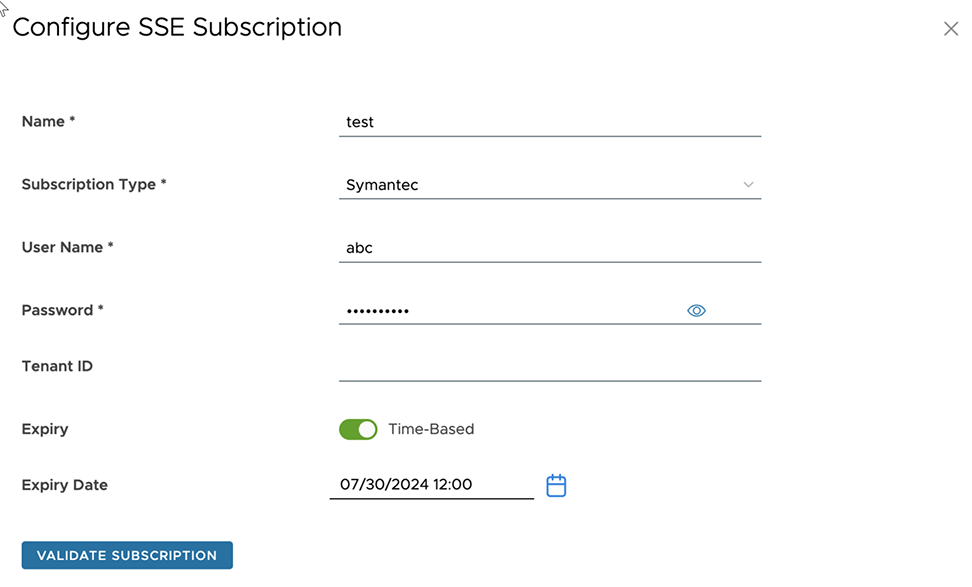
    Note: The fields displayed on the screen vary depending on the selected Subscription Type.
  6. Configure the following options:
     
    Option Description
    User Name Enter the API username as configured in the Symantec Cloud portal.
    Password Enter the API password as configured in the Symantec Cloud portal.
    Note: Starting from the 4.5 release, the use of the special character "<" in the password is no longer supported. In cases where users have already used "<" in their passwords in previous releases, they must remove it to save any changes on the page.
    Tenant ID Enter the Tenant ID associated with the Enterprise. This field is optional and is blank, by default.
    Expiry


    To set an expiry for the credentials, click the toggle button. The Expiry Date field appears. Click the calendar to set the expiry date and time.

    This field is optional and is blank, by default.

  7. Click Validate Subscription to make sure that the entered credentials are correct. A message is displayed.
    • If the entered credentials are correct, click Save to save the configured subscription.
    • If the entered credentials are incorrect, you must re-enter correct values and click Validate Subscription again.
  8. Click Save to save the configured subscription.
  9. After creating an SSE Subscription, you can proceed to create an SSE Integration.
  10. Navigate to Configure > Security Service Edge (SSE) . By default, the SSE Integrations tab is displayed.
    Figure 3. SSE Integrations for Symantec
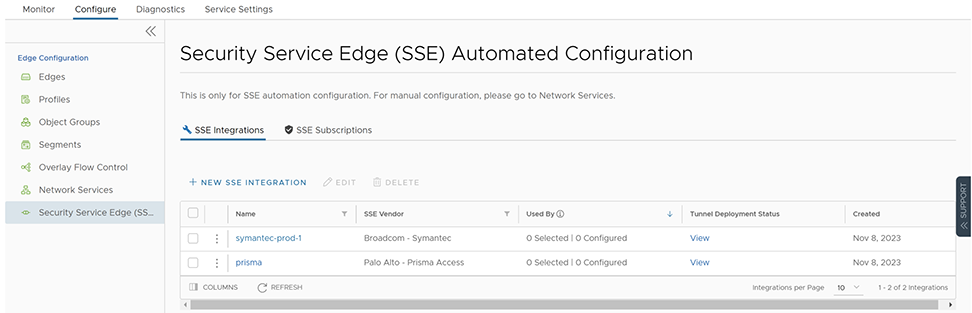
  11. To create a new SSE integration, click + New SSE Integration.
    Figure 4. Configure a new SSE Integration for Symantec
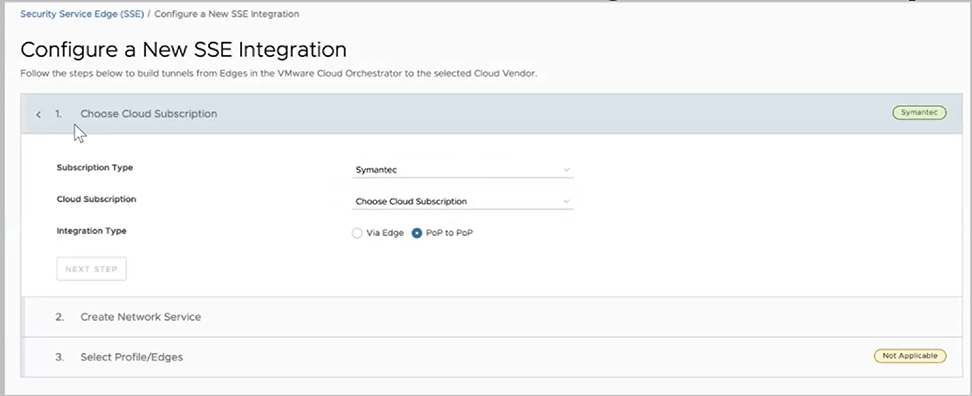
    Note: The fields displayed on the screen vary depending on the selected Subscription Type.
  12. Under Choose Cloud Subscription section, configure the following options:
     
    Option Description
    Subscription Type Select a subscription type for which you want to set up an SSE integration. The available options are:
    • Prisma Access
    • Symantec
    Cloud Subscription Select a cloud subscription from the drop-down menu. Only those cloud subscriptions that are configured under the SSE vendor selected in Subscription Type, appear in the drop-down menu.

    These cloud subscriptions are populated based on the configurations under Configure > Security Service Edge (SSE) > SSE Subscriptions .

    Note: This field appears only when you select a subscription type.
    Integration Type Select either one of the following options:
    • Via Edge: Tunnel is established from Edge to Symantec.
    • PoP to PoP: Geneve tunnel is established from a VeloCloud Gateway to Symantec WSS.
      Note: This field is available only for the Symantec subscription type, and it is introduced in the release 6.1.1. For more information, see Symantec WSS PoP to PoP Integration .
  13. Click Next Step to activate the Create Network Service section.
    Note: The fields displayed on the screen vary depending on the selected Integration Type.
    1. When you select the Integration Type as Via Edge, the following screen appears:
      Figure 5. Create Network Service - Via Edge
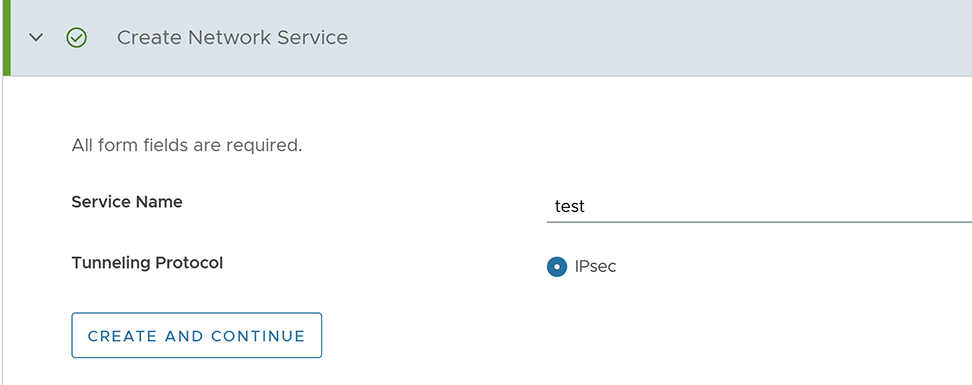
       
      Option Description
      Service Name Enter a unique service name.
      Tunneling Protocol This field is set to IPsec, which is the only supported protocol.

      Click Create and Continue. The Select Profile/Edges section appears. See step 14.

    2. When you select the Integration Type as PoP to PoP, the following screen appears:
      Figure 6. Create Network Service - PoP to PoP
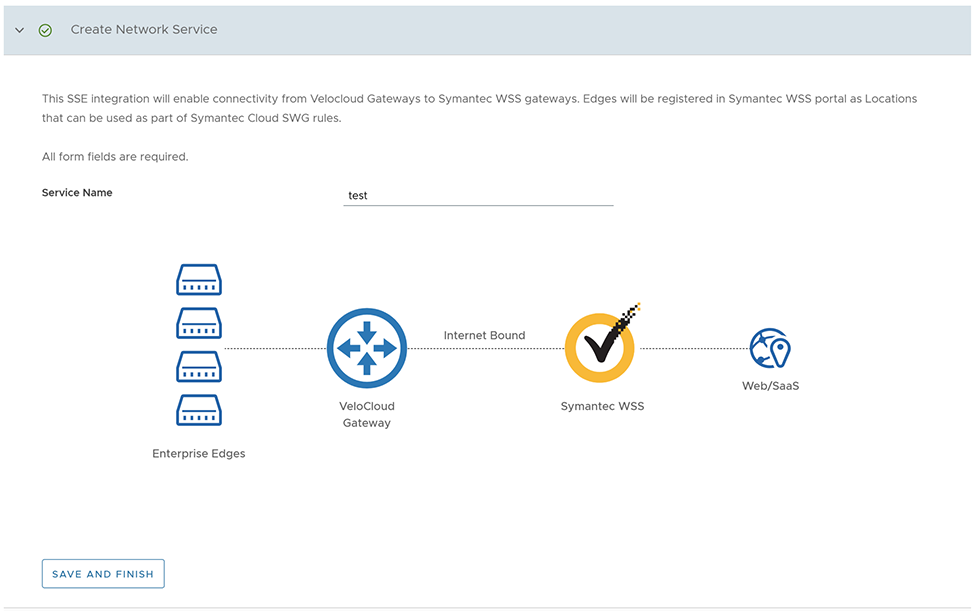
      Enter a unique Service Name, and then click Save and Finish.

  14. Configure the following in the Select Profile/Edges section.
     
    Option Description
    Select Profile Select an SD-WAN Edge Profile from the drop-down menu.
    Select Segment Select a Segment from the drop-down menu. By default, Global Segment is selected.
    Note: You can select multiple Segments for Symantec subscription.
    Edges Once you select Profile and Segment, a list of Edges associated with the selected Profile gets auto-populated. Select one or more Edges for which you wish to apply the SSE integration.
    Selected WAN Links If an Edge has more than two WAN links, the first two WAN links are auto-populated in the table. You can select the WAN links that you wish to use for the automation.
    Edge Location Displays the location of the Edge.
    Datacenter Location Displays the location of the Datacenter.
    Note: The Select Profile/Edges section is not applicable for the PoP to PoP integration type. You must configure the Profile by navigating to Configure > Profiles .
  15. Click Save and Finish.
    The newly created SSE integration appears on the list on the Security Service Edge (SSE) screen.
..