Manage Operators
In the Operator portal, you can configure and manage Operator Profiles and Operator Users. You can also view the events triggered by Operators.
Monitor Operator Events
Displays a list of events generated within the Orchestrator at the Operator level. These events help to determine the status of VeloCloud System.
To view the Operator events using the Orchestrator UI, select .
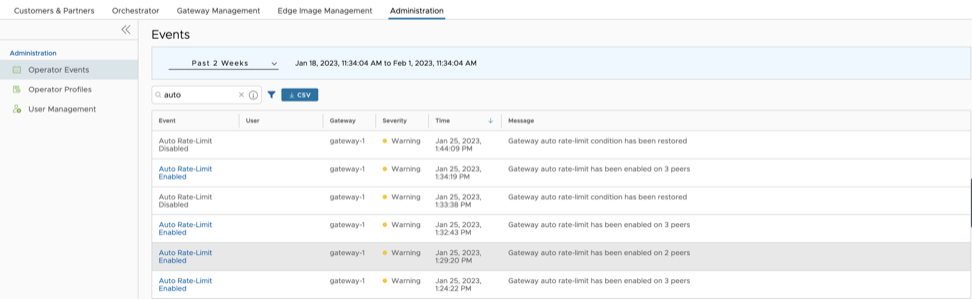
The Events page displays the recent Operator events. You can select the link to an event to view additional details about the selected event.

At the top of the page, you can choose a specific time period to view the details of events for the selected duration.
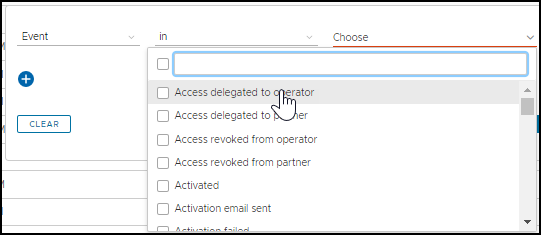
In the Search field, enter a term to search for specific details. Select the Filter icon to filter the view by a specific criteria. In the Filter, choose Event, and then select the drop-down arrow next to the field to view the list of Operator Events available and to filter by specific Events.
Select the CSV option to download a report of the events in CSV format.
Manage Operator Profiles
An Operator Profile is used to specify the network settings managed by Orchestrator. After you create a Customer or Partner, you can assign an Operator profile to them.
- Firmware Platform images for 6x0, 7x0, and 3x00 (3400/3800/3810) Edge device models
- Firmware Modem images for 510-LTE (Edge 510LTE-AE, Edge 510LTE-AP) and 610-LTE (Edge 610LTE-AM, Edge 61LTE-RW)
- Factory images for all physical VeloCloud Edge devices
With the 5.2 release, updating the Factory image and Platform firmware on High-availability (HA) Edges is supported. Steps and requirements are described in the appropriate sections in the procedure below.
See Platform and Modem Firmware and Factory Images for additional information.
- In the Operator portal, from the top menu, select . The Operator Profiles page displays the available profiles.
Figure 4. Operator Profiles 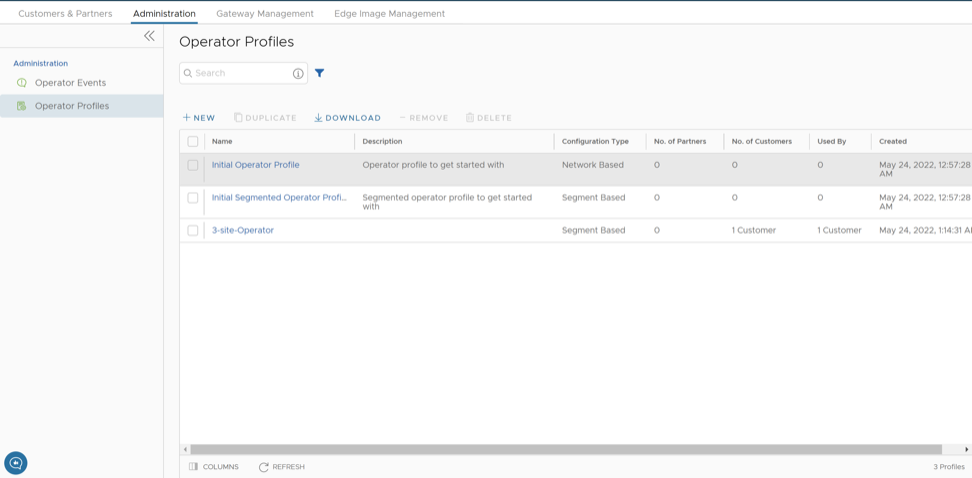 Note: The Operator profiles that contain a deprecated image are flagged to notify the user that the software version of the profile contains a deprecated software image.
 - To update an existing Operator Profile, select the link to that Operator Profile name. The selected Operator Profile page appears, as shown in the image below.
Figure 5. Initial Operator Profile 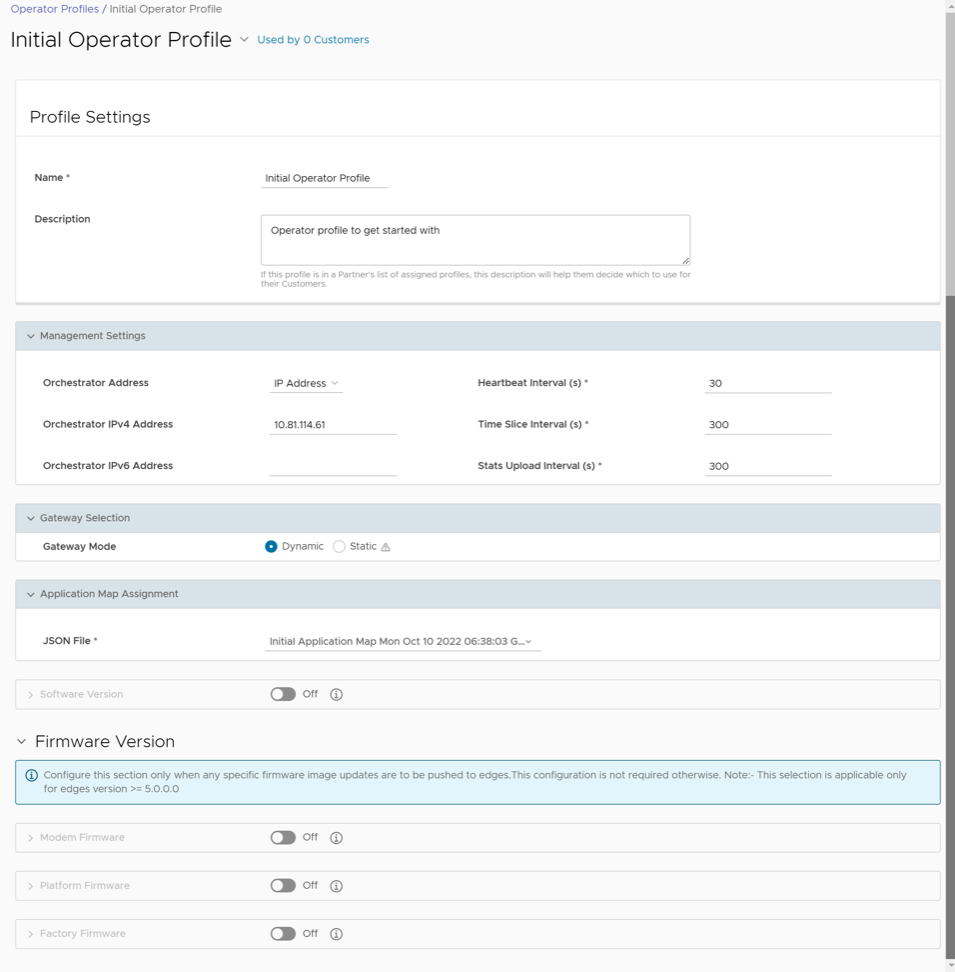
- You can configure the existing settings of the selected Profile. See table below.
Table 2. Initial Operator Profile- Options and Descriptions Option Description Profile Settings Name Edit the existing name of the Operator Profile. Description Edit the existing description of the Operator Profile. Management Settings Orchestrator Address Choose to use either FQDN or IP address as the Orchestrator Address. If you select FQDN, enter the FQDN address. Orchestrator IPv4 Address Enter the IPv4 address to be used as Orchestrator Address. Orchestrator IPv6 Address Enter the IPv6 address to be used as Orchestrator Address. Heartbeat Interval (s) Displays the time interval between the heartbeat messages sent from the Orchestrator to Edges. The default value is 30 seconds and minimum interval must be 10 seconds. If an Edge does not receive two heartbeats continuously, then the Edge is marked as Down. Note: When you modify the heartbeat interval, make sure to update the Edge Offline Alert Notification Delay time accordingly, to avoid sending unnecessary alerts.Time Slice Interval (s) Displays the time interval over which the monitoring data is collected for a flow. The default value is 300 seconds. Stats Upload Interval (s) Displays the time interval for uploading the monitoring data. All the data for each Timeslice is collected during the Stats Upload Interval and then uploaded. The default value is 300 seconds. Gateway Selection Gateway Mode By default, the Gateway selection is Dynamic and the VeloCloud Gateways are chosen dynamically from the Gateway Pool. Ensure that the Gateway Pool consists of at least two VeloCloud Gateways, for the Gateway selection to be efficient. Select the check box to make the Gateway selection as Static. For the Static Gateway selection, you must specify the Primary Gateway. You can also enter an optional Secondary Gateway.
Note: Use the Static Gateway Selection only for testing or debugging purposes. You must not use this option for Edge-to- Edge VPN or Partner handoff configurations.Application Map Assignment JSON File By default, the initial Application Map is assigned to the Operator Profile. You can choose a different Application Map from the drop-down list. For additional information, see Application Maps. Software Version: You can choose to push the latest Software Image to the Edges. By default, no updates are applied to the devices. Activate the toggle button to display the following fields. Version Choose the Software Image from the drop-down list. For additional information on the Software Images, see Software Images. Update Duration Select the Update Duration check box, and then enter the duration time in minutes. When you activate this option, the Orchestrator updates all the devices associated with the Enterprise customer within the specified time duration. Firmware Version Note: This section is available only for Edge versions 5.0.0 and above. This section is activated only when we deactivate the Software Version section.The 5.1.0 release introduces the functionality for Operators to manage image upgrades for both Platform firmware, Modem firmware, and Factory Default images. (See table below for specific device requirements.
See the table below for device requirements and a description of both software types.Table 3. Device Requirements Software Type Device Requirements Components of the Edge that will be Updated Modem Firmware For the 5.1.0 release and later: 510-LTE (EDGE 510LTE-AE, EDGE510LTE-AP) and 610-LTE (EDGE610LTE-AM, EDGE61LTE-RW) Carrier firmware and configuration files Platform Firmware For the 5.0.0 release, only Edge 6x0 devices are supported. For the 5.1.0 release, EDGE3400/ EDGE3800/EDGE3810 models are also supported. Starting from the 5.2.4 release, Edge 7x0 devices are supported.
- BIOS (Basic Input/Output System)
- CPLD (Complex Programmable Logic Device)
- PIC (Programmable Intelligent Compute)
Factory Default (MR): Edge 500, Edge 5x0, Edge 6x0, Edge 7x0 For the 5.0.0 and later releases: all Edge devices. Default factory image will be updated. Note:- It is important that you update the software version first. Then, after completion, update the firmware (Platform or Modem), and then update the factory default. Do not update the software version, the firmware, and the factory default at the same time. Also, only update one component at a time.
CAUTION: For the "Factory Image Update" feature, only use images that have been officially distributed as supported Factory Image versions. Do not use any other software update images with this feature. At any given time, Arista has an official current Factory Image version that is distributed from activate-sdwan.arista.com. Any other version (older or newer, supported or unsupported) that is installed as a factory image will be automatically updated to this version the next time the Edge is in an unactivated state and connected to the Internet.
- For releases prior to 5.0.0, the Operator Profile update will be a success, but the Firmware images will not be applied on the Orchestrator. No events will be generated, as the Orchestrator does not have a supported software version.
- For the 5.0.0 release and later, the Operator Profile update will be a success, and the Orchestrator will update the Firmware and Factory image components.
See the table below for a compatibility matrix of supported images for the supported Edge devices.
Table 4. Supported Images Device Family Software Image (Device Family) Platform Firmware (Device Family) Modem Firmware (Device Family) Factory Default (Device Family) - EDGE 6x0
- EDGE 6X0
EDGE 6X0 610-LTE - EDGE 6X0
EDGE 3x00 - EDGE 8X0
- EDGE 1000
- EDGE 3X00
Edge 3X00 NA - EDGE 8X0
- EDGE 1000
- EDGE 3X00
510LTE - Edge 510LTE-AE
- Edge 510LTE-AP
NA - Edge 510LTE-AE
- Edge 510LTE-AP
Edge 5X0 610-LTE - Edge 610LTE-AM
- Edge 61LTE-RW
Edge 6X0 - Edge 610LTE-AM
- Edge 61LTE-RW
Edge 6X0 EDGE 7x0 (EDGE 710-W, EDGE 710-5G, EDGE 720, EDGE 740)
EDGE 7x0 EDGE 7x0 EDGE 7x0 EDGE 7x0 The Operator can create multiple different profiles and select profiles with various combinations to manage different types of Firmware updates to be applied to Edges. See the notes below for additional information.Note:- Before an Operator can update and manage the Platform Firmware for 6X0 Edge devices and Factory Default images for all devices, the Edge and Orchestrator software version must first be updated to 5.0.0 or later.
- In the 5.0.0 release, the Operator Profile name will display as an image bundle (software and firmware) that lists the details of the Firmware images tagged in the Operator profile. (To view this setting, go to ). See image below.
Figure 6. Service Settings 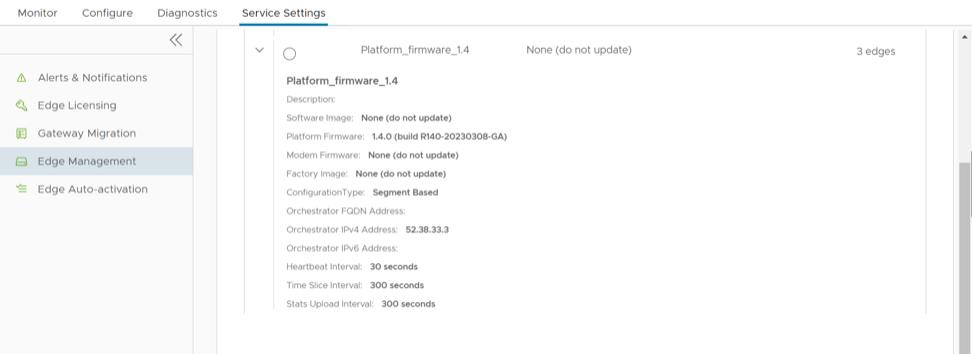
- All Factory and Firmware upgrades are limited to post activation.
- The 5.0.0 software image can be used to update the Factory default image on the Edge if the 5.0.0 or greater release image is uploaded from the “Software tab.” The software will be updated. If the image is uploaded from “Firmware tab,” the Factory Default image will be updated. Platform Firmware images can be uploaded only from the “Firmware tab."
- The Platform Firmware upgrade takes at least 10 minutes to complete and includes multiple Edge reboots where the Edge will display as offline.
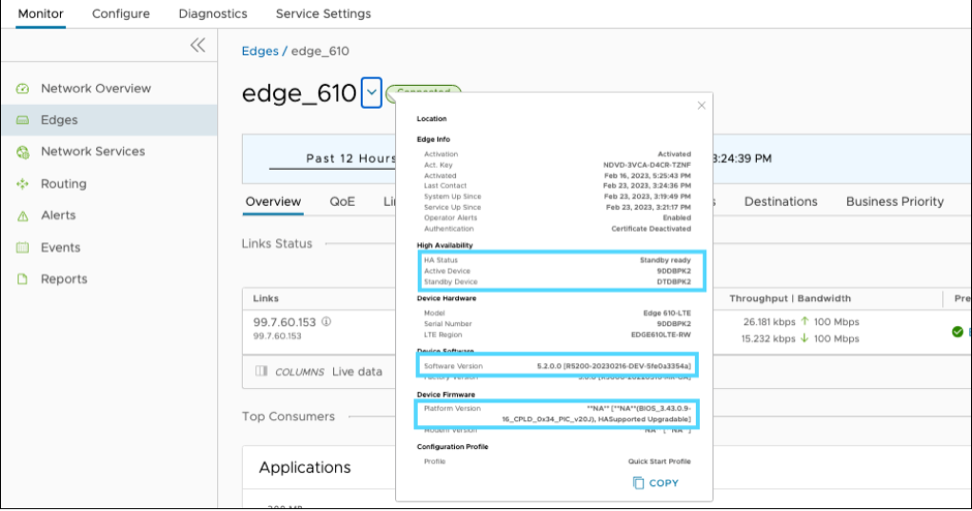
- For the 5.2 release, updating the Factory image and Platform firmware on HA (High-availability) Edges is supported. For updating Modem firmware on HA Edges, follow the steps below.
- 1- The Edges must be unconfigured from HA.
- 2- Apply the Modem firmware.
- 3- Reconfigure to HA mode.
Figure 7. Edge Details