VeloCloud SD-WAN PAN - Configuration Guide - Create a Prisma Service Account
印刷
Create a Prisma Service Account
The VeloCloud Orchestrator requires API access for creating and configuring the integration service from SD-WAN enabled branch locations. For the API integration to work, a service account must be created. This service account authenticates the Orchestrator when it reaches out to the Prisma Access solution to request OAuth 2.0 access tokens from the platform for API authorization. This access type can be configured by following the steps below:
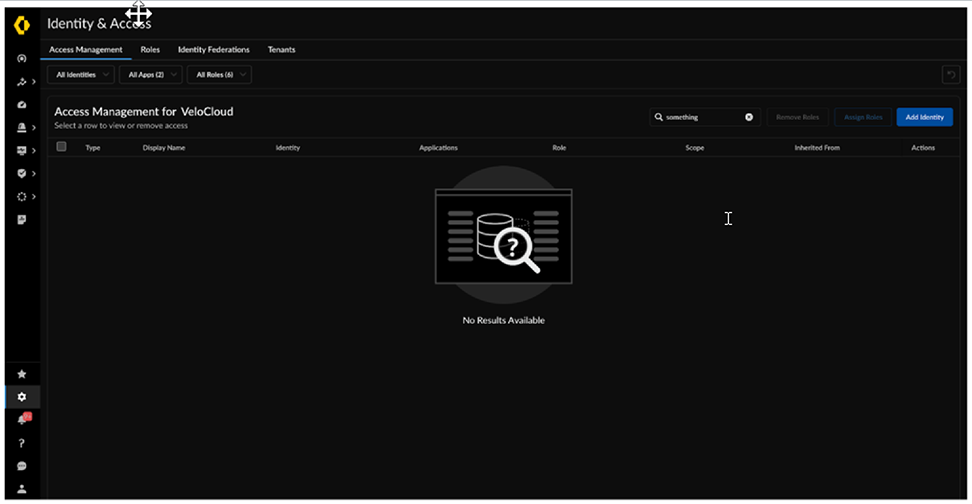
In the Palo Alto Networks Strata Cloud Manager portal, navigate to Settings > Identity & Access.
The following screen appears:
Figure 1. Identity & Access
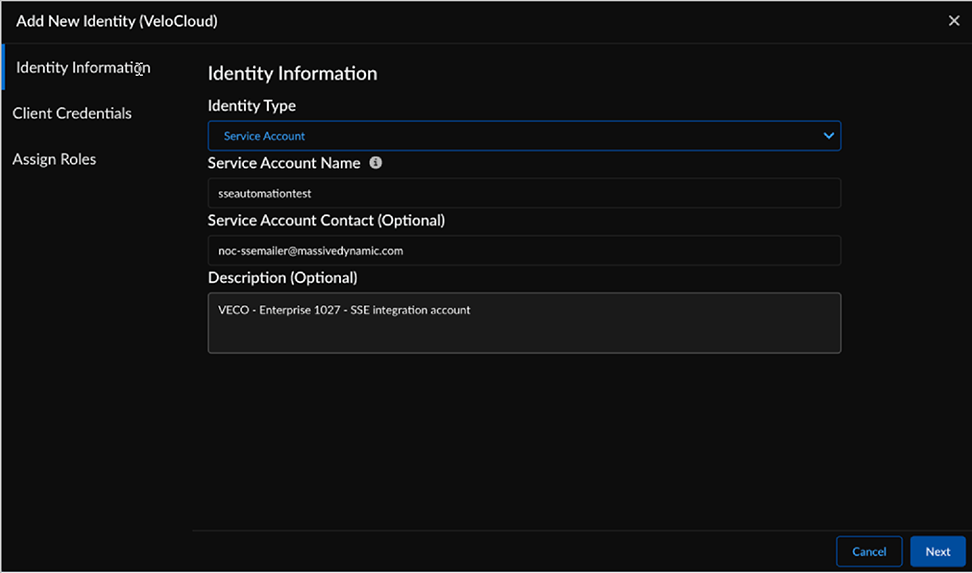
Click the Add Identity button.
The Add New Identity (VeloCloud) screen appears:
Figure 2. Add New Identity (VeloCloud)
Enter the following details:
Option
Description
Identity Type
Click the drop-down menu. The available options are:
User: Portal user that is bound to a single person or human identity.
Service Account: These accounts are not bound to a particular person and can be used for API integration.
You must select Service Account for the SSE integration.
Service Account Name
Enter a unique name, that can be used to identify the account on any platform.
Service Account Contact
Enter the contact email address, that can be used to identify and contact the account owner in case of emergencies. This field is optional.
Description
Enter description of the scope and use of the account. This field is optional.
Click Next.
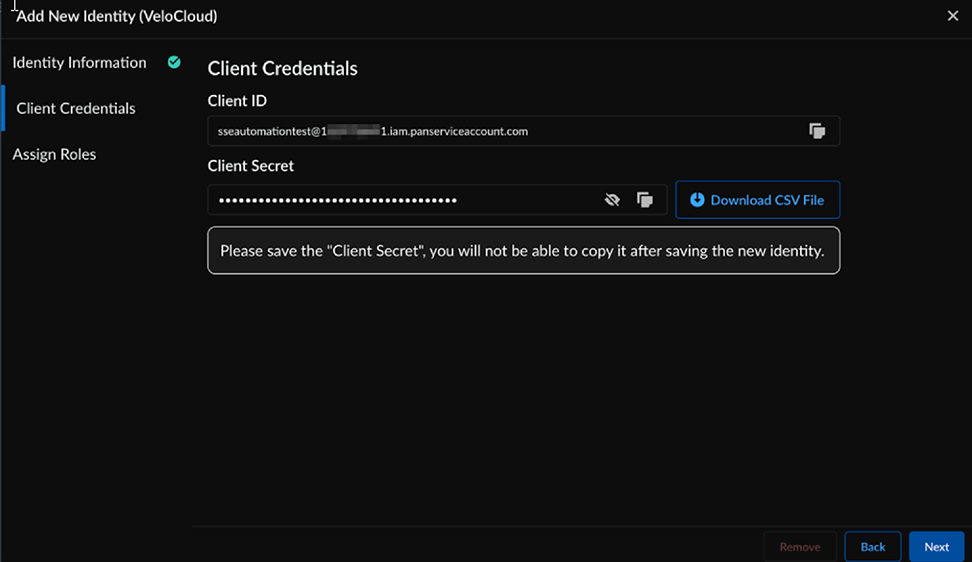
The Client Credentials screen appears:
Figure 3. Client Credentials
Enter the following details:
Option
Description
Client ID
This value is system generated and is in the format: <service account name>@<tsg ID>.iam.panserviceaccount.com
Note: Make a note of <service account name> and <tsg ID>. These values are required during the SSE workflow in the Orchestrator.
Client Secret
This value is system generated. It is a pre-shared key that can be used to request the OAuth2.0 tokens.
Note:
These credentials must be used to access the OAuth token request API. As this is sensitive information, make sure to store these credentials taking into consideration your organization’s data protection policies.
After the account is created, the credentials can no longer be pulled from the Prisma UI. If you lose the credentials, you must create new credentials. The old credentials become invalid.
After you have entered all the details, click Next.
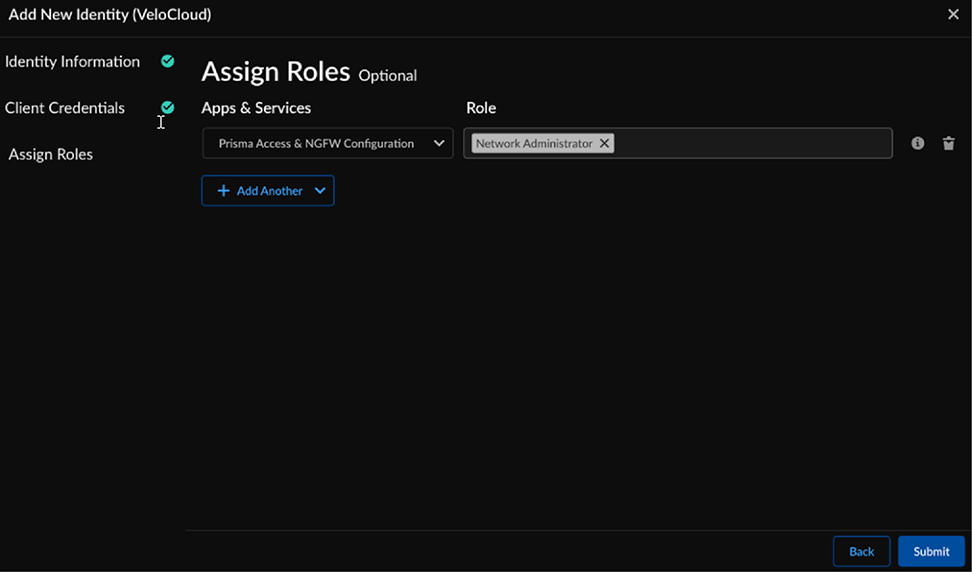
The Assign Roles screen appears:
Figure 4. Assign Roles
To limit the scope of access for the service account, it must be associated with the Apps & Services, and within each associated App, a Role must be designated. For the SSE workflow, ensure that the following access is defined:
Option
Description
Apps & Services
Select Prisma Access & NGFW Configuration from the drop-down menu.