
Configure SSE for PAN Prisma
Prerequisites
For the PAN Prisma SSE integration:
- An Enterprise user must first create a service account in the Palo Alto Networks Strata Cloud Manager portal. For more information, see Create a Prisma Service Account.
- An Enterprise user must create IKE and IPsec profiles on the Palo Alto Networks Strata Cloud Manager portal. These profiles can then be used for the SSE integration. For more information, see Palo Alto Networks Strata Cloud Manager Configuration.
Note: As tunnel establishment is an asynchronous operation, the Security Service Edge (SSE) automated configuration for PAN Prisma might take 5 - 30 minutes per WAN link tunnel, to complete.
Prisma Access is the Enterprise Security Solution offered by Palo Alto Networks (PAN). It is a cloud-based solution.
Follow the below procedure to configure SSE Subscription and SSE Integration for PAN Prisma:
- Click the SSE Subscriptions tab on the Security Service Edge (SSE) screen.
Figure 1. SSE Subscriptions for Prisma 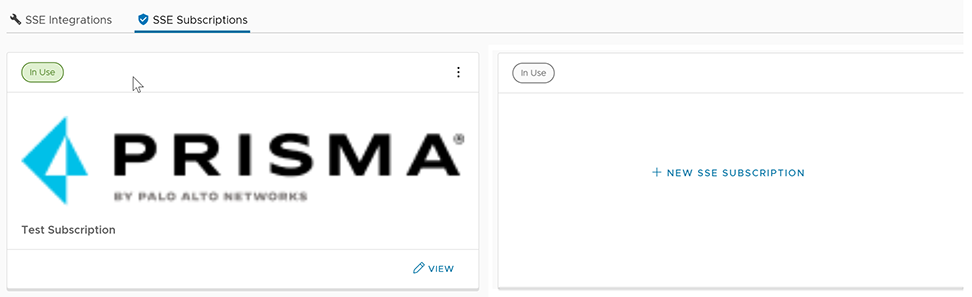
- To create a new subscription, click + New SSE Subscription.
The Configure SSE Subscription window appears.
Figure 2. Configure a new SSE Subscription for Prisma 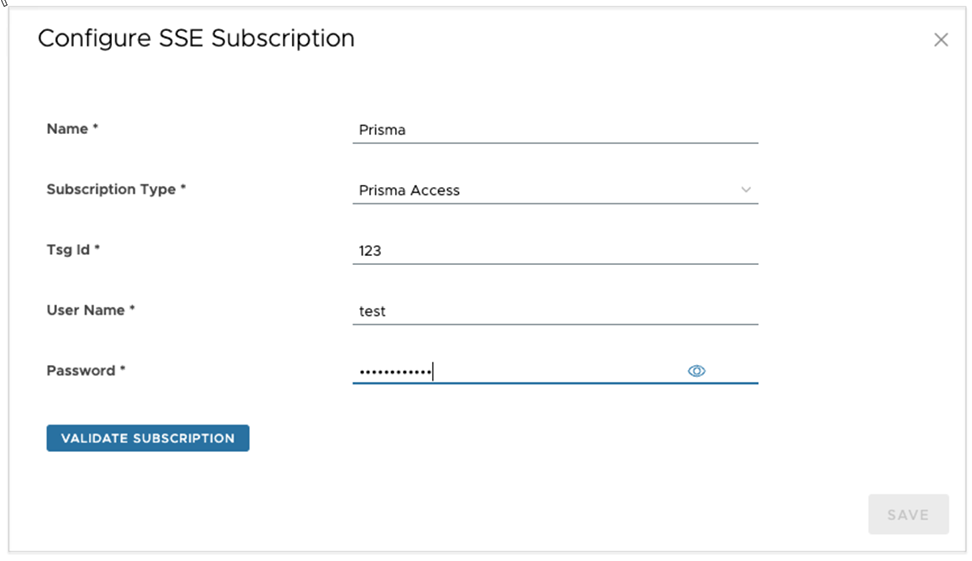 Note: The fields displayed on the screen vary depending on the selected Subscription Type.
 - Navigate to Configure→ Security Service Edge (SSE). By default, the SSE Integrations tab is displayed.
Figure 3. SSE Integrations for Prisma 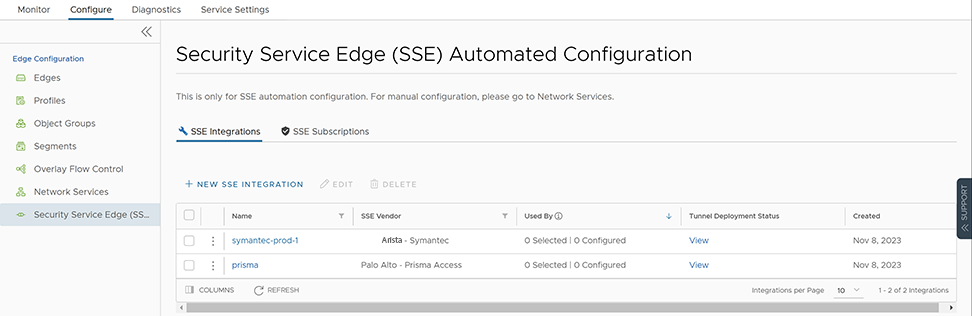
- To create a new SSE integration, click + New SSE Integration.
Figure 4. Configure a new SSE Integration for Prisma 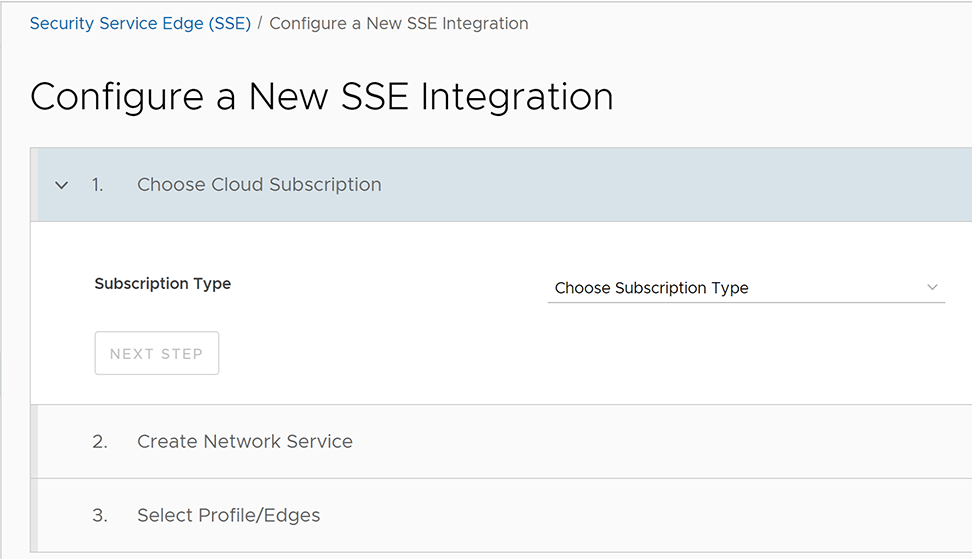 Note: The fields displayed on the screen vary depending on the selected Subscription Type.
 - Click Next Step to activate the next section. Under the Network Service section, there are two tabs. Configure the following options under the General tab:
Figure 5. Create Network Service - General 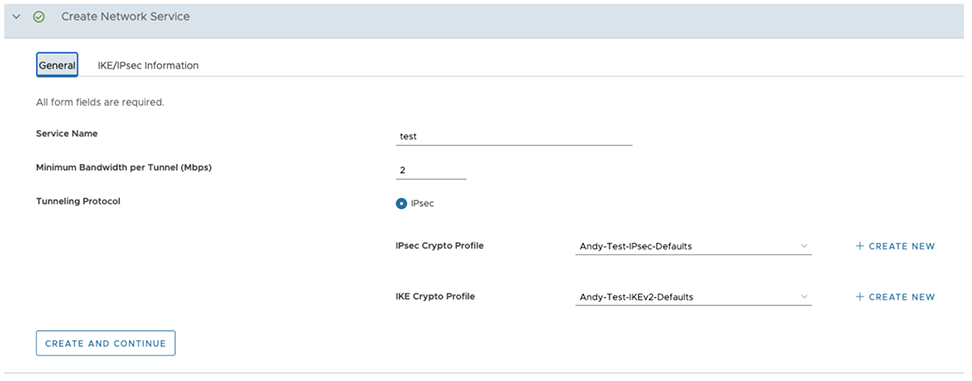
Option Description Service Name Enter a unique service name. Minimum Bandwidth per Tunnel (Mbps) Enter the required bandwidth. The default value is 2. Tunneling Protocol By default, IPsec tunneling protocol is selected. You must select the IPsec Crypto Profile and IKE Crypto Profile from the respective drop-down menus. These drop-down menus are populated based on the Profiles created in the Palo Alto Networks Strata Cloud Manager portal. - The following options are displayed under the IKE/IPsec Information tab. These values must be configured in the Palo Alto Networks Strata Cloud Manager portal. For more details about these fields, refer to the Arista VeloCloud SD-WAN Administration Guide - Configure Non SD-WAN Destinations Via Edge section.
Figure 6. Create Network Service - IKE/IPsec Information 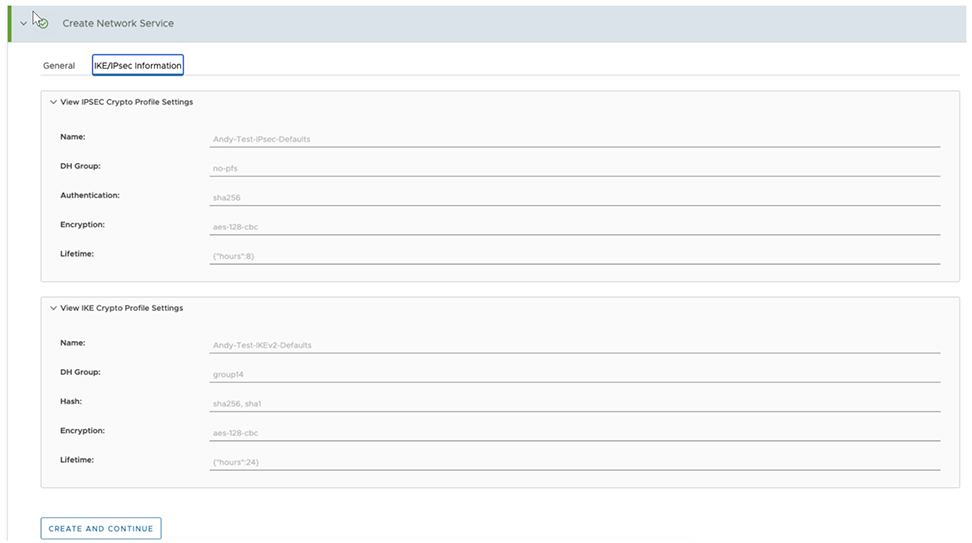
- Under Select Profile/Edges section, configure the following options:
Figure 7. Select Profile/Edges 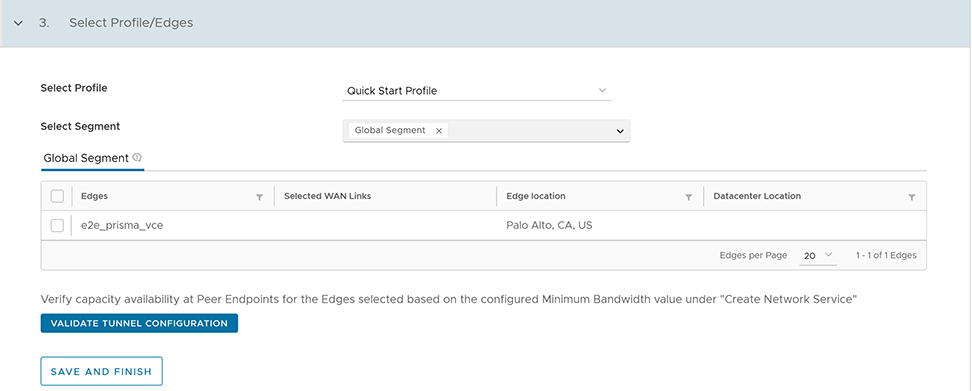
Option Description Select Profile Select an SD-WAN Edge Profile from the drop-down menu. Select Segment Select a Segment from the drop-down menu. By default, Global Segment is selected. Note: You can select only one Segment for Prisma subscription.