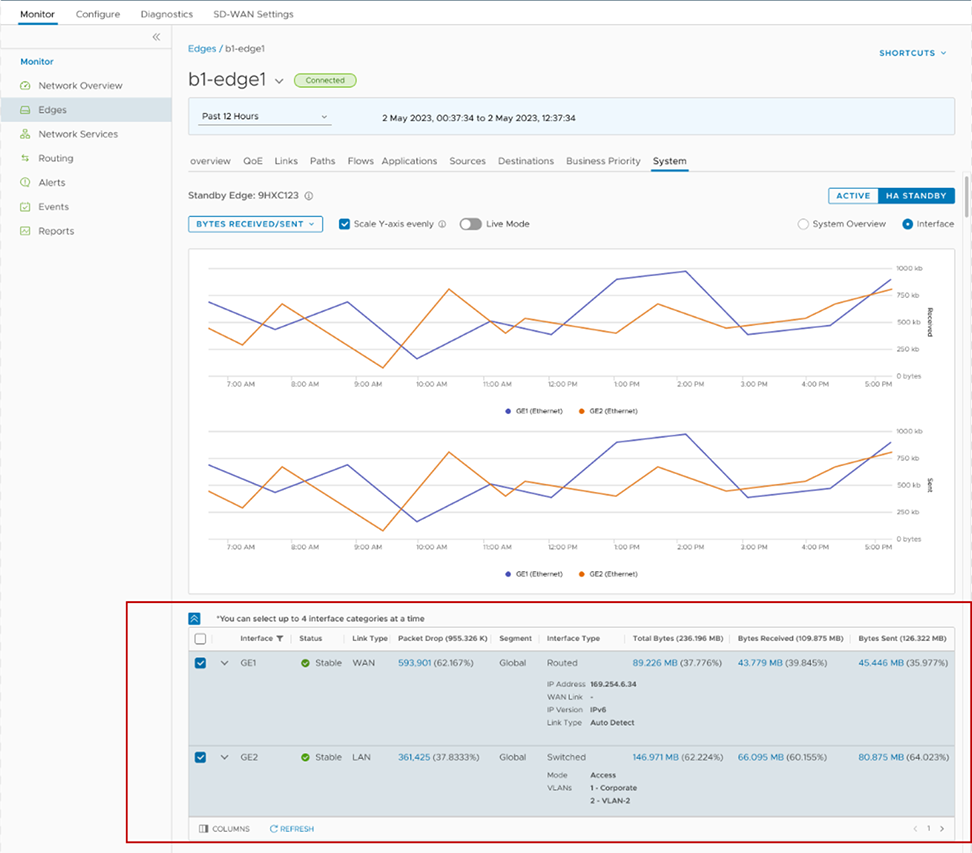
Starting from the 6.4.0 release, you can view both real time and historical interface statistics data, on the Monitor > Edges > System > Interface screen of the Orchestrator. This feature allows you to monitor data at the interface level.
To access the network interface stats, in the Partner portal, navigate to Monitor > Edges > System. On the System tab, the System Overview radio button is selected by default. Select the Interface radio button to view the interface statistics (stats) information.
Figure 1. Network Interface Statistics Monitoring
There are two modes available:
Non-Live Mode:
The non-live mode is activated by default.
It displays historical stats of an interface. Customers can view all the previously captured data.
This mode is supported on both Active and HA Standby Edges.
Live Mode:
To view real time interface stats, toggle the Live Mode button to ON.
This mode is supported only on Active Edges.
The table below the graphs displays the following information:
Displays the interface name. The interfaces are GE, Loopback and SFPs.
Status
Displays the status of the interface.
Link Type
Displays the type of the link. Example: LAN, WAN, HA.
Packet Drop
Displays the packet drop details.
Segment
Displays the segment name.
Interface Type
Displays the interface type, and the corresponding details depending on the type.
Routed: IP Address, WAN Link, IP Version, Link Type.
Switched: Mode, VLANs.
The interface mappings are listed in the table below:
Table 2. Interface Mappings
Interface Type
Interface is used for
Switched
LAN, HA
Loopback
N/A
Routed
WAN, none
Total Bytes
Displays the total number of bytes.
Bytes Received
Displays the number of bytes received.
Bytes Sent
Displays the number of bytes sent.
Note: Select the check box against the interface to activate live mode for any selected interface. Customers can view up to four interfaces in the live mode.
Select Columns to hide or view the required columns. Select Refresh to view the latest data.