Diagnostic Bundles for Edges
To generate and download Diagnostic Bundles:
- Select Diagnostic Bundles to request the following bundles:
- Request PCAP Bundle – The Packet Capture bundle is a collection of the packet data of the network. Operators, Standard Admins and Customer Support can request PCAP bundles. For additional information, see Request Packet Capture Bundle for Edges.
- Request Diagnostic Bundle – The Diagnostic bundle is a collection of all the configuration and logs from a specific Edge. Only Operators can request Diagnostic bundles. For additional information, see Request Diagnostic Bundle for Edges.
Note: The Request Diagnostic Bundle option is available only for an Operator user. If you are a Partner user or an Enterprise user, you can request for a PCAP Bundle.The generated bundles are displayed in the Diagnostic Bundles window.Figure 1. Diagnostic Bundles 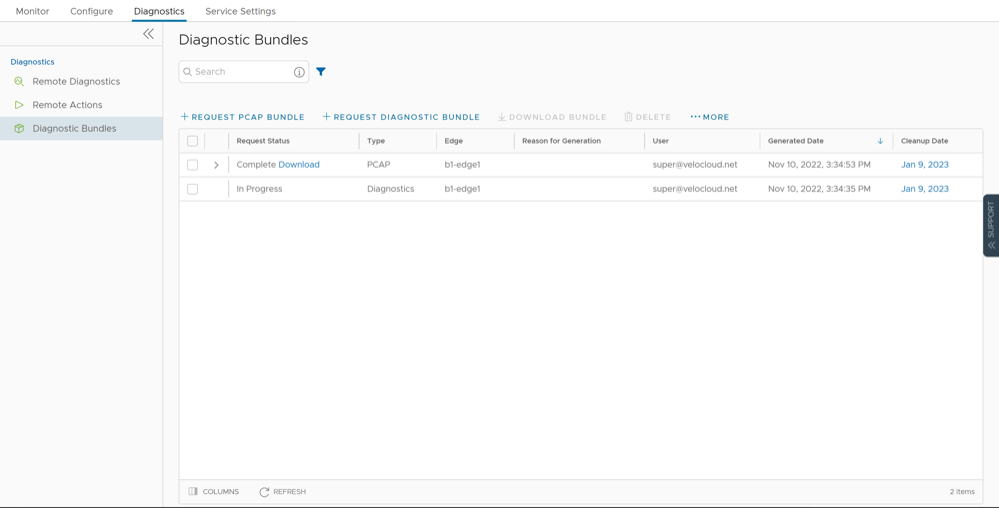
Request Packet Capture Bundle for Edges
To generate a PCAP bundle:
- In the Request PCAP Bundle window that appears, configure the following:
Figure 2. Request PCAP Bundle 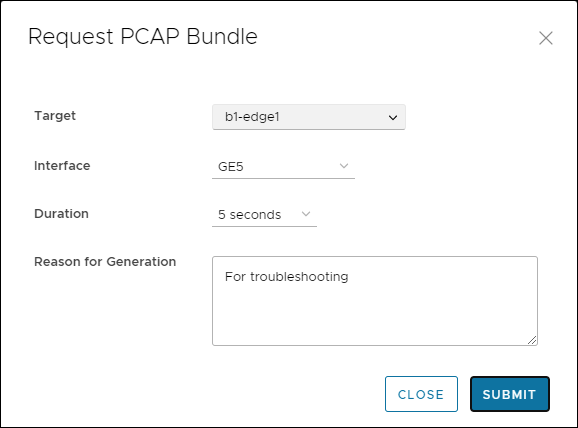
Table 1. Request PCAP Bundle- Options and Descriptions Option Description Target Choose the target Edge from the drop-down list. The packets are collected from the selected Edge. Interface Choose an Interface or a VLAN from the drop-down list. The packets are collected on the selected Interface. Duration Choose the time in seconds. The packets are collected for the selected duration. Reason for Generation Optionally, you can enter your reason for generating the bundle. The window displays the details of the bundle being generated, along with the status.
Packet Capture for Edges configured for High Availability
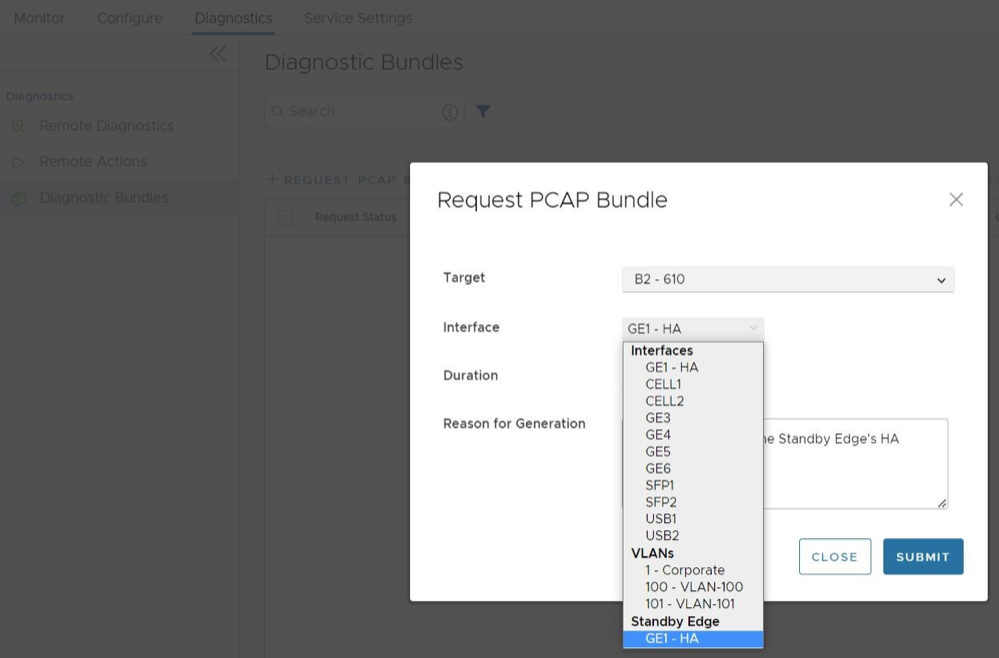
In Release 5.2.0 and later, a user can request a packet capture for the Standby Edge's HA interface, the interface that connects the Standby Edge to the Active Edge. This option appears at the bottom of the menu and reads: Standby Edge, and then lists the HA interface.
Request Diagnostic Bundle for Edges
To generate a Diagnostic bundle:
- In the Request Diagnostic Bundle window, configure the following:
Figure 4. Request Diagnostic Bundle 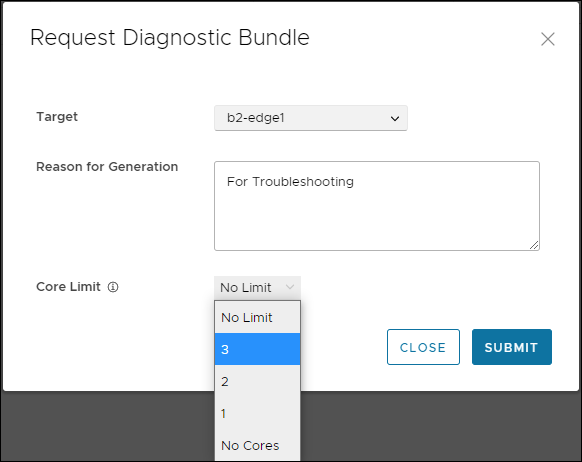
Table 2. Request Diagnostic Bundle- Options and Descriptions Option Description Target Select the target Edge from the drop-down list. The data is collected from the selected Edge. Reason for Generation Optionally, you can enter your reason for generating the bundle. Core Limit Select a Core Limit value from the drop-down, which is used to reduce the size of the uploaded bundle when the Internet connectivity is experiencing issues. The Diagnostic Bundles window displays the details of the bundle being generated, along with the status.