Diagnostic Bundles for Gateways
Run diagnostics for Gateways to collect diagnostic bundles and packet capture files for troubleshooting purpose.
Request Diagnostic Bundles for Gateways
Diagnostic bundles allow users to collect all the configuration files and log files from a specific VeloCloud Gateway into a consolidated zipped file. The data available in the diagnostic bundles can be used for troubleshooting the Gateways.
As an Operator Super user and Operator Admin user, you can create, manage, download, and delete diagnostic bundles for Gateways created by both Operator and Partner users.
Note: Operator Business Specialist user and Operator IT support users can only view the generated Diagnostic bundles and download the CSV file.
Partner Super user and Admin with Gateway management access activated can create, manage, and delete diagnostic bundles only for Gateway created by a Partner or a Partner managed Gateway created by your Operator. The Partner IT support users can only view the generated Diagnostic bundles and download the CSV file.
Note:
- The Diagnostic bundles feature is not supported for Partner Business Specialist user.
- The Request Diagnostic Bundle and Download Bundle options are available only for Partners with Gateway management access activated. If the Gateway management access is deactivated for a Partner, then the Partner can only view the generated Diagnostic bundles and download only the CSV file but cannot request a new Diagnostic bundle or download the generated bundle. To request Gateway Management access, Partners should contact the Operator Superuser.
To generate a new Diagnostic bundle:
- In the Request Diagnostic Bundle dialog, configure the following details and select Submit.
Figure 1. Request Diagnostic Bundle 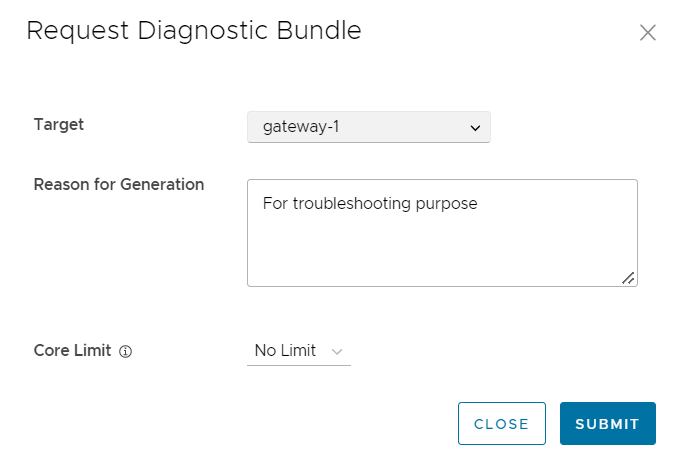
Table 1. Diagnostic Bundle- Options and Descriptions Option Description Target Select the target Gateway from the drop-down list. The data is collected from the selected Gateway. Reason for Generation Optionally, you can enter your reason for generating the bundle. Core Limit Select a Core Limit value from the drop-down, which is used to reduce the size of the uploaded bundle when the Internet connectivity is experiencing issues. The Diagnostic Bundles page displays the details of the bundle being generated, along with the status. - The completed bundles get deleted automatically on the date displayed in the Cleanup Date column.
- In the Update Cleanup Date dialog, choose the date on which the selected Bundle would be deleted.
Figure 2. Update Cleanup Date 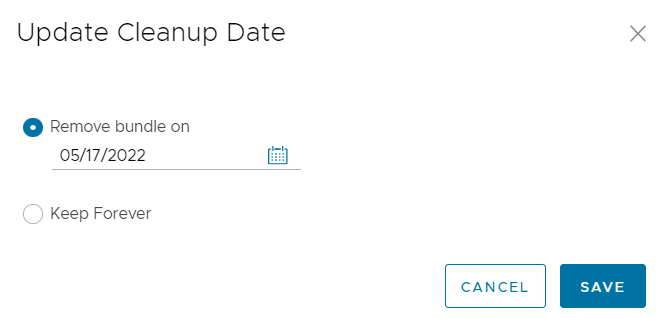
- In the Update Cleanup Date dialog, choose the date on which the selected Bundle would be deleted.
Request Packet Capture Bundle for Gateways
The Packet Capture bundle collects the packets data of a network. These files are used in analyzing the network characteristics. You can use the data for debugging the network traffic and determining network status.
To generate a PCAP bundle:
- In the Request PCAP Bundle dialog, configure the following details and select Generate.
Figure 3. Request PCAP Bundle 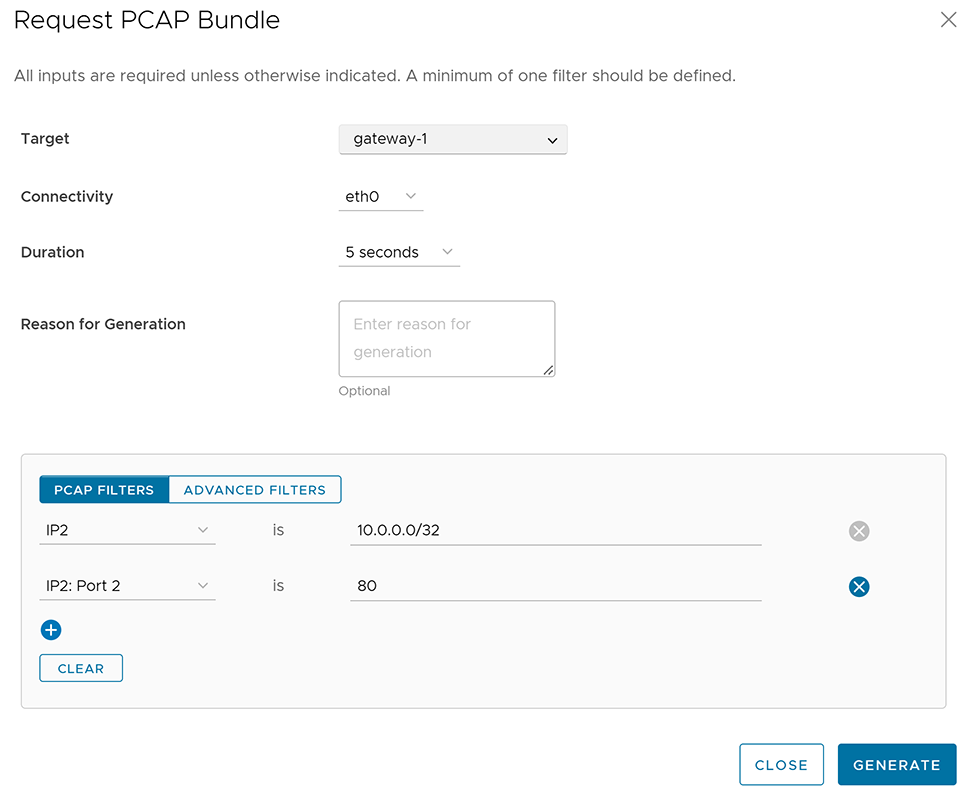
Table 2. PCAP Bundle- Options and Descriptions Option Description Target Choose the target Gateway from the drop-down list. The packets are collected from the selected Gateway. Connectivity Choose an Interface or an Edge ID from the drop-down list. The packets are collected on the selected Interface or Edge associated to the Gateway. Duration Choose the time in seconds. The packets are collected for the selected duration. The default value is 5 seconds. Reason for Generation Optionally, you can enter your reason for generating the bundle. PCAP Filters You can define PCAP filters by which you want to control the PCAP data to be generated by choosing the following options: - IP1- Enter an IPv4 address, or IPv6 address, or Subnet mask.
- IP2- Enter an IPv4 address, or IPv6 address, or Subnet mask.
- IP1:Port1- Enter a Port ID associated with IP1.
- IP2:Port2- Enter a Port ID associated with IP2.
- Protocol- Select a protocol from the list.
Note: If you choose to use the PCAP filtering capability then you must define at least one filter.Advanced Filters You can define free form filters by which you want to control the PCAP data to be generated. The Diagnostic Bundles page displays the details of the PCAP bundle being generated, along with the status.