Edge to Edge Encryption
Starting with the 6.4.0 release, Enterprise Superusers, Enterprise Standard Admin, and Enterprise Network Admin can choose to activate or deactivate the encryption for their WAN links. This allows the Customer to turn off encryption of user data payloads through VCMP tunnels. This feature is applicable to both private and public WAN links. This only affects Edge to Edge traffic.
You can modify the Edge To Edge Encryption feature at both Profile and Edge levels. By default, the Edge inherits the encryption settings from the Profile.
This feature can also be configured through the Interface and Business Policy Rule settings of individual Edges or a Profile. Both of these configuration methods are considered when sending user data traffic to determine whether that traffic should be encrypted or unencrypted. For information on how to turn off this feature at Profile and Edge levels, see the topics Edge to Edge Encryption at the Profile level and .Edge to Edge Encryption at the Edge Level
| Scenario 1 | Scenario 2 | Scenario 3 | Scenario 4 | |
|---|---|---|---|---|
| Edge 1 (Sender) | Interface: Encrypted | Interface: Unencrypted | Interface: Encrypted | Interface: Unencrypted |
| Biz Policy: Encrypted | Biz Policy: Encrypted | Biz Policy: Encrypted | Biz Policy: Encrypted | |
| Edge 2 (Receiver) | Interface: Encrypted | Interface: Encrypted | Interface: Unencrypted | Interface: Unencrypted |
| Biz Policy: Encrypted | Biz Policy: Encrypted | Biz Policy: Encrypted | Biz Policy: Encrypted | |
| Result | Encrypted | Encrypted | Encrypted | Unencrypted |
| Scenario 1 | Scenario 2 | Scenario 3 | Scenario 4 | |
|---|---|---|---|---|
| Edge 1 (Sender) | Interface: Encrypted | Interface: Encrypted | Interface: Unencrypted | Interface: Unencrypted |
| Biz Policy: Encrypted | Biz Policy: Unencrypted | Biz Policy: Encrypted | Biz Policy: Unencrypted | |
| Edge 2 (Receiver) | Interface: Any | Interface: Any | Interface: Encrypted | Interface: Unencrypted |
| Biz Policy: Any | Biz Policy: Any | Biz Policy: Any | Biz Policy: Any | |
| Result | Encrypted | Unencrypted | Encrypted | Unencrypted |
Edge to Edge Encryption at the Profile level
The Edge to Edge Encryption feature activates by default. You can deactivate the encryption from either the Device settings screen or the Business Policy screen by following the below steps:
Profile - Device
- Click the WAN interface for which you wish to modify the encryption setting The following screen is displayed.
Figure 1. Configuring a Device Profile 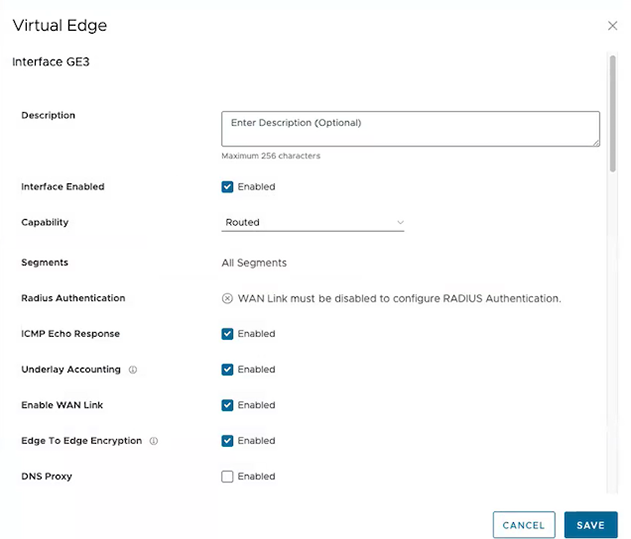
Edge to Edge Encryption at the Edge Level
The Edge to Edge Encryption feature for Edges is inherited from the Profile. You can modify the encryption from either the Device settings screen or the Business Policy screen by following the below steps:
- Select the link to the WAN interface for which you wish to modify the encryption setting.
Figure 2. Configuring the Encryption at the Edge Level 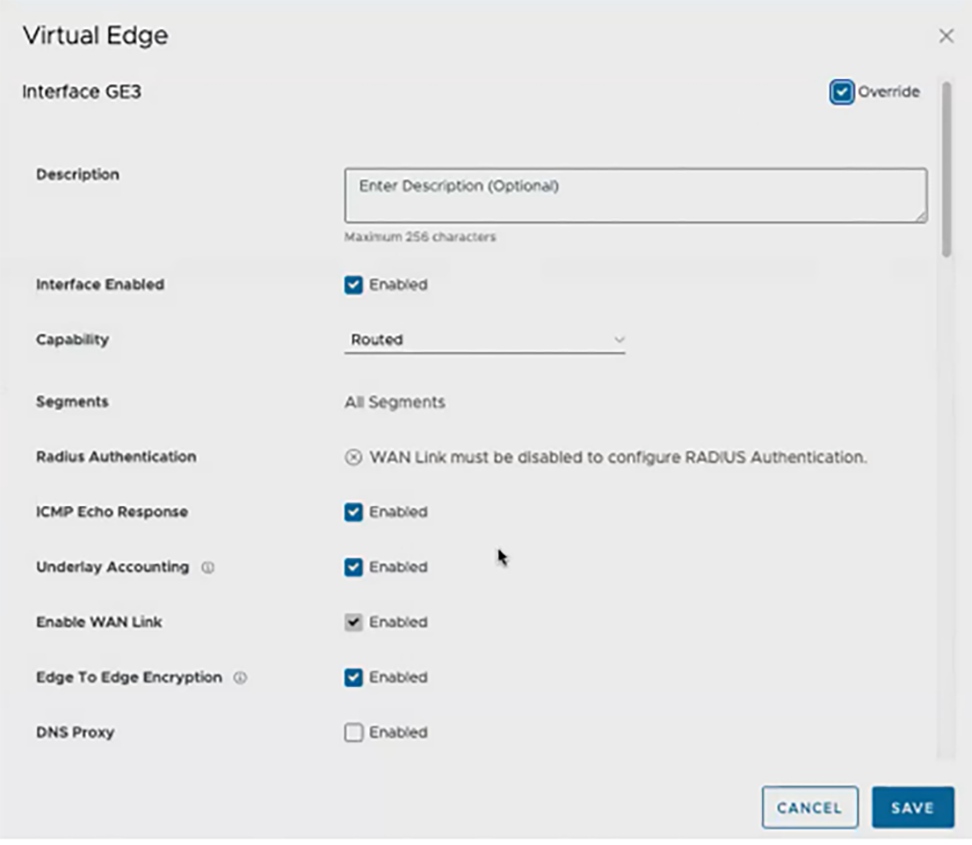
- Starting from the 6.4.0 release, a new column named WAN Data Encryption is introduced in the WAN Link Configuration section. This column displays the encryption state of the WAN links.
Figure 3. Displaying WAN Link Configuration 
Edge - Business Policy
- The existing pre-defined business policy rules are displayed.
Figure 4. Configuring the Business Policy 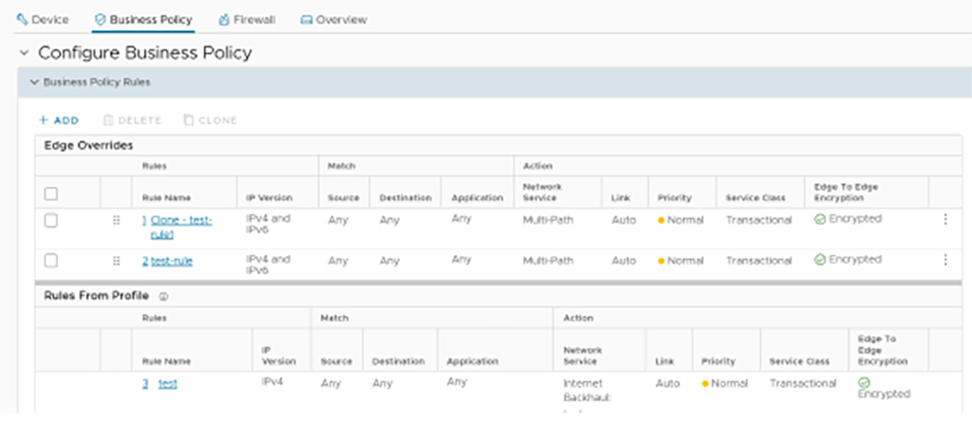
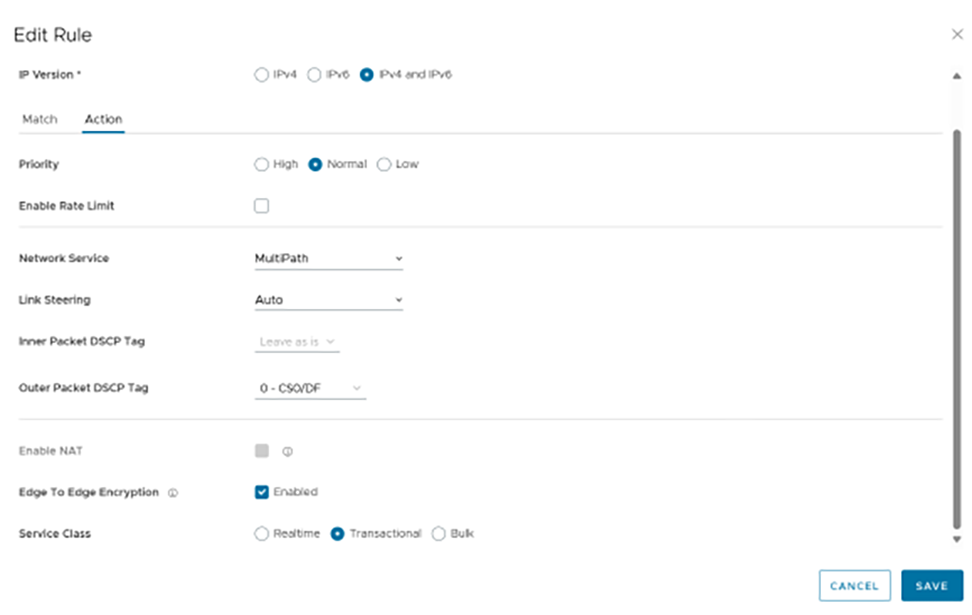
- You can choose to deactivate this feature for certain business policy rules for which the traffic is already encrypted. Select the Business Policy rule, and go to the Action tab.
Figure 5. Editing the Business Rule