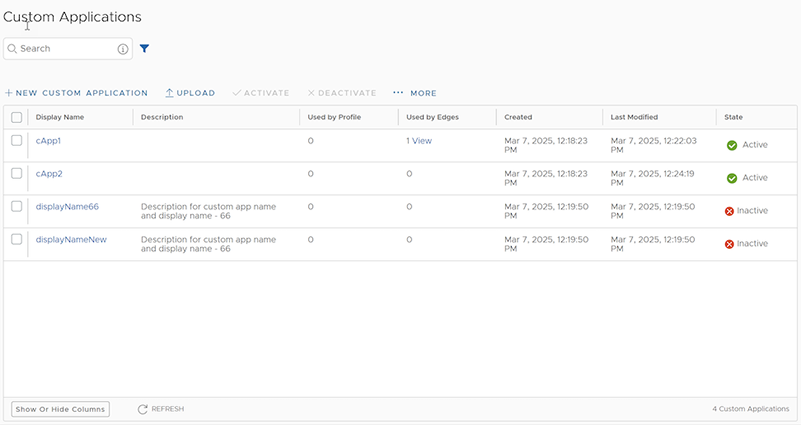
Select and upload an existing Custom Application. You can either drag and drop, or browse and choose the application file to be uploaded.
Activate
Select to send the selected Custom Applications to Edges.
Deactivate
Select to remove the selected Custom Applications from Edges.
More
Select More, and then select Download JSON, to download and reuse the JSON file of the selected Custom Application for other Enterprise users. This reduces the effort of creating same Custom Applications across different Enterprise users.
The other options available on this screen are:
Table 2. Additional Option Descriptions
Option
Description
Search
Enter a term to search for the matching text across the table. Use the advanced search option to narrow down the search results.
Show or Hide Columns
Select and select the columns to be displayed or hidden on the screen.
Refresh
Select to refresh the page to display the most current data.
Select Save Changes to save the Custom Applications.
Note:
The Save Changes button appears only after creating at least one Custom Application.
The maximum number of Custom Applications that can be created for each Enterprise is 250.
You cannot delete a Custom Application.
Next Steps
Use the new Custom Application to create Business Policy and Firewall rules at Edge or Profile level.
For Edge level creation, go to Configure > Edges. Select an Edge and then select Business Policy > Add. In the Application field, select Define, and choose the Custom Application from the drop-down menu. Select Save Changes.
For Edge level creation, go to Configure > Edges. Select an Edge and then select Firewall > Configure Firewall. Under Firewall Rules, select New Rule. In the Application field, select Define, and choose the Custom Application from the drop-down menu. Select Save Changes.
Note:
The Application drop-down menu lists all applications created through both the Application Maps and Custom Applications. A label is displayed against all custom applications for easy identification.
The above steps are for Edge level creation of Business Policy and Firewall rules. You can follow the same steps for creating these rules at Profile level by navigating to Configure > Profiles.
The Used By Profile and Used By Edges columns on the Custom Applications main screen, display the details of the Profile and Edge(s) using the corresponding Custom Application. The Custom Applications that are associated to a Profile or an Edge cannot be deactivated.
To monitor the Custom Applications, go to Monitor > Events > Applications screen.
Create New Custom Application
Follow the below procedure to create a new Custom Application:
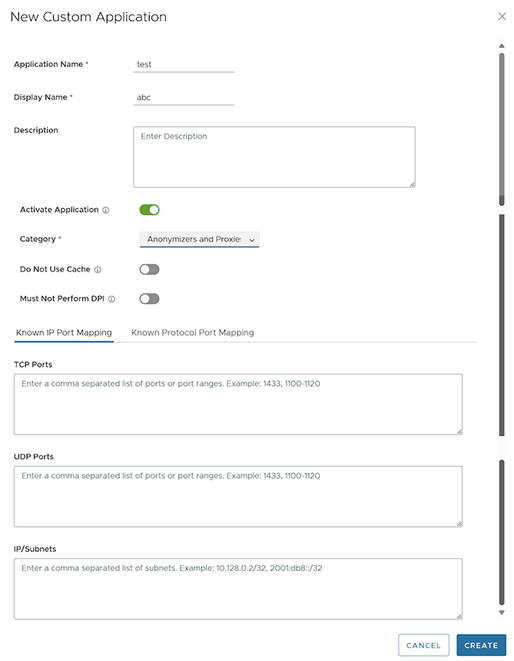
From the Enterprise Portal, select Configure > Custom Applications > New Custom Application. The following screen appears:
Figure 2. Creating a New Custom Application
Enter details in the following fields:
Table 3. New Custom Application Option Descriptions
Option
Description
Application Name
Enter a unique name for the Custom Application.
Display Name
Enter a unique display name.
Description
Enter a description. This field is optional.
Activate Application
You can activate the application while creating it. An activated Custom Application is directly sent to the Edge when you save it.
Category
Select a category from the drop-down menu.
Do Not Use Cache
Slide the toggle button to activate slow-learning cache at Edge level. When activated, the Custom Applications do not use the cache, and their traffic is classified by Qosmos DPI, irrespective of IP-port or proto-port mappings.
Must Not Perform DPI
Slide the toggle button to deactivate DPI at Edge level. When activated, DPI is not used, even if Do Not Use Cache is activated, if traffic matches the known IP-port or protocol-port mapping.
Known IP Port Mapping
Enter the TCP ports, UDP ports, and IP/Subnets in a valid format.
Known Protocol Port Mapping
Enter the TCP and UDP ports in a valid format.
Select Create to save the new Custom Application. This application is then displayed on the Custom Applications main screen. The State column indicates if the application has the status Active or Inactive.