
Object Groups
An Object Group is a group of Address groups and Service groups. Address groups are a collection of IP addresses, range of IP addresses and domain names. Service groups are a collection of ports, range of ports, service types, and codes. When you create business policies and firewall rules, you can define the rules for a range of IP addresses or a range of TCP/UDP/ICMPv4/ICMPv6 ports, by including the object groups in the rule definitions.
You can create Address groups to save the range of valid IP addresses and Service groups for the range of port numbers or service type and range of codes. You can simplify the policy management by creating object groups of specific types and reusing them in policies and rules.
- Manage policies easily.
- Modularize and reuse the policy components.
- Update all referenced business and firewall policies easily.
- Reduce the number of policies.
- Improve the policy debugging and readability.
- Maximum allowed number of object groups per Enterprise is 2000.
- Maximum allowed number of object group associations per Edge and its Profile is 1000.
Configure Objects Groups
This section describes how to configure Object Groups and Service Groups (formerly known as Port Groups).
For more information on Object Groups, see Object Groups,
In the SD-WAN service of the Enterprise portal, to configure Object Groups, select .
The Object Groups screen appears. You can configure Address Group and Service Group from this screen.

Address Groups
- In the Address Groups tab, select Add. The Configure Address Group window appears.
Figure 2. Configure Address Groups 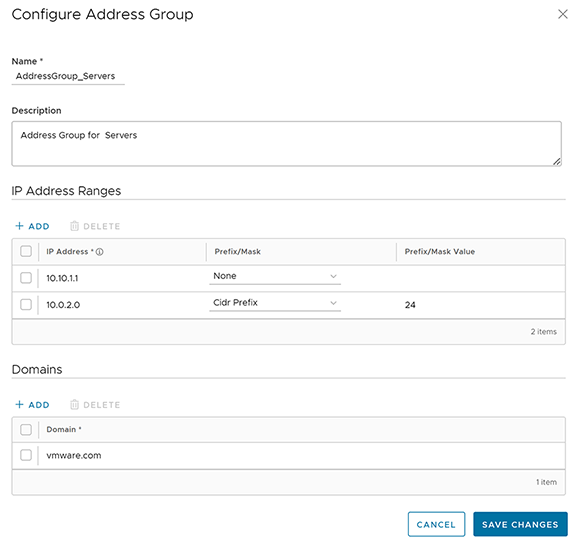
- Enter a Name and Description for the Address Group.
- Under IP Address Ranges, select +ADD and enter the range of IPv4 or IPv6 Addresses by selecting the Prefix or Mask options as: CIDR prefix, Subnet mask, or Wildcard Mask, as required.
- Under Domains, select +ADD and enter the domain names or FQDNs for the Address Group. The domain names defined in the Address Group can be used as a matching criteria for Business policies or Firewall rules.
Note: When configuring domains as match criteria for an Address Group, the SD-WAN service first checks for an IP address match. If a match is found, then the service skips domain name matching. However, if no match is found for an IP address, then the service performs a domain name match in the Address Group.Important: The matching criteria may match basic wildcard patterns. For example, if you configure a domain in an Address Group as google.com, then mail.google.com and/or http://www.google.com may also match this criteria. However, if you configure http://www.google.com as the domain in an Address Group, then mail.google.com will not match this policy.
- Select Save Changes.
Service Groups (Formerly known as Port Groups)
- In the Service Groups tab, select Add. The Configure Service Group window appears.
Figure 3. Configure Service Group 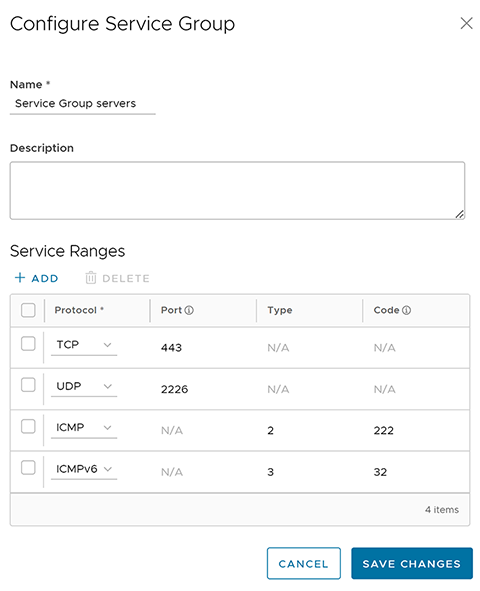
- Enter a Name and Description for the Service Group.
- Under Service Ranges, select +ADD and add Service ranges with the protocol as TCP or UDP or ICMPv4 and ICMPv6, as required.
Note: For TCP and UDP, you must enter a single port number or port range from 0 through 65535. For ICMP and ICMPv6, you can optionally enter the Type and Code. The Type and Code value ranges from 0 through 254. The Code can be a single value or range.
- select Save Changes.
You can define a business policy or a firewall rule with the Object Group, to include the range of IP addresses and port numbers.
Select the link to the Address or Service Group to modify the settings. To delete an Address or Service Group, select the checkbox before the group and select Delete.
Configure Business Policies with Object Group
While configuring business policies at Profile and Edge level, you can select the existing object groups to match the source or destination. You can define the rules for a range of IPv4 and IPv6 addresses or port numbers available in the object groups.
- In the SD-WAN service of the Enterprise portal, go to . The Profiles page displays the existing Profiles.
- Select a Profile to configure a business policy, and select the Business Policy tab.
From the Profiles page, you can navigate to the Business Policy page directly by selecting the View link in the Biz. Pol column of the Profile.
- In the Configure Business Policy section and under Business Policy Rules, select + ADD. The Add Rule dialog box appears.
Figure 4. Adding Rule for Business Policy 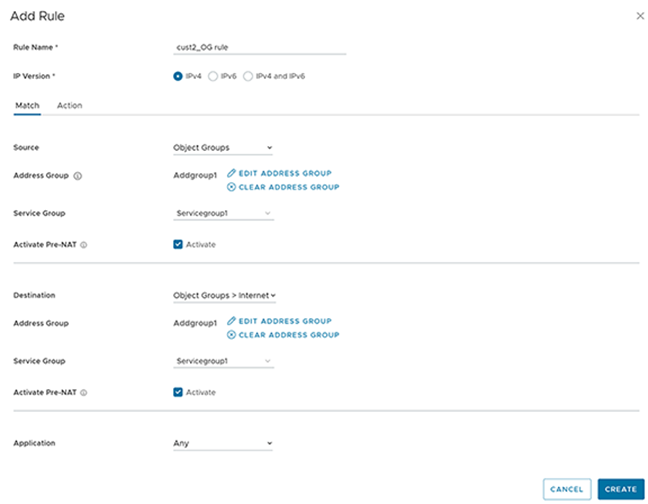
- In the Rule Name text box, enter a unique name for the Rule.
- In the Match area, configure the match conditions for the rule:
- Choose the IP version type for the rule. By default, IPv4 and IPv6 address type is selected. You can configure the Source and Destination IP addresses according to the selected Address Type. Based on the IP version selected, the behavior will be as follows:
- IPv4 Type Rule matches only the IPv4 addresses available in the selected Address Group.
- IPv6 Type Rule matches only the IPv6 addresses available in the selected Address Group.
- Mixed Type Rule matches both the IPv4 and IPv6 addresses in the selected Address Group.
- From the Source drop-down menu, select Object Groups.
- Select the relevant Address Group and Service Group from the drop-down menu. If the selected address group contains any domain names, they would be ignored when matching for the source.
- If needed, you can select the Activate Pre-NAT option. This allows the business policy to match with both, pre-NAT and post-NAT IPv4 addresses, on the LAN side for the Source IP.
Note: The Pre-NAT option is supported for IPv4 and Mixed mode object groups but not for IPv6 object groups.Note: When configuring domains as match criteria for an Address Group, the SD-WAN service first checks for an IP address match. If a match is found, then the service skips domain name matching. However, if no match is found for an IP address, then the service performs a domain name match in the Address Group.Important: The matching criteria may match basic wildcard patterns. For example, if you configure a domain in an Address Group as google.com, then mail.google.com and/or http://www.google.com may also match this criteria. However, if you configure http://www.google.com as the domain in an Address Group, then mail.google.com will not match this policy.
- If required, you can select the Address Groups, Service Groups, and activate Pre-NAT IP as matching criteria for the destination as well.
- Choose business policy actions as required and select Create.
For more information on the match and action parameters, see Configure Business Policies.
- Select Save Changes.
- Choose the IP version type for the rule. By default, IPv4 and IPv6 address type is selected. You can configure the Source and Destination IP addresses according to the selected Address Type. Based on the IP version selected, the behavior will be as follows:
The business policy rules that you create for a profile are automatically applied to all the Edges associated with the profile. If required, you can create additional rules specific to the Edges or modify the inherited rule by navigating to , select an Edge, and select the Business Policy tab.
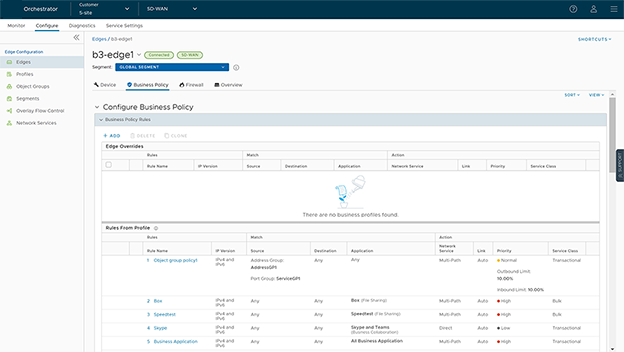
The Rules From Profile section displays the rules inherited from profile and they are read only. If you want to override any Profile-level rule, then add a new rule. The added rule appears in the Edge Overrides section and it can be manipulated by modifying or deleting, if needed.
You can modify the object groups with additional IP addresses, port numbers, service types and codes. The changes are automatically included in the business policy rules that use the object groups.
Configure Firewall Rule with Object Group
While configuring firewall rules at Profile and Edge level, you can select the existing object groups to match the source or destination. You can define the rules for a range of IP addresses or a range of TCP/UDP/ICMPv4/ICMPv6 ports, by including the object groups in the rule definitions.
- In the SD-WAN service of the Enterprise portal, go to . The Profiles page displays the existing Profiles.
- Select a Profile to configure a firewall rule, and select the Firewall tab.
From the Profiles page, you can navigate to the Firewall page directly by selecting the View link in the Firewallcolumn of the Profile.
From the Profiles page, you can navigate to the Firewall page directly by selecting the View link in the Firewall column of the Profile. - Go to the Configure Firewall section and under Firewall Rules, select + NEW RULE. The Configure Rule dialog box appears.
Figure 6. Configure Firewall Rule 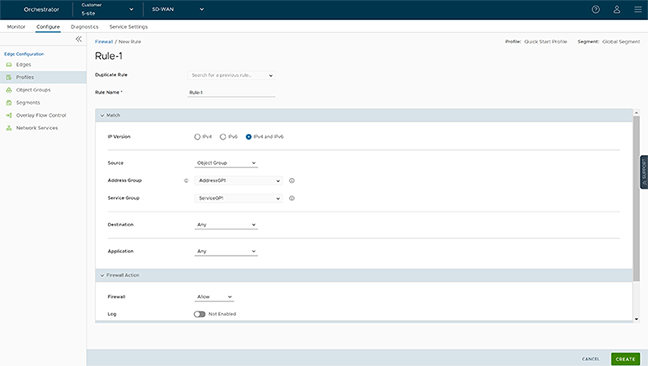
- In the Rule Name text box, enter a unique name for the Rule. To create a firewall rule from an existing rule, select the rule to be duplicated from the Duplicate Rule drop-down menu.
- In the Match area, configure the match conditions for the rule:
- Choose the IP address type for the rule. By default, IPv4 and IPv6 address type is selected. You can configure the Source and Destination IP addresses according to the selected Address Type.
- From the Source drop-down menu, select Object Groups.
- Select the relevant Address Group and Address Group from the drop-down menu. If the selected address group contains any domain names, they would be ignored when matching for the source.
You can select the Info icon next to the Address Group and Address Group drop-down to view the configuration details of the respective Address Group and Address Group.
Figure 7. Details of Duplicate Rule 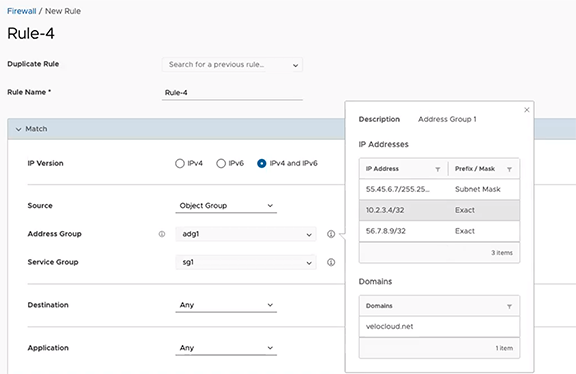
- If required, you can select the Address and Service Groups for the destination as well. Based on Address Type selected, the behavior will be as follows:
- IPv4 Type Rule matches only the IPv4 addresses available in the selected Address Group.
- IPv6 Type Rule matches only the IPv6 addresses available in the selected Address Group.
- Mixed Type Rule matches both the IPv4 and IPv6 addresses in the selected Address Group.
- Choose Firewall actions as required and select Create.
For more information on the match and action parameters, see Configure Firewall Rule.
- Select Save Changes.
-
A firewall rule is created for the selected Profile, and it appears under the Firewall Rules area of the Profile Firewall page.
Note: The rules created at the Profile level cannot be updated at the Edge level. To override the rule, user needs to create the same rule at the Edge level with new parameters to override the Profile level rule.In the Firewall Rules area of the Profile Firewall page, you can perform the following actions:- DELETE: To delete existing Firewall rules, select the checkboxes prior to the rules and select DELETE.
- CLONE: To duplicate a Firewall rule, select the rule and select CLONE.
- COMMENT HISTORY: To view all comments added while creating or updating a rule, select the rule and select COMMENT HISTORY.
- Search for Rule: Allows to search the rule by Rule name, IP address, Port/Port range, and Address group and Service group names.
The Firewall rules that you create for a profile are automatically applied to all the Edges associated with the profile. If required, you can create additional rules specific to the Edges by navigating to , select an Edge, and select the Firewall tab.
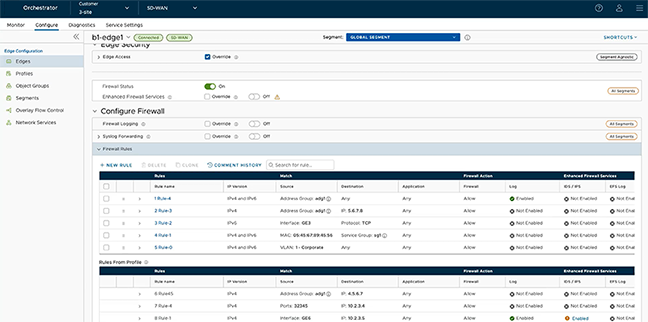
The Rules From Profile section displays the rules inherited from profile and they are read only. If you want to override any Profile-level rule, then add a new rule. The added rule appears in the table above the Rules From Profile section and it can be manipulated by modifying or deleting, if needed.
You can modify the object groups with additional IP addresses, port numbers, service types and codes. The changes are automatically included in the Firewall rules that use the object groups.