
Edge Software Image Management
Edge Software Image Management Overview
The Edge Software Image Management feature provides Enterprise Super Users the ability to upgrade Edge firmware without relying on Support or the Partner.
Traditionally, whenever a new Edge image is published by VeloCloud SD-WAN, the Enterprise Administrators will have to request the Support or the Partner to upgrade the software on their enterprise Edges. The Support will then engage with the customer and upgrade all or a subset of the Edges in the customer’s network. With the Edge Software Image Management feature activated, the Enterprise customers can manage the Edge software version that runs in their environment. The Edge Software Image Management feature provides Enterprise Super Users the ability to upgrade Edge firmware without relying on Support or the Partner.
Additionally, this feature also enables tagging of a particular Edge software image as deprecated (if it was found defective or not meant to be used) after their release. Enterprises using these deprecated images will be notified so that they can migrate to a more stable release of the Edge image.
Activate Edge Image Management
The Edge software image management feature is deactivated by default for customers. Only an Operator (or Support) can activate this feature for a Direct Enterprise and the Partner. In turn, the Partners can activate this feature for their Partner Enterprise customers. The feature can be activated during or after the customer creation. The Enterprises with Edge software image management deactivated must engage with Support or Partner for Edge software upgrades.
For SD-WAN Services
Activate Edge Image Management for New Enterprise Customer
As an Operator User, you can manage the software images assigned to an Enterprise directly by assigning an Operator Profile to an Enterprise or allowing an Enterprise Superuser to manage the available list of software images assigned for an Enterprise by selecting the Allow Customer to Manage Software check box in the navigation path . For more information, see the Create New Customer section in the Arista VeloCloud SD-WAN Operator Guide
Activate Edge Image Management for New Partner Customer
As a Partner Administrator, in addition to managing the software images assigned to your Partner customers, you can allow a Partner Customer's Superuser to manage the available list of software images for the customer by selecting the Allow Customer to Manage Software check box in the navigation path . The list of software images that you can assign to the new customer is based on the available list of software images assigned to the particular Partner by the Orchestrator Operator. For more information, see the Create New Customer section in the Arista VeloCloud SD-WAN Partner Guide.
Activate Edge Image Management for Existing Customer
As an Operator User or a Partner Administrator, you can delegate Edge image management to Enterprise or Partner Superusers. To delegate Edge image management to Enterprise Superusers, select the Allow Customer to Manage Software check box in the navigation path . For more information, see the Manage Customers section in the Arista SD-WAN Operator Guide.
To update the Edge image management settings for an existing customer, select the Edge Image Management toggle button to ON by navigating to . When the feature is activated, the default software image is the only assigned software image for the customer. Once the feature is activated, you can assign additional software images post activating the feature.
For more information, see the Manage Customers in the Arista VeloCloud SD-WAN Operator Guide.
Edge Image Assignment and Access
Operator and Partner Super users can assign all or subset of Edge images to their customers from the available list of images assigned to them. Whenever you upgrade a hosted Orchestrator to a newer version of VeloCloud SD-WAN, the respective Edge images are uploaded to the Orchestrator. On a hosted Orchestrator, by default, the newly uploaded Edge images are assigned to Partners automatically after successful completion of hosted Orchestrator upgrade. However, the Edge images are not made available automatically to the direct Enterprise customers. The Enterprise customer must contact the support to request access to new Edge images uploaded to the hosted Orchestrator.
On an on-prem or a Partner-managed Orchestrator, the image upload or assignment of the Edge image to the Enterprise customers are largely controlled by the Partner or the service provider who manages and maintains the Orchestrator.
For detailed VeloCloud Edge software versions and recommended releases, refer to the KB article VeloCloud SD-WAN Software Versions: Recommended Releases.
Manage Edge Software Image
- The Edge image has a major bug or vulnerability which is fixed in the subsequent version.
- The Edge image is no longer supported or it is reaching End Of Life (EOL).
Once the image is deprecated, the image will not appear in the list of available software images or versions to be assigned to Operator Profiles, or Customers or Edges. Also, any Enterprise who has one or more of their Edges running this deprecated image will be notified about the deprecated image when they log into the Orchestrator.
For more information, see the Software Images and Manage Operator Profiles sections in the Arista SD-WAN Operator Guide.
Edge Management
Edge Management feature allows you to configure general settings, authentication, and encryption for an Edge. It allows you to activate or deactivate configuration updates for an Edge. You can also select a default Software & Firmware Image.
- In the SD-WAN Service of the Enterprise portal, select .
- You can configure the following options and select Save Changes.
Figure 1. Edge Management 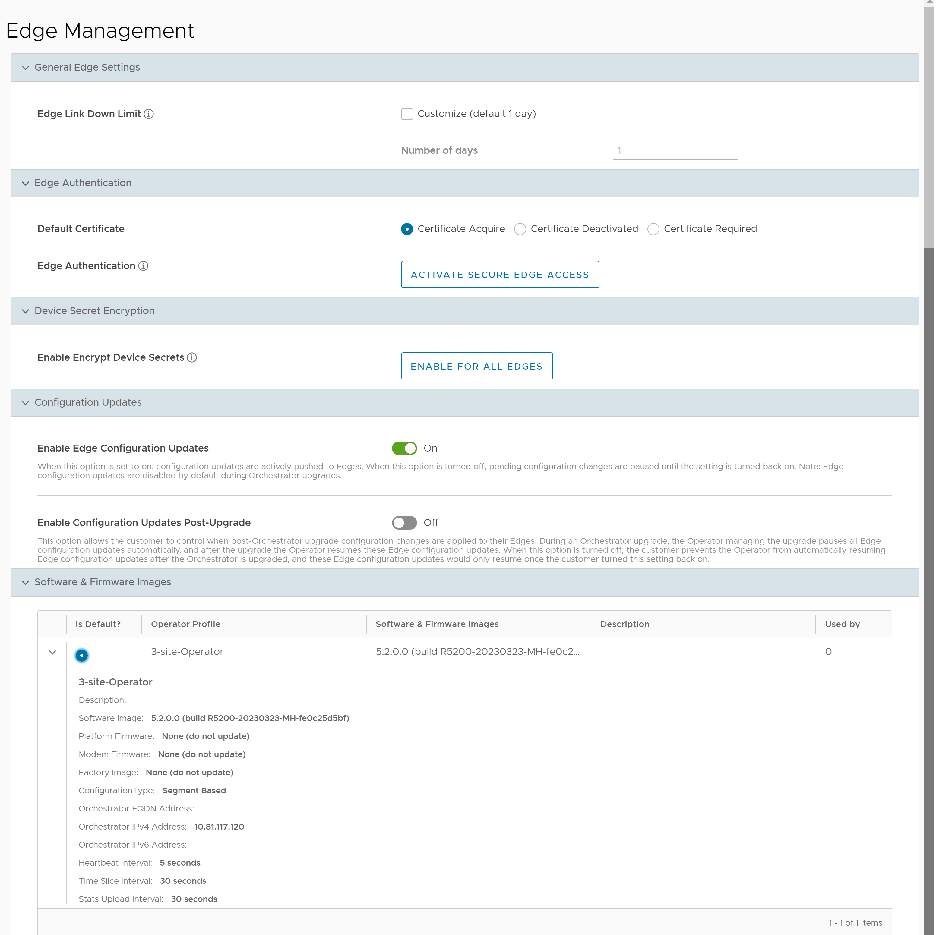
| Option | Description |
|---|---|
| General Edge Settings | |
| Edge Link Down Limit | You can set this value for each Edge by selecting the Customize check box. This overrides the value set through the system property edge.link.show.limit.sec. |
| Number of days | Enter a value in the range 1 to 365. The default value is 1. |
| Edge Authentication | |
| Default Certificate | Choose the default option to authenticate the Edges associated to the Customer.
|
| Edge Authentication | Select the Activate Secure Edge Access button to allow the user to access Edges using Password-based or Key-based authentication. You can activate this option only once. But you can switch to either Password-based or Key-based authentication any number of times. |
| Device Secret Encryption | |
| Enable Encrypt Device Secrets | Select the Enable For All Edges button to activate device secret encryption for all the Edges in the current Enterprise. This action causes restart of all the Edges. However, Edges which already have this feature activated are not affected.
Note: You can activate this option for individual Edges at the time of creating a new Edge. For more information, see Provision a New Edge.
|
| Configuration Updates | |
| Disable Edge Configuration Updates | By default, this option is activated. This option allows you to actively push the configuration updates to Edges. Slide the toggle button to turn it Off. |
| Enable Configuration Updates Post-Upgrade | By default, this option is deactivated. This option allows you to control when post-Orchestrator upgrade configuration changes are applied to their Edges. Slide the toggle button to turn it On. |
Software & Firmware Images
This section is visible only when the Edge Image Management feature is activated. To activate this feature, an Enterprise user must navigate to Manage Customers and select a customer. Then select . Turn on the toggle button, and then select Save.
The Enterprise user can now view the details of the images and select the default image on the Edge Management screen.
Upgrade SD-WAN Edges
Enterprise users can upgrade a specific Edge or a set of Edges, or all Edges using the Edge Management feature.
Upgrade All Edges
In the SD-WAN service of the Enterprise portal, select . Scroll down to the Software and Firmware Images area, and select a default image.
Upgrade Specific Edge(s)
Once you login to the Orchestrator as an Enterprise user, you can override the default software image of an Enterprise for a selected Edge or set of Edges and assign a different software image to upgrade to those Edges by selecting .
