Note: If you login using a user ID with Customer Support privileges, you can only view Orchestrator objects. You cannot create new objects or configure/update existing ones.
In the SD-WAN service of the Enterprise portal, you can perform various configuration settings for a Profile by navigating to the Configure > Profiles > Device. For more information about Segmentation, see Configure Segments with new Orchestrator UI.
Configuring a Profile Device
The Device configuration page allows you to assign segments to a Profile and configure various settings and interfaces to be associated with a Profile.
In the SD-WAN service of the Enterprise portal, when you select Configure > Profiles and select a Profile. The configuration options for the selected Profile display on the Device tab.
Figure 1. Configuring a Profile Device
The View menu allows you to select the view options. The available options are Expand All and Collapse All. By default, the settings are collapsed.
The Sort menu allows you to select the sort options: Sort by category and Sort by segment aware. You can view the configuration settings sorted by category or segment aware. By default, the settings sort by category. If you choose Sort by segment aware, the settings grouped as Segment Aware and Segment Agnostic.
In Segment Agnostic configurations, configuration settings apply only to a specific segment selected from the Segment menu. In Segment Aware configurations, configuration settings apply to multiple segments.
Figure 2. Device Configuration Settings
Note: On the Device page, whenever you make configuration changes for the selected Profile, an action bar appears at the bottom of the screen. You can select the notification to view the recent configuration changes and save the changes made to the Profile.
Profile Device Configurations—A Roadmap
The following table provides the list of Profile-level configurations:
Table 1. Connectivity
Settings
Description
VLAN
Configure VLANs with both IPv4 and IPv6 addresses for Profiles. Select the IPv4 or IPv6 tabs to configure the corresponding IP addresses for the VLANs. See Configure VLAN for Profiles.
Management IP
The Management IP address is used as the source address for local services like DNS and as a destination for diagnostic tests like pinging from another Edge. See Configure Management IP Address for Profiles.
To address high data usage on wireless links (LTE, 5G,USB Dongle), Orchestrator allows Enterprise users to configure the Wireless Link Management settings both at the Profile and Edge levels. See Configure Wireless Link Management for Profiles.
Global IPv6
Activate IPv6 configurations globally. See IPv6 Settings
Common Criteria (CC) is an international certification accepted by many countries. Obtaining the CC certification is an endorsement that our product has been evaluated by competent and independent licensed laboratories for the fulfilment of certain security properties. This certification is recognized by all the signatories of the Common Criteria Recognition Agreement (CCRA). The CC is the driving force for the widest available mutual recognition of secure IT products. Having this certification is an assurance of security to a standard extent and can provide Arista VeloCloud SD-WAN with the much needed business parity or advantage with its competitors. Enterprise users can configure the Common Criteria Firewall settings. By default, this feature is deactivated. See Configure Common Criteria Firewall Settings for Profiles.
Use the DNS Settings to configure conditional DNS forwarding through a private DNS service and to specify a public DNS service to be used for querying purpose. See Configure DNS for Profiles.
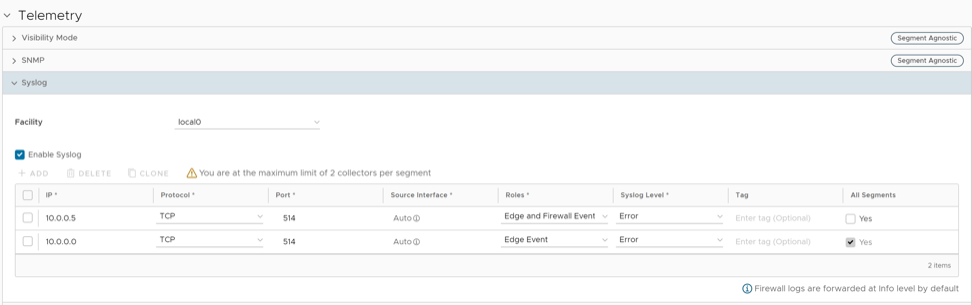
Configure the Syslog collector to receive Orchestrator events and firewall logs from the Edges configured in an Enterprise. See Configure Syslog Settings for Profiles.
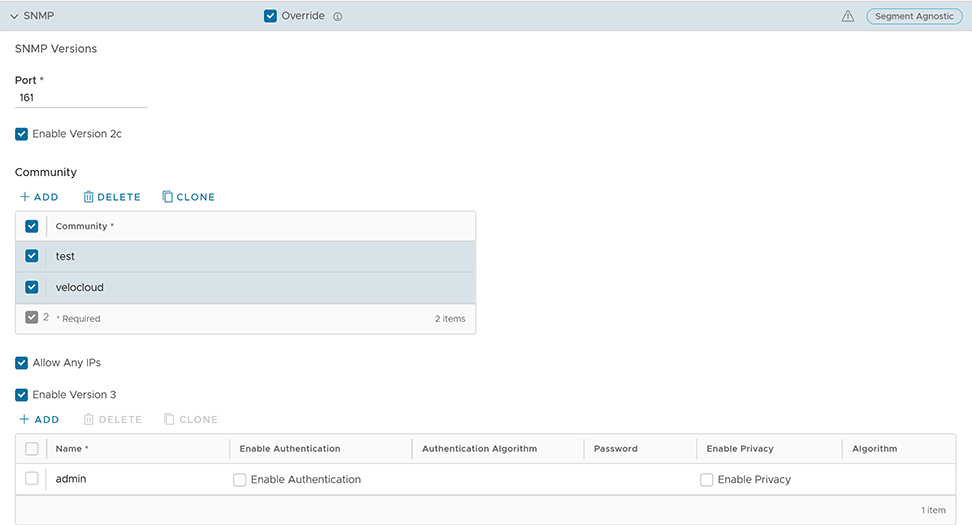
Activate the required SNMP version for monitoring the network. Ensure that you download and install all the required SNMP MIBs before enabling SNMP. See Configure SNMP Settings for Profiles.
After creating a Profile, you can select the Segments you want to include in your profile from the Segment menu on the Device tab.
To assign segments to a Profile, perform the following steps:
In the SD-WAN service of the Enterprise portal, go to Configure > Profiles to display a list of the existing Profiles.
Select on a Profile or select View in the Device column of the Profile to assign segments. You can also select a Profile and select Modify to configure the Profile. The configuration options for the selected Profile are displayed in the Device tab.
From the Segment menu, select Change Profile Segments to display Change Profile Segments.
Figure 3. Assigning Segments
In this dialog box, you can select the Segments to include in your profile. Segments with a lock symbol next to them indicate that the Segment is in use within a profile, and cannot be removed. Segments available for use display under All Segments.
Select Update Segments and then select Save Changes.
After you have assigned a Segment to the Profile, you can configure your Segment through the Segment menu. All Segments available for configuration appear in the Segment menu. If a Segment assigned to a VLAN or interface, it displays the VLAN ID and the Edge models associated with it.
When you choose a Segment to configure from the Segment menu, depending upon the Segment options, the settings associated that Segment display in the Segments area.
Figure 4. Configuring Profile Segment
Configure VLAN for Profiles
As an Enterprise Administrator, you can configure VLANs in a Profile.
To configure VLAN settings in a Profile:
In the SD-WAN service of the Enterprise portal, go to Configure > Profiles.
Select on a Profile or select View in the Device column of the Profile. You can also select a Profile and select Modify to configure the Profile.
The configuration options for the selected Profile display in the Device tab.
Scroll down to the Connectivity category and select VLAN.
Figure 5. Configuring VLAN
You can add a new VLAN by selecting + Add VLAN. You can delete a selected VLAN by selecting Delete. A VLAN already assigned to a device interface cannot be deleted.
Select IPv4 or IPv6 to display the respective list of VLANs.
Selecting + Add VLAN displays the following screen:
Figure 6. Adding a VLAN
In the Add VLAN window, configure the following VLAN details:
Table 5. VLAN Options
Option
Description
General Settings
Segment
Select a segment from the drop-down list. The VLAN belongs to the selected segment.
VLAN Name
Enter a unique name for the VLAN.
VLAN ID
Enter the VLAN ID.
Description
Enter a description (Optional).
LAN Interfaces
You can configure the LAN Interfaces only at the Edge level.
SSID
You can configure the Wi-Fi SSID details for the VLAN only at the Edge level.
ICMP Echo Response
Select the check box to allow the VLAN to respond to ICMP echo messages.
DNS Proxy
Selected by default. This option allows you to activate or deactivate a DNS Proxy regardless of the IPv4 or IPv6 DHCP Server settings.
IPv4 and IPv6 Settings
Note:You can activate either IPv4 or IPv6 or both settings.
Assign Overlapping Subnets
Select if you want to assign the same subnet for the VLAN to every Edge in the Profile and define the subnet in the Edge LAN IP Address. If you want to assign different subnets to every Edge, do not select the check box and configure the subnets on each Edge individually. Overlapping subnets for the VLAN are supported only for SD-WAN to SD-WAN traffic (provided LAN side NAT is activated) and SD-WAN to Internet traffic.
Edge LAN IPv4/IPv6 Address
This option is available only if Assign Overlapping Subnets is set to Yes. Enter the LAN IPv4/IPv6 address of the Edge.
CIDR Prefix / Prefix Length
This option is available only if Assign Overlapping Subnets is set to Yes. Enter the CIDR prefix for the LAN IPv4/IPv6 address.
Network
Enter the IPv4/IPv6 address of the Network.
OSPF
Available only when you have configured OSPF at the Profile level for the selected Segment. Select the check box and choose an OSPF area from the drop-down list. The OSPFv2 configuration supports only IPv4. The OSPFv3 configuration supports only IPv6, which is only available in the 5.2 release. For more information on OSPF settings and OSPFv3, see Activate OSPF for Profiles.
Multicast
This option activates only when you have configured multicast settings for the Edge. You can configure the following multicast settings for the VLAN.
IGMP
PIM
Select advanced multicast settings to set the following timers:
PIM Hello Timer
IGMP Host Query Interval
IGMP Max Query Response Value
VNF Insertion
Select the check box to insert a VNF to the VLAN, which redirects traffic from the VLAN to the VNF. To activate VNF Insertion, ensure that the selected segment is mapped with a service VLAN. For more information about VNF, see Security Virtual Network Functions. This option is available only under IPv4 Settings.
Advertise
Select the check box to advertise the VLAN to other branches in the network.
Fixed IPs
You can configure the fixed IP only at the Edge level.
Select one of the available options for IPv4 DHCP Server:Activated, Relay, or Deactivated.
Select one of the available options for IPv6 DHCP Server: Activated or Deactivated.
Table 6. DHCP Server Options
Option
Description
Activated- Activates DHCP with the Edge as the DHCP server. The following configuration options are available for this type.
DHCP Start
Enter a valid IPv4/IPv6 address available within the subnet.
Num. Addresses
Enter the number of IPv4/IPv6 addresses available on a subnet in the DHCP Server.
Lease Time
Select the period of time from the list. This is the duration the VLAN is allowed to use an IPv4/IPv6 address dynamically assigned by the DHCP Server.
Options
Select Add and select pre-defined or custom DHCP options from the drop-down list. The DHCP option is a network service passed to the clients from the DHCP server. For a custom option, enter the Code, Data Type, and Value. Select Delete to delete a selected option.
Relay- Activates the DHCP with the DHCP Relay Agent installed at a remote location. Following configuration options are available for this type.
Source from Secondary IP(s)
When you select this check box, the DHCP discover and request packets from the client are relayed to the DHCP Relay servers sourced from the primary IP address and all the secondary IP addresses configured for the VLAN. The reply from the DHCP Relay servers is sent back to the client after rewriting the source and destination. The DHCP server receives the request from both the primary and secondary IP addresses and the DHCP client can get multiple offers from primary subnet and secondary subnets. When this option is not selected, the DHCP discover/request packets from the client relay to the DHCP Relay servers sourced only from the primary IP address.
Relay Agent IP(s)
Select Add to add IPv4 addresses. Select Delete to delete a selected address.
Deactivated- Deactivates the DHCP.
A warning message displays under the following conditions when selecting DNS proxy check box:
Both of the IPv4 and IPv6 DHCP Servers are Deactivated.
The IPv4 DHCP Server is in Relay state and the IPv6 DHCP Server is Deactivated.
Select Done. On the Device settings screen, select Save Changes to save the settings. The VLAN is configured for the Profile. You can edit the VLAN settings by selecting the link under the VLAN column.
The Management IP address is used as the source address for local services (for example, DNS) and as a destination for diagnostic tests (for example, pinging from another Edge). The Management IP is deprecated and is replaced with Loopback Interfaces.
You can configure Loopback interfaces only for Edges that are running on version 4.3 and above. The Configure Loopback Interfaces area is not available for Edges running on version 4.2 or lower. For such Edges, you must configure Management IP address at the Profile level.
Figure 7. Configuring a Management IP Address
The Loopback Interface configurations can be done only at the Edge level. For more information about Loopback Interfaces and limitations, see Loopback Interfaces Configuration.
Configure Address Resolution Protocol Timeouts for Profiles
VeloCloud Orchestrator supports Address Resolution Protocol (ARP) timeout configuration to allow overriding the default timeout values of the ARP table entries. VeloCloud Edge Cloud Orchestrator allows configuration of three types of timeouts:
Stale- default 2 minutes
Dead- default 25 minutes
Cleanup- default 4 hours
To override the default ARP timeouts at the Profile-level, perform the following steps:
In the SD-WAN service of the Enterprise portal, go to Configure > Profiles to display Configuration Profiles.
Select the Profile to override ARP timeouts or select View in the Device column of the Profile. The Device tab displays the configuration options for the selected Profile.
Under Connectivity, select ARP Timeouts.
To override the default ARP timeouts, select Override default ARP Timeouts.
Figure 8. Overriding the Default ARP Timeouts
Configure the various ARP timeouts in hours and minutes with the ARP Stale Timeout as less than the ARP Dead Timeout. ARP Dead Timeout must be less than ARP Cleanup Timeout.
Table 7. ARP Timeout Fields
Field
Description
ARP Stale Timeout
When the ARP age exceeds the Stale time, the state changes from ALIVE to REFRESH. At the REFRESH state, when a new packet tries to use this ARP entry, the packet forwards and also a new ARP request sent. If the ARP resolves, the ARP entry moves to the ALIVE state. Otherwise the entry remains in the REFRESH state and the traffic forwards in this state. The allowable value ranges from 1 minute to 23 hours and 58 minutes.
ARP Dead Timeout
When the ARP age exceeds the Dead time, the state changes from REFRESH to DEAD. At the DEAD state, when a new packet tries to use this ARP entry, the packet drops and an ARP request sent. If the ARP gets resolved, the ARP entry moves to ALIVE state and the next data packet forwarded. If the ARP does not resolve, the ARP entry remains in the DEAD state. In the DEAD state, traffic does not forward to that port and becomes lost. The allowable value ranges from 2 minutes to 23 hours and 59 minutes.
ARP Cleanup Timeout
When the ARP age exceeds the Cleanup time, the entry completely removes from the ARP table. The allowable value ranges from 3 minutes to 24 hours.
The ARP timeout values can only be in increasing order of minutes.
This section discusses how to configure the Interface Settings for one or more Edge models in a Profile.
When you configure the Interface Settings for a Profile, the settings are automatically applied to the Edges that are associated with the Profile. If required, you can override the configuration for a specific Edge. See Configure Interface Settings for Edges.
Depending on the Edge model, each interface can be a Switch Port (LAN) interface or a Routed (WAN) interface. Depending on the Branch model, a connection port can be configured to be either a LAN or WAN port. Branch ports can be Ethernet or SFP ports. Some Edge models may also support wireless LAN interfaces.
It is assumed that a single public WAN link is attached to a single interface that only serves WAN traffic. If no WAN link is configured for a routed interface that is WAN capable, it is assumed that a single public WAN link must be automatically discovered. If one is discovered, it is reported to the Orchestrator. This auto-discovered WAN link can then be modified through the Orchestrator and the new configuration can be pushed back to the Branch.
Note:
If the routed Interface is activated with the WAN overlay and attached with a WAN link, then the interface is available for all Segments.
If an interface is configured as PPPoE, it only supports a single auto-discovered WAN link. Additional links cannot be assigned to the interface.
If the link cannot be auto-discovered, it must be explicitly configured. There are multiple supported configurations in which auto-discovery is not possible, including:
Private WAN links
Multiple WAN links on a single interface. Example: A Datacenter Hub with 2 MPLS connections
A single WAN link reachable over multiple interfaces. Example: For an active-active HA topology
Links that are auto-discovered are always public links. User-defined links can be public or private, and have different configuration options based on which type is selected.
Note: Even for auto-discovered links, overriding the parameters that are automatically detected, such as service provider and bandwidth, can be overridden by the Edge configuration.
Public WAN Links
Public WAN links are any traditional link providing access to the public internet such as Cable, DSL, etc. No peer configuration is required for public WAN links. They automatically connect to the Gateway, which handles the dissemination of information needed for peer connectivity.
Private (MPLS) WAN Links
Private WAN links belong to a private network and can only connect to other WAN links within the same private network. As there can be multiple MPLS networks within a single enterprise, the user must identify which links belong to which network. The Gateway uses this information to distribute connectivity information for the WAN links.
You may choose to treat MPLS links as a single link. However, to differentiate between different MPLS classes of service, multiple WAN links can be defined that map to different MPLS classes of service by assigning each WAN link a different DSCP tag.
Additionally, you may decide to define a static SLA for a private WAN link. This eliminates the need for peers to exchange path statistics and reduce the bandwidth consumption on a link. Since probe interval influences how quickly the device can fail over, it’s not clear whether a static SLA definition should reduce the probe interval automatically.
Device Settings
You can configure the interface settings for one or more Edge models in a Profile by navigating to Configure > Profiles/Edges > Connectivity > Interfaces. The following screen illustrates the various Edge models and the Interface Settings that can be configured for the supported Edge devices from the Device settings page of the selected Profile.
Select an Edge model to view the Interfaces available in the Edge.
Figure 9. Configure Interface Settings
The following table describes the various interface settings configurable for the selected Edge model:
Table 8. Interface Settings for Edge Models
Your Edge Models
Select the Edge model for which you want to configure Interface settings from the drop-down menu. The selected Edge models appear in the Interfaces section. Select and expand the Edge model to configure the interface settings.
General
Interface: Displays the name of the interface. This name matches the Edge port label on the Edge device or is predetermined for wireless LANs. You can select the Interface name link to modify the Interface and Layer 2 (L2) settings. For more details, see Configure Interface Settings for Profile.
Type: Displays the type of interface, either Switched or Routed.
VNF Insertion: Displays if the VNF insertion is turned ON or OFF for the interface.
Segments: Displays the Segment for which the configuration settings are applicable.
Switch Port Settings
Displays the list of Switch Ports with a summary of some of their settings (such as Access or Trunk mode and the VLANs for the interface). Switch Ports are highlighted with a light, yellow background.
Routed Interface Settings
Displays the list of Routed Interfaces with a summary of their settings (such as the addressing type and if the interface is auto-detected or has an Auto Detected or User Defined WAN overlay). Routed Interfaces are highlighted with a light, blue background.
Multicast
Displays the Multicast settings configured for the interfaces in the Profile. The following are the supported Multicast settings:
IGMP: Only Internet Group Management Protocol IGMP v2 is supported.
PIM: Only Protocol Independent Multicast Sparse Mode (PIM-SM) is supported.
Add Wi-Fi SSID
Displays the list of Wireless Interfaces (if available on the Edge device). You can add additional wireless networks by selecting the Add Wi-Fi SSID button.
Add SubInterface
You can add sub-interfaces by selecting the Add SubInterface button. Sub-interfaces are displayed with "SIF" next to the interface. Sub-interface for PPPoE interfaces is not supported.
Add Secondary IP
You can add secondary IPs by selecting the Add Secondary IP button. Secondary IPs are displayed with 'SIP" next to the interface.
Edge 710
The Edge 710 is different from all the previous Wi-Fi models, as it has two separate radios for bands 2.4GHz and 5GHz. Dual-radio models independently use both 2.4 and 5GHz bands. However, if the 5GHz band is selected in an unsupported country, it is deactivated, and the 2.4GHz band is activated by default.
The following screen displays the interfaces for Edge 710 Wi-Fi:
Figure 10. Edge 710 Wi-Fi Interfaces
Edge 710 Troubleshooting
If the desired outcome is 5GHz Wi-Fi, but the Edge is operating in 2.4GHz: Check the device-level location settings:
The location country must be a country that allows 5GHz.
The country name must be a proper ISO 3166-1 2-character country code.
Ensure that the desired IEEE 802.11 standards (802.11n, 802.11ac, 802.11ax, etc.), are explicitly set at the device-level.
Edge 710 5G
The Edge 710 5G is introduced in the 5.2.4 release. It is an extension of Edge 710 and supports all the features that Edges 610-LTE and 510-LTE offer. Additionally, it offers the 5G feature.
Figure 11. Edge 710 5G Interfaces
Edge 710 5G Troubleshooting
710 5G Modem Information Diagnostic Test: If the Edge 710 5G device is configured, the “LTE Modem Information” diagnostic test is available. The LTE Modern Information diagnostic test retrieves diagnostic information, such as signal strength, connection information, etc. For information on how to run a diagnostic test, see the Arista VeloCloud SD-WAN Troubleshooting Guide.
If two 710 5G SIM cards are inserted, CELL1(SIM1/right) is activated by default.
To use CELL2 (SIM2/left), perform either of the following:
Reboot the Edge 710 5G with the SIM2 only.
Perform the SIM switch from the Orchestrator with both SIMs inserted.
Hot swapping SIM cards is not supported; a reboot is required.
If you wish to remove a SIM slot, the SIM must be fully removed from the SIM cage. If some part of the SIM is still inserted in the SIM cage, the Orchestrator displays the CELL instance, but the CELL Interface will not be functional.
Edge 610-LTE
The Edge 610-LTE is an extension of the Edge 610 with an integrated CAT12 EM75xx Sierra Wireless (SWI) modem. The 610-LTE device supports all the features that the 510-LTE offers, with an additional power of an CAT12 module and with a wide range of bands covering various geographical locations. The 610-LTE Edge device has two physical SIM slots. The top slot represents SIM1 and is mapped to the WAN routed interface CELL1. The bottom slot represents SIM2 and is mapped to the WAN routed interface CELL2.
With the Edge 610-LTE device, new routed interfaces (CELL1 and CELL 2) are configurable. For more information, see Configure Interface Settings for Profiles.
Figure 12. Edge 610-LTE
Note: Only one SIM is active on the 610-LTE Edge, even if both SIMs are inserted in the Edge.
Edge 610-LTE Troubleshooting
610-LTE Modem Information Diagnostic Test: For the 4.2.0 release, if the Edge 610-LTE device is configured, the “LTE Modem Information” diagnostic test is available. The LTE Modern Information diagnostic test retrieves diagnostic information such as signal strength, connection information, etc.
If two 610-LTE SIM cards are inserted, CELL1(top slot/SIM1) is activated by default.
To use CELL2 (bottom slot/SIM2), perform either of the following:
Reboot the 610-LTE Edge with the SIM2 only.
Perform the SIM switch from the Orchestrator with both SIMs inserted.
Hot swapping SIM cards is not supported; a reboot is required.
If you want to remove a SIM slot, the SIM must be fully removed from the SIM cage. If some part of the SIM is still inserted in the SIM cage, the Orchestrator displays the CELL instance, but the CELL Interface will not be functional. The following image shows the CELL1(SIM1 slot), where SIM1 is not fully inserted or removed.
Figure 13. SIM1 is not fully Inserted or Removed
Edge 3810
Edge 3810 is an evolution of the Edge 3800 platform, which includes 6 GE ports and 8 SFP ports. Otherwise, the functionality is identical to the Edge 3800.
Edge 7X0
Edge models supported are 720 and 740 devices. Edge 7x0 does not have Wi-Fi settings or any Cellular-related features.
Edge 720 supports 2x 10-GbE SFP+, 6x 2.5-GbE RJ45, and 2x USB 3.0 ports.
Edge 740 supports 2x 10-GbE SFP+, 6x 2.5-GbE RJ45, and 2x USB 3.0 ports.
Note: DSL, GPON, and VNF settings are not supported.
Edge 6X0
Edge models supported are 610, 620, 640, and 680 devices. For information on how to Configure DSL Settings, see Configure DSL.
Note: The Edge 6X0 series device and 510 Edge device are shipped with default images, but the working image is typically downloaded from the Orchestrator upon activation.
Edge 510-LTE
For the Edge 510-LTE model, a new routed interface (CELL1) is displayed in the Interface Settings. To edit the Cell Settings, see Configure Interface Settings for Profiles.
Edge 510-LTE Troubleshooting
510-LTE Modern Information Diagnostic Test: When Edge 510- LTE device is configured, the LTE Modem Information diagnostic test is available. The LTE Modern Information diagnostic test retrieves diagnostic information, such as signal strength, connection information, etc.
Edge 4100
Edge 4100 is introduced in the 6.1.0 release. It includes the following ports:
10x 1-Gbps RJ45
8x 10-Gbps SFP+
Note: It does not include Wi-Fi or Cellular Modem.
Edge 5100
Edge 5100 is introduced in the 6.2.0 release. It includes the following ports:
2x 1-Gbps RJ45
8x 10-Gbps SFP+
4x 25-Gbps SFP28
2x 40-Gbps QSFP
Note: It does not include Wi-Fi or Cellular Modem.
User-defined WAN Overlay Use Cases
The scenarios wherein this configuration is useful are outlined first, followed by a specification of the configuration itself.
Use Case 1: Two WAN links connected to an L2 Switch: Consider the traditional data center topology where the Edge is connected to an L2 switch in the DMZ that is connected to multiple firewalls, each connected to a different upstream WAN link.
Figure 14. Two WAN Links Connected to an L2 Switch
In this topology, the interface has likely been configured with FW1 as the next hop. However, in order to use the DSL link, it must be provisioned with an alternate next hop to which packets should be forwarded, because FW1 cannot reach the DSL. When defining the DSL link, the user must configure a custom next hop IP address as the IP address of FW2 to ensure that packets can reach the DSL modem. Additionally, the user must configure a custom source IP address for this WAN link to allow the edge to identify return interfaces. The final configuration becomes similar to the following figure:
The following paragraph describes how the final configuration is defined.
The interface is defined with IP address 10.0.0.1 and next hop 10.0.0.2. Because more than one WAN link is attached to the interface, the links are set to “user defined”.
The Cable link is defined and inherits the IP address of 10.0.0.1 and next hop of 10.0.0.2. No changes are required. When a packet needs to be sent out the cable link, it is sourced from 10.0.0.1 and forwarded to the device that responds to ARP for 10.0.0.2 (FW1). Return packets are destined for 10.0.0.1 and identified as having arrived on the cable link.
The DSL link is defined, and because it is the second WAN link, the Orchestrator flags the IP address and next hop as mandatory configuration items. The user specifies a custom virtual IP (e.g. 10.0.0.4) for the source IP and 10.0.0.3 for the next hop. When a packet needs to be sent out the DSL link, it is sourced from 10.0.0.4 and forwarded to the device that responds to the ARP for 10.0.0.3 (FW2). Return packets are destined for 10.0.0.4 and identified as having arrived on the DSL link.
Case 2: Two WAN links connected to an L3 switch/router: Alternatively, the upstream device may be an L3 switch or a router. In this case, the next hop device is the same (the switch) for both WAN links, rather than different (the firewalls) in the previous example. Often this is leveraged when the firewall sits on the LAN side of the Edge.
Figure 15. Two WAN Links Connected to an L3 Switch/Router
In this topology, policy-based routing is used to steer packets to the appropriate WAN link. This steering may be performed by the IP address or by the VLAN tag, so we support both options.
Steering by IP: If the L3 device is capable of policy-based routing by source IP address, then both devices may reside on the same VLAN. In this case, the only configuration required is a custom source IP to differentiate the devices.
Figure 16. Steering by IP
The following paragraph describes how the final configuration is defined.
The interface is defined with IP address 10.0.0.1 and next hop 10.0.0.2. Because more than one WAN link is attached to the interface, the links are set to “user defined.”
The Cable link is defined and inherits the IP address of 10.0.0.1 and next hop of 10.0.0.2. No changes are required. When a packet needs to be sent out the cable link, it is sourced from 10.0.0.1 and forwarded to the device that responds to ARP for 10.0.0.2 (L3 Switch). Return packets are destined for 10.0.0.1 and identified as having arrived on the cable link.
The DSL link is defined, and because it is the second WAN link, the Orchestrator flags the IP address and next hop as mandatory configuration items. The user specifies a custom virtual IP (for example, 10.0.0.3) for the source IP and the same 10.0.0.2 for the next hop. When a packet needs to be sent out the DSL link, it is sourced from 10.0.0.3 and forwarded to the device that responds to the ARP for 10.0.0.2 (L3 Switch). Return packets are destined for 10.0.0.3 and identified as having arrived on the DSL link.
Steering by VLAN: If the L3 device is not capable of source routing, or if for some other reason the user chooses to assign separate VLANs to the cable and DSL links, this must be configured.
Figure 17. Steering by VLAN
The interface is defined with IP address 10.100.0.1 and next hop 10.100.0.2 on VLAN 100. Because more than one WAN link is attached to the interface, the links are set to “user defined.”
The Cable link is defined and inherits VLAN 100 as well as the IP address of 10.100.0.1 and next hop of 10.100.0.2. No changes are required. When a packet needs to be sent out the cable link, it is sourced from 10.100.0.1, tagged with VLAN 100 and forwarded to the device that responds to ARP for 10.100.0.2 on VLAN 100 (L3 Switch). Return packets are destined for 10.100.0.1/VLAN 100 and identified as having arrived on the cable link.
The DSL link is defined, and because it is the second WAN link the Orchestrator flags the IP address and next hop as mandatory configuration items. The user specifies a custom VLAN ID (200) as well as virtual IP (e.g. 10.200.0.1) for the source IP and the 10.200.0.2 for the next hop. When a packet needs to be sent out the DSL link, it is sourced from 10.200.0.1, tagged with VLAN 200 and forwarded to the device that responds to the ARP for 10.200.0.2 on VLAN 200 (L3 Switch). Return packets are destined for 10.200.0.1/VLAN 200 and identified as having arrived on the DSL link.
Case 3: One-arm Deployments: One-arm deployments are very similar to other L3 deployments.
Figure 18. One-arm Deployments
The Edge shares the same next hop for both WAN links. Policy-based routing can be done to ensure that traffic is forwarded to the appropriate destination as defined above. Alternately, the source IP and VLAN for the WAN link objects may be the same as the VLAN of the cable and DSL links to make the routing automatic.
Case 4: One WAN link reachable over multiple interfaces: Consider the traditional gold site topology where the MPLS is reachable via two alternate paths. In this case, we must define a custom source IP address and next hop that can be shared regardless of which interface is being used to communicate.
Figure 19. One WAN Link Reachable Over Multiple Interfaces
GE1 is defined with IP address 10.10.0.1 and next hop 10.10.0.2
GE2 is defined with IP address 10.20.0.1 and next hop 10.20.0.2
The MPLS is defined and set as reachable via either interface. This makes the source IP and next hop IP address mandatory with no defaults.
The source IP and destination are defined, which can be used for communication irrespective of the interface being used. When a packet needs to be sent out the MPLS link, it is sourced from 169.254.0.1, tagged with the configured VLAN and forwarded to the device that responds to ARP for 169.254.0.2 on the configured VLAN (CE Router). Return packets are destined for 169.254.0.1 and identified as having arrived on the MPLS link.
Note: If OSPF or BGP is not activated, you may need to configure a transit VLAN that is the same on both switches to allow reachability of this virtual IP.
Configure Interface Settings for Profiles
In a Profile, you can configure interface settings for various Edge models.
You can configure the interface settings for each Edge model. Each interface in an Edge can be a Switched port (LAN) or a Routed (LAN or WAN) interface. The interface settings vary based on the Edge model. For more information on different Edge models and deployments, see Configure Interface Settings.
To configure the interface settings for different Edge models in a Profile:
In the SD-WAN service of the Enterprise portal, go to Configure > Profiles.
The Profiles page displays the existing Profiles.
Select the link to a Profile or select the View link in the Device column of the Profile. Alternatively, select a Profile and select Modify to configure the Profile.
The configuration options for the selected Profile are displayed in the Device tab.
In the Connectivity category, select Interfaces. The Edge models available in the selected Profile are displayed:
Figure 20. Configure Interface Settings for Profiles
Select an Edge model to view the interfaces available in the Edge. You can edit the settings for the following types of interfaces, based on the Edge model:
Switch Port
Routed Interface
WLAN Interface
You can also add Subinterface, Secondary IP address, and Wi-Fi SSID based on the Edge model.
Figure 21. Additional Interface Settings
Configure the settings for a Routed interface. See the table below for a description of these configuration settings.
Note: The interface settings in the table below can be overwritten at the Edge level.
Figure 22. Configure Routed Interface Settings
Option
Description
Description
Type the description. This field is optional.
Interface Enabled
This check box is selected by default. If required, you can deactivate the interface. When deactivated, the interface is not available for any communication.
Capability
For a Routed interface, the option Routed is selected by default. You can choose to convert the port to a Switch port interface by selecting the option Switched from the drop-down list.
Segments
By default, the configuration settings are applicable to all the segments. This field cannot be edited.
Radius Authentication
Deactivate the Enable WAN Overlay check box to configure Radius Authentication. Select the Radius Authentication check box and add the MAC addresses of pre-authenticated devices.
ICMP Echo Response
This check box is selected by default. This helps the interface to respond to ICMP echo messages. You can deactivate this option for security purposes.
Underlay Accounting
This check box is selected by default. If a private WAN overlay is defined on the interface, all underlay traffic traversing the interface are counted against the measured rate of the WAN link to prevent over-subscription. Deactivate this option to avoid this behavior.
Note: Underlay Accounting is supported for both, IPv4 and IPv6 addresses.
Enable WAN Overlay
This check box is selected by default. This helps to activate WAN overlay for the interface.
DNS Proxy
The DNS Proxy feature provides additional support for Local DNS entries on the Edges associated with the Profile, to point certain device traffic to specific domains. You can activate or deactivate this option, irrespective of IPv4 or IPv6 DHCP Server setting.
Note:
This check box is available only for a Routed interface and a Routed Subinterface.
If IPv4/IPv6 DHCP Server is activated and DNS Proxy is deactivated then the DNS Proxy feature will not work as expected and may result in DNS resolution failure.
VLAN
For an Access port, select an existing VLAN from the drop-down list. For a Trunk port, you can select multiple VLANs and select an untagged VLAN.
IPv4 Settings – Select the check box to activate IPv4 Settings.
Addressing Type
By default, DHCP is selected, which assigns an IPv4 address dynamically. If you select Static or PPPoE, you must configure the addressing details for each Edge.
Enabling OSPF on a WAN Overlay interface will be treated as OSPF in the Global segment on that interface.
If you have a CSS GRE tunnel created for an Edge and if you change the WAN Overlay settings of the WAN link associated with the CSS tunnel interface from "Auto-Detect Overlay" to "User-Defined Overlay", the WAN link and the associated CSS tunnels are also removed from the CSS configuration at the Edge level.
OSPF
This option is available only when you have configured OSPF at the Profile level for the selected Segment. Select the check box and choose an OSPF area from the drop-down list. Select Advanced settings to configure the advanced interface settings for the selected OSPF area.
Figure 23. Advanced Interface Settings
Note:
When configuring advanced OSPF area settings for a Routed interface, the BFD configuration is supported only for global segments.
The OSPFv2 configuration supports only IPv4.
The OSPFv3 configuration supports only IPv6, which is only available in the 5.2 release.
This option is available only when you have configured multicast settings for the Profile. You can configure the following multicast settings for the selected interface.
IGMP- Select the check box to activate Internet Group Management Protocol (IGMP). Only IGMP v2 is supported.
PIM – Select the check box to activate Protocol Independent Multicast. Only PIM Sparse Mode (PIM-SM) is supported.
Select toggle advanced multicast settings to configure the following timers:
PIM Hello Timer – The time interval at which a PIM interface sends out Hello messages to discover PIM neighbors. The range is from 1 to 180 seconds and the default value is 30 seconds.
IGMP Host Query Interval – The time interval at which the IGMP querier sends out host-query messages to discover the multicast groups with members, on the attached network. The range is from 1 to 1800 seconds and the default value is 125 seconds.
IGMP Max Query Response Value – The maximum time that the host has to respond to an IGMP query. The range is from 10 to 250 deciseconds and the default value is 100 deciseconds.
Note: Currently, Multicast Listener Discovery (MLD) is deactivated. Hence, Edge does not send the multicast listener report when IPv6 address is assigned to interface. If there is a snooping switch in the network, then not sending MLD report may result in Edge not receiving multicast packets which are used in Duplicate Address Detection (DAD). This results in DAD success even with duplicate address.
VNF Insertion
You must deactivate WAN Overlay and select the Trusted Source check box to activate VNF Insertion. When you insert the VNF into Layer 3 interfaces or subinterfaces, the system redirects traffic from the Layer 3 interfaces or subinterfaces to the VNF.
Advertise
Select the check box to advertise the interface to other branches in the network.
NAT Direct Traffic
Select the check box to activate NAT Direct traffic for IPv4 on a routed interface.
CAUTION: It is possible that an older version of the Orchestrator inadvertently configured NAT Direct on a main interface with either a VLAN or subinterface configured. If that interface is sending direct traffic one or hops away, the customer does not observe any issues because the NAT Direct setting was not being applied. However, when an Edge is upgraded to 5.2.0 or later, the Edge build includes a fix for the issue (Ticket #92142) with NAT Direct Traffic not being properly applied, and there is a resulting change in routing behavior since this specific use case was not implemented in prior releases. In other words, because a 5.2.0 or later Edge now implements NAT Direct in the expected manner for all use cases, traffic that previously worked (because NAT Direct was not being applied per the defect) may now fail because the customer never realized that NAT Direct was checked for an interface with a VLAN or subinterface configured. As a result, a customer upgrading their Edge to Release 5.2.0 or later should first check their Profile and Edge interface settings to ensure NAT Direct is configured only where they explicitly require it and to deactivate this setting where it is not, especially if that interface has a VLAN or subinterface configured.
Trusted Source
Select the check box to set the interface as a trusted source.
Reverse Path Forwarding
You can choose an option for Reverse Path Forwarding (RPF) only when you have selected the Trusted Source check box. This option allows traffic on the interface only if return traffic can be forwarded on the same interface. This helps to prevent traffic from unknown sources like malicious traffic on an enterprise network. If the incoming source is unknown, then the packet is dropped at ingress without creating flows. Select one of the following options from the drop-down list:
Not Enabled – Allows incoming traffic even if there is no matching route in the route table.
Specific – This option is selected by default, even when the Trusted Source option is deactivated. The incoming traffic should match a specific return route on the incoming interface. If a specific match is not found, then the incoming packet is dropped. This is a commonly used mode on interfaces configured with public overlays and NAT.
Loose – The incoming traffic should match any route (Connected/Static/Routed) in the routing table. This allows asymmetrical routing and is commonly used on interfaces that are configured without next hop.
IPv6 Settings – Select the check box to activate IPv6 Settings.
Addressing Type
Choose one of the options from the following to assign an IPv6 address dynamically.
DHCP Stateless – Allows the interface to self-configure the IPv6 address. It is not necessary to have a DHCPv6 server available at the ISP. An ICMPv6 discover message originates from the Edge and is used for auto-configuration.
Note: In DHCP Stateless configuration, two IPv6 addresses are created at the Kernel interface level. The Edge does not use the host address which matches the Link local address.
DHCP Stateful – This option is similar to DHCP for IPv4. The Gateway connects to the DHCPv6 server of the ISP for a leased address and the server maintains the status of the IPv6 address.
Note: In stateful DHCP, when the valid lifetime and preferred lifetime are set with the infinite value (0xffffffff(4294967295)), the timer does not work properly. The maximum value that the valid and preferred timers can hold is 2147483647.
Static – If you select this option, you should configure the addressing details for each Edge.
Note: For Cell interfaces, the Addressing Type is Static by default.
This option is available only when you have configured OSPF at the Profile level for the selected Segment. Select the check box and choose an OSPF area from the drop-down list. Select Advanced Settings to configure advanced interface settings for the selected OSPF area.
Note:
When configuring advanced OSPF area settings for a routed interface, the BFD configuration is supported only for global segments.
Select the check box to advertise the Interface to other branches in network.
NAT Direct Traffic
Select the check box to activate NAT Direct traffic for IPv6 on a routed interface.
CAUTION: It is possible that an older version of the Orchestrator inadvertently configured NAT Direct on a main interface with either a VLAN or subinterface configured. If that interface is sending direct traffic one or hops away, the customer would not observe any issues because the NAT Direct setting was not being applied. However, when an Edge is upgraded to 5.2.0 or later, the Edge build includes a fix for the issue (Ticket #92142) with NAT Direct Traffic not being properly applied, and there is a resulting change in routing behavior since this specific use case was not implemented in prior releases. In other words, because a 5.2.0 or later Edge now implements NAT Direct in the expected manner for all use cases, traffic that previously worked (because NAT Direct was not being applied per the defect) may now fail because the customer never realized that NAT Direct was checked for an interface with a VLAN or subinterface configured. As a result, a customer upgrading their Edge to Release 5.2.0 or later should first check their Profiles and Edge interface settings to ensure NAT Direct is configured only where they explicitly require it and to deactivate this setting where it is not, especially if that interface has a VLAN or subinterface configured.
Trusted Source
Select the check box to set the interface as a trusted source.
Reverse Path Forwarding
You can choose an option for Reverse Path Forwarding (RPF) only when you have selected the Trusted Source check box. This option allows traffic on the interface only if return traffic can be forwarded on the same interface. This helps to prevent traffic from unknown sources like malicious traffic on an enterprise network. If the incoming source is unknown, then the packet is dropped at ingress without creating flows. Select one of the following options from the drop-down list:
Not Enabled – Allows incoming traffic even if there is no matching route in the route table.
Specific – This option is selected by default, even when the Trusted Source option is deactivated. The incoming traffic should match a specific return route on the incoming interface. If a specific match is not found, then the incoming packet is dropped. This is a commonly used mode on interfaces configured with public overlays and NAT.
Loose – The incoming traffic should match any route (Connected/Static/Routed) in the routing table. This allows asymmetrical routing and is commonly used on interfaces that are configured without next hop.
Router Advertisement Host Settings- These settings are available only when you select the IPv6 Settings check box, and choose the Addressing Type as DHCP Stateless or DHCP Stateful. Select the check box to display the following RA parameters. These parameters are activated by default. If required, you can deactivate them.
Note: When RA host parameters are deactivated and activated again, then the Edge waits for the next RA to be received before installing routes, MTU, and ND/NS parameters.
MTU
Accepts the MTU value received through Route Advertisement. If you deactivate this option, the MTU configuration of the interface is considered.
Default Routes
Installs default routes when Route Advertisement is received on the interface. If you deactivate this option, then there is no default routes available for the interface.
Specific Routes
Installs specific routes when Route Advertisement receives route information on the interface. If you deactivate this option, the interface does not install the route information.
ND6 Timers
Accepts ND6 timers received through Route Advertisement. If you deactivate this option, default ND6 timers are considered. The default value for NDP retransmit timer is 1 second and NDP reachable timeout is 30 seconds.
L2 Settings
Autonegotiate
This check box is selected by default. This allows the port to communicate with the device on the other end of the link to determine the optimal duplex mode and speed for the connection.
Speed
This option is available only when Autonegotiate is deactivated. Select the speed at which the port communicates with other links. By default, 100 Mbps is selected.
Duplex
This option is available only when Autonegotiate is deactivated. Select the mode of the connection as Full duplex or Half duplex. By default, Full duplex is selected.
MTU
The default MTU size for frames received and sent on all routed interfaces is 1500 bytes. You can change the MTU size for an interface.
Note:
A warning message is displayed when DNS proxy check box is selected in the following scenarios:
Both IPv4 and IPv6 DHCP Servers are Deactivated.
IPv4 DHCP Server is in Relay state and IPv6 DHCP Server is Deactivated.
If you are using USB Modem to connect to the network, to enable IPv6 addressing, configure the following manually in the Edge:
Add the global parameter “usb_tun_overlay_pref_v6”:1 to /etc/config/edged, to update the preference to IPv6 address.
Run the following command to update the IP type of the interface to IPv6.
username – Enter the username provided by the carrier.
password – Enter the password provided by the carrier.
spnetwork – Enter the name of the Service Provider Network.
simpin – Enter the PIN number used to unlock the SIM card.
auth – Specify the Authentication type.
iptype – Enter the type of IP address.
The following is an example command with sample parameters:
/etc/modems/modem_apn.sh USB3 set ‘’vzwinternet’' ‘’ ‘VERIZON’ ‘’ ‘’ ‘ipv4v6’
For a list of modems supported for use on an Edge, see the Supported Modems page.
Configure the settings for a Switched interface. See the table below for a description of these configuration settings:
Figure 24. Configure Switched Interface Settings
Option
Description
Interface Enabled
This option is activated by default. If required, you can deactivate the interface. When deactivated, the interface is not available for any communication.
Capability
For a Switch Port, the option Switched is selected by default. You can choose to convert the port to a routed interface by selecting the option Routed from the drop-down list.
Mode
Select the mode of the port as Access or Trunk port.
VLANs
For an Access port, select an existing VLAN from the drop-down list. For a Trunk port, you can select multiple VLANs and select an untagged VLAN.
L2 Settings
Autonegotiate
This option is activated by default. When activated, Auto negotiation allows the port to communicate with the device on the other end of the link to determine the optimal duplex mode and speed for the connection.
Speed
This option is available only when Autonegotiate is deactivated. Select the speed that the port has to communicate with other links. By default, 100 Mbps is selected.
Duplex
This option is available only when Autonegotiate is deactivated. Select the mode of the connection as Full duplex or Half duplex. By default, Full duplex is selected.
MTU
The default MTU size for frames received and sent on all switch interfaces is 1500 bytes. You can change the MTU size for an interface.
You can also add a Subinterface, Secondary IP address, and Wi-Fi SSID based on the Edge model. Select Delete to remove a selected interface.
To add Subinterfaces to an existing interface:
In the Interface section, select Add SubInterface.
In the Select Interface window, select an interface for which you want to add a subinterface.
Enter the Subinterface ID and select Next.
In the Sub Interface window, configure the Interface settings as per your requirement.
Select Save.
Note:
The OSPF support for a subinterface is added in the 6.1 release and so the Edge needs to be running the 6.1 version. Edges running lower versions (6.0 and below) will not process OSPF configuration.
When configuring additional OSPF area settings for a subinterface, BFD configuration is not supported for subinterfaces in all segments (global and non-global).
To add Secondary IP addresses to an existing interface:
In the Interface section, select Add Secondaryy IP.
In the Select Interface window, select the interface for which you want to add a secondary IP address.
Enter the Subinterface ID and select Next.
In the Secondary IP window, configure the interface settings as per your requirement.
Select Save.
Some of the Edge models support Wireless LAN. To add Wi-Fi SSID to an existing interface:
In the Interface section, select Add Wi-Fi SSID. The WLAN Interface settings window appears.
Figure 25. Add Wi-Fi SSID
Configure the following WLAN interface settings and select Save:
This option is enabled by default. If required, you can deactivate the interface. When deactivated, the interface is not available for any communication.
VLAN
Choose the VLAN to be used by the interface.
SSID
Enter the wireless network name. Select the Broadcast check box to broadcast the SSID name to the surrounding devices.
Security
Select the type of security for the Wi-Fi connection, from the drop-down list. The following options are available:
Open – No security is enforced.
WPA2 / Personal – A password is required for authentication. Enter the password in the Passphrase field.
Note: Starting from the 4.5 release, the use of the special character "<" in the password is no longer supported. In cases where users have already used "<" in their passwords in previous releases, they must remove it to save any changes on the page.
Select Save Changes in the Device window. When you configure the interface settings for a Profile, the settings are automatically applied to the Edges that are associated with the profile. If required, you can override the configuration for a specific Edge. See Configure Interface Settings for Edges.
Configure DSL Settings
Support is available for xDSL SFP module. It is a highly integrated SFP bridged modem, which provides a pluggable SFP compliant interface to upgrade existing DSL IAD or home Gateway devices to higher bandwidth services.
Configuring DSL includes options for configuring ADSL and VDSL settings. For more information, see Configure ADSL and VDSL Settings.
Troubleshooting DSL Settings
DSL Status Diagnostic Test: The DSL diagnostic test is available only for the 610 devices. In the 4.3 release, testing is also available for the 620, 640, and 680 devices. Running this test shows the DSL status, which includes information such as Mode (Standard or DSL), Profile, xDSL Mode, etc. as shown in the image below:
Figure 26. DSL Status
Configure ADSL and VDSL Settings
The xDSL SFP module can be plugged into either the SD-WAN Edge 610 or the SD-WAN Edge 610-LTE device SFP slot and used in ADSL2+/VDSL2 mode. This module must be procured by the user.
Note: Configuring DSL is only available for the 610, 610-LTE, 620, 640, and 680 devices.
You can configure the SFP interfaces only for the SD-WAN Edge 610 or the SD-WAN Edge 610-LTE device by navigating to the Configure > Profiles/Edges > Device > Connectivity > Interfaces in the SD-WAN service of the Enterprise portal.
Select the SFP interface with the specific DSL module. When the SFP is plugged in, the slot name displays as SFP1 and SFP2 under the Interface column.
Figure 27. SPF Settings
Use the following steps to configure SFP at the Profile level:
In the SD-WAN service of the Enterprise portal, navigate to the Configure > Profiles/Edges > Device > Connectivity > Interfaces page.
Select and expand an Edge model, for example SD-WAN Edge 610, to configure the SFP DSL interface settings.
Under the Interface column, select the SFP interface link, for example SFP1, to configure. The Interface SFP1 dialog for the selected SD-WAN Edge device displays. The following steps describe only the SFP configuration. For a description of the other fields in the selected SD-WAN Edge device, see section Configure Interface Settings for Profile.
To configure DSL settings in the Interface SFP1 dialog, scroll down to SFP Settings.
Figure 28. Configuring SFP Settings
From the SFP Module menu, choose DSL.
Figure 29. Selecting DSL
In the DSL Settings area, configure the following:
Table 10. DSL Options
Option
Description
SFP Module
Three SFP modules are available:
Standard
GPON
DSL
By default, Standard is selected. You can select DSL as the module to use the SFP port with higher bandwidth services.
DSL Settings
The option to configure Digital Subscriber Line (DSL) settings is available when you select the SFP module as DSL.
DSL Mode: VDSL2
This option is selected by default. Very-high-bit-rate digital subscriber line (VDSL) technology provides faster data transmission. The VDSL lines connect service provider networks and customer sites to provide high bandwidth applications over a single connection. When you choose VDSL2, select the Profile from the list. Profile contains a list of pre-configured VDSL2 settings. The following profiles are supported: 17a and 30a.
DSL Mode: ADSL2/2+
Asymmetric digital subscriber line (ADSL) technology is part of the xDSL family and is used to transport high-bandwidth data. ADSL2 improves the data rate and reach performance, diagnostics, standby mode, and interoperability of ADSL modems. ADSL2+ doubles the possible downstream data bandwidth. If you choose ADSL2/2+, configure the following settings:
PVC – A permanent virtual circuit (PVC) is a software-defined logical connection in a network such as a frame relay network. Select a PVC number from the list. The range is from 0 to 7.
VPI – Virtual Path Identifier (VPI) is used to identify the path to route the packet of information. Enter the VPI number, ranging from 0 to 255.
VCI – Virtual Channel Identifier (VCI) defines the fixed channel on which the packet of information should be sent. Enter the VCI number, ranging from 35 to 65535.
PVC VLAN – Set up a VLAN to run over PVCs on the ATM module. Enter the VLAN ID, ranging from 1 to 4094.
LAN TX OP – Operation to perform the upstream PVC VLAN. Supported values are 0-2.
VLAN RX OP – Operation to perform for the downstream PVC VLAN, supported values are 0-2.
Select Save to save the configuration.
At the Edge level, you can override the SFP interface settings for the SD-WAN Edge 610 or the SD-WAN Edge 610-LTE device by navigating to the Configure > Edges > Device > Connectivity > Interfaces
Configure GPON Settings
Gigabit Passive Optical Network (GPON) is a point-to-multipoint access network that uses passive splitters in a fiber distribution network, enabling one single feeding fiber from the provider to serve multiple homes and small businesses. GPON supports triple-play services, high-bandwidth, and long reach (up to 20km).
GPON has a downstream capacity of 2.488 Gb/s and an upstream capacity of 1.244 Gbps/s that is shared among users. Encryption is used to keep each user’s data private and secure. There are other technologies that could provide fiber to the home; however, passive optical networks (PONs) like GPON are generally considered the strongest candidate for widespread deployments.
GPON Support
GPON supports the following functions to meet the requirements of broadband services:
Longer transmission distance: The transmission media of optical fibers covers up to 60 km coverage radius on the access layer, resolving transmission distance and bandwidth issues in a twisted pair transmission.
Higher bandwidth: Each GPON port can support a maximum transmission rate of 2.5 Gbit/s in the downstream direction and 1.25 Gbit/s in the upstream direction, meeting the usage requirements of high-bandwidth services, such as high definition television (HDTV) and outside broadcast (OB).
Better user experience on full services: Flexible QoS measures support traffic control based on users and user services, implementing differentiated service provisioning for different users.
Higher resource usage with lower costs: GPON supports a split ratio up to 1:128. A feeder fiber from the CO equipment room can be split into up to 128 drop fibers. This economizes on fiber resources and O&M costs.
Configuring GPON from the Orchestrator
You can configure the SFP GPON interface settings only for the SD-WAN Edge 610 or the SD-WAN Edge 610-LTE device.
On the Device settings page, select the SFP interface that the specific GPON module is plugged into. When the SFP is plugged in, the slot name displays SFP1 or SFP2 in the Interfaces area of the screen.
Figure 30. Configure GPON
To configure GPON SFP at the Profile level from the Orchestrator:
In the SD-WAN service of the Enterprise portal, go to Configure > Profiles > Device > Connectivity > Interfaces.
Select and expand an Edge model (for example SD-WAN Edge 610) for which you want to configure the SFP GPON interface settings.
Under the Interface column, select the SFP interface link (for example SFP1) that you want to configure. The Interface SFP1 dialog for the selected SD-WAN Edge device is displayed.
Note: The following steps describe only the SFP configuration. For information on the other fields in the selected SD-WAN Edge device, see Configure Interface Settings for Profile.
To configure GPON settings in the Interface SFP1 dialog, scroll down to the SFP Settings area.
Figure 31. Interface SFP1
From the SFP Module drop-down menu, choose GPON.
Figure 32. GPON Settings
In the GPON Settings area, configure the following:
Subscriber Location ID Mode- Enter the Subscriber Location ID Mode. The Subscriber Location ID can be up to 10 ASCII characters or up to 20 Hex Numbers. The ASCII Subscriber Location ID mode allows up to 10 ASCII characters. The HEX Subscriber Location ID mode allows up to 20 Hexadecimal characters.
Subscriber Location ID- Enter the Subscriber Location ID.
Select Save to save the configuration.
At the Edge level, you can override the SFP interface settings for the SD-WAN Edge 610 or the SD-WAN Edge 610-LTE device by navigating to Configure > Edges > Device > Connectivity > Interfaces page.
Troubleshooting GPON Settings
The GPON diagnostic test is available only for 6X0 devices. For more information, see the Arista VeloCloud SD-WAN Troubleshooting Guide.
Configure DHCPv6 Prefixes for Profiles
To configure DHCPv6 Prefix Delegation for a Profile, perform the following steps:
In the SD-WAN service of the Enterprise portal, select Configure > Profiles. The Profiles page displays the existing profiles.
Select the link to a Profile or select the View link in the Device column of the Profile. The configuration options for the selected Profile display on the Device tab.
DHCPv6 Prefix Delegation can be configured on WAN, LAN, and VLAN interfaces. See the following sections for more details.
Configuring DHCPv6 Prefix Delegation on a Profile WAN Interface
Note: For a WAN interface, the Enable WAN Link option must be selected.
On the Profile Device settings page, go to the Connectivity category, and then expand Interfaces.
Select an Edge model to configure the Prefix Delegation settings.
From the list of available Edge interfaces, select the Routed WAN interface.
On Routed Interface settings, navigate to IPv6 Settings.
Figure 33. Configuring IPv6 Settings
Activate the DHCPv6 Client Prefix Delegation feature by selecting Enabled.
You can either select a pre-defined tag from the menu or create a new tag by selecting New Tag. You can also define tags on the Network Services interface. For more information, see Configuring Prefix Delegation Tags.
Note: Each WAN interface must have a unique tag.
Select Save.
Configuring DHCPv6 Prefix Delegation on a Profile LAN Interface
Note: For a LAN interface, do not select the Enable WAN Link option.
On the Profile Device settings page, go to the Connectivity category, and then expand Interfaces.
Select an Edge model to configure the Prefix Delegation settings.
From the list of available Edge interfaces, select a Routed LAN interface.
On the Routed Interface settings screen, navigate to IPv6 Settings.
Figure 34. Configuring IPv6 Settings
To configure Prefix Delegation for a LAN interface, you must select the DHCPv6 Prefix Delegation from the Addressing Type menu.
Configure any of the following options:
Table 11. Addressing Type option Descriptions
Option
Description
Prefix Length
This field auto-populates. The value displays as 64. This indicates a configuration of a 64 bits netmask for the interface address.
Interface Address
Enter a valid interface address. The new address is formed by combining the prefix provided by the server and the interface address that is configured. If 'n' bits prefix is received from the server, then the first 'n' bits of the interface address overwrites to form a new address.
Tag
Select the tag from the drop-down menu to associate the configured interface address with the corresponding WAN interface.
Note: The same tag can be used by multiple LAN interfaces.
The Wireless Link Management feature helps to reduce SD‑WAN control traffic consumption and addresses high data usage on wireless links. The Orchestrator enables Enterprise users to configure Wireless Link Management settings at both the Profile and Edge levels, thereby reducing data usage on wireless links. Note that enabling this feature may result in sub-second latency failover and less optimal Dynamic Multi-Path Optimization (DMPO).
As a prerequisite to configure the Wireless Link Management feature, you must set the type of WAN link to "Wireless" at the Edge level by navigating to Configure > Edges > Device > WAN Link Configuration > Auto-Detect WAN Link > Advance settings > Type > Wireless.
To configure Wireless Link Management settings for a Profile, perform the following steps:
In the SD-WAN service of the Enterprise portal, go to Configure > Profiles.
The Profiles page displays the existing Profiles.
Select the link to a Profile or select the View link in the Device column of the Profile. You can also select a Profile and select Modify to configure the Profile.
The Device tab displays the configuration options for the selected Profile.
Figure 36. Configure Wireless Link Management for Profiles
In the Connectivity category, select Wireless Link Management.
Turn on Link control traffic frequency toggle button. Activating the Link control traffic frequency feature via the Profile reduces data usage across all wireless links between Edge devices and its peers for each Edge device utilizing the Profile. However, it impacts the application performance.
When the Link control traffic frequency option is set to On, the following warning message appears: Activating this option will reduce data
consumption on wireless WAN links by reducing
monitoring intervals and other control traffic.
This causes degradation of sub-second detection of
link errors and failures, which may affect the
application performance.
The Wireless Link Management settings are applied to all the Edges associated with the Profile. You can choose to override the Wireless Link Management settings for an Edge. For steps, see Configure Wireless Link Management for Edges.
Select Save Changes.
IPv6 Settings
VeloCloud SD-WAN supports IPv6 addresses to configure the Edge Interfaces and Edge WAN Overlay settings.
The VCMP tunnel can be setup in the following environments: IPv4 only, IPv6 only, and dual stack.
Mixed Environment
An IPv4 only Interface can establish overlay only with either IPv4 or dual stack regardless of the overlay initiator and the preference value is ignored. The same rule applies to IPv6 only Interface as well. You cannot establish overlay between an IPv4 only and IPv6 only Interfaces.
Figure 37. VCMP Tunnel Setup in Mixed Environment
In the above example, the Edge B1 has dual stack Interface. The Edge B1 can build IPv4 VCMP to the IPv4 only Interface on Edge B2 (unpreferred tunnel) and IPv6 VCMP to the IPv6 only Interface on Edge B3 (preferred tunnel).
Dual Stack Environment
When all the Edges and Gateways are on dual stack, the tunnel preference is selected as follows:
Edge to Gateway – The initiator, Edge, always chooses the tunnel type based on the tunnel preference.
Edge to Hub – The initiator, Spoke Edge, always chooses the tunnel type based on the tunnel preference.
Dynamic Branch to Branch – When there is a mismatch in the tunnel preference, the connection uses IPv4 addresses to ensure consistent and predictable behavior.
For Edge to Edge connections, the preference is chosen as follows:
When the Interfaces of Edge peers are set with same preference, the preferred address type is used.
When the Interfaces of Edge peers are set with different preferences, then the preference of the initiator is used.
Note: When both the ends are on dual stack, with IPv4 as the preference and the overlay established with IPv4, the IPv6 overlay will not be established.
Figure 38. VCMP Tunnel Setup in Dual Stack Environment
In the above Illustration, all the Edges are on dual stack with the following preferences:
Edge B1: IPv6
Edge B2: IPv6
Edge B3: IPv4
In the above example, a dynamic Edge to Edge tunnel is built over IPv4 between the Edges B2 and B3, regardless of the site that initiates the connection.
Impact of IPv6 Tunnel on MTU
When a branch has at least one IPv6 tunnel, DMPO uses this tunnel seamlessly along with other IPv4 tunnels. The packets for any specific flow can take any tunnel, IPv4 or IPv6, based on the real time health of the tunnel. An example for specific flow is path selection score for load balanced traffic. In such cases, the increased size for IPv6 header (additional 20 bytes) should be taken into account and as a result, the effective path MTU will be less by 20 bytes. In addition, this reduced effective MTU will be propagated to the other remote branches through Gateway so that the incoming routes into this local branch from other remote branches reflect the reduced MTU.
When there are single or multiple sub Interfaces available, the Route Advertisement MTU is not updated properly in sub Interface. The sub Interfaces inherit the MTU value from the Parent Interface. The MTU values received on sub interfaces are ignored and only the parent interface MTU is honored. When an Edge has single sub Interface or multiple sub Interfaces, you must turn off the MTU option in the Route Advertisement of the peer Router. As an alternative, you can modify the MTU value of a sub Interface in a user-defined WAN overlay. For more information, see Configure Edge WAN Overlay Settings with New Orchestrator UI.
Limitations of IPv6 Address Configuration
Edge does not support configuring private overlay on one address family and public overlay on the other address family in the same routed Interface. If configured, the Edge would initiate the tunnel using the preferred address family configured on the routed Interface.
If all the WAN Interfaces are migrated to IPv6 only, the Edge loses its direct path to Orchestrator communication as fallback. In this environment, the Orchestrator services require at least one routed interface with IPv4 address and a default Gateway to forward the Orchestrator communication through multi-path routes.
The tunnel preference change can be disruptive for the PMTU overhead. When there is a change in the configuration to setup all Interfaces with IPv4 tunnel preference, the Edge to Edge or Hub to Spoke tunnels may be torn down and re-established to use the IPv4 overhead to ensure that the tunnel bandwidth is used optimally.
In an Interface with different IP links, the bandwidth measured by the preferred tunnel or link is inherited by other links. Whenever the tunnel preference is changed for a link from IPv6 to IPv4 or vice versa, the link bandwidth is not measured again.
When there is a change in the tunnel address or change in the preference of the tunnel from IPv6 to IPv4 address or vice versa, the existing flows are dropped in a Hub or Spoke. You should flush the flows in the Hub or Spoke to recover the bi-directional traffic.
While monitoring the events for a Gateway in Operator Events page or an Edge in the Monitor > Events page, when the Gateway or Edge is not able to send heartbeat, the corresponding event message displays the IPv6 address with hyphens instead of colons, in the following format: x-x-x-x-x-x-x-x. This does not have any impact on the functionality.
Edge version running 4.x switched interface does not support IPv6 address.
Edge does not use new IPv6 prefixes if it has multiple IPv6 prefixes because it might cause tunnel flaps. In this case, Edge prioritizes the old IPv6 prefix. If there is a need to use the new IPv6 prefix, it is recommended to bounce the Internet-facing WAN interface or restart the Edge for immediate recovery. Alternatively, you can wait until the old address entry ages out.
You can configure IPv6 addresses for the following:
For IPv6 addresses, you can activate some of the configuration settings globally.
To activate global settings for IPv6 at the Profile level:
In the SD-WAN service of the Enterprise portal, click Configure > Profiles.
Click the link to a Profile or click the View link in the Device column of the Profile. The configuration options for the selected Profile are displayed in the Device tab.
Under the Connectivity category, click Global IPv6.
Figure 39. Configuring Global IPv6 Settings for Profiles
You can activate or deactivate the following settings, by using the toggle button. By default, all the options are deactivated.
Table 12. Global IPv6 Settings for Profiles Option Descriptions
Option
Description
All IPv6 Traffic
Allows all IPv6 traffic in the network.
Note: Activated by default.
Routing Header Type 0 Packets
Allows Routing Header type 0 packets. Deactivate this option to prevent potential DoS attack that exploits IPv6 Routing Header type 0 packets.
Enforce Extension Header Validation
Allows to check the validity of IPv6 extension headers.
Enforce Extension Header Order Check
Allows to check the order of IPv6 Extension Headers.
Drop & Log Packets for RFC Reserved Fields
Allows to reject and log network packets if the source or destination address of the network packet is defined as an IP address reserved for future definition.
ICMPv6 Destination Unreachable messages
Generates messages for packets that are not reachable to IPv6 ICMP destination.
ICMPv6 Time Exceeded Message
Generates messages when a packet sent by IPv6 ICMP has been discarded as it was out of time.
ICMPv6 Parameter Problem Message
Generates messages when the device finds problem with a parameter in ICMP IPv6 header.
By default, the configurations are applied to all the Edges associated with the Profile. If required, you can modify the settings for each Edge by clicking the Override option in the Configure > Edges > {Edge Name} > Device > Connectivity > IPv6 page.
Monitor IPv6 Events
You can view the events related to the IPv6 configuration settings.
In the SD-WAN service of the Enterprise portal, select Monitor > Events.
To view the events related to IPv6 configuration, you can use the filter option. Select the Filter Icon next to the Search option and choose to filter the details by different categories.
The following image shows some of the IPv6 events.
Figure 40. Monitor IPv6 Events
Troubleshoot IPv6 Configuration
You can run Remote Diagnostics tests to view the logs of the IPv6 settings and use the log information for troubleshooting purposes.
To run the tests for IPv6 settings:
In the SD-WAN service of the Enterprise portal, select Diagnostics > Remote Diagnostics.
The Remote Diagnostics page displays all the active Edges.
Select the Edge that you want to troubleshoot. The Edge enters live mode and displays all the possible Remote Diagnostics tests than you can run on the Edge.
For troubleshooting IPv6, scroll to the following sections and run the tests:
IPv6 Clear ND Cache – Run this test to clear the cache from the ND for the selected Interface.
IPv6 ND Table Dump – Run this test to view the IPv6 address details of Neighbor Discovery (ND) table.
IPv6 RA Table Dump – Run this test to view the details of the IPv6 RA table.
IPv6 Route Table Dump – Run this test to view the contents of the IPv6 Route Table.
Ping IPv6 Test – Choose a Segment from the drop-down, enter the source Interface and the destination IPv6 address. Select Run to ping the specified destination from the source Interface and the results of the ping test are displayed.
For more information on Remote Diagnostics, see the "Remote Diagnostic Tests on Edges" section in the VeloCloud SD-WAN Troubleshooting Guide.
Configure Wi-Fi Radio Settings
The Wi-Fi radio setting for a Profile is improved to enable selection of dual radio frequency bands (2.4 GHz and 5 GHz). Depending on the Edge, you can select either one or both bands of radio frequencies.
The Wi-Fi radio setting for a Profile is activated by default. To access this feature, follow the below steps:
In the SD-WAN service of the Enterprise portal, select Configure > Profiles.
The Configuration Profiles page appears.
Select a profile for which you wish to configure Wi-Fi Radio settings, and then select the View link in the Device column of the Profile.
The Device Settings page for the selected profile appears.
Under the Connectivity category, select Wi-Fi Radio.
Figure 41. Configure Wi-Fi Radio Settings
The Wi-Fi Radio area expands and by default, the Channel is set to Automatic.
Select any one or both of the radio bands.
Note: In case of Edge 710 and Edge 710 5G, you can select both 2.4 GHz and 5 GHz radio bands.
Select Save Changes.
At the Edge level, you can override the Wi-Fi Radio settings specified in the Profile, by selecting the Override check box. For more information, see Configure Wi-Fi Radio Overrides.
Configure Common Criteria Firewall Settings for Profiles
Common Criteria (CC) is an international certification accepted by many countries. Obtaining the CC certification is an endorsement that our product has been evaluated by competent and independent licensed laboratories for the fulfilment of certain security properties. This certification is recognized by all the signatories of the Common Criteria Recognition Agreement (CCRA). The CC is the driving force for the widest available mutual recognition of secure IT products. Having this certification is an assurance of security to a standard extent and can provide Arista VeloCloud SD-WAN with the much needed business parity or advantage with its competitors.
Enterprise users can configure the Common Criteria Firewall settings both at the Edge and Profile levels. By default, this feature is deactivated.
To configure Common Criteria Firewall settings for a Profile, perform the following steps:
In the SD-WAN service of the Enterprise portal, go to Configure > Profiles.
The Profiles page displays the existing Profiles.
Select the link to a Profile or select the View link in the Device column of the Profile. You can also select a Profile and select Modify to configure the Profile.
The Device tab displays the configuration options for the selected Profile.
Figure 42. Configure Common Criteria Firewall Settings for Profiles
In the Connectivity category, select Common Criteria Firewall.
Turn on Enable Common Criteria Firewall toggle button. When the Enable Common Criteria Firewall option is set to On, the following packets are automatically dropped, counted, or logged:
Packets with invalid fragments or fragments which cannot be completely re-assembled that are destined to the Edge.
Packets where the source address is defined as being on either broadcast network, multicast network, or loopback address.
Packets with the IP options: Loose Source Routing, Strict Source Routing, or Record Route specified.
Packets which have the source or destination address as unspecified or reserved for future.
Packets where the source address does not belong to the networks reachable via the network interface where the network packet was received.
Packets where the source or destination address of the network packet is defined as being unspecified (i.e. 0.0.0.0) or an address “reserved for future use” (i.e. 240.0.0.0/4) as specified in RFC 5735 for IPv4.
Packets where the source or destination address of the network packet is defined as an “unspecified address” or an address “reserved for future definition and use” (i.e. unicast addresses not in this address range: 2000::/3) as specified in RFC 3513 for IPv6.
The CC Firewall settings are applied to all the Edges associated with the Profile. You can choose to override the CC Firewall settings for an Edge. For steps, see Configure Common Criteria Firewall Settings for Edges.
Assign Partner Gateway Handoff
In order for customers to assign Partner Gateways for Profiles or Edges, Operator must activate the Partner Handoff feature for the customers. If you want to activate the Partner Handoff feature, contact your Operator. Once you have the Partner Handoff feature activated, you can assign Partner Gateways from the Configure > Profile/Edges > Device > VPN Services > Gateway Handoff Assignment page.
Considerations When Assigning Partner Gateways
Consider the following notes when assigning Partner Gateways:
Partner Gateways can be assigned at the Profile or Edge level.
More than two Partner Gateways can be assigned to an Edge (up to 16).
Partner Gateways can be assigned per Segment.
If you do not see the Gateway Handoff Assignment area displayed on the Device page, contact your Operator to activate this feature.
The Gateway Handoff Assignment feature has been enhanced to also support segment-based configurations. Multiple Partner Gateways can be configured on the Profile level and/or overridden on the Edge level.
To assign Partner Gateways for Profiles, perform the following steps:
In the SD-WAN service of the Enterprise portal, go to Configure > Profile/Edges
Select a profile to configure with Gateway Handoff Assignmentsettings and select View in the Device column of the Profile. The Device page for the selected profile appears.
Navigate to VPN Services and expand Gateway Handoff Assignment.
Figure 43. Gateway Handoff Assignment
Select + Select Gateways to display Select Partner Gateways for Global Segment. By default, Global Segment is selected in Segment. You can also select any other segment based on your requirements.
Figure 44. Selecting a Partner Gateway
The Partner Gateways section lists the Gateways in the Gateway Pool configured as a Partner Handoff Gateway. If there are other Gateways not configured as a Partner Handoff Gateway, a following sample message appears in the dialog box: There is one other Gateway in the Gateway Pool not configured as a Partner Handoff Gateway. If you want to see only the list of selected Partner Gateways then select Show only selected.
Select the Partner Gateways from the list that you want to assign to the Profile and select Update.
The Partner Gateway assignments configured at the Profile level applies to all the Edges within the Profile. You can override the settings at the Edge level by selecting Override.
Figure 45. Selecting the Gateway
Select CDE Gateways
In normal scenarios, the PCI traffic runs between the customer branch and Data Center where the PCI traffic is handoff to the PCI network and the Gateways are out of PCI scope. (The Operator can configure the Gateway to exclude PCI Segment by unchecking the CDE role).
In certain scenarios where Gateways can have a handoff to the PCI network and in the PCI scope, the Operator can activate CDE role for the Partner Gateways and these Gateways (CDE Gateways) become available for the user to assign in the PCI Segments (CDE Type).
Assign a CDE Gateway
By default global segment is selected in Segment. You can also choose any other segment (CDE Type) based on your requirements.
In the SD-WAN service of the Enterprise portal, go to Configure > Profiles.
Select a profile to configure Gateway Handoff Assignment settings and select View in the Device column of the Profile. The Device page for the selected profile displays.
Navigate to VPN Services and expand Gateway Handoff Assignment.
Select + Select Gateways to display Select Partner Gateways for Global Segment.
Figure 46. Selecting a Partner Gateway
In the Select Partner Gateways for Global Segment, in the Partner Gateways section, select a Partner Gateway marked with the CDE to assign to the Profile and select Update.
Assigning Controllers
The Gateway is activated for supporting both the data and control plane. In the 3.2 release, VeloCloud introduced a Controller-only feature (Controller Gateway Assignment).
There are multiple use cases which require the Gateway to operate as a Controller only. Additionally, this activates the Gateway to scale differently, as resources typically dedicated for packet processing can be shifted to support control plane processing. This activates, for instance, a higher number of concurrent tunnels to be supported on a Controller than on a traditional Gateway.
Use Case: Dynamic Branch-to-Branch via Different Partner Gateways
In this scenario, Edge 1 (E1) and Edge 2 (E2) as shown in the image belong to the same enterprise in the Orchestrator. However, they connect to different Partner Gateways (typically due to being in different regions). Therefore, Dynamic Branch-to-Branch is not possible between E1 and E2, but by leveraging the Controller, this is possible.
Initial Traffic Flow
As shown in the example topology, when E1 and E2 attempt to communicate directly, the traffic flow begins by traversing the private network. Simultaneously, the Edges also notify the Controller about the communication and request a direct connection.
Dynamic Tunnel
The Controller signals to the Edges to create the dynamic tunnel by providing E1 connectivity information to E2 and vice versa. The traffic flow moves seamlessly to the new dynamic tunnel if and when it is established.
Figure 47. Dynamic Tunnel
Configuring a Gateway as a Controller
In order to assign Controllers for Profiles or Edges, Operator must activate the Partner Handoff feature for the customers. If you want to activate the Partner Handoff feature, contact your Operator. Once you have the Partner Handoff feature activated, you can assign a Partner Gateway as a Controller by navigating to the Configure > Profile/Edges > Device > VPN Services > Controller Assignment page.
Note: At least one Gateway in the Gateway Pool should be a Controller Only Gateway.
To assign Controllers for Profiles, perform the following steps:
In the SD-WAN service of the Enterprise portal, go to Configure > Profiles.
Select a profile to configure Gateway Handoff Assignment settings and select View link in the Device column of the Profile. The Device page for the selected profile appears.
Figure 48. Displaying the Controller Assignment Settings
Scroll down to VPN Services section and expand Controller Assignment.
Select + Select Gateways to display the Select Partner Gateways for Global Segment.
Figure 49. Selecting a Partner Gateway
From the Controllers section, select the Controllers to assign to the Profile and select Update.
The Controller assignments configured at the Profile level apply to all of the Edges within the Profile. You can override the settings at the Edge level by selecting Override in the navigation path Configure Edges Edge name VPN Services Controller Assignment.
The Cloud Virtual Private Network (VPN) allows a VPNC-compliant IPSec VPN connection that connects VeloCloud and Non SD-WAN Destinations. It also indicates the health of the sites (up or down status) and delivers real-time status of the sites.
Cloud VPN supports the following traffic flows:
Branch to Non SD-WAN Destination via Gateway
Branch to Hub
Branch to Branch VPN
Branch to Non SD-WAN Destination via Edge
The example topology represents three branches of the Cloud VPN. The numbers represent each branch and corresponds to the descriptions in the table:
Figure 50. Cloud VPN Example Topology
Branch to Non SD-WAN Destination via Gateway
Branch to Non SD-WAN Destination via Gateway supports the following configurations:
Connect to Customer Data Center with Existing Firewall VPN Router
Iaas
Connect to CWS (Zscaler)
Connect to Customer Data Center with Existing Firewall VPN Router
A VPN connection between the VeloCloud Gateway and the data center firewall (any VPN router) provides connectivity between branches with Edges installed and Non SD-WAN Destinations, resulting in ease of insertion, in other words, no customer Data Center installation is required.
The following example network topology displays a VPN configuration:
Figure 51. Example VPN Configuration
VeloCloud supports the following Non SD-WAN Destination configurations through a Gateway:
Check Point
Cisco ASA
Cisco ISR
Generic IKEv2 Router (Route Based VPN)
Microsoft Azure Virtual Hub
Palo Alto
SonicWALL
Zscaler
Generic IKEv1 Router (Route Based VPN)
Generic Firewall (Policy Based VPN)
Note: VeloCloud supports both Generic Route-based and Policy-based Non SD-WAN Destination from Gateway.
When configuring with Amazon Web Services (AWS), use the Generic Firewall (Policy Based VPN) option in Non SD-WAN Destination.
Configuring with a third party can benefit you in the following ways:
Eliminates Mesh
Cost
Performance>
Arista Cloud VPN is simple to set up, global networks of Gateways eliminates mesh tunnel requirement to VPCs, has a centralized policy to control branch VPC access, assures performance, and secures connectivity as compared to traditional WAN to VPC.
Zscaler Web Security provides security, visibility, and control. Delivered in the cloud, Zscaler provides web security with features that include threat protection, real-time analytics, and forensics.
Configuring using Zscaler provides the following benefits:
Performance: Direct to Zscaler (Zscaler via Gateway)
Managing proxy is complex: Allows simple select policy aware Zscaler
Branch to Hub
The Hub is an Edge deployed in Data Centers for branches to access Data Center resources. You must set up your Hub in Orchestrator. Orchestrator notifies all Edges about the Hubs, and the Edges build secure overlay multi-path tunnel to the Hubs.
The example topology shows how both Active-Standby and Active-Active are supported.
Figure 52. Example Topology for Active-Standby and Active-Active Support for VPN
Branch to Branch VPN
Branch to Branch VPN supports configurations for establishing a VPN connection between branches for improved performance and scalability.
Branch to Branch VPN supports two configurations:
Cloud Gateways
Hubs for VPN
The following topology shows Branch to Branch traffic flows for both a Cloud Gateway and a Hub.
Figure 53. Example Topology for Branch to Branch Traffic Flows
You can also activate Dynamic Branch to Branch VPN for both Cloud Gateways and Hubs.
You can access the 1-select Cloud VPN feature in the Orchestrator from the Configure > Profiles > Device Cloud VPN.
At the Profile level,Orchestrator allows you to configure Cloud Virtual Private Network (VPN). To initiate and respond to VPN connection requests, you must activate Cloud VPN.
Use the following steps to configure Cloud VPN for a Profile:
In the SD-WAN service of the Enterprise portal, go to Configure > Profiles > Device.
Navigate to VPN Services and activate Cloud VPN.
Figure 54. Activating Cloud VPN
After activating Cloud VPN for a profile, configure any of the following Cloud VPN types:
Configuring a Tunnel Between a Branch and Hubs VPN
To establish a VPN connection between Branch and Hubs, use the following steps:
In the SD-WAN service of the Enterprise portal, go to Configure > Profiles.
Select a profile or select the View link in the Device column. The Device settings page for the selected profile appears.
Go to VPN Services area and activate Cloud VPN by turning the toggle button to On.
Select the Enable Branch to Hubs check box under Branch to Hub Site (Permanent VPN). The Hubs Designation section appears on the screen.
Select Edit Hubs.
Figure 55. Adding Hubs
From Available Edges & Clusters section, you can select and configure the Edges to act as Hubs, or Backhaul Hubs.
Note: An Edge cluster and an individual Edge can be simultaneously configured as Hubs in a Branch Profile. Once Edges are assigned to a Cluster, they cannot be assigned as individual Hubs.
Select Enable Conditional BackHaul to activate Conditional Backhaul. With Conditional Backhaul activated, the Edge can failover Internet-bound traffic (Direct Internet traffic, Internet via Gateway (IPv4 and IPv6) and Cloud Security Traffic via IPsec) to MPLS links whenever there are no Public Internet links available. When Conditional Backhaul activates, by default all Business Policy rules at the Branch level are subject to failover traffic through Conditional Backhaul. You can exclude traffic from Conditional Backhaul based on certain requirements for selected policies by deactivating this feature at the selected Business Policy level. For more information, see Conditional Backhaul.
Select Update Hubs.
Conditional Backhaul
Conditional Backhaul (CBH) is a feature designed for Hybrid SD-WAN branch deployments that have at least one Public and one Private link.
Use case 1 - Public Internet Link Failure
Whenever there is a Public Internet link failure on a VeloCloud Edge, tunnels to VeloCloud Gateway, Cloud Security Service (CSS), and Direct breakout to Internet are not established. In this scenario, the Conditional Backhaul feature, if activated, makes use of the connectivity through Private links to designated Backhaul Hubs, giving the Edge the ability to failover Internet-bound traffic over Private overlays to the Hub and provides reachability to Internet destinations.
Whenever Public Internet link fails and Conditional Backhaul is activated, the Edge can failover the following Internet-bound traffic types:
Direct to Internet
Internet via Gateway
Cloud Security Service traffic
Under normal operations, the Public link is UP and Internet-bound traffic flows normally either Direct or via Gateway as per the Business Policies configured.
Figure 56. Use Case 1 - Example Topology
When the Public Internet link goes DOWN, or the SD-WAN Overlay path goes to QUIET state (no packets received from Gateway after 7 heartbeats), the Internet-bound traffic is dynamically backhauled to the Hub.
The Business Policy configured on the Hub determines how this traffic is forwarded once it reaches the hub. The options are as follows:
Direct from Hub
Hub to Gateway and then breakout from the Gateway
Figure 57. Public Internet Link Down
When the Public Internet link comes back, CBH will attempt to move the traffic flows back to the Public link. To avoid an unstable link causing traffic to flap between the Public and Private links, CBH has a default 30 seconds holdoff timer. After the holdoff timer is reached, flows will be failed back to the Public Internet link.
Figure 58. Internet Link Restored
Use case 2 - Cloud Security Service (CSS) Link Failure
Whenever there is a CSS (Zscaler) link failure on an Edge, while the Public Internet is still up, tunnels to CSS are not established and it causes traffic to get black-holed. In this scenario, the Conditional Backhaul feature, if activated, will allow the business policy to perform conditional backhaul and route the traffic to the Hub.
The Policy-based Conditional Backhaul provides the Edge with the ability to failover Internet-bound traffic that use CSS link based on the status of CSS tunnel, irrespective of the status of the public links.
CBH will be effective only under the following conditions:
CSS tunnels on all the segment goes down in the VPN profile.
While primary CSS tunnel goes down and if secondary CSS tunnel is configured then Internet traffic will not be conditional backhauled, instead traffic will go through the secondary CSS tunnel.
When the CSS link goes DOWN and Public Internet link is UP, the Internet-bound traffic that use CSS link is dynamically backhauled to the Hub, irrespective of the status of the public link.
Figure 59. Cloud Security Service Link Down
When the tunnels to CSS link come back, CBH will attempt to move the traffic flows back to the CSS and the traffic will not be Conditionally Backhauled.
Figure 60. Cloud Security Service Link Restored
Behavioral Characteristics of Conditional Backhaul
When Conditional Backhaul is activated, by default all Business Policy rules at the branch level are subject to failover traffic through CBH. You can exclude traffic from Conditional Backhaul based on certain requirements for selected policies by deactivating this feature at the selected business policy level.
Conditional Backhaul will not affect existing flows that are being backhauled to a Hub already if the Public link(s) goes down. The existing flows will still forward data using the same Hub.
If a branch location has backup Public links, the backup Public link will take precedence over CBH. Only if the primary and backup links are all inoperable then the CBH gets triggered and uses the Private link.
If a Private link is acting as backup, traffic will fail over to Private link using CBH feature when active Public link fails and Private backup link becomes Active.
In order for the feature to work, both Branches and Conditional Backhaul Hubs need to have the same Private Network name assigned to their Private links. (The Private tunnel will not come up otherwise.)
Configuring Conditional Backhaul
At the Profile level, in order to configure Conditional Backhaul, you should activate Cloud VPN, and then establish VPN connection between Branch and Hubs by performing the following steps:
In the SD-WAN service of the Enterprise portal, go to Configure > Profiles.
Select a profile or click the View link in the Device column. The Device settings page for the selected profile appears.
From the Segment menu, select a profile segment to configure Conditional Backhaul. By default, Global Segment [Regular] is selected.
Note: The Conditional Backhaul feature is Segment-aware and therefore must be activated at each Segment where it is intended to work.
Go to VPN Services area and activate Cloud VPN by turning the toggle button to On.
Select the Enable Branch to Hubs check box.
Click the Edit Hubs link. The Add Hubs window for the selected profile appears.
Figure 61. Adding a Hub to the Configuration
From Hubs area, select the Hubs to act as Backhaul Hubs and move them to Backhaul Hubs area by using the arrows.
To activate Conditional Backhaul, select Enable Conditional Backhaul. With Conditional Backhaul activated, the Edge can failover:
Internet-bound traffic (Direct Internet traffic, Internet via Gateway and Cloud Security Traffic via IPsec) to MPLS links whenever there is no Public Internet links available.
Internet-bound CSS traffic to the Hub whenever there is a CSS (Zscaler) link failure on the Edge, while the Public Internet link is still up.
Conditional Backhaul, when activated will apply for all Business Policies by default. If you want to exclude traffic from Conditional Backhaul based on certain requirements, you can deactivate Conditional Backhaul for selected policies to exclude selected traffic (Direct, Multi-Path, and CSS) from this behavior by selecting the Turn off Conditional Backhaul check box in the Action area of the Configure Rule screen for the selected business policy. For more information, see Configure Network Service for Business Policy Rule.
Figure 62. Configuring Conditional Backhaul
Note:
Conditional Backhaul and SD-WAN Reachability can work together in the same Edge. Both Conditional Backhaul and SD-WAN reachability support failover of Cloud-bound Gateway traffic to MPLS when Public Internet is down on the Edge. If Conditional Backhaul is activated and there is no path to Gateway and there is a path to hub via MPLS then both direct and Gateway bound traffic apply Conditional Backhaul. For more information about SD-WAN reachability, see SD-WAN Service Reachability via MPLS.
When there are multiple candidate hubs, Conditional Backhaul uses the first hub in the list unless the Hub has lost connectivity to Gateway.
Click Save Changes.
Troubleshooting Conditional Backhaul
Consider a user with Business Policy rules created at the Branch level. You can check if the constant pings to each of these destination IP addresses are active for the Branch by running the List Active Flows command from the Remote Diagnostics section.
For more information, see the Remote Diagnostic Tests on Edges section in the Arista VeloCloud SD-WAN Troubleshooting Guide
If extreme packet loss occurs in the Public link of the Branch and the link is down then the same flows toggle to Internet Backhaul at the Branch.
Note: The Business Policy on the Hub determines how the Hub forwards the traffic. As the Hub has no specific rule for these flows, they are categorized as default traffic. For this scenario, a Business Policy rule can be created at the Hub level to match the desired IPs or Subnet ranges to define how flows from a specific Branch are handled in the event when Conditional Backhaul becomes operational.
Configure a Tunnel Between a Branch and a Branch VPN
Configure Branch to Branch VPN to establish a VPN connection between Branches.
In the SD-WAN service of the Enterprise portal, go to Configure > Profiles > Device.
Go to VPN Services area and activate Cloud VPN by turning the toggle button to On.
To configure a Branch to Branch VPN, select the Enable Branch to Branch VPN check box under Branch to Branch VPN (Transit & Dynamic).
Figure 63. Enabling Branch to Branch VPN Services
Branch to Branch VPN supports following two configurations for establishing a VPN connection between branches:
Configuration
Description
Cloud Gateways
In this option, Edges establish VPN tunnel with the closest Gateway and connections between Edges go through this Gateway. The Gateway may have traffic from other Customers.
Hubs for VPN
In this option, one or more Edges are selected to act as Hubs that can establish VPN connections with Branches. Connections between Branch Edges go through the Hub. The Hub is your only asset which has your corporate data on it, improving overall security.
To activate profile isolation, select the Isolate Profile check box. If selected, the Edges within the Profile do not learn routes from other Edges outside the Profile via the SD-WAN Overlay.
You can activate Dynamic Branch To Branch VPN to all Edges or to Edges within a Profile. By default, it is configured for all Edges.
When you activate Dynamic Branch to Branch VPN, the first packet goes through the Cloud Gateway (or the Hub). If the initiating Edge determines that traffic can be routed through a secure overlay multi-path tunnel, and if Dynamic Branch to Branch VPN is activated, then a direct tunnel is created between the Branches.
Once the tunnel is established, traffic begins to flow over the secure overlay multi-path tunnel between the Branches. After 180 seconds of traffic silence (forward or reverse from either side of the Branches), the initiating Edge tears down the tunnel.
Note: To configure Dynamic Branch To Branch VPN by Profile, make sure the Isolate Profile check box is unselected.
Select Save Changes.
Configuring a Tunnel Between a Branch and a Non SD-WAN Destinations via Gateway
You can establish a VPN connection between a branch and a Non SD-WAN Destination through a Gateway by activating Cloud VPN.
In the SD-WAN service of the Enterprise portal, go to Configure > Profiles.
Select a profile or select the View link in the Device column. The Device settings page for the selected profile appears
Go to VPN Services area and activate Cloud VPN by turning the toggle button to On.
To establish a VPN connection between a Branch and Non SD-WAN Destination through a Gateway, select the Enable Edge to Non SD-WAN via Gateway check box under Edge to Non SD-WAN Sites.
Figure 64. Configuring an Edge to Non SD-WAN Gateway VPN Tunnel
From the menu, select a Non SD-WAN Destination to establish VPN connection. Select the Add button to add additional Non SD-WAN Destinations.
You can also create VPN connections by selecting the New Destination button. The New Non SD-WAN Destinations via Gateway dialog appears.
Note: Before associating a Non SD-WAN Destination to a Profile, ensure that the Gateway for the Enterprise Data Center is already configured by the Enterprise Data Center Administrator and the Data Center VPN Tunnel activated.
Configure a Tunnel Between a Branch and a Non SD-WAN Destination via Edge
After configuring a Non SD-WAN Destination through an Edge in Orchestrator, you must associate the Non SD-WAN Destination to the desired Profile in order to establish the tunnels between Gateways and the Non SD-WAN Destination.
To establish a VPN connection between a Branch and a Non SD-WAN Destination configured via Edge, perform the following steps:
In the SD-WAN service of the Enterprise portal, go to Configure > Profiles > Device.
Go to VPN Services area and activate Cloud VPN by turning the toggle button to On.
To establish a VPN connection between an Edge and Non SD-WAN Destination, select the Enable Non SD-WAN via Edge check box under Non SD-WAN Destinations via Edge.
Figure 65. Configuring the Non SD-WAN and Edge
From the configured Services menu, select a Non SD-WAN Destination to establish VPN connection.
Select Add to add additional Non SD-WAN Destinations.
Note: Only one Non SD-WAN Destinations via Edge service is allowed to be activated in at most one Segment. Two Segments cannot have the same Non SD-WAN Destinations via Edge service activated.
To deactivate a particular service, clear the respective Enable Service.
Select Save Changes.
Note: Before associating a Non SD-WAN Destination to a Profile, ensure that the Gateway for the Enterprise Data Center is already configured by the Enterprise Data Center Administrator and the Data Center VPN Tunnel activated.
Configure Cloud Security Services for Profiles
Enable Cloud Security Service (CSS) to establish a secured tunnel from an Edge to Cloud Security Service sites. This enables the secured traffic to redirect to third-party cloud security sites. At the Profile level, VeloCloud SD-WAN and Zscaler integration supports automation of IPsec and GRE tunnels.
Only one CSS with GRE allowed per Profile.
Before you begin:
Ensure that you have access permission to configure network services.
Ensure that your Orchestrator has version 3.3.x or above.
You should have Cloud Security Service gateway endpoint IP addresses and FQDN credentials configured in the third party Cloud Security Service.
In the Enterprise portal, select Configure > Profiles.
Select the Device icon next to a profile, or select the link to the profile, and then select the Device tab.
In the Cloud Security area, switch the dial from Off to On.
Configure the following settings:
Figure 66. Enabling Cloud Security Services
Table 13. Cloud Security Options
Option
Description
Cloud Security Service
Select a Cloud Security Service from the menu to associate with the profile. You can also select New Cloud Security Service from the list to create a new service type. For more information about how to create a new CSS, see Configure a Cloud Security Service.
Note: For Cloud Security Services with Zscaler login URL configured, Login to Zscaler appears in the Cloud Security Service area. Select Login to Zscaler to be redirected to the Zscaler Admin portal of the selected Zscaler cloud.
Tunneling Protocol
This option is available only for Zscaler Cloud Security Service provider. If you select a manual Zscaler service provider then select either IPsec or GRE as the tunneling protocol. By default, IPsec is selected.
Note: If you select an automated Zscaler service provider then the Tunneling Protocol field cannot be configured but displays the protocol name used by the service provider.
Hash
Select the Hash function as SHA 1 or SHA 256 from the drop-down. By default, SHA 1 is selected.
Encryption
Select the Encryption algorithm as AES 128 or AES 256 from the menu. None appears selected by default.
Key Exchange Protocol
Select the key exchange method as IKEv1 or IKEv2. By default, IKEv2 is selected.
Login to Zscaler
Select Login to Zscaler to login to the Zscaler Admin portal of the selected Zscaler cloud.
Select Save Changes.
When you enable Cloud Security Services and configure the settings in a profile, the setting automatically applies to the Edges associated with the profile. If required, you can override the configuration for a specific Edge. See Configure Cloud Security Services for Edges.
For the profiles created with Cloud Security Services enabled and configured prior to 3.3.1 release, you can redirect the traffic as follows:
Redirect only web traffic to Cloud Security Services.
Redirect all Internet bound traffic to Cloud Security Services.
Redirect traffic based on Business Policy Settings – This option is available only from release 3.3.1. If you choose this option, then the other two options are no longer available.
Note: For the new profiles that you create for release 3.3.1 or later, by default, the traffic redirects as per the Business Policy settings. See
Describes how to configure Zscaler for Profiles. You can configure the Zscaler settings for a Profile from the Zscaler section available under the VPN Services category in the Device tab.
Before you configure Zscaler, you must have Zscaler cloud subscription. For steps on how to create cloud subscription of type Zscaler, Configure API Credentials.
Note: By default, Zscaler section is not available in the Device page for Profiles. Contact your Operator to get this feature activated at the Profile level.
To configure Zscaler at the Profile level, perform the following steps:
In the SD-WAN service of the Enterprise portal, go to Configure > Profiles.
The Profiles page displays the existing Profiles.
Select the link to a Profile or select the View link in the Device column of the Profile. The Device tab displays the configuration options for the selected Profile.
Figure 67. Configure Zscaler Settings for Profiles
Under the VPN Services category, select Zscaler and activate Zscaler by turning the toggle button to On.
From the Cloud Subscription drop-down menu, select your Zscaler subscription.
The Zscaler Cloud associated with the selected subscription automatically appears in the Cloud Name Field.
To edit location Gateway options. select the Edit button. The Edit Location Gateway Options dialog box appears.
Figure 68. Edit Location Gateway Options
Configure the Gateway options and Bandwidth control settings for Location and select Done. For more information about Zscaler Gateway Options and Bandwidth Control parameters, see https://help.zscaler.com/zia/configuring-locations.
Select Reset to reset Zscaler Location gateway options to default.
Multicast provides an efficient way to send data to an interested set of receivers to only one copy of data from the source, by letting the intermediate multicast-routers in the network replicate packets to reach multiple receivers based on a group subscription.
Multicast clients use the Internet Group Management Protocol (IGMP) to propagate membership information from hosts to Multicast activated routers and PIM to propagate group membership information to Multicast servers via Multicast routers.
Figure 69. Example Topology for Multicast
Multicast support includes:
Multicast support on both overlay and underlay
Protocol-Independent Multicast- Sparse Mode (PIM-SM) on Edge
Internet Group Management Protocol (IGMP) version 2 on Edge
Static Rendezvous Point (RP) configuration, where RP is activated on a 3rd party router.
You can activate and configure Multicast globally and at the interface-level. If required, you can override the Multicast configurations at the Edge-level.
To configure Multicast globally:
In the SD-WAN service of the Enterprise portal, go to Configure > Profiles to display the Profiles page.
Select a Profile or select View in the Device column of the Profile. You can also select a Profile and select Modify to configure the Profile. The configuration options for the selected Profile are displayed in the Device tab.
Navigate to the Routing & NAT category and expand the Multicast area. Turn on the toggle button to activate the Multicast feature. There must be at least one RP group when enabling Multicast. The RP Selection is set to Static by default.
Figure 70. Configuring Multicast
Configure the following Multicast settings:
Table 14. Multicast Settings Descriptions
Multicast Setting
Description
RP Selection
Static is the default and supported mechanism.
RP Address
Enter the IP address of the device, which is the route processor for a multicast group.
Multicast Group
Enter a range of IP addresses and port numbers that define a Multicast group. Once the host device has membership to the Multicast group, it can receive any data packets that are sent to the group defined by the IP address and port number.
Enable PIM on Overlay
Activate PIM peering on SD-WAN Overlay. For example when activated on both branch Edge and hub Edge, they form a PIM peer. By default, the source IP address for the overlays derives from any Switched interfaces (if present), or a Routed interface of type Static with a deactivated WAN Overlay. You can choose to change the source IP by specifying Source IP Address, which will be a virtual address and will be advertised over the overlay automatically.
PIM Timers
Under Advanced Settings, configure the PIM timers details, if needed:
Join Prune Send Interval- The Join Prune Interval Timer. Default value is 60 seconds. The allowable range is 60 through 600.
Keep Alive Timer- PIM keep alive timer. Default value is 60 seconds. The allowable range is 31 through 60000.
Domain Name System (DNS) is used to configure conditional DNS forwarding through a private DNS service and to specify a public DNS service to be used for querying purposes.
The DNS service can be used for a public DNS service or a private DNS service provided by your company. A primary server and backup server can be specified. The public DNS service is preconfigured to use Google and Open DNS servers.
To configure the DNS settings for a profile:
In the SD-WAN service of the Enterprise portal, go to Configure > Profiles.
The Profiles page displays the existing Profiles.
Select the link to a Profile or select the View link in the Device column of the Profile. You can also select a Profile and select Modify to configure the Profile.
The configuration options for the selected Profile are displayed in the Device tab.
Scroll down to the Routing & NAT category and select DNS.
Figure 71. Routing and NAT Selection
In the Conditional DNS Forwarding (Private DNS) section, select Private DNS to forward the DNS requests related to the domain name. Select Add to add existing private DNS servers to the drop-down menu. Select Delete to remove the selected private DNS server from the list.
To add a new private DNS, select New Private DNS.
Figure 72. New Private DNS
Following are the available options:
Table 15. Private DNS Options
Option
Description
DNS Type
Displays Private by default. You cannot edit this option.
Service Name
Type the name of the DNS service.
IPv4 Server
Type the IPv4 address for IPv4 Server. Select the plus (+) icon to add more addresses.
IPv6 Server
Type the IPv6 address for IPv6 Server. Select the plus (+) icon to add more addresses.
Private Domains
Select Add, and then type the private domain name and description.
Select Save Changes.
In the Public DNS section, select a public DNS service from the drop-down menu to be used for querying domain names. By default, Google and OpenDNS servers are pre-configured as public DNS.
To add a new public DNS, select New Public DNS.
Note: The public DNS service is activated on a VLAN or a routed interface if DNS Proxy is activated on the same VLAN or routed interface.
Figure 73. New Public DNS
Following are the available options:
Table 16. New Public DNS Options
Option
Description
DNS Type
Displays Public by default. You cannot edit this option.
Service Name
Enter the name of the DNS service.
IPv4 Server
Enter the IPv4 address for the IPv4 server. Select the plus (+) icon to add more addresses.
IPv6 Server
Enter the IPv6 address for the IPv6 server. Select the plus (+) icon to add more addresses.
Select Save Changes.
In the Local DNS Entries section, select Edit to edit an existing local DNS entry. Select Delete to remove the selected local DNS entry from the list.
To add a new local DNS entry, select New Local DNS Entry.
Figure 74. New Local DNS Entry
Following are the available options:
Table 17. New Local DNS Entry Options
Option
Description
Domain Name
Enter the device domain name.
IP Addresses
Enter either an IPv4 or an IPv6 address.
Add
Select to add multiple IP addresses.
Note: A maximum of 10 IP addresses can be added for each domain name.
Delete
Select to delete the selected IP addresses.
After configuring the private DNS, public DNS, and local DNS entries, select Save Changes in the Device page.
Note: In addition to the actual data from the DNS, the DPI also feeds the DNS cache with hostname IP pairs when Qosmos parses the HTTP destination host or SSL SNI.
Activating OSPF for Profiles
Open Shortest Path First (OSPF) can be enabled only on a LAN interface as an active or passive interface. The Edge only advertises the prefix associated with that LAN switch port. To get full OSPF functionality, you must use it in routed interfaces.
OSPF (Open Shortest Path First) is an interior gateway protocol (IGP) that operates within a single autonomous system (AS). OSPF is configurable only on the Global Segment.
OSPFv3 is introduced in the 5.2 release and provides support for the following:
Support for OSPFv3 is introduced in the SD-WAN Edge for IPv6 underlay routing in addition to existing BGPv6 support. The following is supported:
Underlay IPv6 route learning.
Redistribution of OSPFv3 routes into overlay/BGP and vice-versa.
Support for Overlay Flow Control (OFC).
OSPFv3 is implemented with feature parity to OSPFv2 with the following unsupported exceptions:
Point to Point (P2P)
BFDv6 with OSPFv3
md5 authentication
This section describes how to configure dynamic routing with OSPFv2 and OSPFv3 along with Route Summarization.
Note: OSPFv2 supports only IPv4.
OSPFv3 supports only IPv6 and is available starting with the 5.2 release.
Note:Route Summarization became available beginning with the 5.2 release.
To activate OSPF, perform the steps in the procedure below:
In the SD-WAN service of the Enterprise Portal, select Configure. Depending upon your login permissions, you might need to select a Customer or Partner first, then select Configure to display the Profile.
Select a Profile from the list of available Profiles or Add a Profile if necessary.
Go to the Routing & NAT section and select the arrow next to OSPF.
In the OSPF Areas section, configure the Redistribution Settings for OSPFv2/v3, BGP Settings, and if applicable, Route Summarization.
Note: OSPFv2 supports only IPv4. OSPFv3 supports only IPv6 and only available in the 5.2 release.
Figure 75. Configuring OSPF Areas
Table 18. OSPF Area Option Descriptions
Option
Description
Redistribution Settings
Default Route
Select an OSPF route type (O1 or O2) to be used for default route. Default selection for this configuration is None.
Advertise
Select either Always or Conditional. Selecting Always indicates advertising the default route always. Selecting Conditional means to redistribute default route only when Edge learns via overlay or underlay). The Overlay Prefixes option must be checked to use the Conditional default route.
Overlay Prefixes
If applicable, select Overlay Prefixes.
BGP Settings
BGP
To enable injection of BGP routes into OSPF, select BGP. BGP routes can be redistributed into OSPF, so if this is applicable, enter or select the configuration options as follows:
Set Metric
In Set Metric, enter the metric. This is the metric that OSPF adds to its external LSAs that it generates from the redistributed routes. The default metric is 20.
Set Metric Type
From the Set Metric Type menu, choose a metric type. This is either type E1 or E2 (OSPF External-LSA type with the default type of E2.
In OSPF Areas, select +Add and configure the options. Add additional areas, if necessary, by selecting +Add. The fields in the table cannot be overridden at the Edge level.
Table 19. OSPF Area Add Option Descriptions
Option
Description
Area ID
Select inside the Area ID text box, enter an OSPF area ID.
Name
Select inside the Name text box, enter a descriptive name for your area.
Type
By default, the Normal type is selected. Only Normal type is supported at this time.
Note: OSPF has to be activated at the Profile level first before you can configure it on Edge interfaces.
If applicable, configure Route Summarization.
Note: The Route Summarization feature is available starting with the 5.2 release, for an overview and use case for this feature, see Route Summarization.
Navigate to Route Summarization.
Select +Add in the Route Summarization area. A new row is added to the Route Summarization area. Configure Route Summarization, as described in the table.
Figure 76. Configuring Route Summarization
Table 20. Route Summarization Option Descriptions
Option
Description
Subnet
Enter the IP subnet.
No Advertise
When No Advertise is set, all the external routes (Type-5) under this supernet are summarized and have chosen not to advertise it. This means it effectively blocks the whole supernet from advertising to its peer.
Tag
Enter the router Tag value (1-4294967295).
Metric Type
Enter the Metric Type (E1 or E2).
Metric
Enter the advertised metric for this route ((0-16777215).
Add additional routes, if necessary, by selecting +Add. Route Summarization Clone or Delete to copy or delete a Route Summarization.
Select Save Changes.
Route Filters
There are two different types of routing - Inbound and Outbound.
Inbound routing includes preferences that can be learned or ignored from OSPF and installed into the Overlay Flow Control.
Outbound Routing indicates what prefixes can be redistributed into the OSPF.
Configure BFD for Profiles
VeloCloud SD-WAN allows to configure BFD sessions to detect route failures between two connected entities.
To configure a BFD session for Profiles:
In the SD-WAN service of the Enterprise portal, select Configure > Profiles.
Select Device for a profile, or select a profile and select the Device tab.
In the Device tab, scroll down to the Routing & NAT section and select the arrow next to the BDF area to open it.
Move the BDF slider to ON position.
Configure the following settings, as described in the table.
Table 21. BFD for Profile Field Descriptions
Field
Description
Peer Address
Enter the IPv4 address of the remote peer to initiate a BFD session.
Local Address
Enter a locally configured IPv4 address for the peer listener. This address is used to send the packets. You can select the IPv6 tab to configure IPv6 addresses for the remote peer and the peer listener. For IPv6, the local and peer addresses support only the following format:
IPv6 global unicast address (2001:CAFE:0:2::1)
IPv6 unique local address (FD00::1234:BEFF:ACE:E0A4)
Multihop
Select the check box to enable multi-hop for the BFD session. While BFD on Edge and Gateway supports directly connected BFD Sessions, you need to configure BFD peers in conjunction with multi-hop BGP neighbors. The multi-hop BFD option supports this requirement. Multihop must be enabled for the BFD sessions for NSD-BGP-Neighbors.
Detect Multiplier
Enter the detection time multiplier. The remote transmission interval is multiplied by this value to determine the detection timer for connection loss. The range is from 3 to 50 and the default value is 3.
Receive Interval
Enter the minimum time interval, in milliseconds, at which the system can receive the control packets from the BFD peer. The range is from 300 to 60000 milliseconds and the default value is 300 milliseconds.
Transmit Interval
Enter the minimum time interval, in milliseconds, at which the local system can send the BFD control packets. The range is from 300 to 60000 milliseconds and the default value is 300 milliseconds.
Select the + Icon to add details of more peers.
Select Save Changes.
Figure 77. Configuring BFD
When you configure BFD rules for a profile, the rules automatically apply to the Edges associated with the profile. If required, you can override the configuration for a specific Edge. See Configure BDF for Edges for additional information.
VeloCloud SD-WAN supports configuring BFD for BGP and OSPF.
LAN-Side NAT (Network Address Translation) Rules allow you to NAT IP addresses in an unadvertised subnet to IP addresses in an advertised subnet. For both the Profile and Edge levels, VeloCloud provides LAN-side NAT Rules, and as an extension, LAN-side NAT based on source and destination, same packet source and destination NAT support.
VeloCloud includes a LAN-side NAT module to NAT VPN routes on the Edge. The following list outlines support for LAN-side NAT in different use cases:
Branch overlapping IP addresses due to Mergers and Acquisitions
Hiding the private IP of a branch or data center for security reasons
Source or Destination NAT for all matched subnets, both 1:1 and Many:1
Source NAT based on Destination subnet or Destination NAT based on Source subnet, both 1:1 and Many:1
Source NAT and Destination 1:1 NAT on the same packet
Note:
LAN-side NAT supports traffic over VCMP tunnel. It does not support underlay traffic.
Many:1 and 1:1, for example, /24 to /24, Source and Destination NAT.
If configuring multiple rules, only the first matched rule executes.
Performs LAN-side NAT before route or flow lookup. To match traffic in the business profile, use the IP address configured for NAT.
By default, IP addresses used for NAT do not advertise from the Edge. Add the Static Route for the NAT IP address to advertise it to the Overlay.
Upgrading the software version does not require reconfiguration of the feature.
To apply LAN-Side NAT Rules for a Profile, use the following steps:
Note:To configure the default rule, any, specify an IP address and prefix in all zeros, for example, 0.0.0.0/0.
In the SD-WAN Service of the Enterprise Portal, go to Configure > Profilese.
The Profiles page displays the existing Profiles.
Select the link to a Profile or select the View link in the Device column of the Profile that you want to configure.
The Device tab displays the configuration options for the selected Profile.
Scroll down to the Routing & NAT category, select LAN-Side NAT Rules.
To configure LAN-Side NAT Rules, select +ADD and enter the details as described in the following table to add a NAT Source or Destination.
Figure 78. Configuring a LAN-side NAT Rule
Table 22. LAN-Side NAT Rules Options
Option
Description
Type
Determine whether the NAT rule should be applied on the source or destination IP address of user traffic, and accordingly select either Source or Destination as the type from the drop-down menu.
Inside Address
Enter the "inside" or "before NAT" IPv4 address (if prefix is 32), or subnet (if prefix is less than 32).
Outside Address
Enter the "outside" or "after NAT" IPv4 address (if prefix is 32), or subnet (if prefix is less than 32).
Source Route
Optionally, for destination NAT, specify source IPv4 address/subnet as match criteria. Only valid if the type is “Destination”. Ensure the prefix is a value from 1 through 32 and the default value is any.
Destination Route
Optionally, for source NAT, specify destination IPv4 address/subnet as match criteria. Only valid if the type is “Source”. Ensure the prefix is a value from 1 through 32 and the default value is any.
Description
Enter a description for the NAT rule.
Select Save Changes in the Device page. The configured NAT Source and Destination appears as shown in the following screenshot.
Figure 79. Adding the NAT Source and Destination
Important:If the Inside Prefix has a lesser value than the Outside Prefix, the feature supports Many:1 NAT in the LAN to WAN direction and 1:1 NAT in the WAN to LAN direction. For example, if the Source Type has an Inside Address with a value of 10.0.5.0/24, and an Outside Address with the value, 192.168.1.25/32, sessions from the LAN to the WAN with the Source IP address matching the Inside Address 10.0.5.1
translate to 192.168.1.25. For sessions from the WAN to the LAN with a Destination IP address matching the Outside Address, 192.168.1.25 translate to 10.0.5.25. Similarly, if the Inside Prefix has a value greater than the Outside Prefix, the feature supports Many:1 NAT in the WAN to LAN direction and 1:1 NAT in the LAN to WAN direction. The NAT IP address does not automatically advertise, and you must ensure that a static route for the NAT IP address should be configured and the next hop should be the LAN next hop IP address of the source subnet.
Configure BGP from Edge to Underlay Neighbors for Profiles
You can configure the BGP per segment at the Profile level as well as at the Edge level. This section provides steps on how to configure BGP with Underlay Neighbors.
Arista VeloCloud SD-WAN supports 4-Byte ASN BGP. See Configure BGP, for more information.
Route Summarization is new for the 5.2 release. For an overview, use case, and black hole routing details for Route Summarization, see section titled, Route Summarization. For configuration details, see the steps below.
To configure BGP:
In the SD-WAN service of the Enterprise Portal, select the Configure tab.
From the left menu, select Profiles to display the Profile page.
Select a Profile from the list of available Profiles or add a Profile if necessary.
Go to the Routing & NAT section and select the arrow next to BGP to expand.
In the BGP area, toggle the radio button from Off to On.
Figure 80. Configuring BGP settings for a Profile
In the BGP area, enter the local Autonomous System Number (ASN) in the appropriate field.
Configure the BGP Settings.
Table 23. BGP Settings Options
Option
Description
Router ID
Enter the global BGP router ID. If you do not specify any value, the ID is automatically assigned. If you have configured a loopback Interface for the Edge, the IP address of the loopback Interface will be assigned as the router ID.
Keep Alive
Enter the keep alive timer in seconds, which is the duration between the keep alive messages that are sent to the peer. The range is from 0 to 65535 seconds. The default value is 60 seconds.
Hold Timer
Enter the hold timer in seconds. When the keep alive message is not received for the specified time, the peer is considered as down. The range is from 0 to 65535 seconds. The default value is 180 seconds.
Uplink Community
Enter the community string to be treated as uplink routes. Uplink refers to link connected to the Provider Edge(PE). Inbound routes towards the Edge matching the specified community value will be treated as Uplink routes. The Hub/Edge is not considered as the owner for these routes. Enter the value in number format ranging from 1 to 4294967295 or in AA:NN format.
Enable Graceful Restart check box
Please note when selecting this check box: The local router does not support forwarding during the routing plane restart. This feature supports preserving forwarding and routing in case of peer restart.
Select +Add in the Filter List area to create one or more filters. These filters are applied to the neighbor to deny or change the attributes of the route. The same filter can be used for multiple neighbors.
Figure 81. Adding a Filter
In the appropriate text fields, set the rules for the filter, as described in the table below.
Table 24. Filter Option Descriptions
Option
Description
Filter Name
Enter a descriptive name for the BGP filter.
Match Type and Value
Choose the type of the routes to be matched with the filter:
Prefix for IPv4 or IPv6- Choose to match with a prefix for IPv4 or IPv6 address and enter the corresponding prefix IP address in the Value field.
Community- Choose to match with a community and enter the community string in the Value field.
Exact Match
The filter action is performed only when the Prosecutes match exactly with the specified prefix or community string. By default, this option is enabled.
Action Type
Select the action to be performed when the routes match with the specified prefix or the community string. You can either permit or deny the traffic.
Action Set
When the BGP routes match the specified criteria, you can set to route the traffic to a network based on the attributes of the path. Select one of the following options from the drop-down list:
None- The attributes of the matching routes remain the same.
Local Preference- The matching traffic is routed to the path with the specified local preference.
Community- The matching routes are filtered by the specified community string. You can also select Community Additive to enable the additive option, which appends the community value to existing communities.
Metric - The matching traffic is routed to the path with the specified metric value.
Select the + icon to add more matching rules for the filter. Repeat the procedure to create more BGP filters. The configured filters are displayed in the Filter List area.
Note: The maximum number of supported BGPv4 Match/Set rules is 512 (256 inbound, 256 outbound). Exceeding 512 total Match/Set rules is not supported and may cause performance issues, resulting in disruptions to the enterprise network.
Scroll down to Neighbors and select +Add.
Figure 82. Adding Neighbors
Configure the following settings for the IPv4 addressing type:
Table 25. Neighbours Option Descriptions
Option
Description
Neighbor IP
Enter the IPv4 address of the BGP neighbor
ASN
Enter the ASN of the neighbor
Inbound Filter
Select an Inbound filer from the drop-down list
Outbound Filter
Select an Outbound filer from the drop-down list
Note:
When overriding and configuring BGP neighbors at the Edge level, any Profile-level filters associated with the neighbors will be removed when you switch the Edge from one profile to another. So at the Edge level, you must make sure to re-associate the filters with the BGP neighbors after switching the Edge profile.
Additional Options – Select the View all to configure the following additional settings:
Table 26. Additional Options
Option
Description
Max-hop
Enter the number of maximum hops to enable multi-hop for the BGP peers. The range is from 1 to 255 and the default value is 1. This field is available only for eBGP neighbors, when the local ASN and the neighboring ASN are different. With iBGP, when both ASNs are the same, multi-hop is inherent by default and this field is not configurable.
Local IP
Local IP address is the equivalent of a loopback IP address. Enter an IP address that the BGP neighborships can use as the source IP address forth outgoing packets. If you do not enter any value, the IP address of the physical Interface is used as the source IP address. For eBGP, this field is available only when Max- hop count is more than 1. For iBGP, it is always available as iBGP is inherently multi-hop.
Uplink
Used to flag the neighbor type to Uplink. Select this flag option if it is used as the WAN overlay towards MPLS. It will be used as the flag to determine whether the site will become a transit site (e.g. SD-WAN Hub), by propagating routes leant over a SD-WAN overlay to a WAN link toward MPLS. If you need to make it a transit site, also check "Overlay Prefix Over Uplink" in the Advanced Settings area.
Allow AS
Select the check box to allow the BGP routes to be received and processed even if the Edge detects its own ASN in the AS-Path.
Default Route
The Default Route adds a network statement in the BGP configuration to advertise the default route to the neighbor.
Enable BFD
Enables subscription to existing BFD session for the BGP neighbor.
Keep Alive
Enter the keep alive timer in seconds, which is the duration between the keep alive messages that are sent to the peer. The range is from 0 to 65535 seconds. The default value is 60 seconds.
Hold Timer
Enter the hold timer in seconds. When the keep alive message is not received for the specified time, the peer is considered as down. The range is from 0 to 65535 seconds. The default value is 180 seconds.
Connect
Enter the time interval to try a new TCP connection with the peer if it detects the TCP session is not passive. The default value is 120 seconds.
MD5 Auth
Select the check box to enable BGP MD5 authentication. This option is used in a legacy network or federal network, and it is common that BGP MD5 is used as a security guard for BGP peering.
MD5 Password
Enter a password for MD5 authentication.
Note: Starting from the 4.5 release, the use of the special character "<" in the password is no longer supported. In cases where users have already used "<" in their passwords in previous releases, they must remove it to save any changes on the page.
Select the + to add more BGP neighbors. Over Multi-hop BGP, the system might learn routes that require recursive lookup. These routes have a next-hop IP which is not in a connected subnet, and do not have a valid exit Interface. In this case, the routes must have the next-hop IP resolved using another route in the routing table that has an exit Interface. When there is traffic for destination that needs these routes to be looked up, routes requiring recursive lookup resolves to a connected Next Hop IP address and Interface. Until the recursive resolution happens, the recursive routes point to an intermediate Interface.
For more information about Multi-hop BGP Routes, see the Remote Diagnostic Tests on Edges section in the VeloCloud SD-WAN Troubleshooting Guide.
Navigate to Advanced Settings and select the down arrow to open the Advanced Settings section.
Figure 83. Configuring Advanced Settings
Configure the following advanced settings and globally apply them to all the BGP neighbors with IPv4 addresses.
Table 27. Advanced Settings Option Descriptions
Option
Description
Overlay Prefix
Select the check box to redistribute the prefixes learned from the overlay. For example, when a Spoke is connected to primary and secondary Hub or Hub Cluster, the Spoke's subnets are redistributed by primary and secondary Hub or Hub Cluster to their neighbor with metric (MED) 33 and 34 respectively. You must configure "bgp always-compare-med" in the neighbor router for symmetric routing.
Turn off AS-Path carry over
By default, this should be left unchecked. Select the check box to deactivate AS-PATH Carry Over. In certain topologies, deactivating AS-PATH Carry Over will influence the outbound AS-PATH to make the L3 routers prefer a path towards an Edge or a Hub. Warning:When the AS-PATH Carry Over is deactivated, tune your network to avoid routing loops.
Connected Routes
Select the check box to redistribute all the connected Interface subnets.
OSPF
Select the check box to enable OSPF redistribute into BGP.
Set Metric
When you enable OSPF, enter the BGP metric for the redistributed OSPF routes. The default value is 20.
Default Route
Select the check box to redistribute the default route only when Edge learns the BGP routes through overlay or underlay. When you select the Default Route option, the Advertise option is available as Conditional.
Overlay Prefixes over Uplink
Select the check box to propagate routes learned from overlay to the neighbor with uplink flag.
Networks
Enter the network address in IPv4 format that BGP will be advertising to the peers. Select the plus + icon to add more network addresses.
When you enable the Default Route option, the BGP routes are advertised based on the Default Route selection globally and per BGP neighbor.
Table 28. Default Route Advertising Options
Default Route Selection
Advertising Options
Global
Per BGP Neighbor
Yes
Yes
The per BGP neighbor configuration overrides the global configuration and hence default route is always advertised to the BGP peer.
Yes
No
BGP redistributes the default route to its neighbor only when the Edge learns an explicit default route through the overlay or underlay network.
No
Yes
Default route is always advertised to the BGP peer.
No
No
The default route is not advertised to the BGP peer.
Select the IPv6 tab to configure the BGP settings for IPv6 addresses. Enter a valid IPv6 address of the BGP neighbor in the Neighbor IP field.
The BGP peer for IPv6 supports the following address format:
Global unicast address (2001:CAFE:0:2::1)
Unique Local address (FD00::1234:BEFF:ACE:E0A4)
Configure the other settings as required.
Note: The Local IP address configuration is not available for IPv6 address type.
Select Advanced to configure the following advanced settings, which are globally applied to all the BGP neighbors with IPv6 addresses.
Table 29. Advanced Option Descriptions
Option
Description
Connected Routes
Select the check box to redistribute all the connected Interface subnets.
Default Route
Select the check box to redistribute the default route only when Edge learns the BGP routes through overlay or underlay. When you select the Default Route option, the Advertise option is available as Conditional.
Networks
Enter the network address in IPv6 format that BGP will be advertising to the peers. Select the Plus (+) Icon to add more network addresses.
The Route Summarization feature is available in the 5.2 release, for an overview and use case of this functionality, see Route Summarization. For configuration details, follow the steps 19 to 24.
Select +Add in the Route Summarization area. A new row is added to the Route Summarization area.
Figure 84. Adding Route Summarization
Under the Subnet column, enter the network range that you want to summarize in the A.B.C.D/M format and the IP subnet.
Under the AS Set column, select Yes if applicable.
Under the Summary Only column, select the Yes check box to allow only the summarized route to be sent.
Add additional routes, if necessary, by selecting +Add. To Clone or Delete a Route Summarization, use the appropriate buttons, located next to +Add. The BGP Settings section displays the BGP configuration settings.
Select Save Changes when complete to save the configuration.
Note: When you configure BGP settings for a profile, the configuration settings are automatically applied to the SD-WAN Edges associated with the profile.
Equal Cost Multi Path (ECMP) allows traffic with the same source and destination across multiple paths of Equal cost.
In large branches, connections with high throughput often requires supporting multiple 1G and 10G interfaces. Customers can use multiple interfaces for their LAN network to maximize throughput and resilience. These paths can be routed using BGP, OSPF, or static routing.
Note: All the paths would be utilized with scale number of flows.
Figure 85. Displaying Quick Start Profile
Before you begin, ensure that you enable DCC at the enterprise level before configuring ECMP.
To configure ECMP for Profiles, perform the following steps:
In the SD-WAN service of the Enterprise portal, go to Configure > Profiles.
Select a Profile to configure the ECMP.
Configure the following settings in the ECMP section:
Table 30. ECMP Options
Option
Description
Connectivity
In Connectivity, you can either choose Interface or NSD or both parameters. If the interface option is selected, ECMP will be enabled for LAN interfaces. Upon selecting NSD, the ECMP functionality will be activated on the NSD side.
Maximum Paths
Maximum number of paths used for load balancing.
Paths must be in the range of 2 to 4
All the paths would be utilized with scale number of flows
Load Balancing
Hash Load Based Load Sharing Parameters takes input parameters from 5-tuple (Source IP, Destination IP, Source Port, Destination Port and Protocol). These inputs can be any or all or any subset of this tuple based on user configuration. Flow is mapped to the path based on hash value with selected inputs.
By default, 5-tuple parameters are selected, but you can choose any number of parameters based on your requirement.
Effectiveness of load balancing increases with increased number of flows.
All the configured static routes install in FIB, but only first n (based on ECMP max path) routes will be selected for load balancing.
ECMP is supported in all the modes Active/Active, Active/Hotstandby, Active/Standby with only the Active tunnels used for load balancing.
BGP Options AS Path
BGP with AS Multipath-Relax allows multiple paths from different AS numbers if AS path length is same.
When you select AS-Path Multipath-Relax, it enables BGP AS-Path relax. This allows ECMP (Equal Cost Multipath) on routes with the same AS path length but different AS path content.
Overlay Flow Control
Distributed cost calculation, and NSD policies must be activated to enable ECMP.
Routes with equal costs and multiple paths label as ECMP on the OFC page.
Figure 86. Displaying the Routes List
Non SD-WAN Destinations via Edges
In the SD-WAN service of the Enterprise portal, go to Configure > Network Services Non SD-WAN Destinations via Edges.
Select Non SD-WAN Destinations via Edges.
Select New to create a Non SD-WAN Destinations via Edges.
Select the Site Subnets tab to view Next Hop column. A new Next Hop column appears.
Figure 87. Adding a Next Hop
Enter details of the Primary VPN Gateway and Secondary VPN Gateway in the Next Hop column. If no next hop selected, the existing bandwidth, latency, and jitter-based load balancing applies.
Limitations
Changing the maximum-path configuration causes OSPF routes to be deleted and re-added, potentially disrupting existing flow stickiness.
Configure Visibility Mode for Profiles
This section describes how to configure Visibility mode at the Profile level.
Even though tracking by MAC Address is ideal (providing a global unique identifier), there is a lack of visibility when an L3 switch is located between the client and the Edge because the switch MAC is known to the Edge, not the device MAC. Therefore, two tracking modes (MAC Address and now IP Address) are available. When tracking by MAC address is not possible, IP address will be used instead.
In the SD-WAN service of the Enterprise portal, go to Configure > Profiles.
The Profiles page displays the existing Profiles.
Select the link to a Profile or select the View link in the Device column of the Profile.
The Device tab displays the configuration options for the selected Profile.
Under Telemetry, go to the Visibility Mode area and select one of the following:
Visibility by MAC address
Visibility by IP address
Figure 88. Configure Visibility Mode for Profiles
Note the following when choosing a Visibility mode:
If Visibility by MAC address is selected:
Clients are behind L2 SW
Client MAC, IP and Hostname (if applicable) will appear
Stats are collected based on MAC
If Visibility by IP address is selected:
Clients are behind L3 SW
SW MAC, Client IP and Hostname (if applicable) will appear
Stats are collected based on IP
Note: Changes to Visibility mode are non-disruptive.
Select Save Changes.
Configure SNMP Settings for Profiles
Download the Edge Management Information Base (MIB):
In the SD-WAN service of the Enterprise portal, go to Diagnostics > Remote Diagnostics.
Select the link to the required Edge, and then go to the MIBs for Edge area.
Select VELOCLOUD-EDGE-MIB from the drop-down menu, and then select Run.
Copy and paste the results onto your local machine.
Install all MIBs required by VELOCLOUD-EDGE-MIB on the client host, including SNMPv2-SMI, SNMPv2-CONF, SNMPv2-TC, INET-ADDRESS-MIB, IF-MIB, UUID-TC-MIB, and VELOCLOUD-MIB.
Note: All these MIBs are available on the Remote Diagnostics page.
Simple Network Management Protocol (SNMP) is a commonly used protocol for network monitoring. Management Information Base (MIB) is a database associated with SNMP to manage entities. In the Orchestrator, you can activate SNMP by selecting the desired SNMP version.
Supported MIBs:
SNMP MIB-2 System
SNMP MIB-2 Interfaces
VELOCLOUD-EDGE-MIB
Configure SNMP settings for Profiles
In the SD-WAN service of the Enterprise portal, go to Configure > Profiles.
Select a profile for which you want to configure the SNMP settings, and then select the View link under the Device column.
Scroll down to the Telemetry area, and then expand SNMP.
You can select either Enable Version 2c or Enable Version 3, or both SNMP version check boxes.
Figure 89. Configure SNMP settings for Profiles
Select Enable Version 2c check box to configure the following fields:
Table 31. Enable Version 2c Options
Option
Description
Port
Type the port number in the textbox. The default value is 161.
Community
Select Add to add any number of communities. Type a word or sequence of numbers as a password, to allow you to access the SNMP agent. The password may include alphabet A-Z, a-z, numbers 0-9, and special characters (e.g. &, $, #, %).
Note: Starting from the 4.5 release, the use of the special character "<" in the password is no longer supported. In cases where users have already used "<" in their passwords in previous releases, they must remove it to save any changes on the page.
You can delete or clone a selected community.
Allow Any IPs
Select this check box to allow any IP address to access the SNMP agent. To restrict access to the SNMP agent, deselect the check box, and then add the IP address(es) that must have access to the SNMP agent. You can delete or clone a selected IP address.
Selecting the Enable Version 3 check box provides additional security. Select Add to configure the following fields:
Table 32. Enable Version 3 Options
Option
Description
Name
Type an appropriate username.
Enable Authentication
Select this check box to add extra security to the packet transfer.
Authentication Algorithm
Select an algorithm from the drop-down menu:
MD5
SHA1
SHA2
Note: This option is available only for the SNMP version 5.8 or above.
Note: This field is available only when the Enable Authentication check box is selected.
Password
Type an appropriate password. Ensure that the Privacy Password is same as the Authentication Password configured on the Edge.
Note:
This field is available only when the Enable Authentication check box is selected.
Starting from the 4.5 release, the use of the special character "<" in the password is no longer supported. In cases where users have already used "<" in their passwords in previous releases, they must remove it to save any changes on the page.
Enable Privacy
Select this check box to encrypt the packet transfer.
Algorithm
Choose a privacy algorithm from the drop-down menu:
DES
AES
Note: Algorithm AES indicates AES-128.
Note: This field is available only when the Enable Privacy check box is selected.
Note: You can delete or clone the selected entry.
Configure Firewall settings by following the below steps:
Navigate to Configure > Profiles, and then select a Profile.
Select the View link in the Firewall column.
Go to Edge Access located under the Edge Security area.
Configure SNMP Access and select Save Changes.
Note: SNMP interface monitoring is supported on DPDK enabled interfaces for 3.3.0 and later releases.
Configure Syslog Settings for Profiles
Ensure that Cloud Virtual Private Network (branch-to-branch VPN settings) is configured for the Edge (from where the Orchestrator bound events are originating) to establish a path between the Edge and the Syslog collectors. For more information, see Configure Cloud VPN for Profiles.
In an Enterprise network, Orchestrator supports collection of Orchestrator bound events and firewall logs originating from an Enterprise Edge to one or more centralized remote Syslog collectors (Servers), in the native Syslog format. For the Syslog collector to receive Orchestrator bound events and firewall logs from the configured Edges in an Enterprise, at the Profile level, configure Syslog collector details per segment in the Orchestrator by performing the following steps:
In the SD-WAN service of the Enterprise portal, select Configure > Profiles.
The Profiles page displays the existing Profiles.
To configure a Profile, select the link to the Profile or select the View link in the Device column of the Profile.
The configuration options are displayed in the Device tab.
From the Configure Segment drop-down menu, select a profile segment to configure Syslog settings. By default, Global Segment [Regular] is selected.
Under Telemetry, go to the Syslog area and configure the following details:
Figure 90. Configure Syslog Settings for Profiles
From the Facility drop-down menu, select a Syslog standard value that maps to how your Syslog server uses the facility field to manage messages for all the events from Edge. The allowed values are from local0 through local7.
Note: The Facility field is configurable only for the Global Segment, irrespective of the Syslog settings for the Profile. The other segments inherit the facility code value from the Global segment.
Select the Enable Syslog check box.
Select the + ADD button and configure the following details:
Table 33. Syslog Settings Options
Option
Description
IP
Enter the destination IP address of the Syslog collector.
Protocol
Select either TCP or UDP as the Syslog protocol from the drop-down menu.
Port
Enter the port number of the Syslog collector. The default value is 514.
Source Interface
As Edge interfaces are not available at the Profile level, the Source Interface field is set to Auto. The Edge automatically selects an interface with 'Advertise' field set as the source interface.
Roles
Select one of the following:
EDGE EVENT
FIREWALL EVENT
EDGE AND FIREWALL EVENT
Syslog Level
Select the Syslog severity level that needs to be configured. For example, If CRITICAL is configured, the Edge sends all the events which are set as either critical or alert or emergency. The allowed Syslog severity levels are:
EMERGENCY
ALERT
CRITICAL
ERROR
WARNING
NOTICE
INFO
DEBUG
Note: By default, firewall event logs are forwarded with Syslog severity level INFO.
Tag
Optionally, enter a tag for the syslog. The Syslog tag can be used to differentiate the various types of events at the Syslog Collector. The maximum allowed character length is 32, delimited by period.
All Segments
When configuring a Syslog collector with FIREWALL EVENT or EDGE AND FIREWALL EVENT role, select the All Segments check box if you want the Syslog collector to receive firewall logs from all the segments. If the check box is not selected, the Syslog collector receives firewall logs only from that particular Segment in which the collector is configured.
Note: When the role is EDGE EVENT, the Syslog collector configured in any segment receives Edge event logs by default.
Select the + ADD button to add another Syslog collector or else select Save Changes. The remote syslog collector is configured in the Orchestrator.
Note:
You can configure a maximum of two Syslog collectors per segment and 10 Syslog collectors per Edge. When the number of configured collectors reaches the maximum allowable limit, the + button is deactivated.
Based on the selected role, the Edge exports the corresponding logs in the specified severity level to the remote syslog collector. If you want the Orchestrator auto-generated local events to be received at the Syslog collector, you must configure Syslog at the Orchestrator level by using log.syslog.backend and log.syslog.upload system properties.
Orchestrator allows you to activate Syslog Forwarding feature at the Profile and the Edge level. On the Firewall page of the Profile configuration, activate the Syslog Forwarding button if you want to forward firewall logs originating from the Enterprise Edge to configured Syslog collectors.
Note: By default, the Syslog Forwarding button is available on the Firewall page of the Profile or Edge configuration, but is deactivated.
The 5.0 release supports secure syslog forwarding capability. Ensuring security of syslog forwarding is required for federal certifications and is necessary to meet the Edge hardening requirements of large Enterprises. The secure syslog forwarding process begins with having a TLS capable syslog server. Currently, the Orchestrator allows forwarding logs to a syslog server that has TLS support. The 5.0 release allows the Orchestrator to control the syslog forwarding and conducts default security checking such as hierarchical PKI verification, CRL validation, etc. Moreover, it also allows customizing the security of forwarding by defining supported cipher suites, not allowing self-signed certificates, etc.
Another aspect of secure syslog forwarding is how revocation information is collected or integrated. The Orchestrator can now allow revocation information input from an Operator that can be fetched manually or through an external process. The Orchestrator picks up that CRL information and uses it to verify the security of forwarding before all connections are established. In addition, the Orchestrator fetches that CRL information regularly and uses it when validating the connection.
System Properties
Secure syslog forwarding begins with configuring the Orchestrator syslog forwarding parameters to allow it to connect with a syslog server. To do so, the Orchestrator accepts a JSON formatted string to accomplish the following configuration parameters, which is configured in System Properties.
The following system properties can be configured, as shown in the list below and the image below:
log.syslog.backend: Backend service syslog integration configuration
log.syslog.portal: Portal service syslog integration configuration
log.syslog.upload: Upload service syslog integration configuration
Figure 91. System Properties
When configuring system properties, the following Secure Syslog Configuration JSON string can be used.
config <Object>
enable: <true> <false> Activate or Deactivate Syslog forwarding. Please note that this parameter controls overall syslog forwarding even if secure forwarding is activated.
options <Object>
host: <string> The host running syslog, defaults to localhost.
port: <number> The port on the host that syslog is running on, defaults to syslogd's default port.
protocol: <string> tcp4, udp4, tls4. Note: (tls4 allows secure syslog forwarding with default settings. To configure it please see the following secure Options object
pid: <number> PID of the process that log messages are coming from (Default process.pid).
localhost: <string> Host to indicate that log messages are coming from (Default: localhost).
app_name: <string> The name of the application (node-portal, node-backend, etc) (Default: process.title).
secureOptions <Object>
disableServerIdentityCheck: <boolean> Optionally skipping SAN check while validating, i.e. can be used if the server's certification does not have a SAN for self-signed certificates. Default false.
fetchCRLEnabled: <boolean> If not false,Orchestrator fetches CRL information which is embedded into provided CAs. Default: true
rejectUnauthorized: <boolean> If not false, the Orchestrator applies hierarchical PKI validation against the list of supplied CAs. Default: true. (This is mostly required for testing purposes. Please do not use it in production.)
caCertificate: <string>Orchestrator can accept a string that contain PEM formatted certificates to optionally override the trusted CA certificates (can contain multiple CRLs in openssl friendly concatenated form). Default is to trust the well-known CAs curated by Mozilla. This option can be used for allowing to accept a local CA that is governed by the entity. For instance, for On-prem customers who have their own CAs and PKIs.
crlPem:<string>Orchestrator can accept a string that contain PEM formatted CRLs (can contain multiple CRLs in openssl friendly concatenated form). This option can be used for allowing to accept a local kept CRLs. If fetchCRLEnabled is set true, the Orchestrator combines this information with fetched CRLs. This is mostly required for a specific scenario where certificates do not have CRLDistribution point information in it.
crlDistributionPoints: <Array> The Orchestrator can optionally accept an array CRL distribution points URI in "http" protocol. The Orchestrator does not accept any "https" URI
crlPollIntervalMinutes: <number> if fetchCRLEnabled is not set false, the Orchestrator polls CRLs every 12 hours. However, this parameter can optionally override this default behavior and update CRL according to provided number.
Configuring Secure Syslog Forwarding Example
The Orchestrator has the following system property options to arrange described parameters to allow secure syslog forwarding.
Note: The example below should be modified according to the trust of chain structure.
To configure syslog forwarding, see the following JSON object as an example image:
Figure 92. Modify System Property
If the configuration is successful, the Orchestrator produces the following log and begins forwarding:
[portal:watch] 2021-10-19T20:08:47.150Z - info:
[process.logger.163467409.0] [660] Remote Log has been
successfully configured for the following options
{"appName":"node-portal","protocol":"tls","port":8000,"host":"host.docker.internal","localhost":"localhost"}
Secure Syslog Forwarding in FIPS Mode
When FIPS mode is activated for secure syslog forwarding, the connection is rejected if the syslog server does not offer the following cipher suites: "TLS_AES_256_GCM_SHA384:TLS_AES_128_GCM_SHA256:ECDHE-RSA-AES256-GCM-SHA384:ECDHE-RSA-AES128-GCM-SHA256." Also, independent from the FIPS mode, if the syslog server certificate does not have an extended key usage field that sets "ServerAuth" attribute, the connection is rejected.
Constant CRL Information Fetching
If fetchCRLEnabled is not set to false, the Orchestrator regularly updates the CRL information every 12 hours via the backend job mechanism. The fetched CRL information is stored in the corresponding system property titled, log.syslog.lastFetchedCRL.{serverName}. This CRL information is checked in every connection attempt to the syslog server. If an error occurs during the fetching, the Orchestrator generates an Operator event.
If the fetchCRLEnabled is set to true, there are three additional system properties to follow the status of the CRL, as follows: log.syslog.lastFetchedCRL.backend,
log.syslog.lastFetchedCRL.portal, log.syslog.lastFetchedCRL.upload, as shown in the image below. This information displays the last update time of the CRL and CRL information.
Figure 93. Constant CRL Information Fetching
Logging
If the option fetchCRLEnabled is set true, the Orchestrator tries to fetch the CRLs. If an error occurs, the Orchestrator raises an event and displays on the Operator Events page.
Syslog Message Format for Firewall Logs
Describes the Syslog message format for Firewall logs with an example.
Arista supports the following Firewall log messages:
With Stateful Firewall enabled:
Open - The traffic flow session has started.
Close - The traffic flow session has ended due to session timeout or the session is flushed through the Orchestrator.
Deny - If the session matches the Deny rule, the Deny log message will appear and the packet will be dropped. In the case TCP, Reset will be sent to the Source.
Update - For all the ongoing sessions, the Update log message will appear if the firewall rule is either added or modified through Orchestrator.
With Stateful Firewall deactivated:
Allow
Deny
Table 34. Firewall Log Message Options
Option
Description
SID
The unique identification number applied to each session.
SVLAN
The VLAN ID of the Source device.
DVLAN
The VLAN ID of the Destination device.
IN
The name of the interface on which the first packet of the session is received. In case of overlay received packets, this option displays VPN. For any other packets (received through underlay), this option displays the name of the interface in the Edge.
PROTO
The type of IP protocol used by the session. The possible values are TCP, UDP, GRE, ESP, and ICMP.
SRC
The source IP address of the session in dotted decimal notation.
DST
The destination IP address of the session in dotted decimal notation.
Type
The type of ICMP message.
Note: The Type parameter appears in logs only for ICMP packets.
Some important ICMP types which are widely used include:
Echo Reply (0)
Echo Request (8)
Redirect (5)
Destination Unreachable (3)
Traceroute (30)
Time Exceeded (11)
SPT
The source port number of the session. This option is applicable only if the underlaying transport is UDP/TCP.
DPT
The destination port number of the session. This option is applicable only if the underlaying transport is UDP/TCP.
FW_POLICY_NAME
The name of the firewall policy applied to the session.
SEGMENT_NAME
The name of the segment to which the session belongs.
DEST_NAME
The name of the remote-end device of the session. The possible values are:
CSS-Backhaul - For traffic which is destined to Cloud Security Service from Edge.
Internet-via-<egress-iface-name> - For Cloud traffic going directly from Edge using business policy.
Internet-BH-via-<backhaul hub name> - For Cloud-bound traffic going to Internet through Backhaul Hub using business policy.
<Remote edge name>-via-Hub - For VPN traffic flowing through Hub.
<Remote edge name>-via-DE2E - For VPN traffic flowing between the edges through direct VCMP tunnel.
<Remote edge name>-via-Gateway - For VPN traffic flowing through Cloud Gateway.
NVS-via-<gateway name> - For Non SD-WAN Destination traffic flowing through Cloud Gateway.
Internet-via-<gateway name> - For Internet traffic flowing through Cloud Gateway.
NAT_SRC
The source IP address used for source netting the direct Internet traffic.
NAT_SPT
The source port used for patting the direct Internet traffic.
APPLICATION
The application name to which the session is classified by DPI Engine. This option is available only for Close log messages.
BYTES_SENT
The amount of data sent in bytes in the session. This option is available only for Close log messages.
BYTES_RECEIVED
The amount of data received in bytes in the session. This option is available only for Close log messages.
DURATION_SECS
The duration for which the session has been active. This option is available only for Close log messages.
REASON
The reason for closure or denial of the session. The possible values are:
State Violation
Reset
Purged
Aged-out
Fin-Received
RST-Received
Error
This option is available for Close and Deny log messages.
Configure NetFlow Settings for Profiles
As an Enterprise Administrator, you can configure NetFlow settings at the Profile level.
To configure the NetFlow settings for a Profile:
In the SD-WAN service of the Enterprise portal, go to Configure > Profiles.
The Profiles page displays the existing Profiles.
Select the link to a Profile or select the View link in the Device column of the Profile. You can also select a Profile and select Modify to configure the Profile.
The Device tab displays the configuration options for the selected Profile.
From the Segment drop-down menu, select a profile segment to configure NetFlow settings.
Scroll down to the Telemetry category and select the NetFlow Settings area to configure NetFlow details.
Figure 94. Configure NetFlow Settings for Profiles
Select the Activate NetFlow check box.
Note: The Orchestrator supports IP Flow Information Export (IPFIX) protocol version 10.
From the Collector drop-down menu, select an existing NetFlow collector to export IPFIX information directly from Edge, or select + New Collector to configure a new NetFlow collector. For more information about how to add a new collector, see Configure Netflow Settings.
Note: You can configure a maximum of two collectors per segment and eight collectors per profile by selecting the + ADD button. When the number of configured collectors reaches the maximum allowable limit, the + ADD button will be deactivated.
Note: NetFlow version 10 is the only supported version.
From the Filter drop-down menu, select an existing NetFlow filter for the traffic flows from Edge, or select + New Filter to configure a new NetFlow filter. For more information about how to add a new filter, see Configure Netflow Settings.
Note: You can configure a maximum of 16 filters per collector by selecting the + button. However, the 'Allow All' filtering rule is added implicitly at the end of the defined filter list, per collector.
Select the Allow All check box corresponding to a collector to allow all segment flows to that collector.
Under Intervals, configure the following NetFlow export intervals:
Flow Stats - Export interval for flow stats template, which exports flow statistics to the collector. By default, NetFlow records of this template are exported every 60 seconds. The allowable export interval range is from 60 seconds to 300 seconds.
FlowLink Stats - Export interval for flow link stats template, which exports flow statistics per link to the collector. By default, NetFlow records of this template are exported every 60 seconds. The allowable export interval range is from 60 seconds to 300 seconds.
Segment Table - Export interval for Segment option template, which exports segment related information to collector. The default export interval is 300 seconds. The allowable export interval range is from 60 seconds to 300 seconds.
Application Table - Export interval for Application option template, which exports application information to the collector. The default export interval is 300 seconds. The allowable export interval range is from 60 seconds to 300 seconds.
Interface Table - Export interval for Interface option template, which exports interface information to collector. The default export interval is 300 seconds. The allowable export interval range is from 60 seconds to 300 seconds.
Link Table - Export interval for Link option template, which exports link information to the collector. The default export interval is 300 seconds. The allowable export interval range is from 60 seconds to 300 seconds.
Tunnel Stats - Export interval for tunnel stats template. By default, the statistics of the active tunnels in the edge are exported every 60 seconds. The allowable export interval range is from 60 seconds to 300 seconds.
In an Enterprise, you can configure the NetFlow intervals for each template only on the Global segment. The configured NetFlow export interval is applicable for all collectors of all segments on an Edge. For more information on IPFIX templates, see IPFIX Templates.
Select Save Changes.
Configure Authentication Settings for Profiles
The Device Authentication Settings allows you to select a Radius server to authenticate a user.
To configure the Authentication settings for a Profile:
In the SD-WAN service of the Enterprise portal, go to Configure > Profiles.
The Profiles page displays the existing Profiles.
Select the link to a Profile or select the View link in the Device column of the Profile for which you want to configure the Authentication Settings.
The Device tab displays the configuration options for the selected Profile.
Scroll down to the Edge Services category and select Authentication.
Figure 95. Configure Authentication Settings for Profiles
From the RADIUS Server drop-down menu, select the Radius server that you want to use for authentication.
Note: All the Radius servers that are already configured using the Authentication Services feature in the Network Services page appears in the RADIUS Server drop-down menu. Alternatively, you can configure a new authentication service by selecting the New Radius Service button. For instructions about how to configure Authentication Services, see Configuring Authentication Services.
Select Save Changes.
Configure NTP Settings for Profiles
The Network Time Protocol (NTP) provides the mechanisms to synchronize time and coordinate time distribution in a large, diverse network. Arista VeloCloud recommends using NTP to synchronize the system clocks of Edges and other network devices.
To configure an Edge to act as an NTP Server for its clients, you must first configure the Edge's own NTP time sources by defining Private NTP Servers.
As an Enterprise user, you can configure a time source for the Edge to set its own time accurately by configuring a set of upstream NTP Servers to get its time. The Edge attempts to set its time from a default set of public NTP Servers, but the time set is not reliable in most secure networks. In order to ensure that the time is set correctly on an Edge, you must activate the Private NTP Servers feature and then configure a set of NTP Servers. Once the Edge's own time source is properly configured, you can configure the Edge to act as an NTP Server to its own clients.
To configure NTP settings for profiles, perform the following steps:
In the SD-WAN service of the Enterprise portal, go to Configure > Profiles.
The Profiles page displays the existing Profiles.
Select the link to a Profile or click the View link in the Device column of the Profile for which you want to configure the NTP Settings.
The Device tab displays the configuration options for the selected Profile.
Configure the Edge's own time sources by defining Private NTP Servers. These servers could be either known time sources within your own network, or well-known time servers on the Public Internet, if they are reachable from the Edge. To define Private NTP Servers:
Scroll down to the Edge Services category and go to the NTP area.
Figure 96. Configure NTP Settings for Profiles
Select the Private NTP Servers check box.
In the Servers area, click +Add and enter the IP address of your Private NTP Server. If DNS is configured, you can use a domain name instead of an IP address. To configure another NTP Server, click the +Add button again.
It is strongly recommended to add two or three servers to increase availability and accuracy of time setting. If you do not set Private NTP Servers, the Edge attempts to set its time from a default set of public NTP Servers, but that is not guaranteed to work, especially if the Edge cannot communicate to servers on the public Internet.
Note: Orchestrator allows you to activate the Edge to act as an NTP Server to its clients, only if you have defined Private NTP Servers.
As Edge interfaces are not available at the Profile level, the Source Interface field is set to Auto. The Edge automatically selects an interface with 'Advertise' field set as the source interface.
Once you have defined Private NTP Servers, Orchestrator allows you to configure the Edge to act as an NTP Server for its clients:
Select the Edge as NTP Server check box. You can select the check box only if you have activated at least one Private NTP Server.
Choose the type of NTP Authentication as either None or MD5.
If you choose MD5, then you must configure the NTP authentication key value pair details by clicking the +Add button under the Keys area.
Select Save Changes. The NTP configuration settings are applied to the selected profile.
At the Edge-level, you can override the NTP settings for specific Edges. For more information, see Configure NTP Settings for Edges.

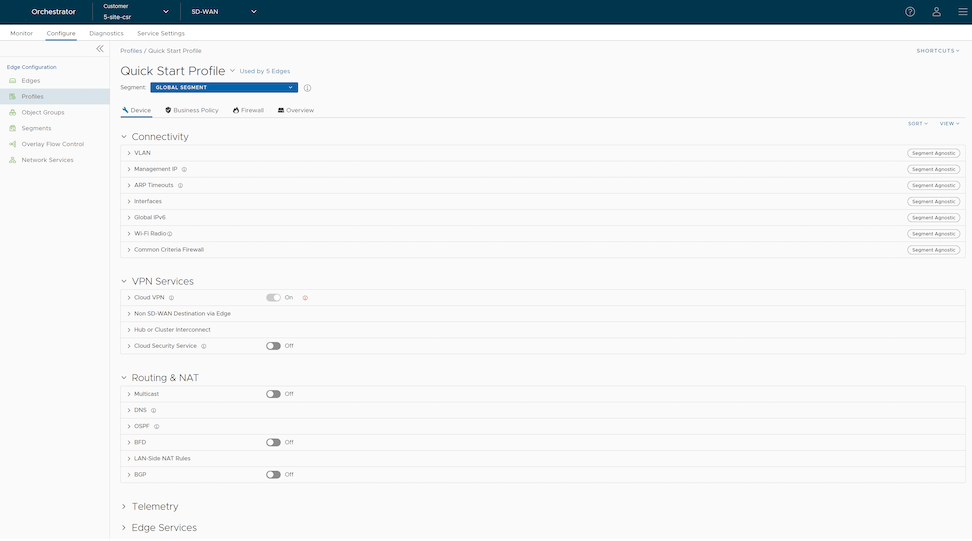
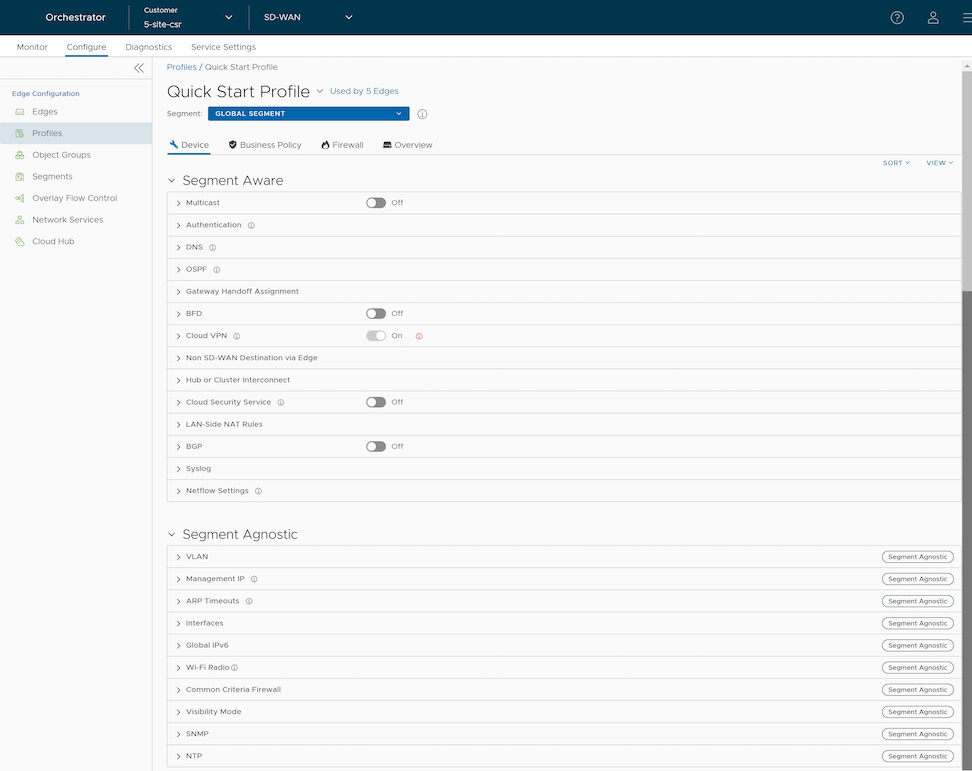
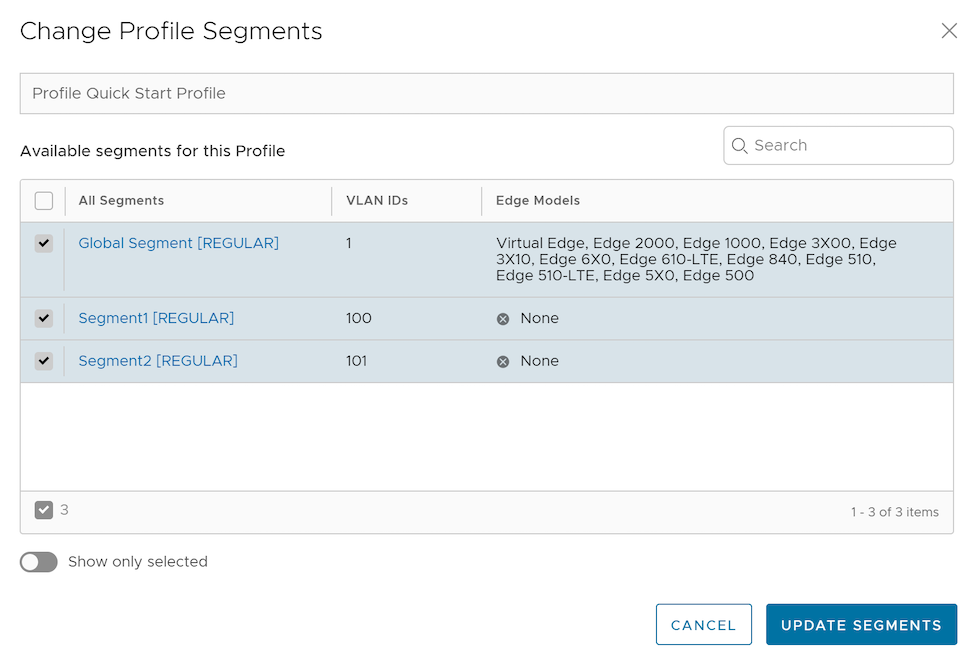
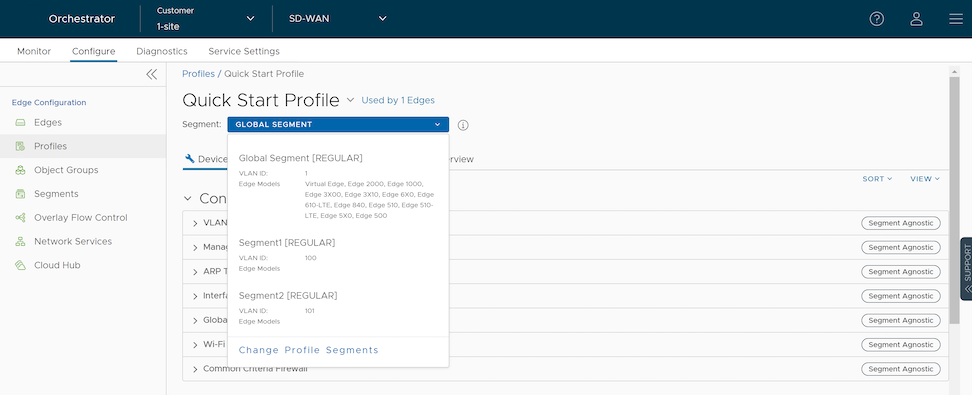
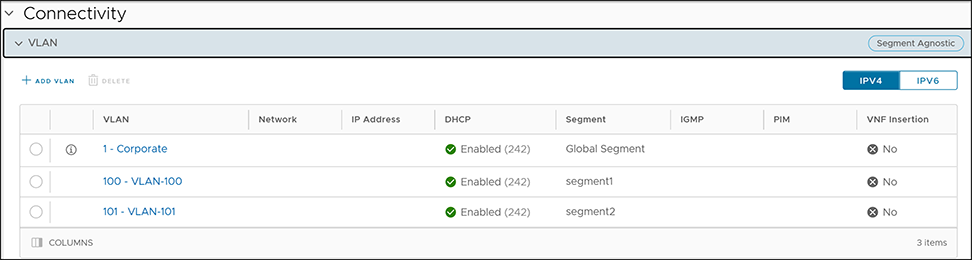
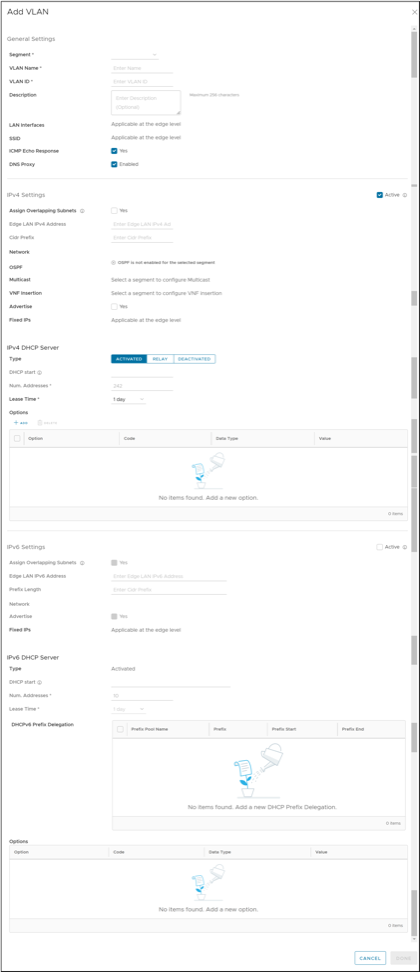

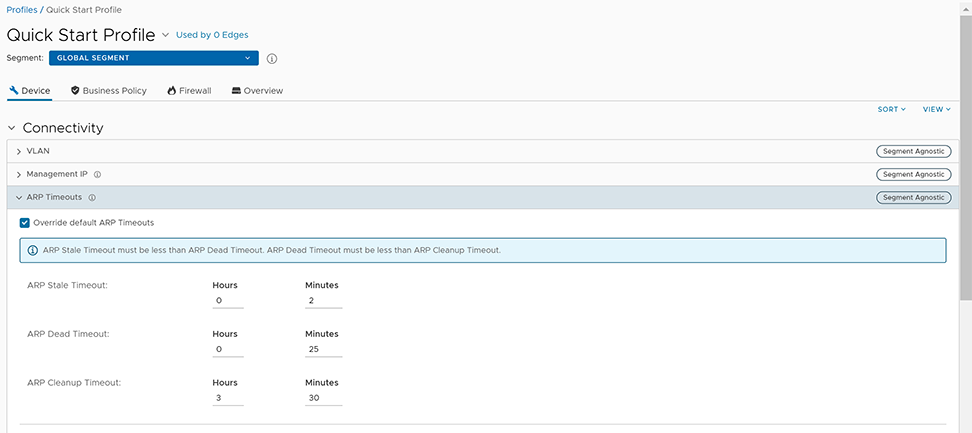
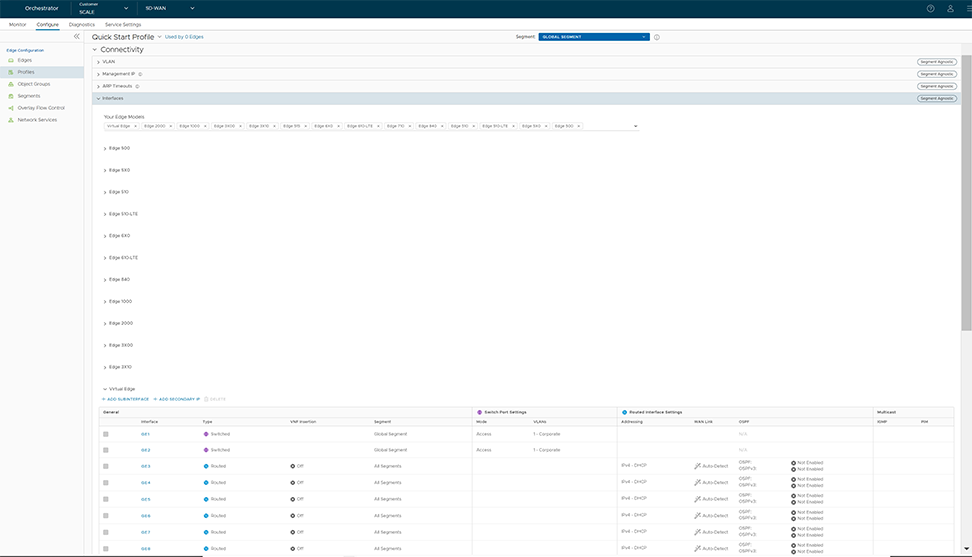
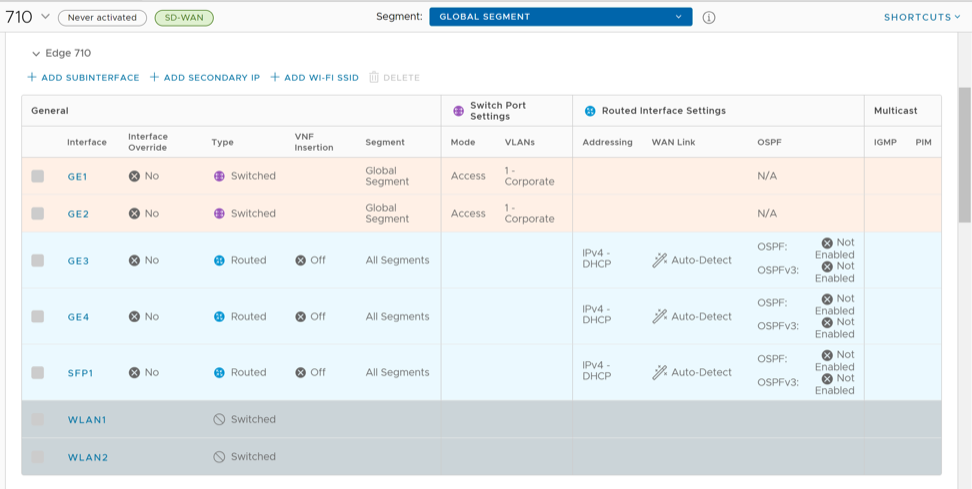
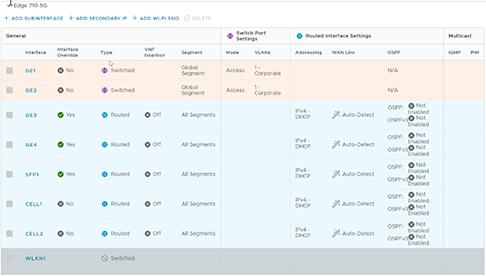
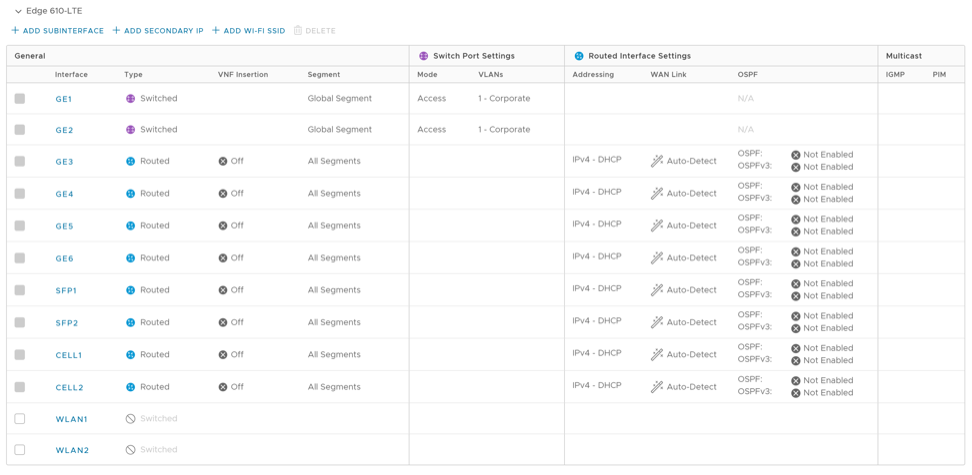
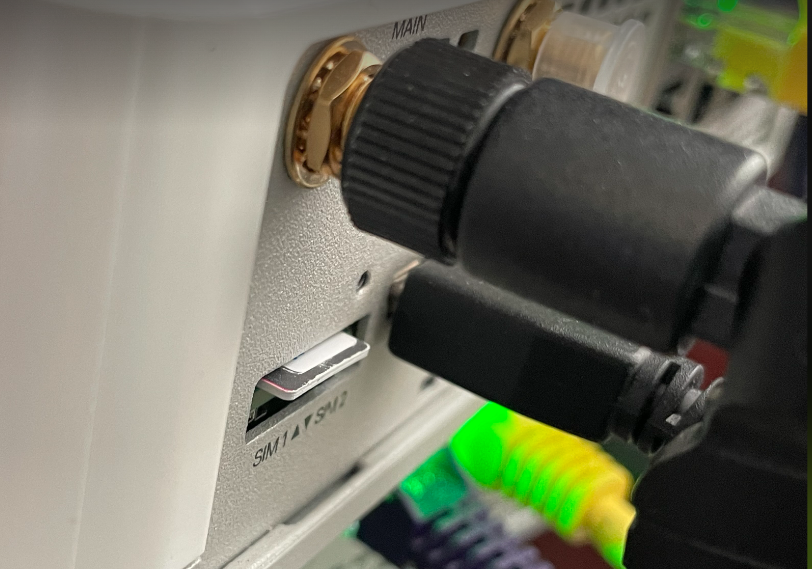
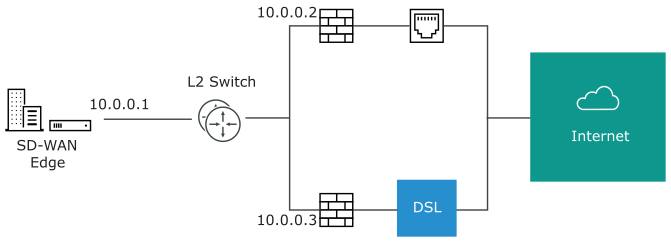
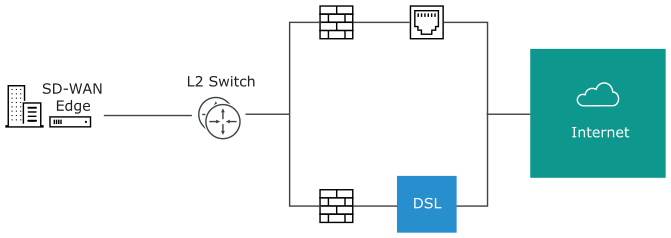
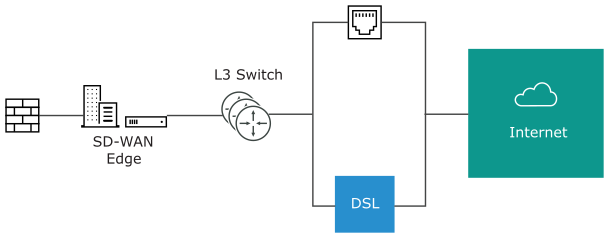
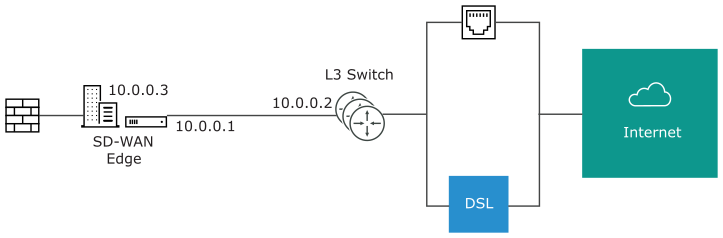
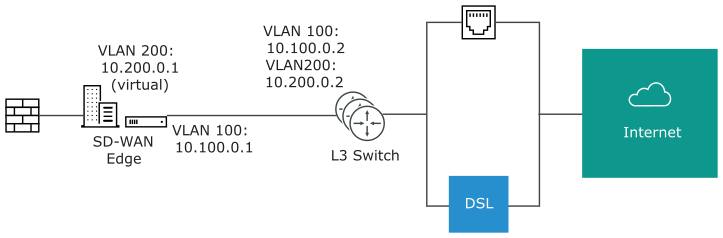
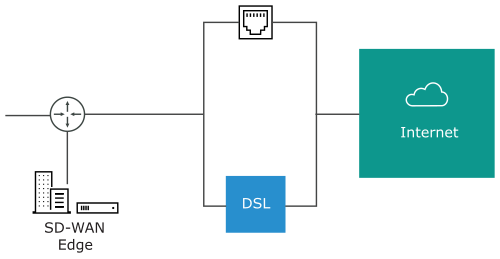
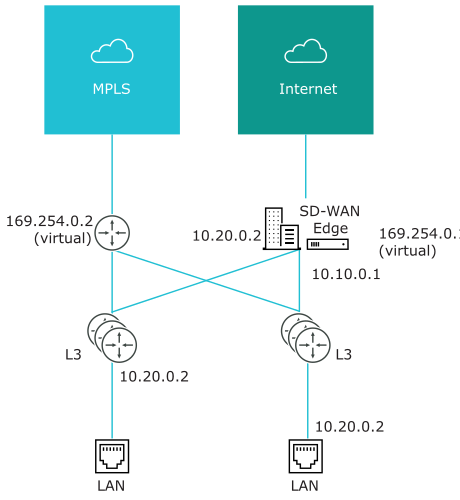
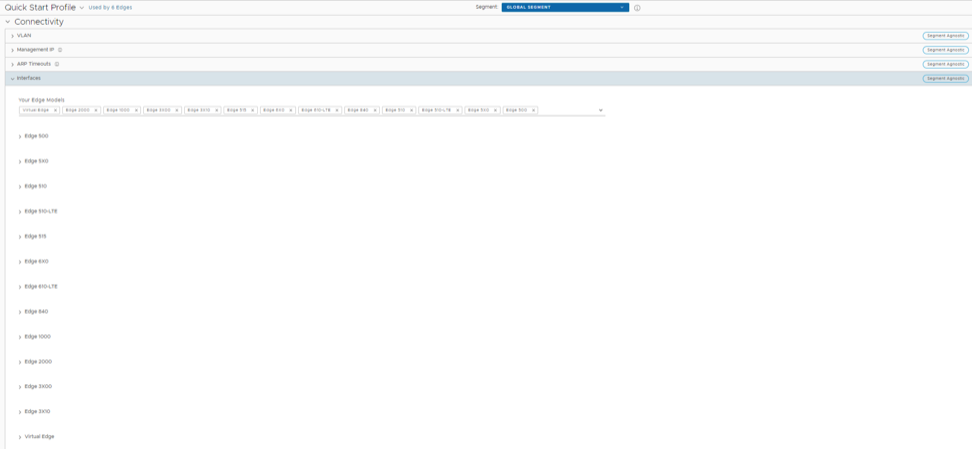
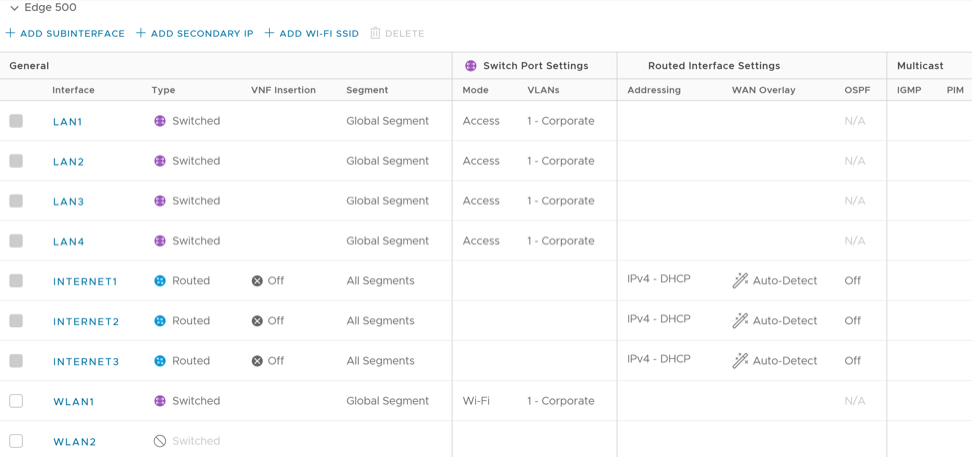
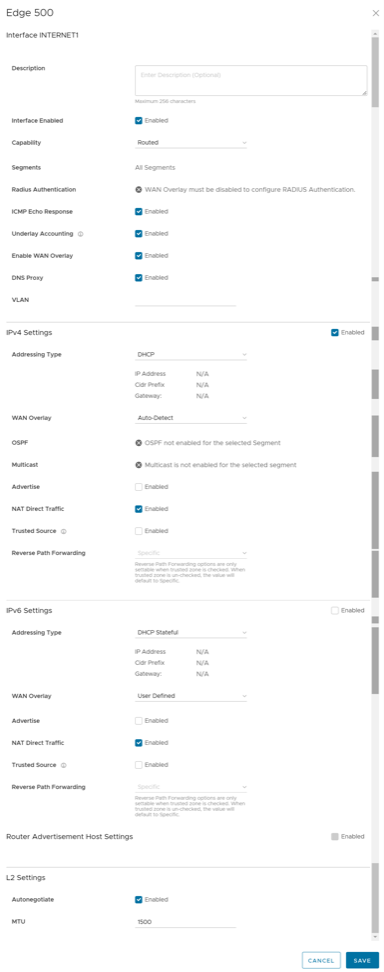
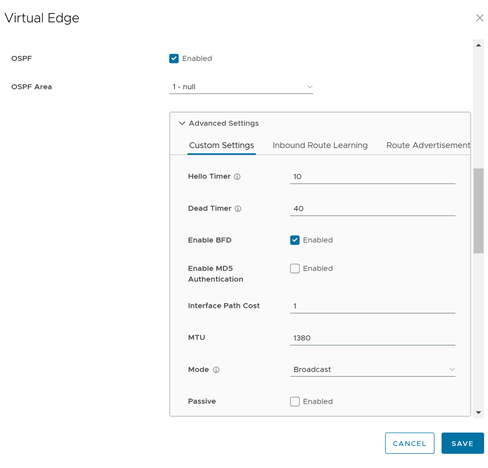 Note:For more information on OSPF settings and OSPFv3, see Activate OSPF for Profiles.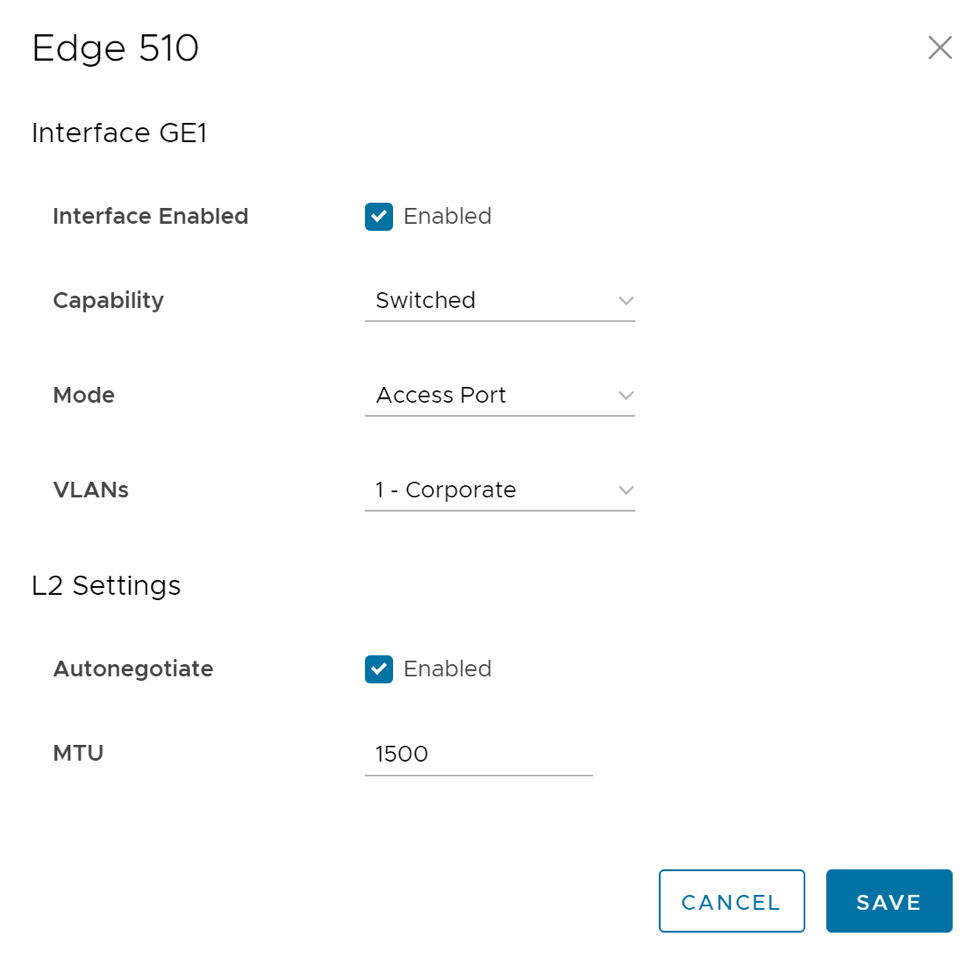
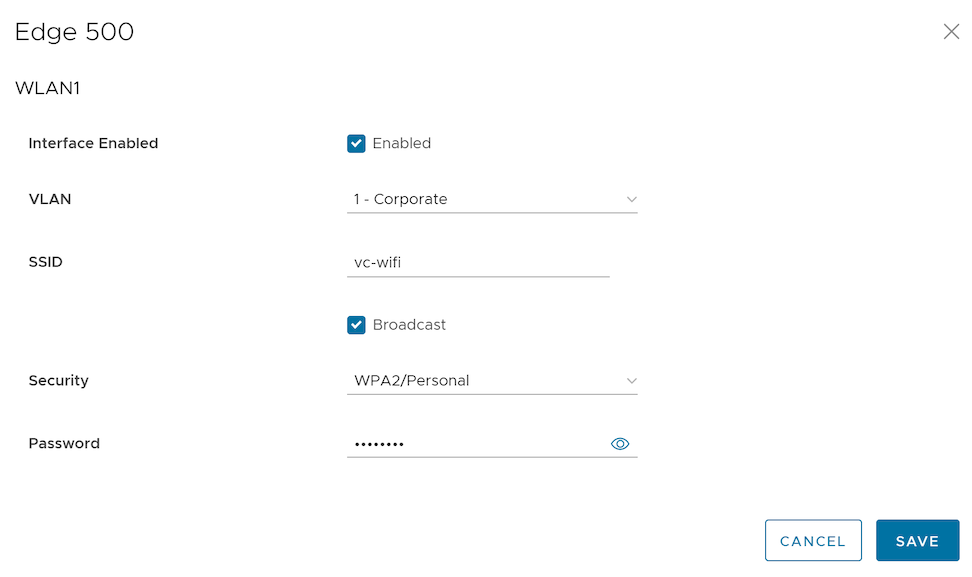

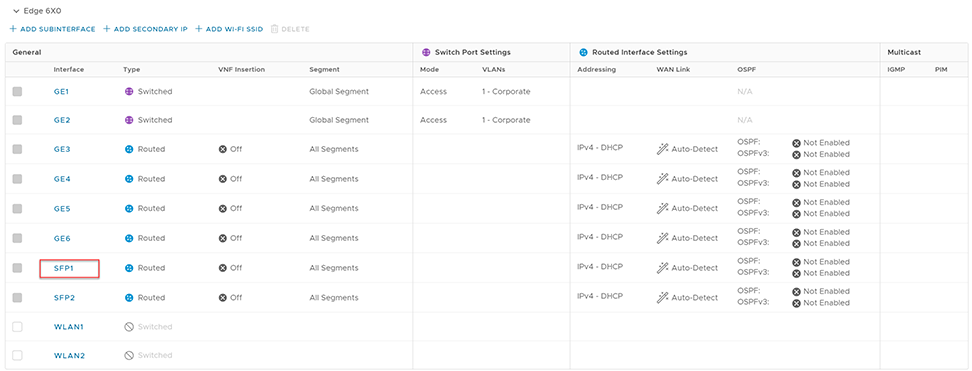
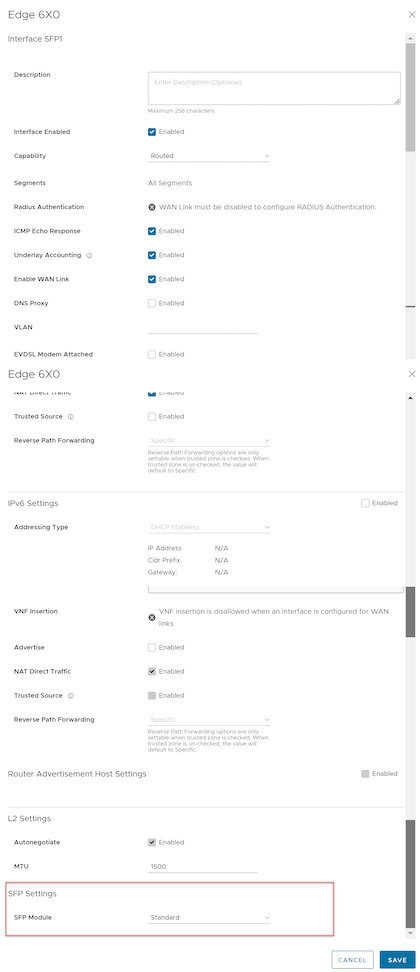
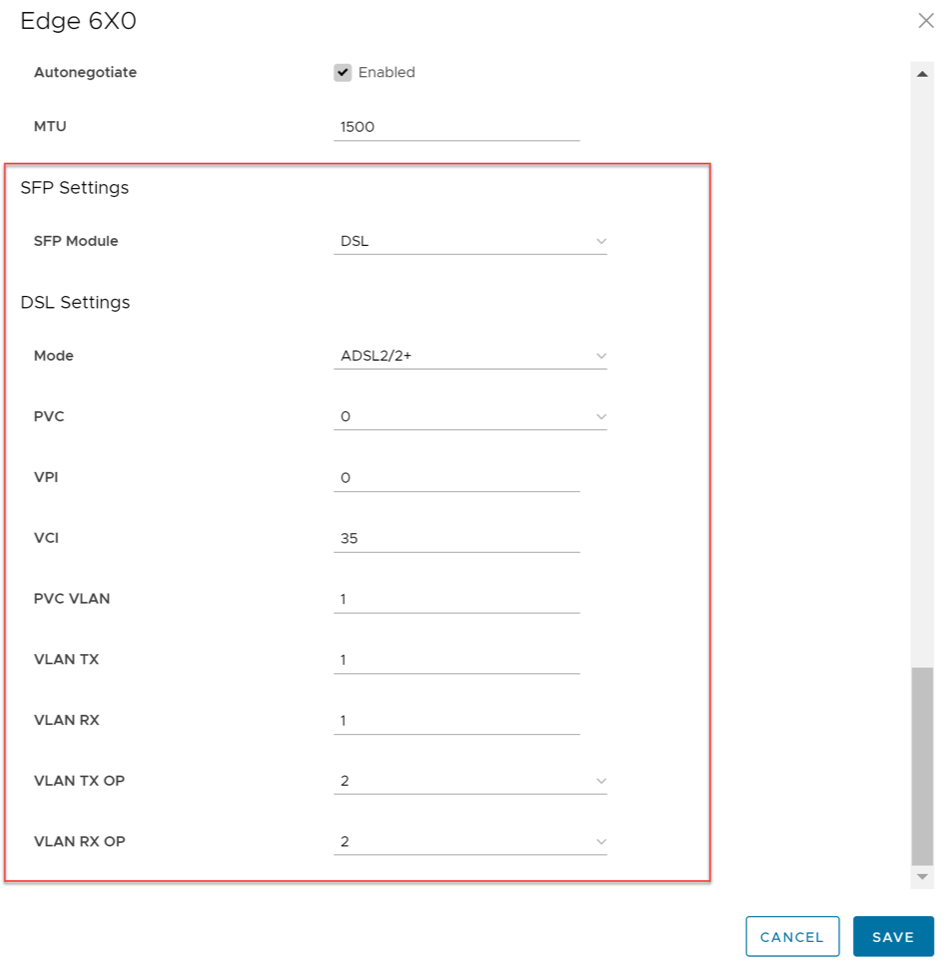
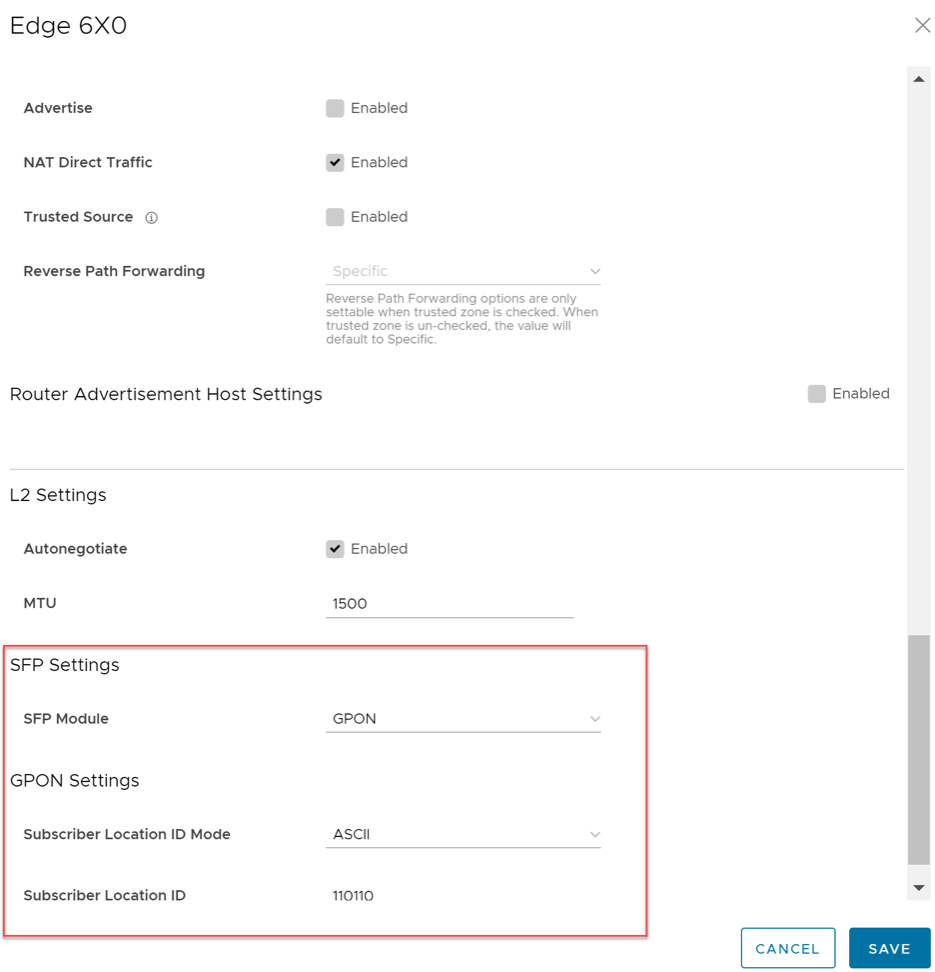
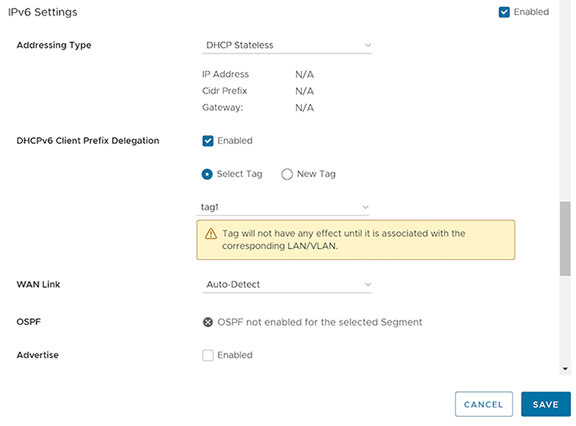
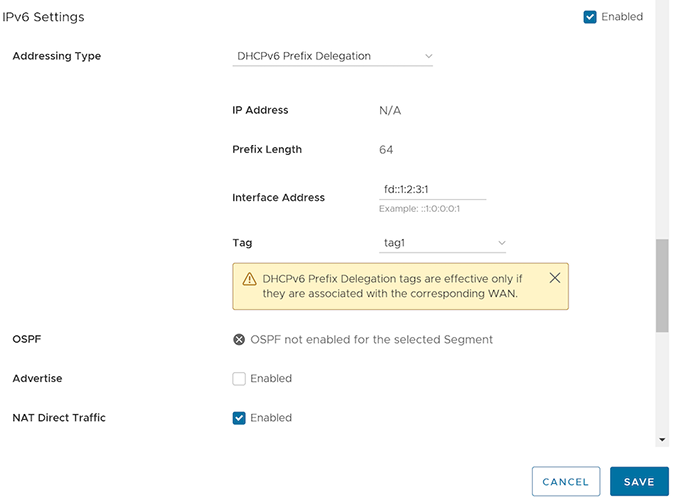
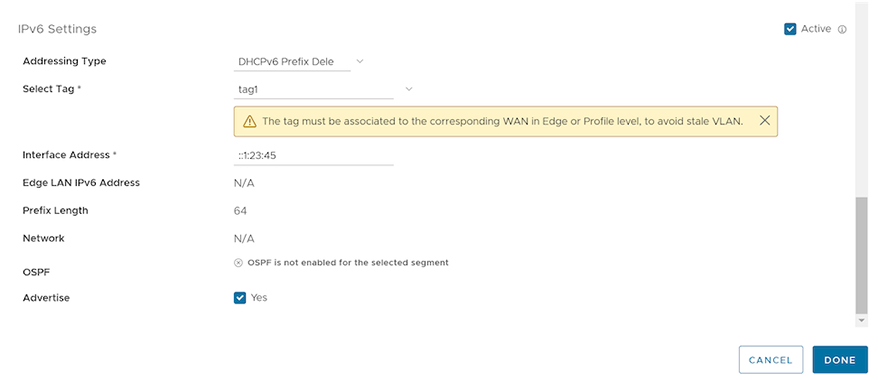
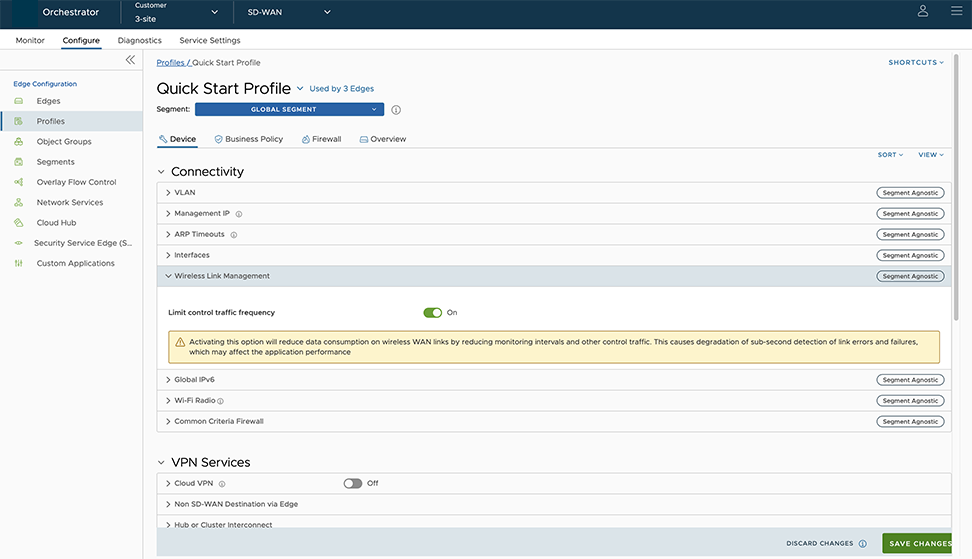
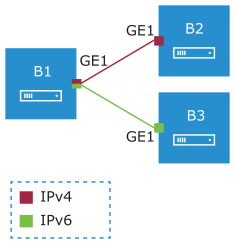
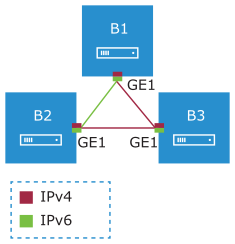
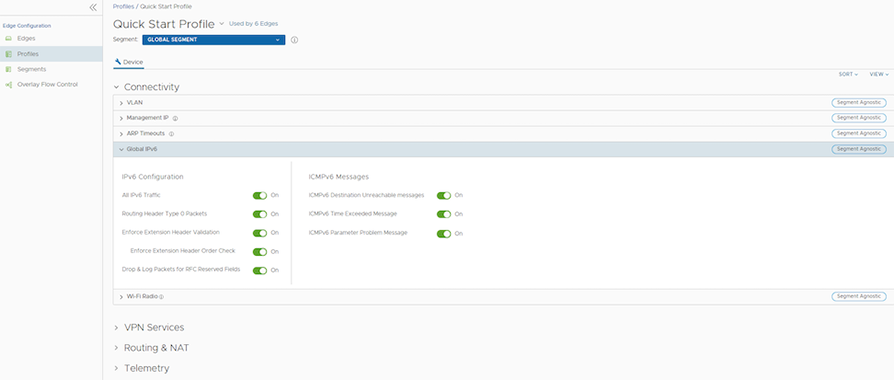
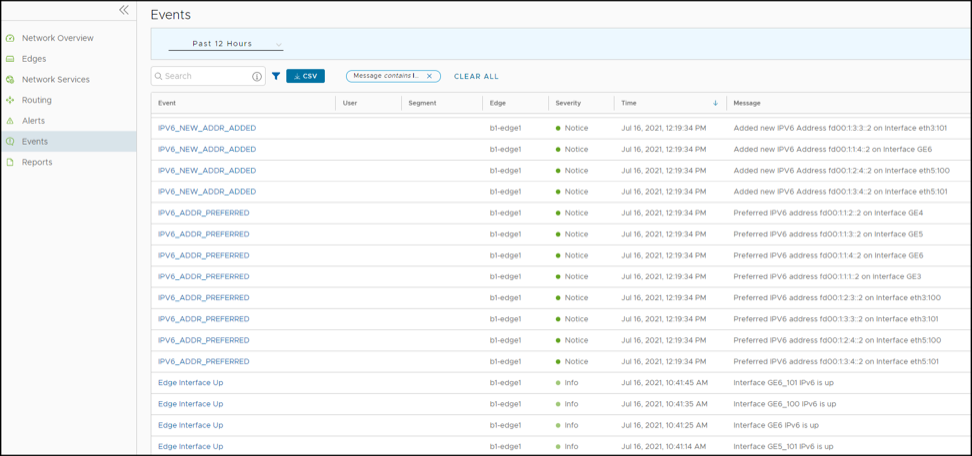
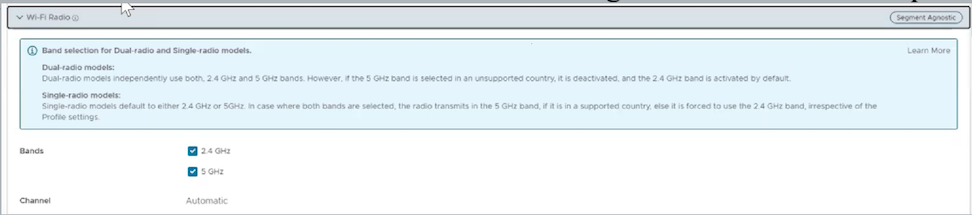
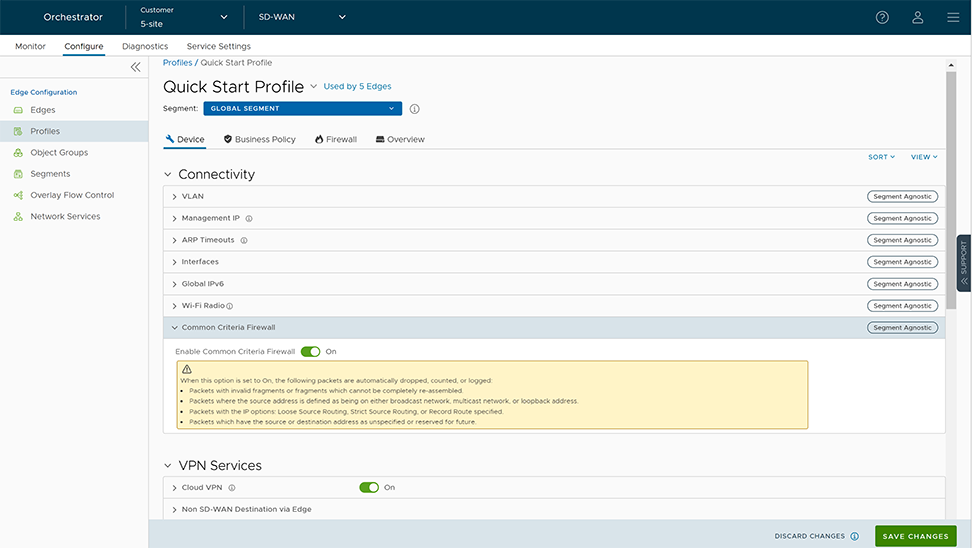
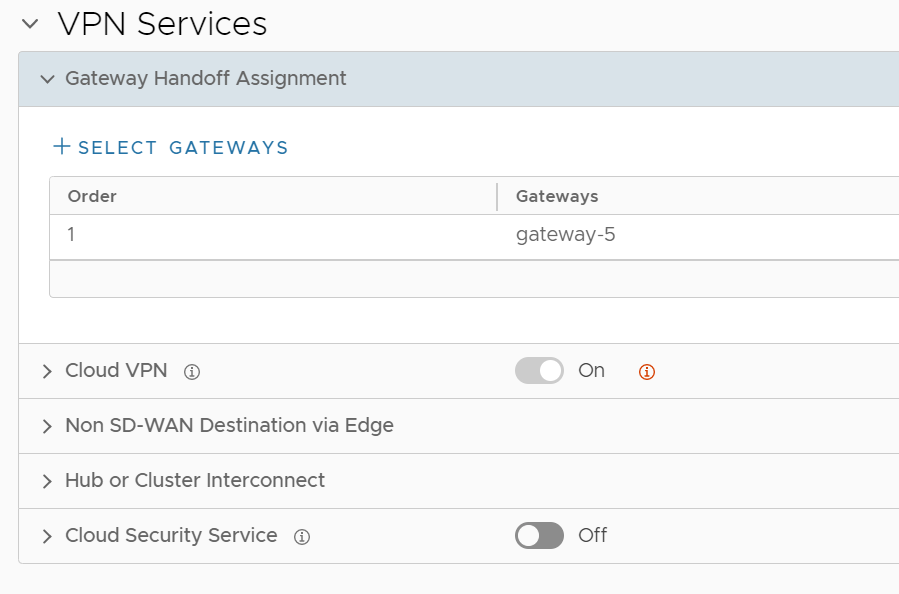
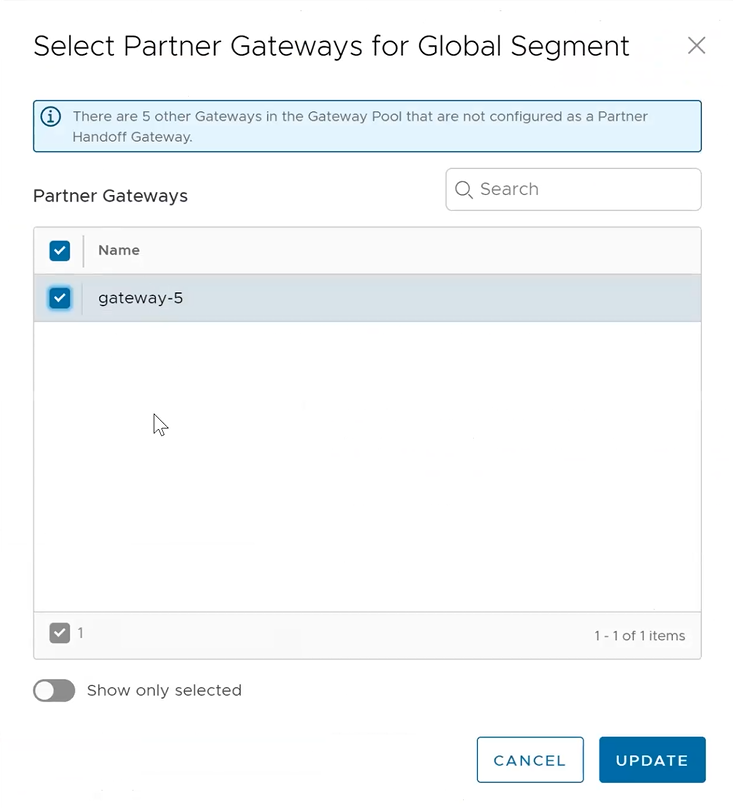
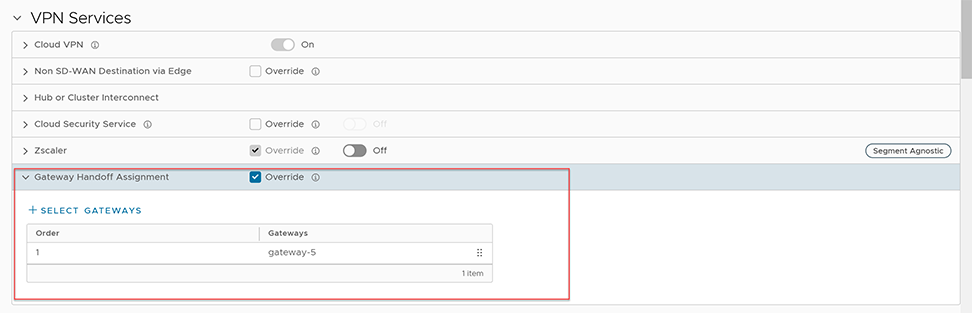
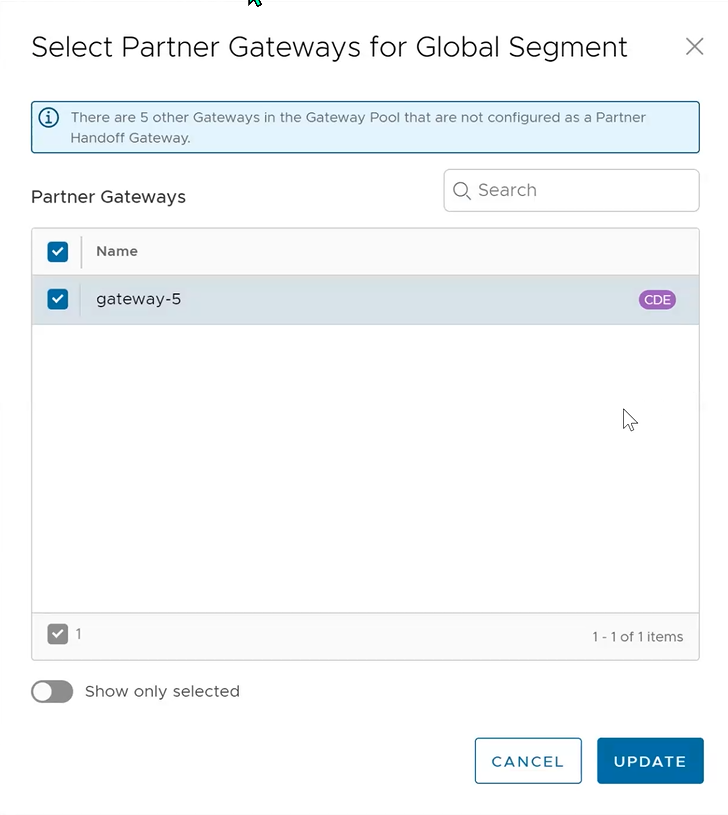
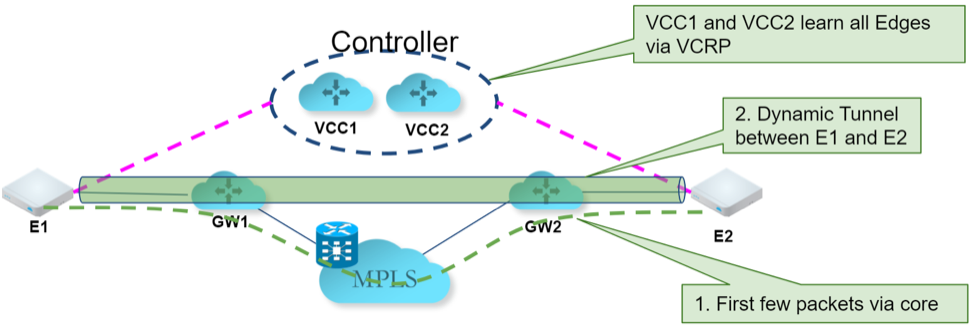
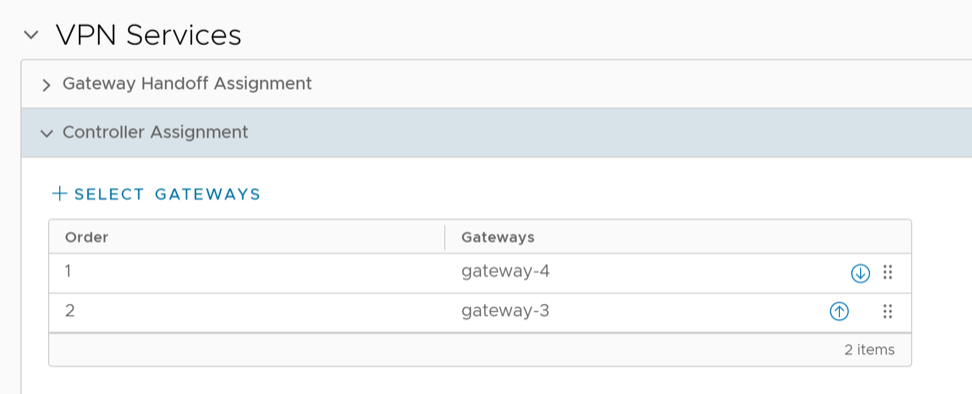
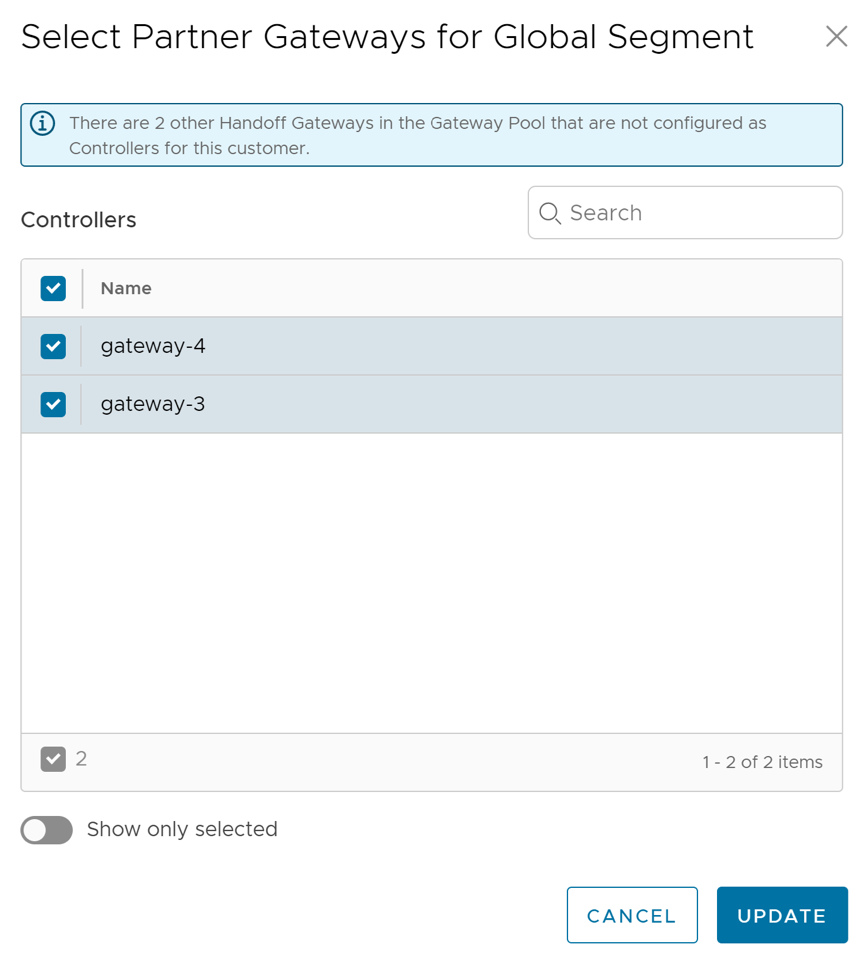
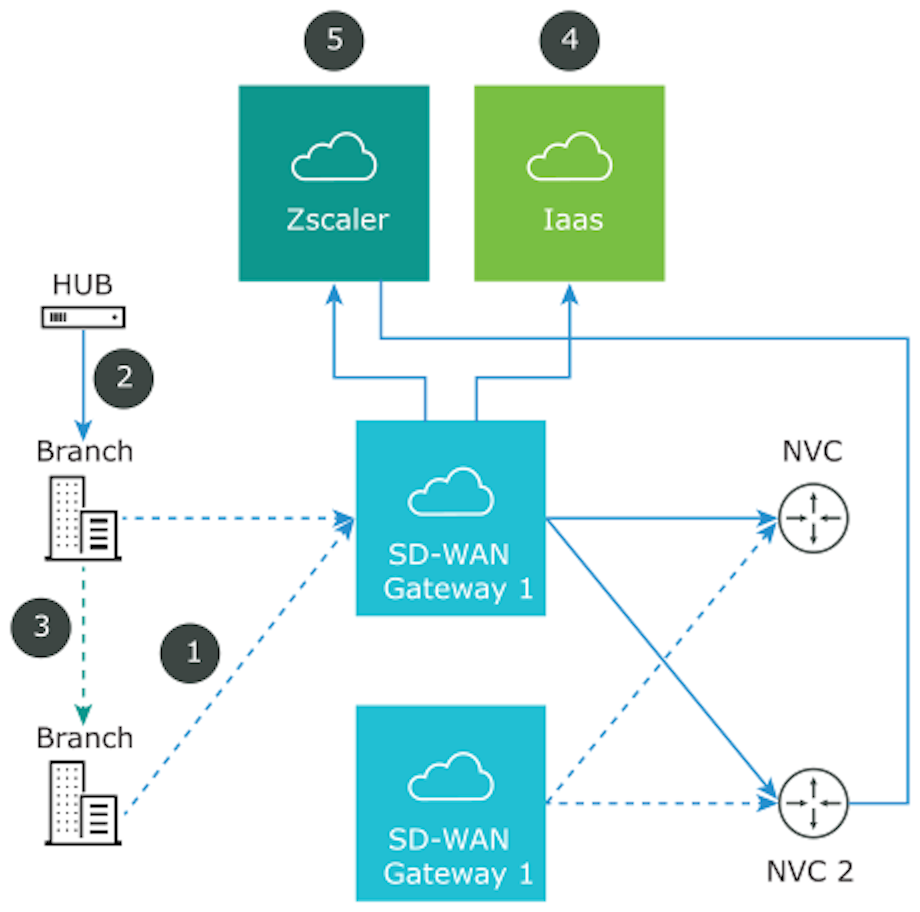
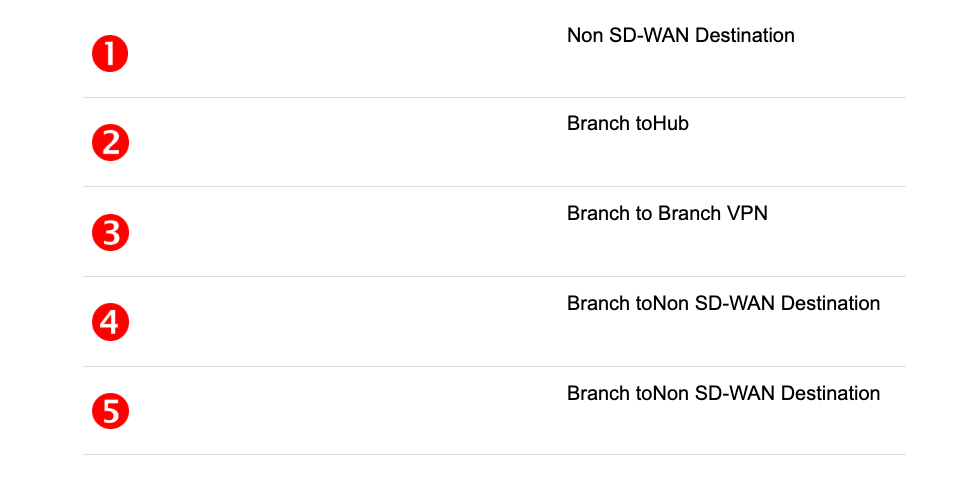
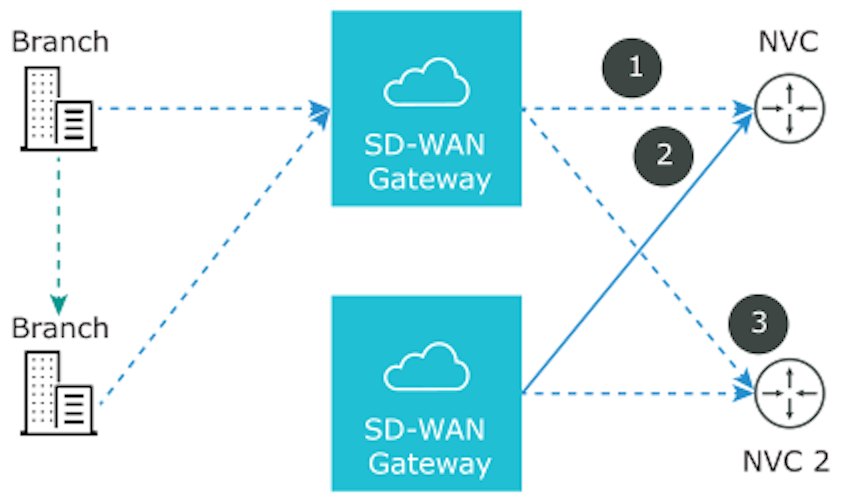
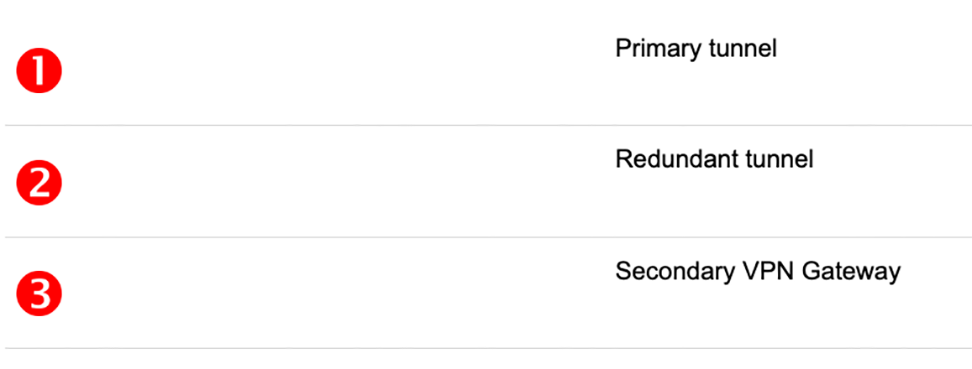
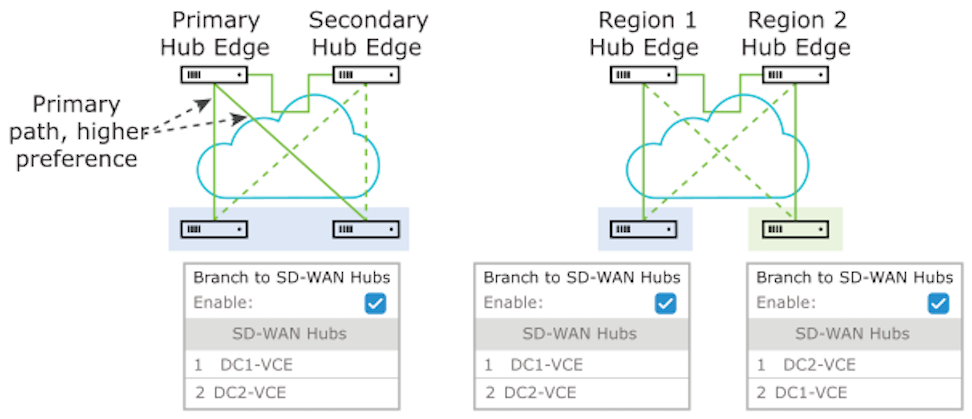
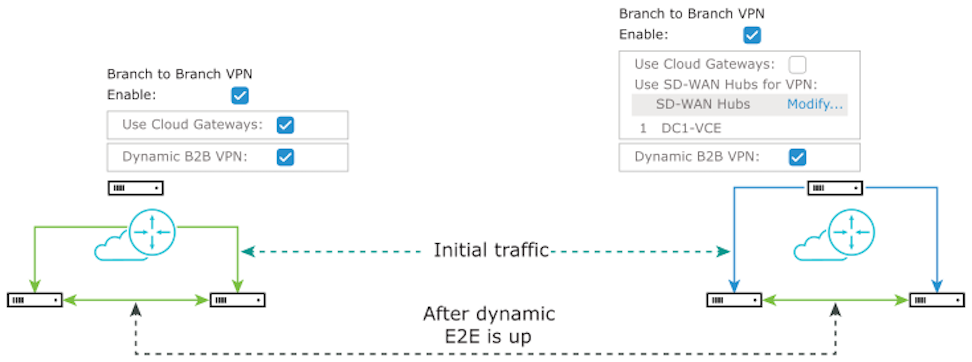
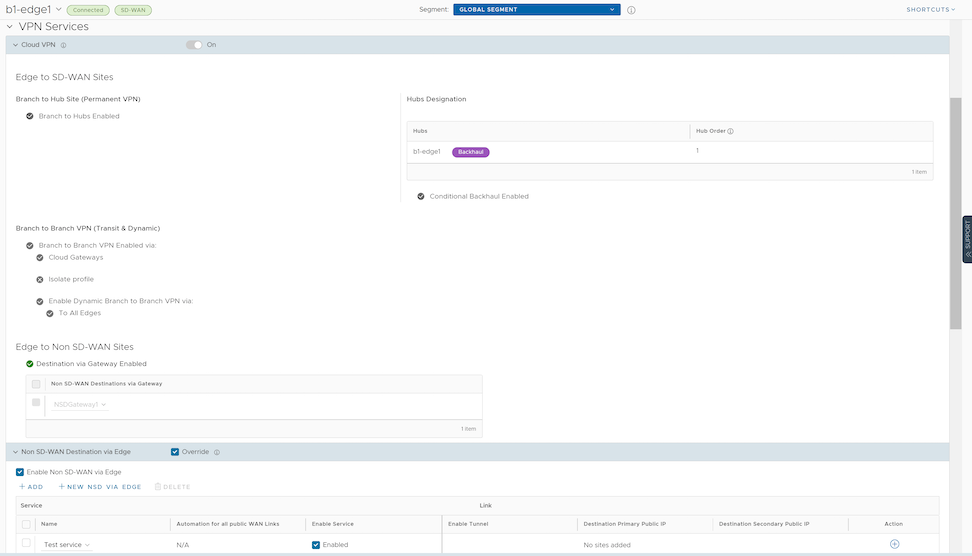 After activating Cloud VPN for a profile, configure any of the following Cloud VPN types: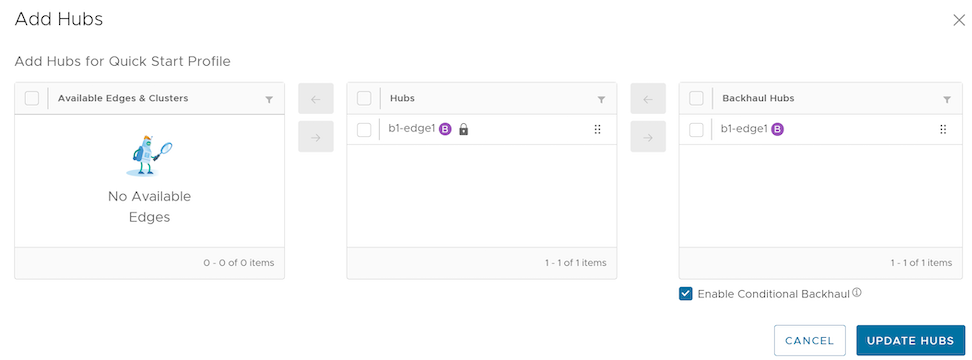
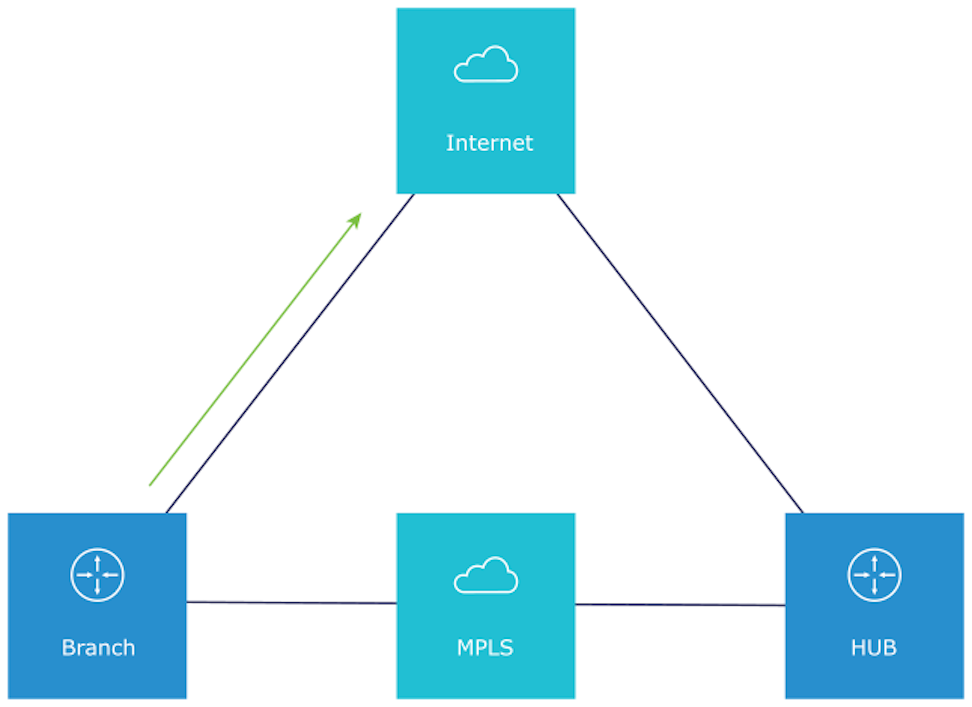
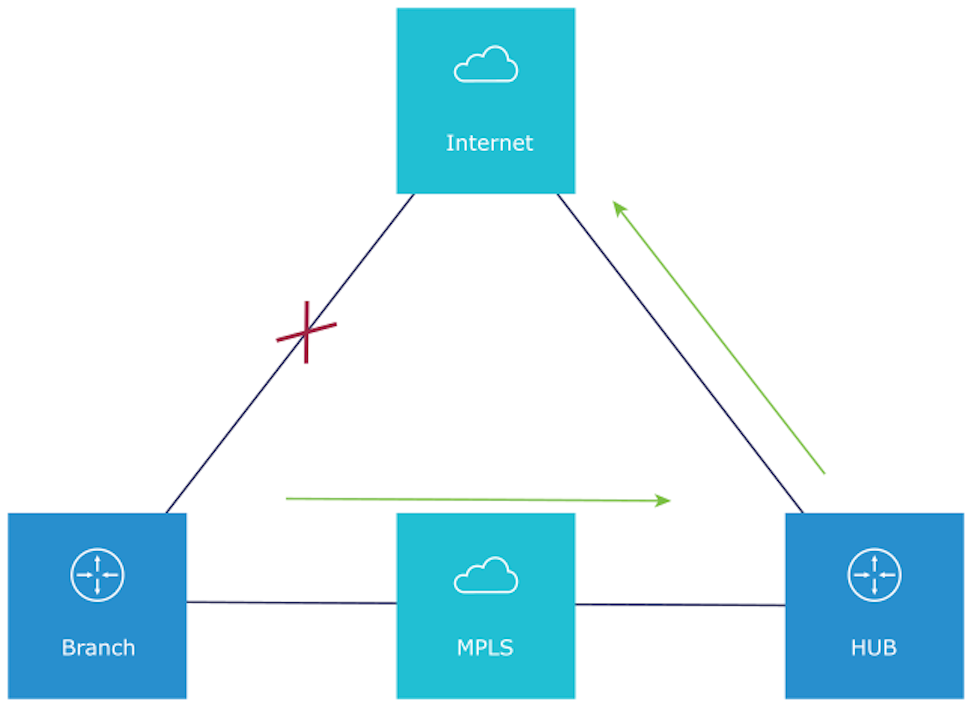
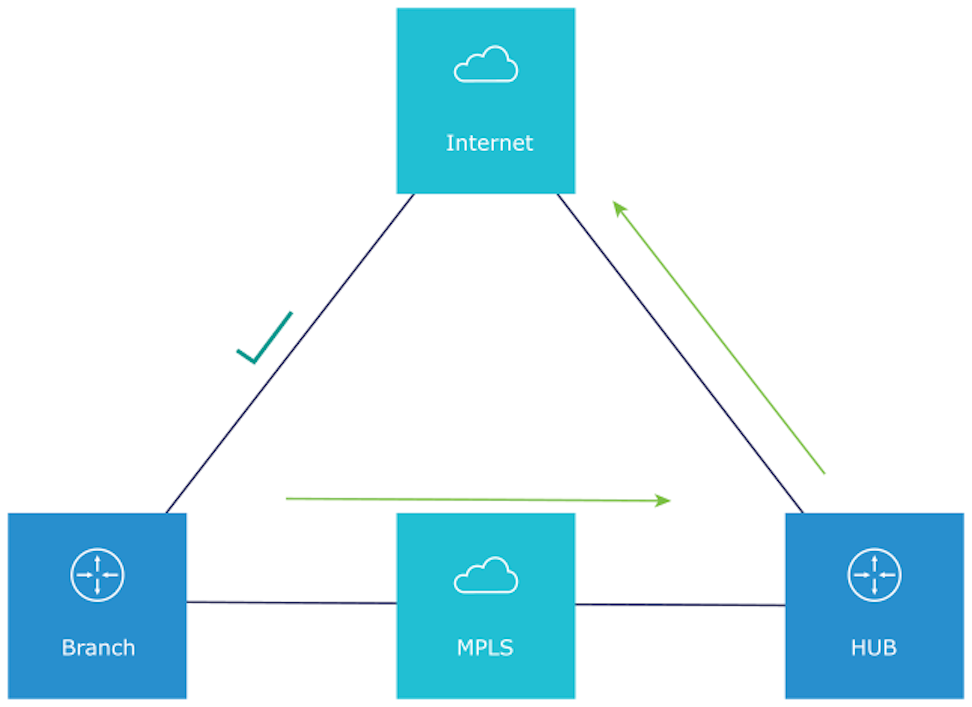
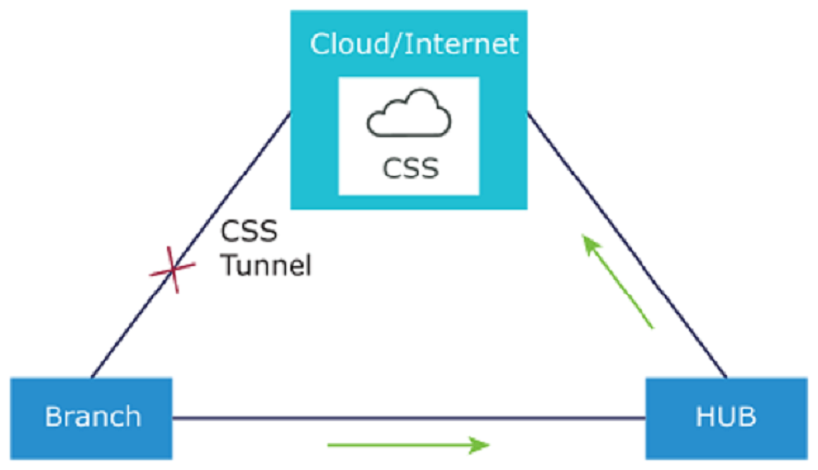
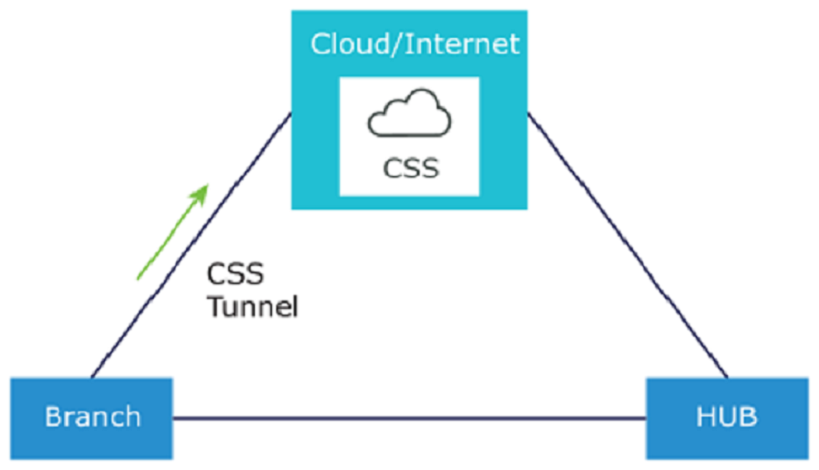
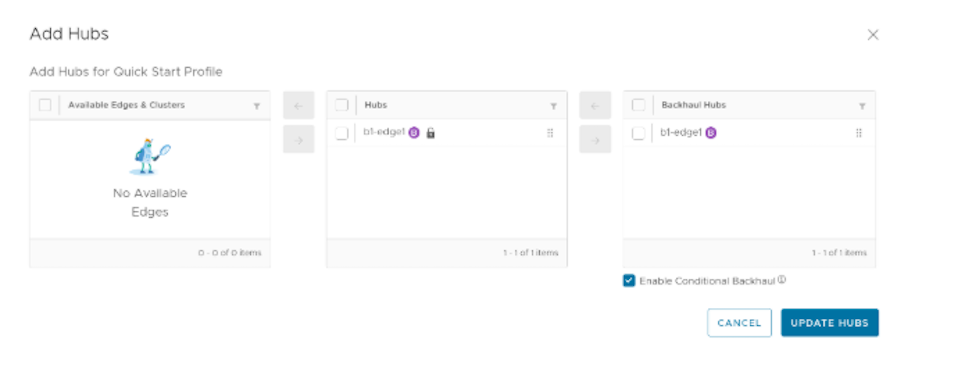
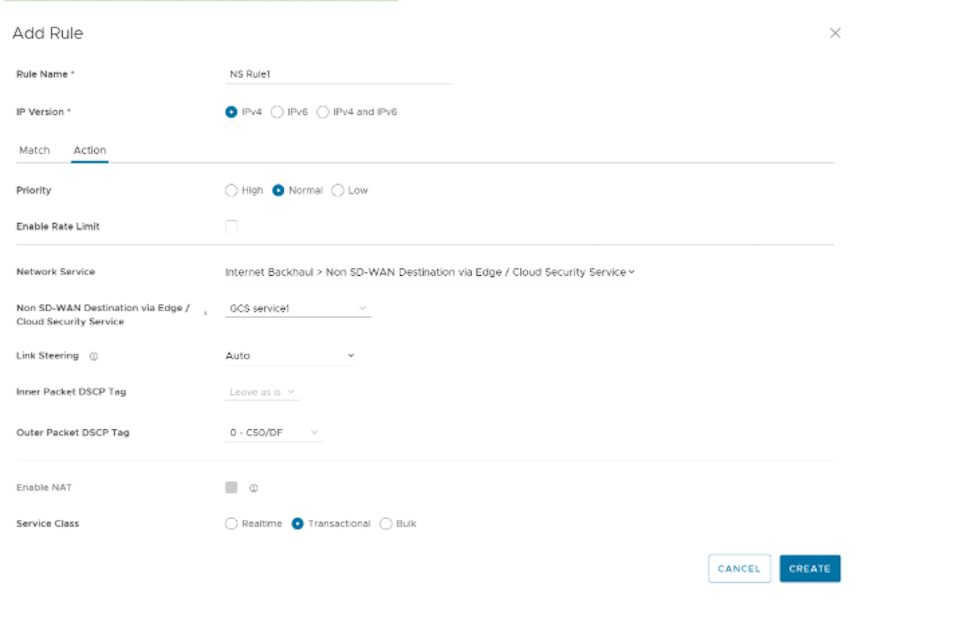 Note:
Note: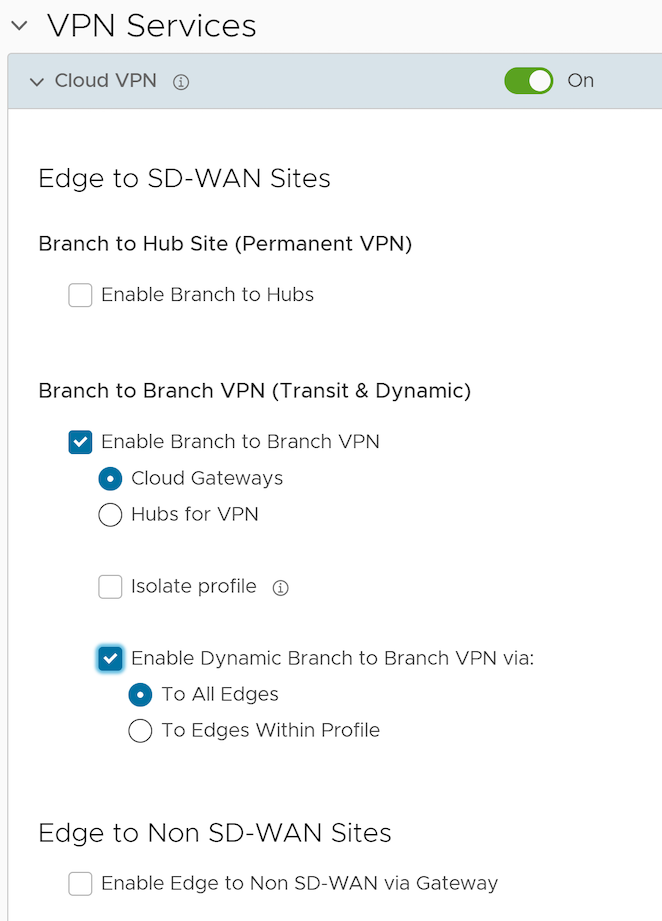
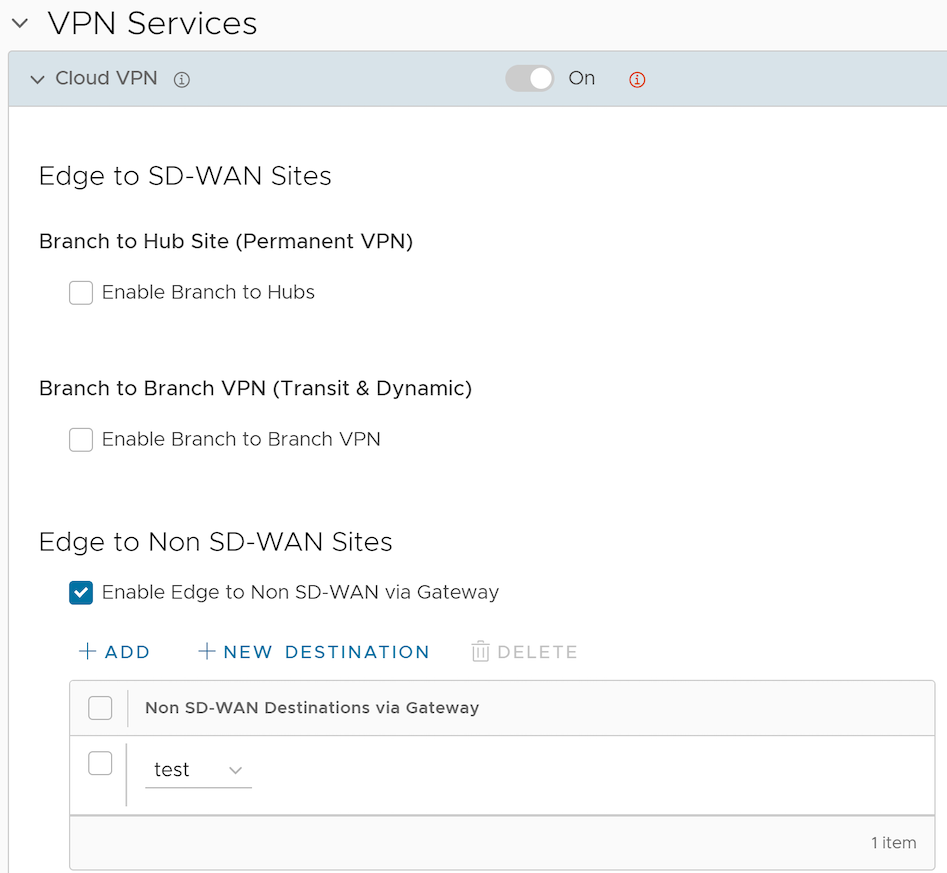
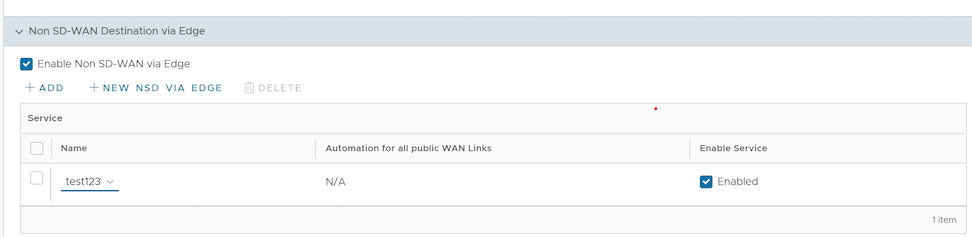

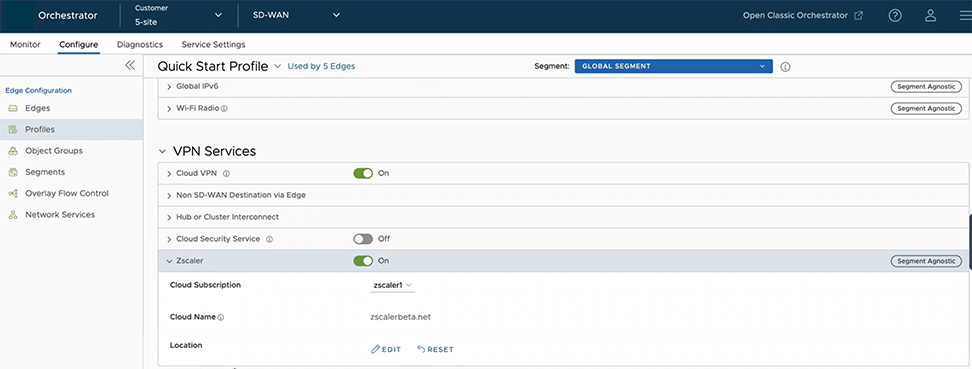
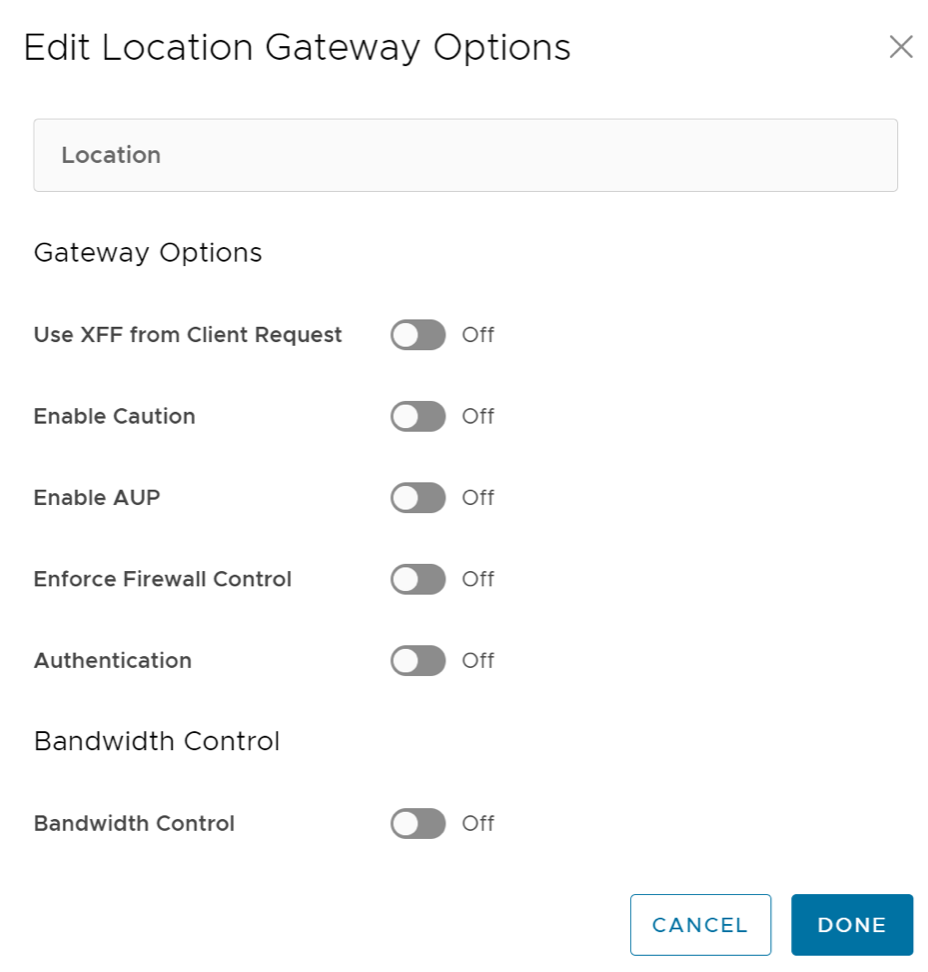
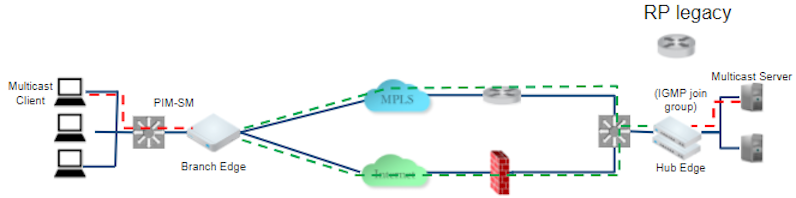
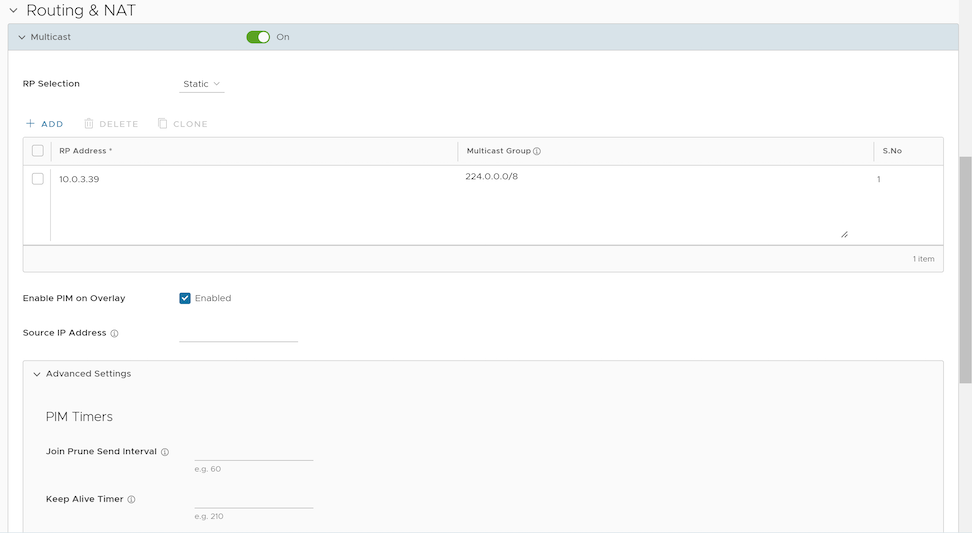
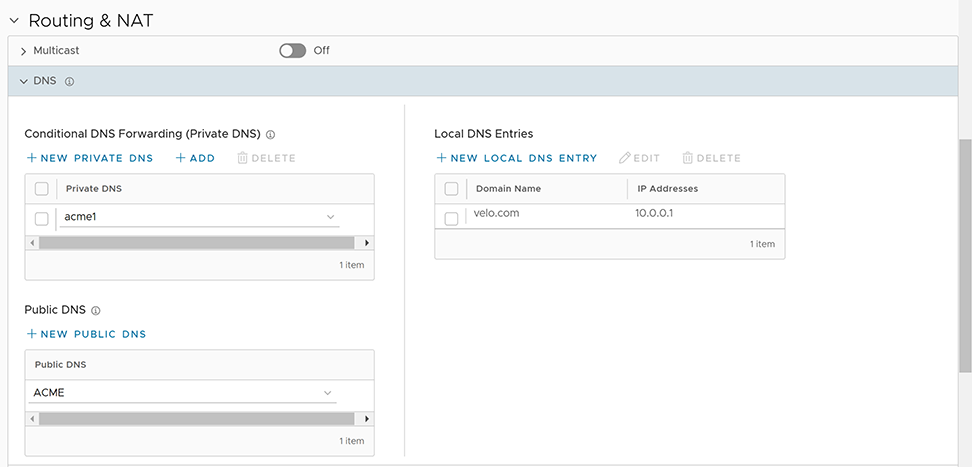
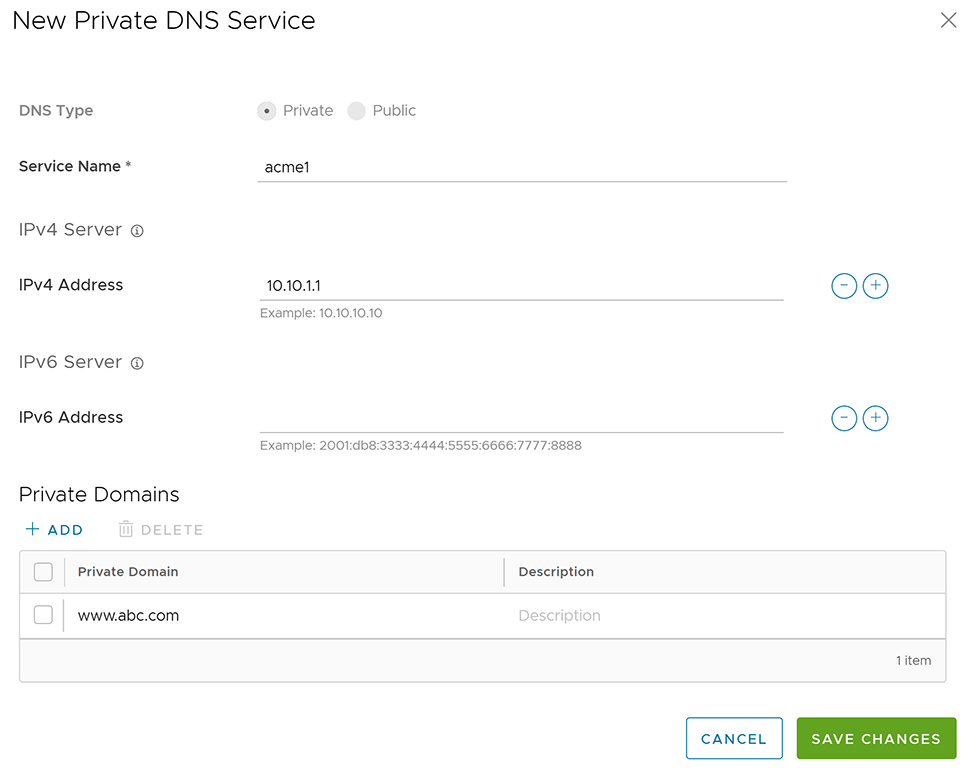 Following are the available options:
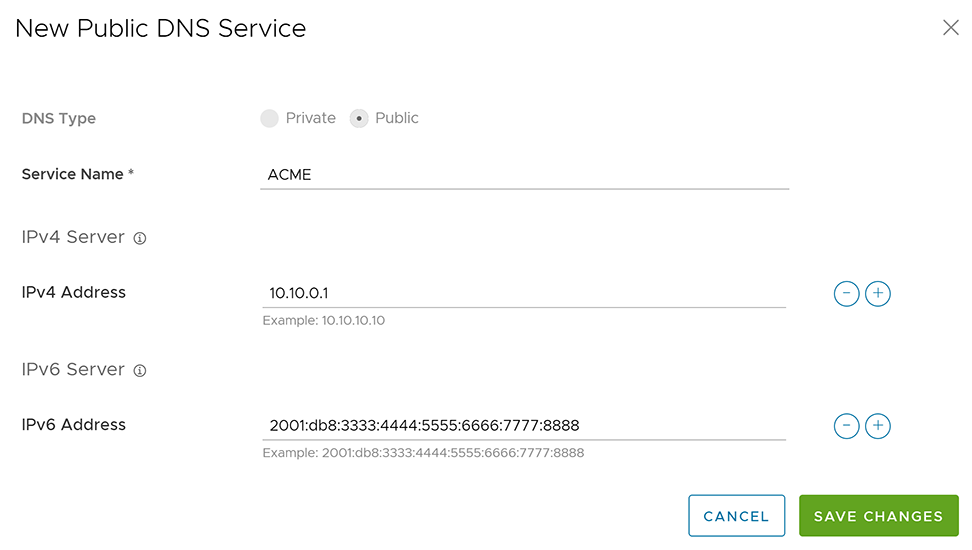 Following are the available options:
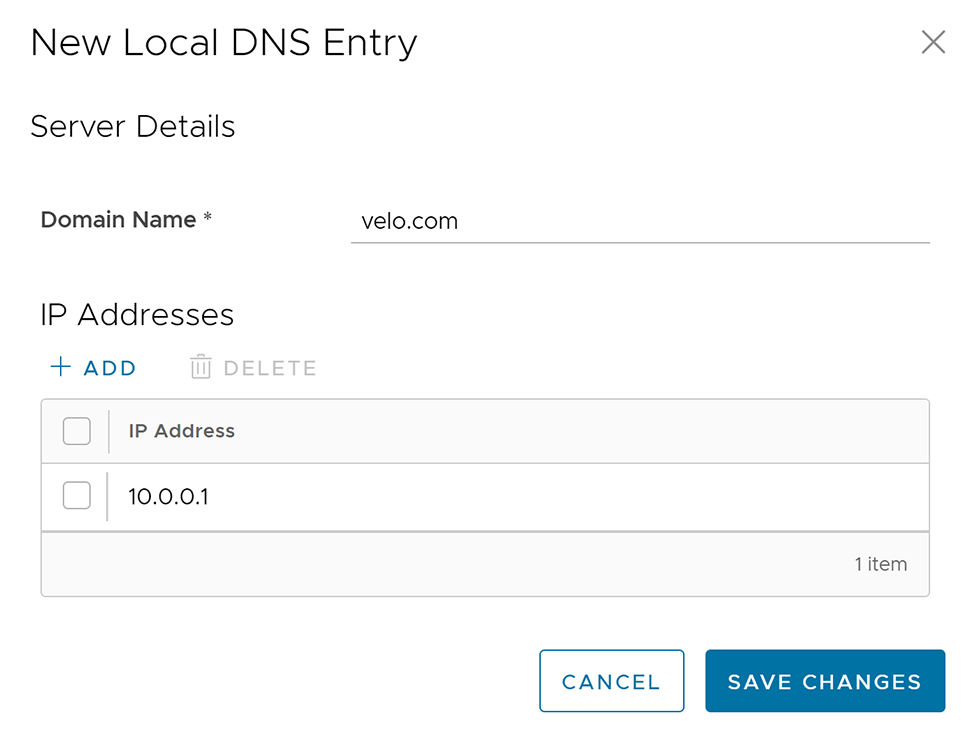 Following are the available options: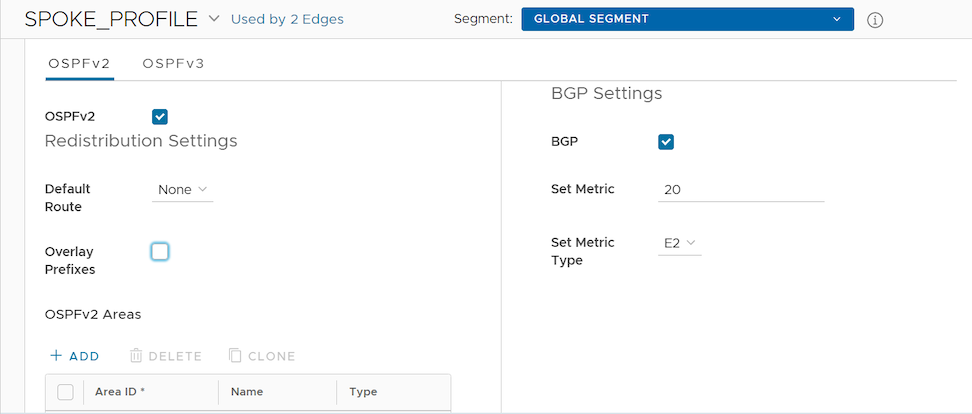
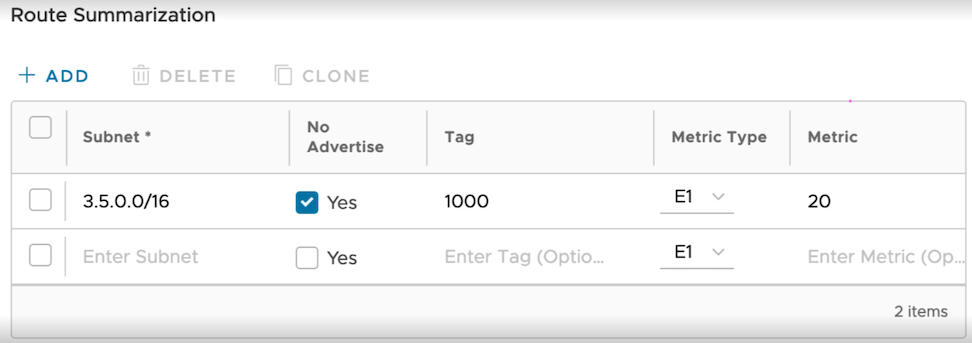
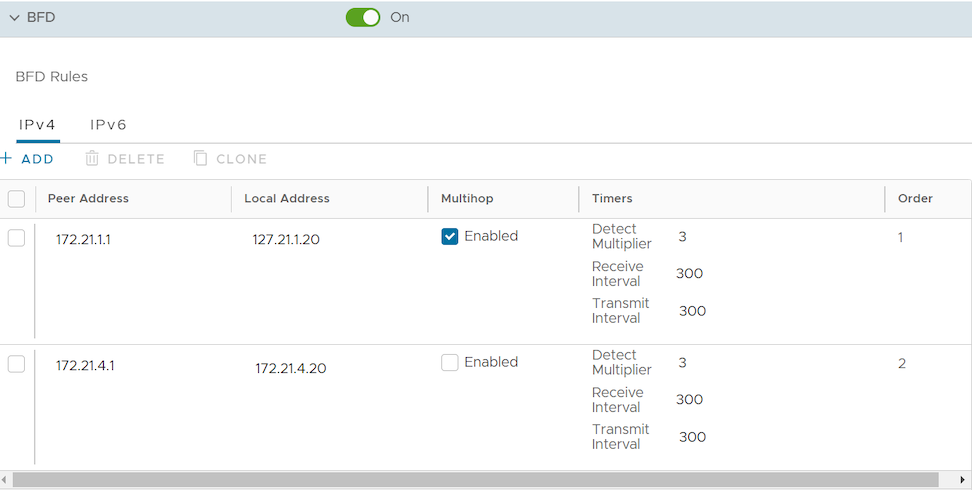
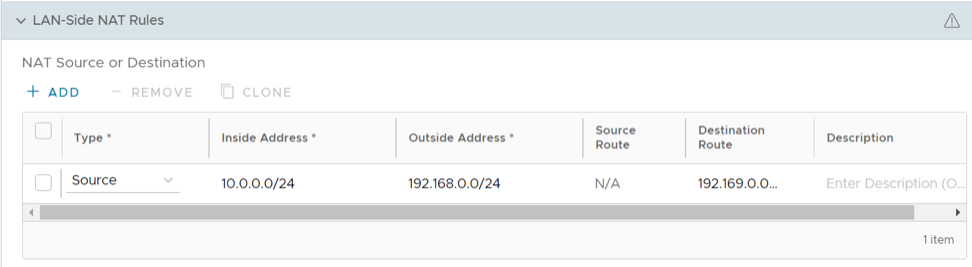
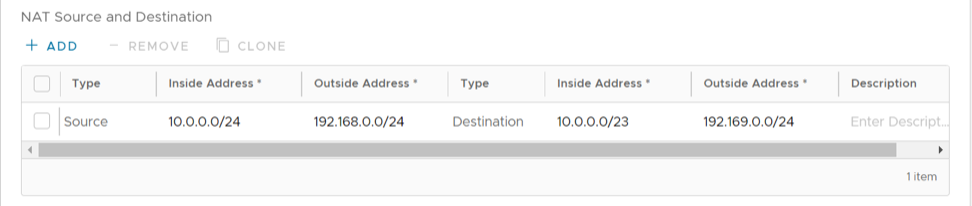 Important:If the Inside Prefix has a lesser value than the Outside Prefix, the feature supports Many:1 NAT in the LAN to WAN direction and 1:1 NAT in the WAN to LAN direction. For example, if the Source Type has an Inside Address with a value of