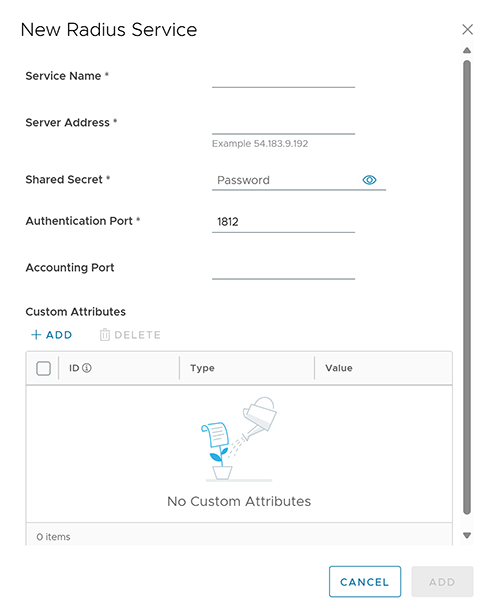
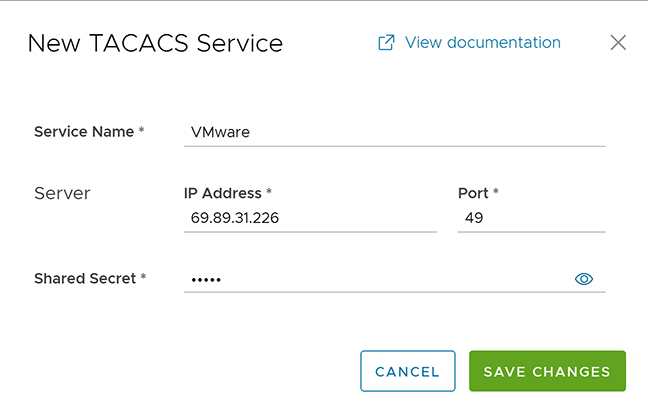
As an Enterprise user, Orchestrator allows you to configure a number of network services across multiple Edges and Profiles.
Note: If you are logged in using a user ID that has Customer Support privileges, you can only view the Orchestrator objects. You cannot create new objects or configure/update existing ones.
To configure Network Services, select Configure > Network Services
Figure 1. Displaying Network Services
Configure the following types of Network Services:
Note: Configuring Network Services is optional and can be configured in any order.
Configure a Non SD-WAN Destination
The Non SD-WAN Destination (earlier known as Non VeloCloud Site (NVS)) functionality consists of connecting a VeloCloud network to an external Network such as Zscaler, Cloud Security Service, Azure, AWS, Partner Datacenter, and so on. This is achieved by creating a secure Internet Protocol Security (IPsec) tunnel between a VeloCloud entity and a VPN Gateway at the Network Provider. VeloCloud allows Enterprise users to define and configure a datacenter type of Non SD-WAN Destination instance and establish a secure tunnel directly to an External network in the following two ways:
Non SD-WAN Destinations via Gateway
Non SD-WAN Destinations via Edge
Non SD-WAN Destinations via Gateway - Allows an Gateway to establish an IPsec tunnel directly to a Non SD-WAN Destination. VeloCloud supports the following Non SD-WAN Destination configurations through Gateway:
AWS VPN Gateway The AWS VPN Gateway type is introduced in the 4.3.0 release.
Check Point
Cisco ASA
Cisco ISR
Generic IKEv2 Router (Route Based VPN)
Microsoft Azure Virtual Hub
Palo Alto
SonicWALL
Zscaler
Generic IKEv1 Router (Route Based VPN)
Generic Firewall (Policy Based VPN)
VeloCloud supports both Generic Route-based and Policy-based Non SD-WAN Destination from Gateway.
Non SD-WAN Destinations via Edge - Allows an Edge to establish an IPsec tunnel directly to a Non SD-WAN Destination (AWS and Azure Datacenter). VeloCloud supports the following Non SD-WAN Destination configurations through Edge:
Configure a Non SD-WAN Destination Network Service.
Associate a Non SD-WAN Destination Network Service to a Profile or Edge.
Configure Tunnel Parameters - WAN link selection and Per tunnel credentials.
Configure Business Policy.
VPN Workflow
This is an optional service that allows you to create VPN tunnel configurations to access one or more Non SD-WAN Destinations . VeloCloud provides the configuration required to create the tunnel(s) – including creating IKE IPsec configuration and generating a pre-shared key.
Overview
The following figure shows an overview of the VPN tunnels that can be created between VeloCloud and a Non SD-WAN Destination.
Figure 2. VPN Tunnels between VeloCloud and a Non SD-WAN Destination
Note: It is required that an IP address be specified for a Primary VPN Gateway at the Non SD-WAN Destination. The IP address is used to form a Primary VPN Tunnel between a Gateway and the Primary VPN Gateway.
Optionally, an IP address can be specified for a Secondary VPN Gateway to form a Secondary VPN Tunnel between a Gateway and the Secondary VPN Gateway. Using Advanced Settings, Redundant VPN Tunnels can be specified for any VPN tunnels you create.
Important: Beginning with the 4.0 release, it is required that the AES-NI instruction set be supported by the CPU on all types of Virtual Machines.
Configuring Non SD-WAN Destinations via Gateway
VeloCloud allows the Enterprise users to define and configure a Non SD-WAN Destination instance to establish a secure IPsec tunnel to a Non SD-WAN Destination through an Gateway.
The Orchestrator selects the nearest Gateway for the Non SD-WAN Destination with a configured IP address, using a geolocation service.
Configure Non SD-WAN Destination via Gateway only at the Profile Level and it cannot override at the SD-WAN Edge level.
ECMP
To optimize the utilization of the aggregated bandwidth across the ingress interfaces of Non SD-WAN sites, VeloCloud SD-WAN solution incorporates active-active mode support in its gateways.
This can be achieved by enabling the establishment of multiple IPsec tunnels in active-active mode towards Non SD-WAN sites. This configuration allows load balancing of network traffic across tunnels optimizing the flow of distribution.
To implement active-active mode with multiple IPsec tunnels towards Non SD-WAN sites requires the following actions:
Set up tunnels connecting to Non SD-WAN sites with tunnel mode as Active-Active.
Choose the preferred load balancing algorithm.
Configure BGP or Static site subnet routes directing traffic to these sites.
Use the following steps to configure a Non SD-WAN Destination via a Gateway:
In the SD-WAN service of the Enterprise portal, go to Configure > Network Services, and then under Non SD-WAN Destinations, expand Non SD-WAN Destinations via Gateway.
Figure 3. Displaying Non SD-WAN Destinations
Select New or New NSD via Gateway option to create a new Non SD-WAN Destination. The New NSD via Gateway option displays only when there are no items in the table.
Figure 4. Configuring Non SD-WAN Destinations via GatewayECMP- Flow Load BasedFigure 5. Adding the Tunnel ModeECMP- Hash Load BasedFigure 6. Configuring ECMP Load Sharing using Hash Load
Table 1. ECMP Load Sharing using Hash Load Option Descriptions
Option
Description
Name
Enter a name for the Non SD-WAN Destination in the text box.
Type
Select an IPsec tunnel type. The available options are:
Note: This service is introduced in the 4.3.0 release. Customers can also use different primary Public IPs and Secondary Public IPs for NVS Gateways for AWS.
Note: Secondary VPN Gateway is not supported for this option.
Tunnel Mode
Active/Hot-Standby mode supports to set up a maximum of 2 tunnel endpoints or Gateways. Active/Active mode supports to set up a maximum of 4 tunnel endpoints or Gateways. All Active tunnels can send and receive traffic through ECMP. When the Non SD-WAN Destination via Gateway type is configured as Active/Hot-Standby and the peer end is configured as Active/Active, then the Non SD-WAN Destination via Gateway accepts the traffic received over Hot-Standby tunnel.
ECMP
Load Sharing Method
Flow Load Based (Default) Flow load based algorithm maps the new flow to the path with least number of flows mapped among the available paths to the destination.
Hash Load Based algorithm takes input parameters from 5-tuple (SrcIP, DestIP, SrcPort, DestPort, Protocol). These inputs can be any or all or any subset of this tuple based on user configuration. Flow is mapped to the path based on hash value with selected inputs.
VPN Gateways
VPN Gateway 1
Enter a valid IP address.
VPN Gateway 2
Enter a valid IP address. This field is optional.
VPN Gateway 3
Enter a valid IP address. This field is optional.
VPN Gateway 4
Enter a valid IP address. This field is optional.
The Gateway functions as the tunnel initiator in tunnel negotiation and cannot be configured to serve as the tunnel responder during the negotiation process.
Select the Create button. You are redirected to an additional configuration options page based on the selected IPsec tunnel type. Select each of the links in the table above for more information on these tunnel types.
Following are the various options available under the Non SD-WAN Destinations via Gateway section:
Table 2. Non SD-WAN Destinations via Gateway Option Descriptions
Option
Description
Delete
Select an item and select this option to delete it.
Operator Alerts
Select an item and set the Operator Alert to On or Off.
Update Alerts
Select an item and update the previously set Operator Alert.
Columns
Select and select the columns to be displayed or hidden on the page.
You can also access these options by selecting the vertical ellipsis next to the item name in the table.
The Edit option takes you to the additional configuration settings screen.
Select the information icon at the top of the table to view the Conceptual Destination Diagram, and then hover across the diagram for more details.
Flow Pinning Behavior Existing flows are pinned to the same path as long as the path/route is available. These flows are not affected during mode or algorithm change.
Associate your Non SD-WAN Destination to a Profile. For more information, see:
Configuring a Non SD-WAN Destination of Type AWS VPN Gateway
This service allows you to create VPN tunnel configurations to access one or more Non SD-WAN Destinations. VeloCloud provides the configuration required to create the tunnel(s) – including creating IKE IPsec configuration and generating a pre-shared key.
Overview
The following figure shows an overview of the VPN tunnels that can be created between VeloCloud and a Non SD-WAN Destination.
Figure 7. Example Topology
It is required that an IP address be specified for a Primary VPN Gateway at the Non SD-WAN Destination. The IP address forms a Primary VPN Tunnel between a Gateway and the Primary VPN Gateway.
Optionally, specify an IP address for a Secondary VPN Gateway to form a Secondary VPN Tunnel between a Gateway and the Secondary VPN Gateway. Specify any redundant VPN Tunnels for any created VPN tunnels.
Configuring a Non SD-WAN Destination of type AWS VPN Gateway
Once you have created a Non SD-WAN Destination configuration of the type AWS VPN Gateway, you are redirected to an additional configuration options page:
Figure 8. Configuring an AWS VPN Gateway
Figure 9. Configuring Network Services
You can configure the following tunnel settings, and then select Save Changes.
Table 4. Network Services Option Descriptions
Option
Description
Name
You can edit the previously entered name for the Non SD-WAN Destination.
Type
Displays the type as AWS VPN Gateway. You cannot edit this option.
Enable Tunnel(s)
Select the toggle button to initiate the tunnel(s) from the SD-WAN Gateway to the AWS VPN Gateway.
Tunnel Mode
Active/Hot-Standby mode supports to set up a maximum of 2 tunnel endpoints or Gateways.
Active/Active mode supports to set up a maximum of 4 tunnel endpoints or Gateways. All Active tunnels can send and receive traffic through ECMP.
ECMP Load Sharing Method
Flow Load Based (Default) Flow load based algorithm maps the new flow to the path with least number of flows mapped among the available paths to the destination.
Hash Load Based algorithm takes input parameters from 5-tuple (SrcIP, DestIP, SrcPort, DestPort, Protocol). These inputs can be any or all or any subset of this tuple based on user configuration. Flow is mapped to the path based on hash value with selected inputs.
VPN Gateway 1
Enter a valid IP address.
VPN Gateway 2
Enter a valid IP address. This field is optional.
VPN Gateway 3
Enter a valid IP address. This field is optional.
VPN Gateway 4
Enter a valid IP address. This field is optional.
Public IP
Displays the IP address of the Primary VPN Gateway.
PSK
The Pre-Shared Key (PSK) is the security key for authentication across the tunnel. The Orchestrator generates a PSK by default. If you want to use your own PSK or password, enter it in the text box.
Encryption
Select either AES-128 or AES-256 as the AES algorithm key size to encrypt data. The default value is AES-128.
DH Group
Select the Diffie-Hellman (DH) Group algorithm from the menu. This is used for generating keying material. The DH Group sets the strength of the algorithm in bits. The supported DH Groups are 2, 5, and 14. The default value is 2.
PFS
Select the Perfect Forward Secrecy (PFS) level for additional security. The supported PFS levels are deactivated, 2, and 5. The default value is 2.
Authentication Algorithm
Select the authentication algorithm for the VPN header. Select one of the supported Secure Hash Algorithm (SHA) functions from the drop-down menu:
SHA1
SHA256
SHA384
SHA512
The default value is SHA 1.
IKE SA Lifetime(min)
Time when Internet Key Exchange (IKE) rekeying is initiated for SD-WAN Edges. The minimum IKE lifetime is 10 minutes and maximum is 1440 minutes. The default value is 1440 minutes.
IPsec SA Lifetime(min)
Time when Internet Security Protocol (IPsec) rekeying is initiated for Edges. The minimum IPsec lifetime is 3 minutes and maximum is 480 minutes. The default value is 480 minutes.
DPD Type
The Dead Peer Detection (DPD) method is used to detect if the Internet Key Exchange (IKE) peer is alive or dead. If the peer is detected as dead, the device deletes the IPsec and IKE Security Association. Select either Periodic or onDemand from the menu. The default value is onDemand.
DPD Timeout(sec)
Enter the DPD timeout value. The DPD timeout value will be added to the internal DPD timer, as described below. Wait for a response from the DPD message before considering the peer to be dead (Dead Peer Detection). Prior to the 5.1.0 release, the default value is 20 seconds. For the 5.1.0 release and later, see the list below for the default value.
Note: Prior to the 5.1.0 release, you can deactivate DPD by configuring the DPD timeout timer to 0 seconds. However, for the 5.1.0 release and later, you cannot deactivate DPD by configuring the DPD timeout timer to 0 seconds. The DPD timeout value in seconds will get added onto the default minimum value of 47.5 seconds.
Secondary VPN Gateway
Select Add, and then enter the IP address of the Secondary VPN Gateway. Select Save Changes. The Secondary VPN Gateway is immediately created for this site and provisions a VeloCloud VPN tunnel to this Gateway.
Redundant VeloCloud Cloud VPN
Select the check box to add redundant tunnels for each VPN Gateway. Changes made to Encryption, DH Group, or PFS of Primary VPN Gateway also apply to the redundant VPN tunnels, if configured.
Local Auth Id
Local authentication ID defines the format and identification of the local gateway. From the menu, choose from the following types and enter a value:
FQDN- The Fully Qualified Domain Name or hostname. For example: arista.com
User FQDN- The User Fully Qualified Domain Name in the form of email address. For example: This email address is being protected from spambots. You need JavaScript enabled to view it.
IPv4- The IP address used to communicate with the local gateway.
IPv6- The IP address used to communicate with the local gateway.
If you do not specify a value, Default is used as the local authentication ID.
Sample IKE / IPsec
Select to view the information needed to configure the Non SD-WAN Destination Gateway. The Gateway administrator should use this information to configure the Gateway VPN tunnel(s).
Location
Select Edit to set the location for the configured Non SD-WAN Destination. The latitude and longitude details are used to determine the best Edge or Gateway to connect to in the network.
Site Subnets
Use the toggle button to activate or deactivate the Site Subnets. Select Add to add subnets for the Non SD-WAN Destination. If you do not need subnets for the site, select the subnet and select Delete.
Note:
To support the datacenter type Non SD-WAN Destination, besides the IPsec connection, you must configure Non SD-WAN Destination local subnets into VeloCloud system.
If there are no site subnets configured, deactivate Site Subnets to activate the tunnel.
Configure a Non SD-WAN Destination of Type Check Point
The Gateway connects to the Check Point CloudGuard service using IKEv1/IPsec. There are two steps to configure a Check Point:
Configuring the Check Point CloudGuard service.
Configuring the Non SD-WAN Destination of type Check Point.
You must perform the first step on the Check Point Infinity Portal and the second step on the Orchestrator .
You must have an active Check Point account and login credentials to access the Check Point Infinity Portal.
Configure a Non SD-WAN Destination of type Check Point
Once you create a Non SD-WAN Destination configuration of the type Check Point, the site redirects to an additional configuration options page:
Figure 10. Configuring the Check Point Settings
Figure 11. Adding Additional Settings
Figure 12. Adding the Primary VPN Gateway Information
Configure the following tunnel settings:
Option
Description
Name
You can edit the previously entered name for the Non SD-WAN Destination.
Type
Displays the type as Check Point. You cannot edit this option.
Enable Tunnel(s)
Select the toggle button to initiate the tunnel(s) from the Gateway to the Check Point VPN Gateway.
ECMP Load Sharing Method
Flow Load Based (Default) - Flow load based algorithm maps the new flow to the path with least number of flows mapped among the available paths to the destination.
Hash Load Based algorithm takes input parameters from 5-tuple (SrcIP, DestIP, SrcPort, DestPort, Protocol). These inputs can be any or all or any subset of this tuple based on user configuration. Flow is mapped to the path based on hash value with selected inputs.
VPN Gateway 1
Enter a valid IP address.
VPN Gateway 2
Enter a valid IP address. This field is optional.
VPN Gateway 3
Enter a valid IP address. This field is optional.
VPN Gateway 4
Enter a valid IP address. This field is optional.
Public IP
Displays the IP address of the Primary VPN Gateway.
PSK
The Pre-Shared Key (PSK) is the security key for authentication across the tunnel. The Orchestrator generates a PSK by default. If you want to use your own PSK or password, enter it in the text box.
Encryption
Select either AES-128 or AES-256 as the AES algorithm key size to encrypt data. The default value is AES-128.
DH Group
Select the Diffie-Hellman (DH) Group algorithm from the menu. This is used for generating keying material. The DH Group sets the strength of the algorithm in bits. The supported DH Groups are 2, 5, and 14. The default value is 2.
PFS
Select the Perfect Forward Secrecy (PFS) level for additional security. The supported PFS levels are deactivated, 2, and 5. The default value is 2.
Redundant VeloCloud Cloud VPN
Select the check box to add redundant tunnels for each VPN Gateway. Changes made to Encryption, DH Group, or PFS of Primary VPN Gateway also apply to the redundant VPN tunnels, if configured.
Secondary VPN Gateway
Select the Add button, and then enter the IP address of the Secondary VPN Gateway. Select Save Changes. The Secondary VPN Gateway is immediately created for this site and provisions a VeloCloud VPN tunnel to this Gateway.
Local Auth Id
Local authentication ID defines the format and identification of the local gateway. From the menu, choose from the following types and enter a value:
FQDN - The Fully Qualified Domain Name or hostname, for example, arista.com
User FQDN - The User Fully Qualified Domain Name in the form of email address. For example: This email address is being protected from spambots. You need JavaScript enabled to view it.
IPv4 - The IP address used to communicate with the local gateway.
IPv6 - The IP address used to communicate with the local gateway.
Note:
If you do not specify a value, Default is used as the local authentication ID.
For Checkpoint Non SD-WAN Destination, the default local authentication ID value used is Gateway Interface Public IP.
Sample IKE / IPsec
Select to view the information needed to configure the Non SD-WAN Destination Gateway. The Gateway administrator should use this information to configure the Gateway VPN tunnel(s).
Location
Select Edit to set the location for the configured Non SD-WAN Destination. The latitude and longitude details are used to determine the best Edge or Gateway to connect to in the network.
Site Subnets
Use the toggle button to activate or deactivate the Site Subnets. Select Add to add subnets for the Non SD-WAN Destination. If you do not need subnets for the site, select the subnet and select Delete.
Note: To support the datacenter type of Non SD-WAN Destination, besides the IPsec connection, you must configure Non SD-WAN Destination local subnets into the VeloCloud system.
Select Save Changes.
Configure a Non SD-WAN Destination of Type Cisco ASA
Follow the below steps to configure a Non SD-WAN Destination of type Cisco ASA in the Orchestrator .
Once you have created a Non SD-WAN Destination configuration of the type Cisco ASA, you are redirected to an additional configuration options page:
Figure 13. Configuring a Non SD-WAN Destinations via Gateway
Figure 14. Adding Network Services
Secondary VPN Gateway is not supported for the Cisco ASA service type.
You can configure the following tunnel settings:
Table 5. Network Services Option Descriptions
Option
Description
Name
You can edit the previously entered name for the Non SD-WAN Destination.
Type
Displays the type as Cisco ASA. You cannot edit this option.
Enable Tunnel(s)
Select the toggle button to initiate the tunnel(s) from the Gateway to the Cisco ASA VPN Gateway.
Tunnel Mode
Active/Hot-Standby mode supports to set up a maximum of 2 tunnel endpoints or Gateways.
Active/Active mode supports to set up a maximum of 4 tunnel endpoints or Gateways. All Active tunnels can send and receive traffic through ECMP.
VPN Gateway 1
Enter a valid IP address.
Public IP
Displays the IP address of the Primary VPN Gateway.
PSK
The Pre-Shared Key (PSK) is the security key for authentication across the tunnel. The Orchestrator generates a PSK by default. If you want to use your own PSK or password, enter it in the text box.
Encryption
Select either AES-128 or AES-256 as the AES algorithm key size to encrypt data. The default value is AES-128.
DH Group
Select the Diffie-Hellman (DH) Group algorithm from the menu. This is used for generating keying material. The DH Group sets the strength of the algorithm in bits. The supported DH Groups are 2, 5, and 14. The default value is 2.
PFS
Select the Perfect Forward Secrecy (PFS) level for additional security. The supported PFS levels are deactivated, 2, and 5. The default value is 2.
Local Auth Id
Local authentication ID defines the format and identification of the local gateway. From the menu, choose from the following types and enter a value:
FQDN - The Fully Qualified Domain Name or hostname, for example, arista.com
User FQDN - The User Fully Qualified Domain Name in the form of email address. For example: This email address is being protected from spambots. You need JavaScript enabled to view it.
IPv4 - The IP address used to communicate with the local gateway.
IPv6 - The IP address used to communicate with the local gateway.
Note:
If you do not specify a value, Default is used as the local authentication ID.
For Cisco ASA Non SD-WAN Destination, the default local authentication ID value used is the Local IP address of the Gateway.
Sample IKE / IPsec
Select to view the information needed to configure the Non SD-WAN Destination Gateway. The Gateway administrator should use this information to configure the Gateway VPN tunnel(s).
Location
Select Edit to set the location for the configured Non SD-WAN Destination. The latitude and longitude details are used to determine the best Edge or Gateway to connect to in the network.
Site Subnets
Use the toggle button to activate or deactivate the Site Subnets. Select Add to add subnets for the Non SD-WAN Destination. If you do not need subnets for the site, select the subnet and select Delete.
Note: To support the datacenter type of Non SD-WAN Destination, besides the IPsec connection, you must configure Non SD-WAN Destination local subnets into the VeloCloud system.
Custom Site Subnets
Use this section to override the source subnets routed to this VPN device. Normally, source subnets are derived from the Edge LAN subnets routed to this device.
Select Save Changes.
Configure a Non SD-WAN Destination of Type Cisco ISR
Follow the below steps to configure a Non SD-WAN Destination of type Cisco ISR in the Orchestrator.
Once you have created a Non SD-WAN Destination configuration of the type Cisco ISR, Orchestrator redirects you to an additional configuration options page:
Figure 15. Configuring a Non SD-WAN Destination via a Gateway
Figure 16. Configuring a Cisco ISR
You can configure the following tunnel settings:
Table 6. Cisco ISR Option Descriptions
Option
Description
Name
You can edit the previously entered name for the Non SD-WAN Destination.
Type
Displays the type as Cisco ISR. You cannot edit this option.
Tunnel Mode
Active/Hot-Standby mode supports to set up a maximum of 2 tunnel endpoints or Gateways.
Active/Active mode supports to set up a maximum of 4 tunnel endpoints or Gateways. All Active tunnels can send and receive traffic through ECMP.
ECMP Load Sharing Method
Flow Load Based (Default)- Flow load based algorithm maps the new flow to the path with least number of flows mapped among the available paths to the destination.
Hash Load Based algorithm takes input parameters from 5-tuple (SrcIP, DestIP, SrcPort, DestPort, Protocol). These inputs can be any or all or any subset of this tuple based on user configuration. Flow is mapped to the path based on hash value with selected inputs.
VPN Gateway 1
Enter a valid IP address.
VPN Gateway 2
Enter a valid IP address. This field is optional.
VPN Gateway 3
Enter a valid IP address. This field is optional.
VPN Gateway 4
Enter a valid IP address. This field is optional.
Public IP
Displays the IP address of the Primary VPN Gateway.
PSK
The Pre-Shared Key (PSK) is the security key for authentication across the tunnel. The Orchestrator generates a PSK by default. If you want to use your own PSK or password, enter it in the text box.
Encryption
Select either AES-128 or AES-256 as the AES algorithm key size to encrypt data. The default value is AES-128.
DH Group
Select the Diffie-Hellman (DH) Group algorithm from the menu. This is used for generating keying material. The DH Group sets the strength of the algorithm in bits. The supported DH Groups are 2, 5, and 14. The default value is 2.
PFS
Select the Perfect Forward Secrecy (PFS) level for additional security. The supported PFS levels are deactivated, 2, and 5. The default value is deactivated.
Redundant Cloud VPN
Select the check box to add redundant tunnels for each VPN Gateway. Changes made to Encryption, DH Group, or PFS of Primary VPN Gateway also apply to the redundant VPN tunnels, if configured.
Secondary VPN Gateway
Select Add, and then enter the IP address of the Secondary VPN Gateway. Select Save Changes. The Secondary VPN Gateway is immediately created for this site and provisions a VeloCloud VPN tunnel to this Gateway.
Sample IKE / IPsec
Select to view the information needed to configure the Non SD-WAN Destination Gateway. The Gateway administrator should use this information to configure the Gateway VPN tunnel(s).
Location
Select Edit to set the location for the configured Non SD-WAN Destination. The latitude and longitude details are used to determine the best Edge or Gateway to connect to in the network.
Site Subnets
Activate or deactivate the Site Subnets. Select Add to add subnets for the Non SD-WAN Destination. If you do not need subnets for the site, select the subnet and select Delete.
Note: To support the datacenter type of Non SD-WAN Destination, besides the IPsec connection, you must configure Non SD-WAN Destination local subnets into the VeloCloud system.
Note: For Cisco ISR Non SD-WAN Destination, by default, the local authentication ID value uses the Gateway Interface Local IP.
Select Save Changes.
Configure a Non SD-WAN Destination of Type Generic IKEv2 Router (Route Based VPN)
Perform the following steps to configure a Non SD-WAN Destination of type Generic IKEv2 Router (Route Based VPN) in the Orchestrator:
After you create a Non SD-WAN Destination configuration of the type Generic IKEv2 Router (Route Based VPN), you are redirected to an additional configuration options page:
Figure 17. Configuring a Non SD-WAN Destination via a Gateway
Figure 18. Configuring a Generic IKEv2 Router (Route Based VPN)
You can configure the following tunnel settings:
Table 7. Generic IKEv2 Router (Route Based VPN) option Descriptions
Option
Description
Name
You can edit the previously entered name for the Non SD-WAN Destination.
Type
Displays the type as Generic IKEv2 Router (Route Based VPN). You cannot edit this option.
Enable Tunnel(s)
Select the toggle button to initiate the tunnel(s) from the SD-WAN Gateway to the Generic IKEv2 Router VPN Gateway.
Tunnel Mode
Active/Hot-Standby mode supports to set up a maximum of 2 tunnel endpoints or Gateways.
Active/Active mode supports to set up a maximum of 4 tunnel endpoints or Gateways. All Active tunnels can send and receive traffic through ECMP.
ECMP Load Sharing Method
Flow Load Based (Default) Flow load based algorithm maps the new flow to the path with least number of flows mapped among the available paths to the destination.
Hash Load Based algorithm takes input parameters from 5-tuple (SrcIP, DestIP, SrcPort, DestPort, Protocol). These inputs can be any or all or any subset of this tuple based on user configuration. Flow is mapped to the path based on hash value with selected inputs.
VPN Gateway 1
Enter a valid IP address.
VPN Gateway 2
Enter a valid IP address. This field is optional.
VPN Gateway 3
Enter a valid IP address. This field is optional.
VPN Gateway 4
Enter a valid IP address. This field is optional.
Public IP
Displays the IP address of the Primary VPN Gateway.
PSK
The Pre-Shared Key (PSK) is the security key for authentication across the tunnel. The Orchestrator generates a PSK by default. If you want to use your own PSK or password, enter it in the text box.
Encryption
Select either AES-128 or AES-256 as the AES algorithm key size to encrypt data. The default value is AES-128.
DH Group
Select the Diffie-Hellman (DH) Group algorithm from the drop-down menu. This is used for generating keying material. The DH Group sets the strength of the algorithm in bits. The supported DH Groups are 2, 5, and 14. The default value is 2.
PFS
Select the Perfect Forward Secrecy (PFS) level for additional security. The supported PFS levels are deactivated, 2, and 5. The default value is 2.
Authentication Algorithm
Select the authentication algorithm for the VPN header. Select one of the supported Secure Hash Algorithm (SHA) functions from the drop-down menu:
SHA1
SHA256
SHA384
SHA512
The default value is SHA 1.
IKE SA Lifetime(min)
Time when Internet Key Exchange (IKE) rekeying is initiated for SD-WAN Edges. The minimum IKE lifetime is 10 minutes and maximum is 1440 minutes. The default value is 1440 minutes.
IPsec SA Lifetime(min)
Time when Internet Security Protocol (IPsec) rekeying is initiated for Edges. The minimum IPsec lifetime is 3 minutes and maximum is 480 minutes. The default value is 480 minutes.
DPD Type
The Dead Peer Detection (DPD) method is used to detect if the Internet Key Exchange (IKE) peer is alive or dead. If the peer is detected as dead, the device deletes the IPsec and IKE Security Association. Select either Periodic or on Demand from the drop-down menu. The default value is on Demand.
DPD Timeout(sec)
Enter the DPD timeout value. The DPD timeout value will be added to the internal DPD timer, as described below. Wait for a response from the DPD message before considering the peer to be dead (Dead Peer Detection). Prior to the 5.1.0 release, the default value is 20 seconds. For the 5.1.0 release and later, see the list below for the default value.
Note: Prior to the 5.1.0 release, you can deactivate DPD by configuring the DPD timeout timer to 0 seconds. However, for the 5.1.0 release and later, you cannot deactivate DPD by configuring the DPD timeout timer to 0 seconds. The DPD timeout value in seconds is added onto the default minimum value of 47.5 seconds.
Redundant Cloud VPN
Select the check box to add redundant tunnels for each VPN Gateway. Changes made to Encryption, DH Group, or PFS of Primary VPN Gateway also apply to the redundant VPN tunnels, if configured.
Secondary VPN Gateway
Select the Add button, and then enter the IP address of the Secondary VPN Gateway. Select Save Changes. The Secondary VPN Gateway is immediately created for this site and provisions a VPN tunnel to this Gateway.
Local Auth Id
Local authentication ID defines the format and identification of the local gateway. From the drop-down menu, choose from the following types and enter a value:
FQDN- The Fully Qualified Domain Name or hostname. For example: arista.com
User FQDN- The User Fully Qualified Domain Name in the form of email address. For example: This email address is being protected from spambots. You need JavaScript enabled to view it.
IPv4- The IP address used to communicate with the local gateway.
IPv6- The IP address used to communicate with the local gateway.
Note:
If you do not specify a value, Default is used as the local authentication ID.
The default local authentication ID value is the Gateway Interface Public IP.
Sample IKE / IPsec
Select to view the information needed to configure the Non SD-WAN Destination Gateway. The Gateway administrator should use this information to configure the Gateway VPN tunnel(s).
Location
Select Edit to set the location for the configured Non SD-WAN Destination. The latitude and longitude details are used to determine the best Edge or Gateway to connect to in the network.
Site Subnets
Use the toggle button to activate or deactivate the Site Subnets. Select Add to add subnets for the Non SD-WAN Destination. If you do not need subnets for the site, select the subnet and select Delete.
Note:
To support the datacenter type of Non SD-WAN Destination, besides the IPsec connection, you must configure Non SD-WAN Destination local subnets into the Arista system.
If there are no site subnets configured, deactivate Site Subnets to activate the tunnel.
Note: When AWS initiates the rekey tunnel with a VeloCloud Gateway (in Non SD-WAN Destinations), a failure can occur and the tunnel may not be established, which can cause traffic interruption. In this case, adhere to the following:
IPsec SA Lifetime (min) timer configurations for the Gateway must be less than 60 minutes (recommended value = 50 minutes), to match the AWS default IPsec configuration.
DH Group and PFS values must be matched.
Select Save Changes.
Configure a Non SD-WAN Destination of Type Microsoft Azure Virtual Hub
Follow the below steps to configure a Non SD-WAN Destination of type Microsoft Azure Virtual Hub in the Orchestrator.
In the SD-WAN service of the Enterprise portal, go to Configure > Network Services, and then under Non SD-WAN Destinations, expand Non SD-WAN Destinations via Gateway.
Select New, and then enter the Name and choose the Type of the Non SD-WAN Destination. Once you enter the Type as Microsoft Azure Virtual Hub, Virtual Hub Configuration section is displayed in the dialog:
Figure 19. Non SD-WAN Destinations via Gateway
You can configure the following settings:
Table 8. Non SD-WAN Destinations via Gateway Option Descriptions
Option
Description
Name
You can edit the previously entered name for the Non SD-WAN Destination.
Type
Displays the type as Microsoft Azure Virtual Hub. You cannot edit this option.
Tunnel Mode
Active/Hot-Standby mode supports to set up a maximum of 2 tunnel endpoints or Gateways.
Active/Active mode supports to set up a maximum of 4 tunnel endpoints or Gateways. All Active tunnels can send and receive traffic through ECMP.
ECMP Load Sharing Method
Flow Load Based (Default) Flow load based algorithm maps the new flow to the path with least number of flows mapped among the available paths to the destination.
Hash Load Based algorithm takes input parameters from 5-tuple (SrcIP, DestIP, SrcPort, DestPort, Protocol). These inputs can be any or all or any subset of this tuple based on user configuration. Flow is mapped to the path based on hash value with selected inputs.
Subscription
Select a subscription from the drop-down menu.
Virtual WAN
The application fetches all the available Virtual WANs dynamically from Azure. Select a virtual WAN from the drop-down menu.
Resource Group
The application auto-populates the resource group to which the selected Virtual WAN is associated.
Virtual Hub
Select a virtual Hub from the drop-down menu.
Azure Region
The application auto-populates the Azure region corresponding to the selected Virtual Hub.
Enable Tunnel(s)
Select the Enable Tunnel(s) check box to allow VPN Gateways to initiate VPN connections to the target Virtual Hub as soon as the site is successfully provisioned.
VeloCloud VPN Gateways initiate the IKE negotiation only when the Non SD-WAN Destination is configured on at least one profile.
For Microsoft Azure Non SD-WAN Destination, the default local authentication ID value used is Gateway Interface Public IP.
Select Create. The Orchestrator automatically initiates deployment, provisions Azure VPN Sites, and downloads the VPN Site Configuration for the newly configured sites. It stores the configuration in the Orchestrator’s Non SD-WAN Destination configuration database.
Figure 20. New Non SD-WAN Destination via Gateway
Once the Azure VPN sites are provisioned at the Orchestrator side, you can view the VPN sites (Primary and Redundant) in the Azure portal by navigating to Virtual WAN Virtual WAN architecture VPN sites.
Associate the Microsoft Azure Non SD-WAN Destination to a Profile to establish a tunnel between a branch and Azure Virtual Hub. For more information, see Associate a Microsoft Azure with an SD-WAN Profile.
You must add SD-WAN routes into Azure network manually. For more information, see Edit a VPN Site.
After associating a Profile to the Microsoft Azure Non SD-WAN Destination, you can return to the Non SD-WAN Destinations via Gateway section by navigating to Configure > Network Services and then configure the BGP settings for the Non SD-WAN Destination. Scroll to the name of your Non SD-WAN Destination, and then select the Edit link in the BGP column. For more information, see Configuring BGP Over IPsec from Gateways.
In the Non SD-WAN Destinations via Gateway section, select the Edit link in the BFD column for a Non SD-WAN Destination, to configure the BFD settings. For more information, see Configuring BFD for Gateways.
Configure a Non SD-WAN Destination of Type Palo Alto
Follow the below steps to configure a Non SD-WAN Destination of type Palo Alto in the Orchestrator.
Once you have created a Non SD-WAN Destination configuration of the type Palo Alto, you are redirected to an additional configuration options page:
Figure 21. Non SD-WAN Destinations via Gateway
Table 9. Test 55
Test 55 - Example 1
Test 55 - Example 2
Test 55 - Example 3
You can configure the following tunnel settings:
Table 10. Non SD-WAN Destination of Type Palo Alto Option Descriptions
Option
Description
Name
You can edit the previously entered name for the Non SD-WAN Destination.
Type
Displays the type as Palo Alto. You cannot edit this option.
Enable Tunnel(s)
Select the toggle button to initiate the tunnel(s) from the SD-WAN Gateway to the Palo Alto VPN Gateway.
Tunnel Mode
Active/Hot-Standby mode supports to set up a maximum of 2 tunnel endpoints or Gateways.
Active/Active mode supports to set up a maximum of 4 tunnel endpoints or Gateways. All Active tunnels can send and receive traffic through ECMP.
ECMP Load Sharing Method
Flow Load Based (Default) Flow load based algorithm maps the new flow to the path with least number of flows mapped among the available paths to the destination.
Hash Load Based algorithm takes input parameters from 5-tuple (SrcIP, DestIP, SrcPort, DestPort, Protocol). These inputs can be any or all or any subset of this tuple based on user configuration. Flow is mapped to the path based on hash value with selected inputs.
VPN Gateway 1
Enter a valid IP address.
VPN Gateway 2
Enter a valid IP address. This field is optional.
VPN Gateway 3
Enter a valid IP address. This field is optional.
VPN Gateway 4
Enter a valid IP address. This field is optional.
Primary VPN Gateway
Public IP
Displays the IP address of the Primary VPN Gateway.
PSK
The Pre-Shared Key (PSK) is the security key for authentication across the tunnel. The Orchestrator generates a PSK by default. If you want to use your own PSK or password, enter it in the text box.
Encryption
Select either AES-128 or AES-256 as the AES algorithm key size to encrypt data. The default value is AES-128.
DH Group
Select the Diffie-Hellman (DH) Group algorithm from the drop-down menu. This is used for generating keying material. The DH Group sets the strength of the algorithm in bits. The supported DH Groups are 2, 5, and 14. The default value is 2. It is recommended to use DH Group 14. The Non SD-WAN Destination via Gateway of type Palo Alto does not support any value higher than 14.
PFS
Select the Perfect Forward Secrecy (PFS) level for additional security. The supported PFS levels are deactivated, 2, and 5. The default value is 5.
Redundant VeloCloud Cloud VPN
Select the check box to add redundant tunnels for each VPN Gateway. Changes made to Encryption, DH Group, or PFS of Primary VPN Gateway also apply to the redundant VPN tunnels, if configured.
Secondary VPN Gateway
Select the Add button, and then enter the IP address of the Secondary VPN Gateway. Select Save Changes. The Secondary VPN Gateway is immediately created for this site and provisions a VeloCloud VPN tunnel to this Gateway.
Sample IKE / IPsec
Select to view the information needed to configure the Non SD-WAN Destination Gateway. The Gateway administrator should use this information to configure the Gateway VPN tunnel(s).
Location
Select Edit to set the location for the configured Non SD-WAN Destination. The latitude and longitude details are used to determine the best Edge or Gateway to connect to in the network.
Site Subnets
Use the toggle button to activate or deactivate the Site Subnets. Select Add to add subnets for the Non SD-WAN Destination. If you do not need subnets for the site, select the subnet and select Delete.
To support the datacenter type of Non SD-WAN Destination, besides the IPsec connection, you must configure Non SD-WAN Destination local subnets into the VeloCloud system.
If there are no site subnets configured, deactivate Site Subnets to activate the tunnel.
For Palo Alto Non SD-WAN Destination, the default local authentication ID value used is the Gateway Interface Public IP.
The Palo Alto Non SD-WAN Destination template uses the below parameters:
IKE Version = IKEv1
Phase 1 Lifetime = 86400 seconds
Phase 2 Lifetime = 28800 seconds
Select Save Changes.
Configure a Non SD-WAN Destination of Type SonicWALL
Follow the below steps to configure a Non SD-WAN Destination of type SonicWALL in the Orchestrator.
Once you have created a Non SD-WAN Destination configuration of the type SonicWALL, you are redirected to an additional configuration options page:
Figure 22. Configuring Additional Options
Table 11. Configuring General Settings
Figure 23. Example 1
Figure 24. Example 2
Figure 25. Example 3
You can configure the following tunnel settings:
Table 12. Non SD-WAN Destination of Type SonicWALL Option Descriptions
Option
Description
Name
You can edit the previously entered name for the Non SD-WAN Destination.
Type
Displays the type as SonicWALL. You cannot edit this option.
Enable Tunnel(s)
Select the toggle button to initiate the tunnel(s) from the SD-WAN Gateway to the SonicWALL VPN Gateway.
Tunnel Mode
Active/Hot-Standby mode supports to set up a maximum of 2 tunnel endpoints or Gateways.
Active/Active mode supports to set up a maximum of 4 tunnel endpoints or Gateways. All Active tunnels can send and receive traffic through ECMP.
ECMP Load Sharing Method
Flow Load Based (Default) Flow load based algorithm maps the new flow to the path with least number of flows mapped among the available paths to the destination.
Hash Load Based algorithm takes input parameters from 5-tuple (SrcIP, DestIP, SrcPort, DestPort, Protocol). These inputs can be any or all or any subset of this tuple based on user configuration. The flow maps to the path based on hash value with selected inputs.
VPN Gateway 1
Enter a valid IP address.
VPN Gateway 2
Enter a valid IP address. (Optional)
VPN Gateway 3
Enter a valid IP address. (Optional)
VPN Gateway 4
Enter a valid IP address. (Optional)
Public IP
Displays the IP address of the Primary VPN Gateway.
PSK
The Pre-Shared Key (PSK) is the security key for authentication across the tunnel. The Orchestrator generates a PSK by default. If you want to use your own PSK or password, enter it in the text box.
Encryption
Select either AES-128 or AES-256 as the AES algorithm key size to encrypt data. The default value is AES-128.
DH Group
Select the Diffie-Hellman (DH) Group algorithm from the drop-down menu. This is used for generating keying material. The DH Group sets the strength of the algorithm in bits. The supported DH Groups are 2, 5, and 14. The default value is 2.
PFS
Select the Perfect Forward Secrecy (PFS) level for additional security. The supported PFS levels are deactivated, 2, and 5. The default value is 2.
Redundant Cloud VPN
Select the check box to add redundant tunnels for each VPN Gateway. Changes made to Encryption, DH Group, or PFS of Primary VPN Gateway also apply to the redundant VPN tunnels, if configured.
Secondary VPN Gateway
Select the Add button, and then enter the IP address of the Secondary VPN Gateway. Select Save Changes. The Secondary VPN Gateway is immediately created for this site and provisions a VeloCloud VPN tunnel to this Gateway.
Sample IKE / IPsec
Select to view the information needed to configure the Non SD-WAN Destination Gateway. The Gateway administrator should use this information to configure the Gateway VPN tunnel(s).
Location
Select Edit to set the location for the configured Non SD-WAN Destination. The latitude and longitude details are used to determine the best Edge or Gateway to connect to in the network.
Site Subnets
Use the toggle button to activate or deactivate the Site Subnets. Select Add to add subnets for the Non SD-WAN Destination. If you do not need subnets for the site, select the subnet and select Delete.
To support the datacenter type of Non SD-WAN Destination, besides the IPsec connection, you must configure Non SD-WAN Destination local subnets into the VeloCloud system.
If there are no site subnets configured, deactivate Site Subnets to activate the tunnel.
For a SonicWALL Non SD-WAN Destination, the default local authentication ID value uses the Gateway Interface Public IP.
Select Save Changes.
Zscaler and VeloCloud SD-WAN Integration
Enterprises can take advantage of secure local Internet breakout by using VeloCloud SD-WAN integrated with Zscaler. Using VeloCloud SD-WAN, the network administrator can decide what traffic should be forwarded to Zscaler, using IPsec tunnels (with NULL encryption).
Prerequisites
The prerequisites to provision a new service with Zscaler and VeloCloud SD-WAN consists of the following:
Zscaler Internet Access (ZIA)
A working instance of ZIA (any cloud)
Administrator login credentials
VeloCloud Orchestrator
Enterprise account access to VeloCloud Orchestrator
Administrator login credentials
One or more VeloCloud Edge appliances with “Online” status in VeloCloud Orchestrator
Zscaler Gateway Selection and Routing Behavior
The VeloCloud Orchestrator configuration process for building tunnels to Zscaler does not require the manual selecting of specific VeloCloud Gateways. Using a geo-IP lookup process, the VeloCloud Gateways are dynamically chosen based on proximity to the provided Zscaler IP endpoint. Operator and Partner Administrators with sufficient permissions can manually override the Orchestrator-default Gateway selections. Normally, this is not necessary, and the recommended best-practice is to accept the Gateways as chosen by the system. After the Zscaler configuration has completed on the Orchestrator and the tunnels up and active, Operator and Partner Administrators with sufficient permissions can verify which Gateways were chosen. To verify the selected Gateways, log into the Orchestrator and go to Operator > Gateways. Select on a specific Gateway and look for Secure VPN Gateway. Listed beside Secure VPN Gateway will be the name of the Zscaler setup as set during the configuration process. The primary Gateway will be denoted with the Zscaler_Name and the redundant Gateway will be denoted as Zscaler_Name[redundant].
Figure 26. Identifying the SD-WAN Gateway
To set the Zscaler tunnel to a specific Gateway, you must first locate the Gateway with the tunnel by following the process above. From there select Secure VPN Gateway and move or assign the tunnel to a different Gateway.
Locate current tunnel location.
Figure 27. Locating the Tunnel
Select on Secure VPN Gateway.
Figure 28. Locating the Secure VPN Gateway
Select a Gateway.
Figure 29. Assign Secure VPN Gateway for Zscaler
Assigning/Moving a tunnel to a different Gateway is service affecting. The existing tunnel connection terminates and a new tunnel from the newly assigned Gateway will be established. During the VeloCloud Edge configuration/activation process, each Edge is assigned a pair of cloud Gateways or a set of Partner Gateways, in accordance with the device configuration. If the Gateways used by the Edge are not the same Gateways which contain the Zscaler tunnels, the Edge will automatically build VCMP tunnels to the Gateways that connect to Zscaler in addition to the Gateways that are selected during the activation process. This ensures the Edge has a path to reach Zscaler.
Zscaler Setup Examples
Example 1: Primary Zscaler tunnel to 1.1.1.1 with NO Redundant VeloCloud Cloud VPN Selected.
Figure 30. Primary Zscaler Tunnel Figure 31. Example Topology
In this example, only one Zscaler VPN tunnel is created, and the Redundant VeloCloud Cloud VPN checkbox is not selected. A single Gateway (Primary Gateway in this case) selected based on the proximity to the remote VPN Gateway (as determined via Geo-IP lookup), will create an IPsec tunnel to the Zscaler VPN endpoint. Dependent on Business Policy configuration, traffic flows from the Edge, to the Primary Gateway and then on to Zscaler. Even though the Edge always has VCMP tunnels to at least two Gateways, there is no redundancy in this design. Since the Redundant VeloCloud Cloud VPN checkbox is not selected, there will not be a backup Gateway tunnel to Zscaler. If either Zscaler or the primary Gateway fails or if the IPsec tunnel between the two goes down for any reason traffic to Zscaler will be dropped.
Example 2: Primary Zscaler tunnel to 1.1.1.1 with Redundant VeloCloud Cloud VPN Selected.
Figure 32. Primary Zscaler Tunnel with Redundant VeloCloud Cloud VPN Figure 33. Single Zscaler VPN Tunnel
In this example, only one Zscaler VPN tunnel is created, and the Redundant VeloCloud Cloud VPN checkbox is selected. Two Gateways selected based on the proximity to the remote VPN Gateway (as determined via Geo-IP lookup) that are the closest to the Zscaler location will build IPsec tunnels to Zscaler. Both of these tunnels are active, however all traffic to Zscaler will traverse through the Primary Gateway. If the Primary Gateway fails traffic will then shift to the Secondary Gateway. Since only a single Zscaler endpoint is defined if it goes down traffic to Zscaler will be dropped.
Example 3: Primary Zscaler tunnel to 1.1.1.1, Secondary Zscaler tunnel to 2.2.2.2 with NO Redundant VeloCloud Cloud VPN Selected
Figure 34. Primary and Secondary Zscaler Tunnels Figure 35. Example Topology
In this example, redundant IPsec tunnels to Zscaler are configured in the Orchestrator by adding a secondary Zscaler IP address, however Redundant VeloCloud Cloud VPN checkbox is not selected. A single Gateway selected based on the proximity to the remote VPN Gateway (as determined via Geo-IP lookup), will create an IPsec tunnel to both Zscaler VPN endpoints. Both of these tunnels are active, but by configuration settings the Gateway knows which IPsec tunnel to Zscaler is the primary path and will send traffic through that tunnel. Zscaler does not mark primary or backup IPsec tunnels. Zscaler will simply return traffic via the Gateway that originated the request. Should the primary Zscaler location go down, traffic from the Gateway will shift to the secondary Zscaler IPsec tunnel. Since the Redundant VeloCloud Cloud VPN checkbox is not selected, there are no redundant Gateway connections to Zscaler. If the Gateway fails, then traffic to Zscaler will be dropped.
Example 4: Primary Zscaler tunnel to 1.1.1.1, Secondary Zscaler tunnel to 2.2.2.2 with Redundant VeloCloud VPN Selected.
Figure 36. Primary and Secondary Zscaler Tunnel with Redundant VeloCloud VPN
Figure 37. Example Topology
In this example, redundant IPsec tunnels to Zscaler are configured in the Orchestrator by adding a secondary Zscaler IP address and Redundant VeloCloud Cloud VPN checkbox is selected. Two Gateways selected based on the proximity to the remote VPN Gateway (as determined via Geo-IP lookup), will create IPsec tunnels to both Zscaler VPN endpoints. All of these tunnels are active, but by configuration settings the Gateways knows which of the two is the primary Gateway and which is secondary. The Gateways also know which of their IPsec tunnels to Zscaler is the primary path and which is the secondary path. Zscaler does not mark primary or backup IPsec tunnels. Zscaler will simply return traffic via the Gateway that originated the request. Should the primary Zscaler location go down, traffic from the primary Gateway shifts to the secondary Zscaler IPsec tunnel. Since the Redundant VeloCloud Cloud VPN checkbox is selected, if the primary Gateway fails traffic will shift to the secondary Gateway. The secondary Gateway utilize the primary IPsec tunnel provided that path is available. If not, it will use the secondary IPsec tunnel to reach Zscaler.
Layer 7 Health Checks
When you establish an IPsec/GRE tunnel to a given Zscaler datacenter for Zscaler Internet Access (ZIA), the tunnel is established between the Edge or the Gateway, to a virtual IP (VIP) on a Zscaler load balancer for ZIA. When the end user traffic from the branch reaches the load balancer, the load balancer distributes traffic to ZIA Public Service Edges. Dead Peer Detection (DPD) and GRE keepalives can only detect the availability to the public VIP on the load balancer (since it is the tunnel destination). The public VIP is a highly available endpoint and does not reflect the availability of a given ZIA Public Service Edge. Layer 7 health checking allows you to monitor performance and availability of ZIA Edges based on HTTP probes and allows you to failover to an alternate tunnel based on the results. The Edge or Gateway sends probe requests periodically to the HTTP probe URL (in the following format) if probe is activated.
http://gateway.<zscaler_cloud>.net/vpntest
The probe URL is configurable in the Orchestrator, but the probe interval and number of retries are currently not editable in the Orchestrator. If the probe fails consecutively for the number of retries defined, the tunnel is marked down, and the traffic will failover to the secondary tunnel if defined. The probe failure could be either because the https response (200 OK) is not received, or the latency is greater than the defined threshold. If conditional backhaul is configured in an Edge, probe failures to both primary and secondary tunnel will trigger traffic failover to the backhaul hub configured. When the probe is UP again, traffic will fall back to the CSS tunnel. If Redundant Cloud VPN is configured for Non SD-WAN Destination (NSD) via Gateway, probe failures to both primary and secondary tunnel from primary gateway will trigger traffic failover to secondary gateway. When the probe in the primary gateway is UP again, traffic will fall back to the CSS tunnel on the primary gateway.
Zscaler and VeloCloud SD-WAN Deployment Configurations
Describes the configuration steps for integrating Zscaler Internet Access (ZIA) and VeloCloud SD-WAN:
For additional information, see https://www.zscaler.com/resources/solution-briefs/partner-vmware-sdwan-deployment-guide.pdf. This guide provides GUI examples for configuring Zscaler Internet Access and VeloCloud Orchestrator.
Table 13. Layer 7 Health Check Events
Event
Displayed on Orchestrator UI as
Severity
Notification Configurable
Generated By
Generated When
EDGE_NVS_TUNNEL_UP
Edge Direct IPsec tunnel up
INFO
N
Orchestrator
A Cloud Security Service tunnel or NSD via Edge tunnel is up.
EDGE_NVS_TUNNEL_DOWN
Edge Direct IPsec tunnel down
INFO
N
Orchestrator
A Cloud Security Service tunnel or NSD via Edge tunnel is down.
VPN_DATACENTER_STATUS
VPN Tunnel state change
NOTICE
N
Gateway
The VPN Tunnel state is changed.
Configure a Non SD-WAN Destination of Type Zscaler
To create and configure a Non SD-WAN Destination of type Zscaler, perform the following steps:
From the navigation panel in the Orchestrator, go to Configure > Network Services to display Services.
In Non SD-WAN Destinations via Gateway, select the +New to display New Non SD-WAN Destinations via Gateway.
Figure 38. Configuring a Non SD-WAN Destination via Gateway
In Name, enter the name for the Non SD-WAN Destination.
From the Type menu, select Zscaler.
Enter the IP address for the Primary VPN Gateway (and the Secondary VPN Gateway if necessary) and select Next. A Non SD-WAN Destination of type Zscaler is created and a dialog box for your Non SD-WAN Destination appears.
Figure 39. Displaying the ConfigurationFigure 40. Configuring Additional Parameters
To configure tunnel settings for the Non SD-WAN Destination’s Primary VPN Gateway, select Advanced Settings.
In the Primary VPN Gateway area, under Tunnel Settings, you can configure the Pre-Shared Key (PSK), which is the security key for authentication across the tunnel. The Orchestrator generates a PSK by default. If you want to use your own PSK or password, then you can enter it in the textbox. Starting from the 4.5 release, the use of the special character "<" in the password is no longer supported. In cases where users have already used "<" in their passwords in previous releases, they must remove it to save any changes on the page.
If you want to create a Secondary VPN Gateway for this site, then select +Add next to VPN Gateway 1. In the window, enter the IP address of the VPN Gateway 2 and select Save Changes. The VPN Gateway 2 will be created immediately for this site and will provision a VeloCloud VPN tunnel to this Gateway.
Select Redundant VeloCloud Cloud VPN to add redundant tunnels for each VPN Gateway. Any changes made to PSK of Primary VPN Gateway applies to the redundant VPN tunnels, if configured. After modifying the tunnel settings of the VPN Gateway 1, save the changes and then select Sample IKE/IPSec to view the updated tunnel configuration.
Under the Location area, select Edit to update the location for the configured Non SD-WAN Destination. The latitude and longitude details are used to determine the best Edge or Gateway to connect to in the network.
Local authentication ID defines the format and identification of the local gateway. From the Local Auth Id menu, choose from the following types and enter a value:
FQDN - The Fully Qualified Domain Name or hostname. For example, google.com.
User FQDN - The User Fully Qualified Domain Name in the form of email address. For example, This email address is being protected from spambots. You need JavaScript enabled to view it..
IPv4 - The IPv4 address used to communicate with the local gateway.
IPv6 - The IPv6 address used to communicate with the local gateway.
For Zscaler Non SD-WAN Destination, it is recommended to use FQDN or User FQDN as the local authentication ID.
When the Zscaler Cloud Security Service is selected as the Service type, to determine and monitor the health of Zscaler Server, you can configure additional settings such as Zscaler Cloud and Layer 7 (L7) Health check.
Select L7 Health Check to enable L7 Health check for the Zscaler Cloud Security Service provider, with default probe details (HTTP Probe interval = 5 seconds, Number of Retries = 3, RTT Threshold = 3000 milliseconds). By default, L7 Health Check is deactivated. Configuration of health check probe details is not supported.
From the Zscaler Cloud drop-down menu, select a Zscaler cloud service or enter the Zscaler cloud service name in the textbox.
To login to Zscaler portal from here, enter the login URL in the Zscaler Login URL textbox and then select Login to Zscaler. This will redirect you to the Zscaler Admin portal of the selected Zscaler cloud. The Login to Zscaler button will be enabled if you have entered the Zscaler login URL. For more information, see Configure a Cloud Security Service.
Check the Enable Tunnel(s) checkbox once you are ready to initiate the tunnel from the Gateway to the Zscaler VPN gateways.
Select Save Changes. A Zscaler tunnel is established with IPsec Encryption Algorithm as NULL and Authentication Algorithm as SHA-256 irrespective of whether Customer Export Restriction is activated or deactivated.
The configured network service appears under the Non SD-WAN Destinations via Gateway area in the Network Services window. You can associate the network service to a Profile. For more information, see Associate a Non SD-WAN Destination to a Configuration Profile .
You can view the L7 health status along with the L7 health check RTT from Monitor Network Services Non SD-WAN Destinations via Gateway Service Status.
Figure 41. Displaying the Configuration
Associate a Non SD-WAN Destination to a Configuration Profile
After configuring a Non SD-WAN Destination of type Zscaler in Orchestrator , you have to associate the Non SD-WAN Destination to the desired Profile in order to establish the tunnels between Gateways and Zscaler VPN Gateways. To associate a Non SD-WAN Destination to a configuration profile, perform the following steps:
Login to the Orchestrator as an Enterprise user.
In the SD-WAN service of the Enterprise portal, go to Configure > Profiles to display Configuration Profiles.
Select a profile you want to associate with your Non SD-WAN Destination of type Zscaler and select View under the Device column. The Device Settings page for the selected profile appears.
Under VPN Services category, navigate to Cloud VPN > Edge to Non SD-WAN Sites, and select Enable Edge to Non SD-WAN via Gateway.
Figure 42. Selecting a Edge to Non SD-WAN Site
From the menu, select your Non SD-WAN Destination of type Zscaler to establish VPN connection between the branch and the Zscaler Non SD-WAN Destination.
Select Save Changes.
Configure Zscaler
This section discusses the Zscaler configuration.
Complete the following these steps on the Zscaler website. From there, you will create a Zscaler account, add VPN credentials, and add a location.
From the Zscaler website, create a Zscaler web security account.
Figure 43. Displaying the Zscaler Web Security Account
Set up your VPN Credentials:
At the top of the Zscaler screen, hover over the Administration option to display the menu.
Under Resources, select VPN Credentials.
Figure 44. Accessing VPN Credentials
Select Add VPN Credentials at the top left corner.
Figure 45. Adding VPN Credentials
From the Add VPN Credential dialog box, select FQDN as the Authentication Type.
Enter the User ID and Pre-Shared Key (PSK). Obtain this information from your Non SD-WAN Destination configuration in the Orchestrator.
If necessary, type in any comments in the Comments section.
Figure 46. Adding Comments
Select Save.
Assign a location:
At the top of the Zscaler screen, hover over the Administration option to display the menu.
Under Resources, select Locations.
Select Add Location.
In the Add Location dialog box, complete the text boxes in the Location area (Name, Country, State/Province, Time Zone).
Select None from the Public IP Addresses menu.
In the VPN Credentials menu, select the credential you just created.
Select Done.
Select Save.
Figure 47. Adding the Location
Configuring Business Priority Rules
Define the business policy in your Orchestrator to determine web security screening. The business policy matches parameters such as IP addresses, ports, VLAN IDs, interfaces, domain names, protocols, operating system, object groups, applications, and DSCP tags. When a data packet matches the match conditions, the associated action or actions are taken. If a packet matches no parameters, then a default action is taken on the packet.
Configure Business Policy rules using the Business Policy tab in the Profile Configuration page. Optionally, you can also override the Profile Business Policy rules at the Edge-level. To create a business policy at the Edge level:
In the SD-WAN service of the Enterprise portal, select Configure > Edges. The Edges page displays the existing Edges.
Select the link to an Edge, and then select the Business Policy tab. Alternatively, you can select the View link in the Business Policy column of the Edge. The Configure Business Policy page appears.
Figure 48. Configuring a Business Policy
The business policy rules and other settings inherited from the associated Profile are displayed under the Rules From Profile section of the Configure Business Policy page. You can edit the existing rules or add new rules for the selected Edge, by selecting the Override check box. The new and overridden rules appear in the Edge Overrides section.
To create a new business policy rule, under Business Policy Rules, select +ADD.
Figure 49. Adding a Business Policy Rule
Enter the Rule Name and select the IP version. You can configure the Source and Destination IP addresses according to the selected IP version.
Under the Match area, configure the match criteria for Source, Destination, and Application traffic.
In the Action area, configure the actions for the rule. Arista recommends configuring a business policy rules to Backhaul web traffic, using Port 80 and 443. You can send all Internet traffic to Backhaul Zscaler.
After configuring the required settings, select Create.
Configuring a Non SD-WAN Destination of Type Generic IKEv1 Router (Route Based VPN)
Follow the below steps to configure a Non SD-WAN Destination of type Generic IKEv1 Router (Route Based VPN) in the Orchestrator.
Once you have created a Non SD-WAN Destination configuration of the type Generic IKEv1 Router (Route Based VPN), you are redirected to an additional configuration options page:
Figure 50. Configuring a Non SD-WAN Destination via GatewayFigure 51. Adding Parameters
Configure the following tunnel settings:
Table 14. Non SD-WAN Destination via Gateway option Descriptions
Option
Description
Name
You can edit the previously entered name for the Non SD-WAN Destination.
Type
Displays the type as Generic IKEv1 Router (Route Based VPN). You cannot edit this option.
Enable Tunnel(s)
Select the toggle button to initiate the tunnel(s) from the SD-WAN Gateway to the Generic IKEv1 Router VPN Gateway.
Tunnel Mode
Active/ Hot-Standby mode supports to set up a maximum of 2 tunnel endpoints or Gateways.
Active/Activemode supports to set up a maximum of 4 tunnel endpoints or Gateways. All Active tunnels can send and receive traffic through ECMP.
ECMP Load Sharing Method
Flow Load Based (Default) Flow load based algorithm maps the new flow to the path with least number of flows mapped among the available paths to the destination.
Hash Load Based algorithm takes input parameters from 5-tuple (SrcIP, DestIP, SrcPort, DestPort, Protocol). These inputs can be any or all or any subset of this tuple based on user configuration. Flow is mapped to the path based on hash value with selected inputs.
VPN Gateway 1
Enter a valid IP address.
VPN Gateway 2
Enter a valid IP address. This field is optional.
VPN Gateway 3
Enter a valid IP address. This field is optional.
VPN Gateway 4
Enter a valid IP address. This field is optional.
Public IP
Displays the IP address of the Primary VPN Gateway.
PSK
The Pre-Shared Key (PSK) is the security key for authentication across the tunnel. The Orchestrator generates a PSK by default. If you want to use your own PSK or password, enter it in the text box. Starting from the 4.5 release, the use of the special character "<" in the password is no longer supported. In cases where users have already used "<" in their passwords in previous releases, they must remove it to save any changes on the page.
Encryption
Select either AES-128 or AES-256 as the AES algorithm key size to encrypt data. The default value is AES-128.
DH Group
Select the Diffie-Hellman (DH) Group algorithm from the drop-down menu. This is used for generating keying material. The DH Group sets the strength of the algorithm in bits. The supported DH Groups are 2, 5, and 14. The default value is 2.
PFS
Select the Perfect Forward Secrecy (PFS) level for additional security. The supported PFS levels are deactivated, 2, and 5. The default value is 2.
Redundant VeloCloud Cloud VPN
Select the check box to add redundant tunnels for each VPN Gateway. Changes made to Encryption, DH Group, or PFS of Primary VPN Gateway also apply to the redundant VPN tunnels, if configured.
Secondary VPN Gateway
Select Add, and then enter the IP address of the Secondary VPN Gateway. Select Save Changes.The Secondary VPN Gateway is immediately created for this site and provisions a VeloCloud VPN tunnel to this Gateway.
Local Auth Id
Local authentication ID defines the format and identification of the local gateway. From the menu, choose from the following types and enter a value:
FQDN- The Fully Qualified Domain Name or hostname. For example: arista.com
User FQDN- The User Fully Qualified Domain Name in the form of email address. For example: This email address is being protected from spambots. You need JavaScript enabled to view it.
IPv4- The IP address used to communicate with the local gateway.
IPv6- The IP address used to communicate with the local gateway.
Note: If you do not specify a value, Default is used as the local authentication ID.
Note: The default local authentication ID value is the Gateway Interface Public IP.
Sample IKE / IPsec
Select to view the information needed to configure the Non SD-WAN Destination Gateway. The Gateway administrator should use this information to configure the Gateway VPN tunnel(s).
Location
Select Edit to set the location for the configured Non SD-WAN Destination. The latitude and longitude details are used to determine the best Edge or Gateway to connect to in the network.
Site Subnets
Use the toggle button to activate or deactivate the Site Subnets. Select Add to add subnets for the Non SD-WAN Destination. If you do not need subnets for the site, select the subnet and select Delete.
To support the datacenter type of Non SD-WAN Destination, besides the IPsec connection, you must configure Non SD-WAN Destination local subnets into the VeloCloud system.
If there are no site subnets configured, deactivate Site Subnets to activate the tunnel.
Select Save Changes.
Configure a Non SD-WAN Destination of Type Generic Firewall (Policy Based VPN)
Follow the below steps to configure a Non SD-WAN Destination of type Generic Firewall (Policy Based VPN) in the Orchestrator.
Once you have created a Non SD-WAN Destination configuration of the type Generic Firewall (Policy Based VPN), you are redirected to an additional configuration options page:
Figure 52. Configuring a Non SD-WAN Destination FirewallFigure 53. Configuring Parameters
Note: The Generic Firewall (Policy Based VPN) does not support a Secondary VPN Gateway.
Configure the following tunnel settings:
Table 15. Generic Firewall (Policy Based VPN) tunnel Option Descriptions
Option
Description
Name
You can edit the previously entered name for the Non SD-WAN Destination.
Type
Displays the type as Generic Firewall (Policy Based VPN). You cannot edit this option.
Enable Tunnel(s)
Select the toggle button to initiate the tunnel(s) from the SD-WAN Gateway to the Generic Firewall VPN Gateway.
Tunnel Mode
Active/ Hot-Standby mode supports to set up a maximum of 2 tunnel endpoints or Gateways.
VPN Gateway 1
Enter a valid IP address.
Public IP
Displays the IP address of the Primary VPN Gateway.
PSK
The Pre-Shared Key (PSK) is the security key for authentication across the tunnel. The Orchestrator generates a PSK by default. If you want to use your own PSK or password, enter it in the text box. Starting from the 4.5 release, the use of the special character "<" in the password is no longer supported. In cases where users have already used "<" in their passwords in previous releases, they must remove it to save any changes on the page.
Encryption
Select either AES-128 or AES-256 as the AES algorithm key size to encrypt data. The default value is AES-128.
DH Group
Select the Diffie-Hellman (DH) Group algorithm from the drop-down menu. This is used for generating keying material. The DH Group sets the strength of the algorithm in bits. The supported DH Groups are 2, 5, and 14. The default value is 2.
PFS
Select the Perfect Forward Secrecy (PFS) level for additional security. The supported PFS levels are deactivated, 2, and 5. The default value is deactivated.
Local Auth Id
Local authentication ID defines the format and identification of the local gateway. From the drop-down menu, choose from the following types and enter a value:
FQDN- The Fully Qualified Domain Name or hostname. For example: arista.com
User FQDN- The User Fully Qualified Domain Name in the form of email address. For example: This email address is being protected from spambots. You need JavaScript enabled to view it.
IPv4- The IP address used to communicate with the local gateway.
IPv6- The IP address used to communicate with the local gateway.
Note:If you do not specify a value, Default is used as the local authentication ID.
Note:The default local authentication ID value is the Gateway Interface Local IP.
Sample IKE / IPsec
Select to view the information needed to configure the Non SD-WAN Destination Gateway. The Gateway administrator should use this information to configure the Gateway VPN tunnel(s).Currently, the supported IKE version is IKEv1.
Location
Select Edit to set the location for the configured Non SD-WAN Destination. The latitude and longitude details are used to determine the best Edge or Gateway to connect to in the network.
Site Subnets
Use the toggle button to activate or deactivate the Site Subnets. Select Add to add subnets for the Non SD-WAN Destination. If you do not need subnets for the site, select the subnet and select Delete.
To support the datacenter type of Non SD-WAN Destination, besides the IPsec connection, you must configure Non SD-WAN Destination local subnets into the VeloCloud system.
If there are no site subnets configured, deactivate Site Subnets to activate the tunnel.
Custom Site Subnets
Use this section to override the source subnets routed to this VPN device. Normally, source subnets are derived from the Edge LAN subnets routed to this device.
Select Save Changes.
Configure Non SD-WAN Destinations via Edge
VeloCloud allows the Enterprise users to define and configure a Non SD-WAN Destination instance in order to establish a secure IPSec v4 and v6 tunnels directly from an Edge to a Non SD-WAN Destination. This section also allows you to configure Cloud Security Services.
In the SD-WAN service of the Enterprise portal, go to Configure > Network Services, and then under Non SD-WAN Destinations, expand Non SD-WAN Destinations via Edge.
Figure 54. Add Non SD-WAN Destinations via Edge
In the Non SD-WAN Destinations via Edge area, select New or New NSD via Edge option to create a new Non SD-WAN Destination.
Note: The New NSD via Edge option appears only when there are no items in the table.
Following configuration options are available:
Note: To support the datacenter type of Non SD-WAN Destination, besides the IKE/IPSec settings, you must configure Non SD-WAN Destination local subnets into the VeloCloud SD-WAN system.
Figure 55. General tab in Non SD-WAN Destinations via Edge
Table 16. Configuration Options for Non SD-WAN Destinations via Edge
Option
Description
General
Service Name
Enter a name for the Non SD-WAN Destination. This field is mandatory.
Service Type
Select the service type from the drop-down menu. The available options are Generic IKEv1 Router (Route Based VPN), Generic IKEv2 Router (Route Based VPN), and Microsoft Azure Virtual WAN. This field is mandatory.
Tunnel mode
Select a tunnel mode from the drop-down menu. The available options are Active/Active, Active/Hot-Standby, and Active/Standby.
IKE/IPSec Settings
IP Version
Select an IP version (IPv4 or IPv6) of the current Non SD-WAN Destination from the drop-down menu.
Primary VPN Gateway
Public IP
Enter a valid IPv4 or IPv6 address. This field is mandatory.
View advanced settings for IKE Proposal: Expand this option to view the following fields.
Encryption
Select the AES algorithm key size from the drop-down list, to encrypt data. The available options are AES 128, AES 256, AES 128 GCM, AES 256 GCM, and Auto. The default value is AES 128.
DH Group
Select the Diffie-Hellman (DH) Group algorithm from the drop-down list. This is used for generating keying material. The DH Group sets the strength of the algorithm in bits. The supported DH Groups are 2, 5, 14, 15, 16, 19, 20, and 21. The default value is 14.
Hash
Select one of the following supported Secure Hash Algorithm (SHA) functions from the drop-down list:
SHA 1
SHA 256
SHA 384
Note: This value is not available for the Microsoft Azure Virtual WAN Service Type.
SHA 512
Note: This value is not available for the Microsoft Azure Virtual WAN Service Type.
Auto
The default value is SHA 256.
IKE SA Lifetime(min)
Enter the time when Internet Key Exchange (IKE) re-keying is initiated for Edges. The minimum IKE lifetime is 10 minutes and maximum is 1440 minutes. The default value is 1440 minutes.
Note: Re-keying must be initiated before 75-80% of lifetime expires.
DPD Timeout(sec)
Enter the DPD timeout value. The DPD timeout value will be added to the internal DPD timer, as described below. Wait for a response from the DPD message before considering the peer to be dead (Dead Peer Detection).Prior to the 5.1.0 release, the default value is 20 seconds. For the 5.1.0 release and later, see the list below for the default value.
Note: For the 5.1.0 release and later, you cannot deactivate DPD by configuring the DPD timeout timer to 0 seconds. The DPD timeout value in seconds gets added into the default minimum value of 47.5 seconds.
View advanced settings for IPsec Proposal: Expand this option to view the following fields.
Encryption
Select the AES algorithm key size from the drop-down list, to encrypt data. The available options are None, AES 128, and AES 256. The default value is AES 128.
PFS
Select the Perfect Forward Secrecy (PFS) level for additional security. The supported PFS levels are 2, 5, 14, 15, 16, 19, 20, and 21. The default value is 14.
Hash
Select one of the following supported Secure Hash Algorithm (SHA) functions from the drop-down list:
SHA 1
SHA 256
SHA 384
Note: This value is not available for the Microsoft Azure Virtual WAN Service Type.
SHA 512
Note: This value is not available for the Microsoft Azure Virtual WAN Service Type.
The default value is SHA 256.
IPsec SA Lifetime(min)
Enter the time when Internet Security Protocol (IPsec) re-keying is initiated for Edges. The minimum IPsec lifetime is 3 minutes and maximum is 480 minutes. The default value is 480 minutes.
Note: Re-keying must be initiated before 75-80 % of lifetime expires.
Secondary VPN Gateway
Add: Select this option to add a secondary VPN Gateway. Following fields are displayed.
Public IP
Enter a valid IPv4 or IPv6 address.
Remove
Deletes the Secondary VPN Gateway.
Tunnel settings are the same as Primary VPN Gateway
Select this check box if you want to use the same settings for Primary and Secondary Gateways. You can choose to enter the settings for the Secondary VPN Gateway manually.
Site Subnets
Add
Select this option to add a subnet and a description for the Non SD-WAN Destination.
Delete
Select this option to delete the selected Subnet.
Select Save.
Note: Non SD-WAN Destination via Edge acts as an initiator for forming the tunnel. However, it does not support this action as a responder.
In the Cloud Security Services area, select New.
Figure 56. New Cloud Security Service Type
In the New Cloud Security Service window, select a service type from the drop-down menu. VeloCloud SD-WAN supports the following CSS types:
Generic Cloud Security Service
Symantec / Palo Alto Cloud Security Service
Zscaler Cloud Security Service
If you have selected either Generic or Symantec / Palo Alto Cloud Security Service as the Service Type, then configure the following fields, and then select Save Changes.
Table 17. New Cloud Security Service Option Descriptions
Option
Description
Service Name
Enter a descriptive name for the cloud security service.
Primary Point-of-Presence/Server
Enter the IP address or hostname for the Primary server.
Secondary Point-of-Presence/Server
Enter the IP address or hostname for the Secondary server. This field is optional.
If you have selected Zscaler Cloud Security Service as the Service Type, then configure the following fields, and then select Save Changes.
Table 18. Zscaler Cloud Security Service Option Descriptions
Option
Description
Service Name
Enter a descriptive name for the cloud security service.
Automate Cloud Service Deployment
Select the check box to choose automation deployment.
URL for logging in to Zscaler
You can choose to use the existing Zscaler URL from the drop-down list or enter a new URL.
Primary Server
Enter the IP address or hostname for the Primary server.
Secondary Server
Enter the IP address or hostname for the Secondary server. This field is optional.
L7 Health Check
Select the check box to monitor the health of Zscaler Server.
Note: For a given Edge/Profile, a user cannot override the L7 Health Check parameters configured in the Network Services.
HTTP Probe Interval
Displays the duration of the interval between individual HTTP probes. The default probe interval is 5 seconds.
Number of Retries
Select the number of retries allowed before marking the cloud service as DOWN. The default value is 3.
RTT Threshold
The Round Trip Time (RTT) threshold, expressed in milliseconds, is used to calculate the cloud service status. The cloud service is marked as DOWN if the measured RTT is above the configured threshold. The default value is 3000 milliseconds.
Zscaler Login URL
Enter the login URL and then select Login to Zscaler. This will redirect you to the Zscaler Admin portal of the selected Zscaler cloud.
Note: The Login to Zscaler link is activated only if you enter the Zscaler login URL.
Configure Business Policy. Configuring business policy is an optional procedure for Non SD-WAN Destinations via Edge. If there are no Non SD-WAN Destinations configured then you can redirect the Internet traffic via business policy. For more information, see Create Business Policy Rule.
Configure a Non SD-WAN Site of Type Generic IKEv1 Router via Edge
This section discusses how to configure a Non SD-WAN Destination of type Generic IKEv1 Router (Route Based VPN) through Edge in Orchestrator.
In the SD-WAN service of the Enterprise portal, go to Configure > Network Services.
The Network Services screen appears.
In the Non SD-WAN Destinations via Edge area, select the New button.
The Non SD-WAN Destinations via Edge dialog box appears.
Figure 57. Service Type as Generic IKEv1 Router
In the Service Name text box, enter a name for the Non SD-WAN Destination.
From the Service Type drop-down menu, select Generic IKEv1 Router (Route Based VPN) as the IPSec tunnel type.
Select the IKE/IPSec Settings tab and configure the following parameters:
Table 20. IKE/IPSec Settings Option Descriptions
Option
Description
IP Version
Select an IP version (IPv4 or IPv6) of the current Non SD-WAN Destination from the drop-down menu.
Primary VPN Gateway
Public IP
Enter a valid IPv4 or IPv6 address. This field is mandatory.
View advanced settings for IKE Proposal: Expand this option to view the following fields.
Encryption
Select the AES algorithm key size from the drop-down list, to encrypt data. The available options are AES 128, AES 256, AES 128 GCM, AES 256 GCM, and Auto. The default value is AES 128.
DH Group
Select the Diffie-Hellman (DH) Group algorithm from the drop-down list. This is used for generating keying material. The DH Group sets the strength of the algorithm in bits. The supported DH Groups are 2, 5, 14, 15, 16, 19, 20, and 21. The default value is 14.
Hash
Select one of the following supported Secure Hash Algorithm (SHA) functions from the drop-down list:
SHA 1
SHA 256
SHA 384
Note: This value is not available for the Microsoft Azure Virtual WAN Service Type.
SHA 512
Note: This value is not available for the Microsoft Azure Virtual WAN Service Type.
Auto
The default value is SHA 256.
IKE SA Lifetime(min)
Enter the time when Internet Key Exchange (IKE) re-keying is initiated for Edges. The minimum IKE lifetime is 10 minutes and maximum is 1440 minutes. The default value is 1440 minutes.
Note: Re-keying must be initiated before 75-80% of lifetime expires.
DPD Timeout(sec)
Enter the DPD timeout value. The DPD timeout value will be added to the internal DPD timer, as described below. Wait for a response from the DPD message before considering the peer to be dead (Dead Peer Detection).Prior to the 5.1.0 release, the default value is 20 seconds. For the 5.1.0 release and later, see the list below for the default value.
Note: For the 5.1.0 release and later, you cannot deactivate DPD by configuring the DPD timeout timer to 0 seconds. The DPD timeout value in seconds gets added into the default minimum value of 47.5 seconds.
View advanced settings for IPsec Proposal: Expand this option to view the following fields.
Encryption
Select the AES algorithm key size from the drop-down list, to encrypt data. The available options are None, AES 128, and AES 256. The default value is AES 128.
PFS
Select the Perfect Forward Secrecy (PFS) level for additional security. The supported PFS levels are 2, 5, 14, 15, 16, 19, 20, and 21. The default value is 14.
Hash
Select one of the following supported Secure Hash Algorithm (SHA) functions from the drop-down list:
SHA 1
SHA 256
SHA 384
Note: This value is not available for the Microsoft Azure Virtual WAN Service Type.
SHA 512
Note: This value is not available for the Microsoft Azure Virtual WAN Service Type.
The default value is SHA 256.
IPsec SA Lifetime(min)
Enter the time when Internet Security Protocol (IPsec) rekeying is initiated for Edges. The minimum IPsec lifetime is 3 minutes and maximum is 480 minutes. The default value is 480 minutes.
Note: Re-keying must be initiated before 75-80 % of lifetime expires.
Secondary VPN Gateway
Add: Select this option to add a secondary VPN Gateway. Following fields are displayed.
Public IP
Enter a valid IPv4 or IPv6 address.
Remove
Deletes the Secondary VPN Gateway.
Keep Tunnel Active
Select this check box to keep the Secondary VPN tunnel active for this site.
Tunnel settings are the same as Primary VPN Gateway
Select this check box if you want to apply the same advanced settings for Primary and Secondary Gateways. You can choose to enter the settings for the Secondary VPN Gateway manually.
Note: When AWS initiates the re-key tunnel with a VeloCloud Gateway (in Non SD-WAN Destinations), a failure can occur and a tunnel is not established, which can cause traffic interruption. Adhere to the following:
IPsec SA Lifetime(min) timer configurations for the Gateway must be less than 60 minutes (50 minutes recommended) to match the AWS default IPsec configuration.
DH Group and PFS values must match.
The Secondary VPN Gateway is created immediately for this site and provisions a VeloCloud VPN tunnel to this Gateway.
Select the Site Subnets tab and configure the following:
Table 21. Site Subnets Option Descriptions
Option
Description
Add
Select this option to add a subnet and a description for the Non SD-WAN Destination.
Delete
Select this option to delete the selected Subnet.
Note: To support the datacenter type of Non SD-WAN Destination, besides the IPSec connection, you must configure Non SD-WAN Destination local subnets into the VeloCloud system.
Configure a Non SD-WAN Site of Type Generic IKEv2 Router via Edge
This section discusses how to configure a Non SD-WAN Destination of type Generic IKEv2 Router (Route Based VPN) through Edge in Orchestrator.
In the SD-WAN service of the Enterprise portal, go to Configure > Network Services.
In the Non SD-WAN Destinations via Edge area, select the New button.
The Non SD-WAN Destinations via Edge dialog box appears.
Figure 58. Service Type as Generic IKEv2 Router
In the Service Name text box, enter a name for the Non SD-WAN Destination.
From the Service Type drop-down menu, select Generic IKEv2 Router (Route Based VPN) as the IPSec tunnel type.
Select the IKE/IPSec Settings tab and configure the following parameters:
Table 22. IKE/IPSec Settings Option Descriptions
Option
Description
IP Version
Select an IP version (IPv4 or IPv6) of the current Non SD-WAN Destination from the drop-down menu.
Primary VPN Gateway
Public IP
Enter a valid IPv4 or IPv6 address. This field is mandatory.
View advanced settings for IKE Proposal: Expand this option to view the following fields.
Encryption
Select the AES algorithm key size from the drop-down list, to encrypt data. The available options are AES 128, AES 256, AES 128 GCM, AES 256 GCM, and Auto. The default value is AES 128.
DH Group
Select the Diffie-Hellman (DH) Group algorithm from the drop-down list. This is used for generating keying material. The DH Group sets the strength of the algorithm in bits. The supported DH Groups are 2, 5, 14, 15, 16, 19, 20, and 21. The default value is 14.
Hash
Select one of the following supported Secure Hash Algorithm (SHA) functions from the drop-down list:
SHA 1
SHA 256
SHA 384
Note: This value is not available for the Microsoft Azure Virtual WAN Service Type.
SHA 512
Note: This value is not available for the Microsoft Azure Virtual WAN Service Type.
Auto
The default value is SHA 256.
IKE SA Lifetime(min)
Enter the time when Internet Key Exchange (IKE) re-keying is initiated for Edges. The minimum IKE lifetime is 10 minutes and maximum is 1440 minutes. The default value is 1440 minutes.
Note: Re-keying must be initiated before 75-80% of lifetime expires.
DPD Timeout(sec)
Enter the DPD timeout value. The DPD timeout value will be added to the internal DPD timer, as described below. Wait for a response from the DPD message before considering the peer to be dead (Dead Peer Detection).Prior to the 5.1.0 release, the default value is 20 seconds. For the 5.1.0 release and later, see the list below for the default value.
Note: For the 5.1.0 release and later, you cannot deactivate DPD by configuring the DPD timeout timer to 0 seconds. The DPD timeout value in seconds gets added into the default minimum value of 47.5 seconds.
View advanced settings for IPsec Proposal: Expand this option to view the following fields.
Encryption
Select the AES algorithm key size from the drop-down list, to encrypt data. The available options are None, AES 128, and AES 256. The default value is AES 128.
PFS
Select the Perfect Forward Secrecy (PFS) level for additional security. The supported PFS levels are 2, 5, 14, 15, 16, 19, 20, and 21. The default value is 14.
Hash
Select one of the following supported Secure Hash Algorithm (SHA) functions from the drop-down list:
SHA 1
SHA 256
SHA 384
Note: This value is not available for the Microsoft Azure Virtual WAN Service Type.
SHA 512
Note: This value is not available for the Microsoft Azure Virtual WAN Service Type.
The default value is SHA 256.
IPsec SA Lifetime(min)
Enter the time when Internet Security Protocol (IPsec) re-keying is initiated for Edges. The minimum IPsec lifetime is 3 minutes and maximum is 480 minutes. The default value is 480 minutes.
Note: Re-keying must be initiated before 75-80 % of lifetime expires.
Secondary VPN Gateway
Add: Select this option to add a secondary VPN Gateway. Following fields are displayed.
Public IP
Enter a valid IPv4 or IPv6 address.
Remove
Deletes the Secondary VPN Gateway.
Keep Tunnel Active
Select this check box to keep the Secondary VPN tunnel active for this site.
Tunnel settings are the same as Primary VPN Gateway
Select this check box if you want to apply the same advanced settings for Primary and Secondary Gateways. You can choose to enter the settings for the Secondary VPN Gateway manually.
Note: When AWS initiates the re-key tunnel with a VeloCloud Gateway (in Non SD-WAN Destinations), a failure can occur and a tunnel will not be established, which can cause traffic interruption. Adhere to the following:
IPsec SA Lifetime(min) timer configurations for the Gateway must be less than 60 minutes (50 minutes recommended) to match the AWS default IPsec configuration.
DH and PFS DH groups must be matched.
The Secondary VPN Gateway is created immediately for this site and provisions a VeloCloud VPN tunnel to this Gateway.
Select the Site Subnets tab and configure the following:
Table 23. Site Subnets Option Descriptions
Option
Description
Add
Select this option to add a subnet and a description for the Non SD-WAN Destination.
Delete
Select this option to delete the selected Subnet.
Note: To support the datacenter type of Non SD-WAN Destination, besides the IPSec connection, you must configure Non SD-WAN Destination local subnets into the VeloCloud system.
To configure a Non SD-WAN Destination of type Microsoft Azure Virtual Hub via Edge in Orchestrator:
In the SD-WAN service of the Enterprise portal, go to Configure > Network Services, and then under Non SD-WAN Destinations, expand Non SD-WAN Destinations via Edge.
In the Non SD-WAN Destinations via Edge area, select the New button. The New Non SD-WAN Destinations via Edge dialog box appears.
Figure 59. Non SD-WAN Destinations via Edge
Enter the Service Name and Service Type of the Non SD-WAN Destination. Once you enter the Service Type as Microsoft Azure Virtual Hub, the Virtual Hub Configuration section is displayed.
From the Subscription drop-down menu, select a cloud subscription. The application fetches all the available Virtual WANs dynamically from Azure.
From the Virtual WAN drop-down menu, select a virtual WAN. The application auto-populates the resource group to which the virtual WAN is associated.
From the Virtual Hub drop-down menu, select a Virtual Hub. The application auto-populates the Azure region corresponding to the Hub
Select the IKE/IPSec Settings tab and configure the following parameters:
Table 24. IKE/IPSec Settings Option Descriptions
Option
Description
IP Version
Select an IP version (IPv4 or IPv6) of the current Non SD-WAN Destination from the drop-down menu.
Primary VPN Gateway
Public IP
Enter a valid IPv4 or IPv6 address. This field is mandatory.
View advanced settings for IKE Proposal: Expand this option to view the following fields.
Encryption
Select the AES algorithm key size from the drop-down list, to encrypt data. The available options are AES 128, AES 256, AES 128 GCM, AES 256 GCM, and Auto. The default value is AES 128.
DH Group
Select the Diffie-Hellman (DH) Group algorithm from the drop-down list. This is used for generating keying material. The DH Group sets the strength of the algorithm in bits. The supported DH Groups are 2, 5, 14, 15, 16, 19, 20, and 21. The default value is 14.
Hash
Select one of the following supported Secure Hash Algorithm (SHA) functions from the drop-down list:
SHA 1
SHA 256
SHA 384
Note: This value is not available for the Microsoft Azure Virtual WAN Service Type.
SHA 512
Note: This value is not available for the Microsoft Azure Virtual WAN Service Type.
Auto
The default value is SHA 256.
IKE SA Lifetime(min)
Enter the time when Internet Key Exchange (IKE) re-keying is initiated for Edges. The minimum IKE lifetime is 10 minutes and maximum is 1440 minutes. The default value is 1440 minutes.
Note: Re-keying must be initiated before 75-80% of lifetime expires.
DPD Timeout(sec)
Enter the DPD timeout value. The DPD timeout value will be added to the internal DPD timer, as described below. Wait for a response from the DPD message before considering the peer to be dead (Dead Peer Detection).Prior to the 5.1.0 release, the default value is 20 seconds. For the 5.1.0 release and later, see the list below for the default value.
Note: For the 5.1.0 release and later, you cannot deactivate DPD by configuring the DPD timeout timer to 0 seconds. The DPD timeout value in seconds gets added into the default minimum value of 47.5 seconds.
View advanced settings for IPsec Proposal: Expand this option to view the following fields.
Encryption
Select the AES algorithm key size from the drop-down list, to encrypt data. The available options are None, AES 128, and AES 256. The default value is AES 128.
PFS
Select the Perfect Forward Secrecy (PFS) level for additional security. The supported PFS levels are 2, 5, 14, 15, 16, 19, 20, and 21. The default value is 14.
Hash
Select one of the following supported Secure Hash Algorithm (SHA) functions from the drop-down list:
SHA 1
SHA 256
SHA 384
Note: This value is not available for the Microsoft Azure Virtual WAN Service Type.
SHA 512
Note: This value is not available for the Microsoft Azure Virtual WAN Service Type.
The default value is SHA 256.
IPsec SA Lifetime(min)
Enter the time when Internet Security Protocol (IPsec) rekeying is initiated for Edges. The minimum IPsec lifetime is 3 minutes and maximum is 480 minutes. The default value is 480 minutes.
Note: Re-keying must be initiated before 75-80 % of lifetime expires.
Secondary VPN Gateway
Add: Select this option to add a secondary VPN Gateway. Following fields are displayed.
Public IP
Enter a valid IPv4 or IPv6 address.
Remove
Deletes the Secondary VPN Gateway.
Keep Tunnel Active
Select this check box to keep the Secondary VPN tunnel active for this site.
Tunnel settings are the same as Primary VPN Gateway
Select this check box if you want to apply the same advanced settings for Primary and Secondary Gateways. You can choose to enter the settings for the Secondary VPN Gateway manually.
Note: Non SD-WAN Destination via Edge of type Microsoft Azure Virtual WAN automation supports only IKEv2 protocol with Azure Default IPsec policies (except GCM mode), when Edge act as an Initiator and Azure act as a Responder during an IPsec tunnel setup.
The Secondary VPN Gateway is created immediately for this site and provisions a VeloCloud VPN tunnel to this Gateway.
Select the Site Subnets tab and configure the following:
Table 25. Site Subnets Option Descriptions
Option
Description
Add
Select this option to add a subnet and a description for the Non SD-WAN Destination.
Delete
Select this option to delete the selected Subnet.
Note: To support the datacenter type of Non SD-WAN Destination, besides the IPSec connection, you must configure Non SD-WAN Destination local subnets into the VeloCloud system.
Select Save.
The Microsoft Azure Non SD-WAN Destination is created and a dialog box for your Non SD-WAN Destination appears.
Configure Tunnel Between Branch and Non SD-WAN Destinations via Edge
After configuring a Non SD-WAN Destination via Edge in Orchestrator, you have to associate the Non SD-WAN Destination to the desired Profile in order to establish the tunnels between Gateways and the Non SD-WAN Destination.
To establish a VPN connection between a branch and a Non SD-WAN Destination configured via Edge, perform the following steps:
In the SD-WAN service of the Enterprise portal, go to Configure > Profiles.
Select the link to the Profile or select the link under the Device column of the selected Profile.
The Device Settings page for the selected profile appears.
Go to the VPN Services area and activate the Cloud VPN by turning on the toggle button.
To establish a VPN connection directly from a Edge to a Non SD-WAN Destination (VPN gateway of Cloud provider such as Azure, AWS), under Non SD-WAN Destination via Edge, select the Enable Non SD-WAN via Edge check box.
Figure 60. Enable Non SD-WAN via Edge for VPN Connection
From the list of configured Services, select a Non SD-WAN Destination to establish VPN connection. Select Add to add additional Non SD-WAN Destinations.
Note: Only one Non SD-WAN Destinations via Edge service is allowed to be activated in at most one segment. Two segments cannot have the same Non SD-WAN Destinations via Edge service activated.
To deactivate a particular service, deselect the respective Enable Service check box.
Select Save Changes.
Note: Before associating a Non SD-WAN Destination to a Profile, ensure that the Gateway for the Enterprise Data Center is already configured by the Enterprise Data Center Administrator and the Data Center VPN Tunnel is activated.
Configure API Credentials
This section allows you to configure both, Iaas and Cloud Subscriptions.
Iaas Subscription refers to Microsoft Azure Subscription and Cloud Subscription refers to Zscaler Subscription.
In the Enterprise portal, go to Configure > Network Services, and then expand API Credentials to display the Iaas Subscriptions and Cloud Subscriptions sections.
In the IaaS Subscriptions area, select New or Configure Iaas Subscriptions.
Note: The Configure Iaas Subscriptions option appears only when there are no items in the table.
Figure 61. Create IaaS Subscription
The following configuration options are available:
Table 26. IaaS Subscription Option Descriptions
Option
Description
Subscription Type
Displays Microsoft Azure Subscription by default. This field cannot be edited.
Active Directory Tenant ID
Enter a valid Tenant ID.
Client ID
Enter the Client ID.
Client Secret
Enter a password corresponding to your Orchestrator Application Registration. Starting from the 4.5 release, the use of the special character "<" in the password is no longer supported. In cases where users have already used "<" in their passwords in previous releases, they must remove it to save any changes on the page.
Get Subscriptions
Select this button to retrieve the list of Azure Subscriptions.
Select Save Changes.
To configure Cloud subscriptions, go to the Cloud Subscriptions area, and then select New or Configure Cloud Subscriptions.
Note: The Configure Cloud Subscriptions option appears only when there are no items in the table.
Figure 62. Create Cloud Subscription
The following configuration options are available:
Table 27. Cloud subscription Option Descriptions
Option
Description
Subscription Type
Displays Zscaler Subscription by default. This field cannot be edited.
Subscription Name
Enter a name for the Cloud subscription.
Zscaler Cloud
From the drop-down menu, select a value from the following list:
newCloud
zscaler.net
zscalerone.net
zscalertwo.net
zscalerthree.net
zscalerbeta.net
zscloud.net
Partner Admin Username
Enter the Partner Admin username.
Partner Admin Password
Enter the Partner Admin password.
Note: Starting from the 4.5 release, the use of the special character "<" in the password is no longer supported. In cases where users have already used "<" in their passwords in previous releases, they must remove it to save any changes on the page.
API Key
Enter the API Key. Minimum length must be 12 alphanumeric characters.
Domain
Enter a valid domain name.
Validate Subscription
Select this button to validate the cloud subscription details.
Select Save Changes.
The following are the other options available in the Iaas Subscriptions and Cloud Subscriptions areas:
Table 28. Additional Option Descriptions
Option
Description
Delete
Select an item and select this option to delete it.
Columns
Select and select the columns to be displayed or hidden on the page.
Configure Clusters and Hubs
This section discusses configuring Edge Clusters. You can also view the existing Cloud VPN Hubs.
In the SD-WAN service of the Enterprise portal, go to Configure > Network Services, and then under SD-WAN Destinations, expand Clusters and Hubs.
Figure 63. Configuring Edge Clusters
In the Edge Clusters area, select New or New Cluster. The New Cluster option appears only when there are no items in the table.
Figure 64. Adding Edge Cluster Information
Following configuration options are available:
Table 29. Edge Cluster Information Option Descriptions
Option
Description
Name
Enter the name of the Edge Cluster.
Description
Enter the description for the Edge Cluster. This field is optional.
Auto ReBalance
Select the check box if required. If this check box is selected, when an individual Edge in a Hub Cluster exceeds a Cluster Score of 70, Spoke Edges rebalance at the rate of one Spoke Edge per minute until the Cluster Score is reduced to below 70. When a Spoke Edge is reassigned to a different Hub, the Spoke Edge's VPN tunnels are disconnected and there may be up to 6-10 seconds of downtime. If all of the Hubs in a Cluster exceed a 70 Cluster Score, no rebalancing is performed. For more information, see How Edge Clustering Works.
Edges in Cluster
Displays the available Edges. Select the required Edges to be moved in the Edge Cluster. For more information, see About Edge Clustering.
Show only selected
Use this toggle button to display only the selected Edges.
Select Save Changes.
Following are the other options available in the Edge Clusters area:
Table 30. Other Edge Cluster Option Descriptions
Option
Description
Delete
Select an item and select this option to delete it.
Columns
Select and select the columns to be displayed or hidden on the page.
Select the information icon at the top of the Edge Clusters table to view the Conceptual Diagram.
The Cloud VPN Hubs area displays all of the configured VeloCloud SD-WAN Edges.
Figure 65. Displaying VeloCloud SD-WAN Edges
To add a new Cloud VPN Hub, go to Configure > Profiles > Device > VPN Services > Cloud VPN.
The size of a single VeloCloud VPN Network with a VeloCloud Hub is constrained by the scale of the individual Hub. For large networks containing thousands of remote sites, it would be preferable for both scalability and risk mitigation to use multiple Hubs to handle the Edges. However, it is impractical to mandate that the customer manage individual separate Hubs to achieve this. Clustering allows multiple Hubs to be leveraged while providing the simplicity of managing those Hubs as one common entity with built-in resiliency.
Edge Clustering addresses the issue of Hub scale because it can be used to easily expand the tunnel capacity of the Hub dynamically by creating a logical cluster of Edges. Edge Clustering also provides resiliency via the Active/Active High Availability (HA) topology that a cluster of Edge would provide. A cluster is functionally treated as an individual Hub from the perspective of other Edges.
The Hubs in a VeloCloud Cluster can be either physical or Virtual Edges. If they are virtual, they may exist on a single hypervisor or across multiple hypervisors.
Each Edge in a cluster periodically reports usage and load stats to the Gateway. The load value is calculated based on Edge CPU and memory utilization along with the number of tunnels connected to the Hub as a percentage of the Edge model’s tunnel capacity. The Hubs within the cluster do not directly communicate nor exchange state information. Typically, Edge Clusters are deployed as Hubs in data centers.
Theoretically, Edge Clustering could be used to horizontally scale other vectors, such as throughput. However, the current Edge Clustering implementation has been specifically designed and tested to scale at tunnel capacity only.
For more information, see the following topics:
How Edge Clustering Works
Configure Clusters and Hubs
Troubleshooting Edge Clustering
How Edge Clustering Works
This section provides an in-depth overview of how the SD-WAN Edge Clustering functionality works.
The following important concepts describe the VeloCloud Edge Clustering functionality:
Edge Clustering can be used on Hubs as follows:
To allow greater tunnel capacity for a Hub than an individual Edge serving as a Hub can provide.
To distribute the remote Spoke Edges among multiple Hubs and reduce the impact of any incident that may occur.
Cluster Score is a mathematical calculation of the overall utilization of the system and uses three measured utilization factors: CPU usage, memory usage, and tunnel capacity.
Each measure of utilization is treated as a percentage out of a maximum of 100%.
Tunnel capacity is based on the rated capacity for a given hardware model or Virtual Edge configuration.
All three utilization percentages are averaged to arrive at an integer-based Cluster Score (1-100).
While throughput is not directly considered, CPU and memory usage indirectly reflect throughput and flow volume on a given Hub.
For example, on an Edge 2000:
CPU usage = 20%
Memory usage = 30%
Connected Tunnels = 600 (out of a capacity of 6000) = 10%
Cluster Score: (20 + 30 + 10)/3 = 20
A Cluster Score greater than 70 is considered over capacity.
A logical ID consists of a 128-bit UUID that uniquely identifies an element inside the Arista Network.
For instance, each Edge is represented by a logical ID and each Cluster is represented by a logical ID.
While the user is providing the Edge and Cluster names, the logical IDs are guaranteed to be unique and are used for internal identification of elements.
By default, the load evenly distributes among Hubs. Therefore, it is necessary that all Edges as part of a cluster must be of the same model and capacity.
Each cluster member has IP addressing for the WAN and LAN Interfaces. All the VeloCloud Edges in the hub cluster require a dynamic routing protocol, like eBGP, with the Layer 3 devices on the LAN side with a unique Autonomous System Number (ASN) for each cluster member. Dynamic routing on the clusters LAN side ensures that traffic from the DC to a particular Spoke site is routed through the appropriate Edge Cluster member. Hub Edges in a cluster do not connect or communicate with each other through tunnels or routing protocols. They act as independent Edges for data plane functions. They depend on the LAN-side BGP peering to the core switch to handle Branch to Branch traffic when the Branch Edges are connected to different Hub Edges in the cluster.
The Hub Cluster members must learn the exact Spoke prefixes from the other Cluster members. This is required for Dynamic Branch to Branch via Hub tunnels to be established between Spokes when the Spokes connect to different Cluster members. The source Spoke checks the reachability of the destination Spoke exact route via the source Spoke Hub, so if the Hub doesn't have this exact route, then it is marked as unreachable, and the traffic fails.
How Does the VeloCloud Gateway Track Edge Clusters?
Once a Hub is added to a VeloCloud SD-WAN Cluster, the Hub tears down and rebuild tunnels to all assigned Gateways and indicate to each Gateway that the Hub has been assigned to a Cluster and provide a Cluster logical ID.
Figure 66. Tracking Edge Clusters
For the Cluster, the SD-WAN Gateway tracks the following:
Logical ID
Name
Auto Rebalance activated
A list of Hub objects for members of the Cluster
For each Hub object in the Cluster, the Gateway tracks the following:
The logical ID
The name
A set of statistics, updated every 30 seconds via a periodic message sent from the Hub to each assigned Gateway, including:
Current CPU usage of the Hub
Current memory usage of the Hub
Current tunnel count on the Hub
Current BGP route count on the Hub
The current computed Cluster Score based on the formula provided above.
A Hub is removed from the list of Hub objects when the Gateway has not received any packets from the Hub Edge for more than seven seconds.
How are Edges Assigned to a Specific Hub in a Cluster?
In a traditional Hub and Spoke topology, the Orchestrator provides the Edge with the logical ID of the Hub to which it must be connected. The Edge asks its assigned Gateways for connectivity information for that Hub logical ID—i.e. IP addresses and ports, which the Edge will use to connect to that Hub.
From the Edge’s perspective, this behavior is identical when connecting to a Cluster. The Orchestrator informs the Edge that the logical ID of the Hub it should connect to is the Cluster logical ID rather than the individual Hub logical ID. The Edge follows the same procedure of sending a Hub connection request to the Gateways and expects connectivity information in response.
Figure 67. Basic Hub Behavior
There are two divergences from basic Hub behavior at this point:
Divergence Number One: The Gateway must choose which Hub to assign.
Divergence Number Two: Due to Divergence Number One, the Edge may get different assignments from its different Gateways.
Divergence Number One was originally addressed by using the Cluster Score to assign the least loaded Hub in a Cluster to an Edge. While in practice this is logical, in the real world, it turned out to be a less than ideal solution because a typical reassignment event can involve hundreds or even thousands of Edges and the Cluster Score is only updated every 30 seconds. In other words, if Hub 1 has a Cluster Score of 20 and Hub 2 has a Cluster Score of 21, for 30 seconds all Edges would choose Hub 1, at which point it may be overloaded and trigger further reassignments.
Instead, the Gateway first attempts a fair mathematical distribution disregarding the Cluster Score. The Edge logical IDs, which were generated by a secure random-number generator on the Orchestrator, will (given enough Edges) have an even distribution of values. That means that using the logical ID, a fair share distribution can be calculated.
Edge logical ID modulo the number of Hubs in Cluster = Assigned Hub index
For example:
Four Edges that have logical IDs ending in 1, 2, 3, 4
Cluster with 2 Hubs
1 % 2 = 1, 2 % 2 = 0, 3 % 2 = 1, 4 % 2 = 0 (Note: "%” is used to indicate the modulo operator)
Edges 2 and 4 are assigned Hub Index 0
Edges 1 and 3 are assigned Hub Index 1
Figure 68. Cluster with 2 Hubs
This is more consistent than a round-robin type assignment because it means that Edges tend to be assigned the same Hub each time, and makes assignment and troubleshooting more predictive.
When a Hub restarts (e.g. due to maintenance or failure), it disconnects from the Gateway and removed from the Cluster. This means that Edges always evenly distributed following all Edges restarting, but unevenly distributed following any Hub event that causes it to lose connectivity.
What Happens When a Hub Exceeds the Maximum Allowed Tunnel Capacity?
The Edge assignment logic attempts to evenly distribute the Edges between all available Hubs. However, after an event, such as like restart, on the Hub, the Edge distribution is no longer even.
Generally, the Gateway tries at initial assignment to evenly distribute Edges among Hubs. An uneven distribution is not considered an invalid state. If the assignments are uneven but no individual Hub exceeds 70% tunnel capacity, the assignment is considered valid.
Due to such an event on the Hub (or adding additional Edges to the network), Clusters might reach a point where an individual Hub has exceeded 70% of its permitted tunnel capacity. If this happens, and at least one other Hub is at less than 70% tunnel capacity, then fair share redistribution is performed automatically regardless of whether rebalancing is activated on the Orchestrator. Most Edges will retain their existing assignment due to the predictive mathematical assignment using logical IDs, and the Edges that have been assigned to other Hubs due to failovers or previous utilization rebalancing will be rebalanced to ensure the Cluster is returned to an even distribution automatically.
What Happens When a Hub Exceeds its Maximum Allowed Cluster Score?
Unlike tunnel percentage, a direct measure of capacity, which can be acted upon immediately, the Cluster Score only updates every 30 seconds and the Gateway cannot automatically calculate the adjusted Cluster Score after making an Edge reassignment. In the Cluster configuration, an Auto Rebalance parameter is provided to indicate whether the Gateway should dynamically attempt to shift the Edge load for each Hub as needed.
If Auto Rebalance is deactivated and a Hub exceeds a 70 Cluster Score, but not 70% tunnel capacity, then no action is taken.
If Auto Rebalance is activated and one or more Hubs exceed a 70 Cluster Score, the Gateway reassigns one Edge per minute to the Hub with the lowest current Cluster Score until all Hubs have a Cluster Score below 70 or there are no more reassignments possible.
Auto Rebalance is deactivated by default.
What Happens When Two VeloCloud Gateways Give Different Hub Assignments?
As is the nature of a distributed control plane, each Gateway is making an individual determination of the Cluster assignment. In most cases, Gateways use the same mathematical formula and thus arrive at the same assignment for all Edges. However, in cases like Cluster Score-based rebalancing this cannot be assured.
If an Edge is not currently connected to a Hub in a Cluster, it accepts the assignment from any Gateway that responds. This ensures that Edges are never left unassigned in a scenario where some Gateways are down and others are up.
If an Edge connects to a Hub in a Cluster and it gets a message indicating it should choose an alternate Hub, this message is processed in order of Gateway Preference. For instance, if the Super Gateway is connected, the Edge only accepts reassignments from the Super Gateway. Conflicting assignments requested by other Gateways will be ignored. Similarly, if the Super Gateway is not connected, the Edge would only accept reassignments from the Alternate Super Gateway. For Partner Gateways (where no Super Gateways exist), the Gateway Preference is based on the order of configured Partner Gateways for that specific Edge. When using Partner Gateways, the same Gateways must be assigned to both the Hubs in a Cluster and the Spoke Edges, otherwise a scenario may arise where a Spoke Edge is not able to receive Hub assignments because the Spoke Edge is connected to a Gateway that is not also connected to the Hubs in a Cluster.
What Happens When a VeloCloud Gateway Goes Down?
When a SD-WAN Gateway goes down, Edges may be reassigned if the most preferred Gateway was the one that went down, and the next most preferred Gateway provided a different assignment. For instance, the Super Gateway assigned Hub A to this Edge while the Alternate Super Gateway assigned Hub B to the same Edge.
The Super Gateway going down will trigger the Edge to fail over to Hub B, since the Alternate Super Gateway is now the most preferred Gateway for connectivity information.
When the Super Gateway recovers, the Edge will again request a Hub assignment from this Gateway. In order to prevent the Edge switching back to Hub A again in the scenario above, the Hub assignment request includes the currently assigned Hub (if there is one). When the Gateway processes the assignment request, if the Edge is currently assigned a Hub in the Cluster and that Hub has a Cluster Score less than 70, the Gateway updates its local assignment to match the existing assignment without going through its assignment logic. This ensures that the Super Gateway, on recovery, will assign the currently connected Hub and prevent a gratuitous failover for its assigned Edges.
What Happens if a Hub in a Cluster Loses its Dynamic Routes?
As noted above, the Hubs report to the SD-WAN Gateways the number of dynamic routes learned via BGP every 30 seconds. If routes are lost for only one Hub in a Cluster, either because they are erroneously retracted or the BGP neighborship fails, the SD-WAN Gateways failover Spoke Edges to another Hub in the Cluster with an intact routing table.
As the updates are sent every 30 seconds, the route count is based on the moment in time when the update is sent to the SD-WAN Gateway. The SD-WAN Gateway rebalancing logic occurs every 60 seconds, meaning that users can expect failover to take 30-60 seconds in the unlikely event of total loss of a LAN-side BGP neighbor. To ensure that all Hubs have a chance to update the Gateways again following such an event, rebalancing is limited to a maximum of once per 120 seconds. This means that users can expect failover to take 120 seconds for a second successive failure.
Routes received from BGP over IPsec/GRE are not accounted for LAN side failure detection. When BGP over IPsec/GRE session goes down, the issue is not detected by LAN side failure and therefore this does not trigger cluster failover.
BGP routes learned from a BGP neighbor connected to a routed interface with the Enable WAN Link option enabled, are not counted towards the number of dynamic routes the Hub reports to the SD-WAN Gateways. Only LAN-side BGP routes are reported and Enable WAN Link implies that the link is on the WAN.
How to Configure Routing on Cluster Hubs?
As the Gateway can instruct the spokes to connect to any member Hub of the Cluster, the routing configuration should be mirrored on all the Hubs. For example, if the spokes must reach a BGP prefix 192.168.2.1 behind the Hubs, all the Hubs in the cluster should advertise 192.168.2.1 with the exact same route attributes.
BGP uplink community tags should be used in the cluster deployment. Configure the cluster nodes to set the uplink community tag when redistributing routes to BGP peers.
What happens if a Hub in a Cluster Fails?
The SD-WAN Gateway waits seven seconds for tunnels to be declared dead before failing over Spoke Edges. This means that users can expect failover to take 7-10 seconds, depending on RTT, when an SD-WAN Hub or all its associated WAN links fail.
Troubleshooting Edge Clustering
This section describes the troubleshooting enhancements for Edge Clustering.
Overview
Edge Clustering includes a troubleshooting feature to rebalance VeloCloud SD-WAN Spoke Edges within a Cluster. The rebalancing of the Spokes can be performed on any of the Hubs within the Cluster. There are two methods to rebalance Spokes:
Evenly rebalance Spokes across all the Hubs in the Cluster.
Exclude one Hub and rebalance the Spokes across the remaining Hubs in the Cluster.
Rebalancing Spokes on the Hub Using the VeloCloud Edge Cloud Orchestrator
An administrator may rebalance Spokes in a Cluster via Remote Diagnostics on the VeloCloud Edge Cloud Orchestrator. After deploying an Edge as a Hub in a Cluster, a new Remote Diagnostics option appears, Rebalance Hub Cluster, which offers two choices:
Redistribute Spokes in a Hub Cluster
This option attempts to evenly re-distribute Spoke Edges among all Hub Edges in the Cluster.
Redistribute Spokes excluding this Hub
This option attempts to evenly re-distribute Spokes among Hubs in the Cluster, excluding the Hub Edge running the Redistribute Spokes utility.
This option can be used for troubleshooting or maintenance to remove all Spokes from this Hub Edge.
Rebalancing Spokes causes a brief traffic interruption when the Spoke moves to a different Hub in the Cluster. Therefore, it is highly recommended to use this troubleshooting mechanism during a maintenance window. In case of Partner Gateway setups, the Rebalance Hub Cluster from Remote Diagnostics does not take effect if the Primary Gateway of the Spoke and the Hub are not common. For such scenarios, reach out to Arista support for manually rebalancing the Spoke from the Primary Gateway.
Hub or Cluster Interconnect
VeloCloud SASE supports interconnection of multiple Hub Edges and Hub Clusters to increase the range of Spoke Edges that communicate with each other. This feature allows communication between the Spoke Edges connected to one Hub Edge or Hub Cluster and the Spoke Edges connected to another Hub Edge or Hub Cluster, using multiple overlay and underlay connections.
Ensure you upgrade the Orchestrator, Gateways, and Hubs or Hub Clusters to version 5.4.0.0 or higher.
The Cloud VPN service must be activated for the Cluster Profile associated with the Edge Clusters or Hubs.
The Branch to Branch VPN (Transit & Dynamic) check box must be disabled in interconnect Hub Profiles.
Figure 69. Disabling the Branch to Branch VPN
Configuring Hubs Designation on Interconnect Profiles is sufficient for end to end communication with all nodes. You can configure the Branch to Branch via Hubs for Spoke Profiles.
Hub or Cluster Interconnect feature must be activated in all the Hub Profiles involved in the interconnect process.
Cluster members must run the BGP with LAN/L3 router, and the router must be configured to forward the BGP extended communities.
There must be at least one common Gateway for all Edges (Spokes and Hubs) in case of Partner Gateway assignment. The order of Partner Gateways assignment should be same across all the Hub/Cluster Profiles.
Activating Hub or Cluster Interconnect feature introduces a fundamental change to the VeloCloud SD-WAN Routing Protocol where it allows packets to traverse more than one hop in the network. Starting from the 5.4.0.0 release, the maximum supported interconnect hops are 4. In order to connect more than 4 hops, contact Arista Support.
When a Spoke Edge tries to connect to a Hub Cluster, one of the members from the Hub Cluster is selected as the Hub to the Spoke Edge. If this Hub goes down, another member from the same Hub Cluster is automatically selected to serve the Spoke Edge, without any user configuration. The Hub Cluster members are connected to each other via underlay (BGP), and can exchange the routes and data using this underlay connection. Spoke Edges connected to different members of the same Hub Cluster can then communicate with each other using this underlay connection. This solution provides better resiliency.
Figure 70. Example Topology for a Hub Cluster
In this case, for all the three profiles, ensure the following:
The Hub or Cluster Interconnect feature must be activated.
The Branch to Hub Site (Permanent VPN) check box must be selected. The two interconnected Hub nodes must be configured as Hubs to each other as explained in the below table.
The following table explains the Profile and the corresponding Hubs Designation:
Profile
Hubs Designation
hub_profile1
hub2
hub_profile2
hub1 and hub3
hub_profile3
hub2
Activating the Branch to Branch VPN (Transit & Dynamic) option is not required in Hub Profiles. The branches are a part of Spoke Profile with their corresponding Hub(s) as Branch to Branch VPN Hubs.
When Hub or Cluster Interconnect feature is activated, tunnels are formed from one Cluster to another Cluster with at least one peer in other Cluster. Based on the condition, two members from one Cluster can form tunnels to same members in another Cluster. In case of individual Hub and Hub Cluster interconnect, all the Cluster members form tunnels to that individual Hub. The end Spoke Edges connected to these Hub Clusters can then communicate with each other through these two Hub Clusters and the intermediate VeloCloud SD-WAN Routing Protocol hops.
The intra Cluster routes are advertised with special BGP extended community, wherein the last four bytes of the Cluster ID are embedded in the extended community. For example, if the Cluster ID is fee2f589-eab6-4738-88f2-8af84b1a3d9c, 4b1a3d9c is reversed and used to derive the Cluster community as 9c3d1a4b00000003. Based on this community tag, the intra Cluster routes are filtered out towards the controller. This avoids reflecting redundant routes from multiple Cluster members.
Figure 71. Example Topology for a Cluster
In the example, Cluster 1 (C1) and Cluster 2 (C2) are Hub Clusters, and S1 and S2 are the set of Spoke Edges connected to C1 and C2 respectively. S1 can communicate with S2 through the following connections:
Overlay connection between S1 and C1.
Overlay connection between S2 and C2.
Overlay connection between C1 and C2.
Underlay connection within C1.
Underlay connection within C2.
In this way, the Hub Clusters can exchange routes with each other, providing a way for the packets to flow between Spoke Edges connected to different Hub Clusters.
Supported Use Cases
Dynamic branch to branch is supported between Spokes connected to two different or same Clusters.
Profile isolation in Spoke Profile is supported.
Internet Backhaul via Cluster is supported.
Limitations
After activating the Hub or Cluster Interconnect feature, consider the following limitations:
Hub or Cluster Interconnect through Gateway is not supported.
Exchanging routes between Hub Cluster members using OSPF is not supported.
Asymmetric routing can occur when two Clusters are interconnected. Enhanced Firewall Services or Stateful Firewall must not be activated as they can block the traffic due to asymmetric routing.
When all the Overlay tunnels go down between two Cluster members, expect traffic drop until they form a tunnel with other members in the peer Cluster.
If there are more than one LAN/WAN routers running BGP with Cluster, select Trusted Source and disable Reverse Path Forwarding on the Cluster Edge interfaces connecting BGP routers. For more information, see Configure Interface Settings for Edges.
Without Hub or Cluster Interconnect feature, a Cluster Profile cannot have another Cluster or Hub configured as a Hub.
Configuring Hub or Cluster Interconnect
Create new Clusters:
In the SD-WAN service of the Enterprise portal, go to Configure > Network Services > Clusters and Hubs.
Create a separate Profile for each new Cluster. For information on how to create a Profile, see Create Profile.
Designate Hub to the Cluster Profile:
On the Profile Device Settings screen, go to VPN Services and turn on the Cloud VPN service.
Figure 72. Enabling Cloud VPN Service
Select Enable Branch to Hubs. Once enabled, you must assign a Hub.
Select Edit Hubs located under Hub Designation.
Select Update Hubs.
Activate Hub or Cluster Interconnect- On the Profile Device Settings screen, navigate to Hub or Cluster Interconnect located under VPN Services, and then select Enable.
Figure 73. Enabling Hub or Cluster Interconnect
Hub and Cluster Interconnect configurations can be done only at Profile level. This activates the feature and creates a tunnel between the Hub Clusters which allows the respective Spoke Edges to communicate with each other. Activating or deactivating the Hub or Cluster Interconnect feature causes all Edge devices associated with the Profile to restart. Hence, it is recommended to configure the feature only in a maintenance mode to prevent traffic disruption.
Assign Profiles to the Edges- Navigate to Configure Edges to assign Profiles to the available Edges.
Figure 74. Assign Profiles to the Edges
You can monitor the events by navigating to Monitor Events. The following table lists the new Orchestrator events added for the Hub or Cluster Interconnect feature:
Table 31. Events
Event
Level
Description
CLUSTER_IC_ENABLED
Info
This event is generated whenever an Edge is associated with a Cluster service.
CLUSTER_IC_DISABLED
Info
This event is generated whenever an Edge is disassociated from a Cluster service.
CLUSTER_IC_PEER_UP
Warning
This event is generated whenever the first interconnect tunnel between two Cluster Hub nodes, comes up.
CLUSTER_IC_PEER_DOWN
Warning
This event is generated whenever the last interconnect tunnel between two Cluster Hub nodes, goes down.
CLUSTER_IC_TUNNEL_UP
Warning
This event is generated whenever interconnect tunnels between the Clusters, come up.
CLUSTER_IC_TUNNEL_DOWN
Warning
This event is generated whenever the interconnect tunnels between the Clusters, go down.
HUB_CLUSTER_REBALANCE
Warning
This event is generated whenever a Cluster rebalance action is triggered.
After activating the Hub or Cluster Interconnect feature, removing or adding a Cluster member under Network Services, triggers service restart on that particular Edge. It is advised to perform such actions during maintenance window.
When a Spoke connects to primary and secondary Hub Cluster and learns same route from both of them, the route order is based on BGP attributes. If the routing attributes are same, then route sorting happens based on VPN Hub order configuration. On the other hand, the Spoke's subnets are redistributed by primary and secondary Hub or Hub Cluster to their neighbor with metric (MED) 33 and 34 respectively. You must configure "bgp always-compare-med" in the neighbor router for symmetric routing.
When Hub or Hub Clusters are connected to MPLS core through CE, you must configure UPLINK tag in those BGP neighbors.
In a network set up with a spoke, a primary hub, and a secondary hub, initiating a flow from behind the spoke creates a local flow on the spoke that is then routed through the primary hub. If the primary hub goes down, the route of the local flow is updated to the secondary hub. Since the route is checked with each packet for local flows, when the primary hub comes back up, the route is updated accordingly. However, the behavior is different when the flow is a peer flow. In this case, if the primary hub goes down, the peer flow is routed through the secondary hub, but when the primary hub comes back up, the peer route is not updated. This is because the peer flow relies on the peer's updates, which is the expected behavior. The workaround for this is to flush the affected flows.
Configure Netflow Settings
In an Enterprise network, Netflow monitors traffic flowing through Edge and exports Internet Protocol Flow Information Export (IPFIX) information directly from Edge to one or more Netflow collectors. IPFIX is an IETF protocol that defines the standard of exporting flow information from an end device to a monitoring system. VeloCloud supports IPFIX version 10 to export IP flow information to a collector. Generally, an IP flow uses five tuples for identification:
Source IP
Destination IP
Source Port
Destination Port
Protocol
But the Netflow records exported by the Edge aggregates the source port. This means that data of different flows with the same source and destination IPs, same destination port, but different source ports aggregate.
The Orchestrator allows you to configure Netflow collectors and filters as network services at the Profile, Edge, and Segment level. You can configure a maximum of two collectors per Segment and eight collectors per Profile and Edge. Also, you can configure a maximum of 16 filters per collector.
In the SD-WAN service of the Enterprise portal, go to Configure > Network Services to display Network Services.
Figure 75. Displaying Netflow Settings
To configure a collector, scroll down to the Network Management category and select Netflow.
Under Collectors, select + New to display New Collector.
Figure 76. Adding a New Collector
In Collector Name, enter a unique name for the collector.
In Collector IP, enter the IP address of the collector.
In Collector Port, enter the port ID of the collector.
Select Save Changes. Under Network Services, the newly added collector appears in the Collector table.
Orchestrator allows filtering of traffic flow records by source IP, destination IP, and application ID associated with the flow. To configure a Netflow filter, under Filters select the +New button. The Add Filter dialog box appears.
Netflow filters are not applicable for the SD-WAN Control, Overflow, and Private data.
Figure 77. Adding a New Filter - Match Tab
In Filter Name, enter a unique name for the filter.
On Match, select Define to define per collector filtering rules to match by source IP or destination IP or application associated with the flow, or select Any to use any of the source IP or destination IP or application associated with the flow as the match criteria for Netflow filtering.
In the Action tab, select either Allow or Deny as the filter action for the traffic flow, and select OK.
Figure 78. Adding a New Filter - Action Tab
Under Network Services, the newly added filter appears in the Filter table.
At the Profile and Edge level, the configured collectors and filters appears as a list under the Netflow area in the Device tab.
While configuring a Profile or Edge, you can either select a collector and filter from the available list or add a new collector and a filter. For steps, see Configure NetFlow Settings for Profiles.
After you enable Netflow on the Edge, it periodically sends messages to the configured collector. The contents of these messages are defined using IPFIX templates. For additional information on templates, see IPFIX Templates.
IPFIX Templates
After you enable Netflow on the VeloCloud Edge, it periodically sends messages to the configured collector. Define the contents of these messages using templates. Internet Protocol Flow Information Export (IPFIX) templates have additional parameters that provide more information regarding the traffic flows.
This is an aggregated flow. Keys for this flow record are as follows:
sourceIPv4Addres
destinationIPv4Address
destinationTransportPort
ingressVRFID
ApplicationID
protocolIdentifier
Source port is aggregated out.
Template ID: 256
The Non-NAT template provides a common Netflow template.
Table 32. Non-NAT Template
Element ID
Name
Type
Description
Recommended Implementation
Applicable Edge Release
1
octetDeltaCount
unsigned64
The number of octets includes IP header(s) and IP payload.
Used to report on total bytes (aggregate of bytesTX and bytesRX) and BytesRX.
3.3.0
2
packetDeltaCount
unsigned64
The number of incoming packets since the previous report (if any) for this flow at the observation point.
Used to report on total packet (aggregate of packetTX and packetRX) and packetRX.
3.3.0
32769
octetDelta Count_rev
unsigned64
Biflow RFC 5103. The number of outgoing byte.
Used to report on total bytes (aggregate of bytesTX and bytesRX) and BytesTX.
3.3.0
32770
packetDelta Count_rev
unsigned64
Biflow RFC 5103. The number of outgoing packets.
Used to report on total packet (aggregate of packetTX and packetRx) and packetTX.
3.3.0
3
deltaFlowCount
unsigned64
The conservative count of original flows contributing to this aggregated flow; may be distributed via any of the methods expressed by the valueDistributionMethod Information Element.
The value of the protocol number in the IP packet header. The protocol number identifies the IP packet payload type. Protocol numbers are defined in the IANA Protocol Numbers registry.
Implement as per description.
3.3.0
5
ipClassOfService
unsigned8
For IPv4 packets, this is the value of the TOS field in the IPv4 packet header.
Implement as per description.
3.3.0
8
sourceIPv4Address
ipv4Address
The IPv4 source address in the IP packet header.
Implement as per description.
3.3.0
10
ingressInterface
unsigned32
The index of the IP interface where packets of this flow are being received. The value matches the value of managed object 'ifIndex' as defined in RFC2863 .
This value maps to Interface option template 272 ‘ingressInterface’ value where to map the flow to SD-WAN link interface number.
3.3.0
11
destination TransportPort
unsigned16
The destination port identifier in the transport header.
Implement as per description.
3.3.0
12
destination IPv4Address
ipv4Address
The IPv4 destination address in the IP packet header.
Implement as per description.
3.3.0
14
egressInterface
unsigned32
The index of the IP interface where packets of this flow are being sent. The value matches the value of managed object 'ifIndex' as defined in RFC2863.
This IP address identifies the next hop device when there is no SD-WAN overlay (underlay next hop).
3.3.0
56
sourceMacAddress
macAddress
The IEEE 802 source MAC address field.
Implement as per description.
3.3.0
239
biflowDirection
unsigned8
A description of the direction assignment method used to assign the biflow Source and Destination. This Information element may be present in a flow data record or applied to all flows exported from an exporting process or observation domain using IPFIX options. If this Information element is not present in a flow record or associated with a biflow via scope, it is assumed that the configuration of the direction assignment method is done out-of-band. When using IPFIX options to apply this Information element to all flows within an observation domain or from an exporting process, the option should be sent reliably. If reliable transport is not available (i.e., when using UDP), this Information element should appear in each flow record.
An identifier of a flow that is unique within an observation domain. This Information element can be used to distinguish between different flows if flow keys such as IP addresses and port numbers are not reported or are reported in separate records.
Unique flow ID maps to flow links stats option template 257.
3.3.0
152
flowStart Milliseconds
dateTime Milliseconds
The absolute timestamp of the first packet of this flow.
Implement as per description.
3.3.0
153
flowEnd Milliseconds
dateTime Milliseconds
The absolute timestamp of the last packet of this flow.
Implement as per description.
3.3.0
136
flowEndReason
unsigned8
The reason for flow termination. The range of values includes the following:
0x01: idle timeout - The flow was terminated because it was considered to be idle.
0x02: active timeout - The flow was terminated for reporting purposes while it was still active, for example, after the maximum lifetime of unreported Flows was reached.
0x03: end of flow detected - The flow was terminated because the metering process detected signals indicating the end of the flow, for example, the TCP FIN flag.
0x04: forced end - The flow was terminated because of some external event, for example, a shutdown of the metering process initiated by a network management application.
0x05: lack of resources - The flow was terminated because of lack of resources available to the metering process and/or the exporting process.
Implement as per description.
3.3.0
234
ingressVRFID
unsigned32
A unique identifier of the VRF name where the packets of this flow are being received. This identifier is unique per metering process.
This maps to the VeloCloud Orchestrator segments. A segment should be visualized and reported as a separated L3 domain within the Edge.
3.3.0
Enterprise-Specific Fields (ID>32767)
VeloCloud SD-WAN IANA-PEN: 45346
Table 33. Enterprise-Specific Fields
Element ID (Enterprise Element ID)
Name
Type
Description
Recommended Implementation
Applicable Edge Release
45001 (12233)
destinationUUID
octetArray
Destination node UUID
This identifies the final SD-WAN endpoint in the path (same as nexthop UUID in e2e).
3.3.0
45002 (12234)
vcPriority
unsigned8
0 - Unset
1 - Control
2 - High
3 - Normal
4 - Low
This identifies the BizPolicy ‘Priority’ classification applied. Unset should be monitored to deduce a warning since it would only occur during overflow.
3.3.0
45003 (12235)
vcRouteType
unsigned8
0 - Unset
1 - Gateway (using hosted GW svc)
2 - Direct (using direct Internet)
3 - Backhaul (using Hub to Internet)
This identifies the path type out to Internet for the flow. Unset should be monitored to deduce a warning since it would only occur during overflow.
3.3.0
45004 (12236)
vcLinkPolicy
unsigned8
0 - NA
1 - Fixed
2 - Load balance
3 - Replicate
This value provides the type of link steering and remediation configured for this application under BizPolicy.
3.3.0
45005 (12237)
vcTrafficType
unsigned8
0 - Realtime
1 - Transactional
2 - Bulk
This identifies the BizPolicy ‘Service Class' classification applied.
3.3.0
45007 (12239)
vcFlowPath
unsigned8
0 - Edge2CloudViaGateway (SaaS optimized)
1 - Edge2CloudDirect (SaaS not optimized)
2 - Edge2EdgeViaGateway (spoke2hub2spoke via VCG)
3 - Edge2EdgeViaHub (spoke2hub2spoke via PDC Hub)
4 - Edge2EdgeDirect (Edge2Edge dynamic)
5 - Edge2DataCenterDirect (Edge2PDC using underlay routing)
6 - Edge2DataCenterViaGateway (Edge2PDC using NVS)
7 - Edge2Backhaul (Edge2internet using PDC Hub)
8 - Edge2Proxy
9 - Edge2OPG (PGW)
10 – Routed (path using underlay routing)
11 - Edge2CloudViaSecurityService (path using a CASB service to internet)
This identifies the type of ‘path’ for the flow.
3.3.0
45009 (12241)
replicatedPackets RxDeltaCount
unsigned64
Count of replicated packets received for the flow
This value provides the number of packets replicated (FEC) in the Rx path due to loss (applies to real-time protocols).
3.3.0
45010 (12242)
replicatedPacket sTxDeltaCount
unsigned64
Count of packets replicated for the flow
This value provides the number of packets replicated (FEC) in the Tx path due to loss (applies to real-time protocols).
3.3.0
45011 (12243)
lostPackets RxDeltaCount
unsigned64
Count of packets lost for the flow at the receive
This value provides the total number of packets lost for the flow.
3.3.0
45012 (12244)
retransmitted PacketsTx DeltaCount
unsigned64
Count of packets retransmitted for the flow
This value provides the number of retransmitted packets due to loss (applies to transactional traffic).
3.3.0
45085 (12317)
tcpRttMs
unsigned16
Maximum RTT observed for a TCP flow
The maximum Roundtrip Time observed in milliseconds for the tcp packets in the flow, since the previous report (if any) for this flow at the observation point.
4.0.0
45086 (12318)
tcpRetransmits
unsigned32
Count of TCP packets retransmitted for the flow
The number of TCP packets retransmitted since the previous report (if any) for this flow at the observation point.
4.0.0
45080 (12312)
bizPolicyId
string
Business policy logical Id this flow is matching.
This value is a UUID and must be mapped to a BizPolicy via Orchestrator API.
3.3.2
45082 (12314)
nextHopUUID
octetArray
Next hop UUID for this flow. This will be populated in case of overlay traffic.
This value identifies the device that is in the path between source and destination in the SD-WAN overlay network (not underlay).
3.3.2
NAT Template
Template ID: 259
Common NAT template.
Table 34. Nat Template
Element ID
Name
Type
Description
Applicable Edge Release
225
postNATSource IPv4Address
IPv4 Address
The definition of this information element is identical to the definition of information element sourceIPv4Address, except that it reports a modified value caused by a NAT middlebox function after the packet passed the observation point.
3.4.0
226
postNATDestination IPv4Address
IPv4 Address
The definition of this information element is identical to the definition of information element destinationIPv4Address, except that it reports a modified value caused by a NAT middlebox function after the packet passed the observation point.
3.4.0
Netflow exports are unidirectional flows. VeloCloud SD-WAN needs to export flow stats as two flow records or implement RFC5103 (Bidirectional Flow Export).
The flowID must be constructed as a unique value within the Enterprise.
Direct NAT:
For example, a flow arriving from LAN client with IP 10.0.1.25 to Internet 169.254.6.18. This gets NAT'd due to business policy (SNAT source IP to a WAN interface IP 169.254.7.10). So, flow record for this flow is SIP:
10.0.1.25 and DIP: 169.254.6.18. The postNAT Source IP is 169.254.7.10 and the postNAT Dest IP is 169.254.6.18.
Flow Link Stats Template
The Flow Link Stats template captures the flow stats broken down by link.
Template ID: 257
Table 35. Flow Link Stats Template
Element ID (Enterprise Element ID)
Name
Type
Description
Applicable Edge Release
148
flowID
unsigned64
An identifier of a flow that is unique within an observation domain. This information element can be used to distinguish between different flows if flow keys such as IP addresses and port numbers are not reported or are reported in separate records.
3.3.0
1
octetDeltaCount
unsigned64
The number of octets since the previous report (if any) in incoming packets for this flow at the observation point. The number of octets includes IP header(s) and IP payload.
3.3.0
2
packetDeltaCount
unsigned64
The number of incoming packets since the previous report (if any) for this flow at the observation point.
3.3.0
32769
octetDeltaCount_rev
unsigned64
Biflow RFC 5103. The number of outgoing bytes.
3.3.0
32770
packetDeltaCount_rev
unsigned64
Biflow RFC 5103. The number of outgoing packets.
3.3.0
14
egressInterface
unsigned32
The index of the IP interface where packets of this flow are being sent. The value matches the value of managed object ifIndex as defined in [ RFC2863 ].
3.3.0
45008 (12240)
linkUUID
octetArray(16)
The internal link ID.
3.3.0
45009 (12241)
replicatedPackets RxDeltaCount
unsigned64
Count of replicated packets received for the flow.
3.3.2 (This field was part of template Id 256 in 3.3.0)
45010 (12242)
replicatedPackets TxDeltaCount
unsigned64
Count of packets replicated for the flow.
3.3.2 (This field was part of template Id 256 in 3.3.0)
45012 (12244)
retransmittedPackets TxDeltaCount
unsigned64
Count of packets retransmitted for the flow.
3.3.2 (This field was part of template Id 256 in 3.3.0)
Tunnel Stats Template
A tunnel establishes over a link and has communication with a peer. A peer can be a Gateway (edge to Cloud traffic), Hub (edge to data center traffic) or Edge (dynamic edge-to-edge VPN traffic). The Tunnel Stats template captures the stats of a tunnel and sent every 60 seconds. The linkUUID field lists the link established for the tunnel. The interface Index field says to which peer it is communicating.
Difference between Tunnel and Path
Path is a unidirectional entity and tunnel is bi-directional. TX and RX paths make up a tunnel.
Only connected tunnels export. If a tunnel goes down, this tunnel stats do not export from the next export interval. For example, if the tunnel stats template export interval is 300 seconds and the tunnel was exported at time t1 and tunnel goes down at t1+100. Stats between (t1 and t1+100) export at t1+300. And from the next interval, this tunnel stats do not export since the tunnel has gone down.
Number of tunnels down events will be exported as part of tunnel stats template.
Proprietary Layer 7 definition, including a Private Enterprise Number (PEN) [IANA-PEN] to identify that the application registry used is not owned by the exporter manufacturer or to identify the original enterprise in the case of a mediator or third-party device. The Selector ID represents the enterprise unique global ID for the layer 7 applications. The Selector ID has a global significance for all devices from the same enterprise.
45346 is the VeloCloud SD-WAN PEN
App ID is internal application ID
Interface Option Template
Interfaces in the VeloCloud Netflow context can be broadly classified into two types: Physical and SD-WAN.
Physical – These are Ethernet (e.g. GE1, GE2), VLAN (e.g. br-network1), or IP interfaces (e.g. PPPoE or some USB modem interfaces).
SD-WAN – These are point-to-point interfaces between a pair of VeloCloud devices. On the overlay, there may be several tunnels between a pair of VeloCloud devices. These tunnels use a proprietary protocol called VCMP that provides several features including encryption, retransmission, and more. The tunnels between two devices may be always present or may be created on-demand depending on the configuration. The end points of these tunnels are called “links” in VeloCloud terminology. Typically, there is a "link" for each physical WAN-facing interface on an Edge.
The example topology depicts the relationship between physical/SD-WAN interfaces, links and tunnels. On both the nodes below, GE1, GE2 and GE3 are physical interfaces. GE1 and GE2 are WAN-side interfaces and have links defined over them. In contrast, GE3 is a LAN-side interface and thus does not have a link defined over it. Tunnels are formed between links on each node. The Node1-Node2 SD-WAN interface is the overlay interface on which traffic may be sent from Node 1 to Node 2. When traffic is sent on the Node1-Node2 SD-WAN interface, the individual packets may be either:
Replicated on both the tunnels.
Load-balanced between the two tunnels.
Sent on only one tunnel.
The treatment of the packets depends on the type of traffic, configuration, and network conditions.
Figure 79. Network Interface Example Topology
Template ID: 272
The interface option template is sent every 5 minutes by default. The timer is configurable.
Table 38. Interface Option Template
Element ID (Enterprise Element ID)
Name
Type
Description
Applicable Edge Release
10
ingressInterface
unsigned32
Scope field. The index of this interface. The value matches the value of managed object ifIndex as defined in [ RFC2863 ].
3.3.0
82
interfaceName
string
A short name uniquely describing an interface, e.g. "Eth1/0".
3.3.0
83
interfaceDescription
string
The description of an interface, e.g. "FastEthernet1/0" or "ISP connection".
3.3.0
45000 (12232)
interfaceType
unsigned8
1 - Physical
2 - SDWAN E2E
3 - SDWAN E2DC
4 - SDWAN E2C
5 - Physical Sub-Interface (Supported from 3.4.0)
3.3.0
45001 (12233)
destinationUUID
octetArray
Destination node UUID
3.3.0
45013 (12245)
primaryIpv4Address
ipv4Address
Primary IP address of a physical interface. For SD-WAN interfaces this is always 0.0.0.0.
3.3.0
Arista Segment ID to Segment Mapping Template
The template is sent every 10 minutes and utilizes VRF as the nomenclature to define a segment.
Template ID: 273
Table 39. Arista Segment ID to Segment Mapping Template
Element ID
Name
Type
Description
Applicable Edge Release
234
ingressVRFID
unsigned32
Scope field. A unique identifier of the VRF name where the packets of this flow are being received. This identifier is unique per metering process.
3.3.0
236
VRFname
string
The name of a VPN Routing and Forwarding table (VRF).
3.3.0
Link Option Template
The Link Option template provides a mapping between linkUUID and the interface index to which this link points. From the Link Option template, it is also possible to get the link name.
Template ID: 276
The Link Option template is sent every 5 minutes.
Table 40. Link Option Template
Element ID (Enterprise Element ID)
Name
Type
Description
Applicable Edge Release
45008 (12240)
linkUUID
octetArray(16)
The internal link ID.
3.3.2
45078 (12310)
linkName
string
A short name uniquely describing the link. This is a configurable field in Orchestrator.
3.3.2
10
ingressInterface
unsigned32
Index of underlying interface to which this link points. The value matches the value of managed object ifIndex as defined in [RFC2863].
3.3.2
58
vlanId
unsigned16
The VLAN ID of this link. There can be more than one link on an interface which is differentiated by this VLAN ID.
3.3.2
8
sourceIP
unsigned32
The source IP address for this link.
3.3.2
15
nextHopIP
unsigned32
The nextHop IP address for this link.
3.3.2
Netflow Source Address and Segmentation
The Netflow source interface primary IP address comes from the VeloCloud Orchestrator. In absence of the optional source interface configuration, the flow records would consume one of the up and advertised LAN/Routed IP address as source IP address. It is mandatory to have at least one up and advertised LAN/Routed interface on the particular segment for Netflow to function. The Orchestrator UI needs to be modified to reflect this.
When multiple Netflow exporting processes originate from the same IP, Netflow provides the information element to ensure the uniqueness of the export. The options are as follows:
Use different source interface for each segment.
If we consider segments distinct exporting processes, then use observation DomainId to distinguish between segments.
Interface Mappings
Interface numbering: 32-bit number (RFC2863). Ingress or egress is defined by source/destination route in flow container. Interface index is derived from route type and destination system ID or interface for direct traffic. The same mapping must be used for SNMP interface table (ifTable - RFC1213).
Allow Netflow to be filtered by any of the following:
ingressVRFID (or all segments)
ApplicationID
sourceIPv4Address (mask)
destinationIPv4Address (mask)
protocolIdentifier
IPFIX Information Element Definitions
The following table lists the IPFIX information element definitions.
Table 41. IPFIX Information Element Definitions
384
valueDistributionMethod
A description of the method used to distribute the counters from contributing flows into the aggregated flow records described by an associated scope, generally a template. The method is deemed to apply to all the non-key information elements in the referenced scope for which value distribution is a valid operation. If the originalFlowsInitiated and/or originalFlowsCompleted information elements appear in the template, they are not subject to this distribution method, as they each infer their own distribution method. This is intended to be a complete set of possible value distribution methods; it is encoded as follows:
+-------+-----------------------------------------------------------+

| Value | Description                                               |

+-------+-----------------------------------------------------------+

| 0     | Unspecified: The counters for an Original Flow are        |

|       | explicitly not distributed according to any other method |

|       | defined for this Information Element; use for arbitrary   |

|       | distribution, or distribution algorithms not described by |

|       | any other codepoint.                                      |

|       | --------------------------------------------------------- |

|       |                                                           |

| 1     | Start Interval: The counters for an Original Flow are     |

|       | added to the counters of the appropriate Aggregated Flow |

|       | containing the start time of the Original Flow.  This     |

|       | must be assumed the default if value distribution       |

|       | information is not available at a Collecting Process for |

|       | an Aggregated Flow.                                       |

|       | --------------------------------------------------------- |

|       |                                                           |

| 2     | End Interval: The counters for an Original Flow are added |

|       | to the counters of the appropriate Aggregated Flow        |

|       | containing the end time of the Original Flow.             |

|       | --------------------------------------------------------- |

|       |                                                           |

| 3     | Mid Interval: The counters for an Original Flow are added |

|       | to the counters of a single appropriate Aggregated Flow   |

|       | containing some timestamp between start and end time of   |

|       | the Original Flow.                                        |

|       | --------------------------------------------------------- |

|       |                                                           |

| 4     | Simple Uniform Distribution: Each counter for an Original |

|       | Flow is divided by the number of time intervals the       |

|       | Original Flow covers (that is, of appropriate Aggregated     |

|       | Flows sharing the same Flow Key), and this number is      |

|       | added to each corresponding counter in each Aggregated    |

|       | Flow.                                                     |

|       | --------------------------------------------------------- |

|       |                                                           |

| 5     | Proportional Uniform Distribution: Each counter for an    |

|       | Original Flow is divided by the number of time units the |

|       | Original Flow covers, to derive a mean count rate.  This |

|       | mean count rate is then multiplied by the number of times |

|       | units in the intersection of the duration of the Original |

|       | Flow and the time interval of each Aggregated Flow.  This |

|       | is like simple uniform distribution, but accounts for the |

|       | fractional portions of a time interval covered by an      |

|       | Original Flow in the first- and last-time interval.        |

|       | --------------------------------------------------------- |

|       |                                                           |

| 6     | Simulated Process: Each counter of the Original Flow is   |

|       | distributed among the intervals of the Aggregated Flows   |

|       | according to some function the Intermediate Aggregation   |

|       | Process uses based upon properties of Flows presumed to   |

|       | be like the Original Flow.  This is essentially an        |

|       | assertion that the Intermediate Aggregation Process has   |

|       | no direct packet timing information but is nevertheless   |

|       | not using one of the other simpler distribution methods.  |

|       | The Intermediate Aggregation Process specifically makes   |

|       | no assertion as to the correctness of the simulation.     |

|       | --------------------------------------------------------- |

|       |                                                           |

| 7     | Direct: The Intermediate Aggregation Process has access   |

|       | to the original packet timings from the packets making up |

|       | the Original Flow, and uses these to distribute or        |

|       | recalculate the counters.                                 |

+-------+-----------------------------------------------------------+
239
biflowDirection
A description of the direction assignment method used to assign the Biflow Source and Destination. This Information Element may be present in a Flow Data Record or applied to all flows exported from an Exporting Process or Observation Domain using IPFIX Options. If this Information Element is not present in a Flow Record or associated with a Biflow via scope, it is assumed that the configuration of the direction assignment method is done out-of-band. when using IPFIX Options to apply this Information Element to all flows within an Observation Domain or from an Exporting Process, the Option must be sent reliably. If reliable transport is not available (that is, when using UDP), this Information Element must appear in each Flow Record. This field may take the following values:
+-------+------------------+----------------------------------------+

| Value | Name             | Description                            |

+-------+------------------+----------------------------------------+

| 0x00  | arbitrary        | Direction is assigned arbitrarily.    |

| 0x01  | initiator        | The Biflow Source is the flow          |

|       |                  | initiator, as determined by the        |

|       |                  | Metering Process' best effort to       |

|       |                  | detect the initiator.                  |

| 0x02  | reverseInitiator | The Biflow Destination is the flow     |

|       |                  | initiator, as determined by the        |

|       |                  | Metering Process' best effort to       |

|       |                  | detect the initiator.  This value is   |

|       |                  | provided for the convenience of        |

|       |                  | Exporting Processes to revise an       |

|       |                  | initiator estimate without re-encoding |

|       |                  | the Biflow Record.                     |

| 0x03  | perimeter        | The Biflow Source is the endpoint      |

|       |                  | outside of a defined perimeter.  The   |

|       |                  | perimeter's definition is implicit in |

|       |                  | the set of Biflow Source and Biflow    |

|       |                  | Destination addresses exported in the |

|       |                  | Biflow Records.                        |

+-------+------------------+----------------------------------------+
Configure DNS Services
This is an optional service that allows you to create a configuration for DNS.
The DNS service can be a public DNS service or a private DNS service provided by your company. It is handled by the dnsmasq service, which sends the request to all the servers configured at the same time, and selects the server with the fastest response. The service is preconfigured to use Google and Open DNS servers.
In the SD-WAN service of the Enterprise portal, go to Configure > Network Services, and then under Network Management area, expand DNS Services.
>
Figure 80. Displaying DNS Services
To configure a DNS service, select New or New DNS Service option. The New DNS Service option appears only when no items appear in the table.
The following screen displays the sample configuration for a Public DNS:
Figure 81. Configuring a New Public DNS Service
Table 42. New Public DNS Service Option Descriptions
Option
Description
DNS Type
Choose either Private or Public as the DNS service type.
Service Name
Enter a name for the DNS Service.
IPv4 Server
Enter the IP address.
IPv6 Server
Enter the IP address. This field is optional.
Use the + and - buttons to add or delete the IP addresses.
For a Private service, you can add one or more Private Domains.
Select Save Changes. The newly added DNS service appears in the table.
The following are the other options available in the DNS services area:
Table 43. DSN Services Option Descriptions
Option
Description
Edit
Select an item then select this option to edit the selected DNS service.
Delete
Select an item then select this option to delete it.
Columns
Selectthe columns to be displayed or hidden on the page.
You can also access these options by selecting the vertical ellipsis next to the item name in the table.
Configure Private Network Names
You can define multiple private networks and assign them to individual private WAN overlays.
In the SD-WAN service of the Enterprise portal, go to Configure > Network Services, and then under Network Management area, expand Private Network Names.
Figure 82. Displaying Private Network Names
To configure a private network name, select New or New Private Network Name option. The New Private Network Name option appears only when there are no items in the table.
The following dialog displays:
Figure 83. Configuring Private Network Names
Enter an appropriate name for the Private Network.
Select Save Changes. The new Private Network Name appears in the table.
The following are the other options available in the Private Network Names area:
Select an item and select this option to delete it.
Only private network names that are not used by an Edge device can be deleted.
Selecting this option opens another dialog where you must specify the number of items selected for deletion, and then select Delete.
Columns
Select the columns to be displayed or hidden on the page.
You can also access the New and Delete options by selecting the vertical ellipsis next to the item name in the table.
Configuring Prefix Delegation Tags
Prefix Delegation tags are defined to connect the LAN and WAN interfaces. The LAN interfaces can receive the prefixes from the associated WAN interface only if they share a common tag.
You can define Prefix Delegation tags by performing the following steps:
In the SD-WAN service of the Enterprise portal, go to Configure > Network Services, and then under Network Management area, expand Prefix Delegation Tags.
Figure 84. Configuring Prefix Delegation Tags
To configure a Prefix Delegation tag, select the New or New Prefix Delegation Tag option.
Note: The New Prefix Delegation Tag option appears only when there are no items in the table.
Figure 85. New Prefix Delegation Tag
Enter a unique name for the Prefix Delegation tag.
Select Save Changes.
The new Prefix Delegation tag appears in the table.
The following are the other options available in the Prefix Delegation Tags area:
Table 45. Prefix Delegation Tags
Option
Description
Delete
Select an item and select this option to delete it.
Note:
Only Prefix Delegation tags that are not used by an Edge device can be deleted.
Selecting this option opens another dialog where you must specify the number of items selected for deletion, and then select Delete.
Columns
Select the columns to be displayed or hidden on the page.
Note: You can also access the New and Delete options by selecting the vertical ellipsis next to the item name in the table.
If your organization uses a service for authentication or accounting, you can create a Network Service that specifies the IP address and ports for the service. This is a part of the 802.1x configuration process, which is configured in the profile.
In the Enterprise portal, go to Configure > Network Services, and then under Network Management area, expand Authentication Services.
Figure 86. Authentication Services
To configure an authentication service, select New or New Authentication option. The New Authentication option appears only when there are no items in the table.
Figure 87. Configuring a RADIUS Service
Table 46. RADIUS Service Options
Option
Description
Service Name
Enter an appropriate name for the authentication service.
Server Address
Enter the server IP address.
Shared Secret
Enter a password. Starting from the 4.5 release, the use of the special character "<" in the password is no longer supported. In cases where users have already used "<" in their passwords in previous releases, they must remove it to save any changes on the page.
Authentication Port
Enter a port number. The valid range is 1 to 65535. The default value is 1812.
Select Add. The new Authentication service appears in the table.
The following are the other options available in the Authentication Services area:
Table 47. Authentication Services Options
Option
Description
Delete
Select an item and select this option to delete it.
Columns
Select the columns to be displayed or hidden on the page.
Note: You can also access the New and Delete options by selecting the vertical ellipsis next to the item name in the table.
Configure TACACS Services
TACACS services are used by organizations for authentication purpose to access the router or Network-attached Storage (NAS).
You can configure the TACACS settings for an Edge from the TACACS Services section available under Configure > Edges > Device Settings > Edge Services.
Note: By default, TACACS Services section does not appear on the Device page for Edges. Contact your Operator to get this feature activated.
In the SD-WAN service of the Enterprise portal, go to Configure > Network Services, and then under Network Management, expand TACACS Services.
Figure 88. Displaying TACACS Services
To configure TACACS services, select New or Configure TACACS Service option. The Configure TACACS Service option appears only when there are no items in the table.
Figure 89. Configuring a New TACACS Service
Configure the following options:
Table 48. TACACS Service Options
Option
Description
Service Name
Enter an appropriate name for the authentication service.
Server Address
Enter the server IP address.
Port
Enter the port value.
Shared Secret
Enter a password. Starting from the 4.5 release, the use of the special character "<" in the password is no longer supported. In cases where users have already used "<" in their passwords in previous releases, they must remove it to save any changes on the page.
Select Save Changes. The newly created TACACS service appears in the TACACS Services list.
To delete the TACACS service, select Delete. Selecting Delete removes the service from the TACACS Services list but the TACACS service used by an Edge cannot be deleted.
This section allows you to configure VNFs and VNF Licenses. Virtual Network Functions (VNFs) provide individual network services, such as routers and firewalls, running as software-only Virtual Machine (VM) instances on generic hardware.
In the SD-WAN service of the Enterprise portal, go to Configure > Network Services, and then in Edge Services area, expand VNFs.
Figure 90. Configuring VNF Edge Service
To configure a new VNF, select New or Configure VNF option. The Configure VNF option appears only when there are no items in the table.
Figure 91. Configuring a New VNF
Enter a name for the VNF service and select a VNF type from the list.
Configure the settings based on the selected VNF Type.
For the VNF type Check Point Firewall, configure the following and select Save Changes.
Figure 92. Configuring a Check Point Firewall VNF
Table 49. VNF Parameter Options
Option
Description
Primary Check Point Mgmt Server IP
Enter the Check Point Smart Console IP address that must connect to the Check Point Firewall.
SIC Key for Mgmt Server Access
Enter the password used to register the VNF to the Check Point Smart Console.
Admin Password
Enter the administrator password.
VNF Image Location
Enter the image location where the Orchestrator must download the VNF image.
Image Version
Select a version of the Check Point VNF image from the drop-down list. The image version is derived from the system property edge.vnf.extraImageInfos.
File Checksum Type
Displays the method used to validate the VNF image and automatically populates after you select an image version.
File Checksum
Displays the checksum used to validate the VNF image and is automatically populated after you select an image version. The checksum value is derived from the system property edge.vnf.extraImageInfos.
Download Type
Choose the type of the image. For https, enter the Username and Password. For s3, enter the Access Key ID, Secret Access Key, and choose the Region.
For the VNF type Fortinet Firewall, configure the following and select Save Changes.
Figure 93. Configuring a Fortinet Firewall VNF
Table 50. Fortinet Firewall Options
Option
Description
Fortinet Mgmt Server IP
Enter the IP address of the FortiManager to connect with FortiGate.
FortiManager Serial Number
Enter the serial number of FortiManager.
Registration Password
Enter the password used to register the VNF to the FortiManager.
VNF Image Location
Enter the image location from where the Orchestrator must download the VNF image.
Image Version
Select a version of the Fortinet VNF image from the drop-down list. The following options are available: 6.4.0, 6.2.4, 6.0.5, 6.2.0. The image version is derived from the system property edge.vnf.extraImageInfos.
File Checksum Type
Displays the method used to validate the VNF image and is automatically populated after you select an image version.
File Checksum
Displays the checksum used to validate the VNF image and is automatically populated after you select an image version. The checksum value is derived from the system property edge.vnf.extraImageInfos.
Download Type
Choose the type of the image. For https, enter the Username and Password. For s3, enter the Access Key ID, Secret Access Key, and choose the Region.
For the VNF type Palo Alto Networks Firewall, configure the following and select Save Changes.
Figure 94. Configuring a Palo Alto Networks Firewall VNF
Table 51. Palo Alto Networks Firewall Options
Option
Description
Primary Panorama IP Address
Enter the primary IP address of the Panorama server.
Secondary Panorama IP Address
Enter the secondary IP address of the Panorama server.
Panorama Auth Key
Enter the authentication key configured on the Panorama server. VNF uses the Auth Key to login and communicate with Panorama.
After configuring Palo Alto Networks as the VNF Type, define the VNF Licenses. These licenses are applied to one or more VNF configured Edges. To configure a VNF License, select New or New VNF License option, in VNF Licenses. The New VNF License option appears only when there are no items in the table.
In the VNF License Configuration window, configure the following:
Table 52. VNF License Configuration Options
Option
Description
Name
Enter a name for the VNF license.
VNF Type
Select the VNF type from the drop-down list. Currently, Palo Alto Networks Firewall is the only available option.
License Server API Key
Enter the license key from your Palo Alto Networks account. The Orchestrator uses this key to communicate with the Palo Alto Networks license server.
Auth Code
Enter the authorization code purchased from Palo Alto Networks.
Validate License
Selectto validate the configuration.
Select Save Changes.
If you want to remove the deployment of Palo Alto Networks Firewall configuration from a VNF type, ensure that you have deactivated the VNF License of Palo Alto Networks before removing the configuration.
Starting from the 4.5 release, the use of the special character "<" in the password is no longer supported. In cases where users have already used "<" in their passwords in previous releases, they must remove it to save any changes on the page.
The following are the other options available in the Edge Services area:
Table 53. Edge Services Options
Option
Description
Delete
Select an item and select this option to delete it.
Columns
Select the columns to be displayed or hidden on the page.
You can also access the New and Delete options by selecting the vertical ellipsis next to the item name in the table.

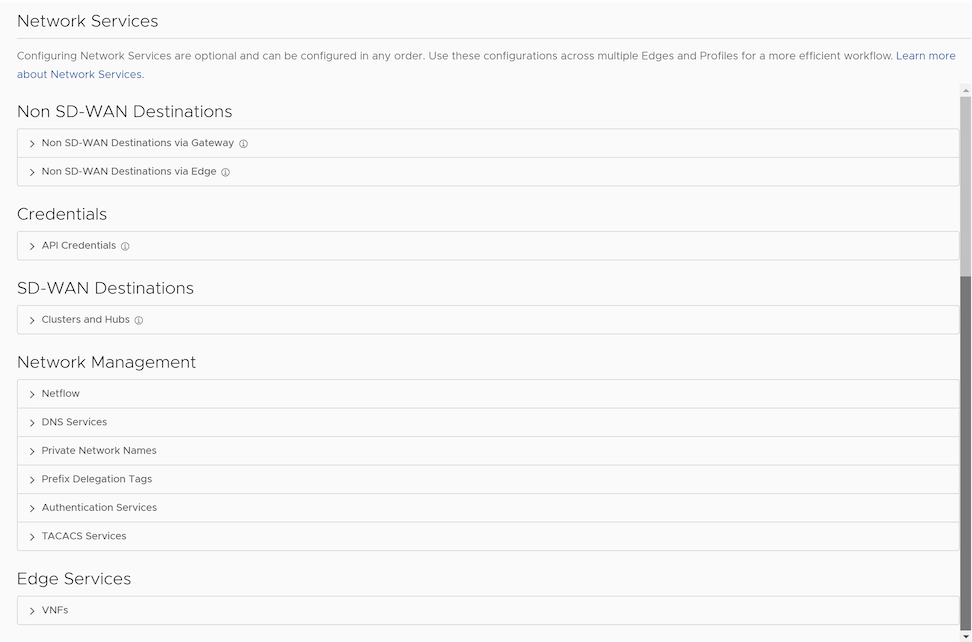
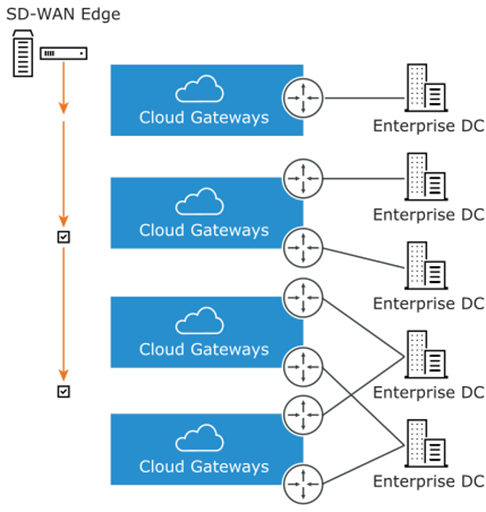
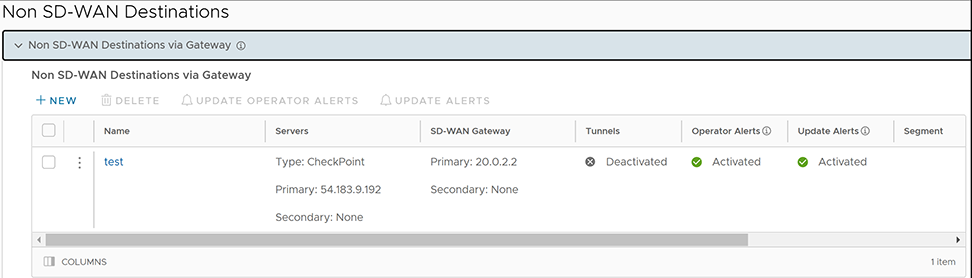
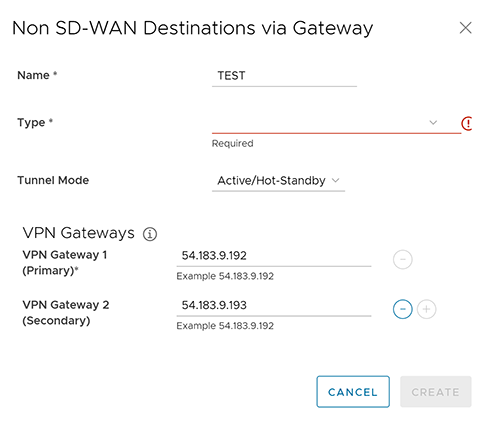
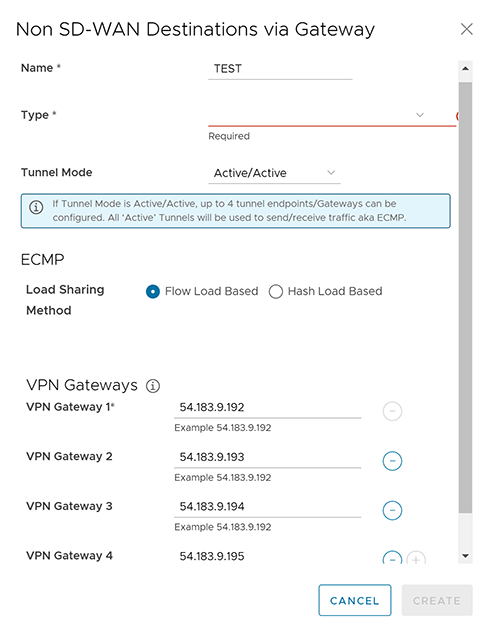
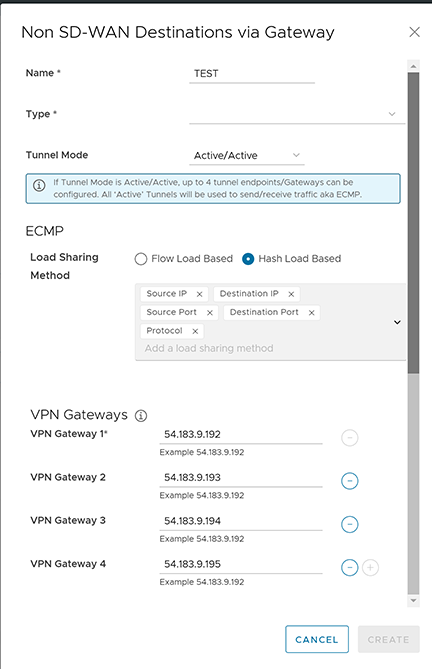
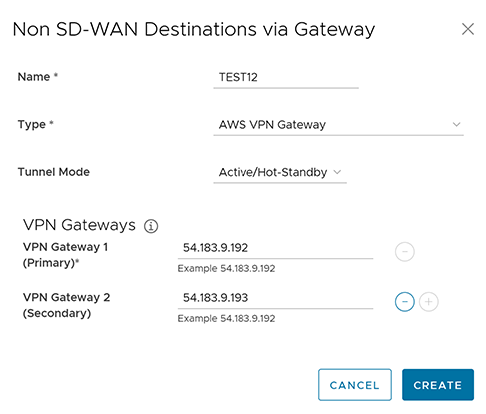
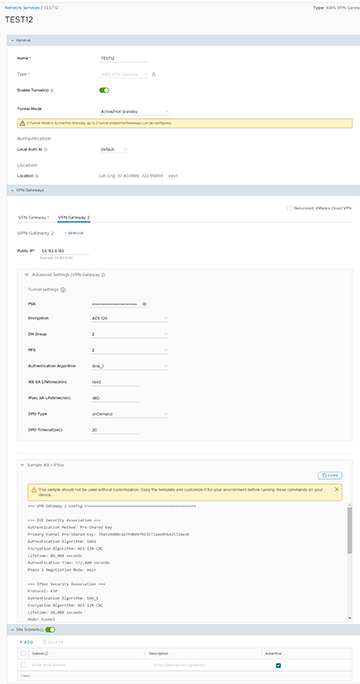
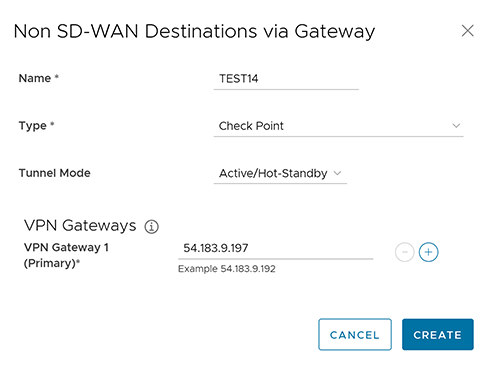
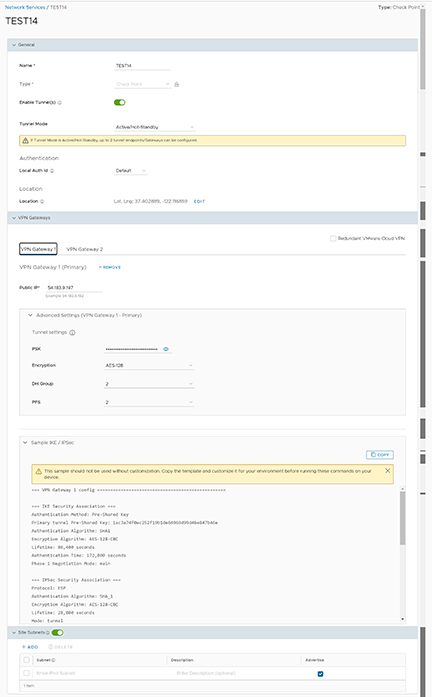
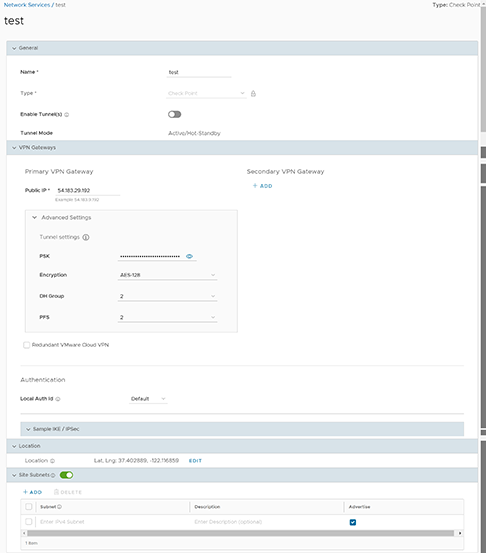
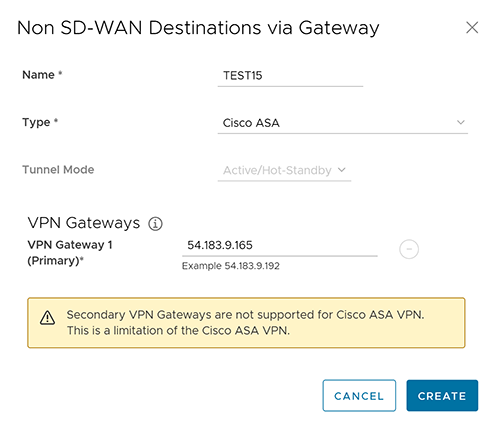
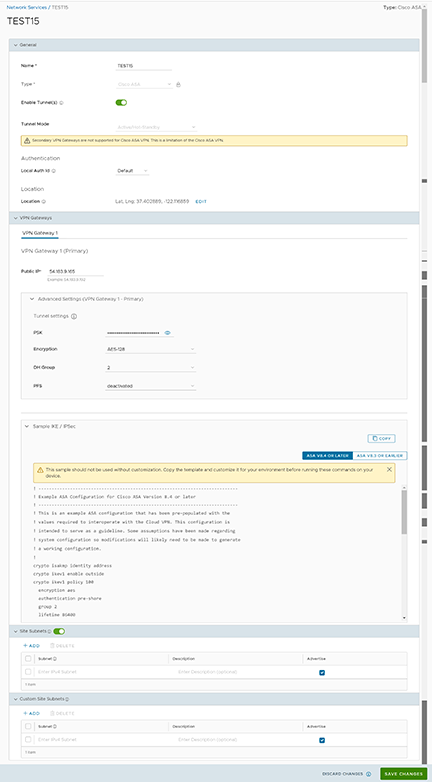
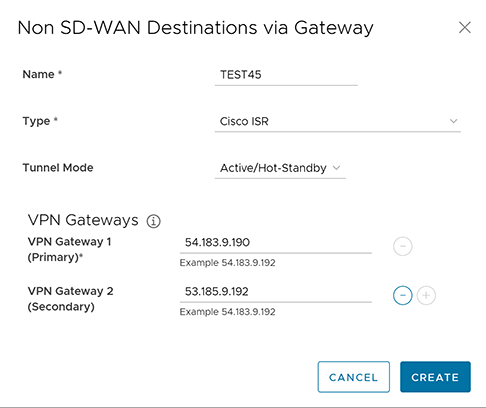
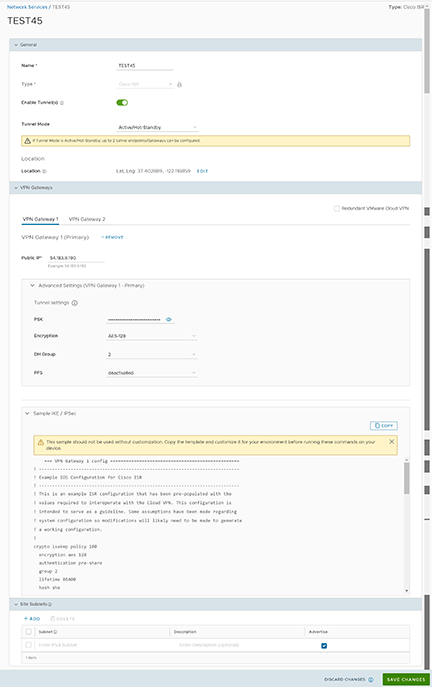
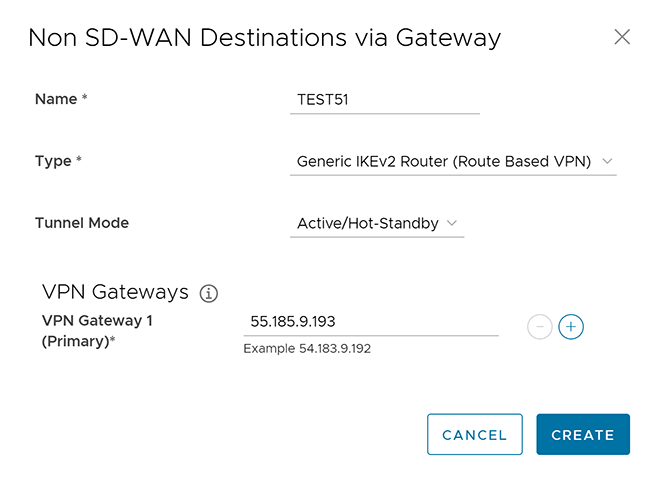
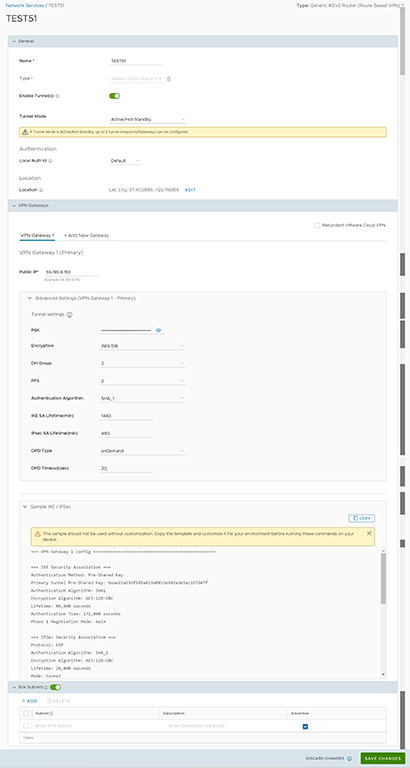
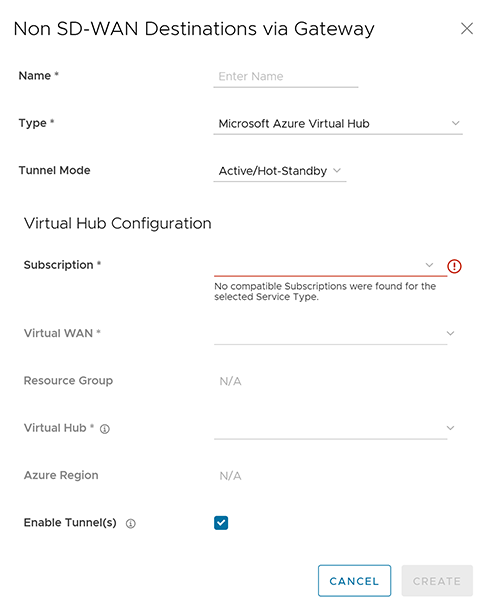
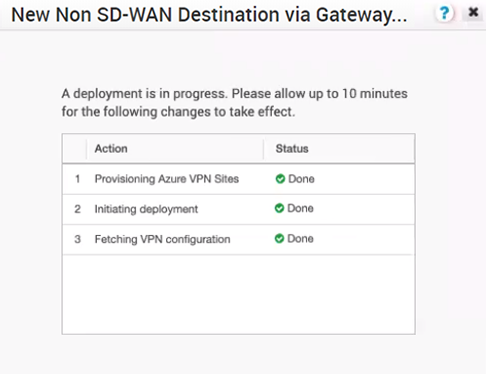 Once the Azure VPN sites are provisioned at the Orchestrator side, you can view the VPN sites (Primary and Redundant) in the Azure portal by navigating to Virtual WAN Virtual WAN architecture VPN sites.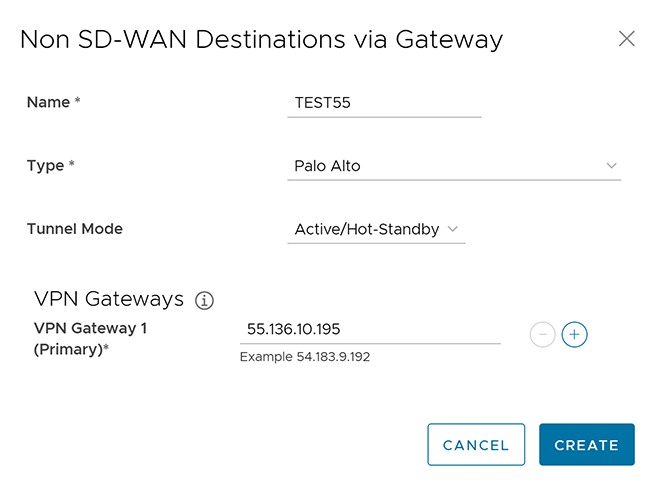
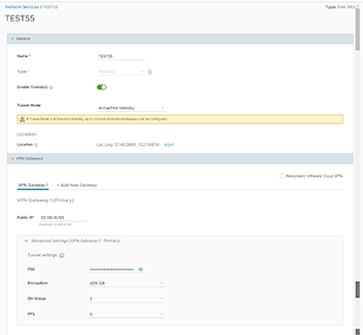
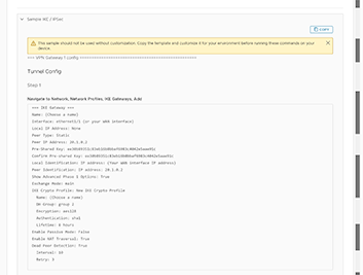
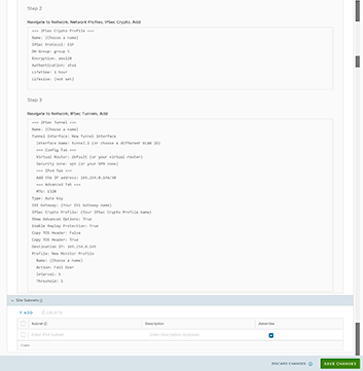
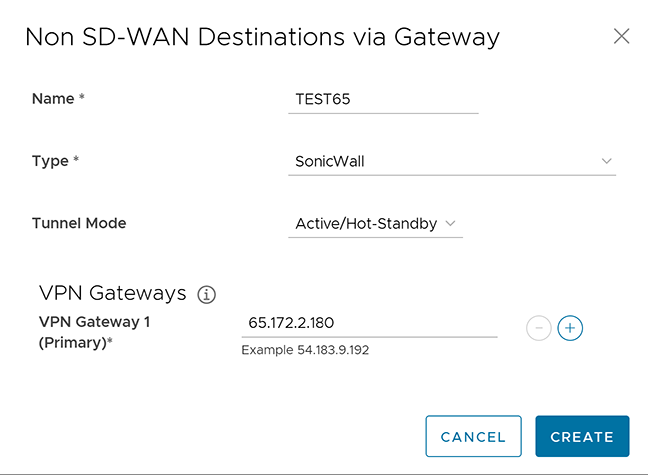
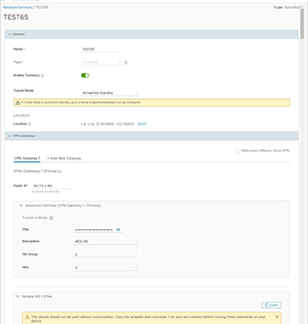
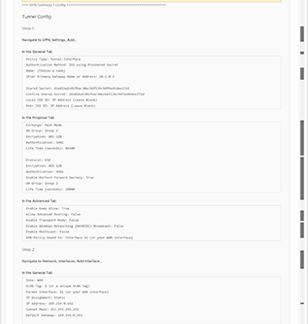
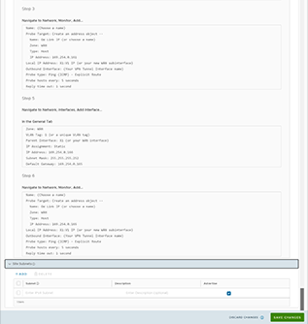
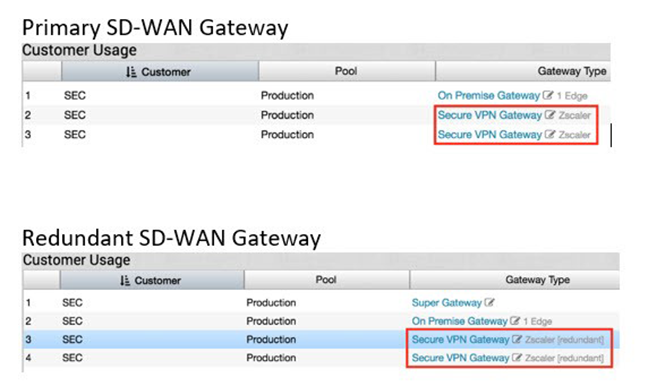


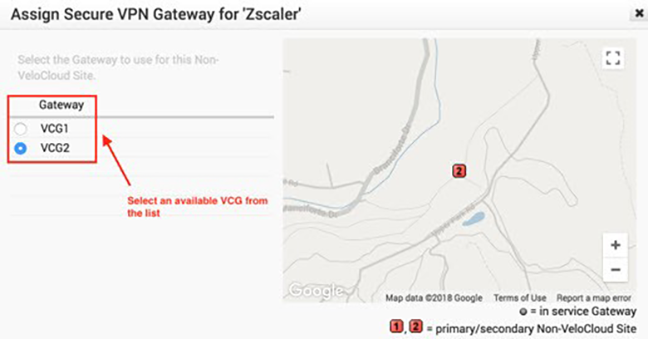
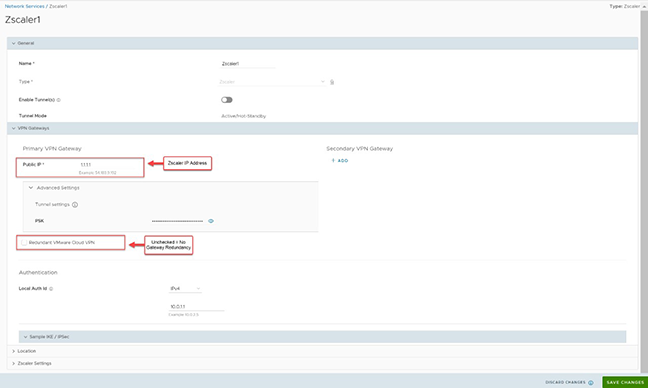
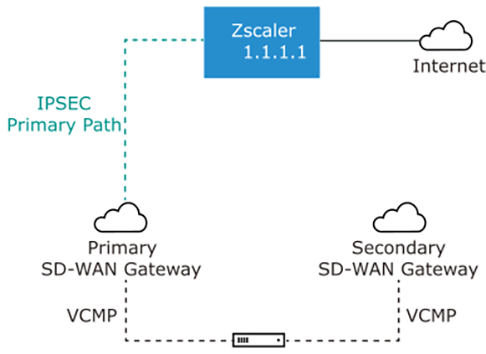
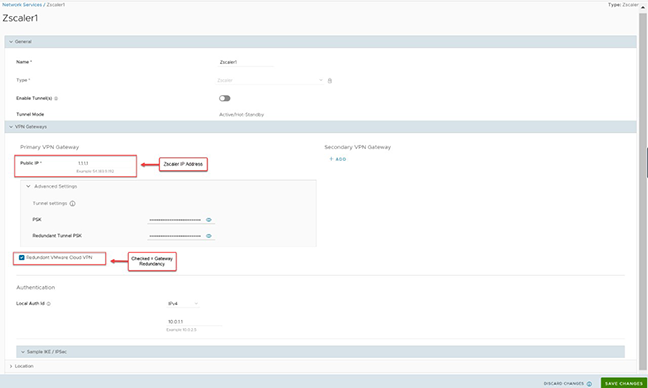
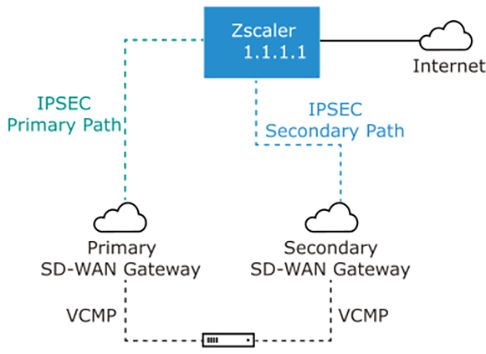
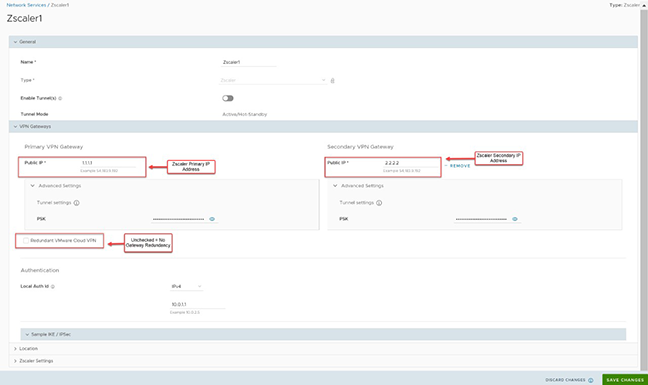
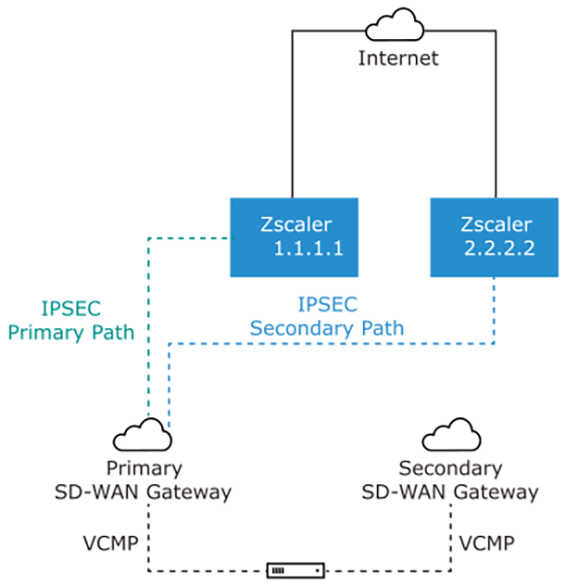
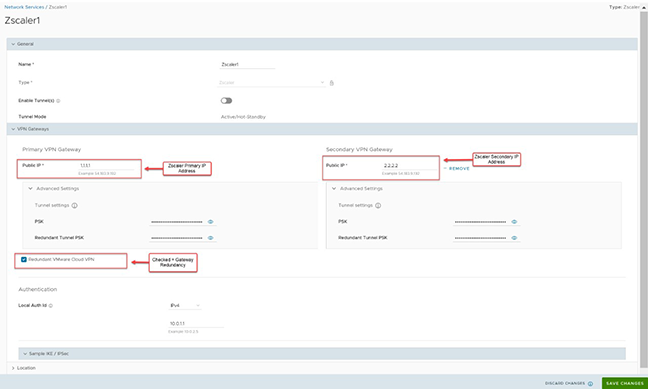
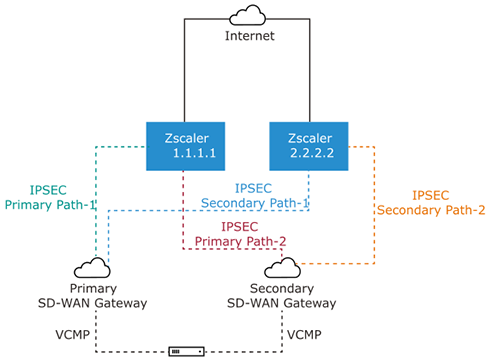
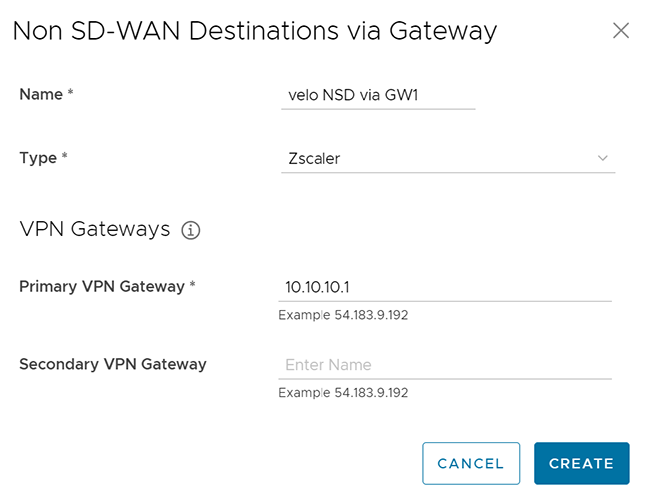
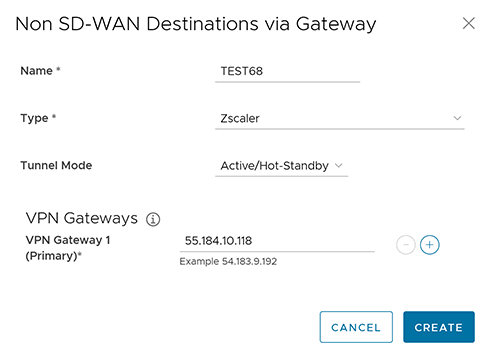
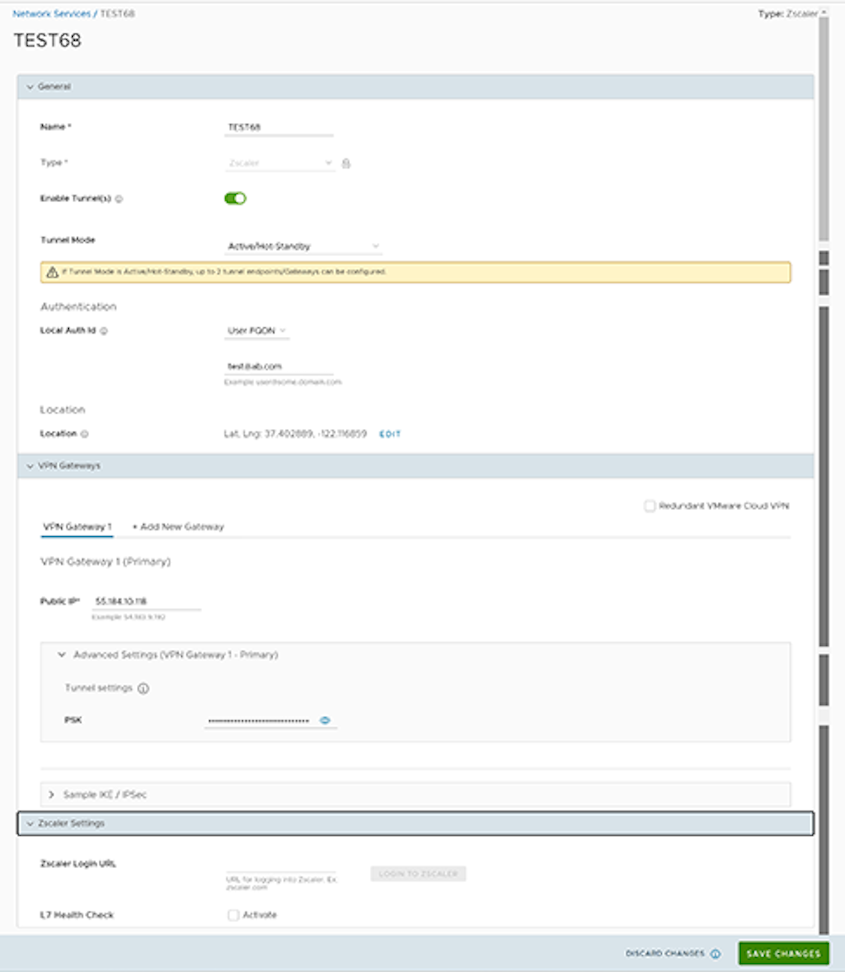
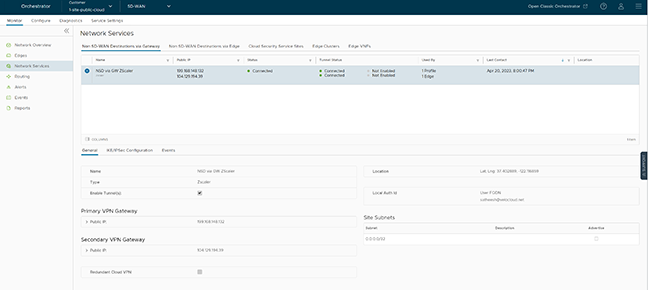
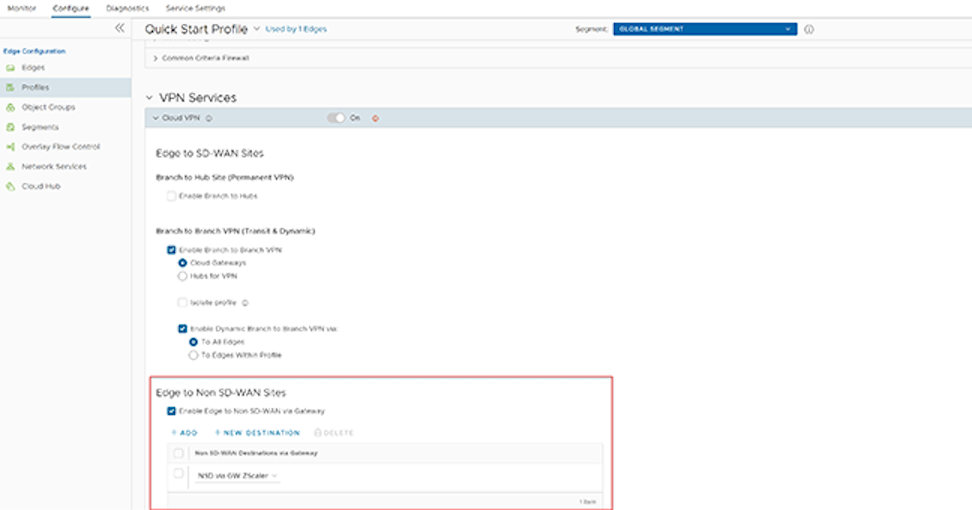
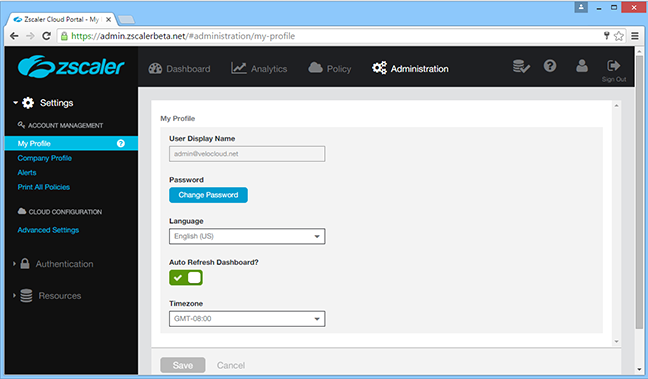
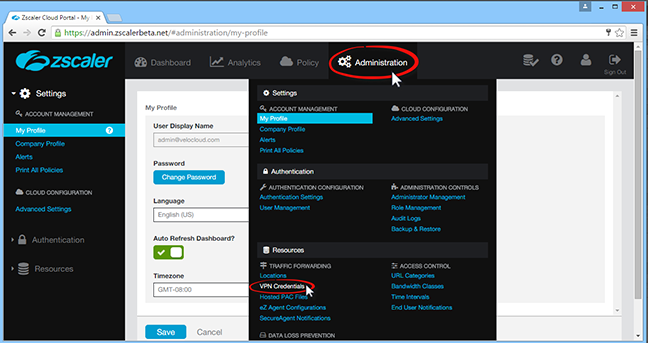

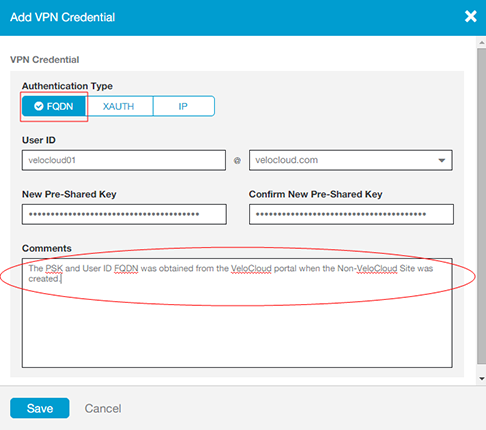
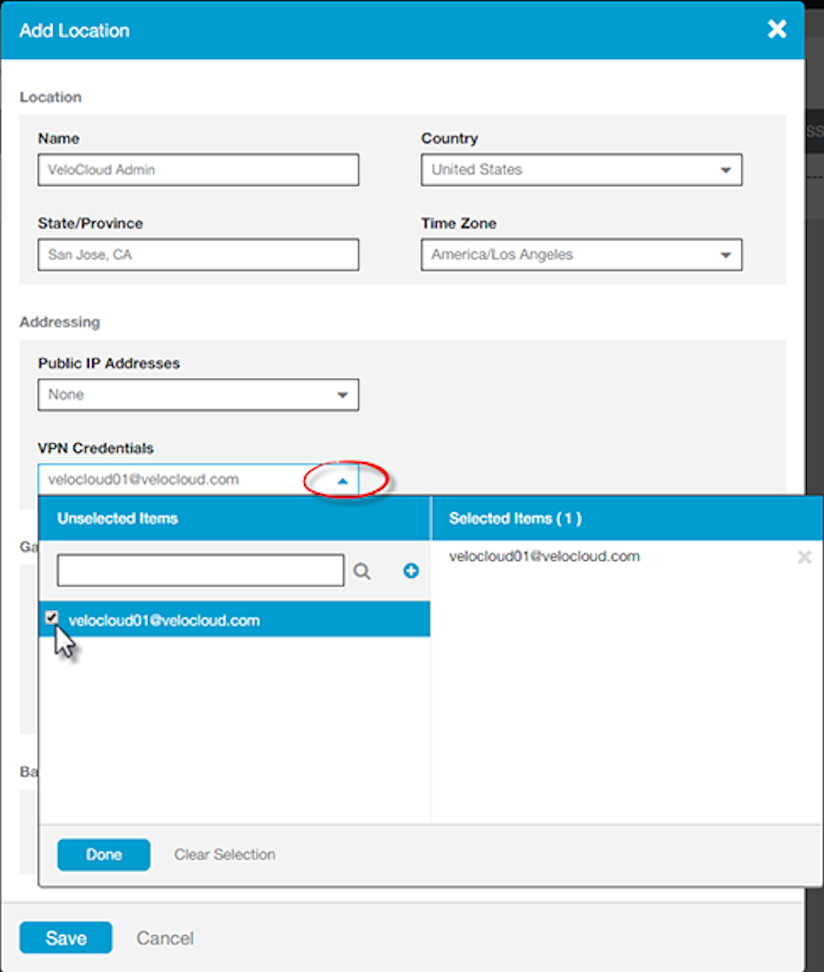
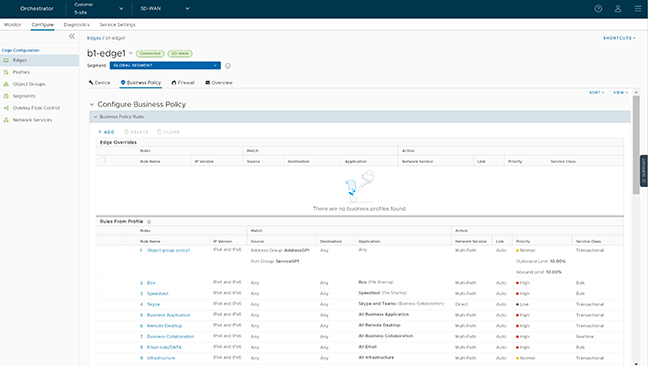
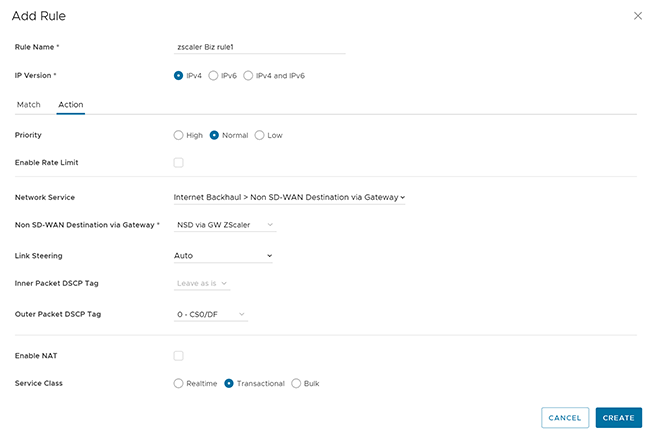
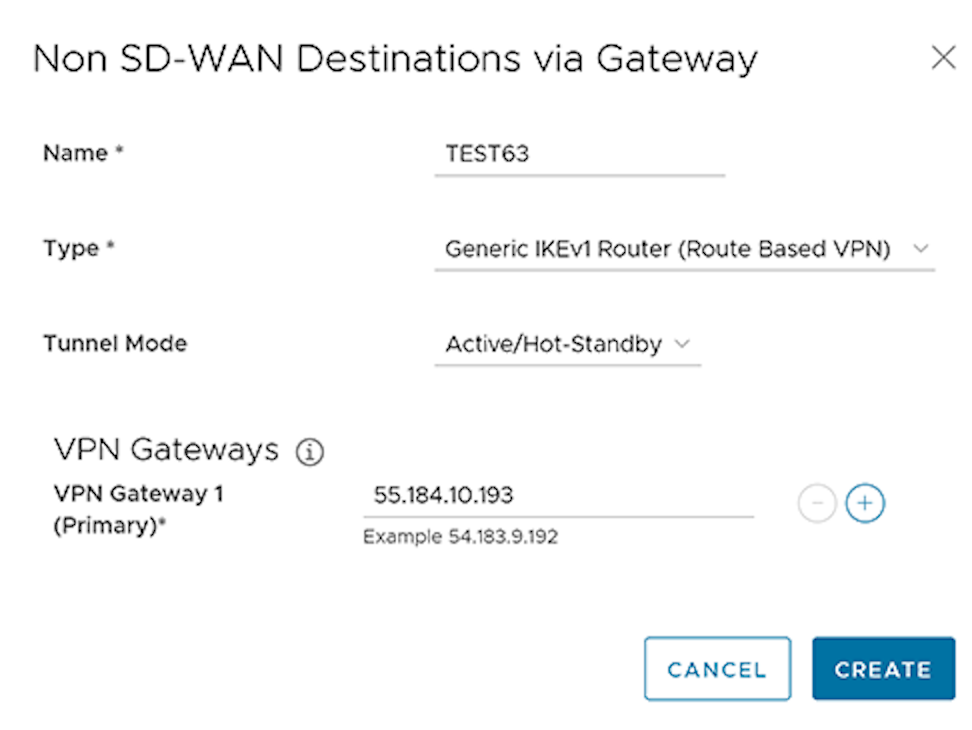
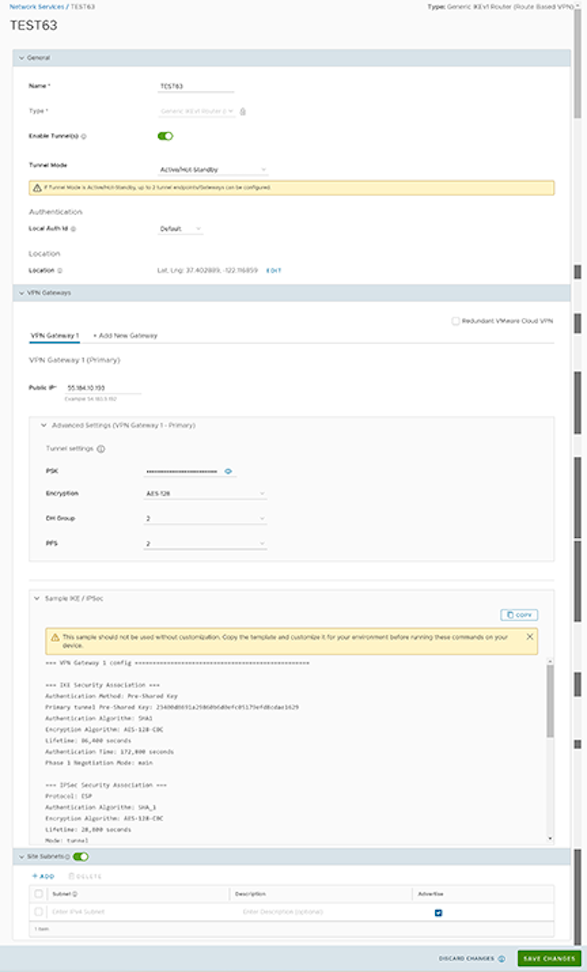
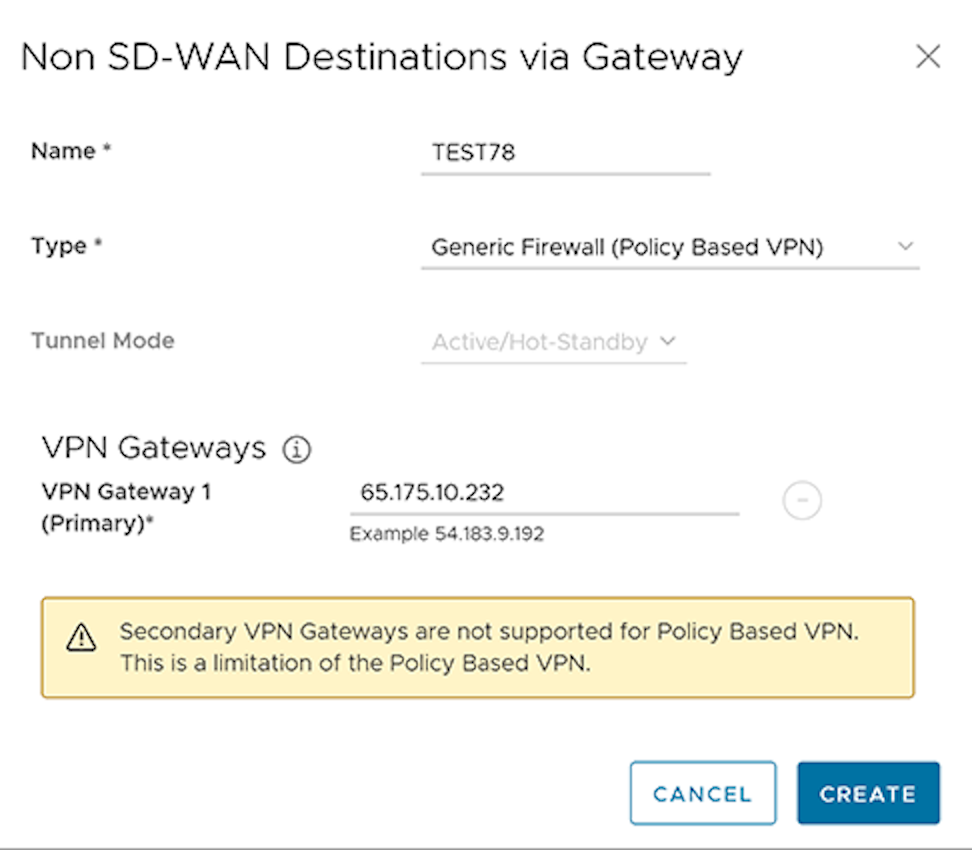
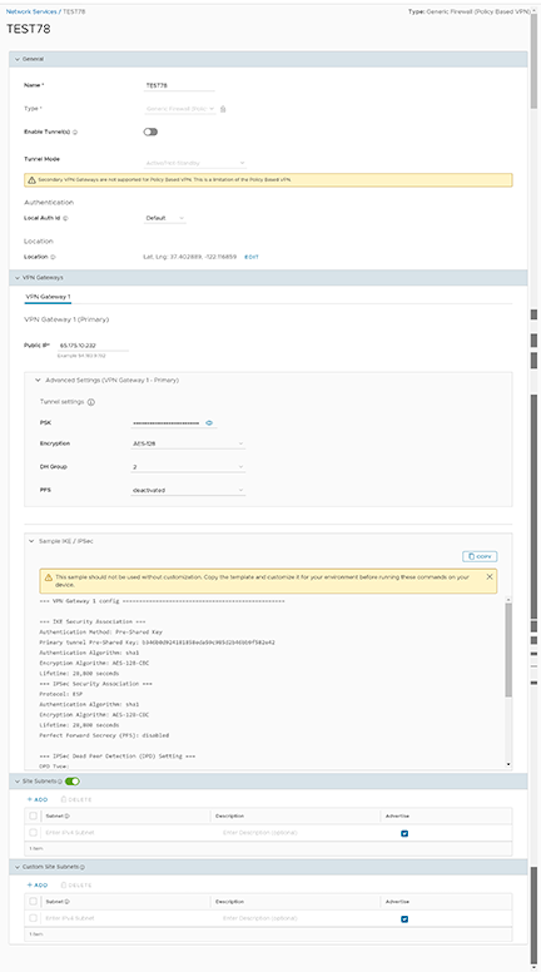 Note: The Generic Firewall (Policy Based VPN) does not support a Secondary VPN Gateway.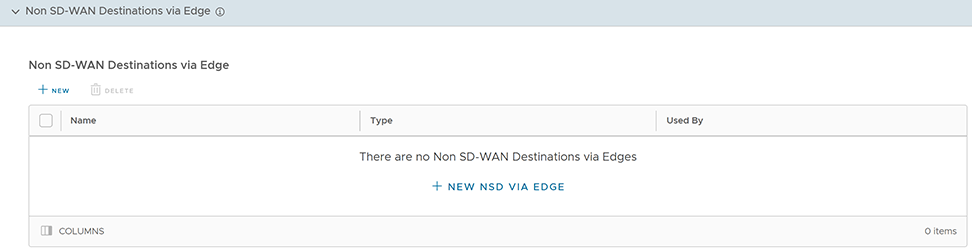

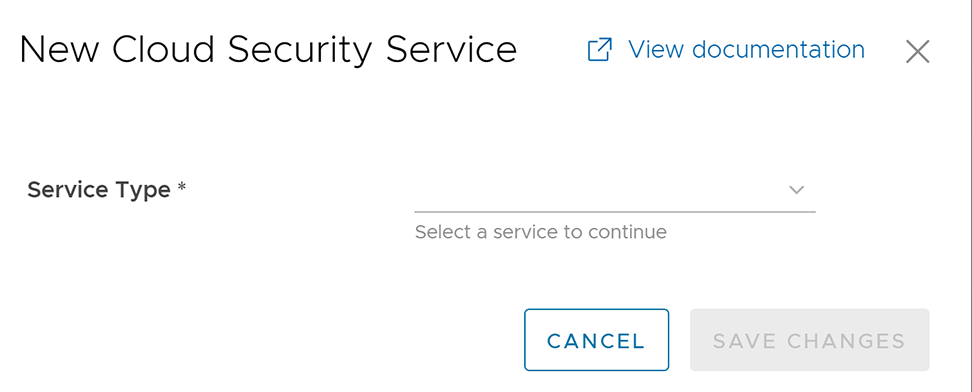
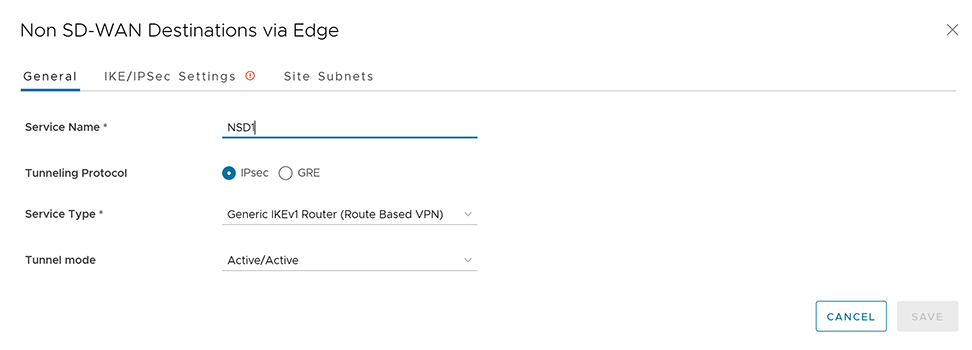
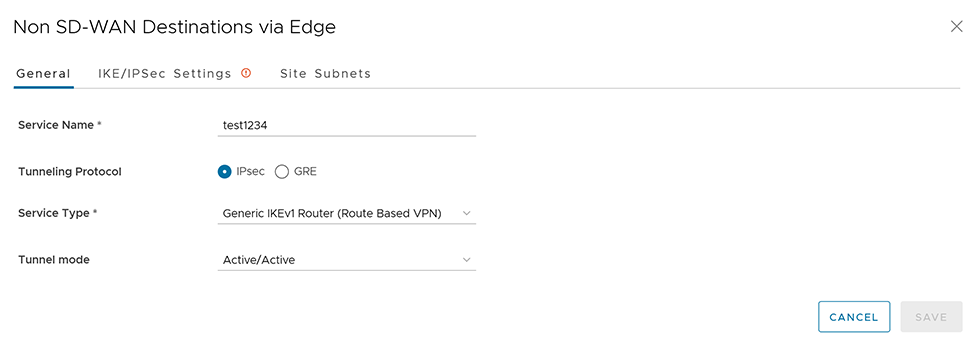
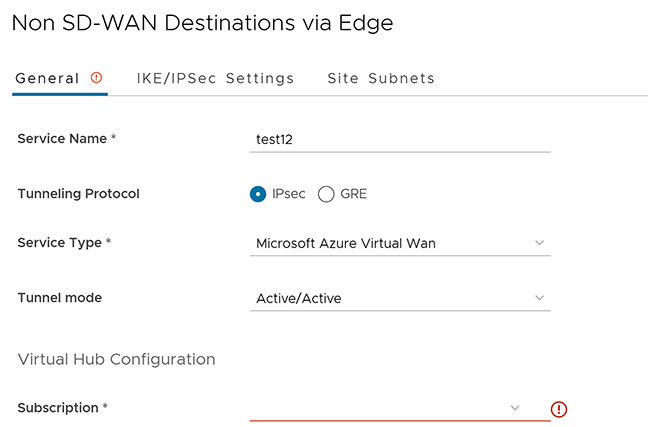
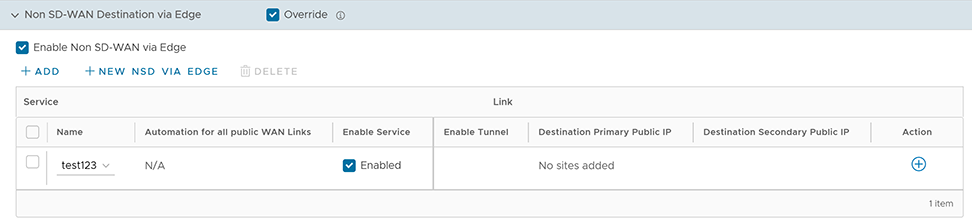
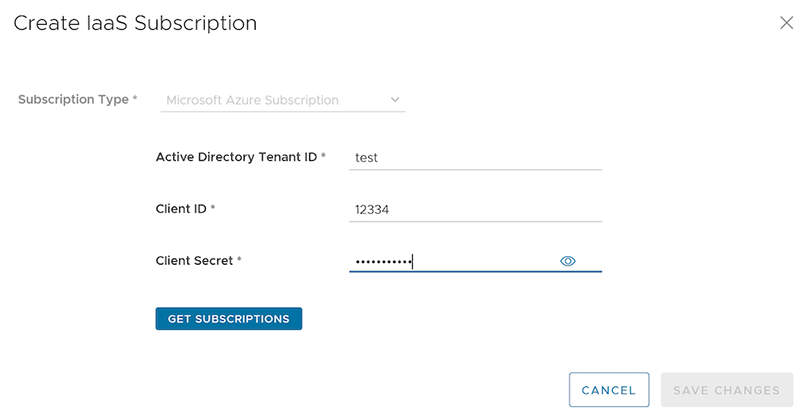
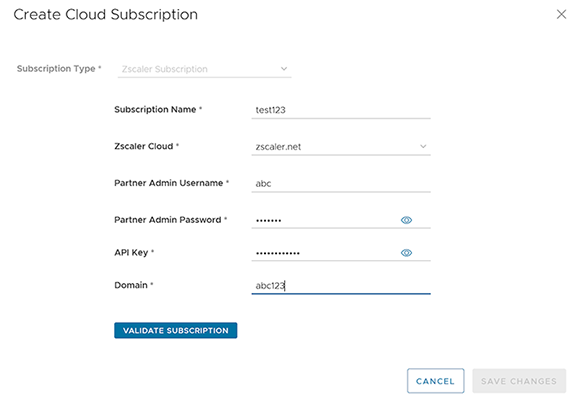
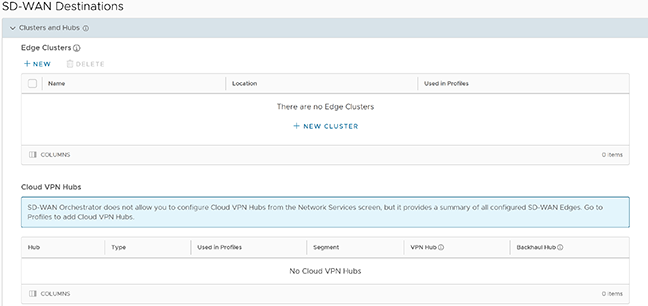
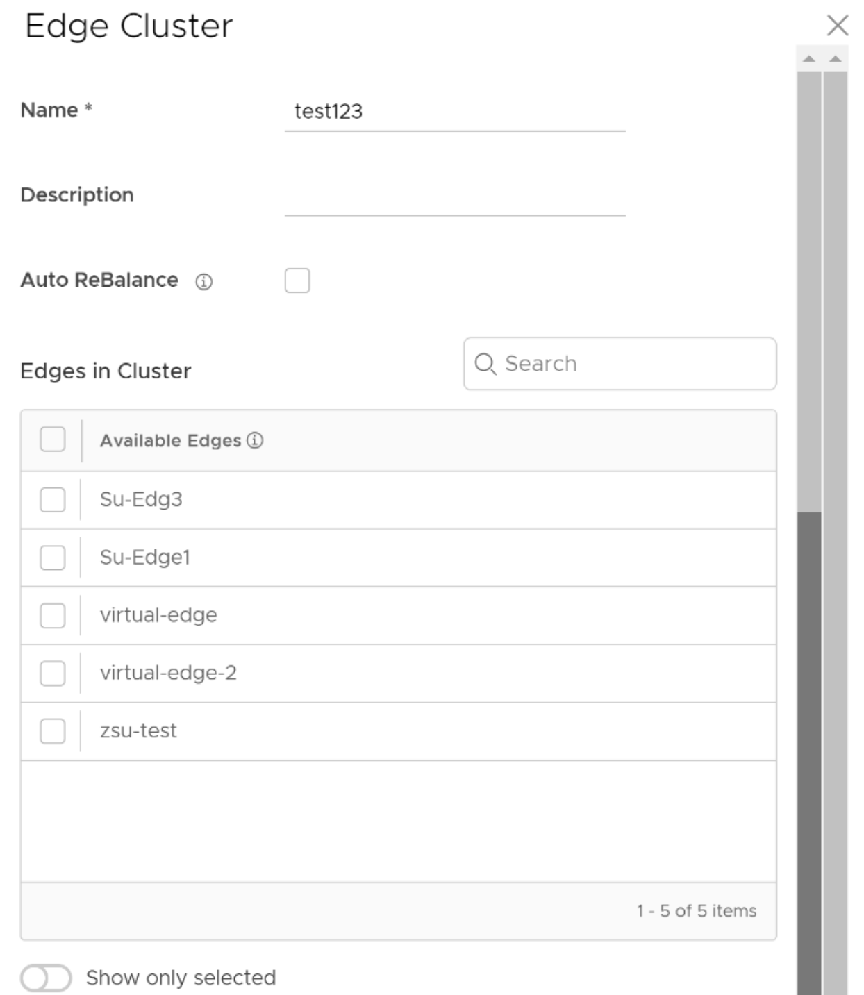
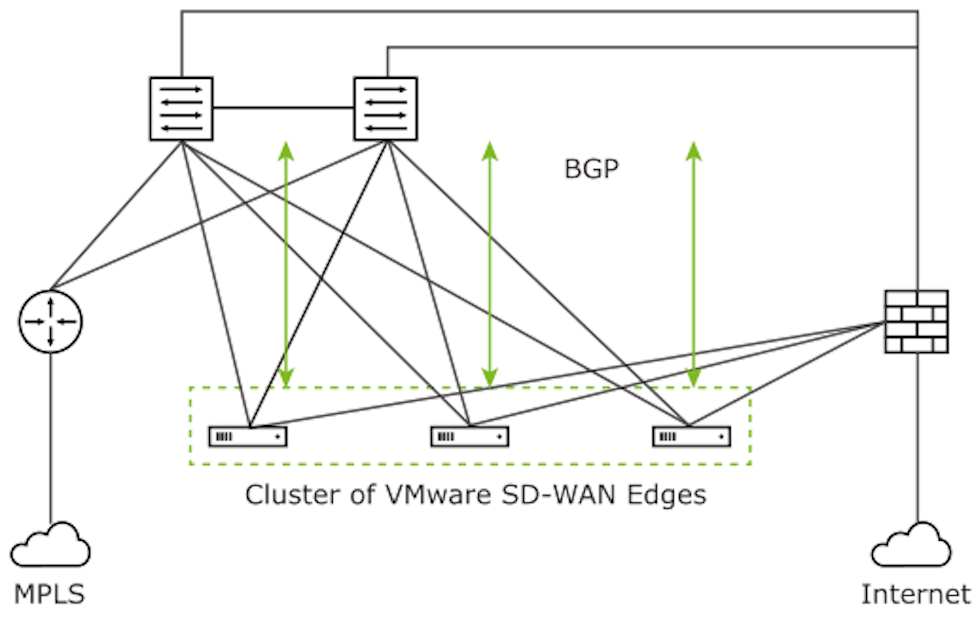
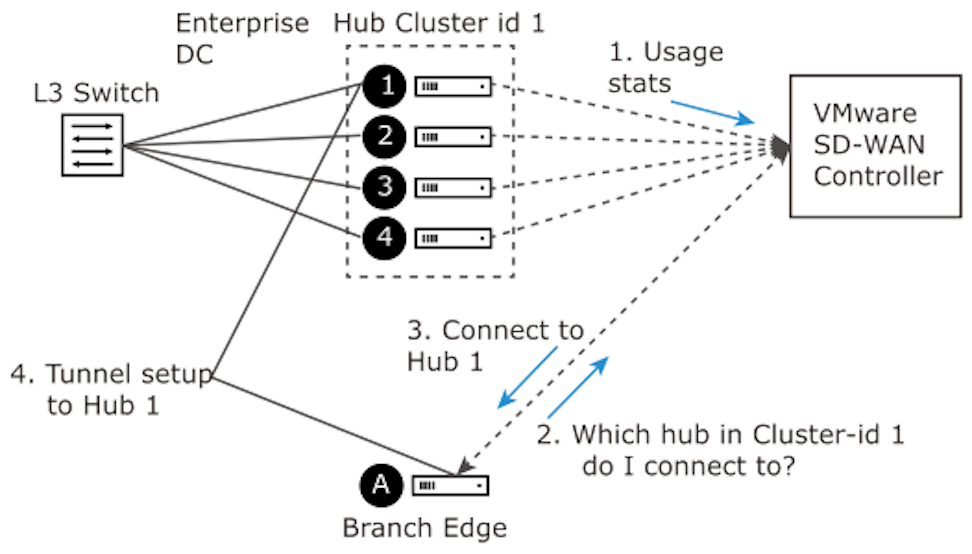
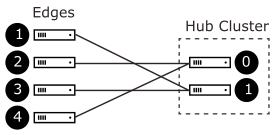
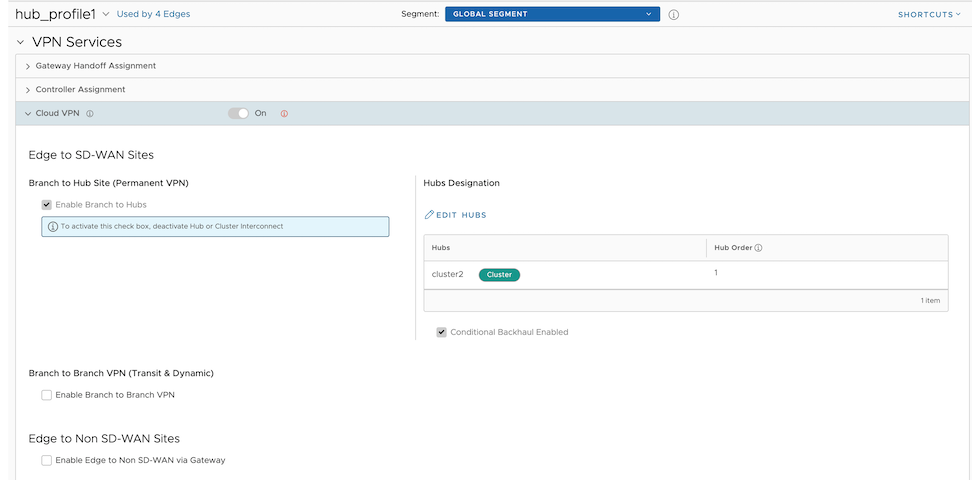
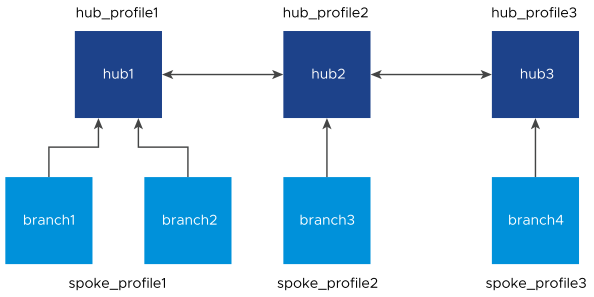
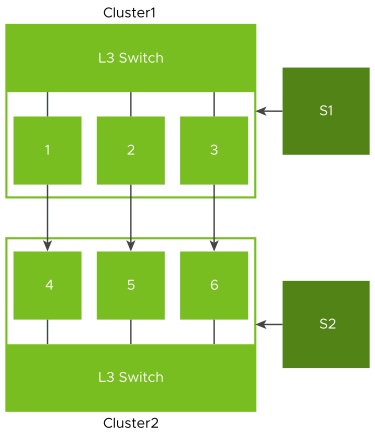
 Hub and Cluster Interconnect configurations can be done only at Profile level. This activates the feature and creates a tunnel between the Hub Clusters which allows the respective Spoke Edges to communicate with each other. Activating or deactivating the Hub or Cluster Interconnect feature causes all Edge devices associated with the Profile to restart. Hence, it is recommended to configure the feature only in a maintenance mode to prevent traffic disruption.