
Configure User Account Details
The My Account page allows you to configure basic user information, SSH keys, and API tokens. You can also view the current user's role and the associated privileges.
Configure privileges for a user to access Edges securely. You must have a Basic access level for the user. You can configure the access level when you create a new user (under User Management), and modify it at a later point in time. You must have the Super user role to modify the user's access level.
- Select the User icon in the Global Navigation located at the top right of the screen.
- The following panel illustrates the User Information:
Figure 1. User Information 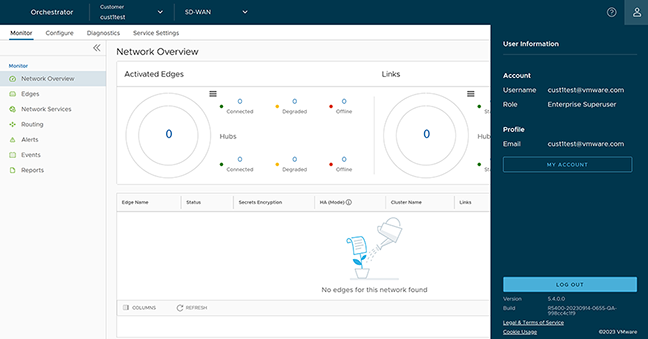
- Select the My Account button. The following screen appears:
Figure 2. Account Profile 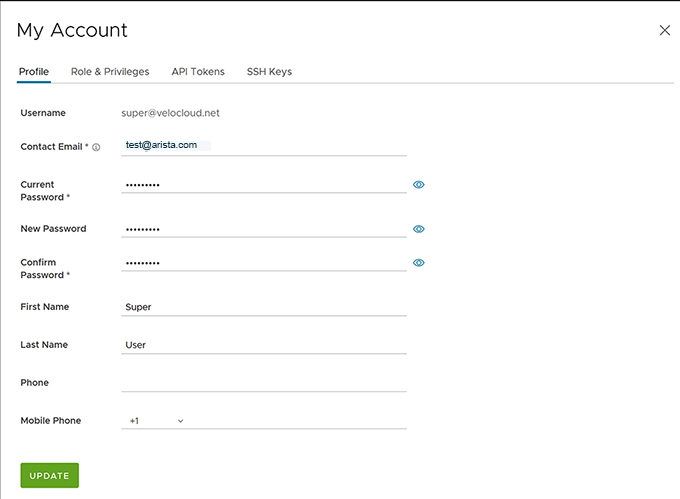
- It displays the Profile tab by default. You can update the following basic user details:
Table 1. Profile Option Descriptions Option Description Username Displays the username, and it is a read-only field. Contact Email Enter the primary contact email address of the user. Current Password Enter the current password. New Password Enter the new password. Starting from the 4.5 release, the special character "<" in the password is no longer supported. In cases where users have already used "<" in their passwords in previous releases, they must remove it to save any changes on the page. Confirm Password Re-enter the new password. First Name Enter the first name of the user. Last Name Enter the last name of the user. Phone Enter the primary phone number of the user. Mobile Phone Enter the user's mobile number and country code. - Select the Role tab to view the existing user role and description. It also displays the privileges associated with the user role.
Figure 3. Role and Privileges 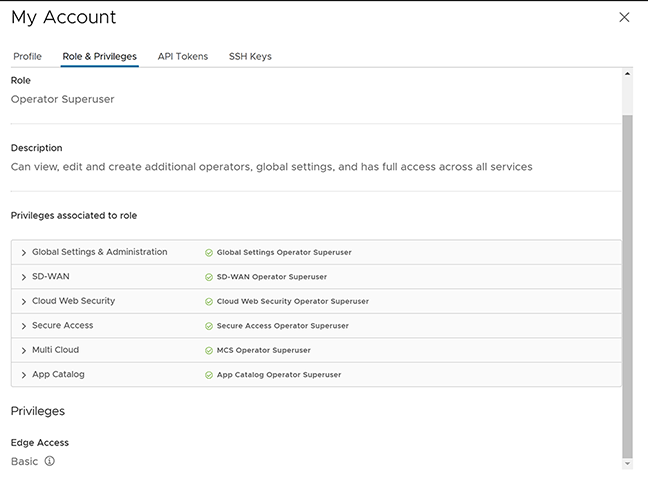
- Select the API Tokens tab to display the new token.
Figure 4. API Token 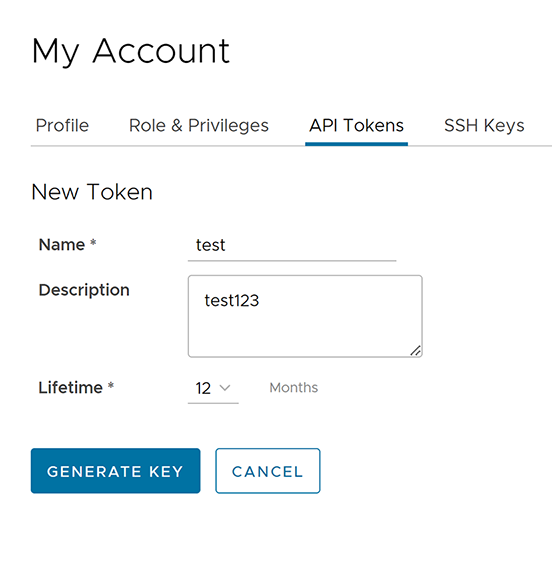
- Enter a Name and Description for the token, and then select the Lifetime from the drop-down menu.
- Select Generate Key.
- Select the SSH Key tab to configure a Secure Shell (SSH) key-based authentication. The SSH key-based authentication is a secure and robust authentication method to access VeloCloud Edges. It provides a strong, encrypted verification and communication process between users and Edges. Using SSH keys bypasses the need to enter login credentials manually and automates the secure access to Edges.
- The Edge and the Orchestrator must use Release 5.0.0 or later for this feature.
- Users with Operator Business or Business Specialist account roles cannot access Edges using key-based authentication.
When using key-based authentication to access Edges, it generates a pair of SSH keys- Public and Private. The database stores the public key and shares with the Edges. Your computer has the private key, and you can use this key along with the SSH username to access Edges. You can generate only one pair of SSH keys at a time. If you need to add a new pair of SSH keys, delete the existing pair and then generate a new one. If a previously generated private key is lost, you cannot recover it from the Orchestrator. You must delete the key and then add a new key to gain access. Based on their roles, users can perform the following actions:
- All users, except those with Operator Business or Business Specialist account roles, can create and revoke SSH keys for themselves.
- Operator Super users can manage SSH keys of other Operator users, Partner users, and Enterprise users, if the Partner user and Enterprise user have delegated user permissions to the Operator.
- Partner Super users can manage SSH keys of other Partner users and Enterprise users, if the Enterprise user has delegated user permissions to the Partner.
- Enterprise Super users can manage the SSH keys of all the users within that Enterprise.
- Super users can only view and revoke the SSH keys for other users. Enterprise and Partners Customers without SD-WAN service access can not configure or view SSH keys-related details.
Select the SSH Key tab, and then select the Generate Key button. The following screen appears:
Figure 5. SSH Keys Generation 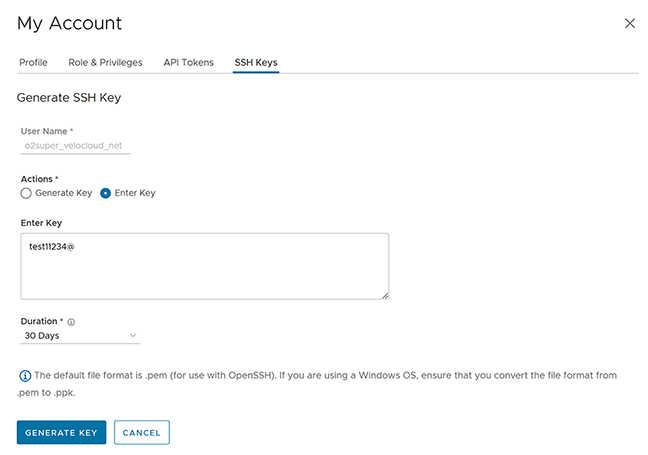
Table 2. SSH Keys Generation Option Descriptions Option Description User Name Displays the username, and it is a read-only field. Actions Select either one of the following options: - Generate key: This option generates a new pair of public and private SSH keys.
Note: The generated key gets downloaded automatically. By default, the generated SSH key is in a .pem file. If you are using a Windows operating system, ensure that you convert the file format from .pem to .ppk and then import the key. For instructions to convert .pem to .ppk, see Convert Pem to PpK File Using PuTTYgen.
- Enter key: This option pastes or enters the public key if you already have a pair of SSH keys.
PassPhrase If you select Generate key, then you must enter a unique passphrase to safeguard further the private key stored on your computer. Note: This optional field is available only if you select the Generate key action.Duration Select the number of days by which the SSH key must expire. - Select Generate Key.
Note: It creates one SSH Key per user.
- To deactivate an SSH token, select the Revoke button. A pop-up window appears to confirm the revoke operation. Select the check box, then select Revoke to permanently revoke the key. The SSH keys for a user are automatically deleted when:
- You change the user role to Operator Business or Business Specialist because these roles cannot access Edges using key-based authentication.
- You delete a user from the Orchestrator.
Note: When a user is deleted or deactivated from the external SSO providers, the user can no longer access the Orchestrator. However, the user's Secure Edge Access keys remain active until the user is explicitly deleted from the Orchestrator as well. Therefore, you must first delete the user from the IdP before deleting from the Orchestrator.
What to do next:
Ensure that you enable secure Edge access for the Enterprise and switch the authentication mode from Password-based to Key-based. For more information, see Enable Secure Edge Access for an Enterprise.