
View Edge Information
The Edge Overview tab displays Edge-specific information. You can update the information like name, description, contact information, associated Profile, and other details. In addition, you can perform other activities like sending an email to activate the Edge or requesting RMA Reactivation.
- In the SD-WAN service of the Enterprise portal, go to .
- The Edge page displays the existing Edges.
- Select the link to an Edge or select the View link in the Device column of the Edge.
- Select the Overview tab to view and modify properties of the selected Edge. It displays the existing details of the selected Edge. If required, you can modify the information.
Figure 1. Overview 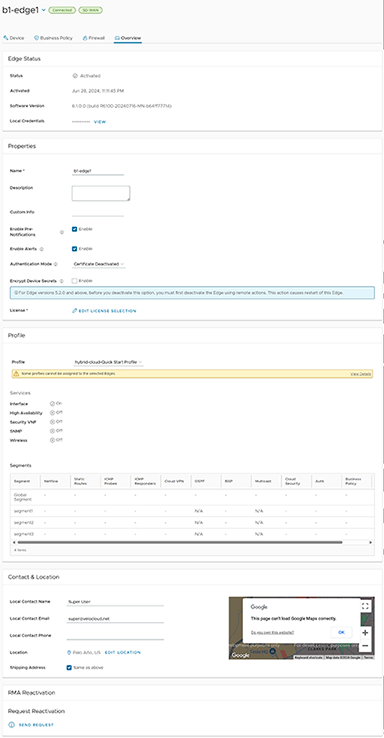
It displays the following details for an already activated Edge. If the Edge has not been activated yet, the Properties section displays an option to send Edge Activation Email. For more information, see the topic Send Edge Activation Email. The Edge Overview tab allows you to view and modify the following fields:
Table 1. Edge Overview tab Option Description Edge Status Status Displays the status of the Edge: - Pending: The Edge has not been activated.
- Activated: The Edge has been activated.
- Reactivation Pending: A new or replaced Edge can be activated with the existing configuration. This status does not affect the functionality of the Edge.
Activated Displays the date and time of Edge activation. Software Version Displays the software version and build number of the Edge. Local Credentials Displays the credentials for the local UI. It uses these credentials to browse the Edge locally in a web-based session to access one of its active LAN interfaces. The local credentials include a default username, 'admin', and a randomly generated password. Select Modify to update the credentials at the Edge level. The local credential is the username/randomly generated password required to browse the Edge locally in a web-based session to one of its active LAN interfaces.
Properties Name Displays the name of the Edge. Description Displays the description of the Edge. Custom Info Displays the custom information associated with the Edge. Enable Pre-Notifications By default, this option is enabled. It allows the sending of alert notifications for the Edge to the Operators. Operators can receive the alerts through Email, SMS, or SNMP traps. To configure the alerts, see the topic Configure Alerts. You can also view the alerts by selecting . Enable Alerts By default, this option is enabled. It allows the sending of alert notifications for the Edge to the Customers. Customers can receive the alerts through Email, SMS, or SNMP traps. To configure the alerts, see Configure Alerts. You can also view the alerts by selecting . Authentication Mode Choose the mode of authentication from the drop-down menu: - Certificate Deactivated: This mode is selected by default. Edge uses a pre-shared key mode of authentication. If you change the mode from Certificate Deactivated to:
- Certificate Acquire: All tunnels are disconnected and reconnected based on RSA mode.
- Certificate Required: The Orchestrator does not directly allow this change. You must change the mode to Certificate Acquire and then to Certificate Required. It helps avoid heartbeat loss to the Orchestrator when Edge is assigned a certificate.
Note: This mode is not recommended for any customer deployments. - Certificate Acquire: With this mode, you can issue certificates at the time of Edge activation, and it renews automatically. The Orchestrator instructs the Edge to acquire a certificate from the certificate authority by generating a key pair and sending a certificate signing request to the Orchestrator. After acquisition, the Edge uses the certificate to authenticate the Orchestrator and establish VCMP tunnels. If you change the mode from Certificate Acquire to:
- Certificate Deactivated: All tunnels are disconnected and reconnected based on PSK mode.
- Certificate Required: All tunnels continue to stay active, and no disruption seen in the traffic.
When a Hub is in Certificate Acquire mode, it reestablishes tunnels based on the certificate with a new certificate. It does not impact PSK-based tunnels.
Note: After acquiring the certificate, you can update the option to Certificate Required. - Certificate Required: This mode is only appropriate for customer enterprises that are "static". A static enterprise is where only a few new Edges deploy, and no new PKI-oriented changes happen. This mode does not allow peers with pre-shared keys to connect.
Note: Certificate-Required has no security advantages over Certificate-Acquire. Both modes are equally secure, and a customer using Certificate Required should do so only for the reasons outlined in this section.
Certificate Required: This mode does not accept Edge heartbeats without a valid certificate.
Note: Using this mode can cause Edge failures in cases where a customer is unaware of this strict enforcement.With this mode, the Edge uses the PKI certificate. Operators can change the certificate renewal time window for Edges by editing the Orchestrator's System Properties. For more information, contact your Operator.
Note: Revoking an Edge certificate deactivates Edge, and it must go through activation. The current QuickSec design checks the validity of the certificate revocation list (CRL) time. The CRL time validity must match the current time of Edges for a new connection. To implement this, ensure the Orchestrator time is updated properly to match with the date and time of the Edges.Encrypt Device Secrets Select the Enable tab to allow the Edge to encrypt the sensitive data across all platforms. Note: For Edge versions 5.2.0 and later, you must first deactivate Edge using remote actions. It restarts the Edge.License Select an Edge License from the available list. The list displays the licenses assigned to the Enterprise, by the Operator. Certificates Select View to display the certificate details. A pop-up window appears. You can also access this window from the screen. For more information, see the section Certificates. Profile Profile Displays the Profile assigned to the Edge, along with the Services and Segments configuration details. You can modify the assigned profile by selecting a profile from the drop-down menu. Note:- When switching to a different Profile, the Edge override configurations are not modified.
- Due to push activation, it displays an Edge staging Profile. It is a new Edge that is not configured by a production Profile. In such cases, the Enterprise Admin must manually assign a profile from the drop-down menu.
While switching the Profiles, check the compatibility between a Customer-assigned Operator Profile and an Edge-assigned Enterprise Profile. For more details, see the section Compatibility Matrix in the same topic.
Contact & Location Local Contact Name Displays the local contact's name associated with the Edge. Local Contact Email Displays the local contact's email address associated with the Edge. Local Contact Phone Displays the local contact's phone number associated with the Edge. Location Displays the existing location of the Edge. To update the location details, select Edit Location. A pop-up window appears. Enter the new location details and select Update. Shipping Address Select the check box Same as above if your shipping address is the same as your Edge location. Otherwise, type the shipping contact name and set a location. RMA Reactivation You can initiate an RMA reactivation request to: - Replace an Edge due to a malfunction.
- Upgrade an Edge hardware model.
Note: This option is only for activated Edges.Request Reactivation Select Send Request to generate a new activation key. The status of the Edge changes to Reactivation Pending mode. Note: The reactivation key is valid for one month only.Cancel Request Select to cancel the RMA reactivation request. When you cancel the request, the status changes to Activated mode. Send Activation Email Select to send an email with activation instructions to the Site Contact. This option does not activate the Edge, but initiates the activation process. A pop-up window will appear with the email details. You can modify the instructions and send the Email. RMA Serial Number Displays the serial number of the Edge to be activated. Optionally, you can enter the serial number of the Edge to activate it. This Edge replaces your current Edge for which you have requested the RMA reactivation. Note: The activation fails if the Serial Number and the Edge model do not match the Edge to be activated.RMA Model Displays the model number of the Edge to be activated. This Edge replaces your current Edge for which you have requested the RMA reactivation. Note:- When the RMA reactivation request contains the serial number of the replacement device (optional), then this serial number must match the current Edge; otherwise, the activation fails.
- The activation fails if the Serial Number and the Edge model do not match the Edge to be activated.
- It displays a warning message if the selected RMA model differs from the current Edge model. The Edge-specific configuration settings and Profile overrides are removed on reactivation, but the statistics are still retained. Note the Edge specific configuration settings, then re-add those to the newly replaced Edge, after it is re-activated.
Update Select to update the RMA Edge Attributes details. Note: For detailed instructions on initiating an RMA Reactivation request for the Site Contact, see Send Edge Activation Email.Certificates
Selecting View displays a pop-up window as follows:Figure 2. Certificate Details 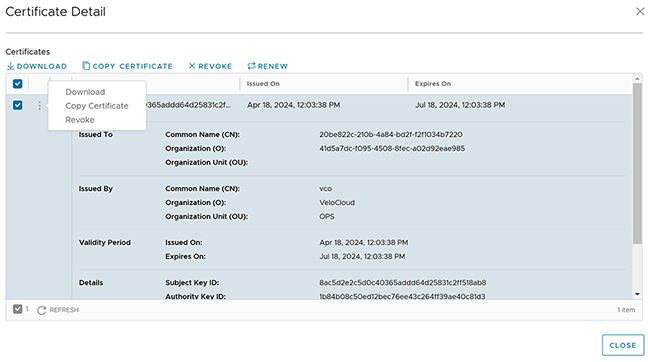 You can expand the certificate to view more details. The following options are available on the screen:You can also access the Download, Copy Certificate, and Revoke options by selecting the vertical ellipsis next to the certificate tab.
Table 2. Certificate Details Option Descriptions Option Description Download Select to download the certificate in a CSV format. Copy Certificate Select and select this option to copy the certificate details on a clipboard for later use. Revoke Select to revoke the selected certificate. The Edge is deactivated when its certificate is revoked. Renew Select to renew the expired certificate. The Edge may experience some disruption during certificate renewal. Note: This action renews an HA pair's active and standby Edge certificates.Refresh Select to reload the screen. Close Select to close the pop-up window. - After modifying the required settings, select Save Changes.
- Select the Shortcuts option, available at the top right corner, to perform the following activities:
Table 3. Shortcuts Option Descriptions Option Description Monitor Navigates to the Monitoring tab of the selected Edge. For more information, see the topic Monitor Edges. View Events Displays the Events related to the selected Edge. Remote Diagnostics Enables running the Remote Diagnostics tests for the selected Edge. For more information, see the topic Run Remote Diagnostics. Generate Diagnostic Bundle Allows the generation of a Diagnostic Bundle for the selected Edge. For more information, see the topic Diagnostic Bundles for Edges with new Orchestrator UI. Remote Actions Allows you to perform remote actions for the selected Edge. For more information, see the topic Perform Remote Actions with new Orchestrator UI. View Profile Navigates to the Profile page associated with the selected Edge. View Gateways Displays the Gateways connected to the selected Edge. Note: Only Operator users can view the Gateways. Enterprise Admin users cannot view the Gateways when they select this option.
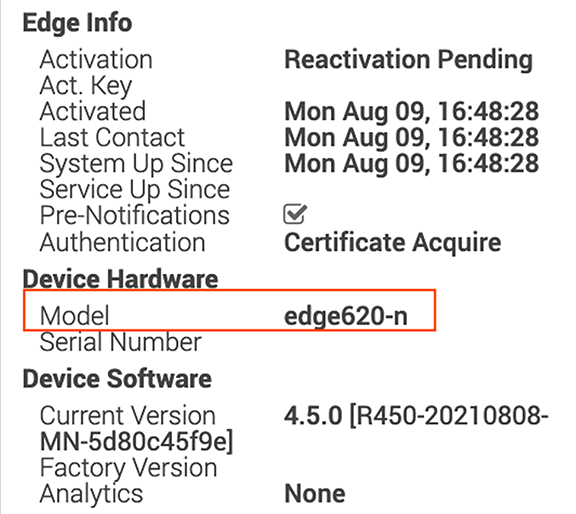
Identifying a Device Model
Select the down arrow next to the device name to identify a model. A pop-up window will appear, which will show Edge and device model
- Firmware Platform images for 6X0 Edge device models and 3X00 Edge device models (3400/3800/3810)
- Firmware Modem images for 510-LTE (Edge 510LTE-AE, Edge 510LTE-AP) and 610-LTE (Edge 610LTE-AM, Edge 61LTE-RW)
- Factory images for all physical VeloCloud SD-WAN Edge devices
- When you update Platform and/or Modem Firmware, it will show in the Edge Info details screen as follows. To access the Edge Info details screen, select an Edge. It will display the selected Edge. Then select the down arrow icon next to Edge's name.
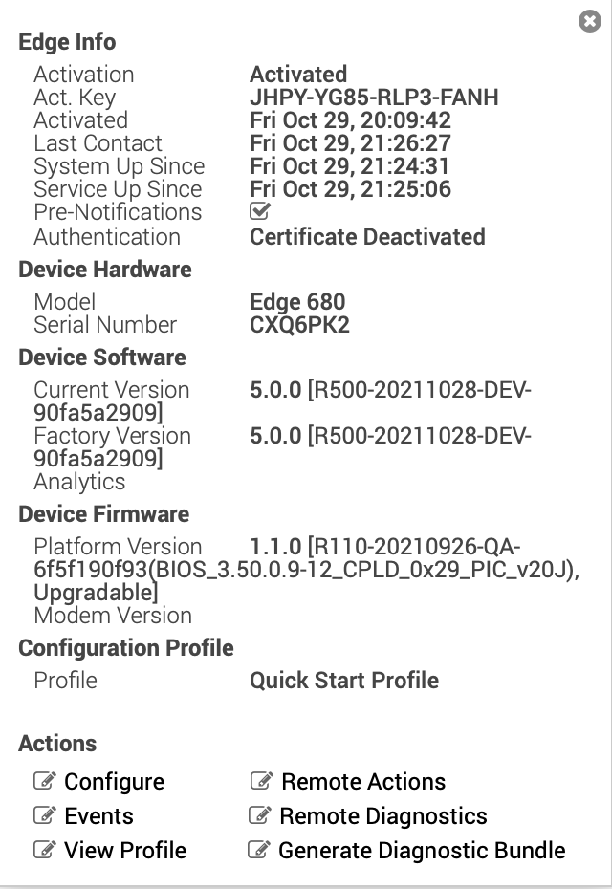
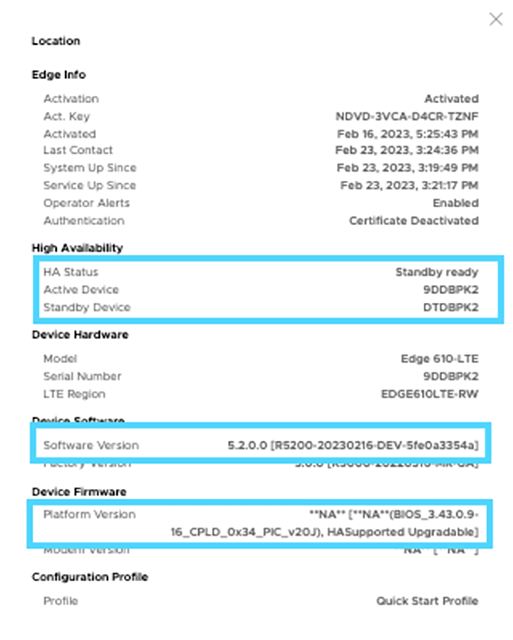
You can modify the assigned profile by selecting a profile from the drop-down menu. See the following note for additional information.
- Edge overrides are the changes to the inherited profile configurations at the Edge level. Edge additions are configurations not included in the profile but added to the selected Edge.
- The Edge override configurations are not modified when switching to a different profile.
- An Edge staging profile may display due to push activation. A production profile may not configure this new Edge. In such cases, the Enterprise admin must manually assign a profile from the drop-down menu.
- For more information, see Configuring a Profile Device.
While switching the profiles, check the compatibility between a customer-assigned Operator Profile and an Edge-assigned Enterprise Profile. The following table shows the compatibility matrix.
| Customer Operator Profile Type | Current Edge Enterprise Profile | Selected Edge Enterprise Profile | Result |
|---|---|---|---|
| Segment-based | Segment-based | Segment-based | No Change |
| Network-based | Network-based | Network-based | No Change |
| Segment-based | Network-based | Segment-based | It converts the Edge configuration to a Segment-based configuration. However, it is not delivered to the Edge until the Edge software image is updated to version 3.0 or later. |
| Network-based | Network-based | Segment-based | It converts the Edge configuration to a Segment-based configuration. However, it is not delivered to the Edge until the Edge software image is updated to version 3.0 or later. |
| Segment-based | Network-based | Network-based | The Edge does not receive the image update. |
| Network-based | Segment-based | Segment-based | The Edge does not receive the image update. |