
Manage Edges

Edges inherit the configurations from the associated profile. You can choose to override the settings for a specified Edge. You can provision a new Edge or manage the existing Edges using the Orchestrator UI. To provision a new Edge, see Provision a New Edge.

To manage the existing Edges:

  1. In the SD-WAN service of the Enterprise portal, select the Configure tab.
  2. From the left menu, select Edges.
  3. Edges displays the existing Edges with their details.
    Figure 1. Edges Dashboard
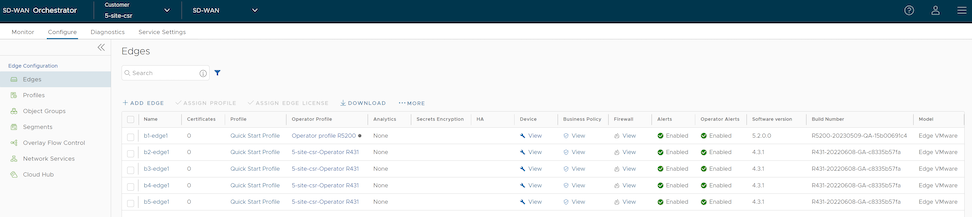
     
    Option Description
    Name Displays the name of the Edge. Select the link to the Edge to modify the Edge configurations. See Configure Edge Overrides.
    Certificates Displays the current and expired certificates of the Edge. Select View to display Certificate details of the corresponding Edge. The pop-up window allows you to download, revoke, or renew a certificate.
    Profile Displays the Profile assigned to the Edge. Select the link to the Profile to modify the Profile configurations. See Configure Profile Settings.
    Operator Profile Displays the name of the Operator profile associated with the Edge. This column is available only for an Operator user. The Operator Profile is the template assigned to the customer, which includes the software image, application maps, Gateway selection, and the management settings of the Edge.
    Secrets Encryption Displays secret key encryption details for the Edge.
    HA Displays whether High Availability is activated for the Edge.
    Device Select View to modify the configurations of the Edge. See Configure Edge Overrides.
    Business Policy Select View to configure the Business Policy Rules of an Edge.
    Firewall Select View to configure the Firewall Rules of an Edge.
    Alerts Displays whether Customer alerts are activated or deactivated for the Edge.
    Operator Alerts Displays whether Operator alerts are activated or deactivated for the Edge.
    Software Version Displays the software version of the Edge.
    Build Number Displays the build number of the Edge, when the Edge is activated.
    Model Displays the model type of the Edge.


  4. Select one or more Edges to perform the following activities:
     
    Option Description
    Assign Profile Allows to change the profile for the selected Edges. This operation affects the existing configurations of the Edges.
    Assign Edge License Allows to modify the Edge license for the selected licenses.
    Download Downloads the details of Edges into an MS Excel file.
    Select More to configure the following:
     
    Option Description
    Update Alerts Allows to turn on or turn off the alerts sent to the Customer. To configure the alerts, see Configure Alerts. You can view the alerts in the Monitor > Alerts tab.
    Update Operator Alerts Allows to turn on or turn off the alerts sent to the Operator. To configure the alerts, see Configure Alerts. You can view the alerts in the Monitor > Alerts tab.
    Note: This option is available only for an Operator user.
    Local Credentials Allows to modify the local credentials. By default, the local credentials include a default username as admin and a randomly generated password.
    Assign Operator Profile This option is available only for an Operator user. By default, all the Edges inherit the Operator profile assigned to the Enterprise customer. If required, an Operator can assign another Operator profile for specific Edges.
    Rebalance Gateways A Gateway rebalance can be triggered to move SD-WAN Edges to a different Gateway. When triggering a Gateway rebalance, the Orchestrator will attempt to distribute the load equally within Gateways in a pool. Though rebalancing is not impactful, these rebalancing events typically take place during regularly scheduled maintenance windows out of an abundance of caution.
    Note: Refer to the SD-WAN Gateway Migration FAQs, Important Caveats, and Allow List Limitation sections in the KB article for complete details.
    Note: The Rebalance Gateways option is available only for Operator users.
    Delete Edge Deletes the selected Edges. You cannot delete the Edges that are connected to the Enterprise. You need to shutdown the Edge to delete it.

Configure Edge Settings

Configuration overrides can be made to some settings assigned to an Edge. In most cases, an override must first be enabled, and then changes can be made. Edge overrides enable Edge specific edits to the displayed settings, and discontinue further automatic updates from the configuration Profile.

To override configuration settings for a specific Edge, use the following steps:

  1. In the SD-WAN service of the Enterprise portal, go to Configure > Edges . The Edges page displays the existing Edges.
  2. Select the link to an Edge or select the View link in the Device column of the Edge. The configuration options for the selected Edge are displayed in the Device tab.
    Figure 2. Edges
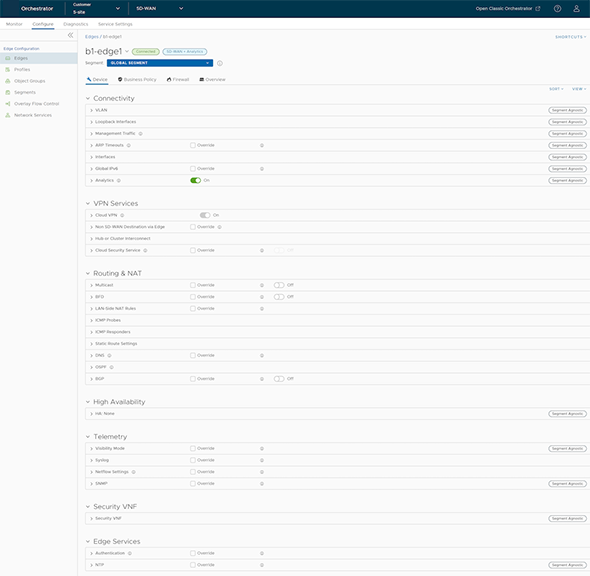
  3. The View menu at the left side of the page allows the user to select the view options. The available options are Expand All and Collapse All. By default, the settings are collapsed.
  4. The Sort menu at the left side of the page allows you to select the sort options: Sort by category and Sort by segment aware. You can view the configuration settings sorted by category or segment aware. By default, the settings sort by category. If you choose to sort by segmentation, the settings are grouped as segment aware and segment agnostic.
  5. For some of the settings, the configuration is inherited from the associated Profile. To edit inherited configuration for the Edge, select the Override check box.
  6. After modifying the required settings, select Save Changes.
    Note: On the Device page, whenever you make configuration changes for the selected Edge, a footer notification appears at the left bottom corner of the screen. You can select the notification to view the recent configuration changes.
  7. Select the Shortcuts option to perform the following activities:
    • Monitor – Navigates to the Monitoring tab of the selected Edge. See Monitor Edges.
    • View Events – Displays the Events related to the selected Edge.
    • Remote Diagnostics – Enables to run the Remote Diagnostics tests for the selected Edge. See Run Remote Diagnostics.
    • Generate Diagnostic Bundle – Allows to generate Diagnostic Bundle for the selected Edge. See Diagnostic Bundles for Edges with New Orchestrator UI.
    • Remote Actions – Allows you to perform the Remote actions for the selected Edge. See Perform Remote Actions with new Orchestrator UI.
    • View Profile – Navigates to the Profile page associated with the selected Edge.
    • View Gateways – Displays the Gateways connected to the selected Edge.

    For more details on various Edge configuration settings, see Configure Edge LAN Overrides

Reset Edges to Factory Settings

Edges may require a reset to factory settings for several reasons:
  • When you repurpose the Edge for another site, you must clear the existing configuration so that the Edge can be activated to the new site.
  • Your site encounters an issue for which VeloCloud SD-WAN Support recommends that you perform a hard reset to revert the Edge to factory settings and reactivate the Edge to the site to see if that resolves the issue.
  • The Edge is inaccessible or non-responsive and multiple power cycles are not resolving the issue. It is recommended that you perform a hard reset to revert the Edge to factory settings and see if that resolves the issue.
Reset an Edge to factory settings using one of the following methods:
  • Soft Reset or Deactivation- The Edge is deactivated and all the existing configuration that the Edge is using is completely removed. The Edge now uses the original factory configuration. However, the Edge software is not affected and it retains the software version it had prior to the soft reset. A soft reset Edge can be reactivated to another site or to the same site.
  • Hard Reset- The Edge is fully reset to factory settings, that is the Edge is not only deactivated and uses the factory configuration, but the Edge software is also changed to the factory software version. The Edge is effectively as it was when it was shipped from the factory.

If you reset an Edge actively used at a site, you completely lose the client device connectivity at the site until you either reactivate the same Edge at the site or activate another Edge at the site.

For instructions on how to reset an Edge to factory settings, see How to Factory Reset a VeloCloud SD-WAN Edge.