VeloCloud Gateway Migration
The VeloCloud Orchestrator provides a self-service migration functionality that allows you to migrate from your existing Gateway to a new Gateway without your Operator’s support.
- Achieve operational efficiency.
- Decommission old Gateways.
Gateways are configured with specific roles. For example, a Gateway with data plane role is used to forward data plane traffic from source to destination. Similarly, a Gateway with Control Plane role is called a Super Gateway and is assigned to an Enterprise. Edges within the Enterprise are connected to the Super Gateway. Also, there is a Gateway with Secure VPN role that is used to establish an IPSec tunnel to a Non SD-WAN destination (NSD). The migration steps may vary based on the role configured for the Gateway. For more information about the Gateway roles, see the “Configure Gateways” section in the VeloCloud SD-WAN Operator Guide.

In this example, a VeloCloud Edge is connected to an NSD through a Secure VPN Gateway, VCG1. The VCG1 Gateway is planned to be decommissioned. Before decommissioning, a new Gateway, VCG2 is created. It is assigned with the same role and attached to the same Gateway pool as VCG1 so that VCG2 can be considered as a replacement to VCG1. The service state of VCG1 is changed to Quiesced. No new tunnels or NSDs can be added to VCG1. However, the existing assignments remain in VCG1. Configuration changes with respect to the IP address of VCG2 are made in the NSD, an IPSec tunnel is established between VCG2 and NSD, and the traffic is switched from VCG1 to VCG2. After confirming that VCG1 is empty, it is decommissioned.
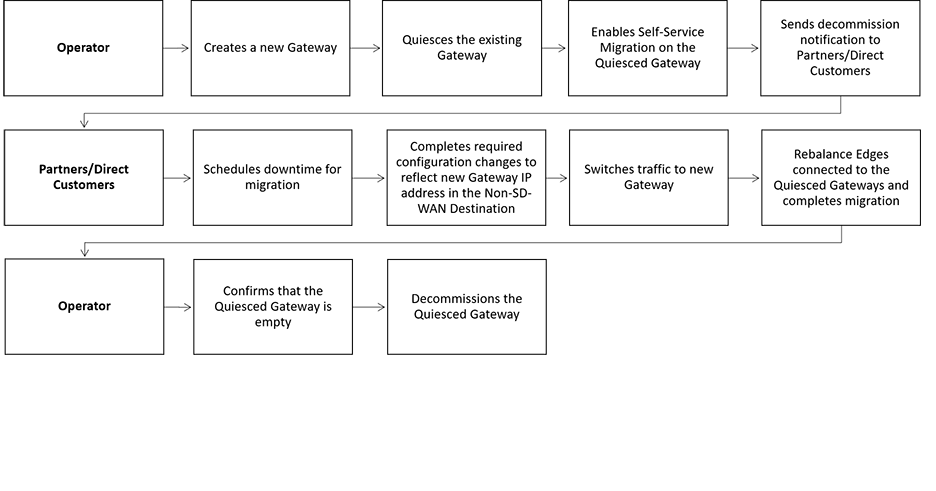
VeloCloud Gateway Migration - Limitations
Keep in mind the following limitations when you migrate your Gateways:
- Self-service migration is not supported on Partner Gateways.
- There will be a minimum service disruption based on the time taken to switch Non SD-WAN Destinations (NSDs) from the quiesced Gateway to the new Gateway and to rebalance the Edges connected to the quiesced Gateway.
- If the NSD is configured with redundant Gateways and one of the Gateways is quiesced, the redundant Gateway cannot be the replacement Gateway for the quiesced Gateway.
- During self-service migration of a quiesced Gateway, the replacement Gateway must have the same Gateway Authentication mode as the quiesced Gateway.
- For a customer deploying a NSD via Gateway where BGP is configured on the NSD, if the customer migrates the NSD to a different Gateway using the Self-Service Gateway Migration feature on the Orchestrator, the BGP configurations are not migrated and all BGP sessions are dropped post-migration.
In this scenario, the existing Gateway assigned to the NSD is in a quiesced state and requires migration to another Gateway. The customer then navigates to Service Settings > Gateway Migration on the Orchestrator and initiates the Gateway Migration process to move their NSD to another Gateway. Post-migration, the BGP Local ASN & Router ID information is not populated on the new Gateway and results in NSD BGP sessions not coming up with all routes being lost and traffic using those routes is disrupted until the user manually recreates all BGP settings.
This is a Day 1 issue and while the Gateway Migration feature accounts for many critical NSD settings, the NSD's BGP settings that are not accounted for, and their loss post-migration is an expected behavior.
Workaround: The migration of a Gateway should be done in a maintenance window only. Prior to the migration, the user should document all BGP settings and be prepared to manually reconfigure these settings post-migration to minimize impact to customer users.
Migrate Quiesced Gateways
Operators send notification emails about Gateway migration to Administrators with Super User privileges. Plan your migration based on the notification email that you receive from your Operator.
Before you begin: Before you migrate the Edges and NSDs (if configured) from the quiesced Gateway to the new Gateway, ensure that you schedule a maintenance window as traffic may be disrupted during migration.
To avoid any service disruption, ensure that you migrate to the new Gateway within the Migration Deadline mentioned in the notification email.
To migrate from a quiesced Gateway to a new Gateway, perform the following steps:
- In the SD-WAN service of the Enterprise portal, go to . The list of quiesced Gateways appears.
Figure 3. Quiesced Gateways List 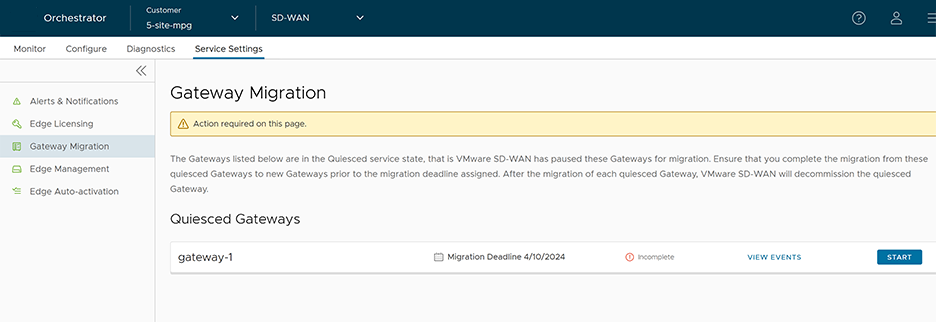
- Make the required configuration to all the NSDs that are configured through the quiesced Gateway.
Figure 4. Configure NSDs 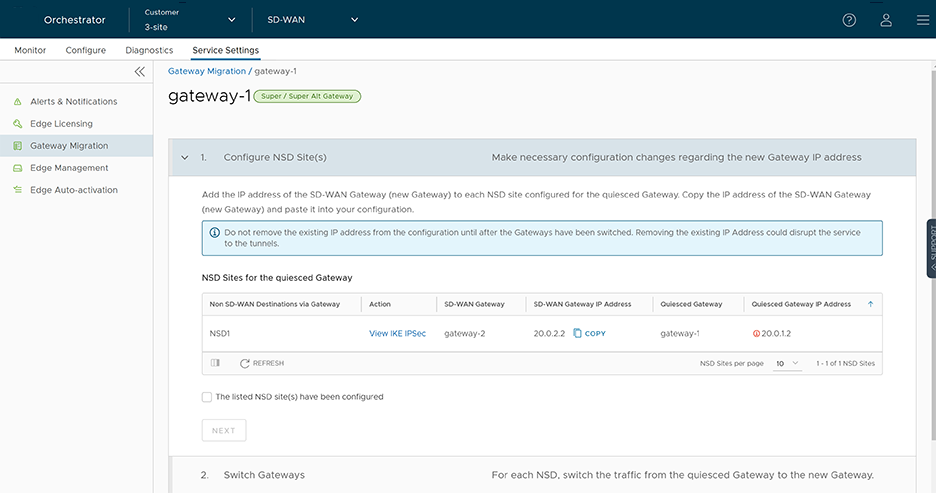
- Select the View IKE IPSec link to view a sample configuration for the NSD. Copy the template and customize it to suit your deployment.
- Add the IP address of the SD-WAN Gateway (new Gateway IP) to each NSD configured for the quiesced Gateway. For example, if you have configured an NSD for AWS, you must add the IP address of the new Gateway in the NSD configuration in the AWS instance.
- After making the configuration changes to all the NSDs, select the The listed NSD site(s) have been configured check box, and then select Next.
Note: The Configure NSD Site(s) option is not available for NSDs configured automatically as well as for Gateways with Data Plane role that are not attached to any NSDs. - Select each NSD and select Switch Gateway to switch the traffic from the quiesced Gateway to the new Gateway.
Figure 5. Switch to New Gateway 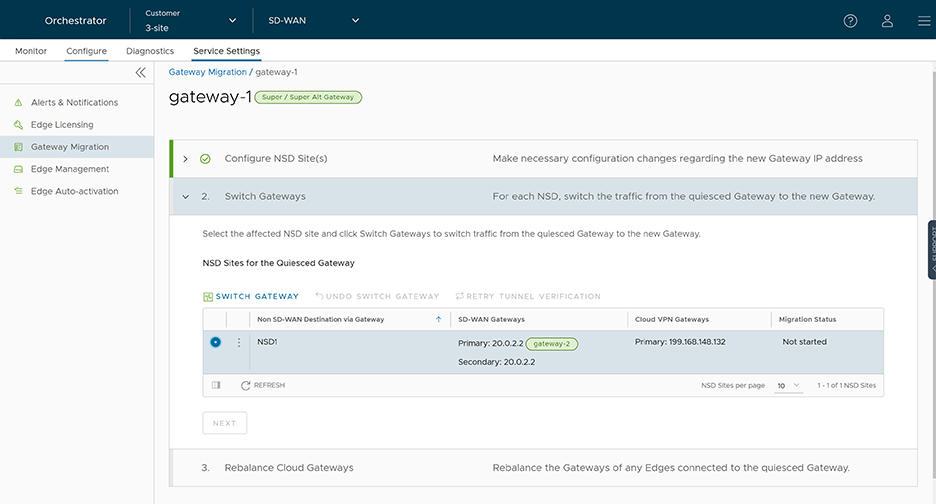
- In the Switch Gateway pop-up window, select the The NSD site has been configured check box to confirm that you have made the required changes to the remote-end NSD configuration.
Figure 6. Non-SD-WAN Configuration 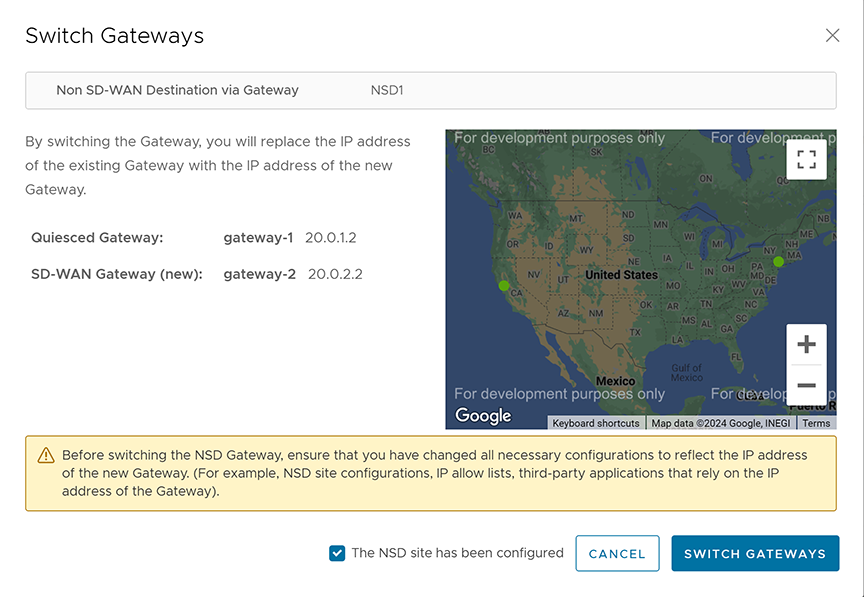 Note: This confirmation is not applicable for NSDs configured automatically.
 - Select Switch Gateway.
It may take few minutes to verify the tunnel status. The IP address of the quiesced Gateway is replaced with the IP address of the new Gateway so that the traffic switches to the new Gateway. The Migration Status changes to "NSD Tunnels are up and running" as shown in the following screenshot. If the Switch Gateway action fails, see What to do when Gateway Action Fails.
Figure 7. Gateway Migration- Service Setting 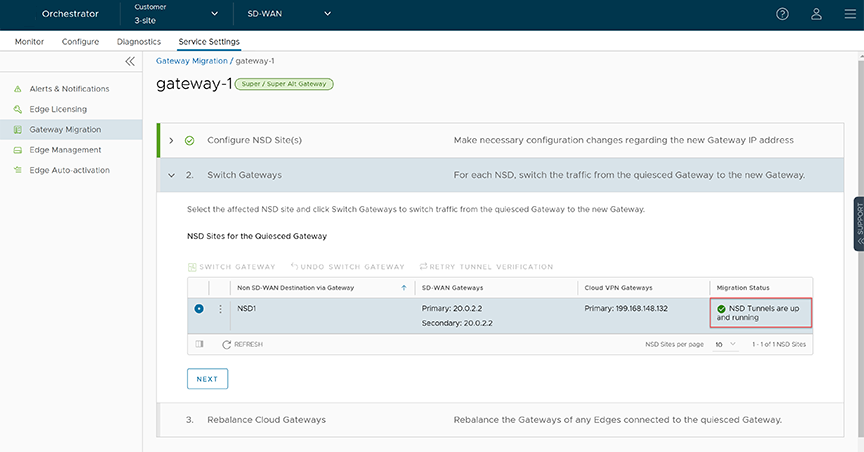
- Select Next.
Note: The Switch Gateway option is not available for Gateways with Data Plane role that are not attached to any NSDs.
- Rebalance Cloud Gateways (Primary or Secondary or Super Gateways) of all Edges or the required Edges that are connected to the quiesced Gateway so that the Edges get reassigned to the new Gateway. You can rebalance Gateways from the page as well.
Figure 8. Rebalance All Connected Edges- Super Gateway  When rebalancing Super Gateways, all the Edges connected to the quiesced Gateway will be rebalanced. Rebalancing of selected Edges is not allowed.
Figure 9. Rebalance All Connected Edges- Primary or Secondary Gateway 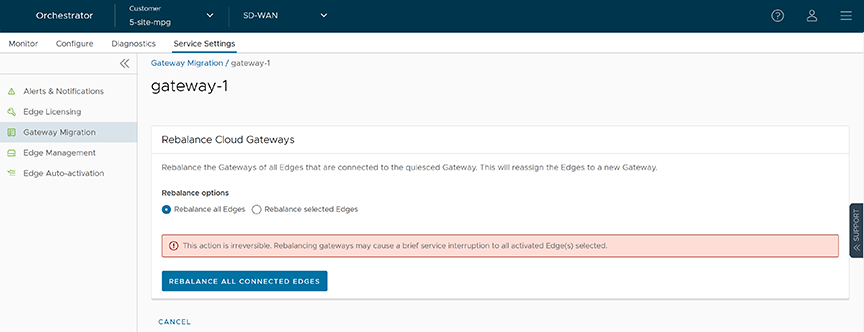
Figure 10. Rebalance Selected Edges- Primary or Secondary Gateway 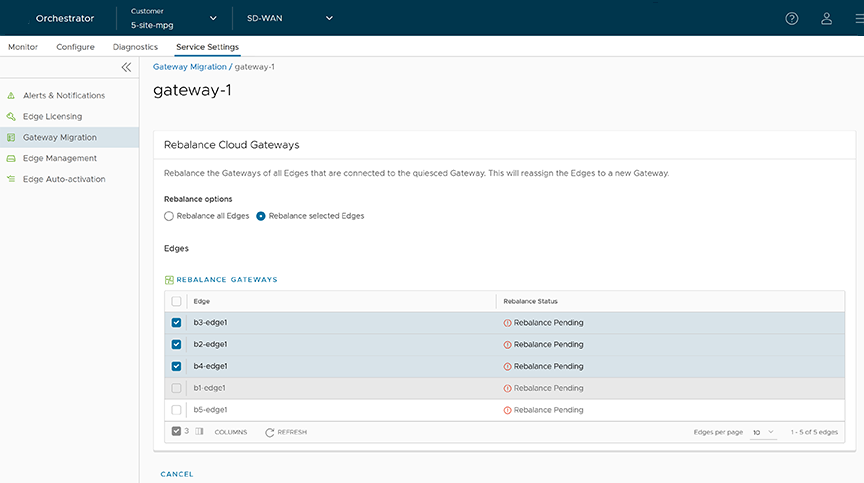 Select the Edges that are connected to the quiesced Gateway and select Rebalance Gateway to reassign Edges to the new Gateway.
Figure 11. Re-assign Edges to the New Gateway 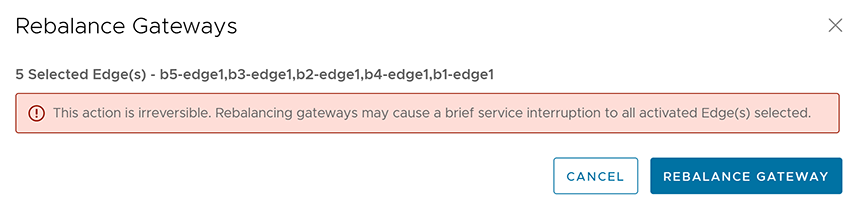
- In the Switch Gateway pop-up window, select the The NSD site has been configured check box to confirm that you have made the required changes to the remote-end NSD configuration.
- Select Rebalance Gateway to complete the Gateway migration. The Edges connected to the quiesced Gateway are migrated to the new Gateway.
Figure 12. Rebalance Gateway 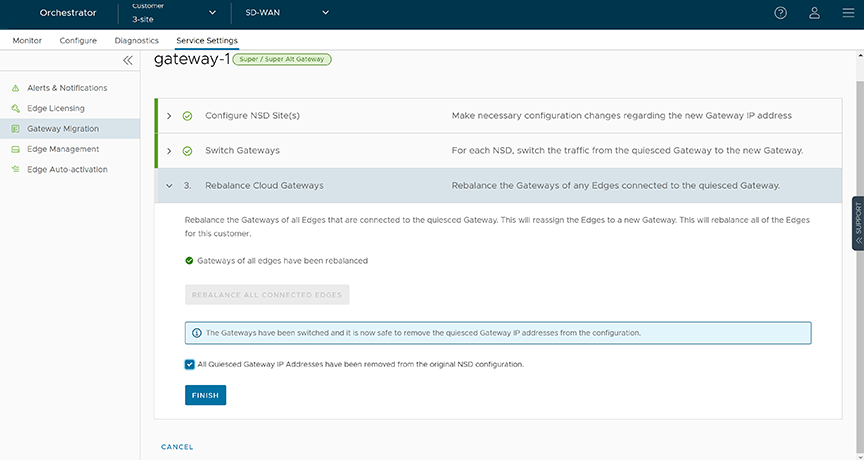
- Select Finish.
Go to the Gateway Migration page and select Review to review the migration steps, if required,
Figure 13. Review the Migration Steps 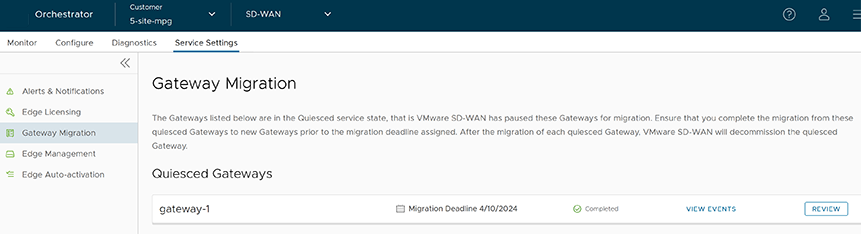
The Gateways that have been migrated remain in this page until the Migration Deadline assigned for the quiesced Gateway. After the Migration Deadline, you can view the history of migration events in the page.
Figure 14. Monitor Events 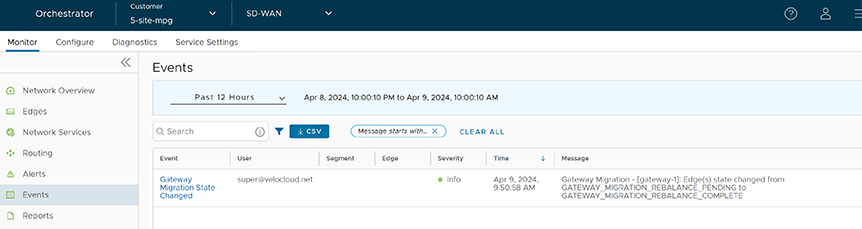
What to do when Gateway Action Fails
During the Gateway migration, when the Switch Gateway action for an Non SD-WAN Destination (NSD) fails, perform the following steps to troubleshoot the issue:
Select View Events in the Gateway Migration page to view the history of migration events in the page.