Introduction
Arista Analytics Node provides scale-out analytics with configurable, historical time-series-based dashboards for flow visibility, health, performance, and capacity planning. It acts as a collector for NetFlow and sFlow packets to provide real-time visibility, including tunneled or encapsulated traffic, enabling the detection of security attacks like DoS/DDoS and SYN attacks. The highly intuitive and customizable GUI dashboards support a search to drill down and focus on possible issues quickly. It provides a variety of reporting and alerting functions and allows the user to easily share custom dashboard views with other team members for collaborative analysis, troubleshooting, and remediation.
Analytics and Dashboards
Arista Analytics provides the accessibility to analyze, search, predict, and reveal patterns and relationships among data.
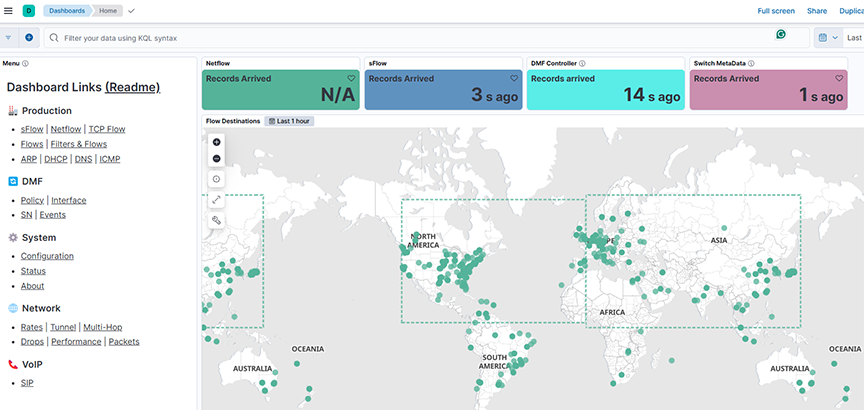
- Dashboard: Monitors traffic flow, network health, performance, and capacity planning. There is an option to customize dashboards.
- Discover: Use predefined indices to filter and display specific events.
- Machine Learning: Detect, model, and predict unusual activity or events on the network.
- Production Network: This analyzes the main operational network.
- DMF: This is for observing the dedicated monitoring network.
- System: This configures the analytics system itself.
- Network: This manages the analytics system.
- VoIP: This configures the analytics system itself.
- Visualizations (pie charts, line graphs, etc.) based on queries.
- An event list at the bottom shows matching events.
- Pop-up windows for detailed information on panel mouseovers.
It provides a clear structure for monitoring and managing network performance and system settings.
The Kibana documentation documents the Analytics GUI, and most of its features and operations based on ElasticSearch are available at the following URL:
Common Features and Functions
- Area: Emphasize the data between an axis and a line
- Data Table: Displays data in rows and columns.
- Heat map
- Horizontal bar
- Line
- Metric
- Recorder Node
- Tag Cloud
- Timelion
- Vertical bar
Filtering Information on a Dashboard
- Area-Based Filtering: Selecting an area on the dashboard restricts the displayed events to those similar to the selected area. It allows for context-sensitive filtering.
- Pie Chart Slice Filtering: Clicking a slice of a pie chart filters the dashboard to show only events related to the specific activity represented by that slice. It is a direct way to isolate and examine particular activities.
- Color Customization: Users can change the color associated with protocols or other objects by clicking their labels in the list beside the chart. It enhances visual clarity and allows for personalized data representation.
Pie
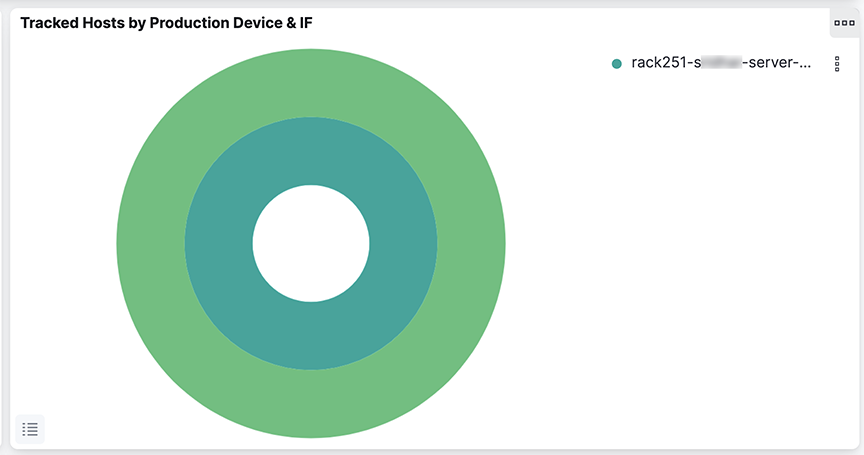
For example, in the Tracked Hosts by Production Device & IF pie chart,
the detailed behavior of the pie charts in the Arista Analytics Fabric view, specifically those displaying information related to production switches, is shown. The key feature is the dual-ring structure:
- Inner Ring: Represents a broader category, "Production Device" (switches).
- Outer Ring: Provides a more granular breakdown, such as "Interface" (IF) details selected inner ring segment.
The interactive functionality is crucial, as clicking a segment in the inner ring filters the outer ring to display only the data relevant to that selected inner ring segment.
It allows for a hierarchical view of the data, enabling users to quickly drill down from a general overview (switch level) to specific details (interface level) within that overview. It is a good design for exploring relationships within the network data.
Selecting the Time Range
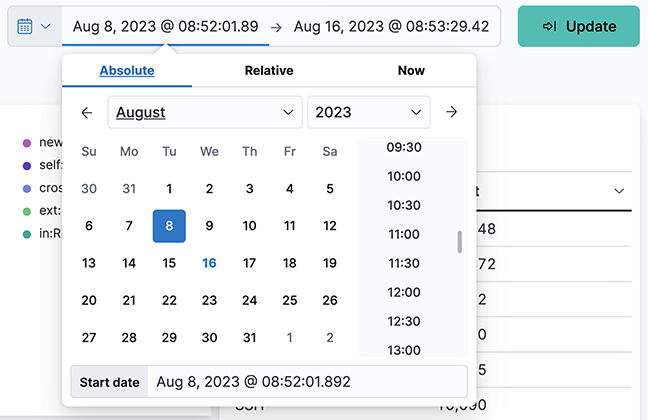
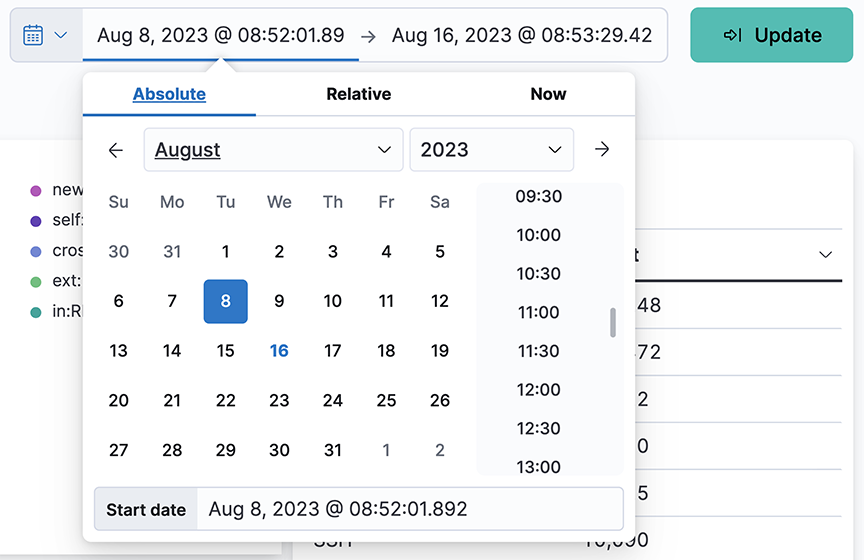
- Quick: Simple settings, such as Today, Last 1 hour, etc.
- Relative: Time offsets from a specific time, including the current time.
- Absolute: Set a range based on date and time.
- Recent: Provides a list of recently used ranges that you can reuse.
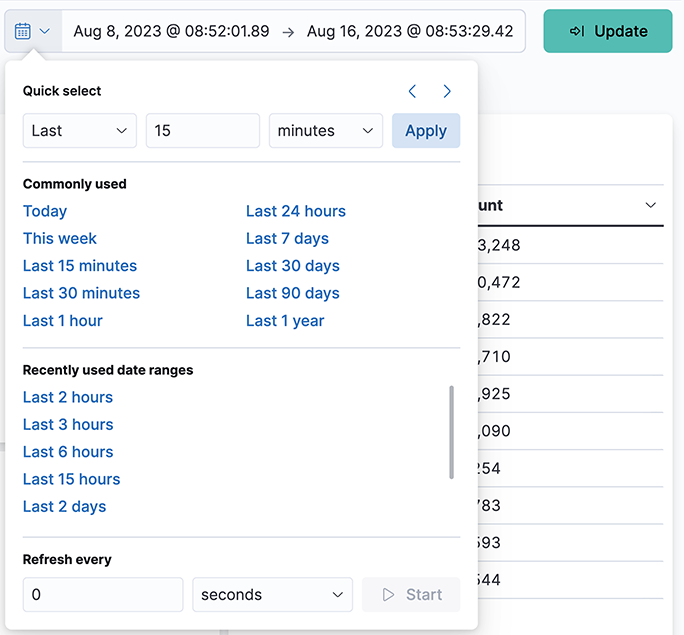
Select the refresh interval from the options provided. Click Start to turn off the auto-refresh function.
Using the Search Field
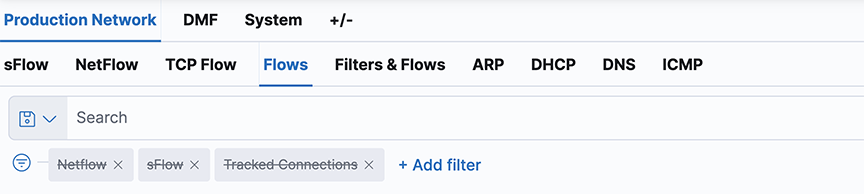
- Enable/Disable filter
- Pin/Unpin filter
- Exclude/Include matches
- Remove filter
- Edit filter
The Action option in the upper right corner applies these actions to all the currently applied filters.
Click a segment on a pie chart for the appropriate filter; it automatically inserts into the Search field. To undo the filter, click the Remove filter icon.
- IP address
- Host name (requires DNS services)
- Protocol, for example, HTTP, HTTPS, ICMP, and so forth
- DMF interface name
To define complex queries using field names, which can be seen by scrolling and clicking on an event row. For example, on the sFlow®* dashboard, the query proto : TCP AND tags : ext displays all externally bound TCP traffic. OR NOT ( ) are also permitted in the expression. For more details about the supported search syntax, refer to the following URL:https://www.elastic.co/guide/en/elasticsearch/reference/current/query-dsl-query-string-query.html#query-string-syntax.
Using Discover Mode
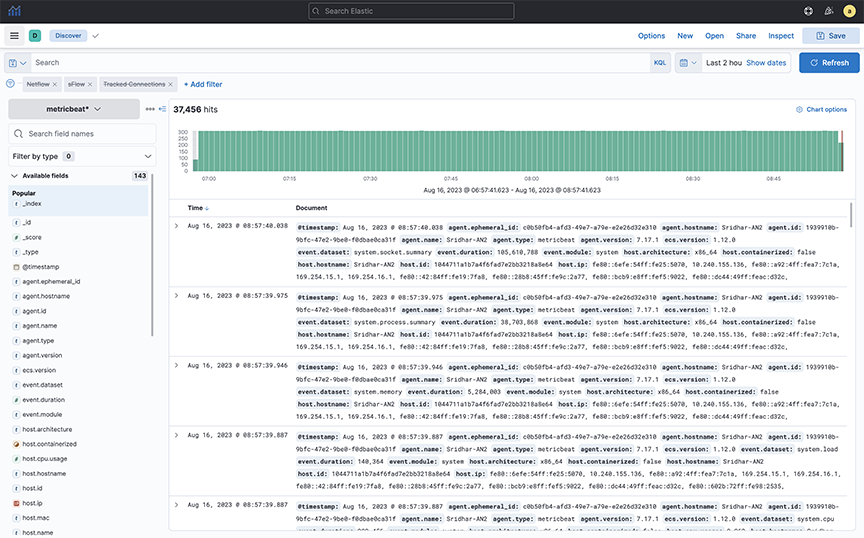
Use Discover mode to see the indices in the ElasticSearch database and identify the available data.
Search Performance Limitations
Refrain from executing general queries for a wide time range. For example, suppose you want to query for 7 or 30 days. In that case, do a specific query flow, filter interface, specific source or destination IP address, and specific source or port number as it eases the query load.
To query NetFlow or sFlow® for more extended periods, use the FLOW Dashboard to determine the trend and then do a specific query, such as querying a specific flow or time, on the Netflow or sFlow® dashboard.
Periodically monitor the AN Load Dashboard for index and query load and scale up the Analytics Node if the Load is Yellow/Red.
These recommendations aim to optimize query performance and prevent system overload, especially when dealing with large datasets and extended timeframes.
Managing Dashboards
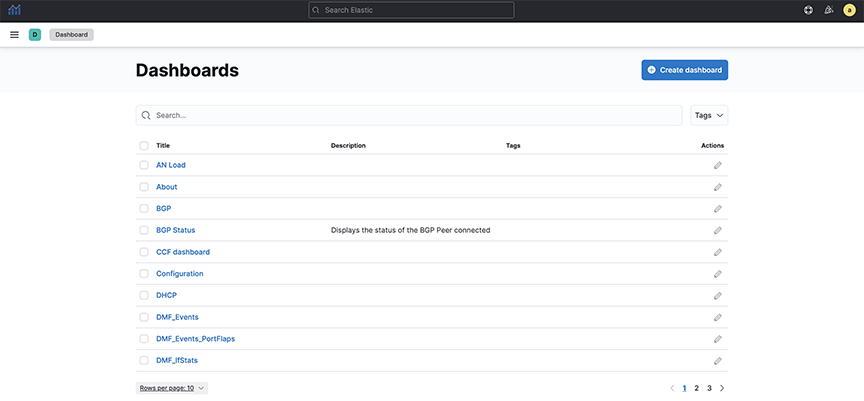
Refer to the Kibana documentation for details about creating and managing dashboards.https://www.elastic.co/guide/en/kibana/8.15/index.html
Following are the best practices for managing dashboards and saved objects within Arista Analytics, focusing on organization, maintainability, and upgrade compatibility:
- Consistent Naming Conventions: Employ a naming convention that aligns with your environment.
- Use prefixes to categorize dashboard content (for example, "ARISTA").
- Include descriptive terms in the dashboard name to specify its type.
- It improves organization and simplifies selection.
- Simplified Management: Consistent naming allows for easier individual selection and bulk operations.
- Exporting dashboards based on their type facilitates tracking and management of modifications.
- Upgrade Compatibility: Build dashboards using custom visualizations and searches created for your environment.
- Avoid relying on default objects, which might change during upgrades, potentially breaking your dashboards.
In summary, the best practices advocate for a structured and organized approach to dashboard management, ensuring maintainability, traceability, and resilience to system upgrades.
Geographic Location
- GeoIP Database: Arista Analytics uses the MaxMind GeoIP database to associate public network IP addresses with geographic locations.
- Map Visualization: This association displays a heat map on the sFlow® dashboard.
- Geographic Filtering: It filters the traffic shown on the map by selecting specific regions:
- Square Tool: Draw a square to select a rectangular area.
- Polygon Tool: Draw an irregular shape to select a more complex region.
- Zoom and Detail: Selecting a region will zoom in on that area and provide more detailed information about the traffic flowing to or from it.
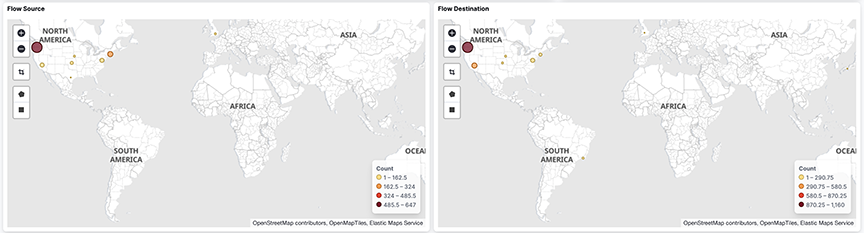
This process enables users to visually analyze network traffic patterns based on geographic location and focus on specific areas of interest for deeper investigation.
IP Addresses
This section describes identifying traffic transmitted or received by the source or destination IP address.
Source and Destination Addresses
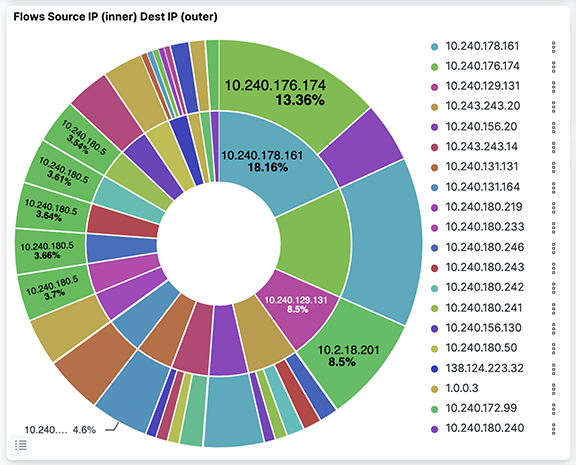

The selected IP address is added to the filters on the dashboard.
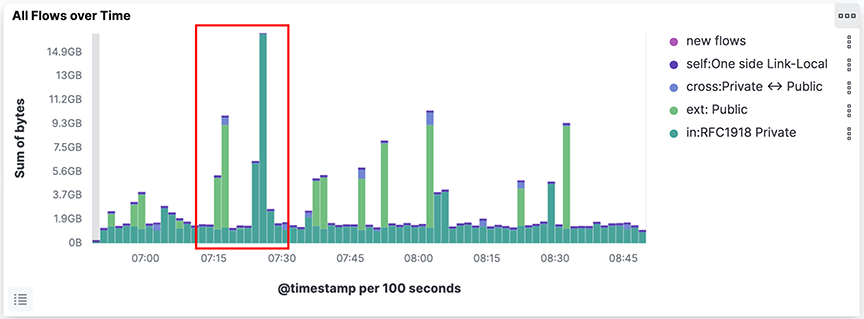
Each dashboard has a bar chart depicting traffic on the y-axis and time on the x-axis. To add a time filter, click and drag an area in the All Flows Over Time bar chart.
Interfaces Sending or Receiving Traffic
- DMF Top Filter interfaces
- Production interfaces

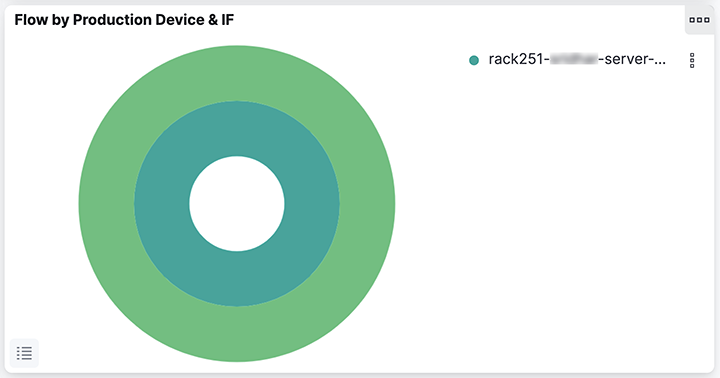
This information derives from the LLDP/CDP exchange between the production and DANZ Monitoring Fabric switches.
Filter Interface Information
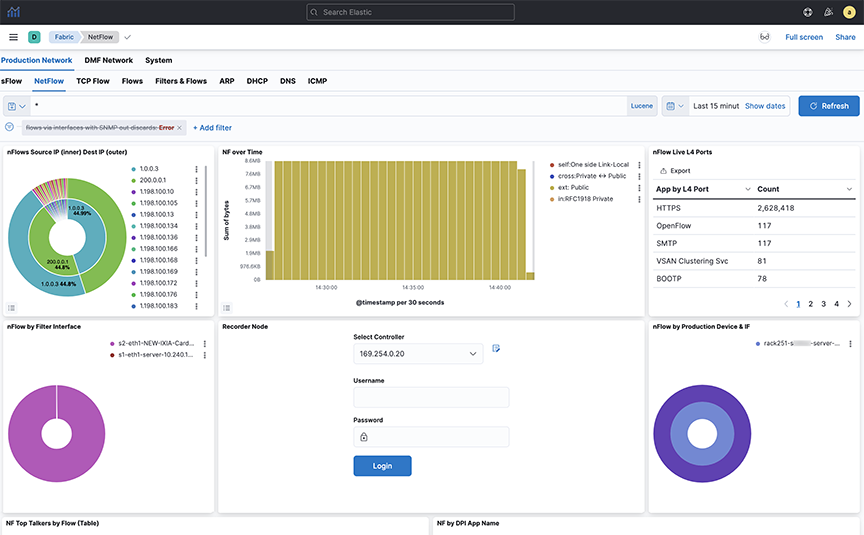
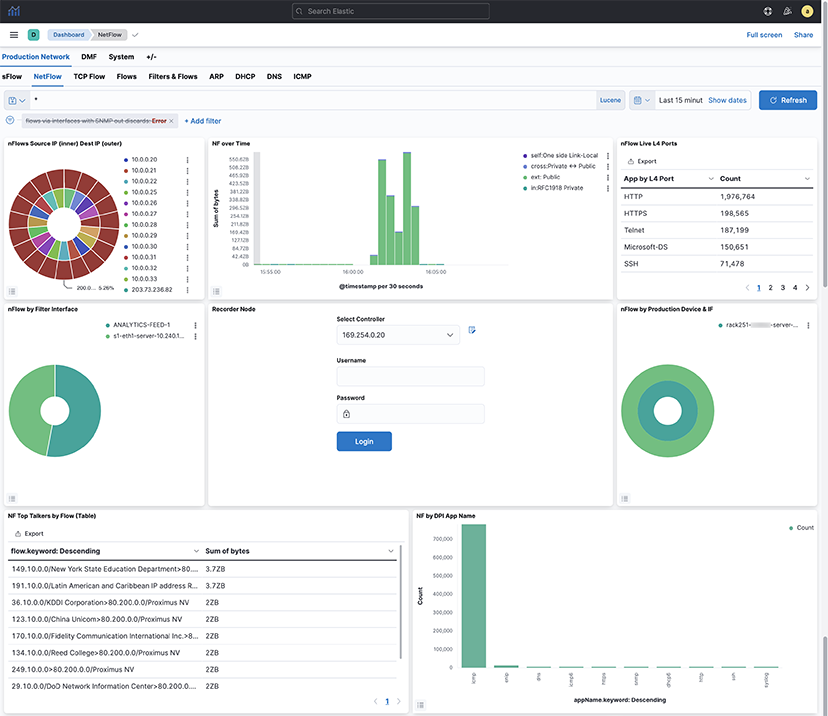
Add the filter interface name to the NetFlow dashboard to see hop-by-hop forwarding of flows for NetFlow traffic coming from the DMF Service Node for a specific flow. Arista Analytics then shows the filter interface name associated with that flow. It allows the network administrators to visualize the path a particular flow took through the network. If a flow goes through multiple hops, the dashboard would ideally display multiple "filter interface names," clearly indicating the sequence of interfaces.
Displaying Filter Interface Names
controller(config)# managed-service netflow-managed-service
controller(config-managed-srv)# service-action netflow netflow-delivery-int
controller(config-managed-srv-netflow)# collector 10.8.39.101 udp-port 2055 mtu 1500 records-per-interface
NetFlow Managed Service Records-per-interface Option
! managed-service
managed-service netflow-managed-service
	service-interface switch 00:00:4c:76:25:f5:4b:80 ethernet4/3:4
	!
	service-action netflow netflow-delivery-int
		collector 10.8.39.101 udp-port 2055 mtu 1500 records-per-interface
controller(config)# sh running-config bigtap policy netflow-policy
! policy
policy netflow-policy
	action forward
	filter-interface filter-int-eth5
	use-managed-service netflow-managed-service sequence 1 use-service-delivery
	1 match any
After enabling this option, the nFlow by Filter Interface window, shown earlier, displays the filter interface identified in the policy that uses the NetFlow managed service.
The production device port connected to the filter interface sends LLDP messages; Arista Analytics also displays the production switch name and the production interface name attached to the filter interface in the nFlow by Production Switch & IF window.
WAN Link Identification
To identify a WAN link or device that is approaching full utilization, complete the following steps:
- Refer to the Flow by Filter Interface visualization.
Figure 16. Flow by Filter Interface 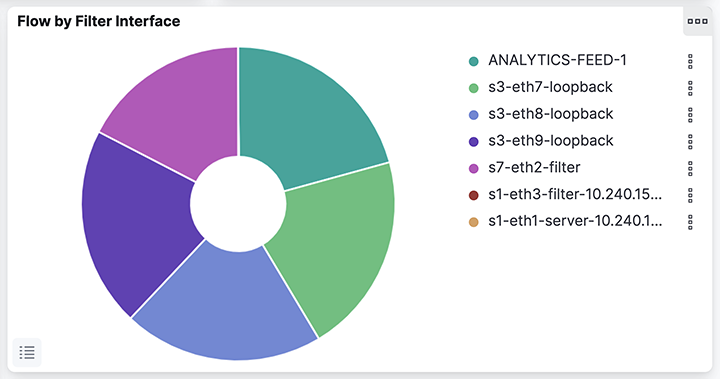
This visualization displays the utilization for each DMF filter interface. To compare this to the traffic from the production interfaces (SPAN or Tap), use the Flow by Production Device & IF visualization.
Figure 17. Flow by Production Device & IF - Select the Filter Interfaces corresponding to the WAN link.
Refer to the Count sFlow vs Last Wk visualization to determine if any significant change in utilization has occurred.
Figure 18. Count sFlow vs Last Wk 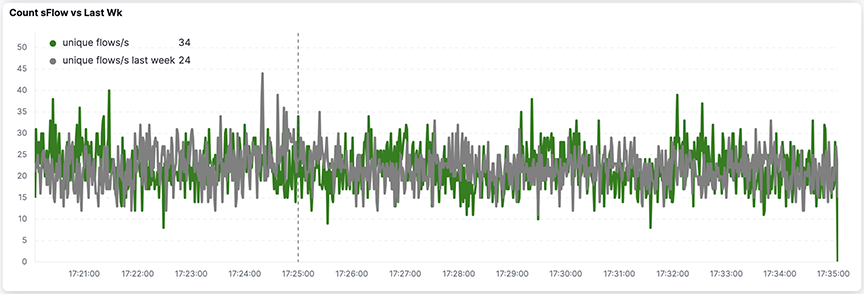 Use the Traffic over Time visualization to focus on peak and non-peak utilization periods. Drag the cursor horizontally over a peak utilization period, and the display is updated to zoom in on those events.
Figure 19. Traffic Over Time 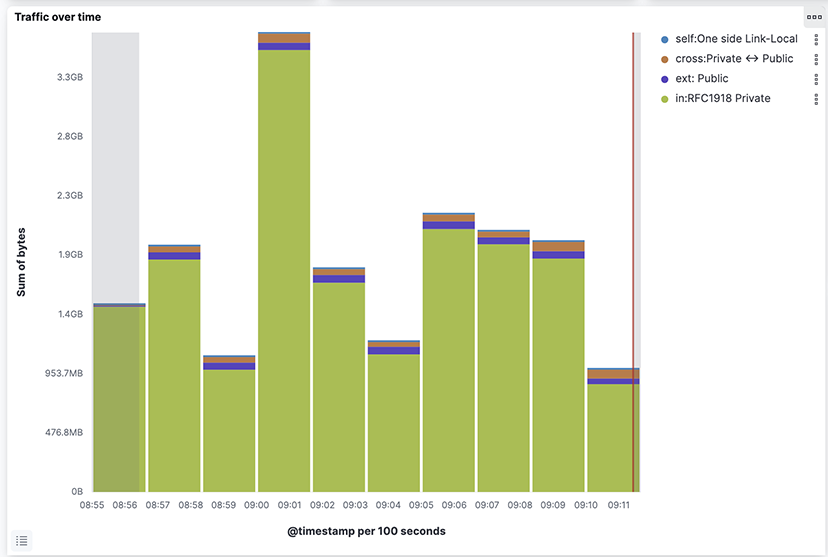
- Use the Time Range configuration to analyze traffic over a month for a more complete characterization.
Figure 20. Expanding Time Period Using the Time Range