打印

Prepare GCP Environment

Before deploying a Virtual Edge on Google Cloud Platform (GCP), you must prepare the GCP environment by completing the following steps:

Create a VPC Network

Ensure you have a Google account and access/login information to the Google Cloud Platform (GCP) Console.

You can choose to create an Automatic mode or Custom mode Virtual Private Cloud (VPC) network. Automatic mode networks create one subnet in each Google Cloud region automatically when you create the network. For Custom mode VPC networks, you have to create a network and then create subnets that you want within a region. You can create subnets when you create the network or you can add subnets later, but you cannot create instances in a region that has no subnet defined.

  1. Log into the GCP Console.
  2. Select VPC Networks.
    The VPC Networks page appears.
  3. Select Create VPC network.
    The Create a VPC network page appears.
    Figure 1. Create a VPC network
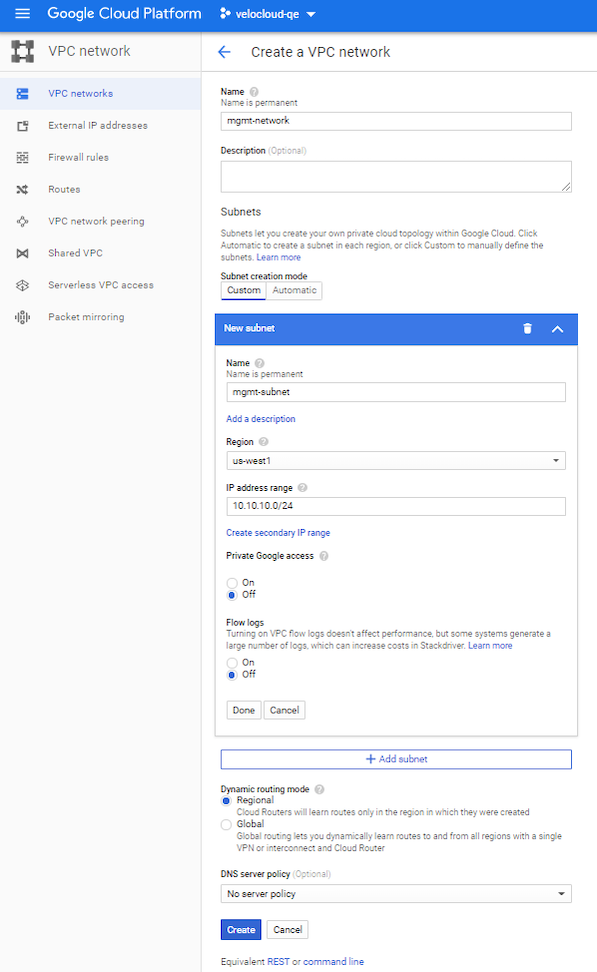
  4. In the Name textbox, enter a unique name for the VPC network.
  5. Under Subnets, choose Custom or Automatic as the Subnet creation mode. If you choose Custom, then in the New subnet area, specify the following configuration parameters for a subnet:
    1. In the Name textbox, enter a unique name for the subnet.
    2. From the Region drop-down menu, select a region for the subnet.
    3. In the IP address range textbox, enter an IP address range.
    4. To define a secondary IP range for the subnet, select Create secondary IP range.
    5. Private Google access: Choose whether to activate Private Google Access for the subnet when you create it or later by editing it.
    6. Flow logs: Choose whether to activate VPC flow logs for the subnet when you create it or later by editing it.
    7. Select Done.
  6. To add more subnets, select Add subnet and repeat the steps in Step 5. You can also add more subnets to the network after you have created the network.
  7. Choose the Dynamic routing mode for the VPC network.
  8. Select Create.
    The VPC network and subnet are created.

Create Inbound Firewall Rules

Create Inbound Firewall Rules

  • Ensure you have a Google account and access/login information to the Google Cloud Platform (GCP) Console.
  • Ensure you have created the VPC networks.
  • Review the firewall rule components and ensure to become familiar with firewall configuration components as used in Google Cloud.

Firewall rules are defined at the network level, and only apply to the network where they are created. To create inbound firewall rules for a VPC network, perform the following steps:

  1. Log into the GCP Console.
  2. Select VPC Networks.
    The VPC Networks page appears.
  3. Select the VPC network for which you want to add firewall rules.
    The VPC network details page for the selected VPC network appears.
  4. Go to the Firewall rules tab and select Add firewall rule. The Create a firewall rule page appears.
    Figure 2. Create a firewall rule
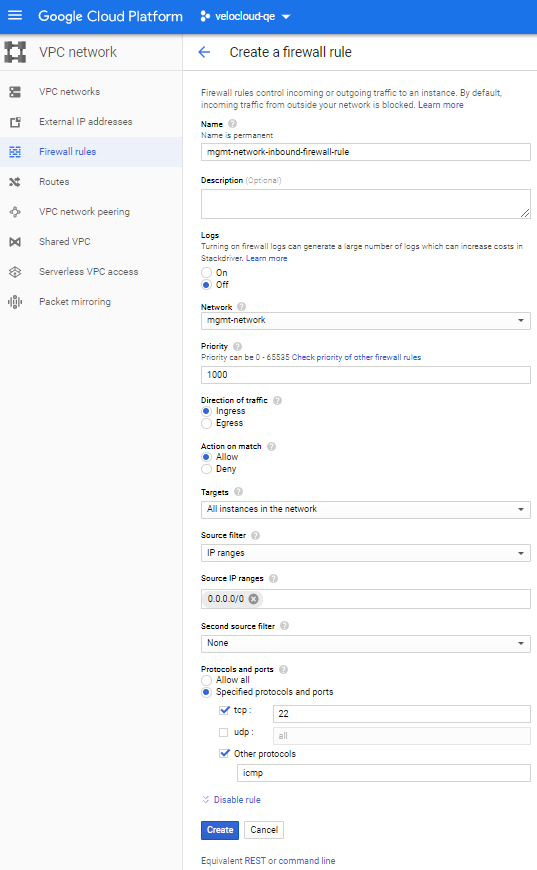
  5. In the Name textbox, enter a unique name for the firewall rule.
  6. Optionally, you can activate firewall logging by selecting On under Logs. By default, firewall logging is deactivated.
  7. For Direction of traffic, choose ingress.
  8. For Action on match, choose Allow or Deny.
  9. From the Targets drop-down menu, select the targets for the rule:
    • If you want the rule to apply to all instances in the network, choose All instances in the network.
    • If you want the rule to apply to select instances by network (target) tags, choose Specified target tags, then type the tags to which the rule should apply into the Target tags textbox.
    • If you want the rule to apply to select instances by associated service account, choose Specified service account, indicate whether the service account is in the current project or another one under Service account scope, and choose or type the service account name in the Target service account field.
  10. From the Source filter drop-down menu, select IP ranges.
  11. In the Source IP ranges textbox, enter the CIDR blocks to define the source for incoming traffic by IP address ranges. Use 0.0.0.0/0 for a source from any network.
  12. Define the Protocols and ports to which the rule will apply:
    1. Select Allow all or Deny all, depending on the action, to have the rule apply to all protocols and ports.
    2. Define specific protocols and ports:
      • Select tcp to include the TCP protocol and ports. Enter all or a comma delimited list of ports, such as 20-22, 80, 8080.
      • Select udp to include the UDP protocol and ports. Enter all or a comma delimited list of ports, such as 67-69, 123.
      • Select Other protocols to include protocols such as ICMP, VCMP, SNMP, and so on as per the requirement.
  13. Optionally, you can create the firewall rule, but not enforce it by setting its enforcement state to deactivated. Select Disable rule, then select Disable.
  14. Select Create.
    The firewall rules are created for the selected VPC network.

Create Routes in a VPC Network

Create Routes in a VPC Network

  • Ensure you have a Google account and access/login information to the Google Cloud Platform (GCP) Console.
  • Ensure you have created VPC networks.

Describes how to add a new default route in a Private Virtual Private Cloud (VPC) network pointing to an Edge as illustrated in topology diagram.

  1. Log into the GCP Console.
  2. Select VPC Networks.
    The VPC Networks page appears.
  3. Select the VPC network (Private VPC network) for which you want to add a new default route.
    The VPC network details page appears.
  4. Go to the Routes tab and then delete the default route that was created during the VPC network creation.
  5. Select Add route.
    The Create a route page appears.
    Figure 3. Create a route
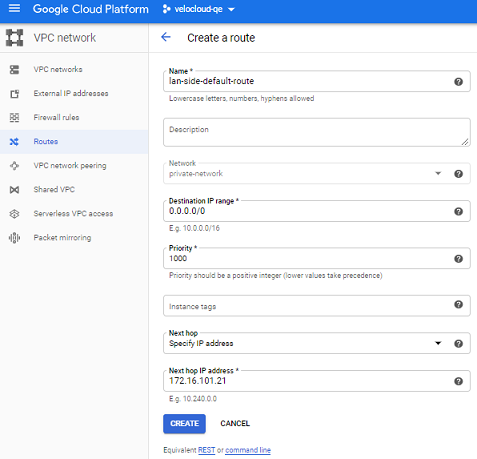
  6. Enter the following details:
    1. In the Name textbox, enter a unique name for the route entry.
    2. In the Destination IP range textbox, specify the new default route (for example, 0.0.0.0/0).
    3. In the Priority textbox, specify a priority for the route. A priority is only used to determine routing order if routes have equivalent destinations.
    4. From the Next hop drop-down menu, select Specify IP address.
    5. In the Next hop IP address textbox, enter the IP address of the edge interface in the selected VPC network.
  7. Select Create.
    A route entry is added in the route table of the selected VPC network.

Add a Branch-to-Branch Route in a VPC Network

  • Ensure you have a Google account and access/login information to the Google Cloud Platform (GCP) Console.
  • Ensure you have created VPC networks.

Describes how to add a branch-to-branch route in a Public Virtual Private Cloud (VPC) network pointing to an Edge as illustrated in Single-Arm Topology.

  1. Log into the GCP Console.
  2. Select VPC Networks.
    The VPC Networks page appears.
  3. Select the VPC network (Public VPC network) for which you want to add a branch-to-branch route.
    The VPC network details page appears.
  4. Go to the Routes tab and select Add route.
    The Create a route page appears.
    Figure 4. Create a route
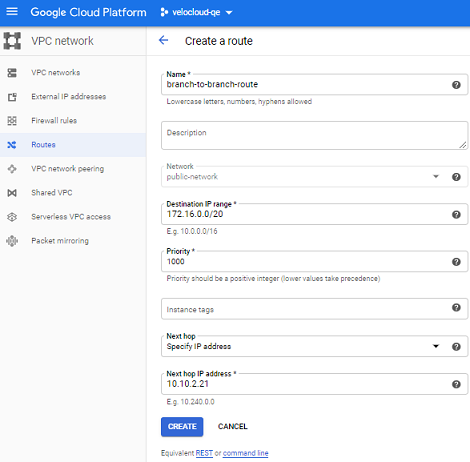
  5. Enter the following details:
    1. In the Name textbox, enter a unique name for the route entry.
    2. In the Destination IP range textbox, specify the IP address of a branch in the enterprise network, for example 172.16.0.0/20.
    3. In the Priority textbox, specify a priority for the route. A priority is only used to determine routing order if routes have equivalent destinations.
    4. From the Next hop drop-down menu, select Specify IP address.
    5. In the Next hop IP address textbox, enter the IP address of the edge interface in the selected VPC network.
  6. Select Create.
    A route entry is added in the route table of the selected VPC network.
..