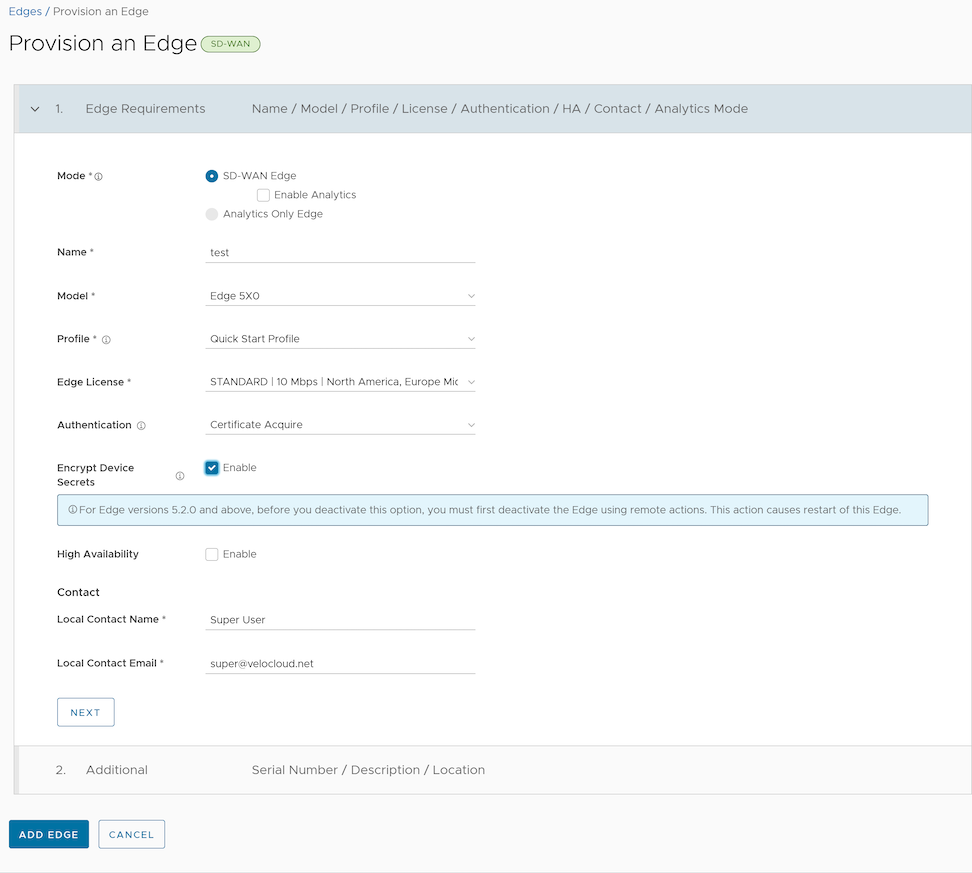
| Mode |
SD-WAN Edge mode selected by default. |
| Name |
Enter a unique name for the Edge. |
| Model |
Select Virtual Edge from the menu. |
| Profile |
Select Quick Start Profile from the menu.
Note: If an Edge Staging Profile is displayed as an option due to Edge Auto-activation, it indicates that this Profile is used by a newly assigned Edge, but has not been configured with a production Profile.
|
| Edge License |
Select an Edge license from the menu. The list displays the licenses assigned to the Enterprise, by the Operator. |
| Authentication |
Choose the mode of authentication from the drop-down menu:
- Certificate Deactivated: In this mode, the Edge uses Pre-Shared Key (PSK) authentication to establish secure communication to the Hub/Gateways/Orchestrator.
Warning: VeloCloud SD-WAN does not recommend this mode for any customer deployments.
If users change the mode from Certificate Deactivated to:
- Certificate Acquire: All tunnels are disconnected and reconnected based on the RSA mode.
- Certificate Required: The Orchestrator does not directly allow this change. Users must first change the mode to Certificate Acquire and then to Certificate Required. This helps avoid heartbeat loss to the Orchestrator when Edge is assigned a certificate.
- Certificate Acquire: In this mode, certificates are issued at Edge activation and automatically renewed. The Orchestrator instructs the Edge to acquire a certificate from the Orchestrator's certificate authority by generating a key pair and sending a certificate signing request to the Orchestrator. After acquisition, the Edge uses the certificate for authentication with the Orchestrator and for establishing VCMP tunnels.
If users change the mode from Certificate Acquire to:
- Certificate Deactivated All tunnels are disconnected and reconnected based on PSK mode.
- Certificate Required For Edges/Gateways running versions older than 6.1.x, switching from Certificate Acquire to Certificate Required causes a tunnel flap. Edges/Gateways running version 6.1.x or newer will not experience a tunnel flap.
When a Hub enters Certificate Acquire mode, it reestablishes certificate-based tunnels using a new certificate while leaving PSK-based tunnels unaffected.
Note: After acquiring the certificate, VeloCloud SD-WAN recommends updating this option to Certificate Required. This is to prevent Hubs/Gateways from accepting tunnel requests using PSK.
- Certificate Required: This is the recommended mode. This mode does not allow peers with a PSK to connect. This mode does not accept Edge heartbeats without a valid certificate.
If users change the mode from Certificate Required to:
- Certificate Deactivated: VeloCloud SD-WAN does not recommend transitioning the Edge’s authentication mode to Certificate Deactivated.
- Certificate Acquire: An Edge that has been offline for an extended period after activation may be unable to connect to the Orchestrator when it tries to bring itself online if its certificate has expired or it never acquired one. In Certificate Required mode, the Orchestrator rejects connections from Edges without a valid certificate. Reactivation is not required for such cases. The Edge can be brought back online by temporarily switching it to Certificate Acquire mode to obtain a new certificate.
Recovery Procedure:
- Verify with the Enterprise administrator that they expect the Edge to come back online.
- Move the Edge to Certificate Acquire mode in the Orchestrator.
- Turn on or reconnect the Edge. This will connect to the Orchestrator and acquire a new certificate.
- Confirm in the Orchestrator that the Edge has a valid certificate and is establishing tunnels.
- Switch the Edge back to Certificate Required mode.
|
| Encrypt Device Secrets |
Select Enable to allow the Edge to encrypt the sensitive data across all platforms. This option is also available on the Edge Overview page.
Note: For Edge versions 5.2.0 and above, before you deactivate this option, you must first deactivate the Edge using remote actions. This causes restart of the Edge.
|
| High Availability |
Select Enable to apply High Availability (HA). Edges can be installed as a single standalone device or paired with another Edge to provide High Availability (HA) support. |
| Local Contact Name |
Enter the name of the site contact for the Edge. |
| Local Contact Email |
Enter the email address of the site contact for the Edge. |