
Deploy a Virtual Edge with GCP Deployment Manager

To deploy a VeloCloud SD-WAN Virtual Edge on Google Cloud Platform using a Deployment Manager, perform the following steps:

  1. Activate the Cloud Deployment Manager API in GCP. For steps, see Enable Deployment Manager.
  2. Provision a Edge on the Orchestrator as follows:
    1. Create an edge of type Virtual Edge and make a note of the activation key that will be displayed on the top of the screen once the edge is provisioned.
    2. Configure a VLAN IP address (use 169.254.0.1 /24) for the edge. Do not activate Advertise and DHCP.
    3. Configure Virtual Edge interfaces as follows:
      • Change GE2 interface capability to Routed from Switched and activate WAN Overlay and DHCP Addressing.
      • For GE3 interface, deactivate WAN Overlay and NAT Direct Traffic as this interface will be used for the LAN-side gateway.​

    For additional information, see Provision an Edge.

    Note: The VeloCloud Orchestrator needs the Device Settings configured first before edge activation. If this step is missed, the virtual edge activates but then goes offline a few minutes later.
  3. Deploy the GCP image by creating the VPC networks first and then deploying the DM template with the relative reference for each interface. CLOUD-INIT is also used in the template to supply Orchestrator target and activation key for the virtual Edge.
    1. Create three Virtual Private Cloud (VPC) networks (MGMT VPC network, Public VPC network, and Private VPC network), each for a subnet connected to the Edge (n1-standard-4) as shown in the topology diagram.
      • Mgmt Subnet for console/management access to the Edge through Management Interface GE1.
      • Public Subnet for Internet access from the Edge through WAN-side Interface GE2.
      • Private Subnet for LAN-side device access through LAN-side Interface GE3.
    2. Modify the Deployment Manager (DM) template. The following is a sample YAML DM template. You can use this template, but ensure to make necessary changes for your environment. The YAML DM template will need the following items modified to fit the intended environment:
      • Project Name
      • Region and Zone
      • VPC-Names and Subnets
      • Orchestrator IP or FQDN
      • Activation Code (format: xxxx-xxxx-xxxx-xxxx)
      • Orchestrator Ignore Cert Errors: true or false
      # "VMware SD-WAN by VeloCloud GCP Deployment Manager Template (34220201029)"
      # gcloud deployment-manager deployments create velocloud-vce --config gcp_dm.yaml
      # gcloud deployment-manager deployments delete velocloud-vce
      
      resources:
      - type: compute.v1.instance
      name: dm-gcp-vce-01
      properties:
      zone: us-west1-a
      machineType: https://www.googleapis.com/compute/v1/projects/gcp-nsx-sdwan/zones/us-west1-a/machineTypes/n1-standard-4
      canIpForward: true
      disks:
      - deviceName: boot
      type: PERSISTENT
      boot: true
      autoDelete: true
      initializeParams:
      sourceImage: https://www.googleapis.com/compute/v1/projects/vmware-sdwan-public/global/images/vce-342-102-r342-20200610-ga-3f5ad3b9e2
      networkInterfaces:
      - network: https://www.googleapis.com/compute/v1/projects/gcp-nsx-sdwan/global/networks/velo-mgmt-vpc
      subnetwork: projects/gcp-nsx-sdwan/regions/us-west1/subnetworks/velo-mgmt-sn
      - network: https://www.googleapis.com/compute/v1/projects/gcp-nsx-sdwan/global/networks/velo-public-vpc
      subnetwork: projects/gcp-nsx-sdwan/regions/us-west1/subnetworks/public-sn
      accessConfigs:
      - name: External NAT
      type: ONE_TO_ONE_NAT
      - network: https://www.googleapis.com/compute/v1/projects/gcp-nsx-sdwan/global/networks/velo-private-vpc
      subnetwork: projects/gcp-nsx-sdwan/regions/us-west1/subnetworks/velo-private-sn
      metadata:
      items:
      - key: user-data
      value: |
       #cloud-config
       velocloud:
      vce:
       vco: vco58-usvi1.velocloud.net
       activation_code: YPTF-PN33-THTX-28V5
       vco_ignore_cert_errors: false

      For information about GCLOUD CLI, see https://cloud.google.com/sdk/gcloud/.

  4. Verify if the virtual edge is activated in the Orchestrator.
    Once the instance is running in GCP and all information provided was correct, the virtual edge will reach out to the Orchestrator with the activation key, activate and perform software update if needed (and reboot if upgraded). Typical deployment time is between 3 to 4 minutes.

Enable Deployment Manager

Deployment Manager is an infrastructure deployment service that automates the creation and management of Google Cloud resources. Deployment Manager uses the underlying APIs of each Google Cloud service to deploy your resources.

The Google Cloud Deployment Manager V2 API provides services for configuring, deploying, and viewing Google Cloud services and APIs via templates which specify deployments of Cloud resources. To activate the Cloud Deployment Manager V2 API and create credentials, perform the following steps:

  1. Log on to the GCP Console.
  2. Go to APIs & Services > Dashboard. The APIs & Services page appears.
  3. Select Enable APIS AND SERVICES.
  4. Use the Search textbox to find the Deployment Manager API.
  5. Select Cloud Deployment Manager V2 API and then select Enable.
    Figure 1. Cloud Deployment Manager V2 API

    The Cloud Deployment Manager API is activated. To use this API, you must create credentials.

  6. Select Credentials > CREATE CREDENTIALS and select one of the following options to create credentials:
    • API key
    • OAuth client ID
    • Service account
    • Help me choose
    Figure 2. Create Credentials
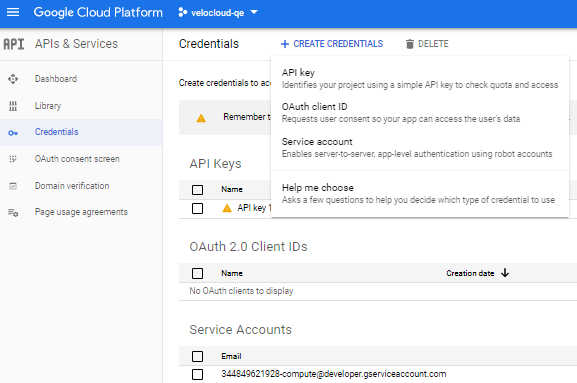
  7. Selecting the API key will create an API key, which you can use in your application.
  8. In the API key created pop-up window, select RESTRICT KEY, if you want to restrict your key to prevent unauthorized use in production, or else select CLOSE.
    The Deployment Manager and Compute Engine APIs are activated, and you can use the API to deploy your virtual edge resource.

You can deploy Virtual Edge with the Deployment Manager. For complete steps, see Deploy a Virtual Edge with GCP Deployment Manager.