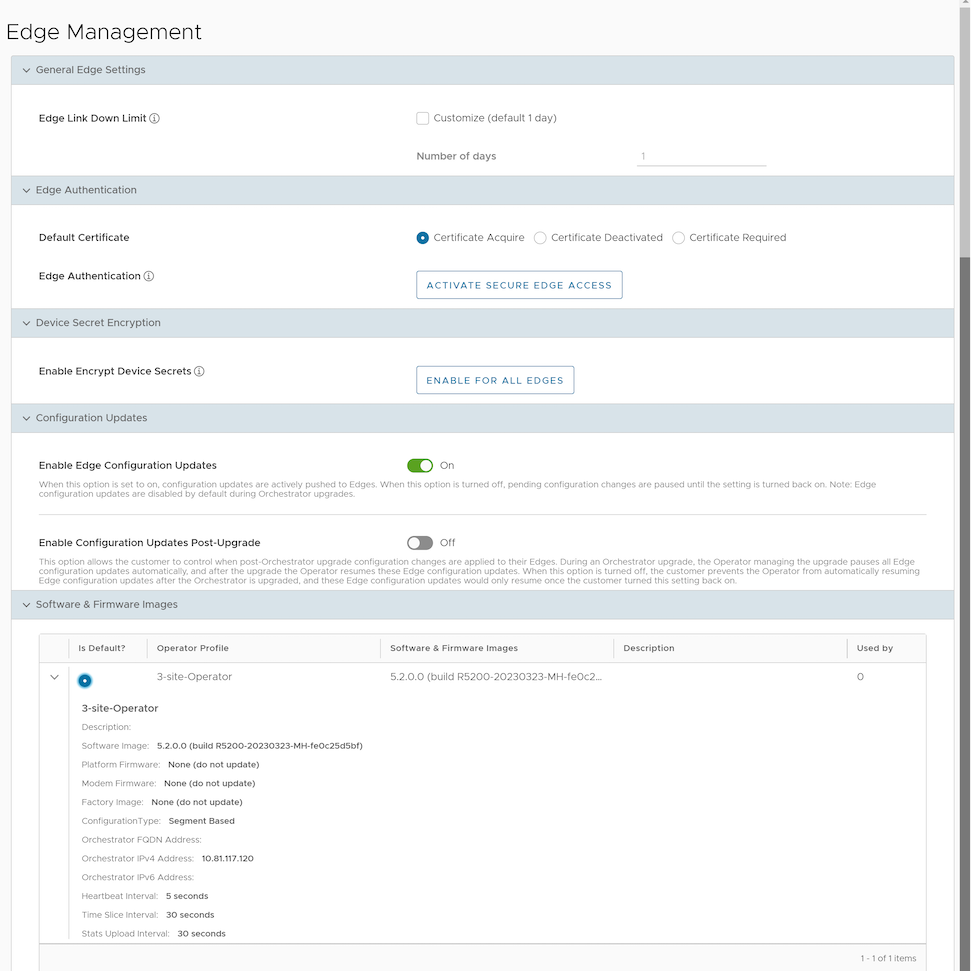
| General Edge Settings |
| Edge Link Down Limit |
Set this value for each Edge by selecting the Customize checkbox. This overrides the value set through the system property edge.link.show.limit.sec. |
| Number of days |
Enter a value in the range 1 to 365. The default value is 1. |
| Edge Authentication |
| Default Certificate |
Choose the default option to authenticate the Edges associated to the Customer.
- Certificate Deactivated: This option instructs the Edge to use a pre-shared key mode of authentication.
- Certificate Required: This is the default option, and it instructs the Edge to use the PKI certificate. Operators can change the certificate renewal time window for Edges using system properties. For additional information, contact your Operator.
Note: When selecting Save Changes, the Orchestrator prompts the users to confirm whether the selected Edge authentication setting applies to all impacted Edges or only the new Edges. By default, the Orchestrator selects the Apply to all Edges checkbox.
|
| Edge Authentication |
Select the Activate Secure Edge Access button to allow the user to access Edges using Password-based or Key-based authentication. Activate this option only once. The Orchestrator supports switching between Password-based and Key-based authentication an unlimited number of times. For additional details, see Configure User Account Details. |
| Device Secret Encryption |
| Enable Encrypt Device Secrets |
Select the Enable For All Edges button to activate device secret encryption for all the Edges in the current Enterprise. This action causes restart of all the Edges. However, activated Edges maintain their current status without disruption.
Note: Activate this option for individual Edges at the time of creating a new Edge. For additional information, see the topic Provision a New Edge in the Arista VeloCloud SD-WAN Administration Guide.
|
| Configuration Updates |
| Disable Edge Configuration Updates |
By default, the Orchestrator activates this option. This option enables active pushing of configuration updates to Edges. Slide the toggle button to turn it off. |
| Enable Configuration Updates Post-Upgrade |
By default, the Orchestrator deactivates this option. This option allows users to control the timing of post-Orchestrator upgrade configuration changes for their Edges. Slide the toggle button to turn it on. |